
 Roles and access
Manager

Its home screen in the software
What an employee with this role sees, on tablet and phone (demo restaurant).
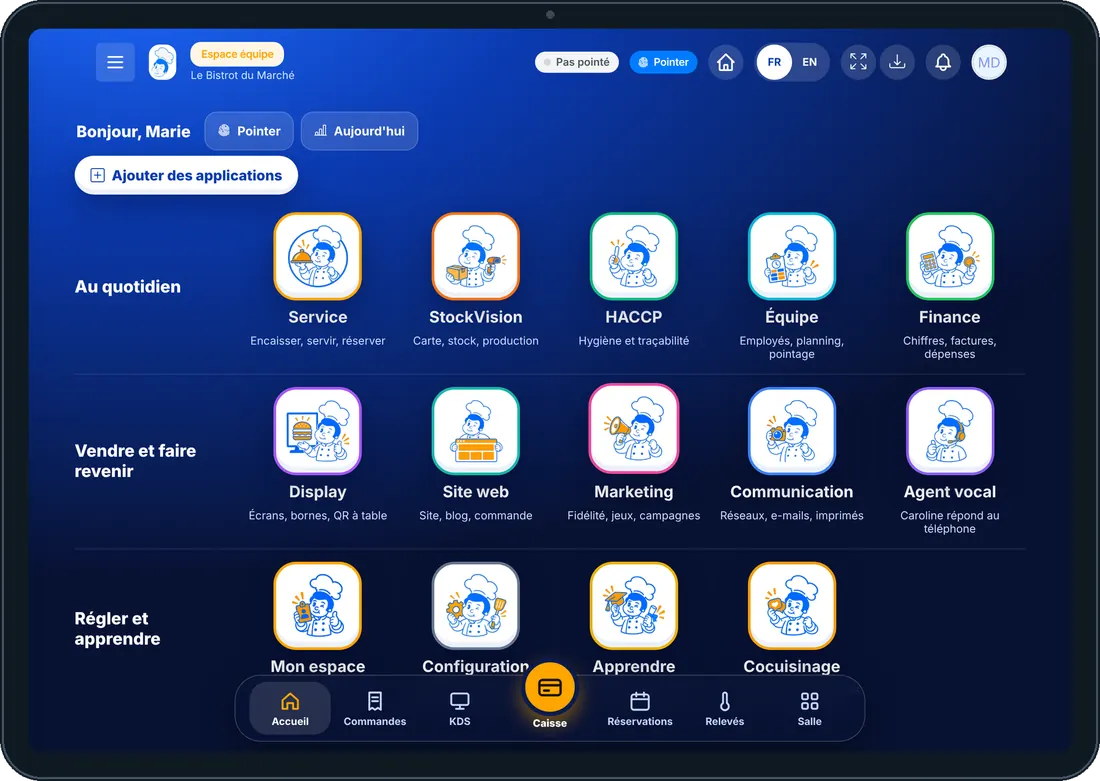
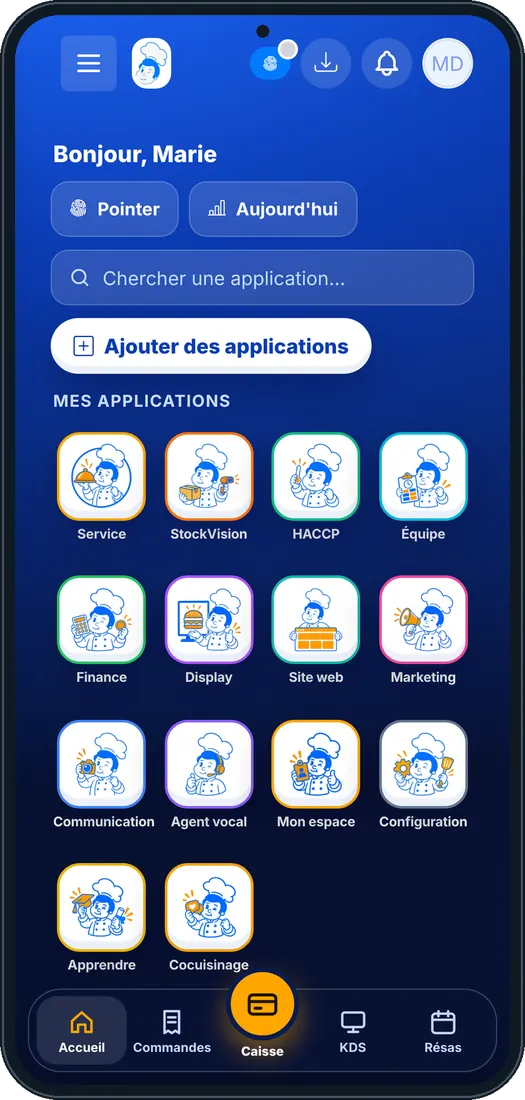
Its typical day
- In the morning
Open the dashboard: yesterday’s sales, today’s HACCP checks, bookings and stock below threshold.
- During service
Follow the floor, the till and the kitchen; approve a discount or a cancellation when a waiter asks.
- In the evening
Close the till (Z report), check tomorrow’s schedule and pending leave requests.
Its apps
Computed from the role’s rights. An app only appears if the restaurant’s plan includes it.
-
 Service
-
 StockVision
- Dashboard
- Menu
- Shopping lists
- Deliveries
- Production
- Stock
- Suppliers
- Food cost
- Recipe training
- Recipe sheets
- Recettes app
- Mise en place
- Waste & staff meals
- Stock movements
- Order from the central kitchen
- Shop orders
- Workshop schedule
- Today’s production
- Finished products
- Picking & parcels
- Delivery rounds
- Central kitchen receptions
- Cooking & extras
- Portions
- Order sheet
- Shopping by covers
-
 HACCP
-
 Team
-
 Finance
-
 Display
-
 Website
-
 Marketing
-
 Communication
-
 Voice agent
-
 Settings
-
 Learn
-
 Cocuisinage
-
 Applications mobiles
-
 Mon compte
The employee’s first steps
- 1Step 1
Sign in
On foodeatup.com, “Employee login” with their e-mail, or their personal code on the restaurant’s shared tablet.
- 2Step 2
Clock in
The “Clock in” button at the top of the screen: arrival, break, departure.
- 3Step 3
Open their apps
Home only shows the role’s apps; the bottom bar keeps the most used ones.
- 4Step 4
My space
Their schedule, leave, profile and personal code.
Give this role to an employee
- 1Step 1
Install the role template
Team › Roles › “Role templates”: pick this role, it is installed in your restaurant.
- 2Step 2
Assign it
Team › Employees: open the employee’s file and choose their role. An employee can hold several.
- 3Step 3
Adjust if needed
Edit the installed role’s rights: add or remove an app, it is yours.
The Chef’s tip
The manager sees almost everything except the subscription and the network: those are the owner’s decisions.
All roles
-
Venue director140 apps
-
 Head chef67 apps
-
 Cook54 apps
-
 Dishwasher25 apps
-
 Waiter38 apps
-
 Bartender52 apps
-
 Host / Cashier39 apps
-
 HACCP manager42 apps
-
Accountant34 apps
-
Marketing46 apps
-
Marketing manager52 apps
-
Communication manager45 apps
-
Website manager46 apps
-
Sales manager52 apps
-
 Events manager47 apps
-
HR manager27 apps
-
 Head office (network)41 apps
-
Head-office manager70 apps
-
Lab (network)62 apps
-
 Shop (network)144 apps
-
 Franchisee (network)143 apps

