What is waiting?
In FoodEatUp, for my establishment [number], list today’s orders waiting for confirmation.
What you getThe list of orders to confirm, with their channel and amount.
Tools used : list_orders
 Service · Orders
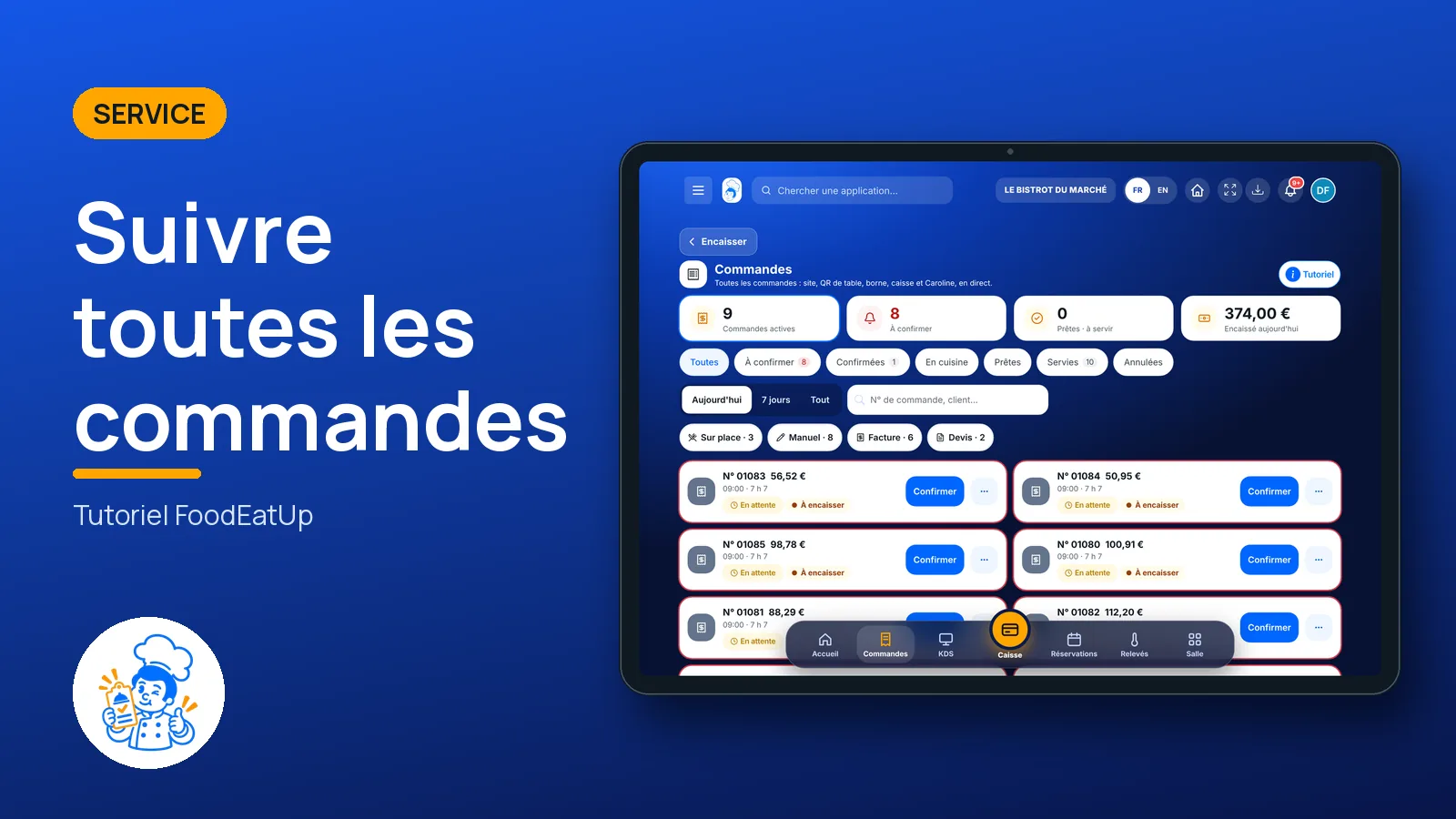
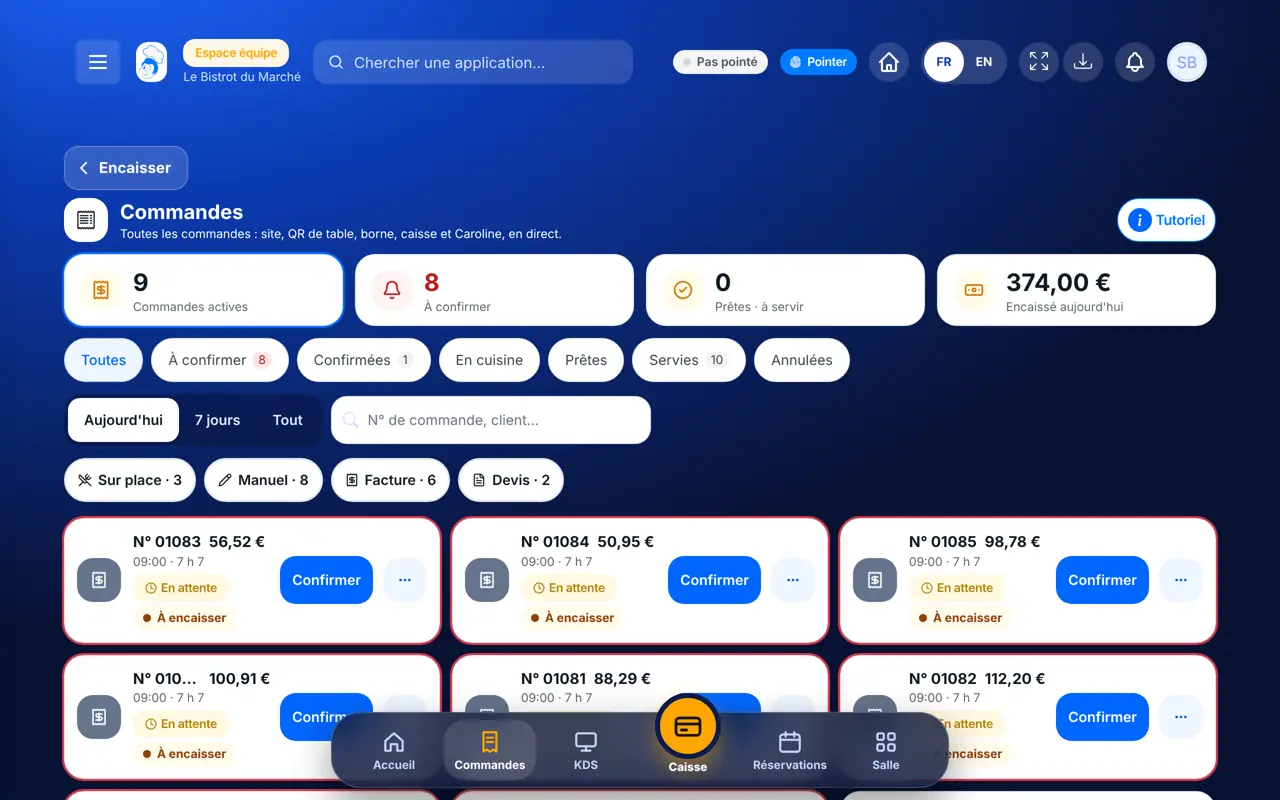
The website, table QR codes, the till, the phone, Caroline: every order lands on one screen. You confirm them, move them along to “served”, and see right away what is waiting.
 Responsable de salle
 Patron / gérant
 Hôte / caisse / comptoir
 Chef de cuisine
The owner always has access. See what each role sees →
A tablet at the counter or the pass, or the office computer. The screen also works on a phone.
The real software screens, as they appear on each device.
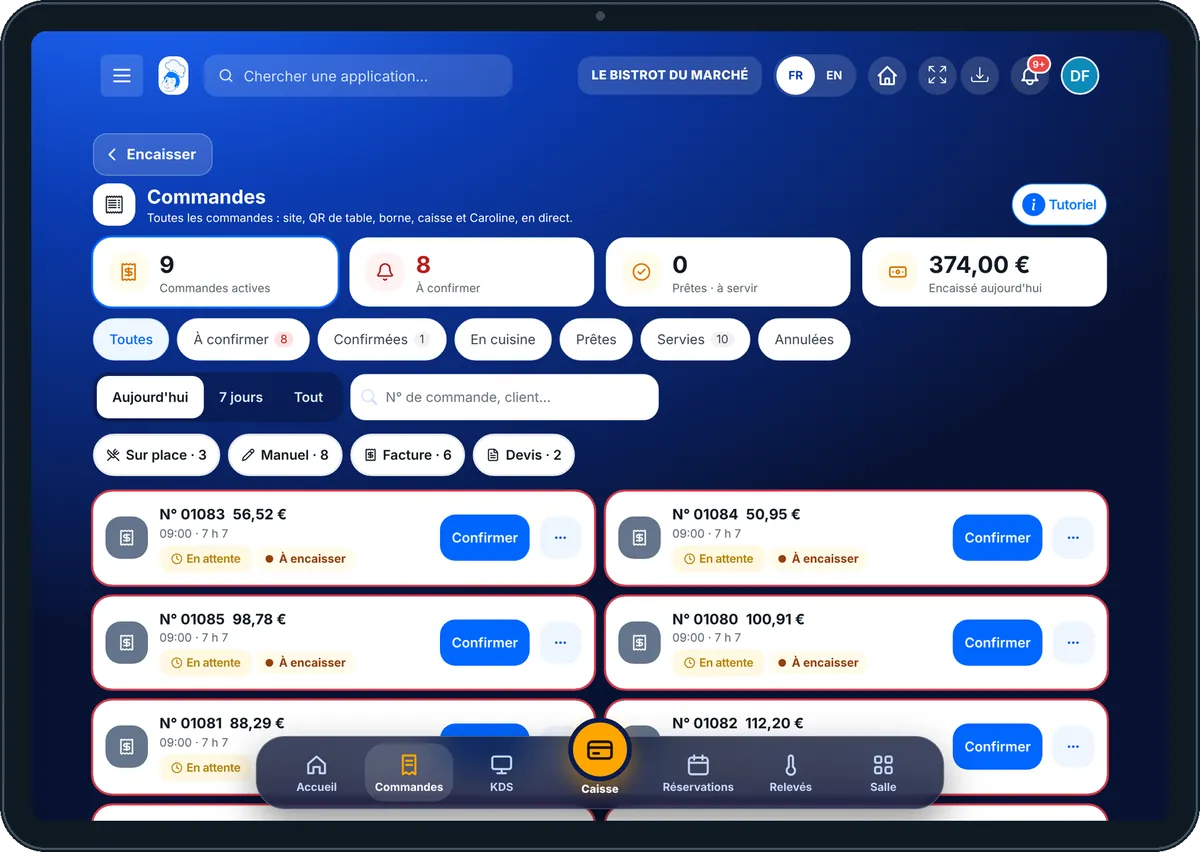
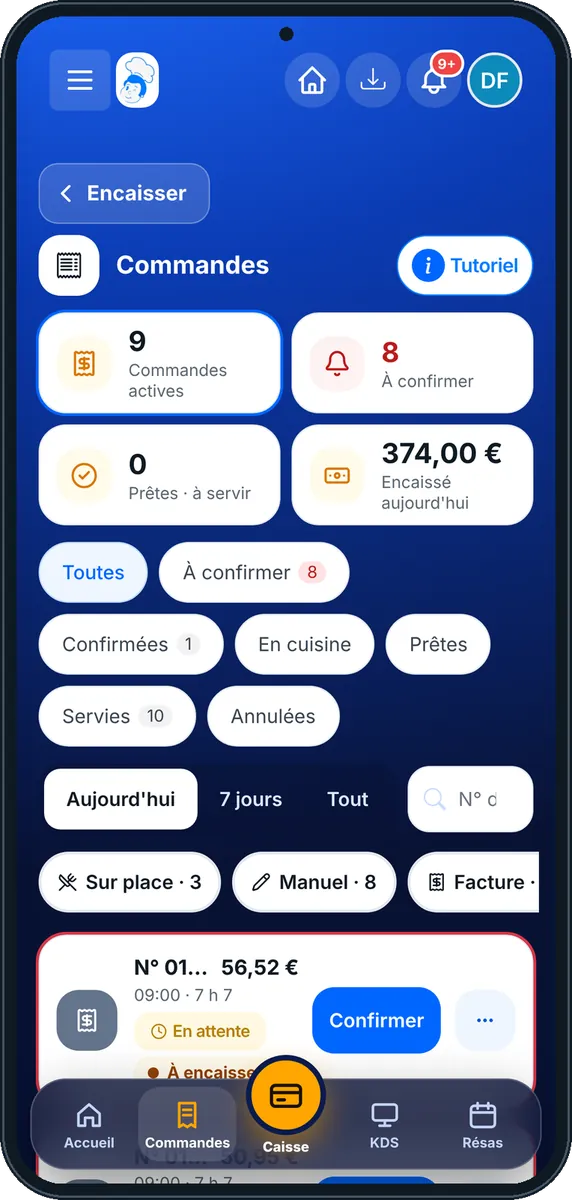
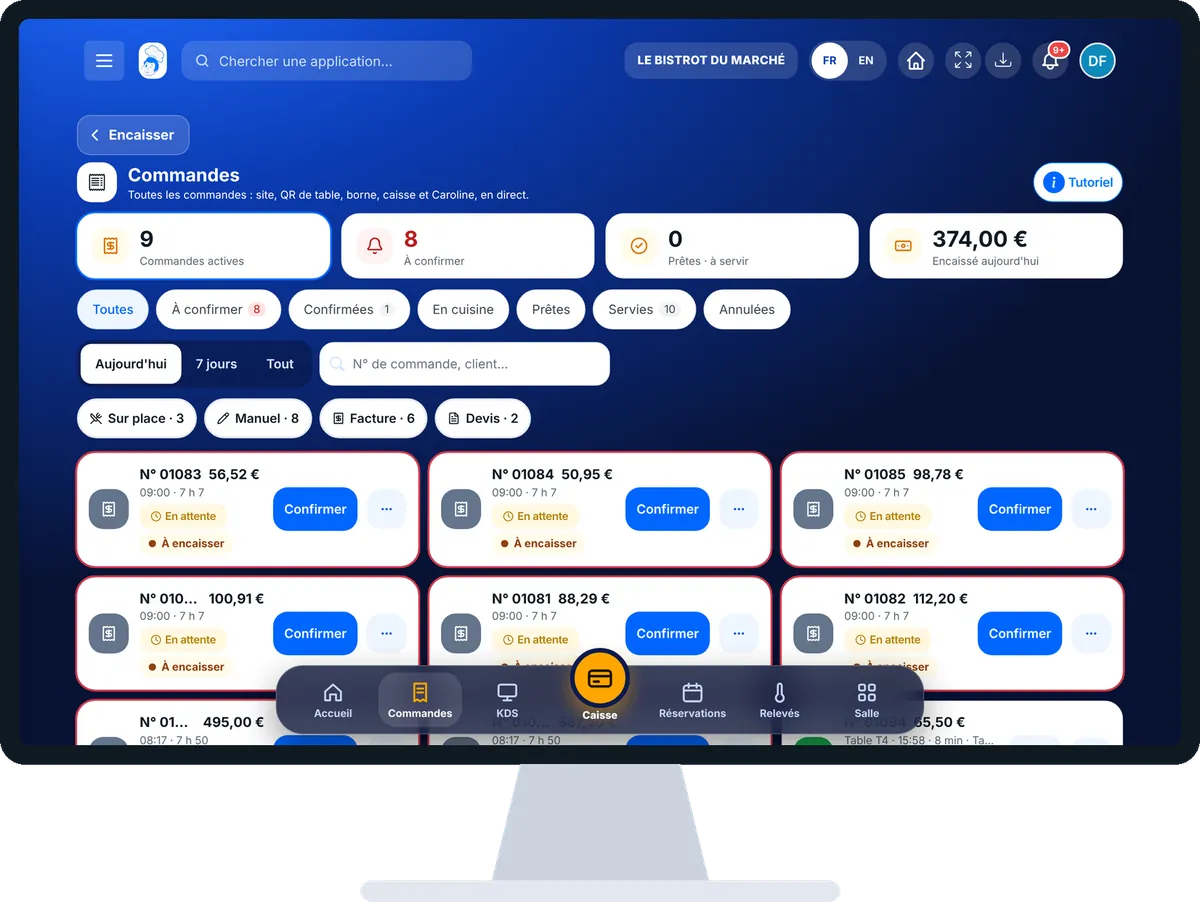
Follow every order : 6 steps, with the real software screens.
From the home screen, open Service › Commandes. At the top, today’s figures; below, the status pills: Toutes, À confirmer, Confirmées, En cuisine, Prêtes, Servies, Annulées.
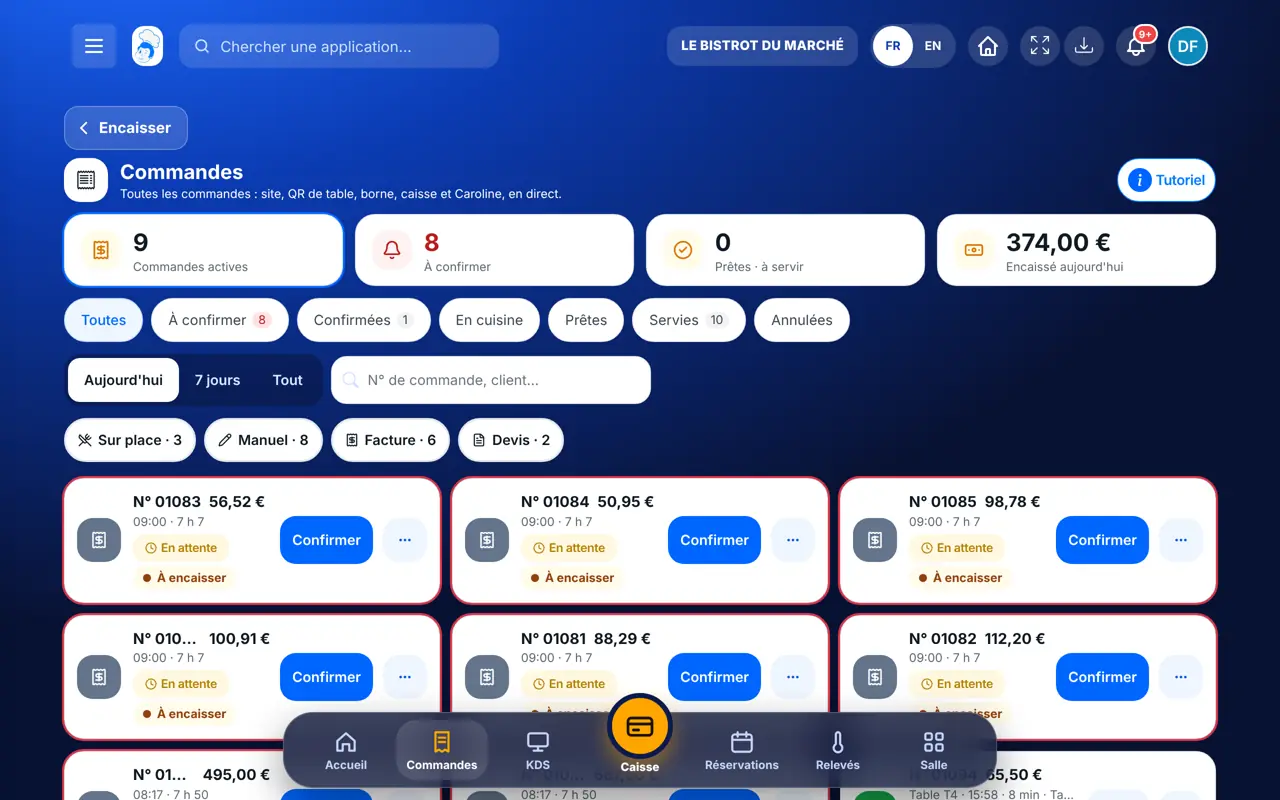
Tap “Aujourd’hui”, “7 jours” or “Tout”. Search for an order by number or customer name. The channel pills (Web, Sur place, Téléphone, Caroline…) filter the list.
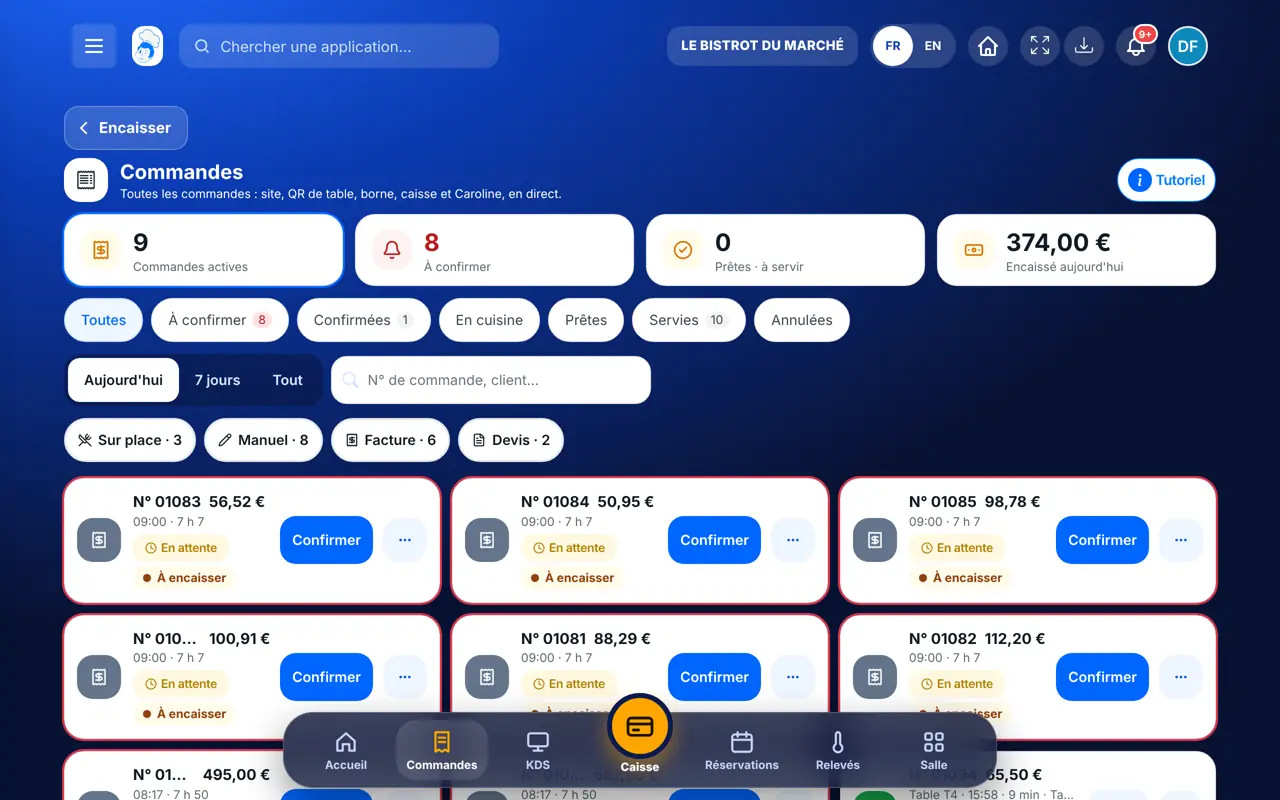
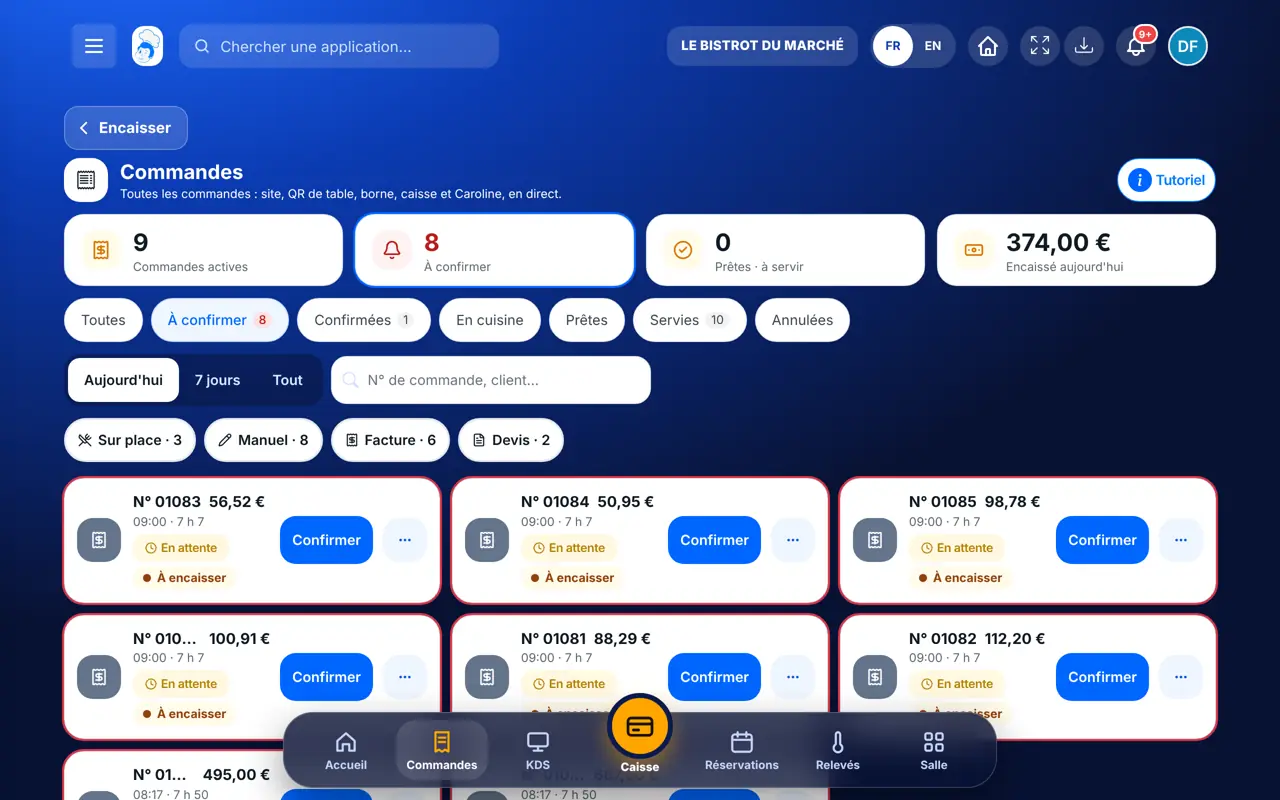
Tap “À confirmer”: the orders waiting for your approval. Each card shows its channel colour, number, customer and amount.
Tap an order: its items, the totals (excl. VAT, VAT, delivery, tip, discount), the customer and the notes.
Tap “Confirmer”: the dishes go to the kitchen. Then “Prête”, then “Servie / livrée”. “Encaisser” marks an order as paid; a till note is settled at the till.
In an order’s menu, “Annuler la commande…” asks for a reason. It is kept with the order. A served order can no longer be cancelled.
A confirmed order goes to the kitchen; when the kitchen finishes it, it moves to ready, then served. You always see where it is.
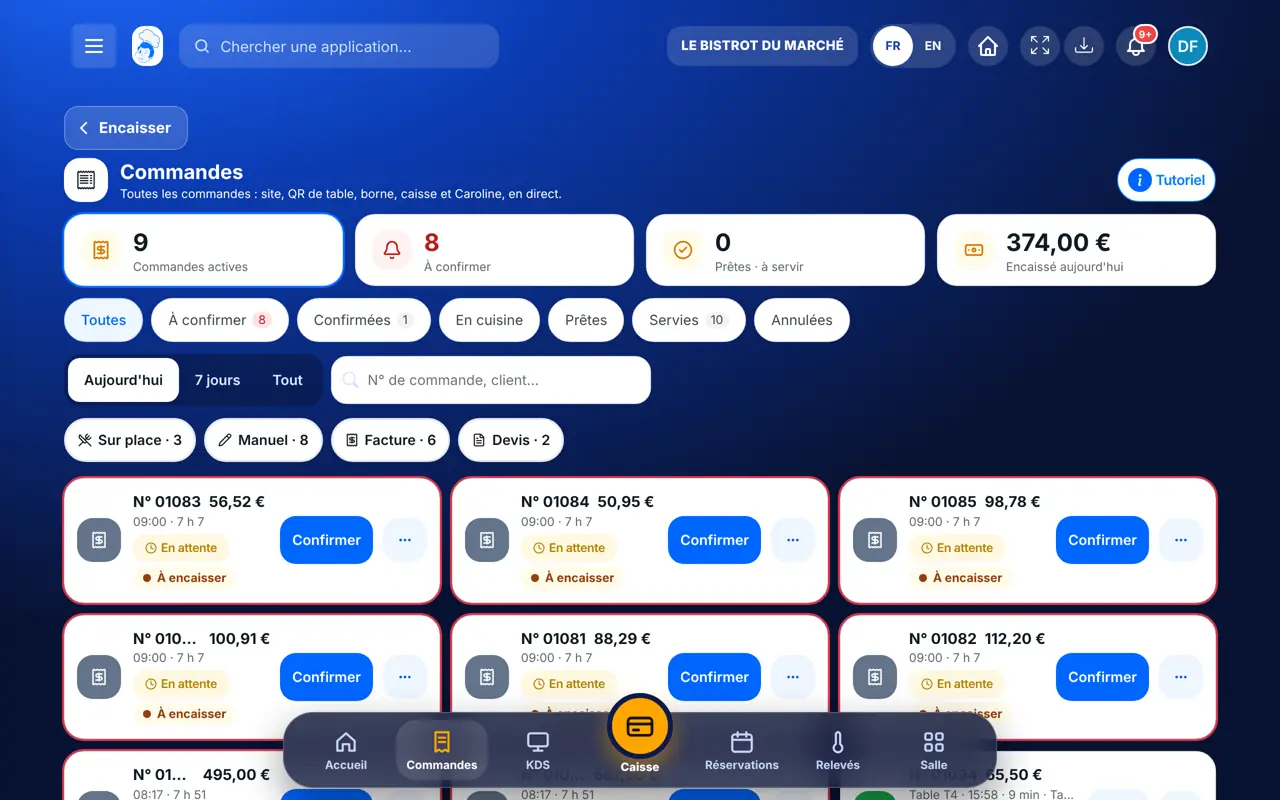
Sees every order, moves them along, takes payment or cancels them. The “Gestion complète” link opens manual creation and export.
Follows orders the same way if their role has the right to manage the till and orders.
Claude, ChatGPT or Mistral’s Le Chat, connected to FoodEatUp. Copy the request and replace your establishment number.
In FoodEatUp, for my establishment [number], list today’s orders waiting for confirmation.
What you getThe list of orders to confirm, with their channel and amount.
Tools used : list_orders
In FoodEatUp, for my establishment [number], show me the details of order [number]: items, customer, amount.
What you getThe items, customer, totals and status of the order.
Tools used : get_order
In FoodEatUp, for my establishment [number], set order [number] to “ready”. Show me the result before confirming.
What you getThe order changes status; the call screen and the kitchen follow.
Tools used : get_order, update_order_status
Website, table QR code, till, phone, Caroline.
Orders to confirm are counted and flagged.
Confirm, ready, served: one button each time.
The reason is kept with the order.
Leave the screen on the “À confirmer” pill during service: a website order is never left unanswered.
In FoodEatUp, one action triggers others. Here are the screens that work with this one.
From the website, table QR codes, the till, the phone, Caroline and orders entered by hand. Each one carries its channel colour.
The order becomes “confirmed” and its dishes go to the kitchen stations.
No. A note opened at the till is settled at the till, with the payment method and the receipt.
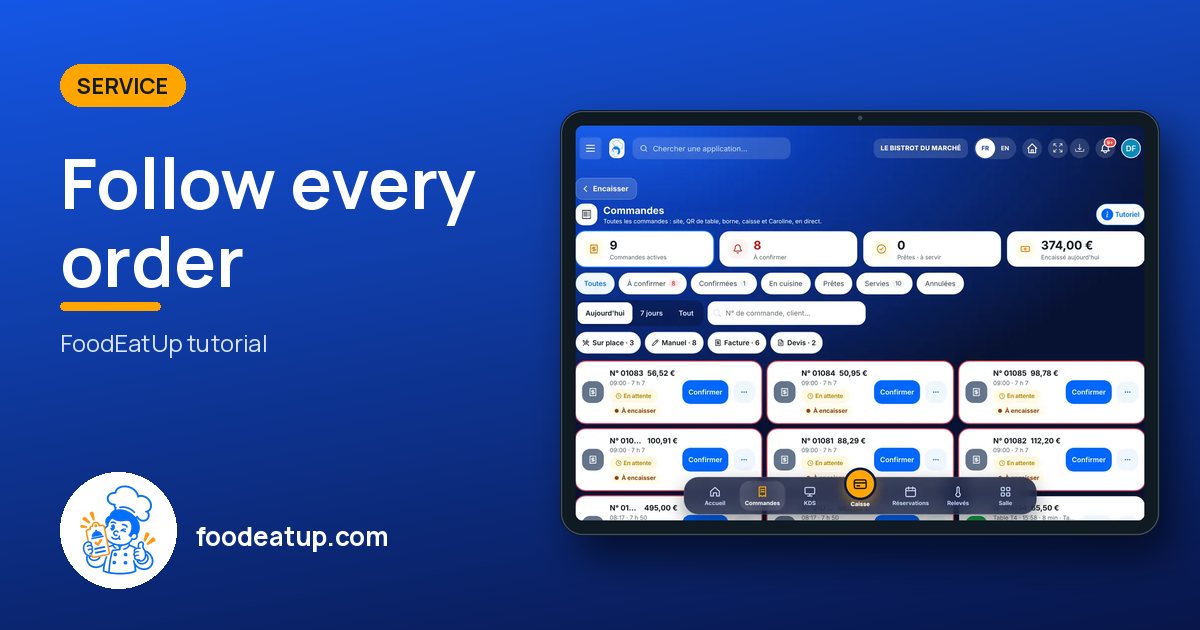
Send it to your team, your partner or your accountant. The image below appears in the message.
Claude, ChatGPT or Le Chat read this tutorial and explain it to you. Connected to FoodEatUp, they do it with you.
Read this FoodEatUp tutorial: https://foodeatup.com/en/academy/service/service-commandes.md Explain it to me simply, step by step, then help me do it in my restaurant. If FoodEatUp is connected to you, do it with me and show me the preview before every change.
Type your establishment number: the link takes you straight to this screen. The number stays on this device.
Discover FoodEatUp online ordering (in French) →
Répond avec les fiches du site, sans IA
Le chef cherche dans les fiches…
 Claude
 Le Chat
 ChatGPT