
Aller au contenu
Service · KDS

Send dishes to the right station

Each kitchen station gets its own dishes: hot to hot, cold to cold, drinks to the bar. On a screen or on a printed ticket, the kitchen knows what to start and in which order.

  • Tablet
  • 6 steps
  • Level : Intermediate
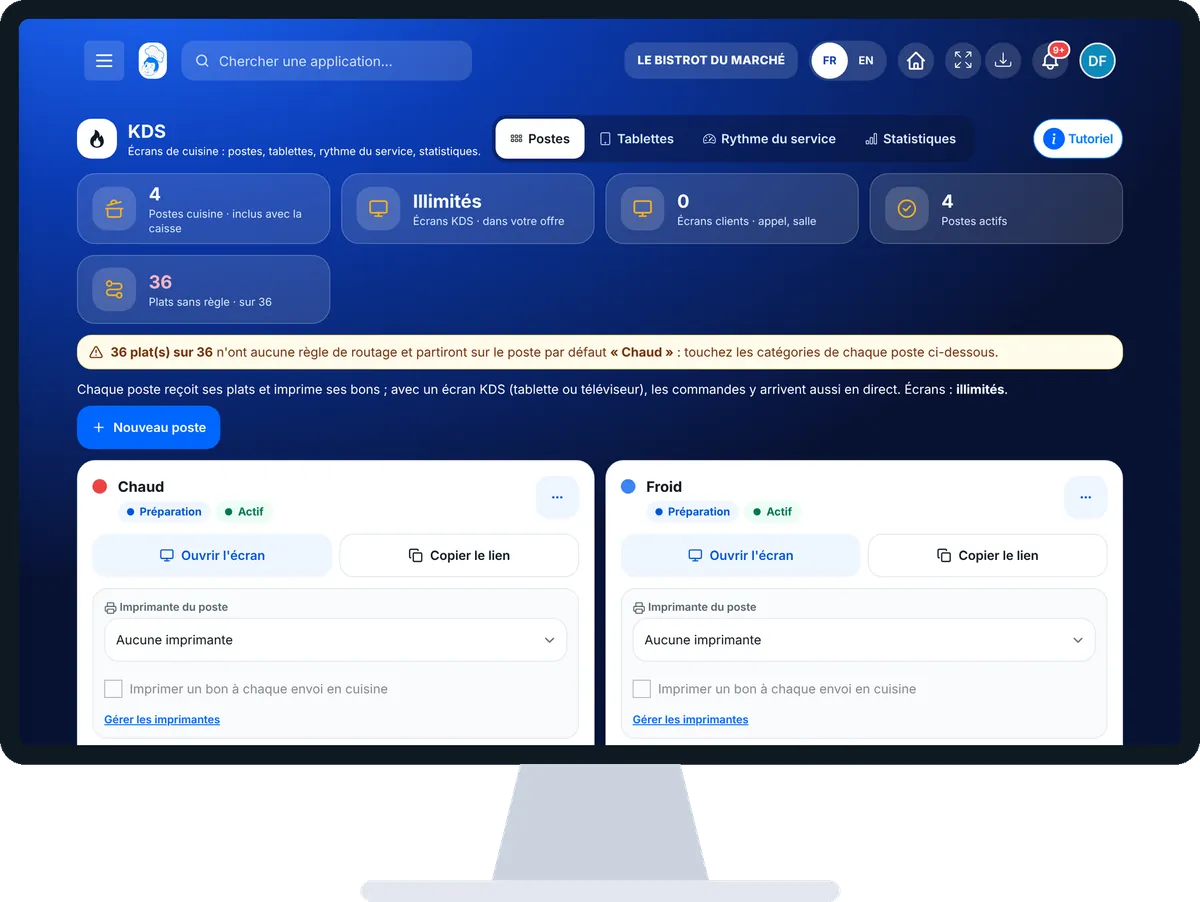
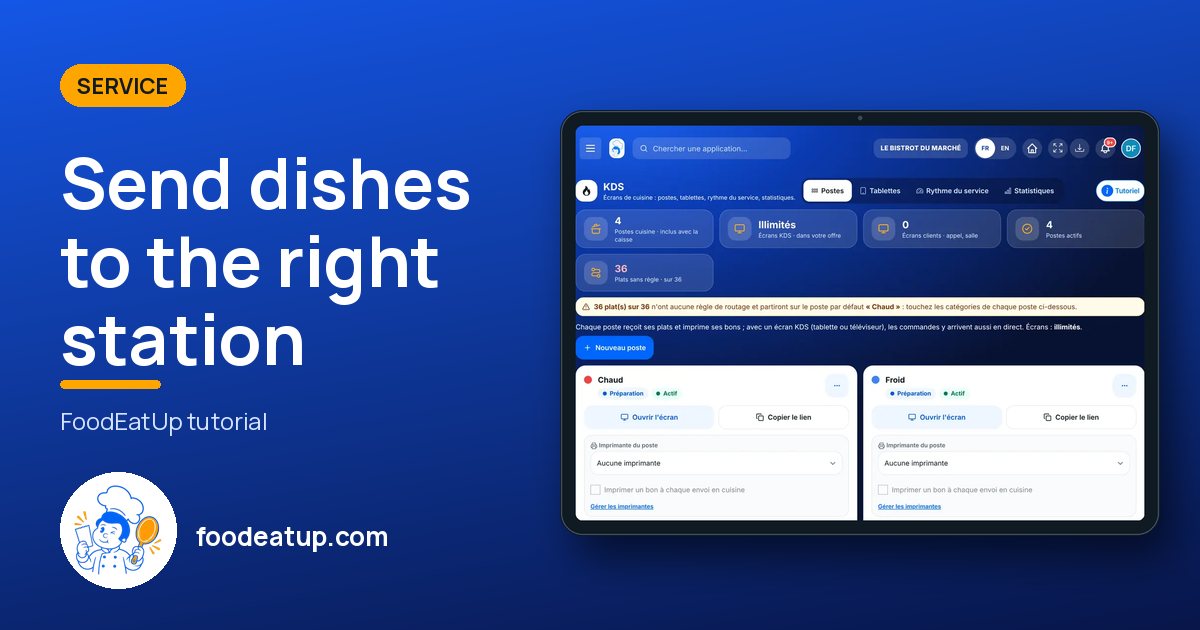
Send dishes to the right station : Kitchen stations and their screen

Who is it for?

  • Chef de cuisine
  • Second de cuisine
  • Commis / cuisinier
  • Patron / gérant

Roles with access

  • Gérant·e
  • Chef de cuisine
  • Cuisinier·ère · view
  • Serveur·se · view
  • Barman·maid · view
  • Responsable HACCP · view
  • Laboratoire (réseau) · view
  • Boutique (réseau)
  • Franchisé·e (réseau)
  • Directeur·rice d'établissement

The owner always has access. See what each role sees →

Recommended hardware

Tablet

A tablet or a TV at each kitchen station. Without a screen, the station prints its tickets on the kitchen printer. Setup is done from the office computer.

See the hardware →

What it is for

  • Create the kitchen stations (prep, pass, bar, assembly, call screen) and choose which dishes go to each one.
  • Link a tablet to a station with a simple code, without an account or password.
  • Set the pace of service: everything goes together, or courses go one after the other.

Why set it up

  • No more ticket lost between the floor and the kitchen: the order reaches the station as soon as it is sent.
  • Each station only sees what concerns it: less noise, fewer mistakes.
  • Statistics show which station slows the service down, and on which dishes.

The same screen, on every device

The real software screens, as they appear on each device.

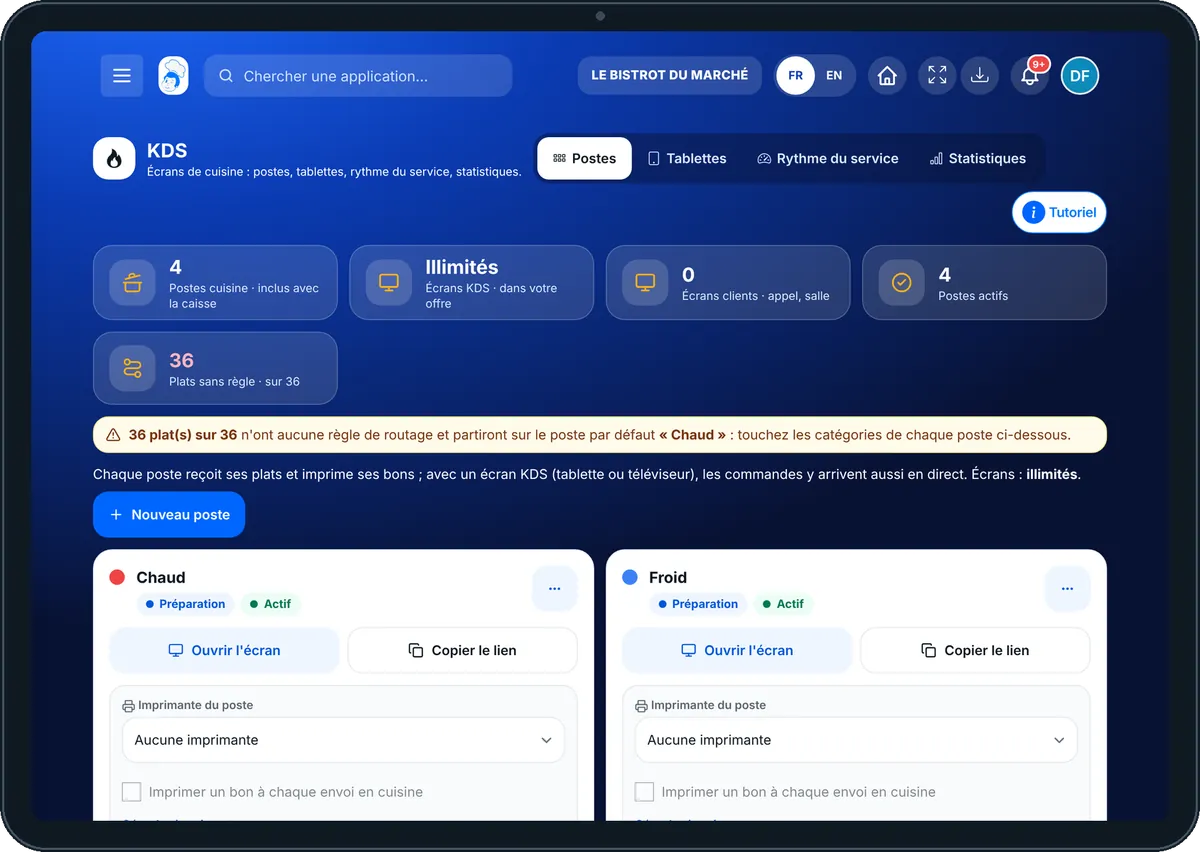
KDS — On the tablet
On the tablet
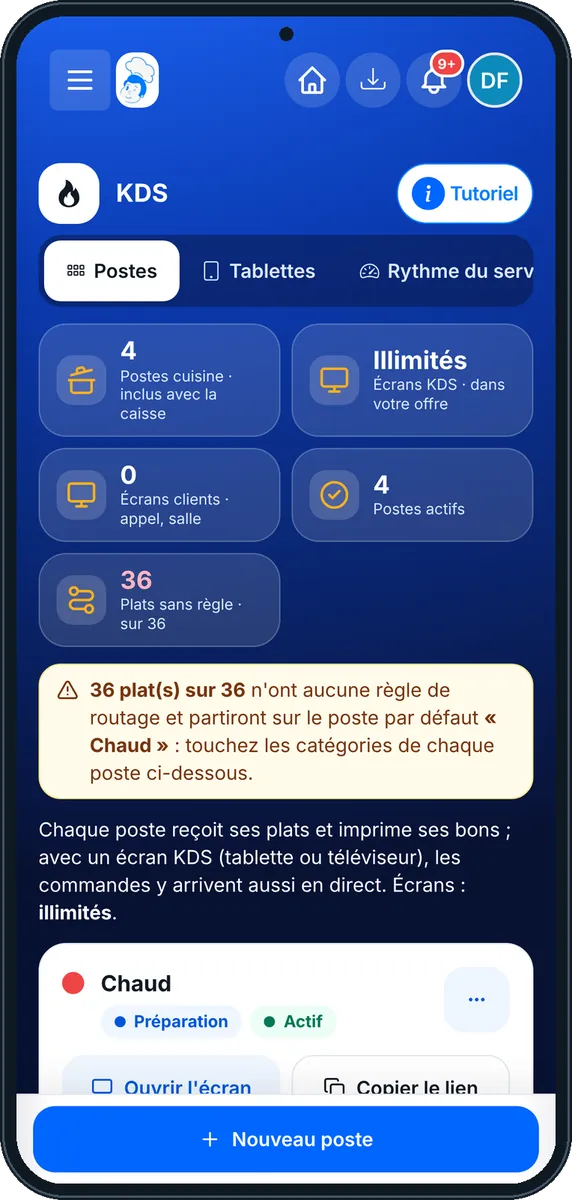
KDS — On the phone
On the phone
KDS — On the computer
On the computer

Step by step

Send dishes to the right station : 6 steps, with the real software screens.

  1. 1Step 1

    Open the kitchen stations

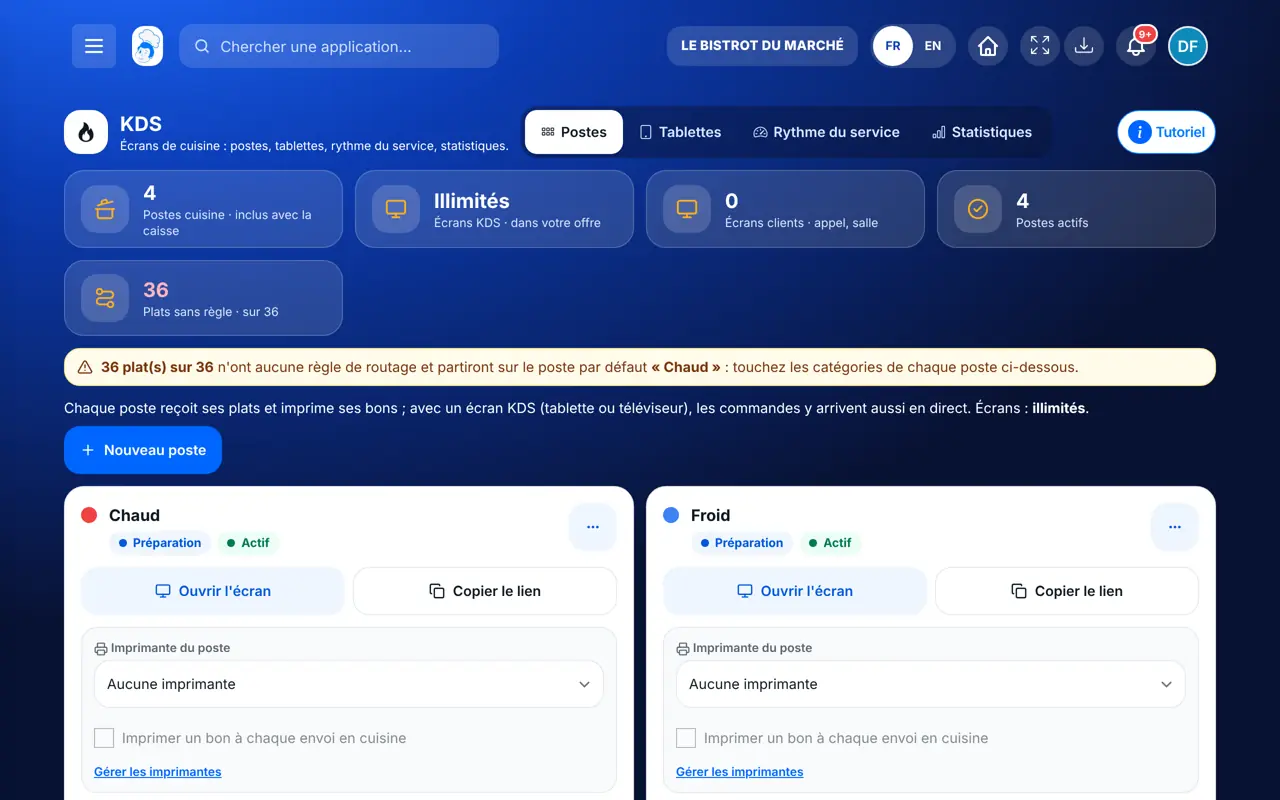
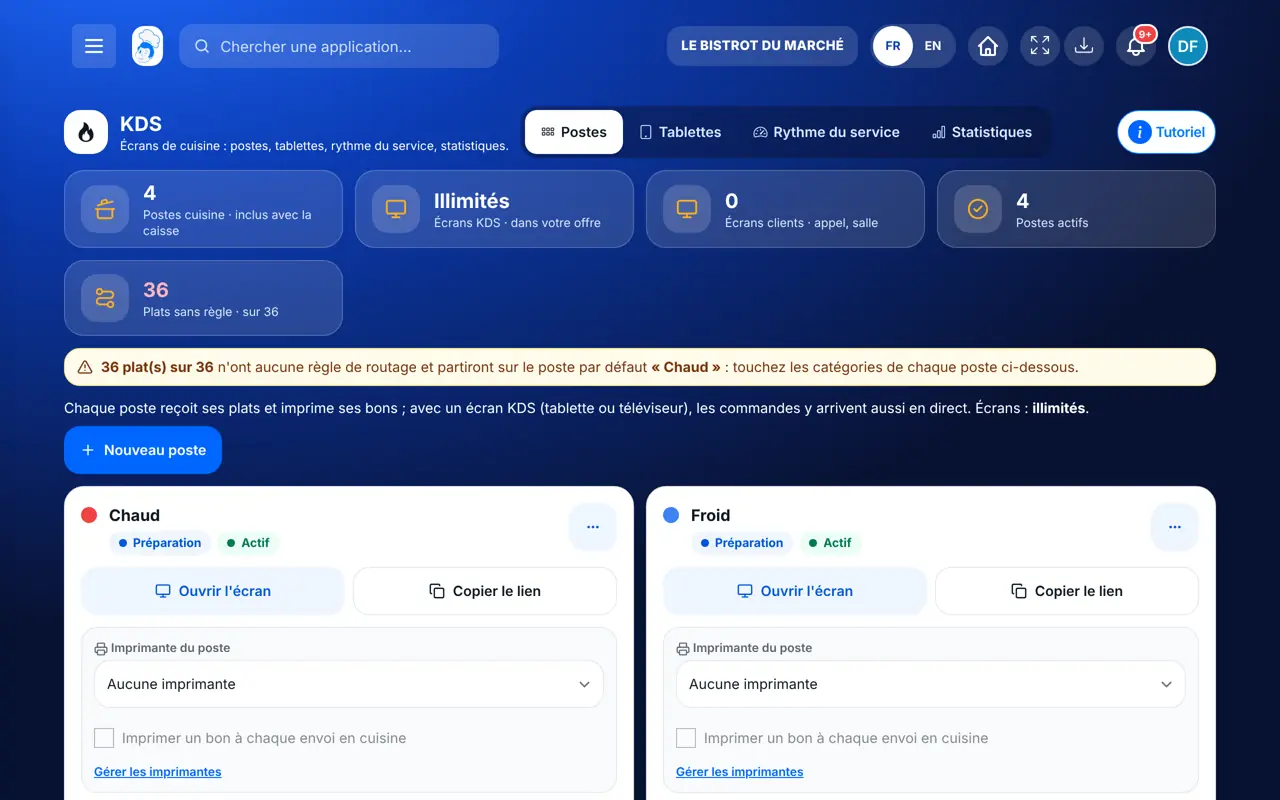
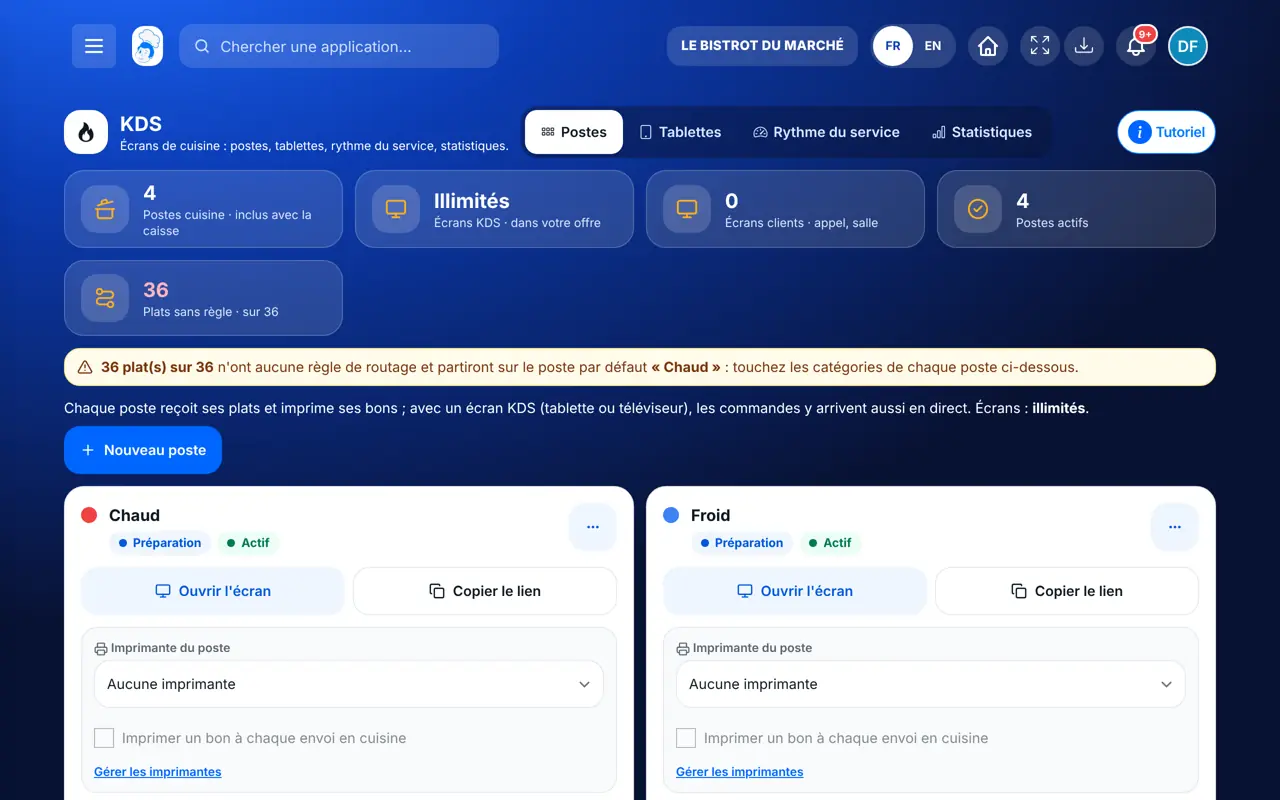
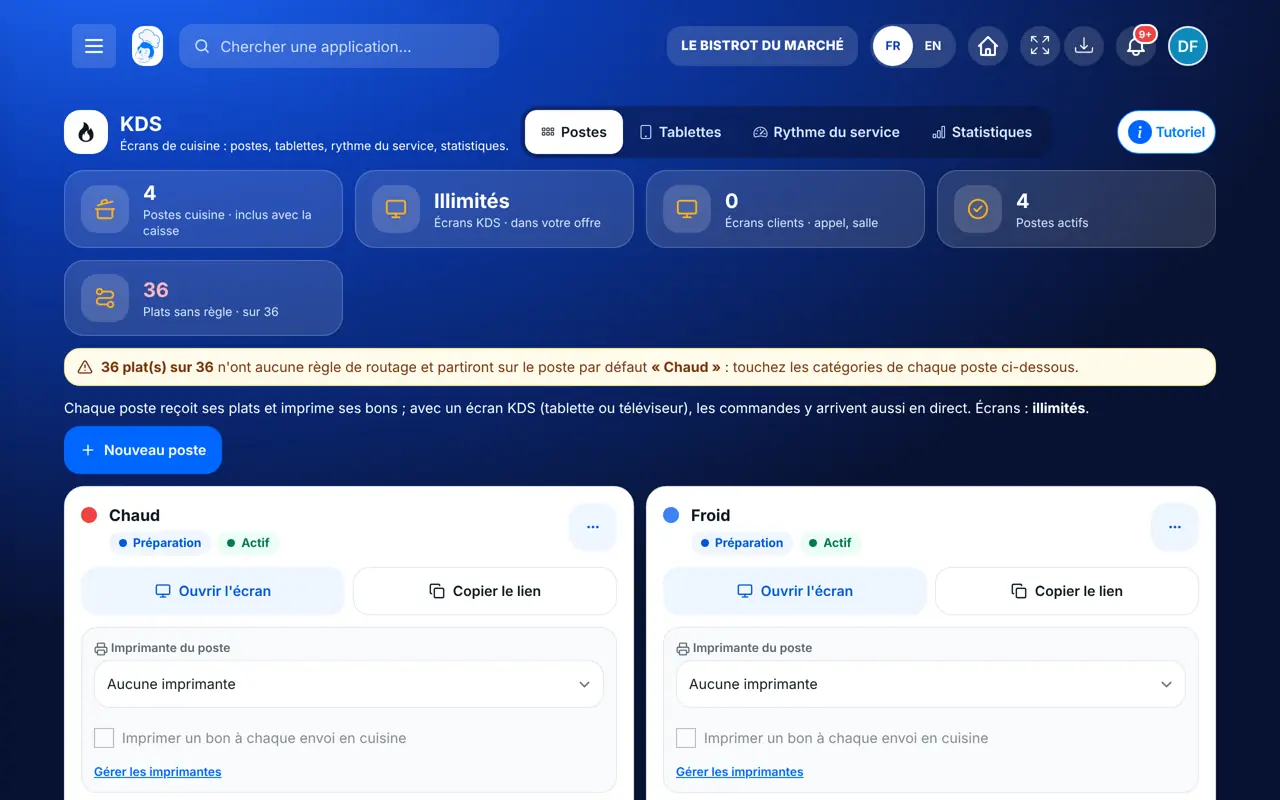
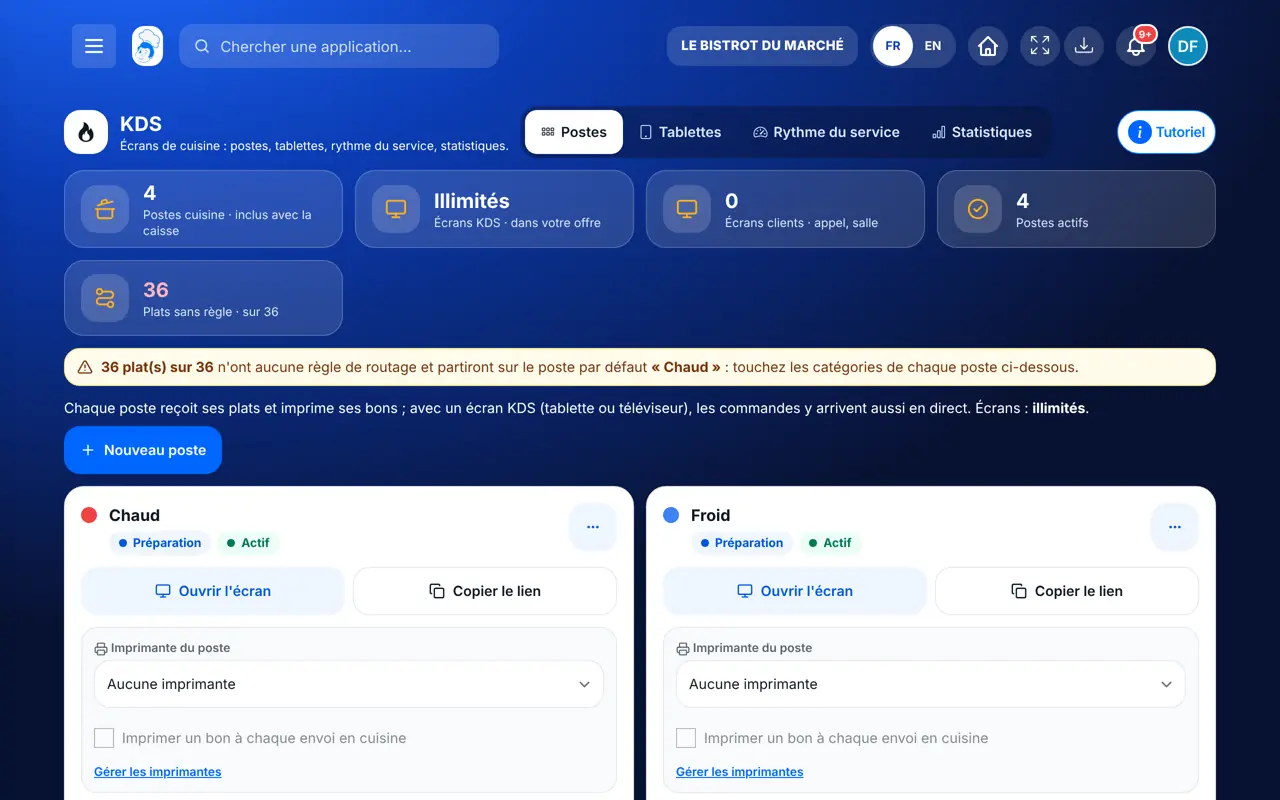
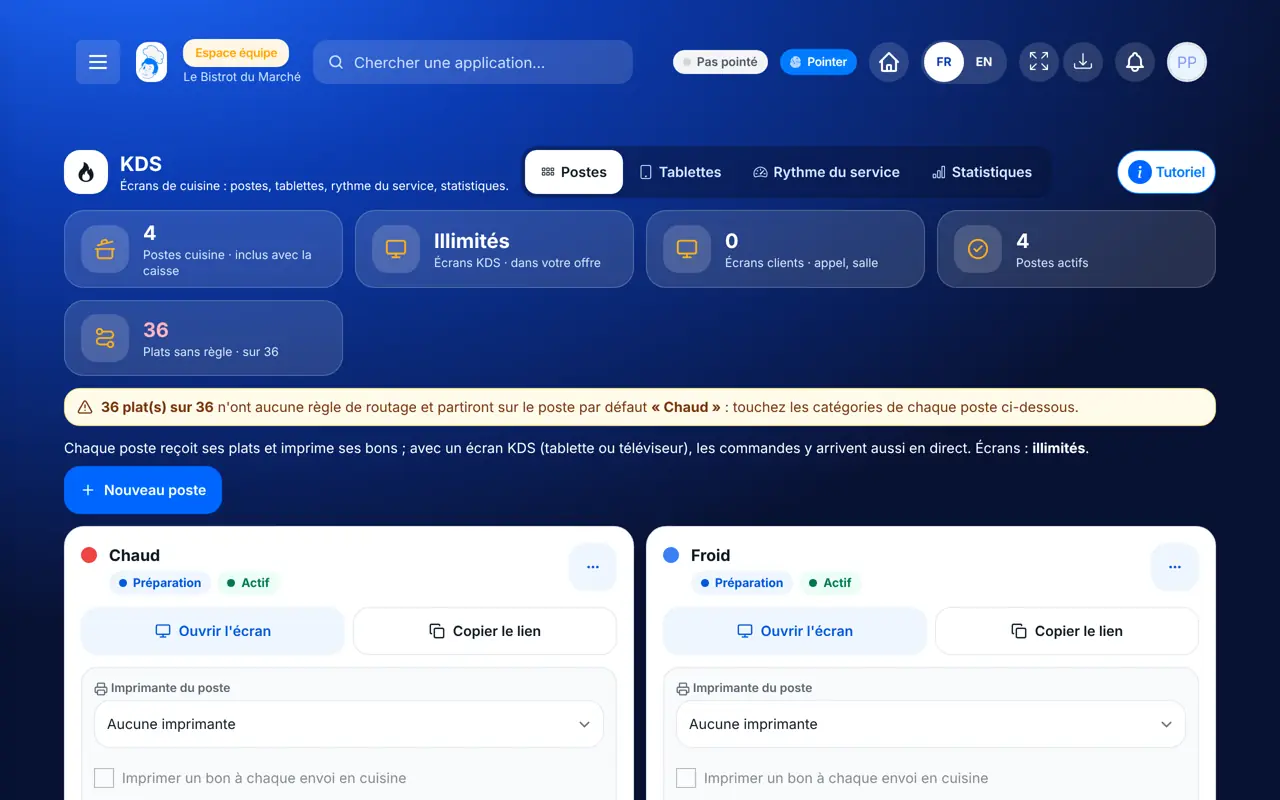
    From the home screen, open Service › KDS. The “Postes” tab lists your stations, their type and what goes to each one. “Ouvrir l’écran” shows the station’s kitchen screen; “Copier le lien” lets you open it on another tablet.

    Kitchen stations and their screen
  2. 2Step 2

    Create a station

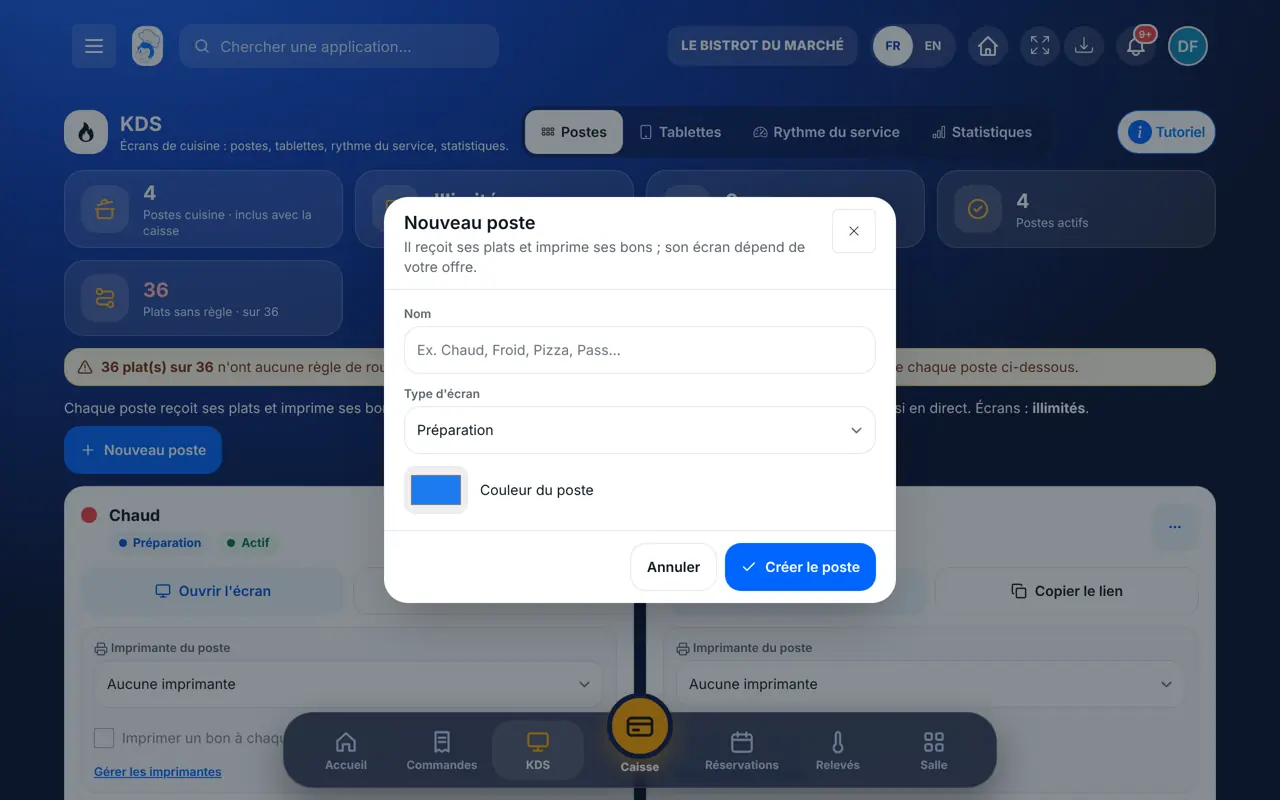
    Tap “Nouveau poste”. Give it a name (Hot, Cold, Pizza, Pass…), choose the screen type and a colour. A station receives its dishes and prints its tickets even without a screen.

    The new station form
  3. 3Step 3

    Choose what goes to the station

    Under “Ce qui arrive sur ce poste”, tap the dish categories that should go there. “Poste par défaut (tout le reste)” receives dishes with no station. Also choose the station’s printer if you print tickets.

    Categories linked to a station
  4. 4Step 4

    Link a tablet

    Open the “Tablettes” tab. Choose the station, name the tablet, then tap “Générer un code”. Type this code in the FoodEatUp KDS app: it is valid for 7 days, for one tablet only.

    KDS app tablets
  5. 5Step 5

    Set the pace of service

    In “Rythme du service”, choose how courses go out (starters, mains, desserts): all together, on demand with “Envoi suivant”, when the previous one is served, or a few minutes later. Tap “Enregistrer le rythme”.

    Setting the pace of service
  6. 6Step 6

    Follow kitchen times

    The “Statistiques” tab shows dishes measured, average time, the slowest station and hourly throughput, over the day, 7 or 30 days.

    Kitchen statistics
The result

Each station gets its dishes

As soon as an order leaves the till, the kiosk or the table QR code, its dishes reach the right station, on screen or on the printed ticket.

Each station gets its dishes : Send dishes to the right station

Owner and employee: what changes

The owner

Creates stations, chooses what goes to each one, links tablets and sets the pace of service.

KDS — The owner

The employee

In the kitchen, works on their station’s screen. Sees this page if their role allows it; setting up tablets and pace requires the right to manage stations.

KDS — The employee

Do it with your assistant

Claude, ChatGPT or Mistral’s Le Chat, connected to FoodEatUp. Copy the request and replace your establishment number.

How is the kitchen doing?

In FoodEatUp, for my establishment [number], list my kitchen stations and tell me how many dishes are waiting on each one.

What you getThe list of stations and what is in progress on each one.

Tools used : list_kds_stations, get_kds_tickets

Which station is slow?

In FoodEatUp, for my establishment [number], show me kitchen statistics for the last 7 days: average time and slowest station.

What you getPreparation times by station and the dishes that take the longest.

Tools used : get_kitchen_stats

What you gain

The right dish at the right station

Each category goes to its station, everything else to the default station.

With or without a screen

The station prints its tickets; a screen also shows the order live.

A tablet with one code

No account, no password: one code and the station shows up.

Service at the right pace

Starters, mains and desserts go out when you decide.

The Chef’s tip

Start simple: a “Hot” station, a “Cold” station and a “Pass” set as the default station. Add the others once the team is used to it.

Frequently asked questions

Do I need a tablet per station?

No. A station receives its dishes and prints its tickets without a screen. The screen (tablet or TV) depends on your plan.

Where does a dish with no station go?

To the station marked “Poste par défaut”. A category linked to a station also covers its sub-categories.

What if I change tablets?

Generate a new code for the new tablet. In a station’s menu, “Nouveau lien” disconnects the old screen.

Text version for AI assistants →

Share this tutorial

Send it to your team, your partner or your accountant. The image below appears in the message.

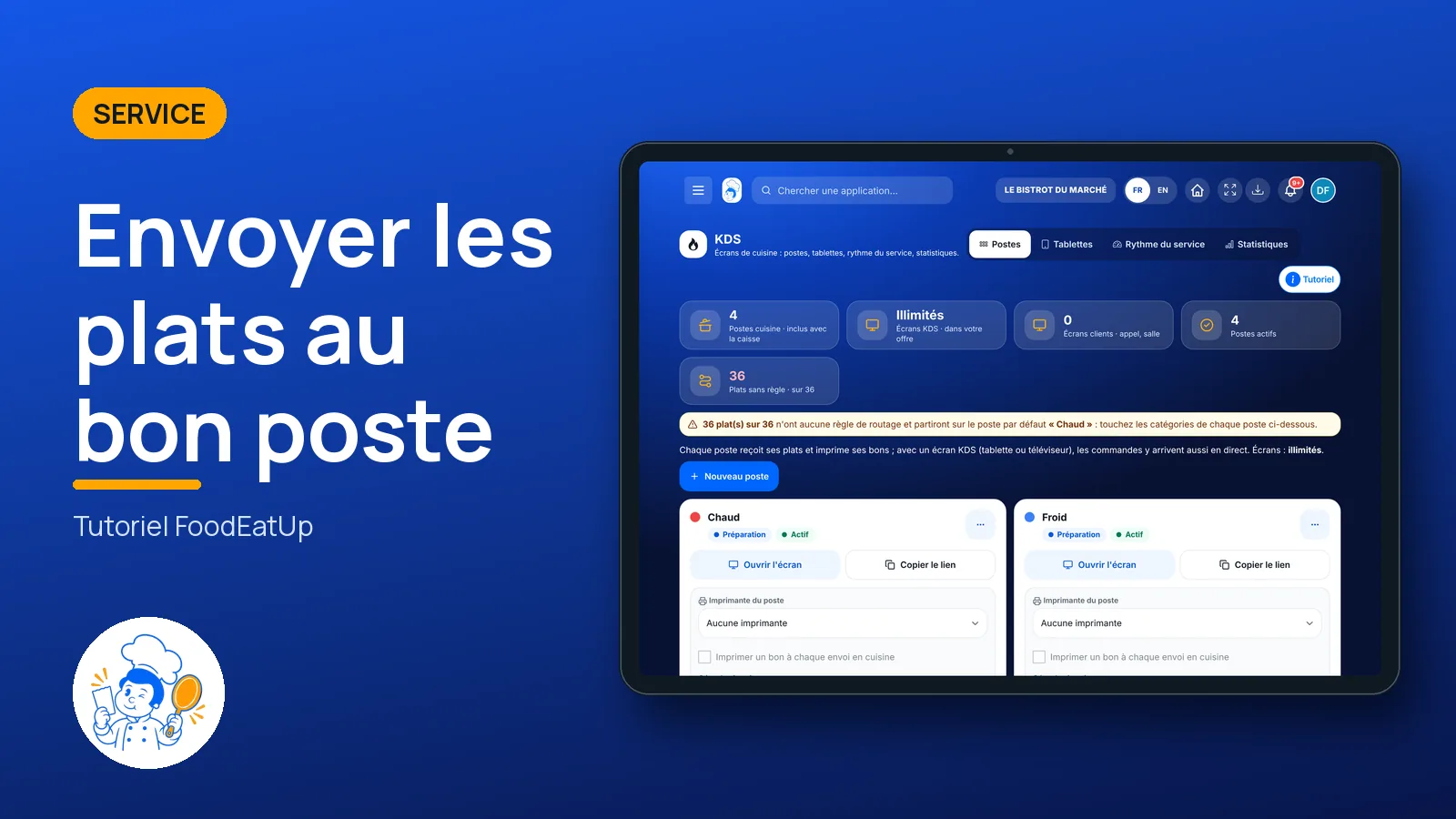
Share preview : Send dishes to the right station
WhatsAppLinkedInFacebookEmail

Send to an AI assistant

Claude, ChatGPT or Le Chat read this tutorial and explain it to you. Connected to FoodEatUp, they do it with you.

Read this FoodEatUp tutorial: https://foodeatup.com/en/academy/service/service-kds.md Explain it to me simply, step by step, then help me do it in my restaurant. If FoodEatUp is connected to you, do it with me and show me the preview before every change.

ClaudeLe ChatChatGPT

Open in my software

Type your establishment number: the link takes you straight to this screen. The number stays on this device.

Discover the FoodEatUp kitchen screen (in French) →

You can read it in the software address: foodeatup.com/establishment/number/…