Kiosk status
In FoodEatUp, for my establishment [number], list my kiosks and tell me which ones are offline.
What you getEach kiosk, its status and its last signal.
Tools used : lister_bornes
 Display · Bornes
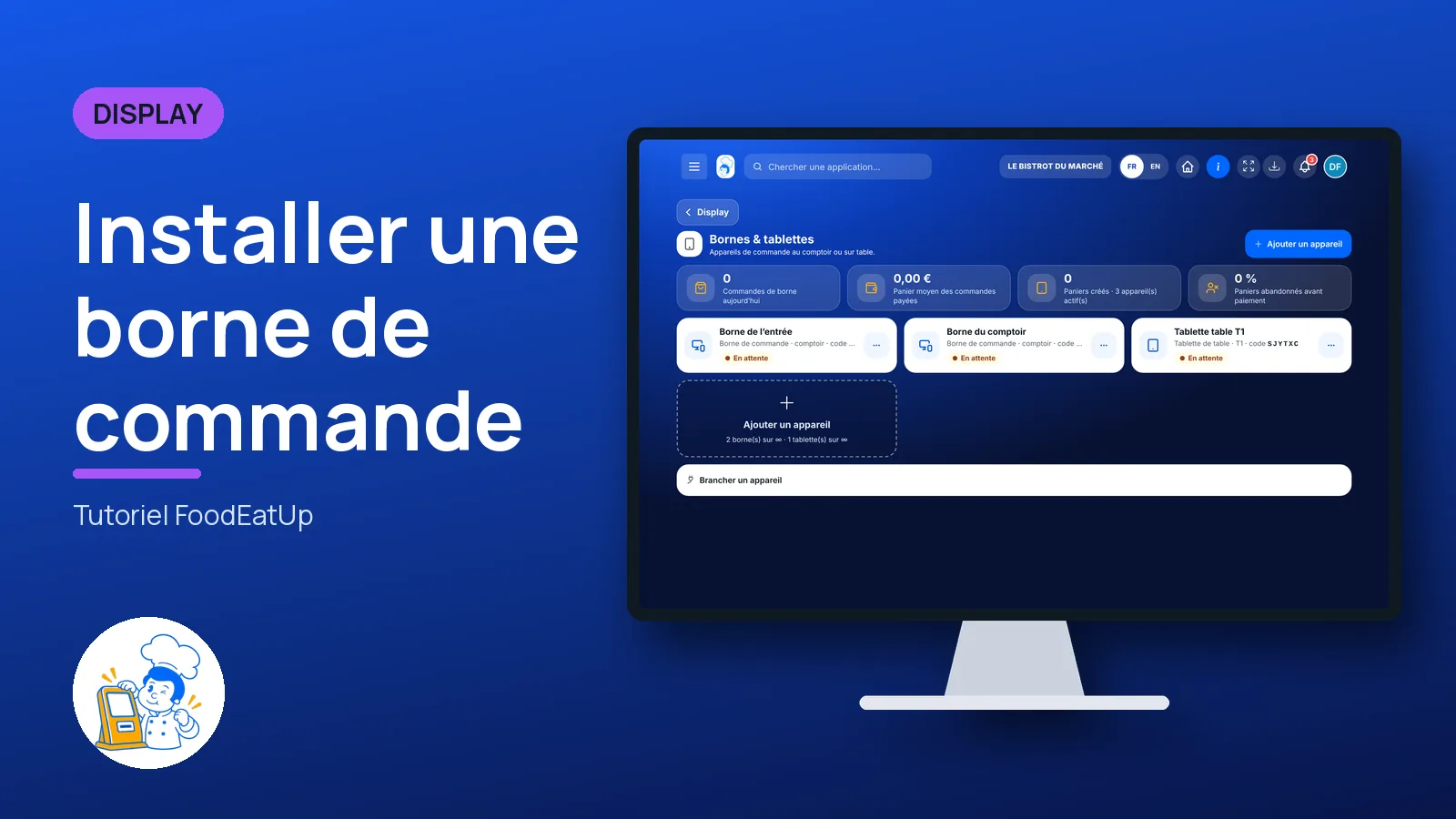
A kiosk, or a tablet placed on a table, takes orders for you: the customer chooses, pays, and the order goes to the kitchen with a number. You connect it with a six-letter code.
 Patron / gérant
 Hôte / caisse / comptoir
The owner always has access. See what each role sees →
A computer to set the device up, then the kiosk (or tablet) itself to pair it with its code.
The real software screens, as they appear on each device.
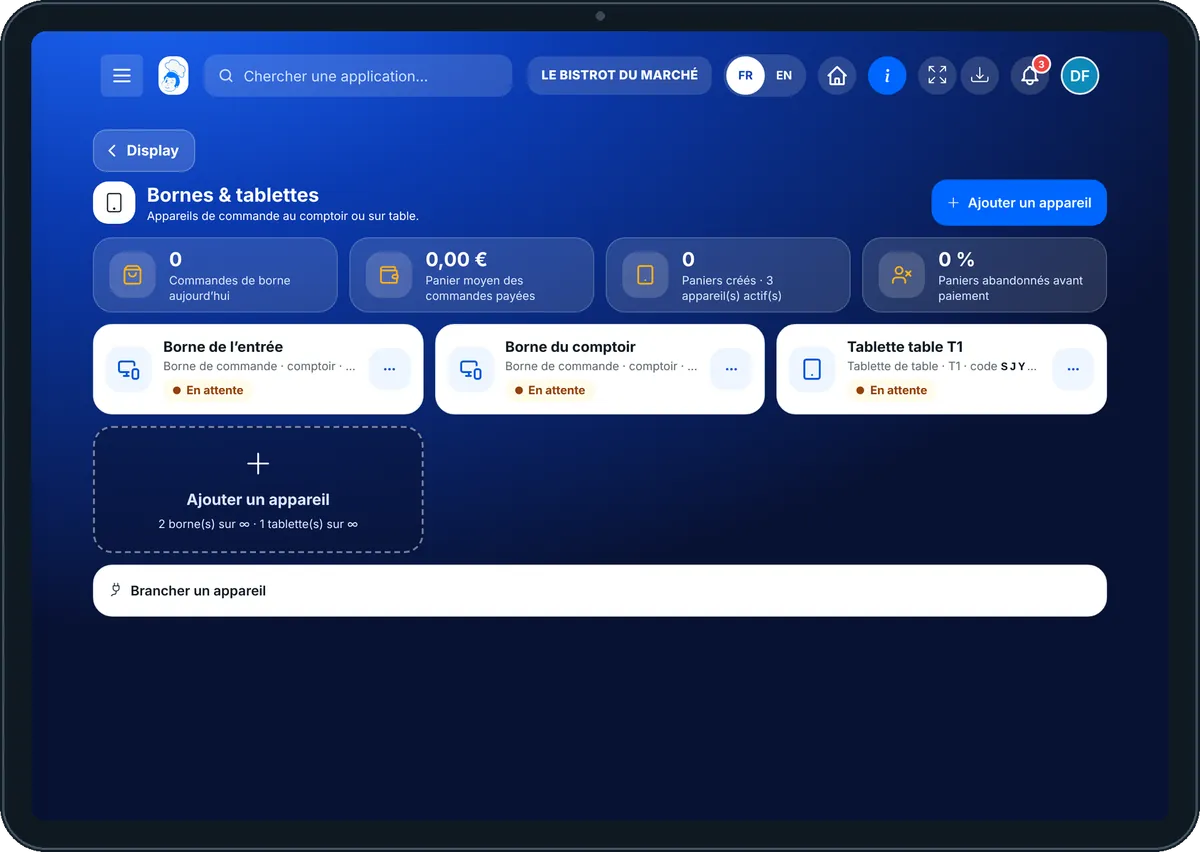
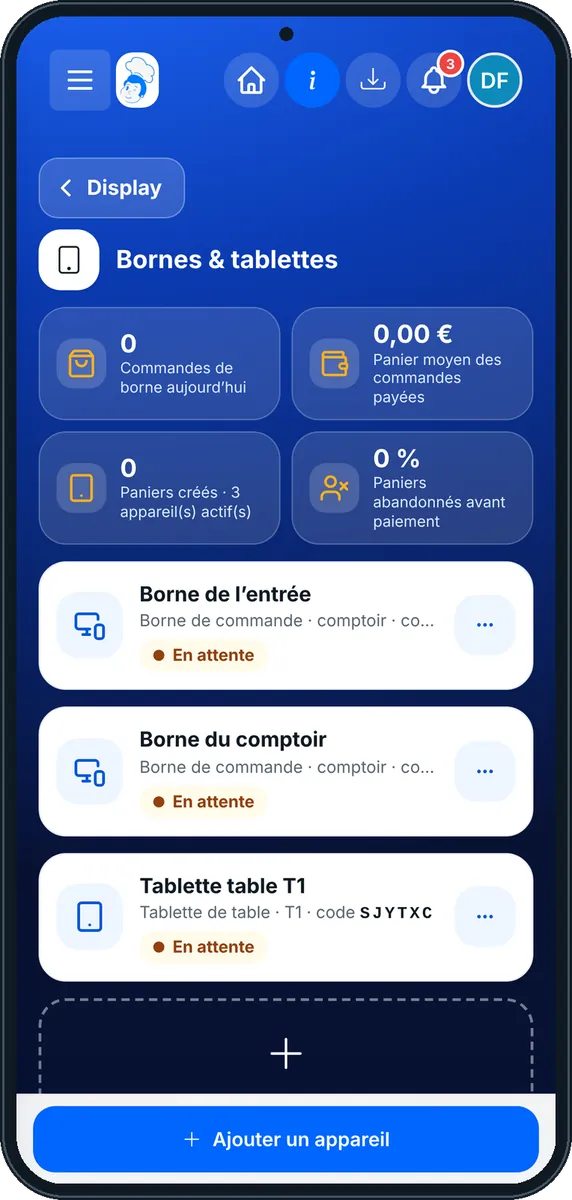
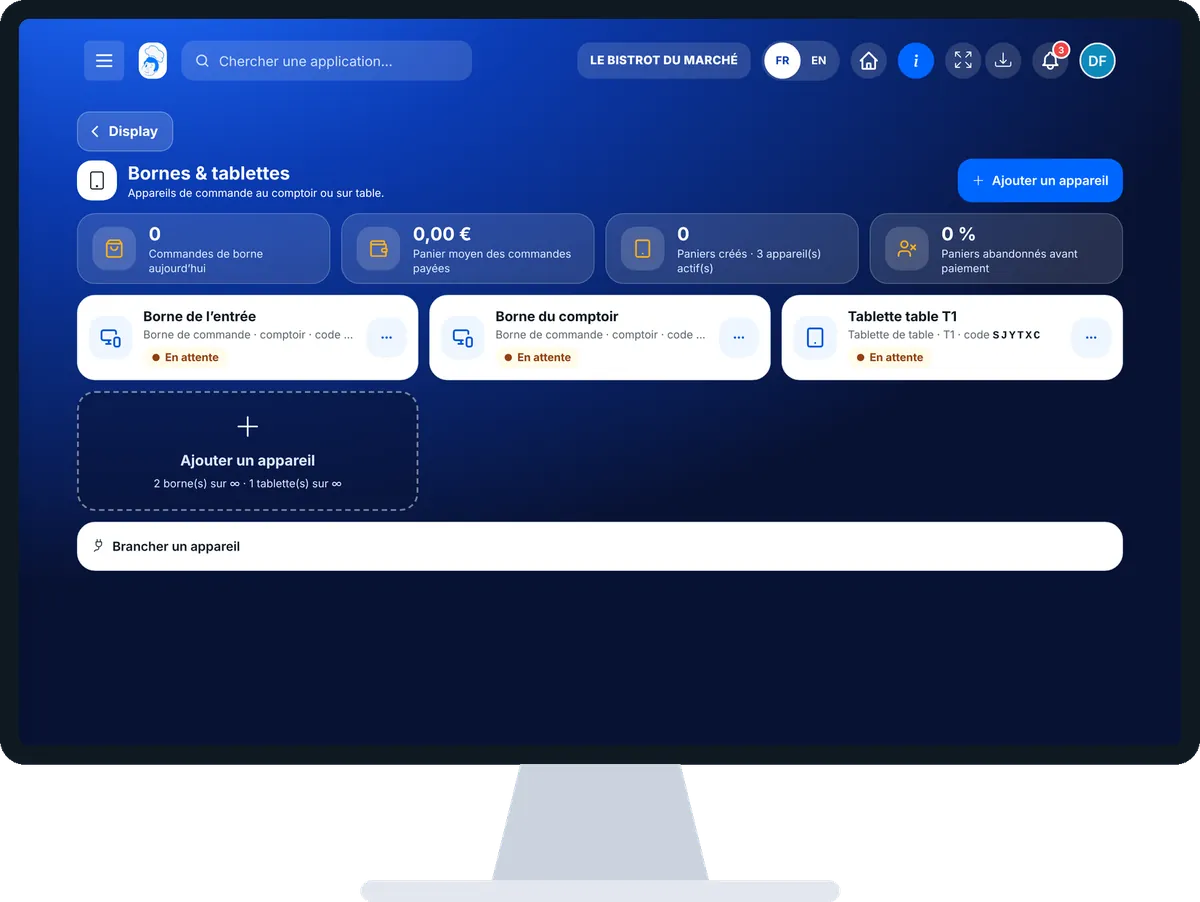
Set up an ordering kiosk : 5 steps, with the real software screens.
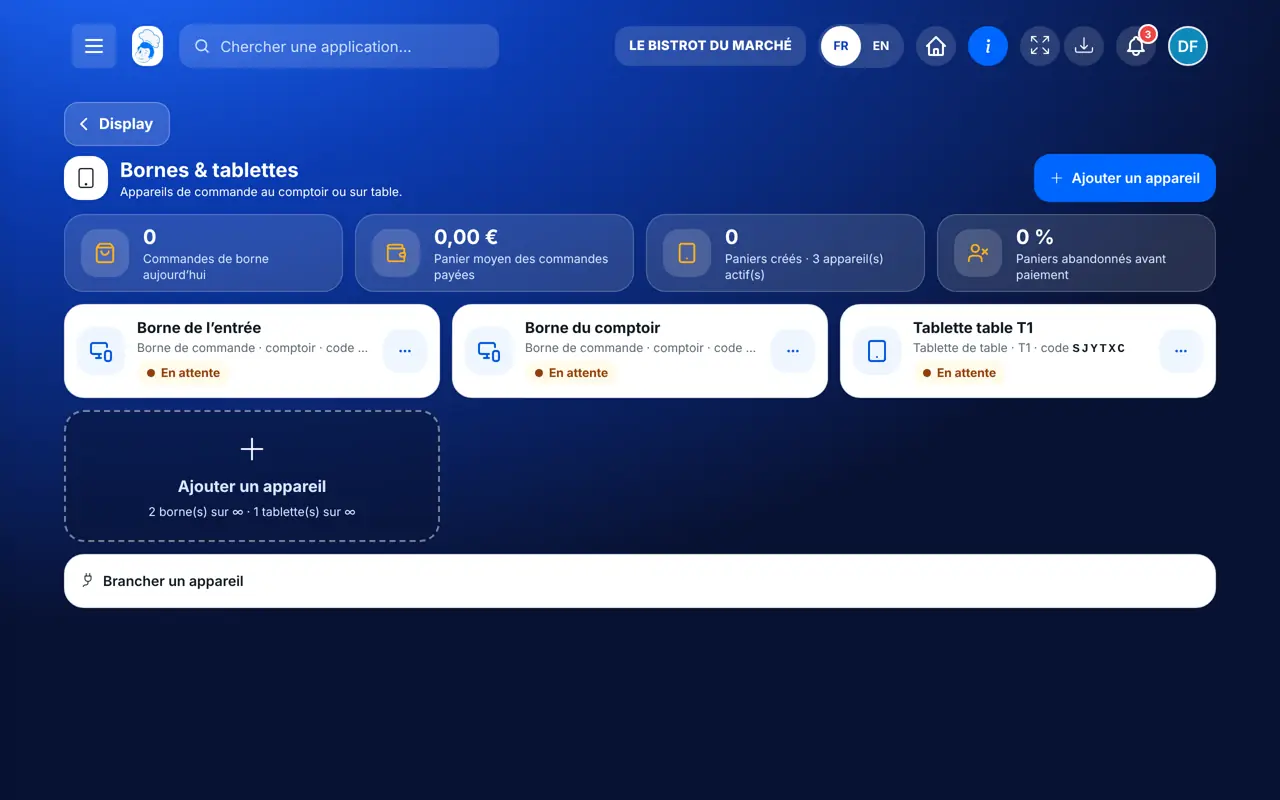
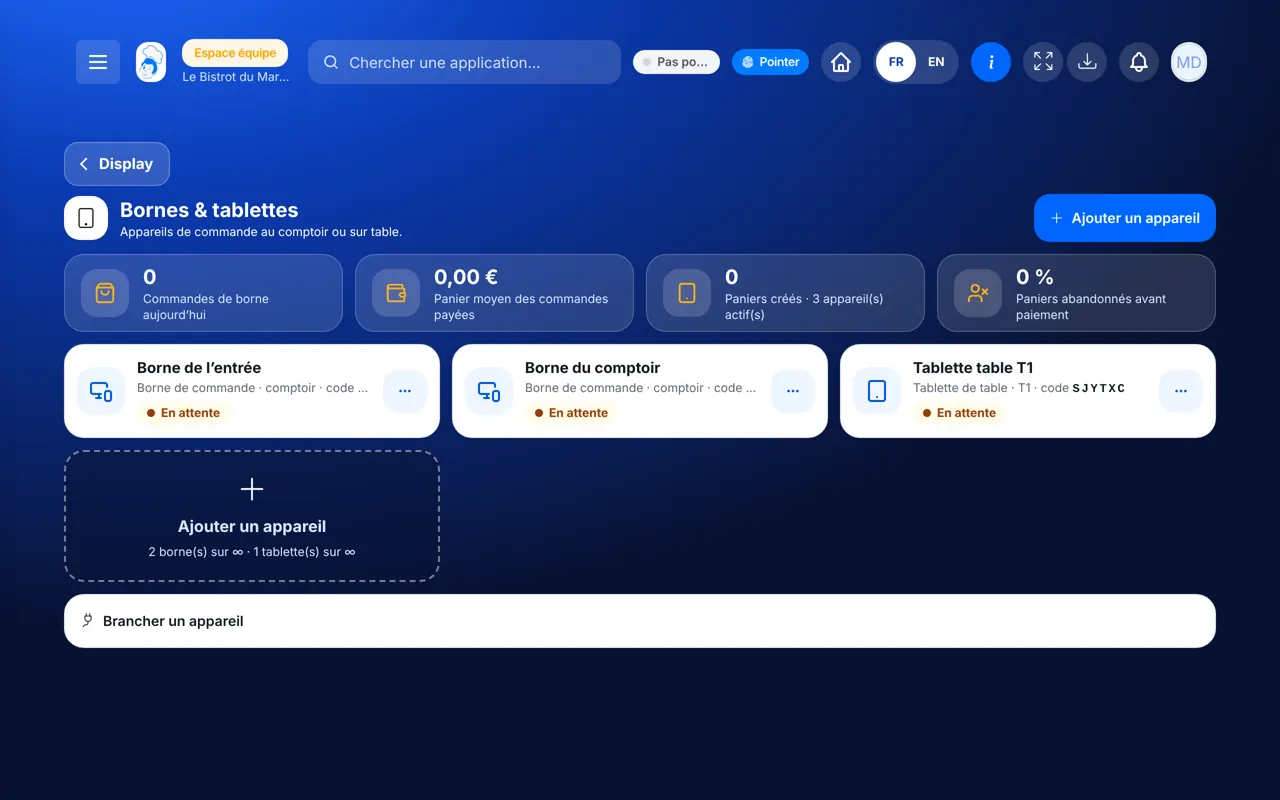
From the home screen, open Display then “Bornes”. Four figures at the top: today’s kiosk orders, average basket, baskets created, baskets abandoned.
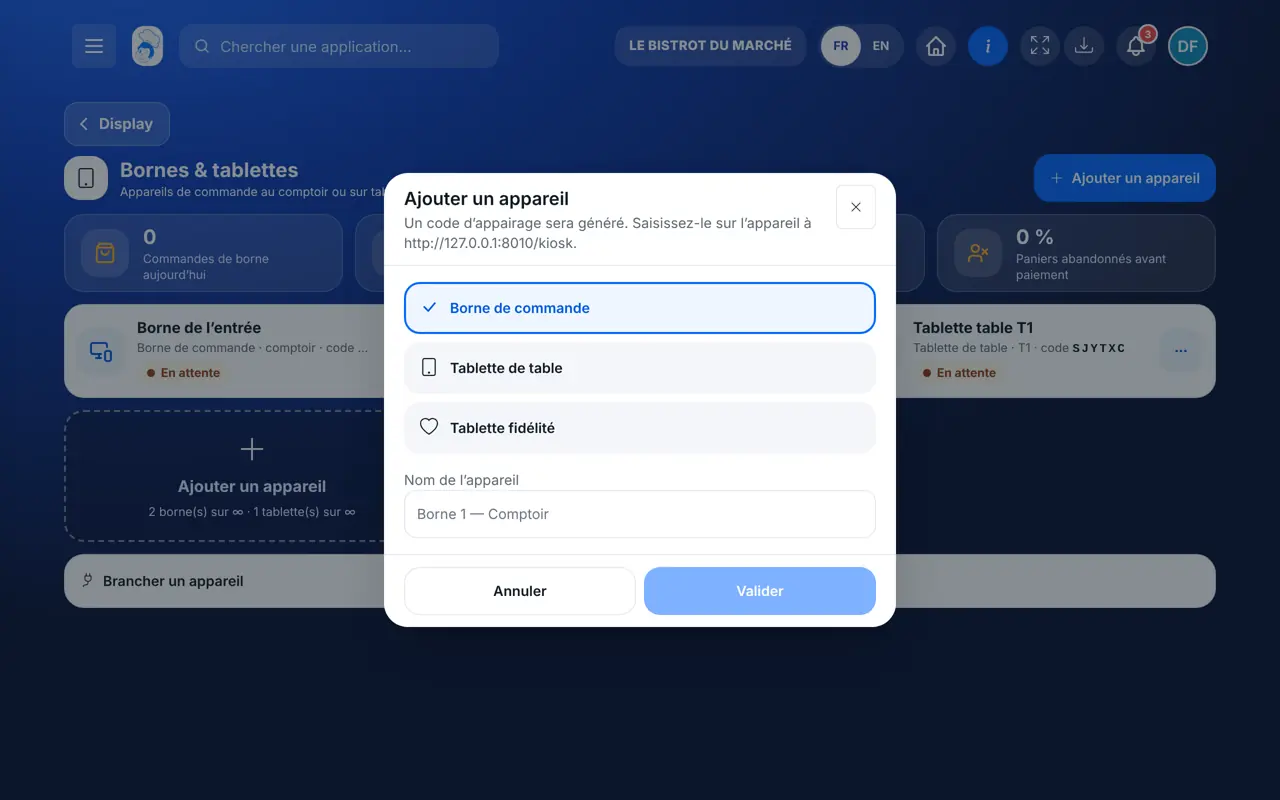
Tap “Ajouter un appareil”. Choose “Borne de commande”, “Tablette de table” or “Tablette fidélité”, name it, then confirm. A pairing code is shown.
On the kiosk, open the address shown (…/kiosk) and type the code. The device turns “En ligne” in the list.
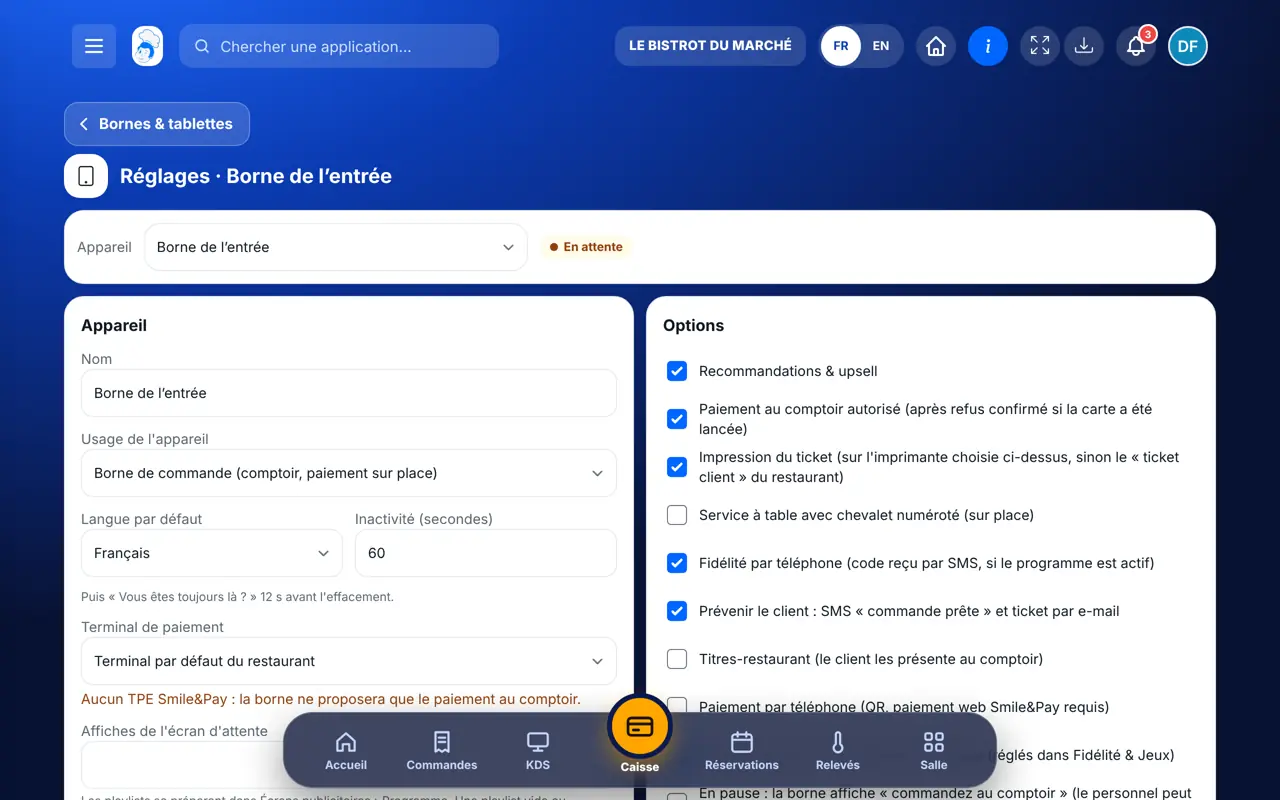
Tap the device: default language, inactivity delay, payment terminal, standby-screen posters, upselling. Save.
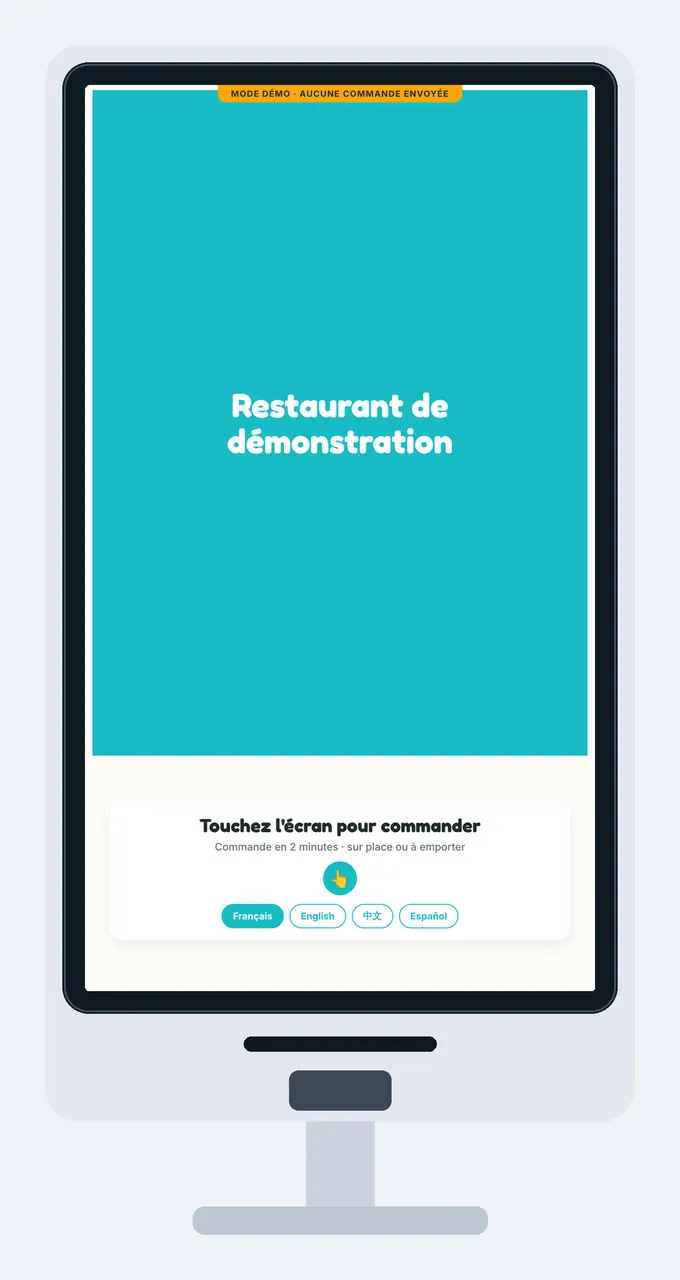
The customer chooses, pays at the terminal or at the counter, and gets a number. The order reaches the till and the kitchen screen.
The kiosk running: welcome screen, language choice, then your menu. Shown here in demo mode, with no order sent.
Adds, sets up, pauses or deactivates devices.
With the right to view the till and orders, follows the kiosks’ status. Adding a device needs the right to manage orders.
Claude, ChatGPT or Mistral’s Le Chat, connected to FoodEatUp. Copy the request and replace your establishment number.
In FoodEatUp, for my establishment [number], list my kiosks and tell me which ones are offline.
What you getEach kiosk, its status and its last signal.
Tools used : lister_bornes
In FoodEatUp, for my establishment [number], show me today’s kiosk orders.
What you getThe list of kiosk orders, with amount and status.
Tools used : lister_commandes_borne
In FoodEatUp, for my establishment [number], give me the status of kiosk [kiosk number].
What you getThis kiosk’s status, mode and settings.
Tools used : etat_borne
The customer orders alone while the team cooks.
Till prices, options and sold-out items.
French, English, Chinese and Spanish.
Six letters, no password on the device.
Put your current dishes playlist on the standby screen (“Affiches de l’écran d’attente”): the kiosk sells before anyone touches it.
In FoodEatUp, one action triggers others. Here are the screens that work with this one.
No. Any tablet or kiosk with a browser works. A kiosk bought from FoodEatUp does not count against your plan’s limit.
The kiosk only offers paying at the counter: the order waits at the till.
Yes. Paused, it shows “order at the counter” and takes no more orders.
Send it to your team, your partner or your accountant. The image below appears in the message.
Claude, ChatGPT or Le Chat read this tutorial and explain it to you. Connected to FoodEatUp, they do it with you.
Read this FoodEatUp tutorial: https://foodeatup.com/en/academy/display/kiosks.md Explain it to me simply, step by step, then help me do it in my restaurant. If FoodEatUp is connected to you, do it with me and show me the preview before every change.
Type your establishment number: the link takes you straight to this screen. The number stays on this device.
Discover the ordering kiosk (in French) →
Répond avec les fiches du site, sans IA
Le chef cherche dans les fiches…
 Claude
 Le Chat
 ChatGPT