Aller au contenu
Service · Floor plan
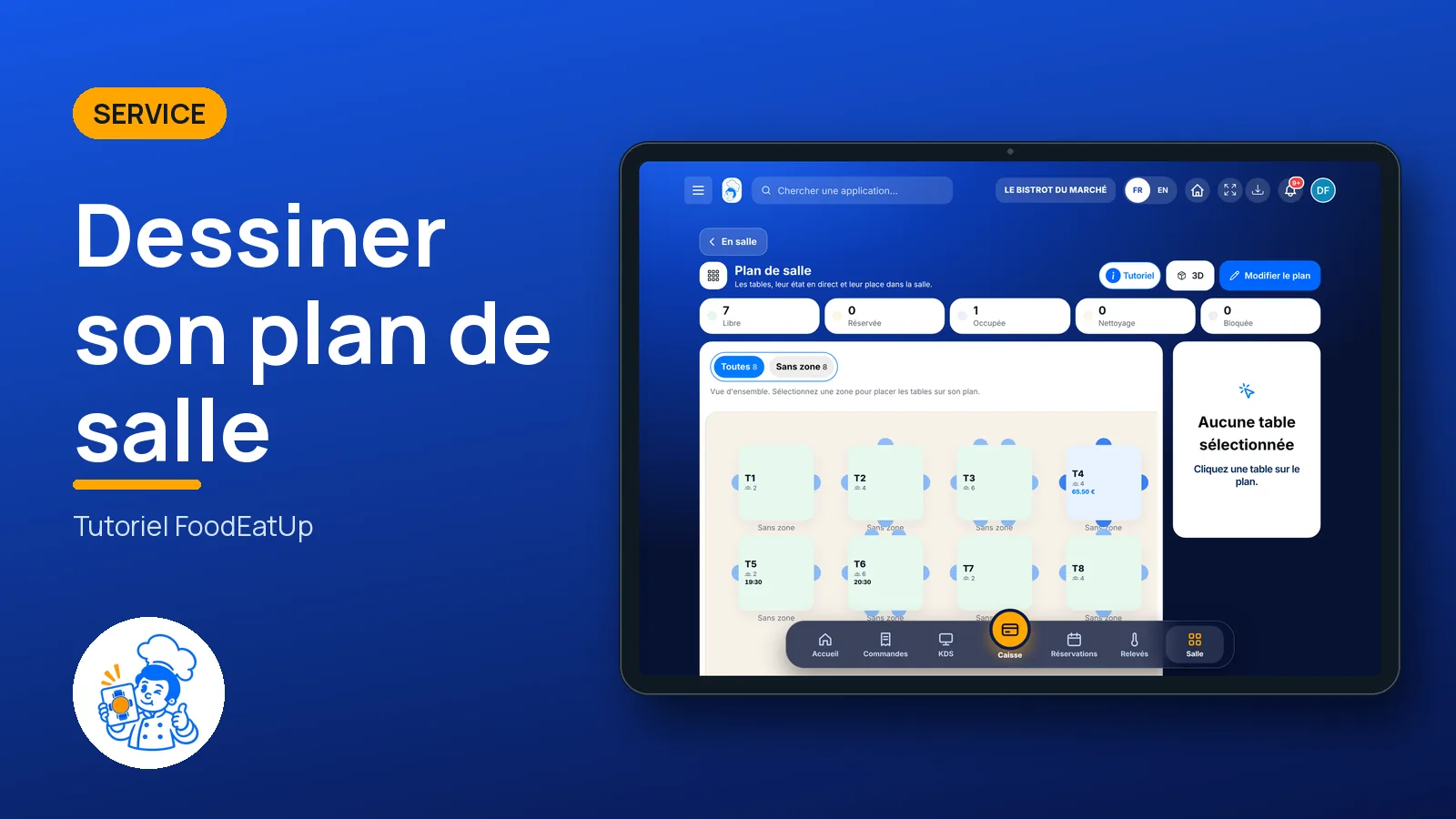
Draw your floor plan

Your tables in their place, dining room and terrace: the plan shows live which tables are free, occupied, reserved or to clean. You draw it once; the till and the team use it every service.

  • Tablet
  • 6 steps
  • Level : Beginner
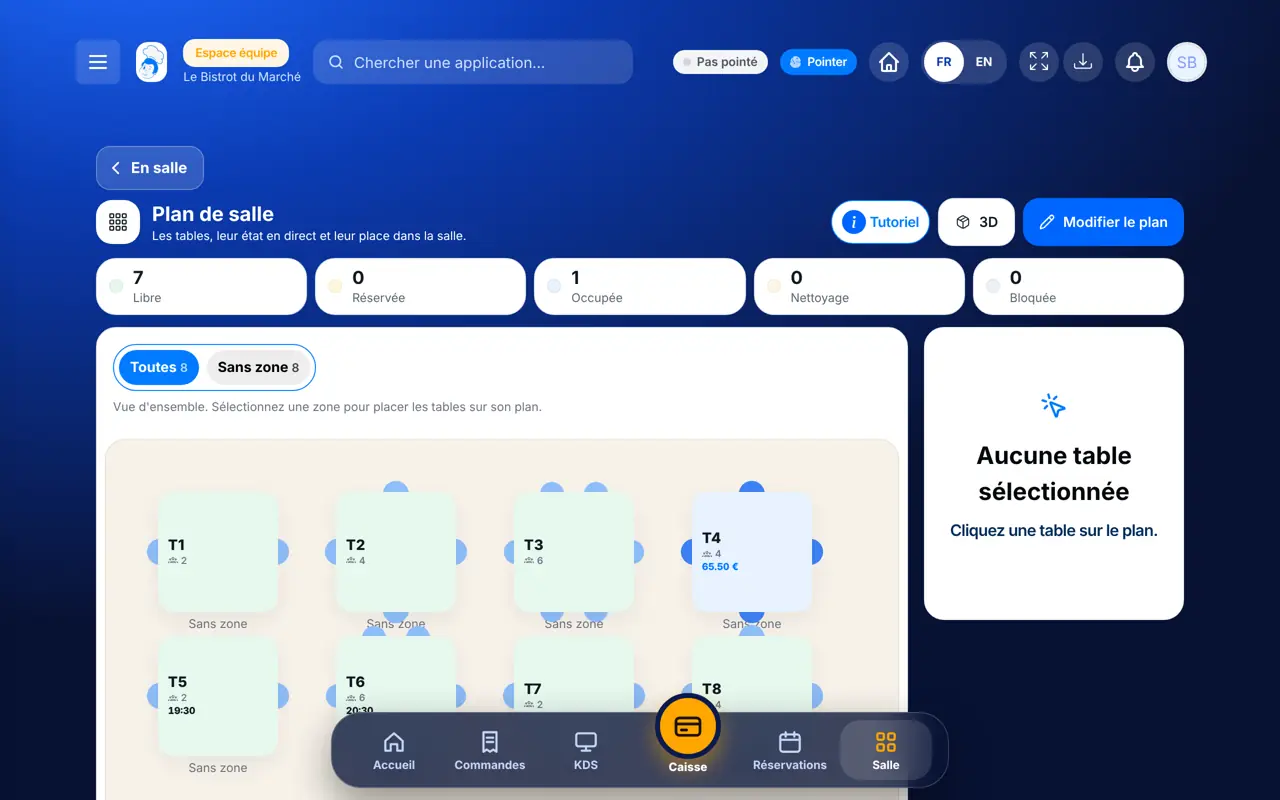
Draw your floor plan : The floor plan and tables by status

Who is it for?

  • Responsable de salle
  • Patron / gérant
  • Serveur / chef de rang
  • Directeur

Roles with access

  • Gérant·e
  • Serveur·se
  • Barman·maid
  • Hôte·sse / Caissier·ère
  • Boutique (réseau)
  • Franchisé·e (réseau)
  • Directeur·rice d'établissement
  • Responsable événements

The owner always has access. See what each role sees →

Recommended hardware

Tablet

The plan is drawn on the computer or tablet. During service it is checked on the floor tablet or in the till.

See the hardware →

What it is for

  • Place each table, with its shape, number of covers and area (dining room, terrace, mezzanine).
  • See each table’s status live: free, reserved, occupied, cleaning, blocked.
  • Print each table’s QR code so customers can see the menu and order.

Why set it up

  • Seating guests is decided at a glance: you see the free table of the right size straight away.
  • The till uses the same plan: the server opens the note on the table they tap.
  • The table QR code links the customer’s order to their table, with no wrong number.

The same screen, on every device

The real software screens, as they appear on each device.

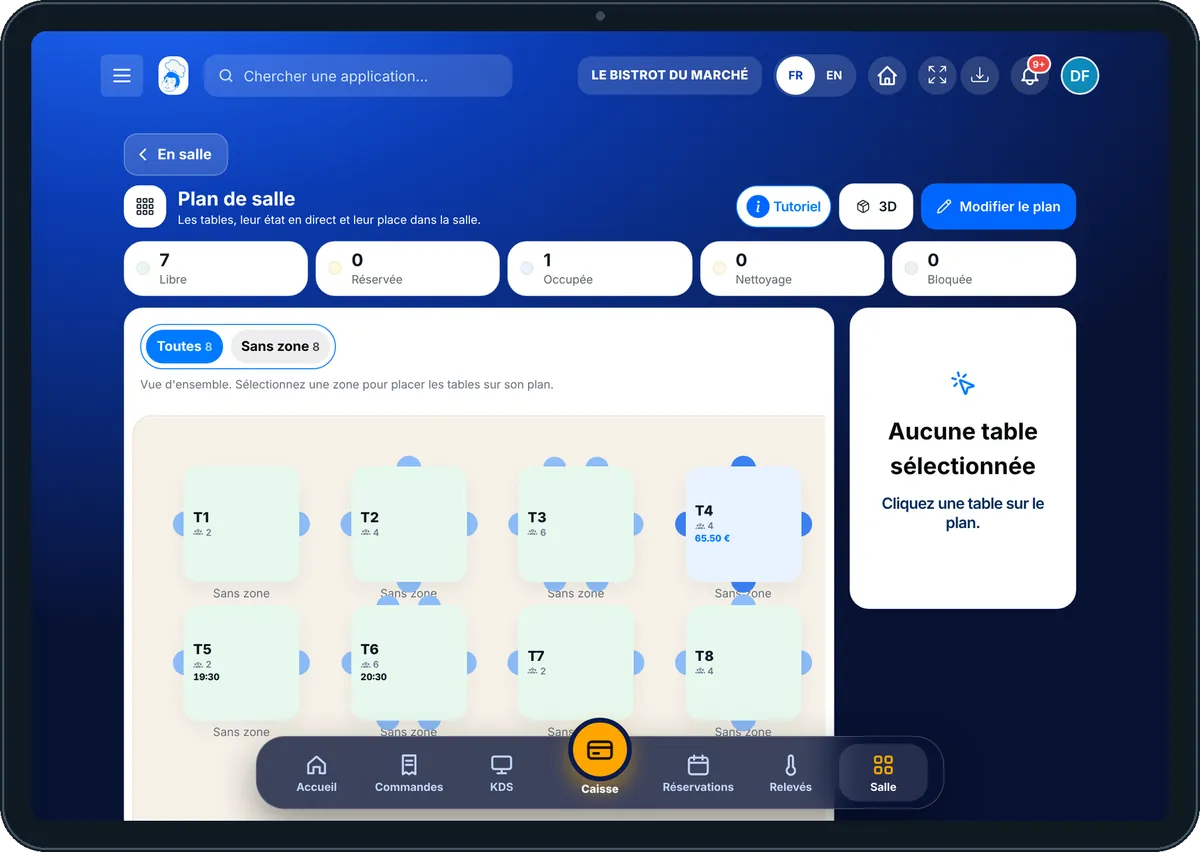
Floor plan — On the tablet
On the tablet
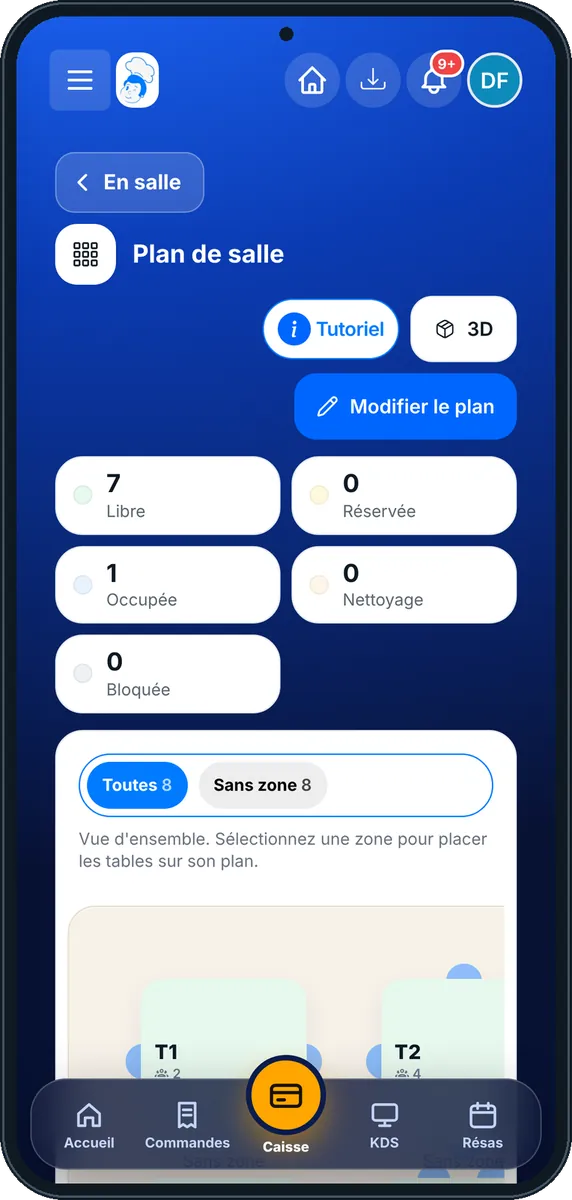
Floor plan — On the phone
On the phone
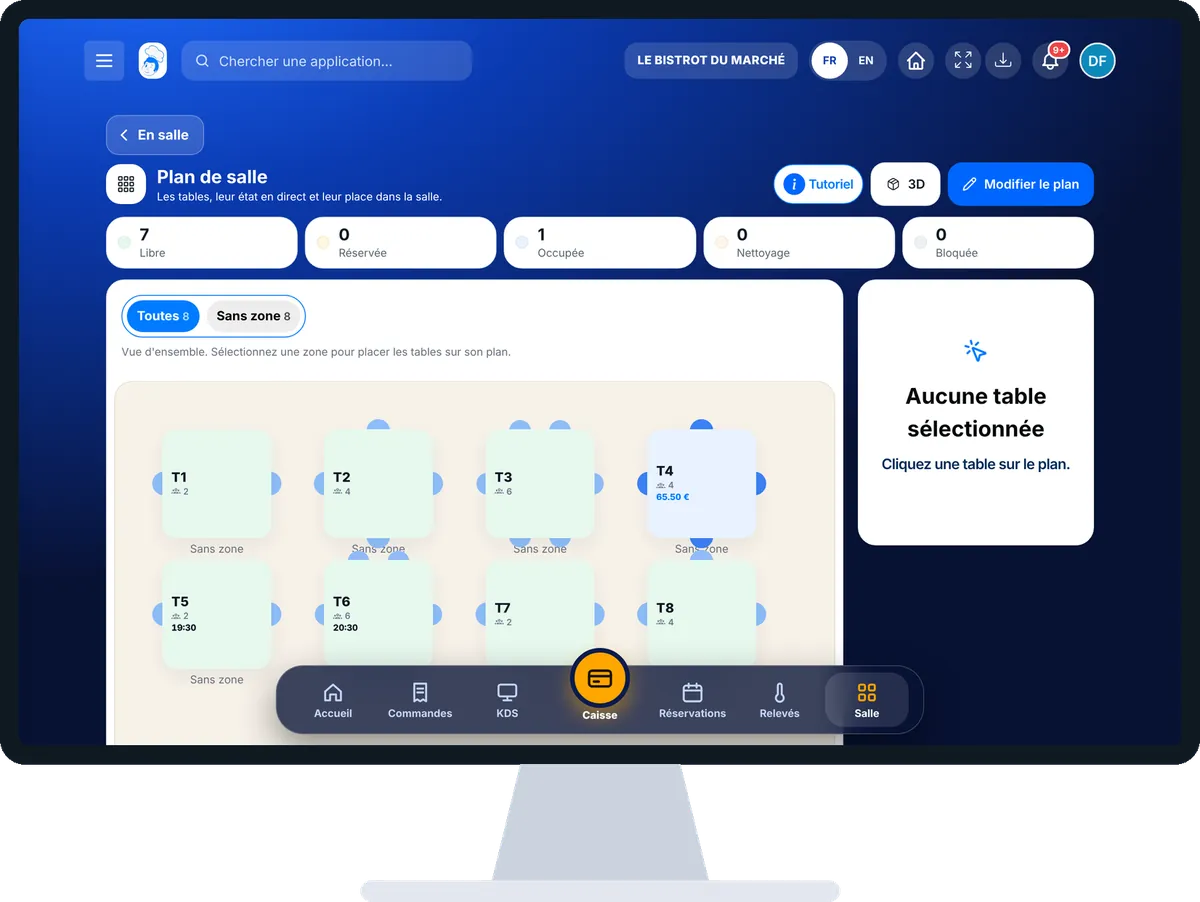
Floor plan — On the computer
On the computer

Step by step

Draw your floor plan : 6 steps, with the real software screens.

  1. 1Step 1

    Open the floor plan

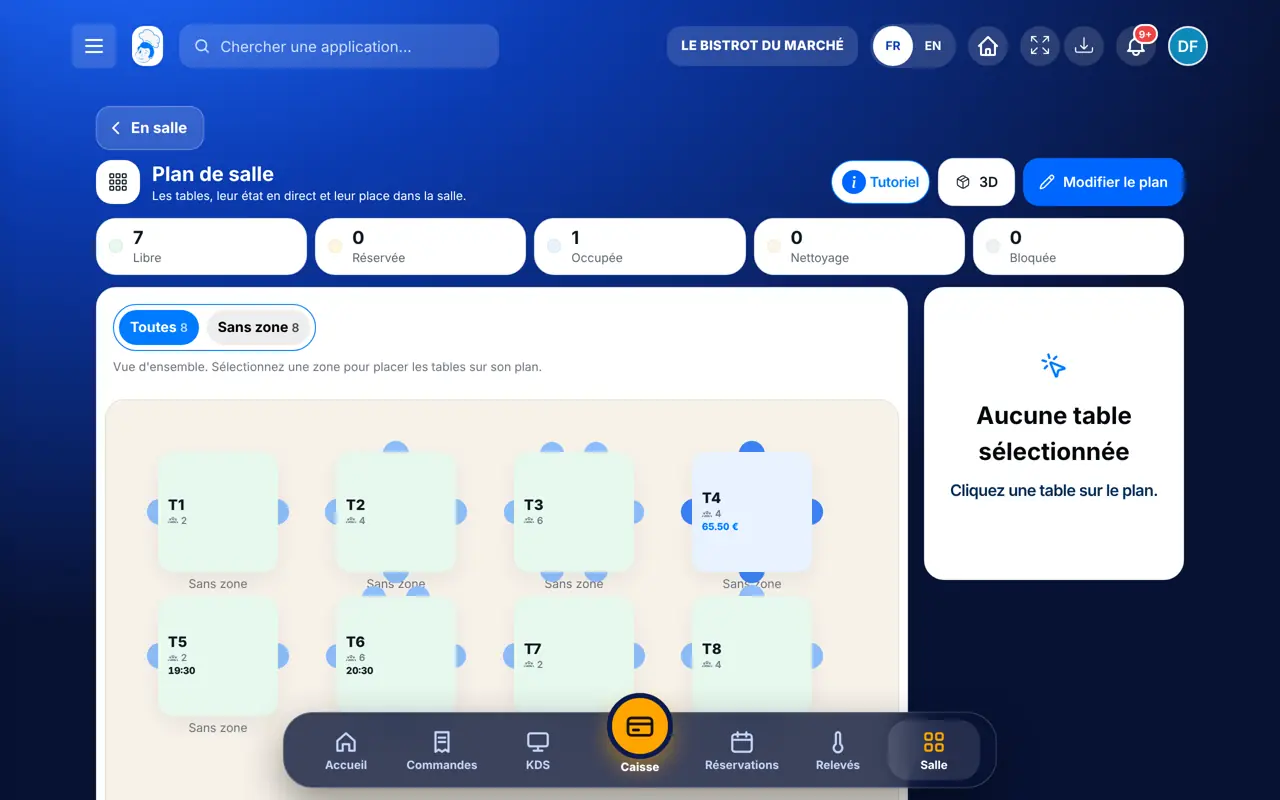
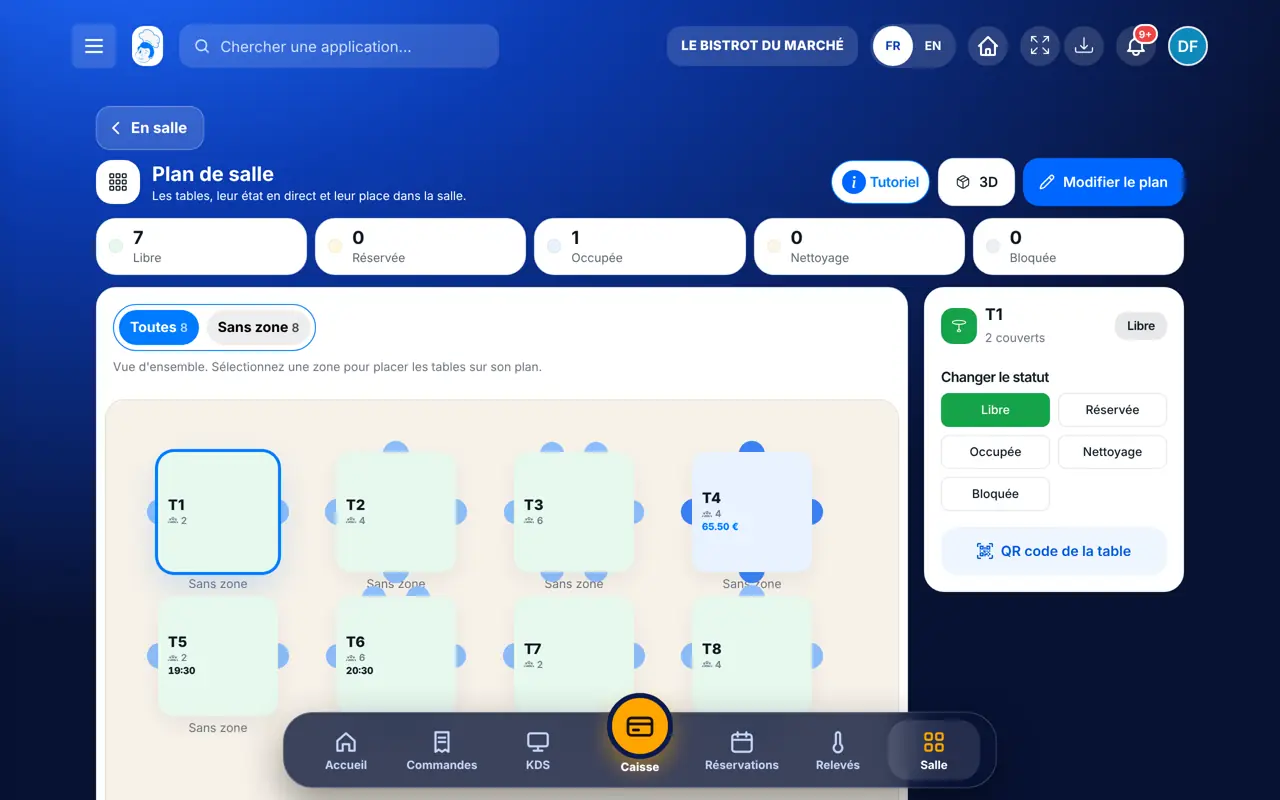
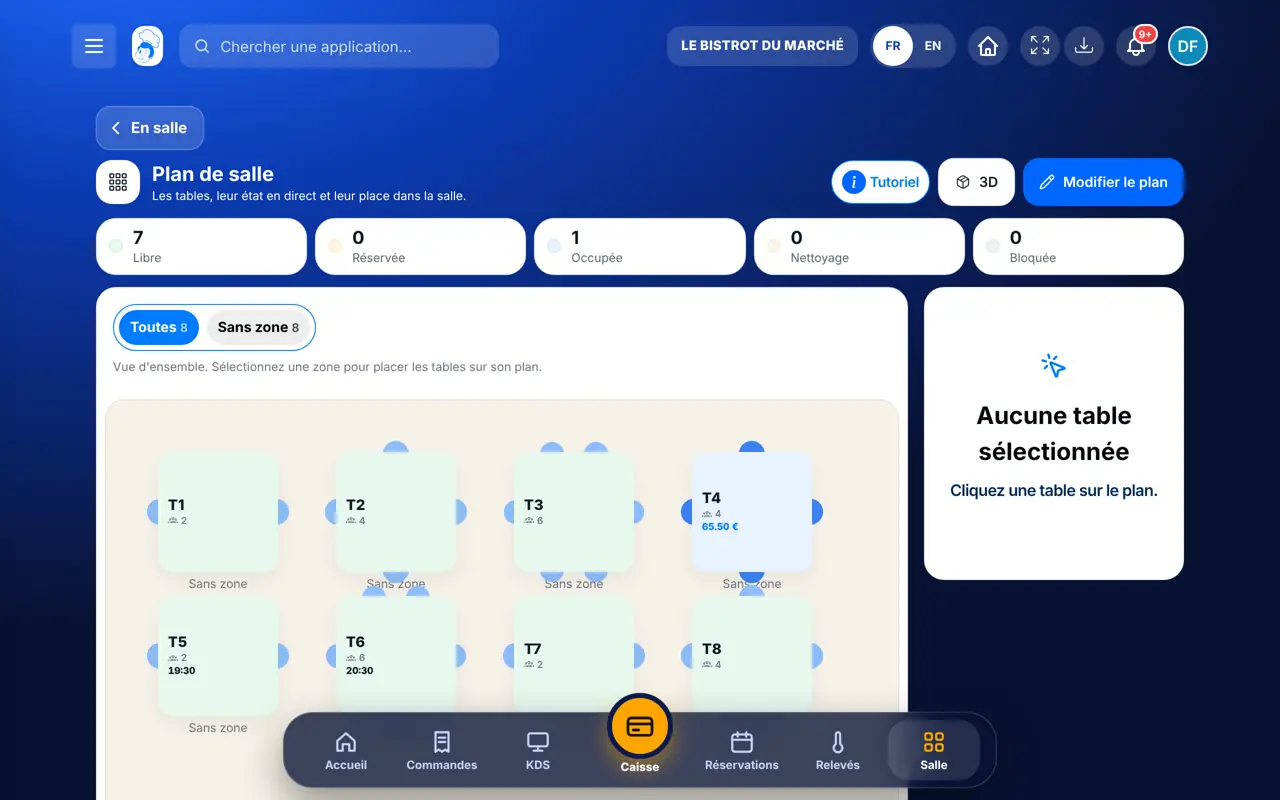
    From the home screen, open Service › Plan de salle. At the top, the number of tables by status. The area tabs (Toutes, Salle, Terrasse…) show part of the room.

    The floor plan and tables by status
  2. 2Step 2

    Tap a table

    Tap a table: its status, the current order and today’s booking show on the right. “Changer le statut” sets it to free, reserved, occupied, cleaning or blocked.

    Table details
  3. 3Step 3

    See the room in 3D

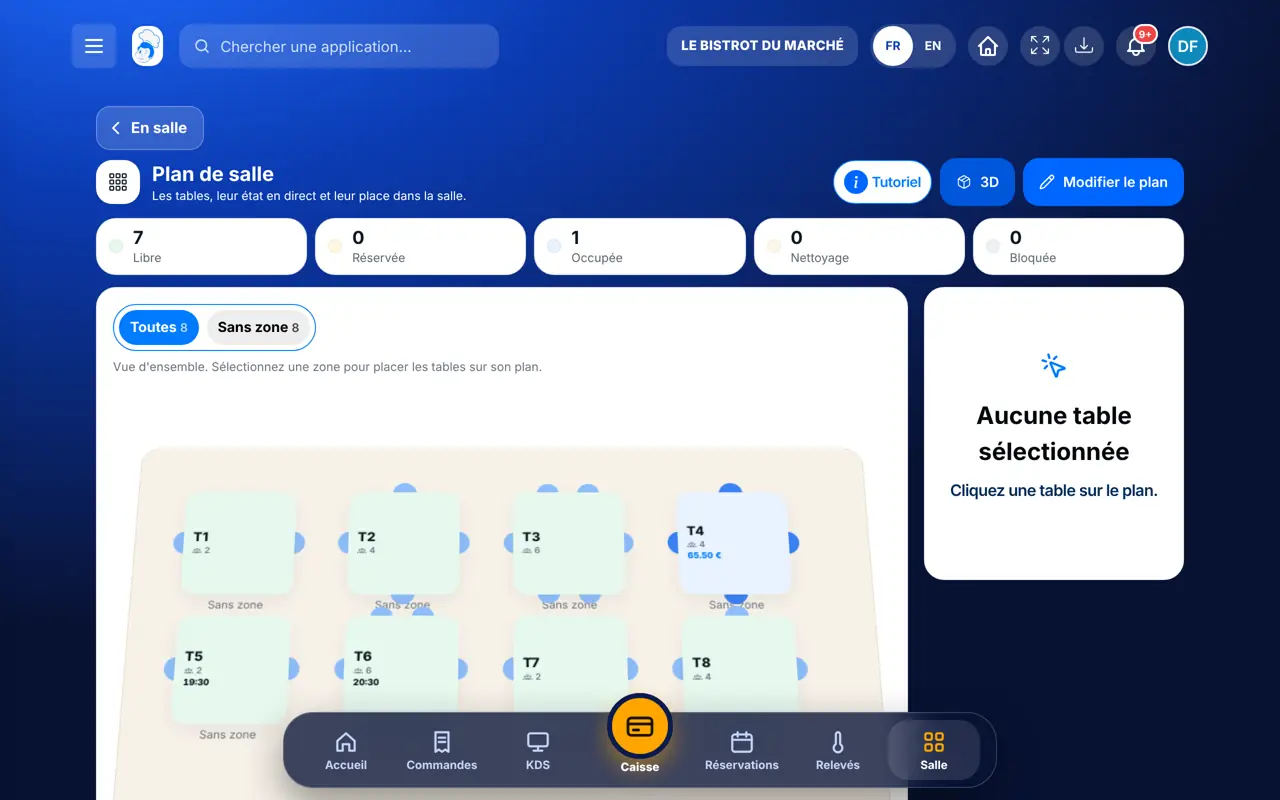
    Tap “3D”: the plan tilts to give a view of the room. Tap again to go back to flat.

    3D view of the room
  4. 4Step 4

    Edit the plan

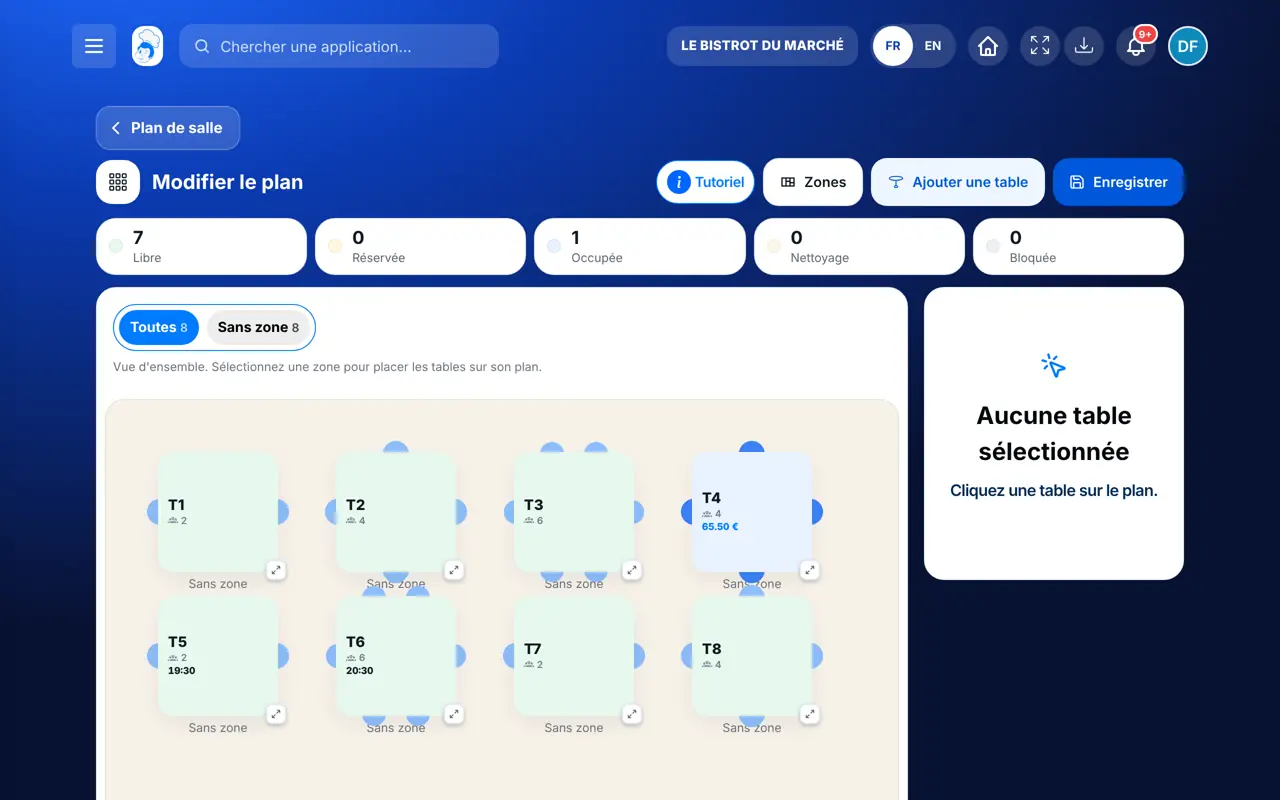
    Tap “Modifier le plan”. Drag the tables into place, resize them from the corner. Tap a table to change its name, shape (Ronde, Carrée, Rectangle), capacity and area. “Ajouter une table” creates a new one.

    The plan in edit mode
  5. 5Step 5

    Create areas and save

    In edit mode, “Zones” adds a dining room, terrace or mezzanine, with a colour. Tap “Enregistrer” to keep the tables’ positions.

    Room areas
  6. 6Step 6

    Print the QR codes

    Tap a table, then “QR code de la table”: download it, copy the link or print “Tous les chevalets” in one go.

    A table’s QR code
The result

A room that is up to date, live

The plan shows each table in its place, with a status that changes through the service: the till and the team see the same room.

A room that is up to date, live : Draw your floor plan

Owner and employee: what changes

The owner

Draws the plan, creates areas, adds or removes tables and prints QR codes.

Floor plan — The owner

The employee

On the floor, sees table status and changes it (occupied, cleaning) if their role allows it. Drawing the plan requires the right to manage tables.

Floor plan — The employee

Do it with your assistant

Claude, ChatGPT or Mistral’s Le Chat, connected to FoodEatUp. Copy the request and replace your establishment number.

Which tables are free?

In FoodEatUp, for my establishment [number], tell me which tables are free right now and how many covers they take.

What you getThe list of free tables, with their capacity and area.

Tools used : floor_plan_status, list_tables

How is table 4 doing?

In FoodEatUp, for my establishment [number], give me the status of table T4: current order, amount left to pay, booking.

What you getThe real status of the table, its note and what is left to pay.

Tools used : get_table_status

Add a table on the terrace

In FoodEatUp, for my establishment [number], add a table T9 for 4 covers in the Terrace area. Show me the result before confirming.

What you getThe new table appears on the plan, in the right area.

Tools used : list_zones, create_table

What you gain

The room at a glance

Each table shows its status in colour and in words.

The same plan everywhere

The till and the floor use the same tables.

One QR code per table

Customers see the menu and their order from their table.

Easy to change

Drag a table, save.

The Chef’s tip

Name tables the way the team already calls them (T1, T2, Terrace 1…): that name shows at the till, in the kitchen and on the QR codes.

Frequently asked questions

Do tables change status on their own?

Yes: a table with an open note shows as occupied. You can also change its status by hand.

Can I have several rooms?

Yes, with areas: dining room, terrace, mezzanine… Each area has its tab.

Where is a table’s QR code?

Tap the table, then “QR code de la table”. “Tous les chevalets” prints those of every table.

Text version for AI assistants →

Share this tutorial

Send it to your team, your partner or your accountant. The image below appears in the message.

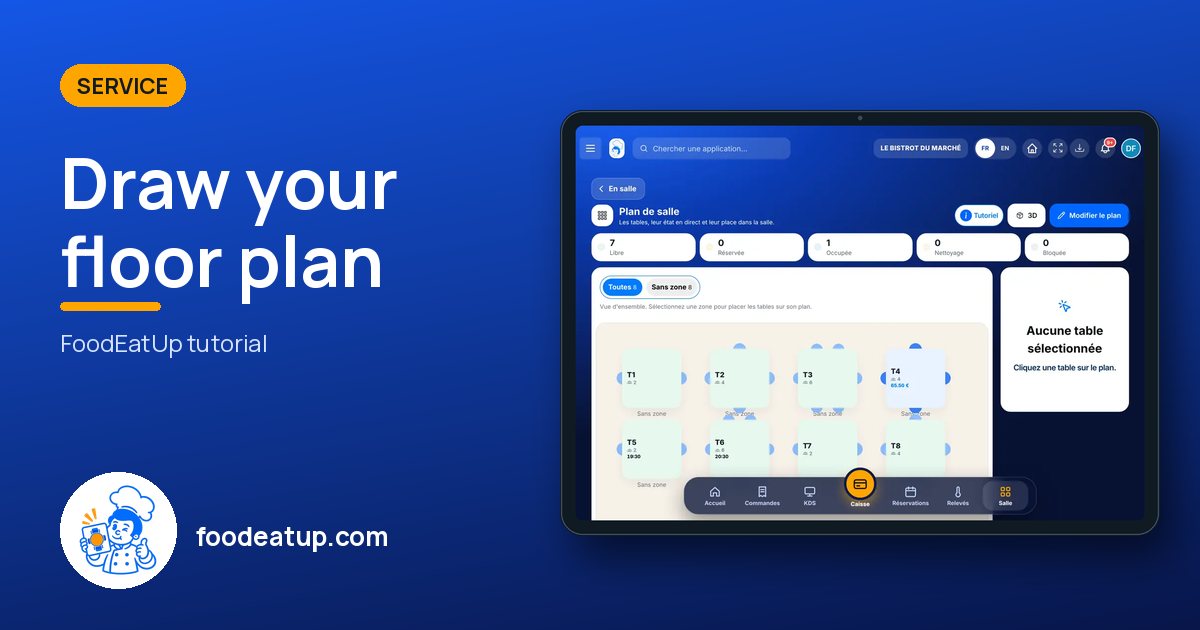
Share preview : Draw your floor plan
WhatsAppLinkedInFacebookEmail

Send to an AI assistant

Claude, ChatGPT or Le Chat read this tutorial and explain it to you. Connected to FoodEatUp, they do it with you.

Read this FoodEatUp tutorial: https://foodeatup.com/en/academy/service/floor-plan.md Explain it to me simply, step by step, then help me do it in my restaurant. If FoodEatUp is connected to you, do it with me and show me the preview before every change.

ClaudeLe ChatChatGPT

Open in my software

Type your establishment number: the link takes you straight to this screen. The number stays on this device.

Discover reservations and the floor plan (in French) →

You can read it in the software address: foodeatup.com/establishment/number/…