Aller au contenu
Service · Reservations
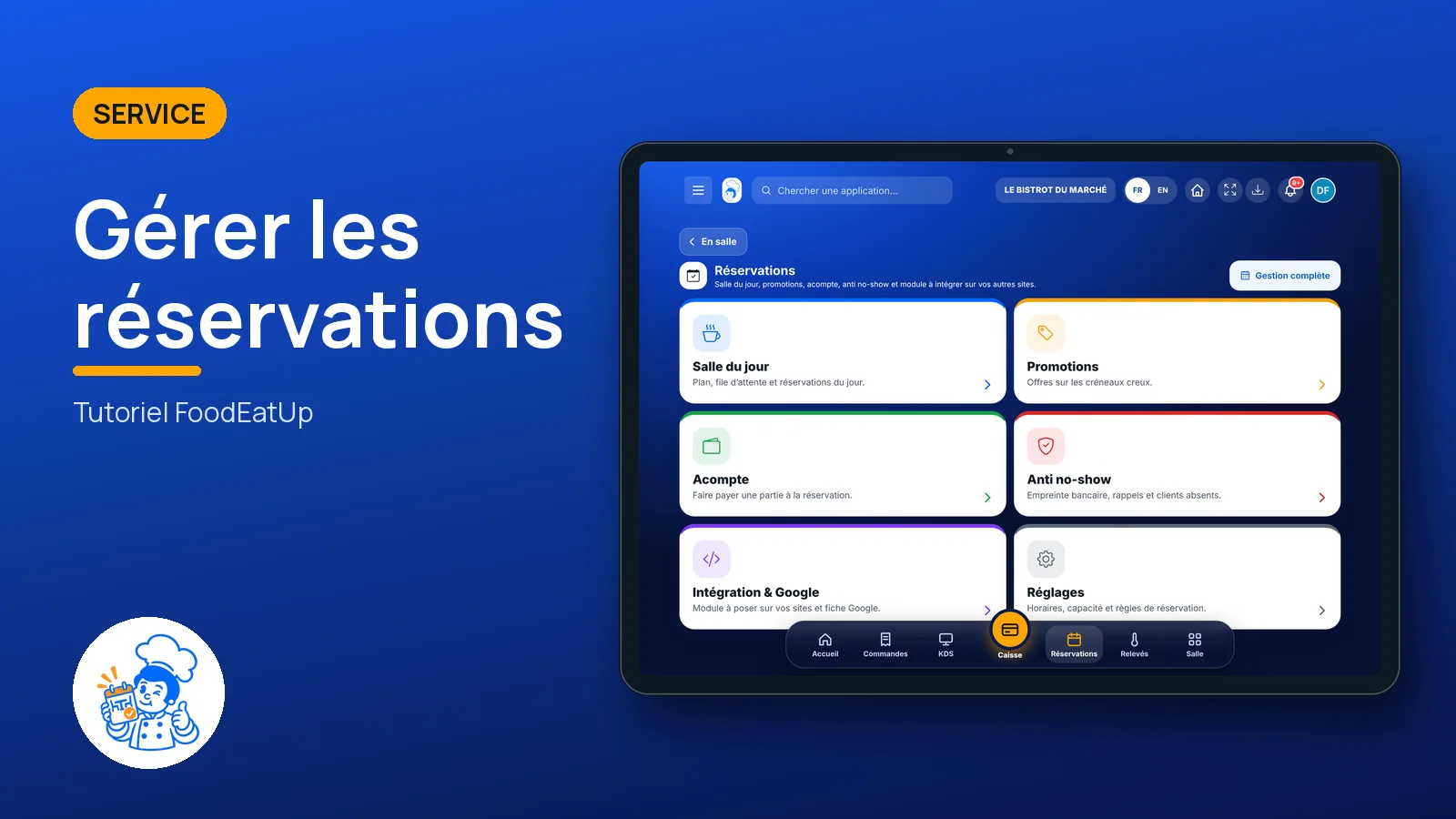
Manage reservations

Today’s reservations, the floor plan and the waiting list on one screen. Seat guests, mark a no-show, and set the deposit, promotions and the booking module for your website.

  • Tablet
  • 6 steps
  • Level : Beginner
Manage reservations : The reservation functions

Who is it for?

  • Responsable de salle
  • Patron / gérant
  • Serveur / chef de rang
  • Directeur

Roles with access

  • Gérant·e
  • Serveur·se
  • Barman·maid
  • Hôte·sse / Caissier·ère
  • Boutique (réseau)
  • Franchisé·e (réseau)
  • Directeur·rice d'établissement
  • Responsable site web & intégration · view
  • Responsable commercial · view
  • Responsable événements

The owner always has access. See what each role sees →

Recommended hardware

Tablet

A tablet at the dining room entrance, where guests are welcomed. The same screen works on a phone and on the office computer.

See the hardware →

What it is for

  • See at a glance who is coming today, at what time and for how many covers.
  • Seat a guest at a free table, or note that they did not show up.
  • Set once and for all the deposit, quiet-slot promotions, no-show protection and your website’s booking module.

Why set it up

  • A booked table left empty in the middle of service is lost revenue: a deposit or a card guarantee protects you.
  • The floor plan, the waiting list and the reservations are in one place: no more notebook next to the till.
  • Bookings made online, by phone or on your website all land here.

The same screen, on every device

The real software screens, as they appear on each device.

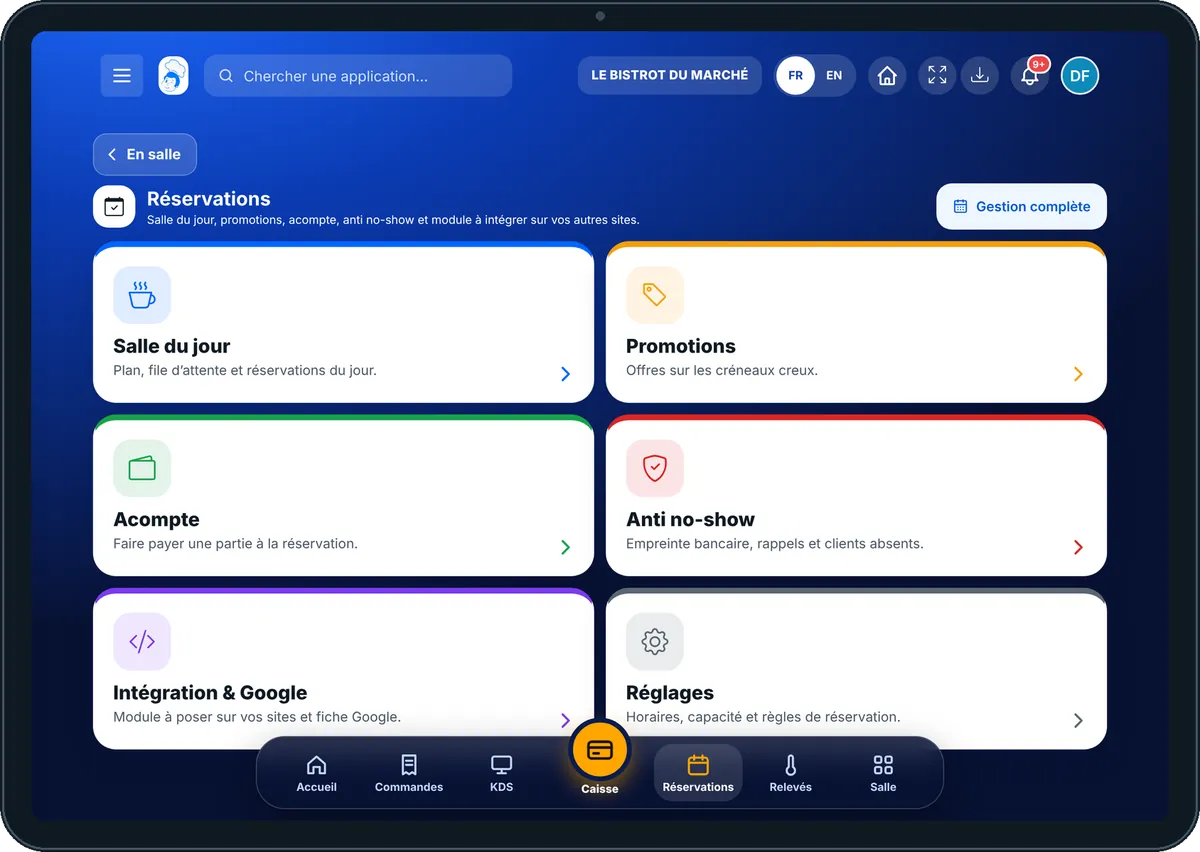
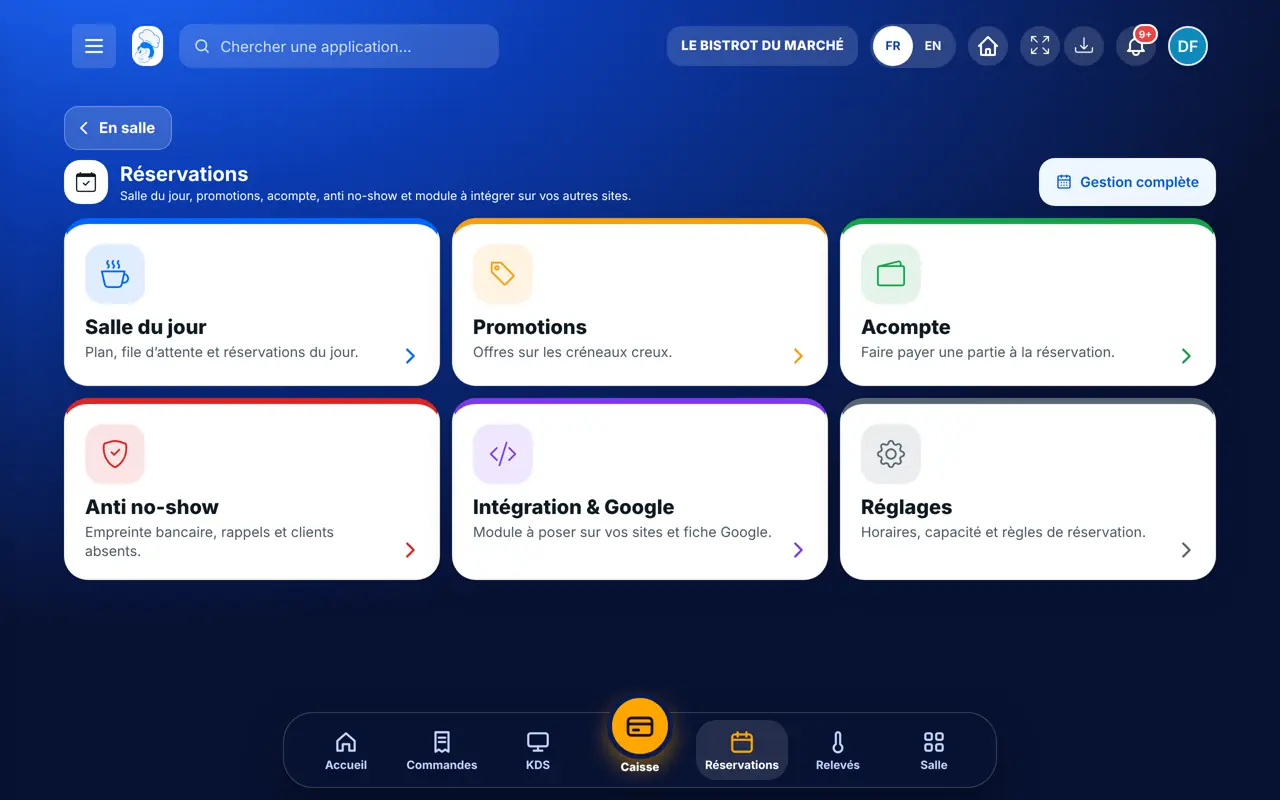
Reservations — On the tablet
On the tablet
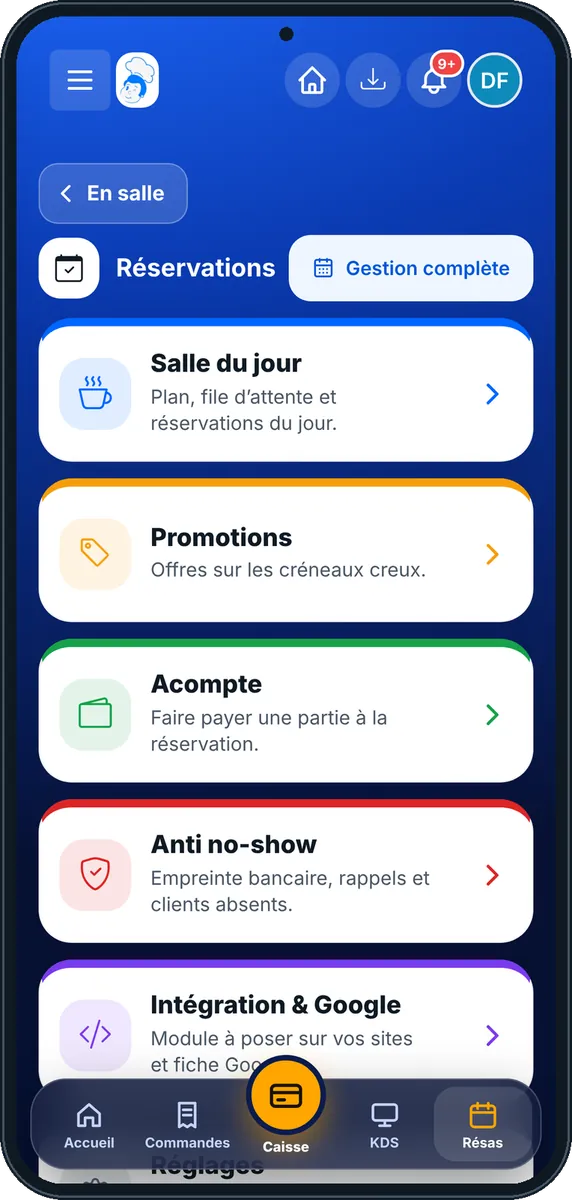
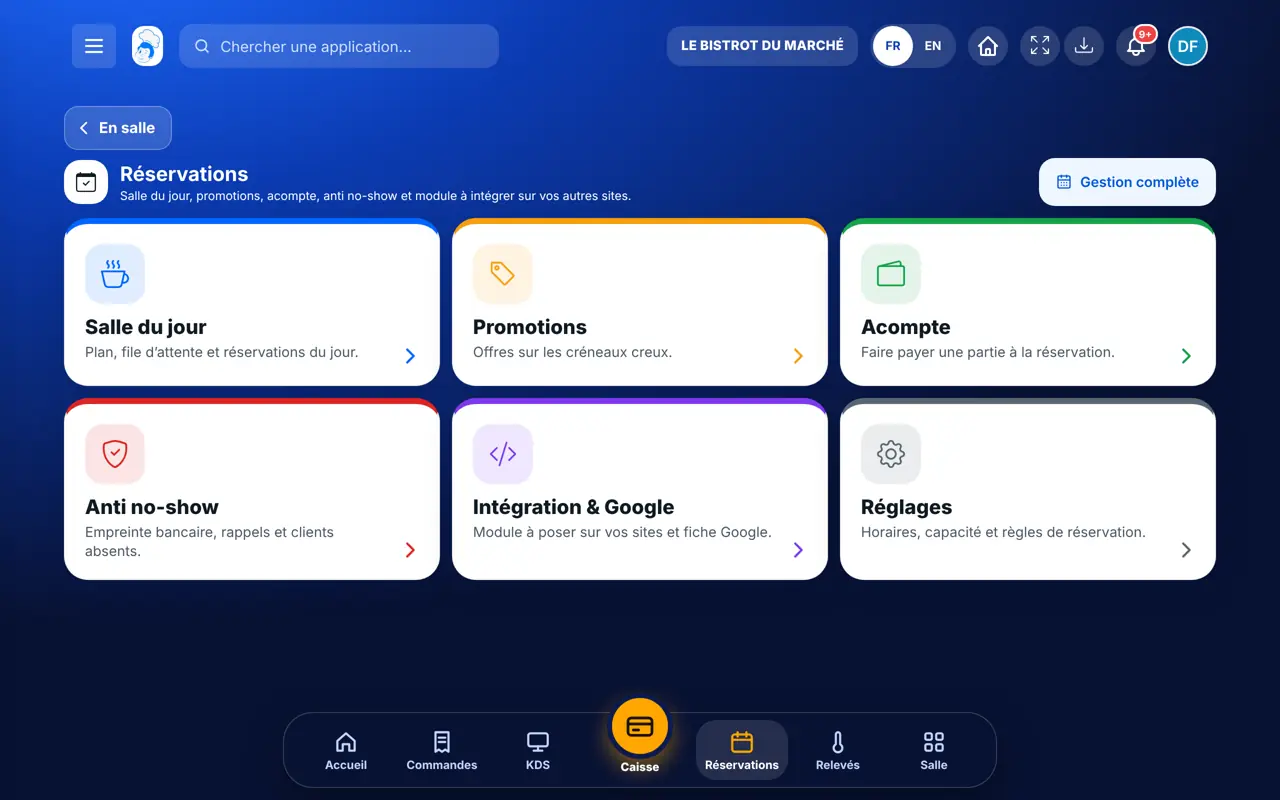
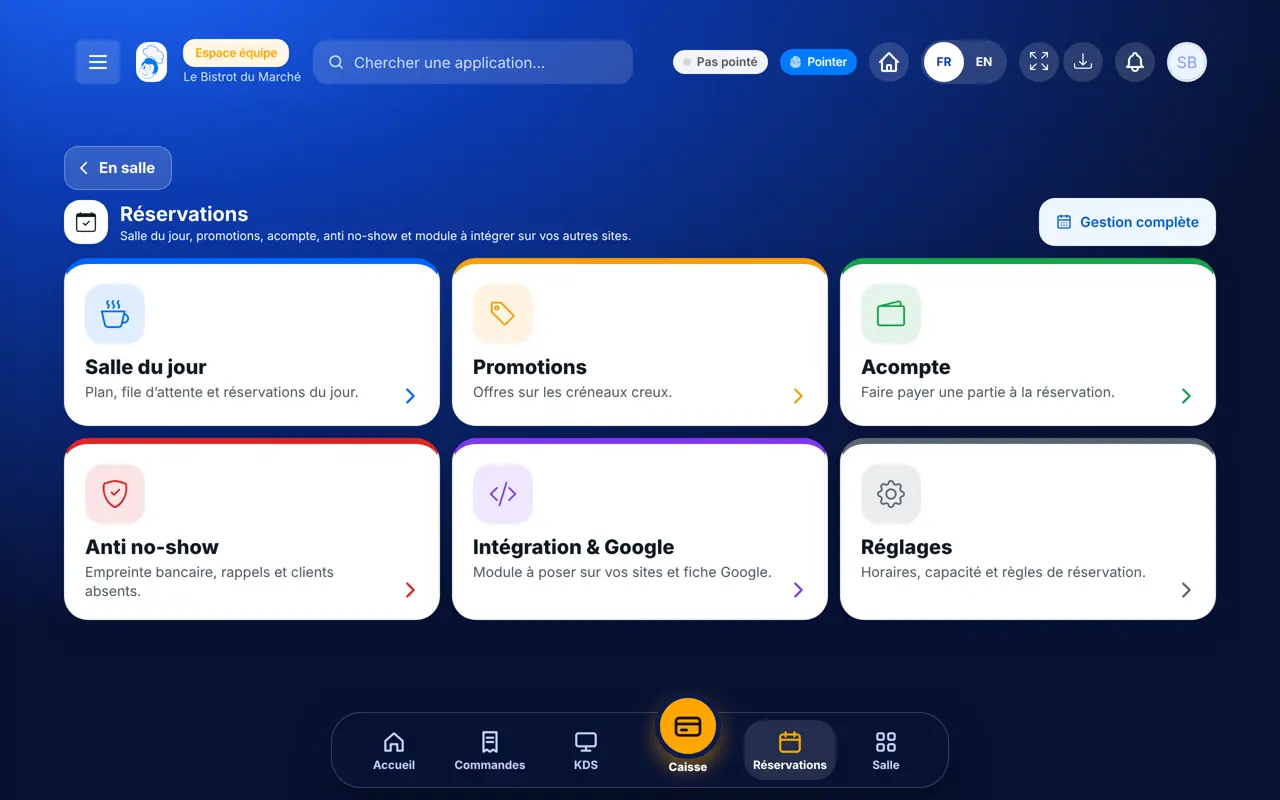
Reservations — On the phone
On the phone
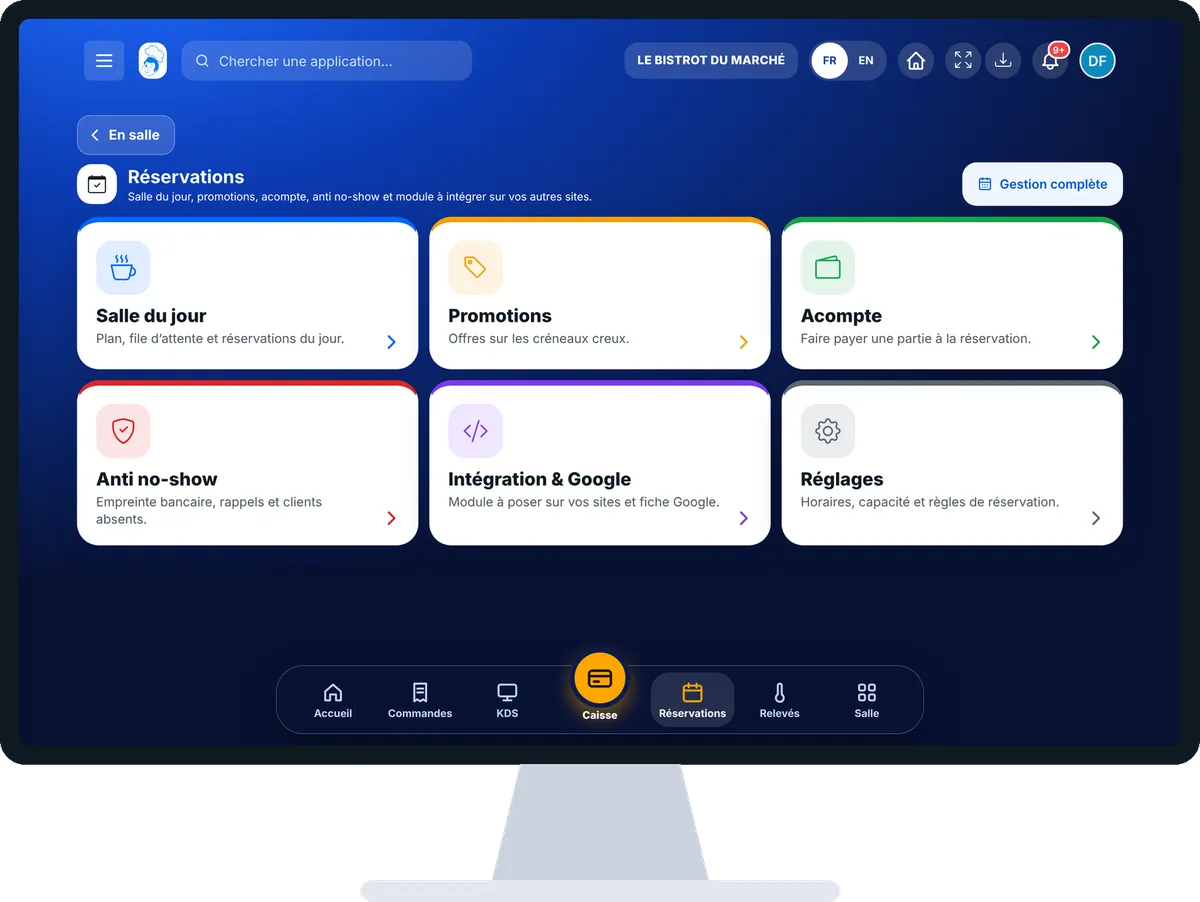
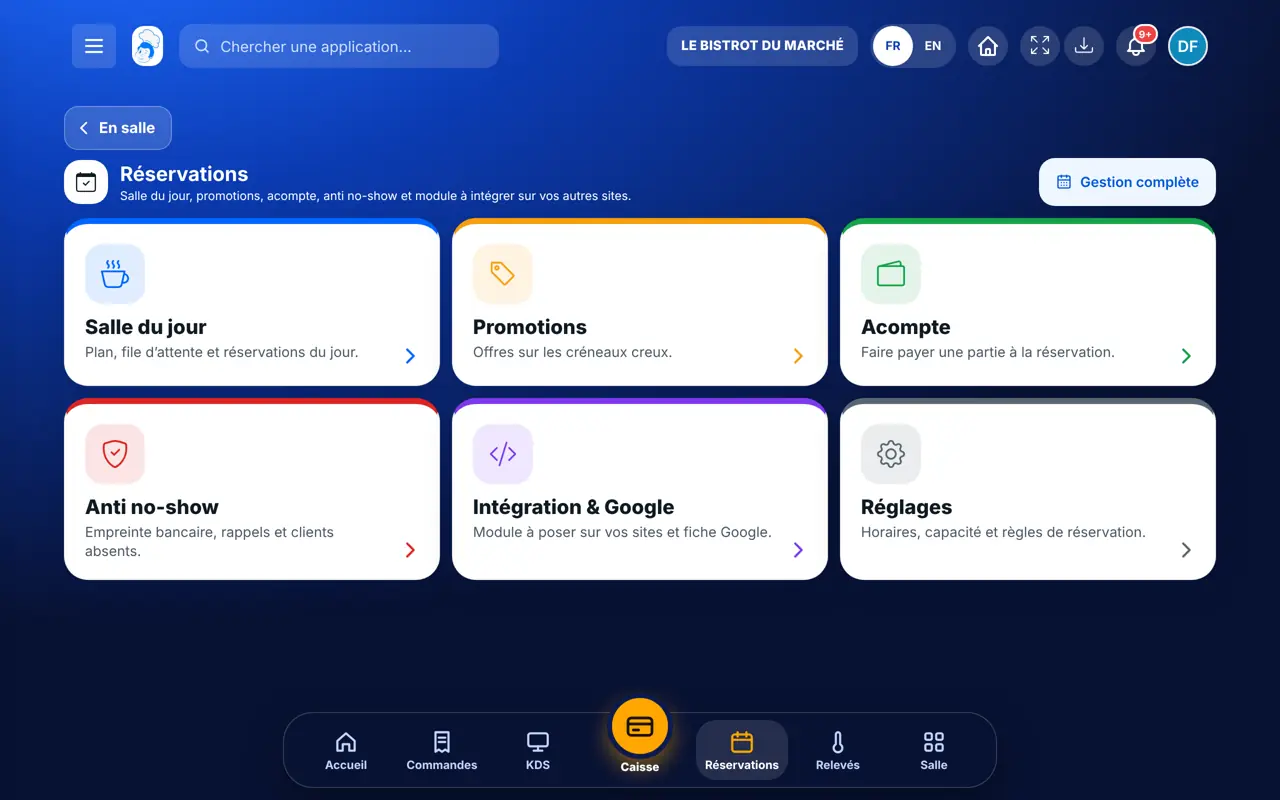
Reservations — On the computer
On the computer

Step by step

Manage reservations : 6 steps, with the real software screens.

  1. 1Step 1

    Open reservations

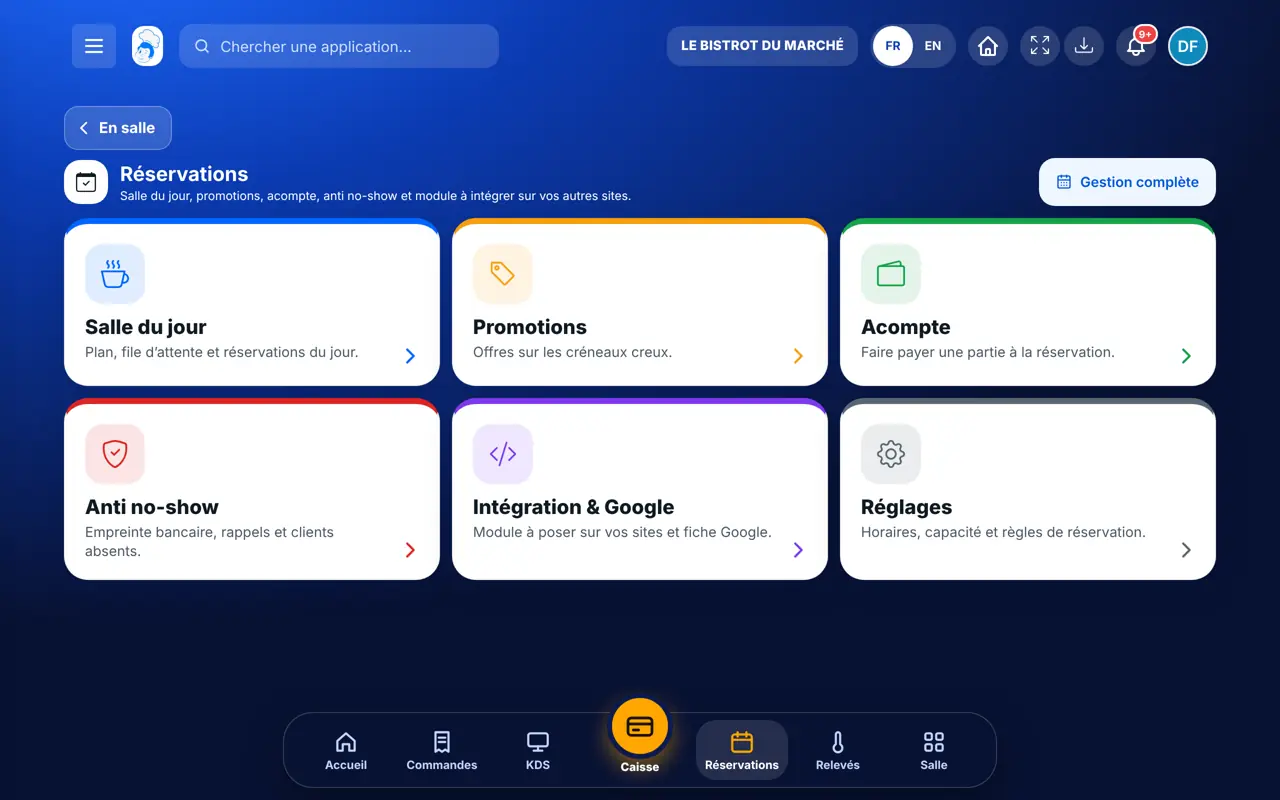
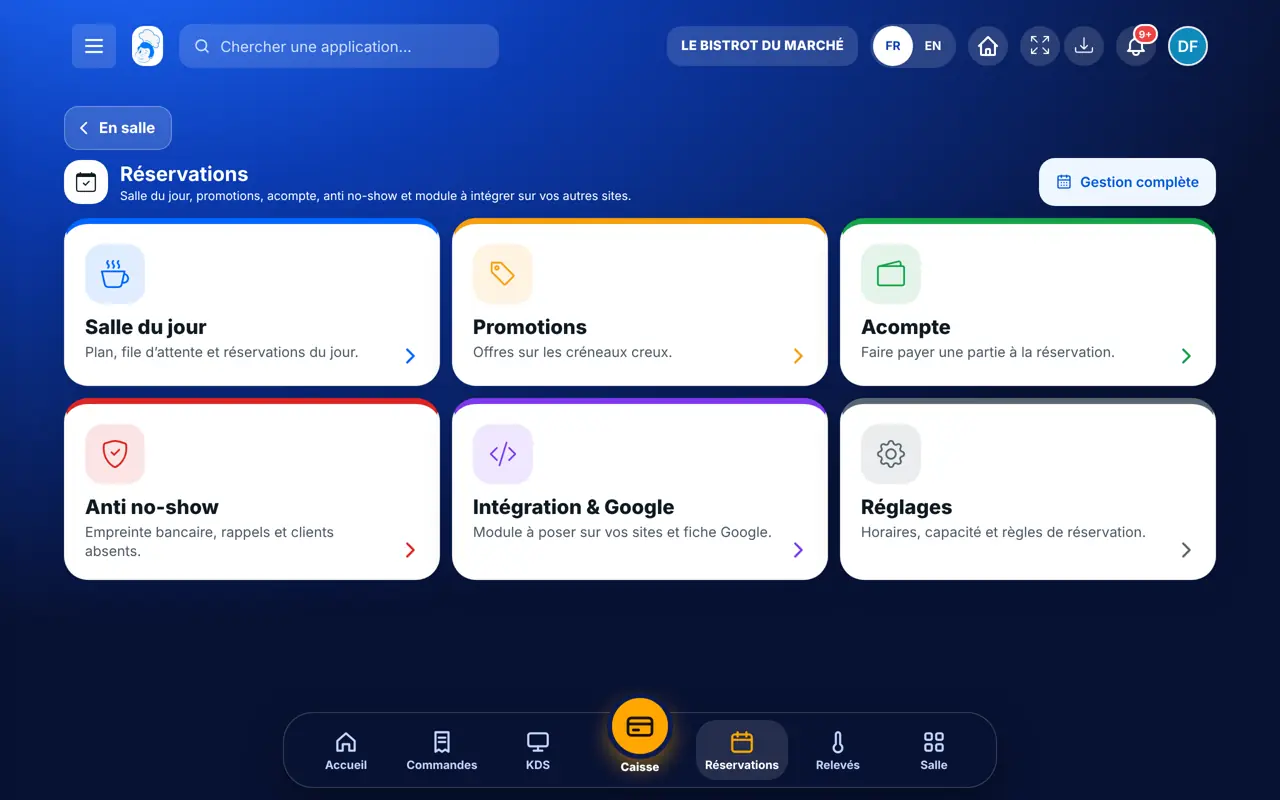
    From the home screen, open Service then “Réservations”. Six cards appear: Salle du jour, Promotions, Acompte, Anti no-show, Intégration & Google and Réglages. The “Gestion complète” button opens the list of all reservations.

    The reservation functions
  2. 2Step 2

    Follow today’s dining room

    Tap “Salle du jour”. You see the floor plan, the waiting list and today’s reservations. A reservation’s “…” button offers “Installer”, “Marquer absent (no-show)” or “Demander un acompte”. The “Venue confirmée” badge means the guest confirmed.

    Floor plan, waiting list and today’s reservations
  3. 3Step 3

    Fill quiet slots

    Tap “Promotions”. A promotion covers days and hours, with a discount, on the whole menu or a selection. It can be highlighted on your website.

    Quiet-slot promotions
  4. 4Step 4

    Protect against no-shows

    Tap “Acompte” to take part of the payment at booking, from a number of covers or an amount. Tap “Anti no-show” for card guarantees, SMS reminders and repeat no-shows.

    No-show rules
  5. 5Step 5

    Put booking on your sites

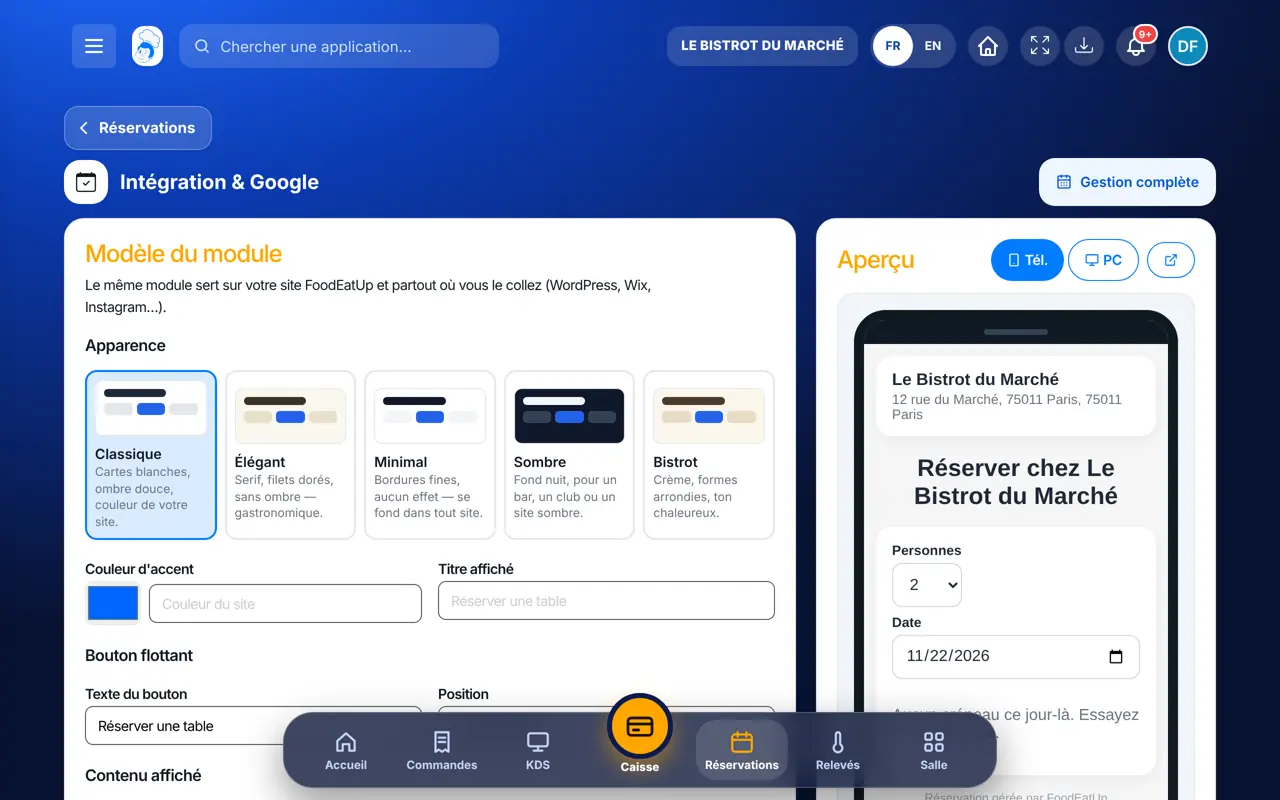
    Tap “Intégration & Google”. Choose the module’s look and position, then copy the code to place on another website. Your Google listing is linked here too.

    The booking module to embed
  6. 6Step 6

    Set the slots

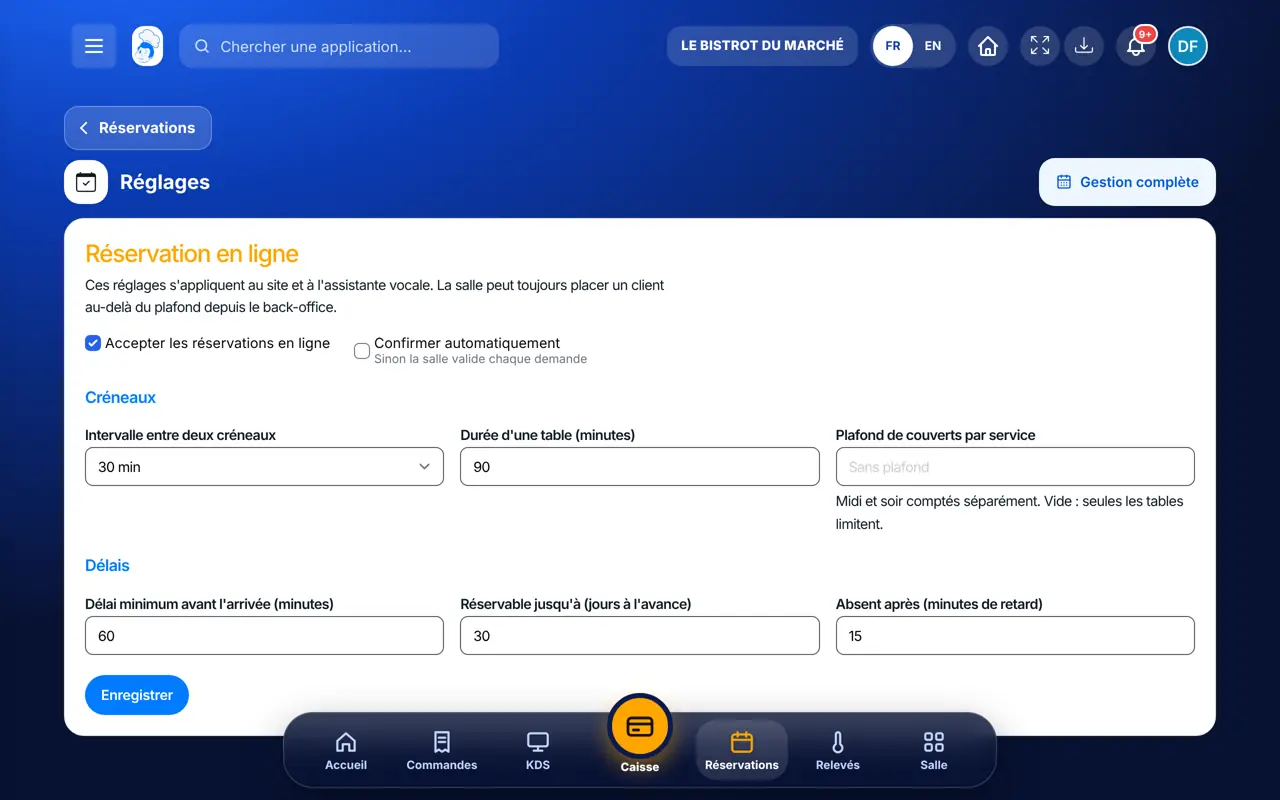
    Tap “Réglages”: accept online bookings, interval between slots, table duration, minimum notice, cover limit per service.

    Booking settings
The result

Today’s dining room, ready for service

Today’s reservations show with their time, number of covers and status, next to the floor plan and the waiting list.

Today’s dining room, ready for service : Manage reservations

Owner and employee: what changes

The owner

Follows the dining room and sets everything: deposit, promotions, no-show protection, website module and slots.

Reservations — The owner

The employee

With the right to view reservations, follows today’s dining room. Seating a guest, marking a no-show or changing settings requires the right to manage reservations.

Reservations — The employee

Do it with your assistant

Claude, ChatGPT or Mistral’s Le Chat, connected to FoodEatUp. Copy the request and replace your establishment number.

Who is coming tonight?

In FoodEatUp, for my establishment [number], list tonight’s reservations with time, name and number of covers, and tell me if there is room at 8:30 pm for 4 people.

What you getTonight’s reservations and the availability of the requested slot.

Tools used : list_reservations, reservation_availability

Take a booking by phone

In FoodEatUp, for my establishment [number], book a table for [number] people under the name [name], on [date] at [time], phone [phone number]. Show me the booking before confirming.

What you getThe assistant checks the slot and prepares the booking before saving it.

Tools used : reservation_availability, create_reservation

What you gain

The whole room on one screen

Floor plan, waiting list and today’s bookings in one place.

Fewer empty tables

Deposit, card guarantee and SMS reminder against no-shows.

Quiet slots filled

A promotion on calm slots, shown on your website.

Bookable everywhere

The same module on your site, your other sites and your Google listing.

The Chef’s tip

Keep the tablet open on “Salle du jour” during service. When a guest arrives, seat them from their reservation’s “…”: the table turns occupied right away and the team knows where they are.

Frequently asked questions

Do website bookings arrive here?

Yes. Bookings from your website, from the module on another site or by phone all land in the same list.

Can I ask for a deposit?

Yes. In “Acompte”, choose from how many covers or what amount it applies. Payment goes through your restaurant’s own payment account.

What if a guest does not show up?

Mark them absent from their reservation’s “…”. With a card guarantee, the announced fee can be charged; a repeat no-show can be blacklisted.

Text version for AI assistants →

Share this tutorial

Send it to your team, your partner or your accountant. The image below appears in the message.

Share preview : Manage reservations
WhatsAppLinkedInFacebookEmail

Send to an AI assistant

Claude, ChatGPT or Le Chat read this tutorial and explain it to you. Connected to FoodEatUp, they do it with you.

Read this FoodEatUp tutorial: https://foodeatup.com/en/academy/service/service-reservations.md Explain it to me simply, step by step, then help me do it in my restaurant. If FoodEatUp is connected to you, do it with me and show me the preview before every change.

ClaudeLe ChatChatGPT

Open in my software

Type your establishment number: the link takes you straight to this screen. The number stays on this device.

Discover FoodEatUp reservations (in French) →

You can read it in the software address: foodeatup.com/establishment/number/…