
Aller au contenu
Settings · Add apps

Add apps

This screen shows what you have and what each plan or option adds to your home screen. You compare by number of apps, you open a plan’s page, and you add it when you are ready.

  • Computer
  • 5 steps
  • Level : Beginner
Add apps : The “Ajouter des applications” screen

Who is it for?

  • Patron / gérant
  • Directeur
  • Responsable multi-sites
  • Franchisé

Recommended hardware

Computer

A computer. Comparing plans and reading their apps works best on a big screen; the screen also works on the tablet and the phone.

See the hardware →

What it is for

  • See your plan and the number of apps it opens for you.
  • Compare the FoodEatUp plans: how many apps each one adds or removes compared with your home screen.
  • Add an option (AI assistants, customers, screens and kiosks, website, network) without changing plan.

Why set it up

  • You know what you get before paying: each plan lists its apps.
  • An option is added to your plan without replacing it: you only take what you need.
  • The prices shown come from the plans database, never from a hand-written figure.

The same screen, on every device

The real software screens, as they appear on each device.

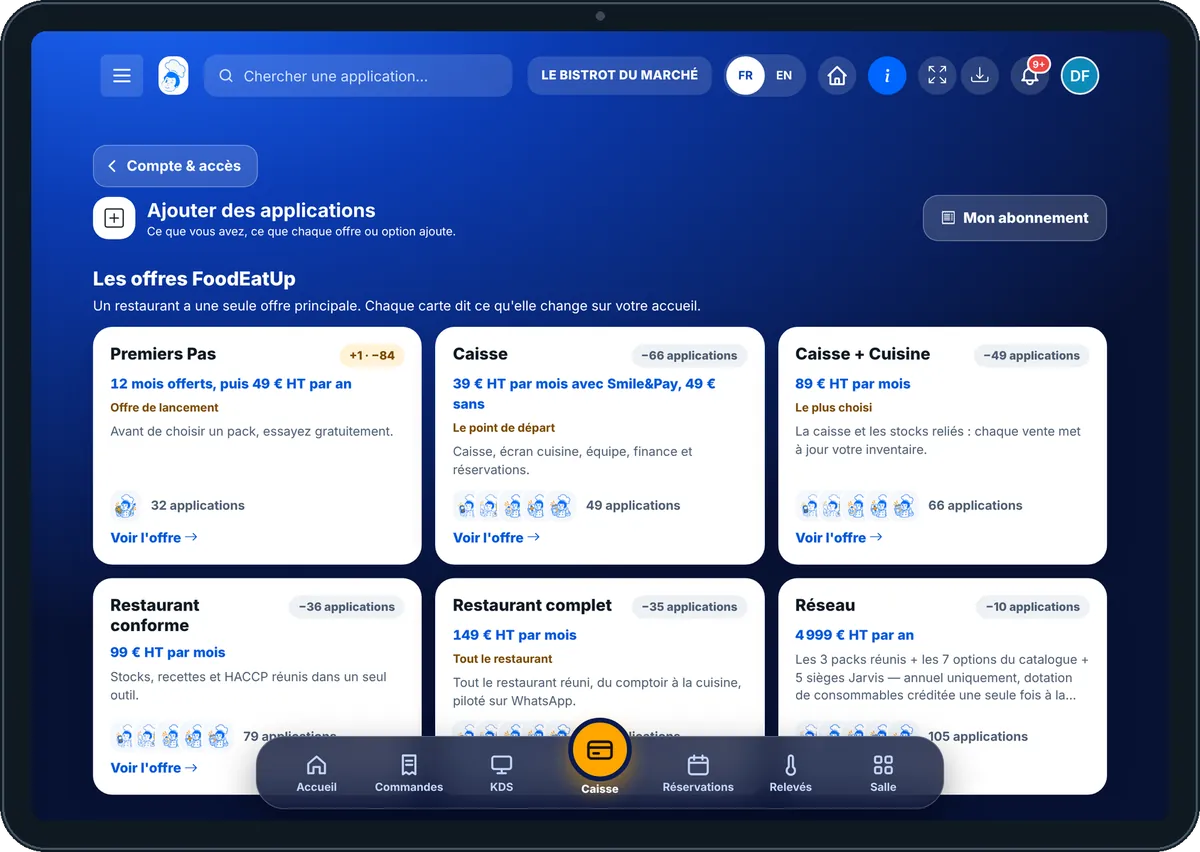
Add apps — On the tablet
On the tablet
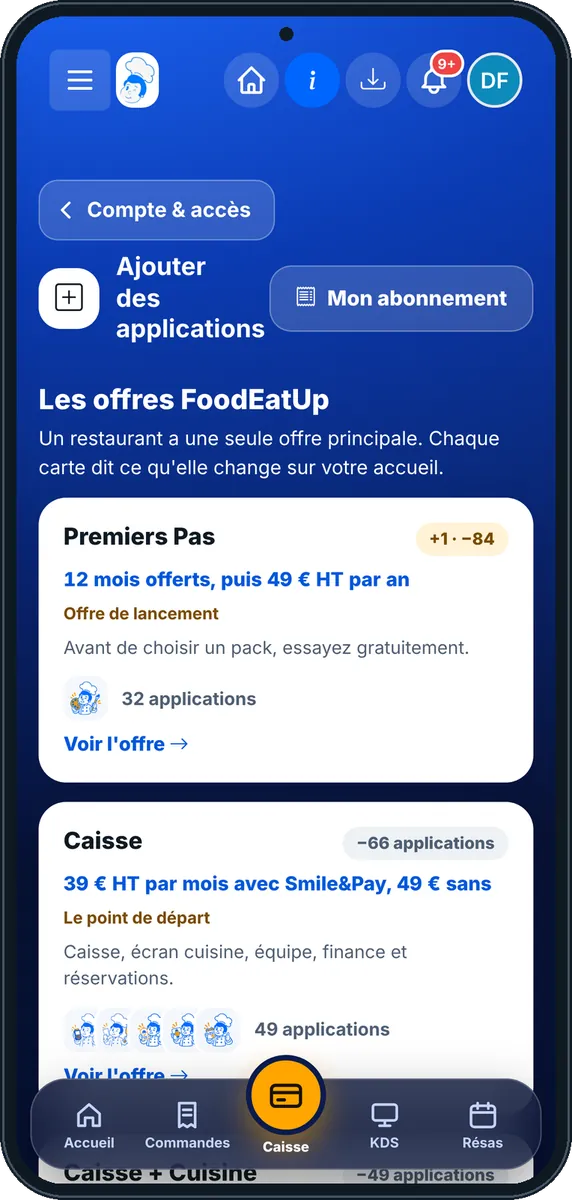
Add apps — On the phone
On the phone
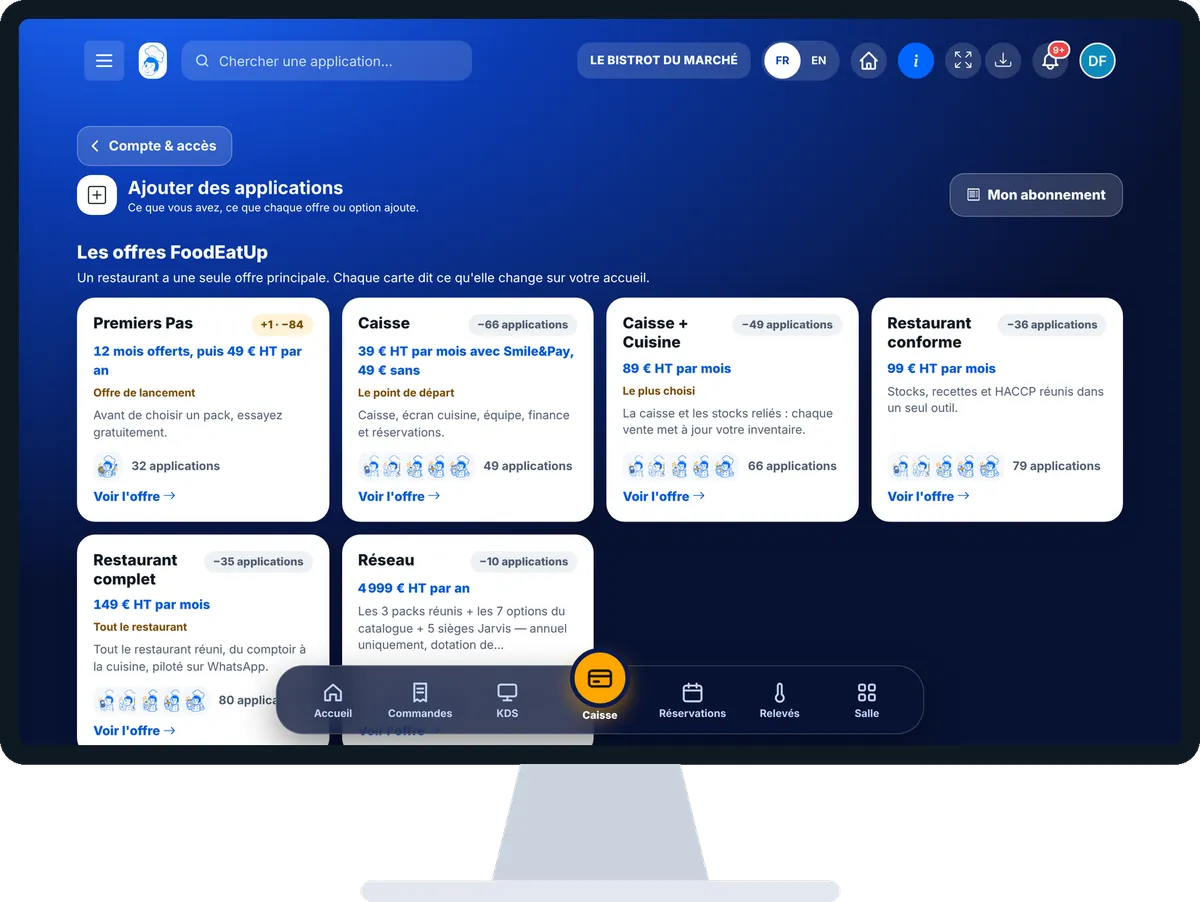
Add apps — On the computer
On the computer

Step by step

Add apps : 5 steps, with the real software screens.

  1. 1Step 1

    Open “Ajouter des applications”

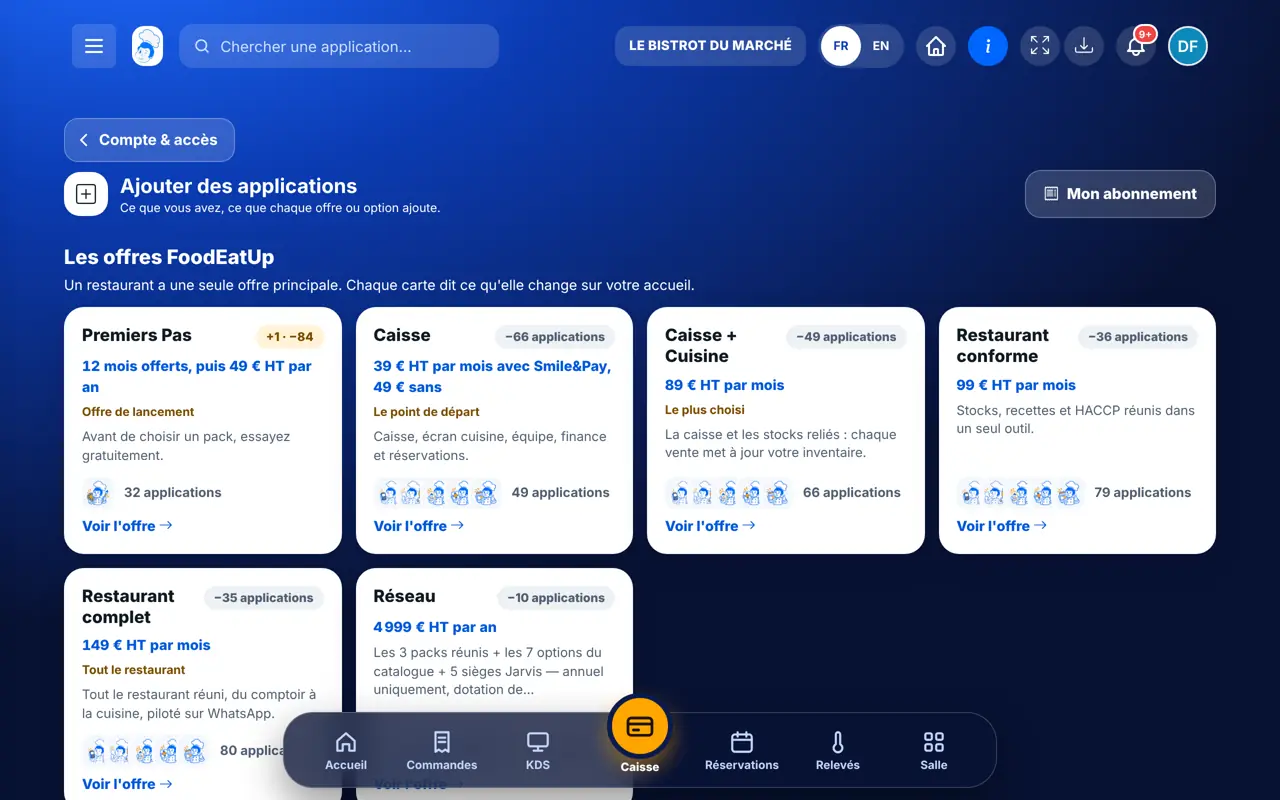
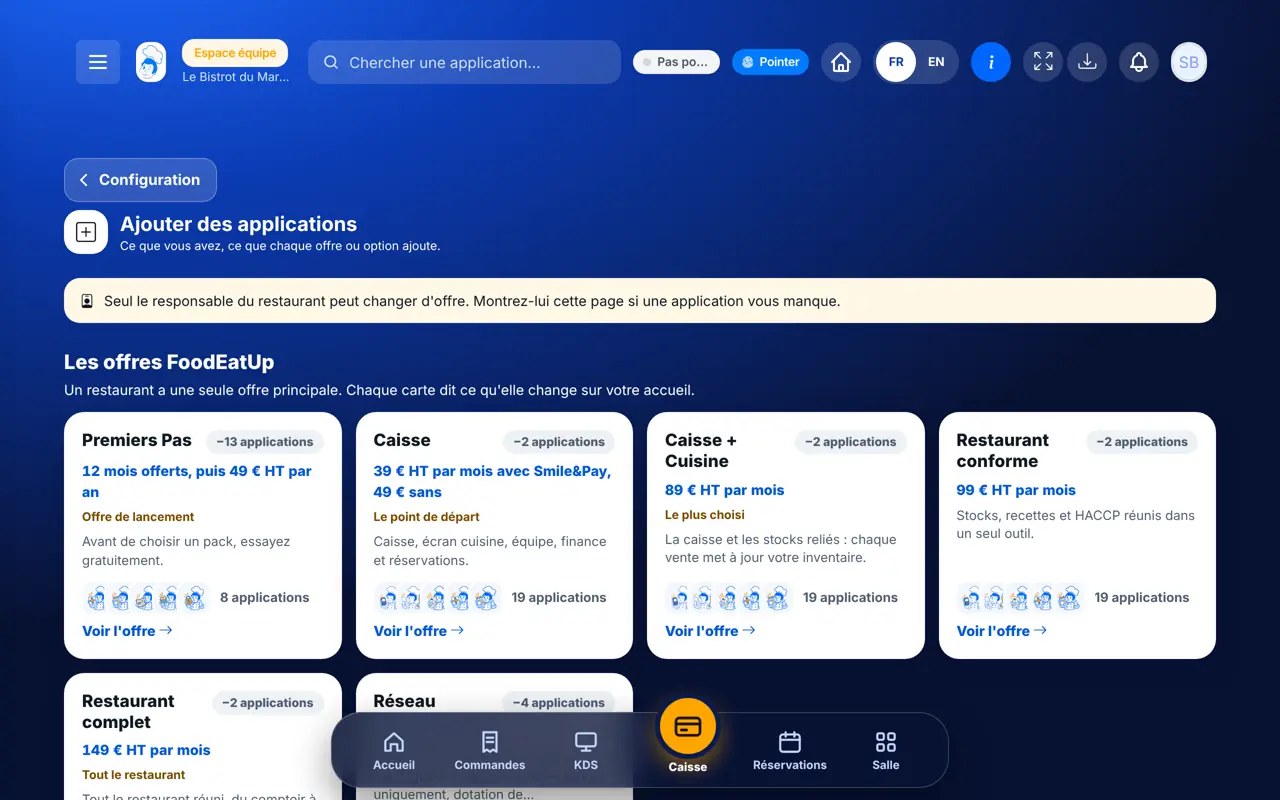
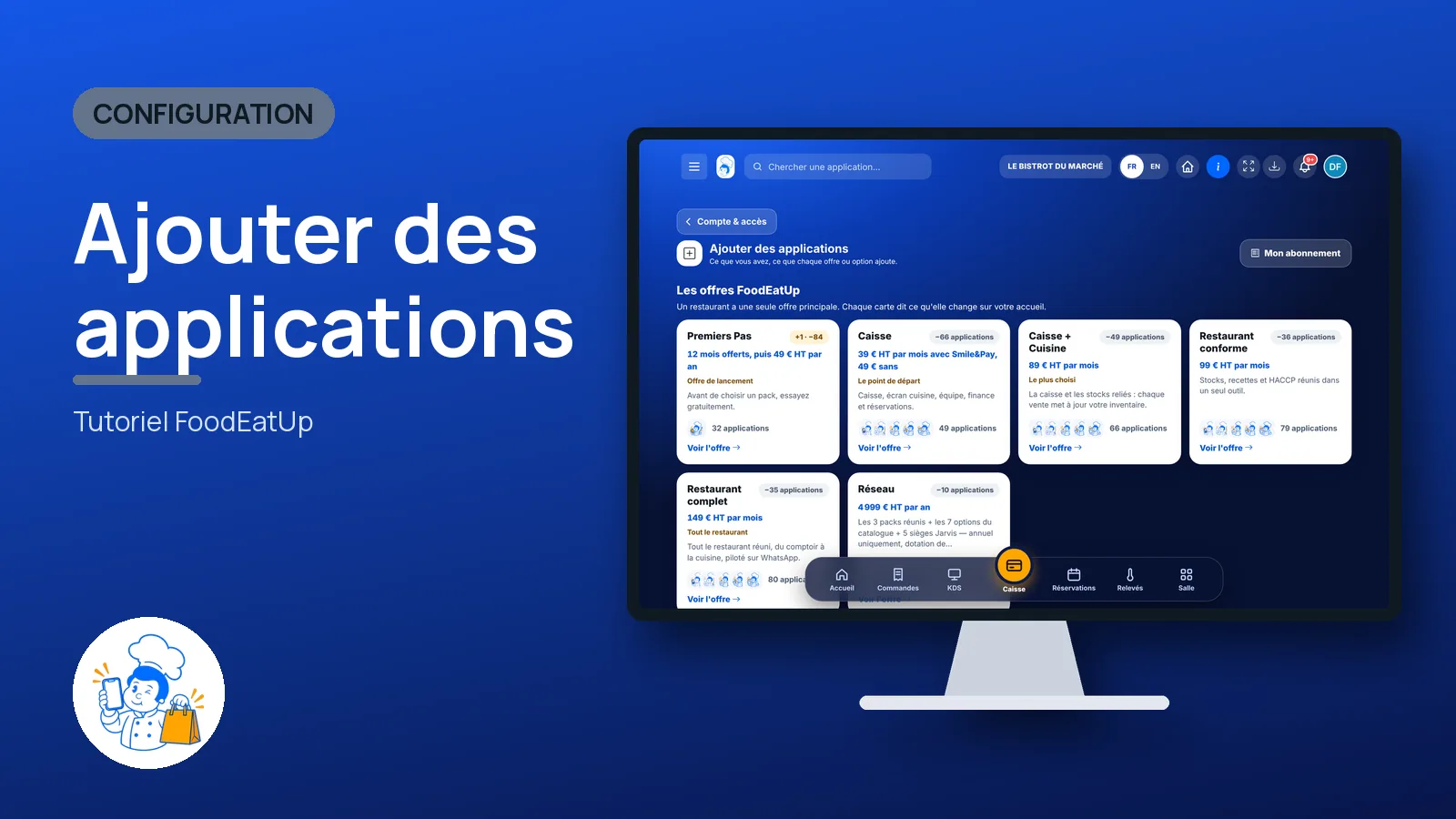
    From the home screen, tap “Ajouter des applications” (or go through Configuration). At the top, “Les offres FoodEatUp”: one card per plan, with its price, the number of apps and the gap with your home screen (for example “−49 applications”).

    The “Ajouter des applications” screen
  2. 2Step 2

    Compare the plans

    Read the cards: each says who it is for and how many apps it opens. Tap “Voir l’offre” to open its page.

  3. 3Step 3

    Read a plan’s page

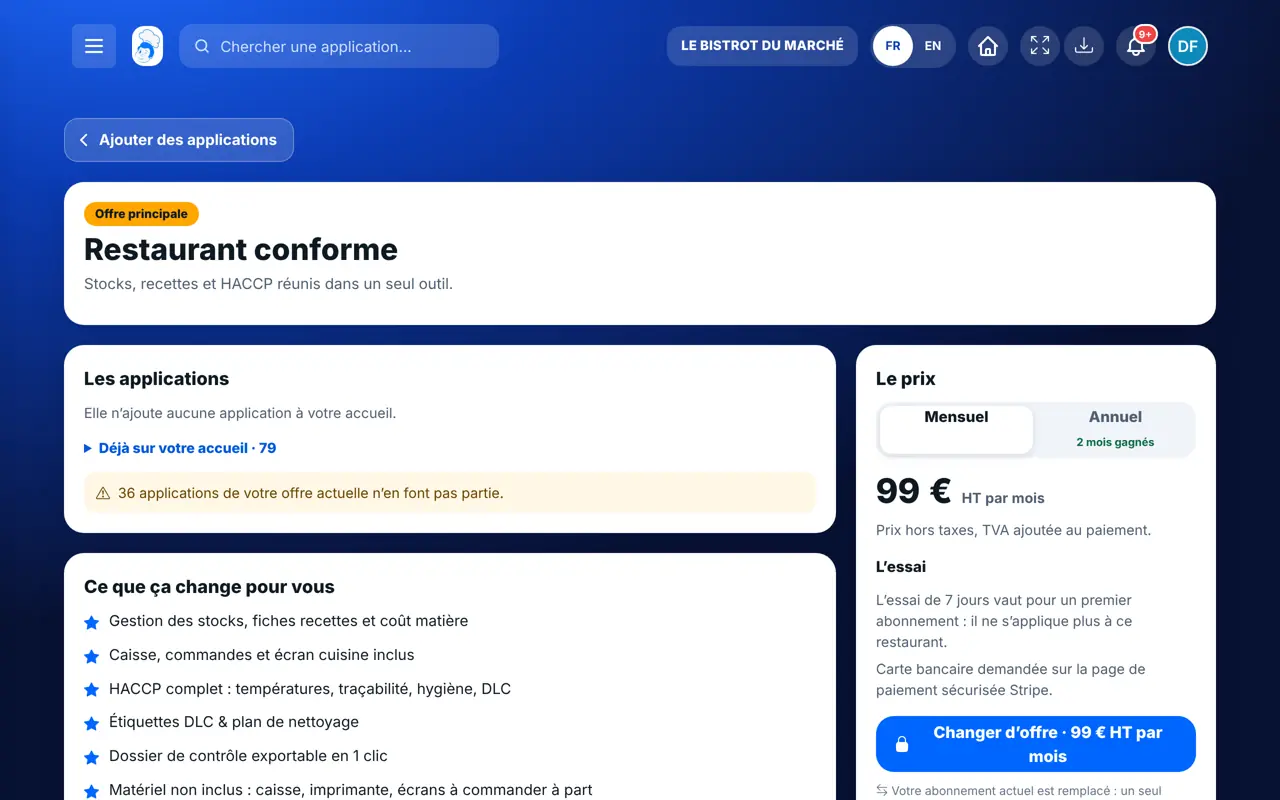
    The page lists the apps added (marked “Nouveau”) and those you already have, the monthly or yearly price, the trial when there is one, and the button to take it.

    A plan’s page and its apps
  4. 4Step 4

    Add an option

    Further down, “Ajouter une option” sorts options by family: Assistants IA, Faire venir les clients, Écrans et bornes, Votre site, Réseau et événements. An option you already have shows “Ajoutée”. Tap “Voir l’option” to open it.

  5. 5Step 5

    Compare the apps

    At the bottom, “Comparer les applications”: choose a plan to see its apps, sorted as on the home screen. A green tick means it is already open to you.

The result

The result

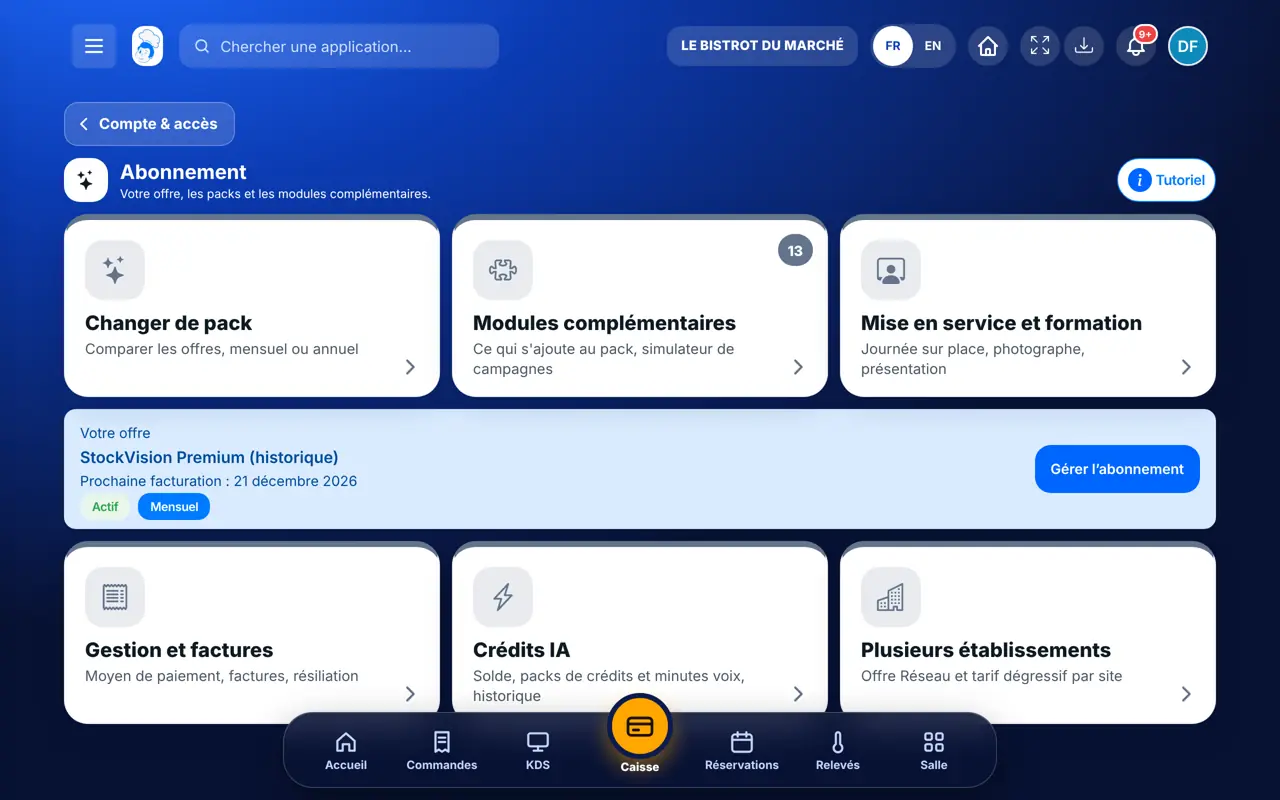
The chosen plan or option is added: its apps appear on your home screen and in the menu. Your subscription and invoices are in “Mon abonnement”.

Compare the plans on the website (in French) →
The result : Add apps

Owner and employee: what changes

The owner

Compares plans and options, opens their page and adds them to the subscription.

Add apps — The owner

The employee

Can read the plans and what they open. Only the owner adds a plan or an option.

Add apps — The employee

Do it with your assistant

Claude, ChatGPT or Mistral’s Le Chat, connected to FoodEatUp. Copy the request and replace your establishment number.

What does my plan include?

In FoodEatUp, for my establishment [number], summarise my subscription: active plans and options, and what they open.

What you getYour active plans and options, and what they open for you.

Tools used : get_subscription_summary

Where do I start with my apps?

In FoodEatUp, for my establishment [number], show me the setup steps of my plan already done and those left.

What you getThe steps done and those to do, to make the most of your plan.

Tools used : get_onboarding_progress

A plan for my new apps

In FoodEatUp, for my establishment [number], suggest a plan to set up the apps of my plan, in order.

What you getA setup plan, step by step.

Tools used : get_setup_plan

What you gain

See before paying

Each plan lists its apps.

Options à la carte

They are added to your plan, without replacing it.

Fair prices

Read from the plans database, never hand-written.

A home screen that follows

New apps land on your home screen.

The Chef’s tip

Before adding an option, open its page and check whether a trial is offered: you use it for real for a few days, during service, before deciding.

Frequently asked questions

Does an option replace my plan?

No. An option is added to your main plan, without changing it.

What does “−49 applications” mean on a card?

It is the gap with your home screen today: this plan opens 49 fewer apps than you have.

Who can add a plan or an option?

The owner. An employee reads the plans, but cannot add them.

Text version for AI assistants →

Share this tutorial

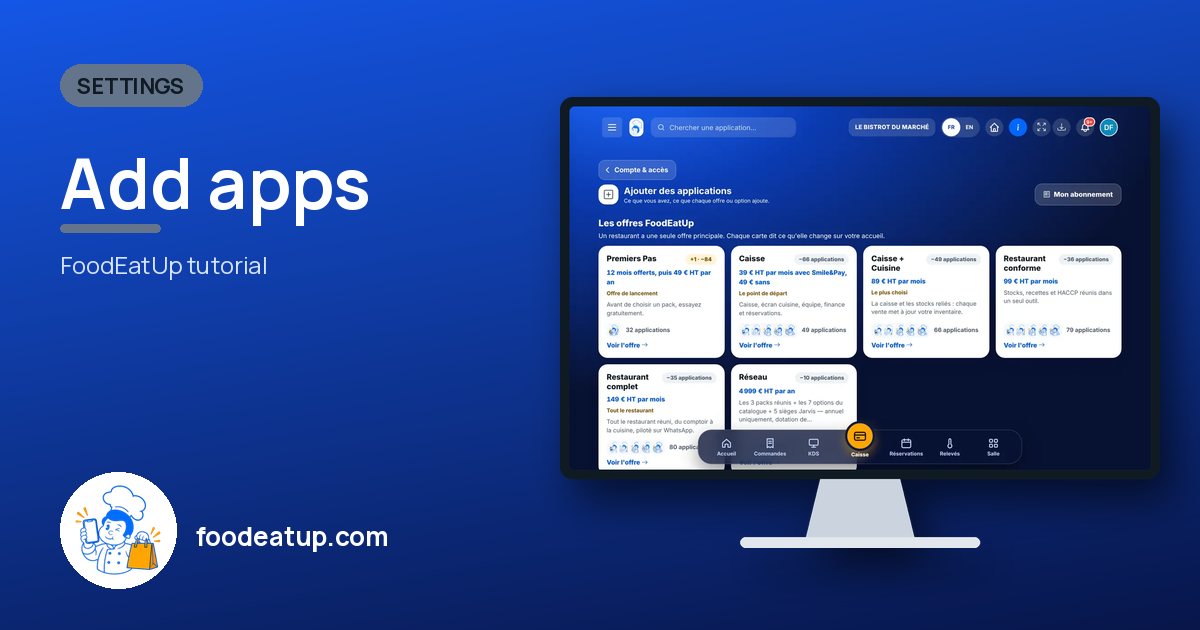
Send it to your team, your partner or your accountant. The image below appears in the message.

Share preview : Add apps
WhatsAppLinkedInFacebookEmail

Send to an AI assistant

Claude, ChatGPT or Le Chat read this tutorial and explain it to you. Connected to FoodEatUp, they do it with you.

Read this FoodEatUp tutorial: https://foodeatup.com/en/academy/configuration/applications-ajouter.md Explain it to me simply, step by step, then help me do it in my restaurant. If FoodEatUp is connected to you, do it with me and show me the preview before every change.

ClaudeLe ChatChatGPT

Open in my software

Type your establishment number: the link takes you straight to this screen. The number stays on this device.

See the plans and options (in French) →

You can read it in the software address: foodeatup.com/establishment/number/…