Aller au contenu
Settings · Subscription
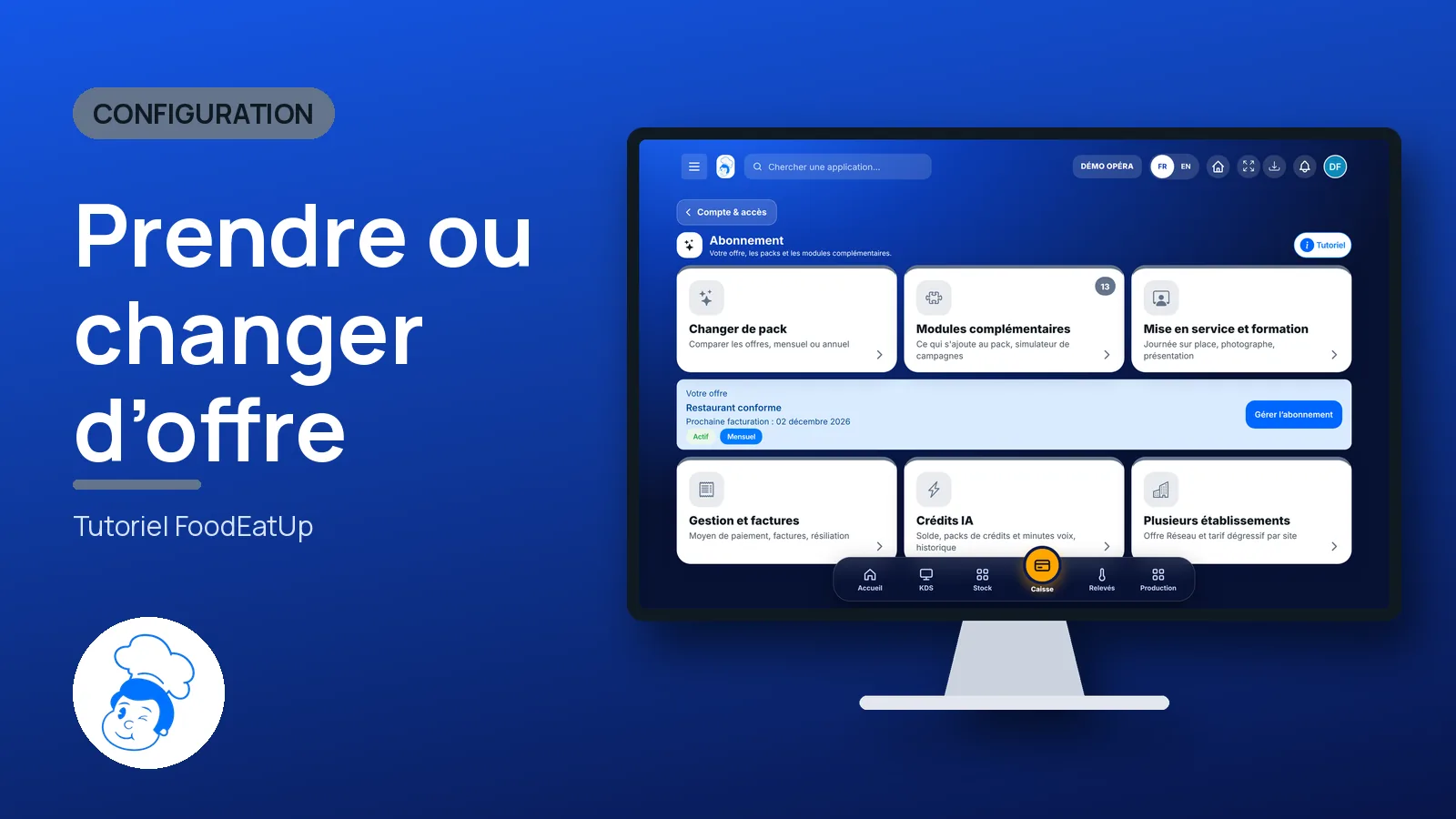
Take or change your plan

Take a subscription, move to a fuller plan, go back to a cheaper one, add an option or one more kiosk, find your invoices: it all starts from the Subscription screen and “Ajouter des applications”.

  • Computer
  • 6 steps
  • Level : Beginner
Take or change your plan : The Subscription screen: your plan and its cards

Who is it for?

  • Patron / gérant
  • Directeur
  • Responsable multi-sites
  • Franchisé

Recommended hardware

Computer

A computer. Comparing plans and reading what they change is easier on a large screen.

See the hardware →

What it is for

  • Take your first subscription: Premiers Pas, free for the first year, or a paid plan with its trial.
  • Move to a fuller plan, or go back to a cheaper one.
  • Add an option (Caroline, Iris, website, screens…) or one more kiosk, screen or kitchen station.
  • Find your invoices, change card, settle an unpaid payment.

Why set it up

  • Before you pay, each plan says which apps it adds to your home screen and which you would lose.
  • Moving up never creates a second subscription: the difference is worked out to the day.
  • Going down to a cheaper plan cuts nothing right away: you keep what you paid for until renewal.
  • Your data stays saved when an app leaves your plan.

The same screen, on every device

The real software screens, as they appear on each device.

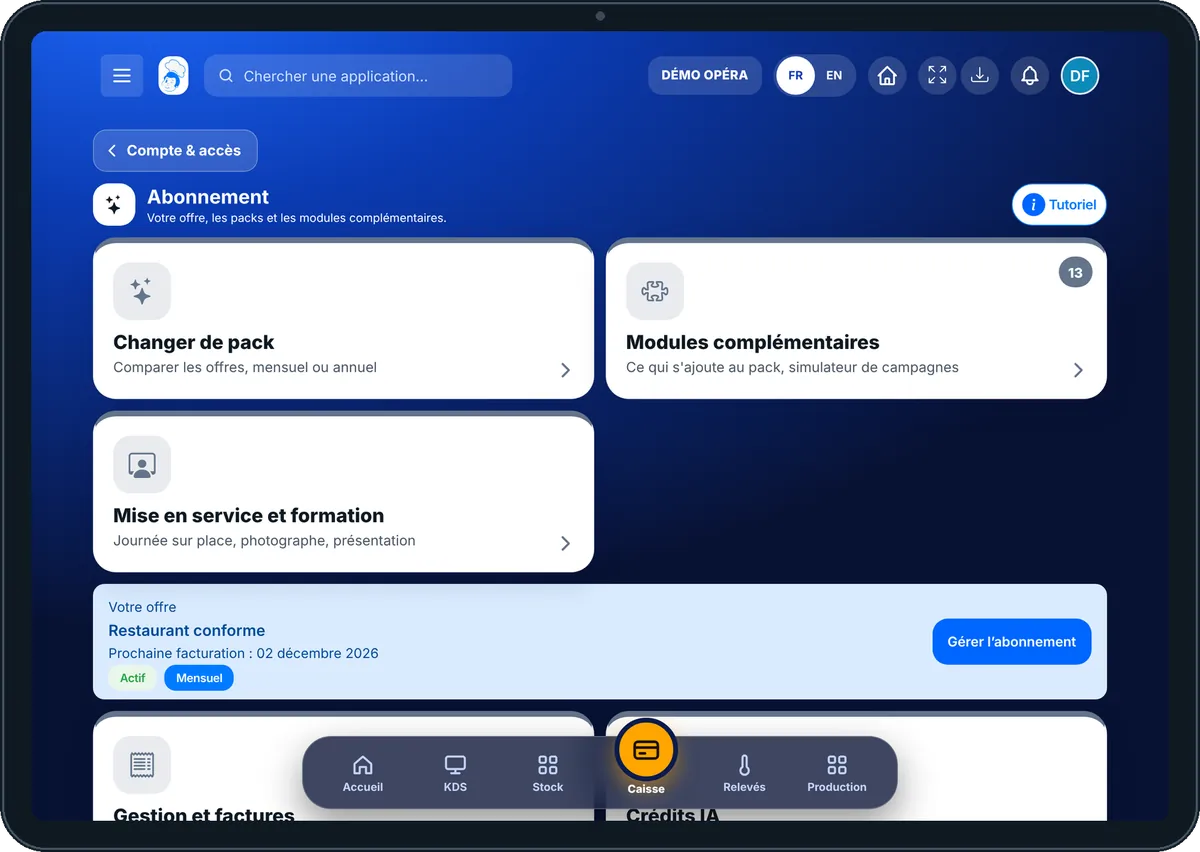
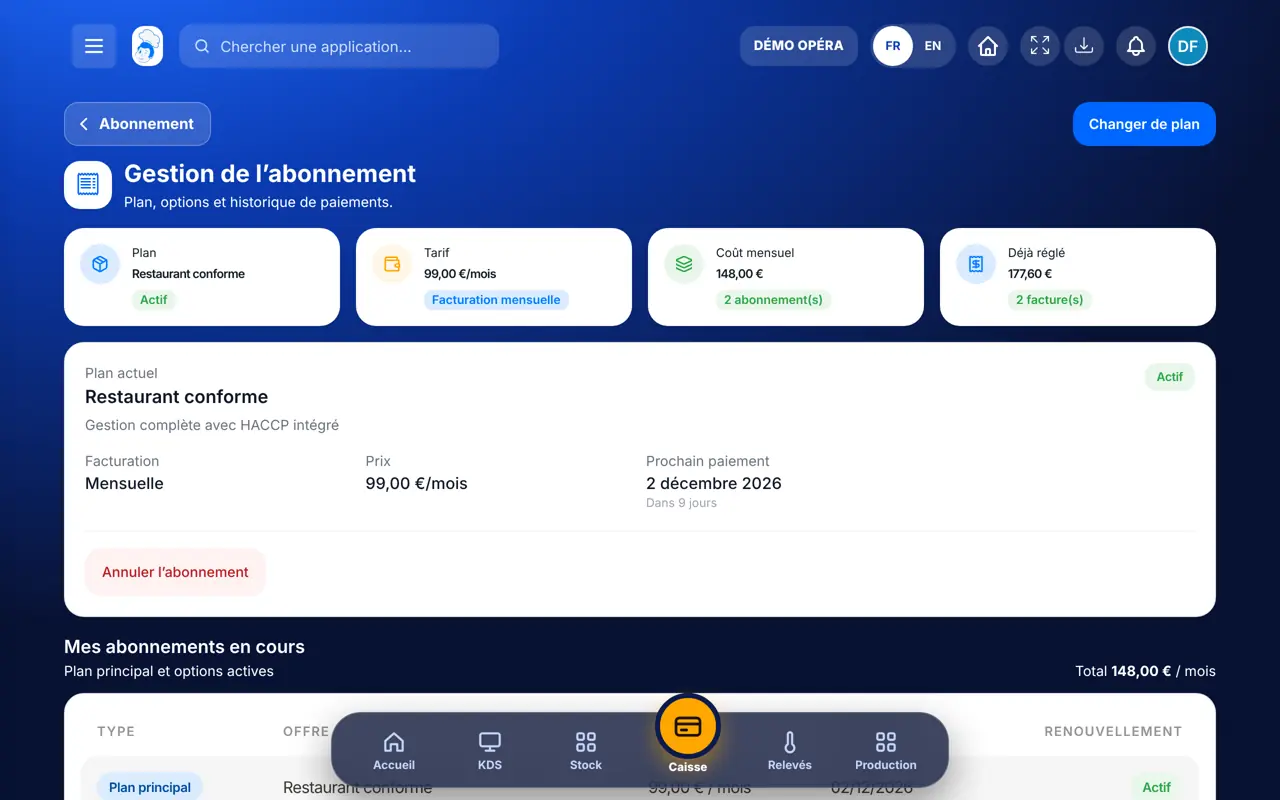
Subscription — On the tablet
On the tablet
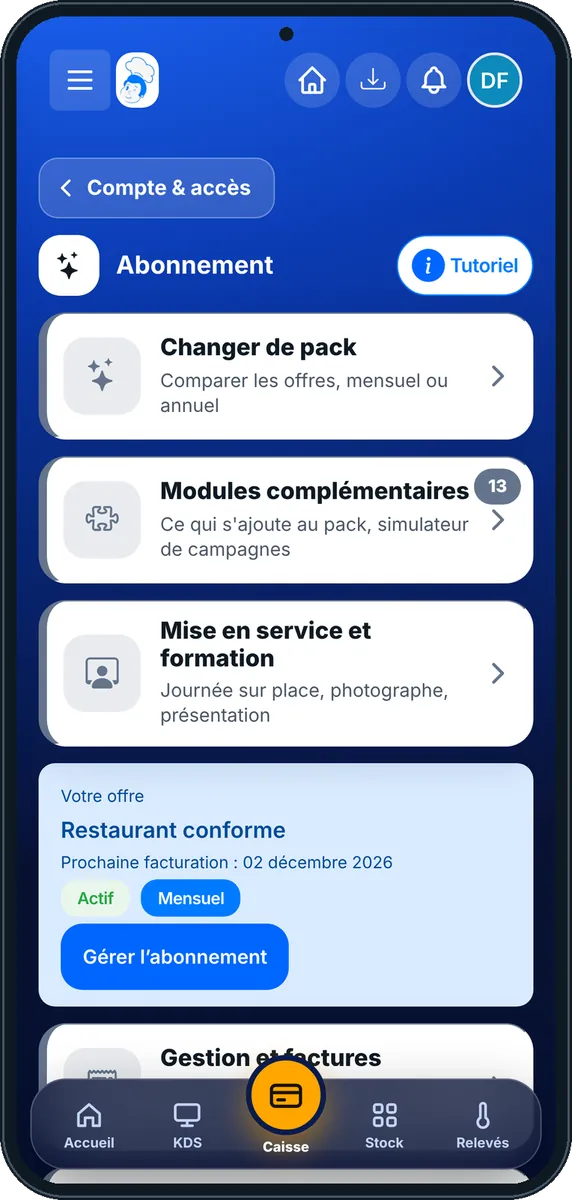
Subscription — On the phone
On the phone
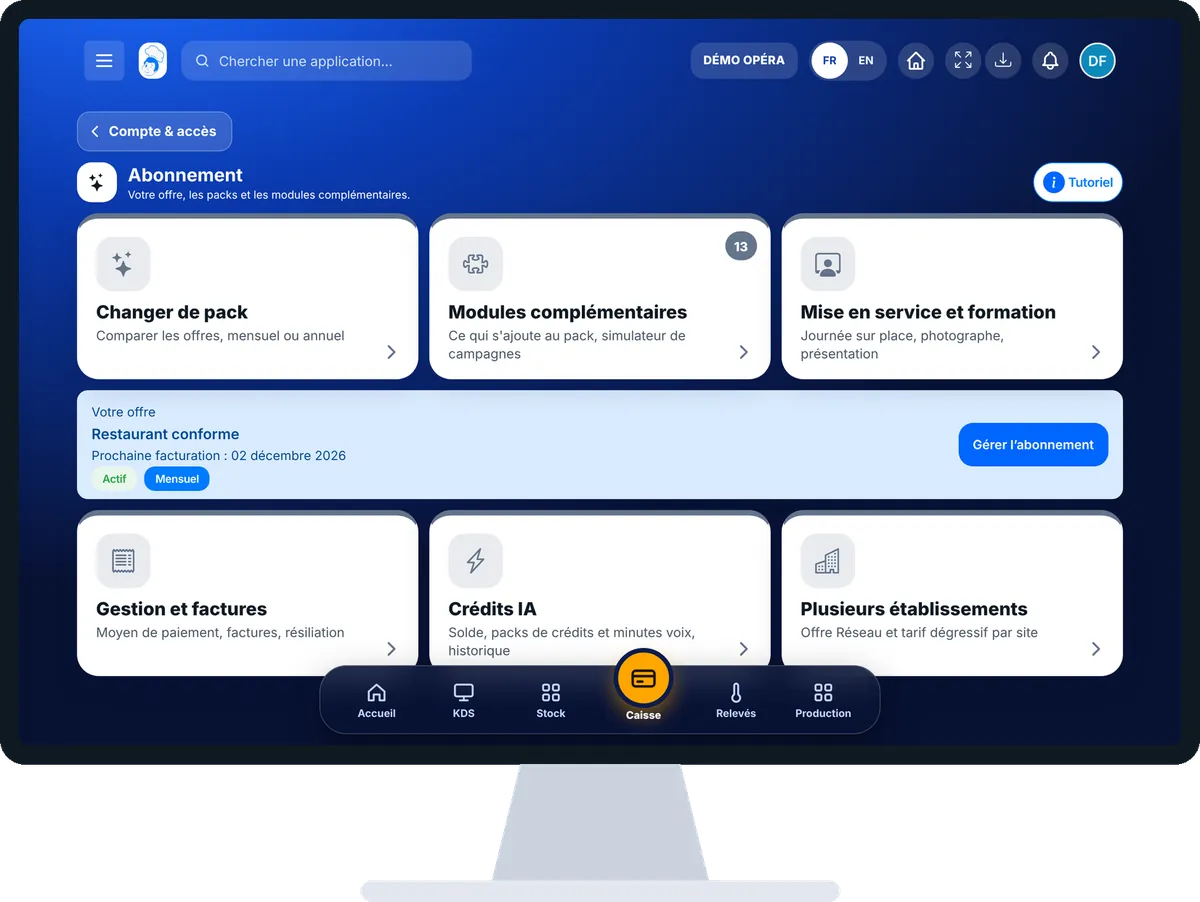
Subscription — On the computer
On the computer

Step by step

Take or change your plan : 6 steps, with the real software screens.

  1. 1Step 1

    Open the subscription

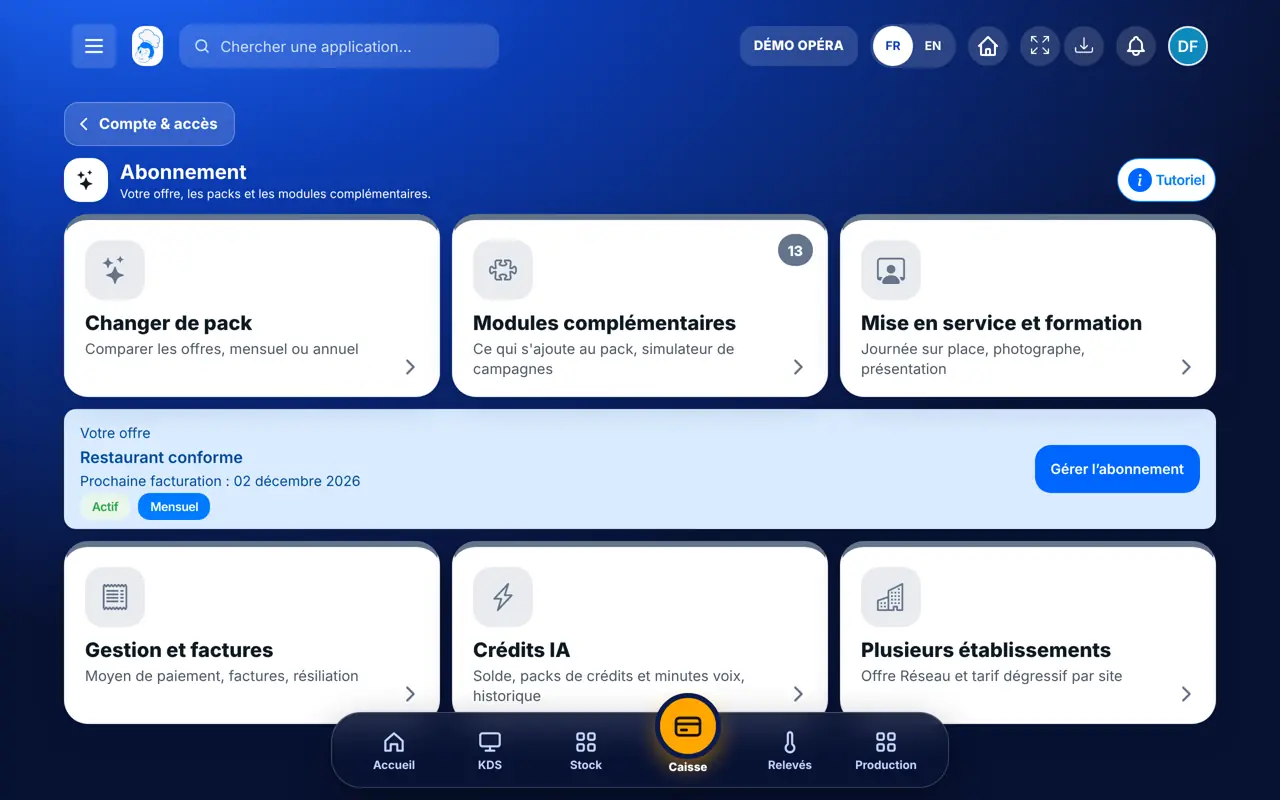
    In the Configuration category, open “Abonnement”. The “Votre offre” banner gives its name, status and next billing date. Cards lead to “Changer de pack”, “Modules complémentaires”, “Gestion et factures” and “Crédits IA”.

    The Subscription screen: your plan and its cards
  2. 2Step 2

    Compare plans

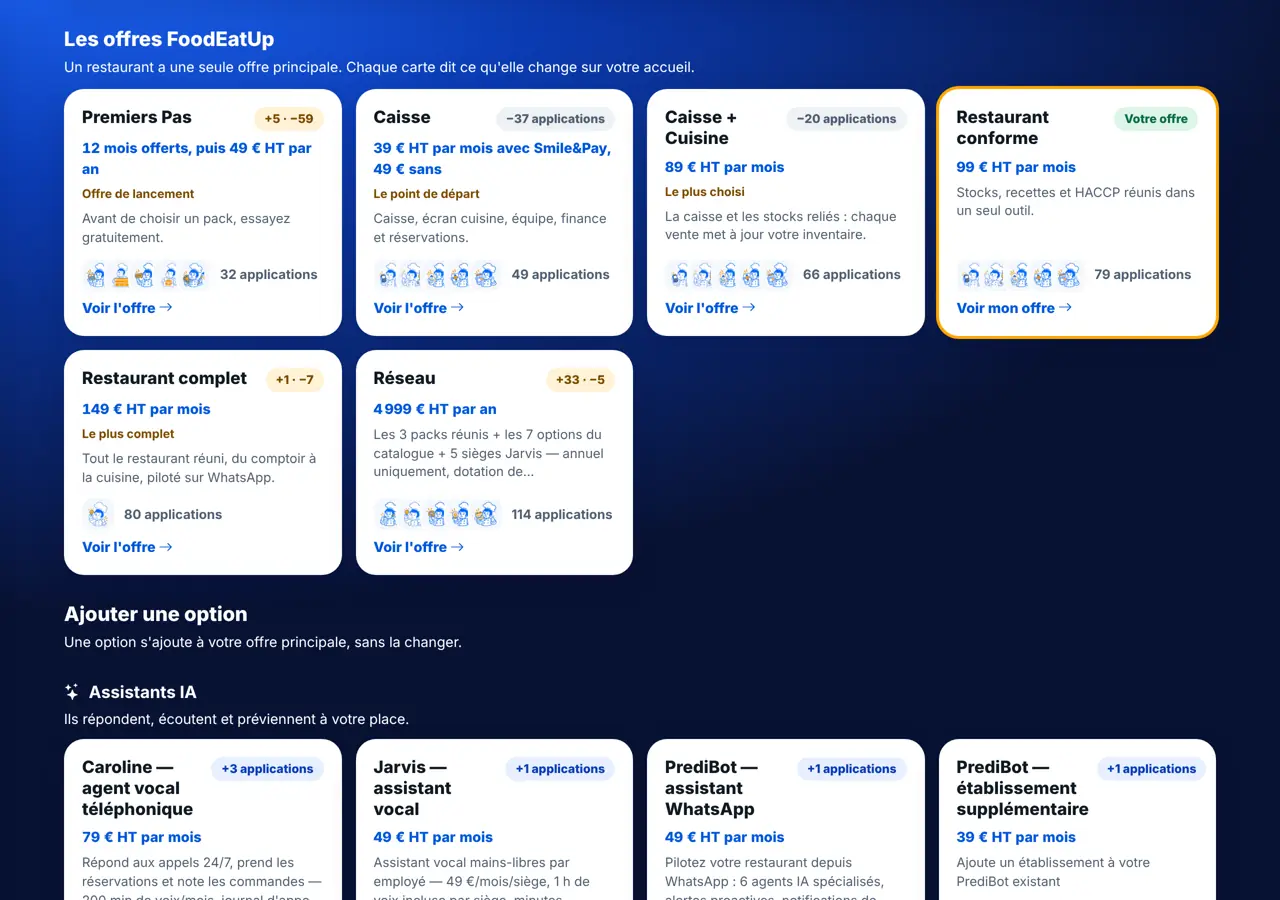
    Open “Ajouter des applications” (Configuration). Each plan says how many apps it adds to or removes from your home screen; “Comparer les applications”, at the bottom, sorts them as on your home screen.

    FoodEatUp plans and what they change
  3. 3Step 3

    Open a plan’s page

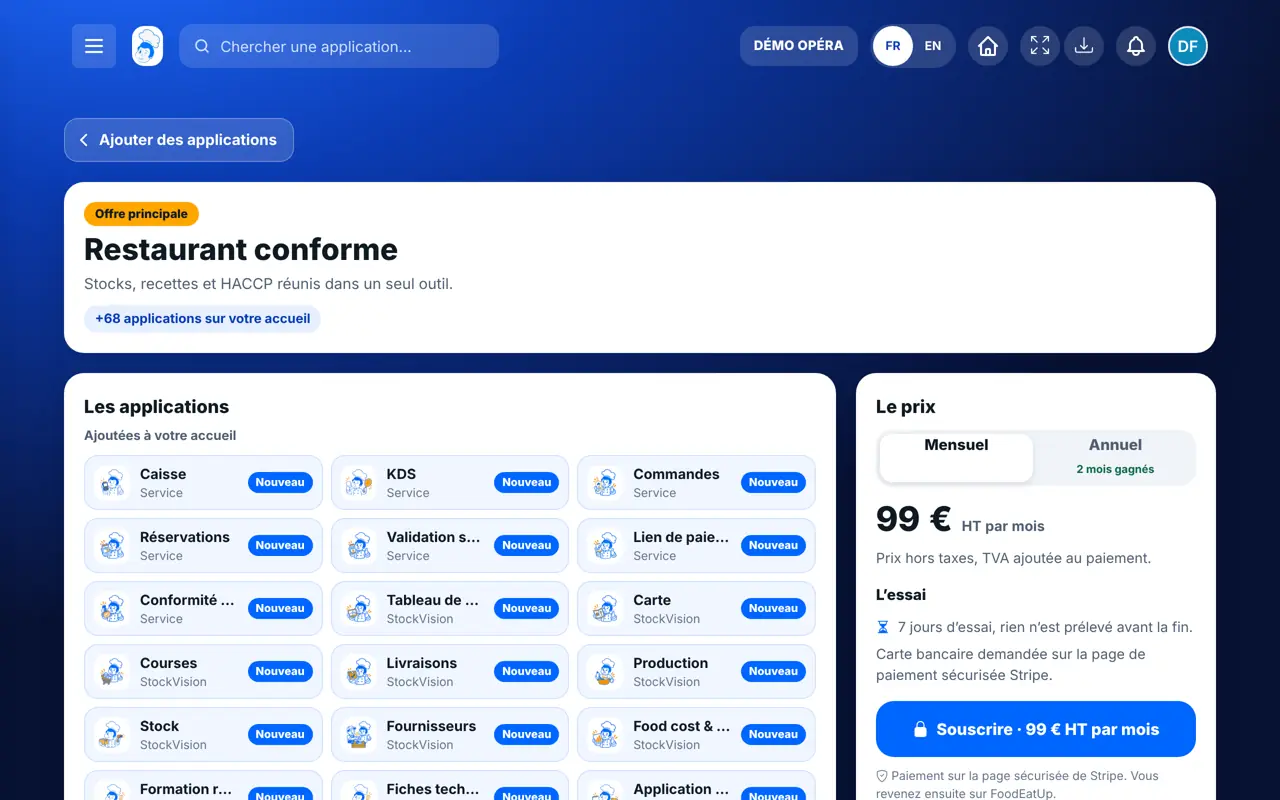
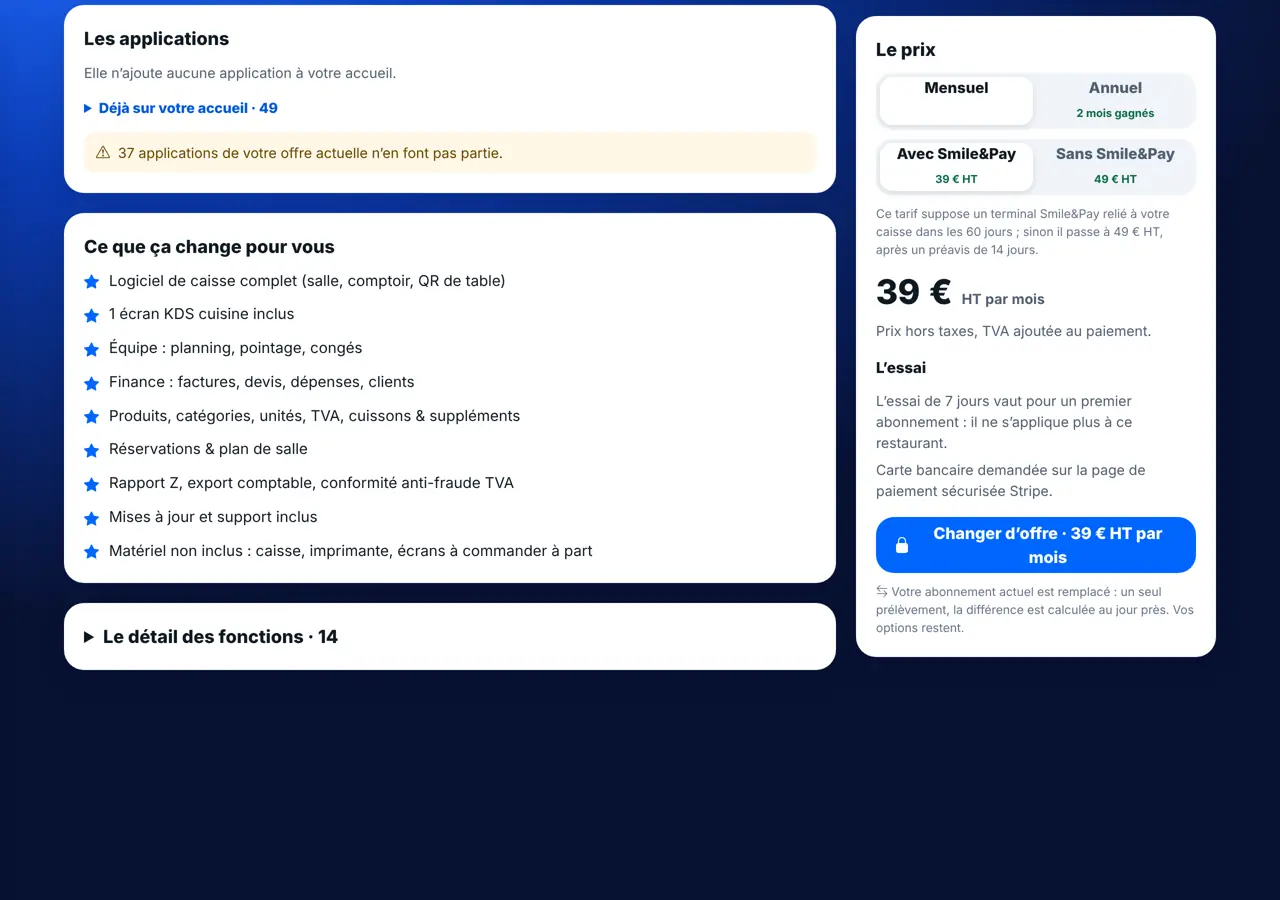
    Tap “Voir l’offre”. The page lists the apps added (“Nouveau”) and those already there, the monthly or yearly price, the trial, then the button.

    A plan’s page: apps, price, trial
  4. 4Step 4

    Subscribe or change

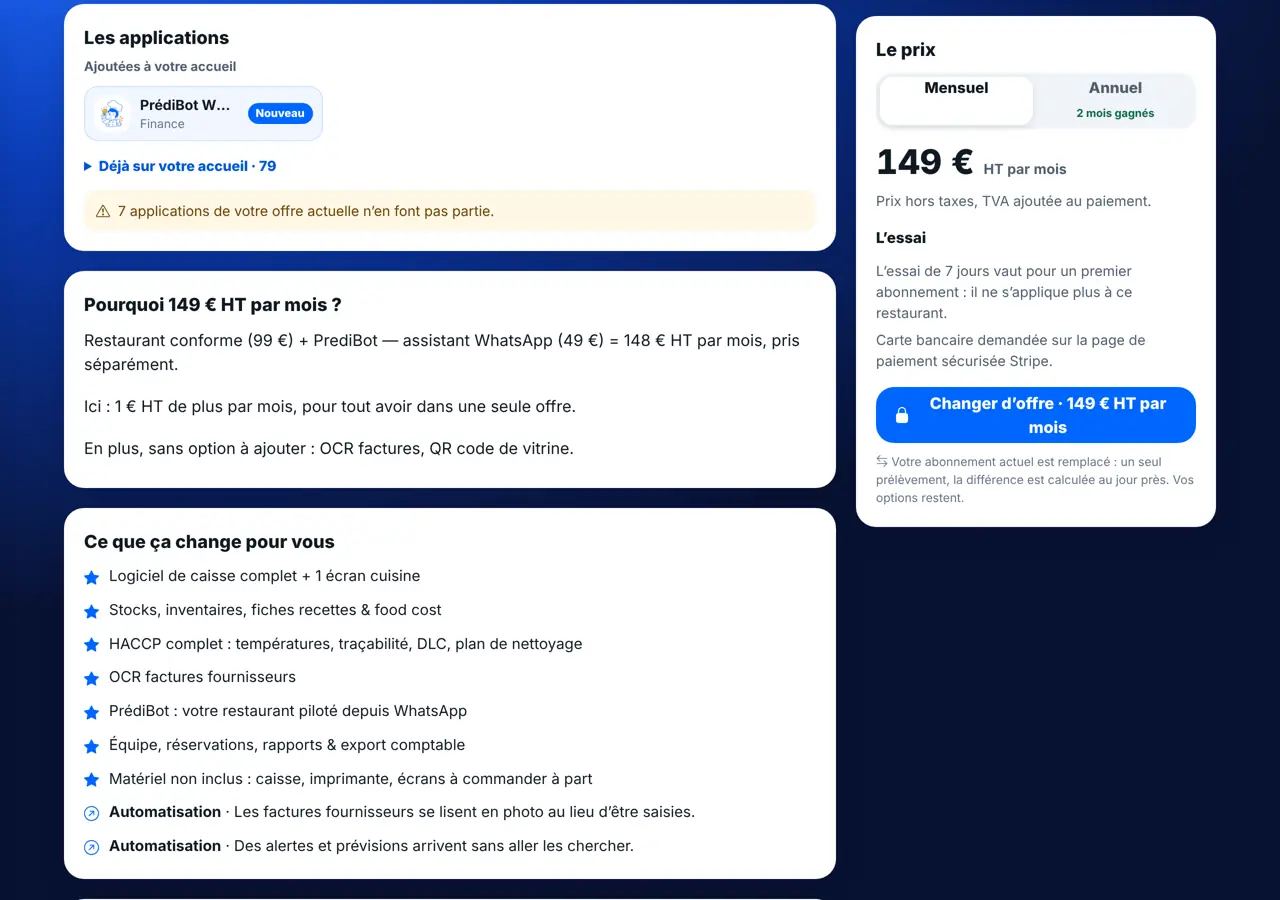
    Without a paid subscription, the “Souscrire” button opens Stripe’s secure payment page. With a paid subscription, “Changer d’offre” replaces your plan right away, without a second subscription.

    Changing plan: one subscription, the difference to the day
  5. 5Step 5

    Downgrade at renewal

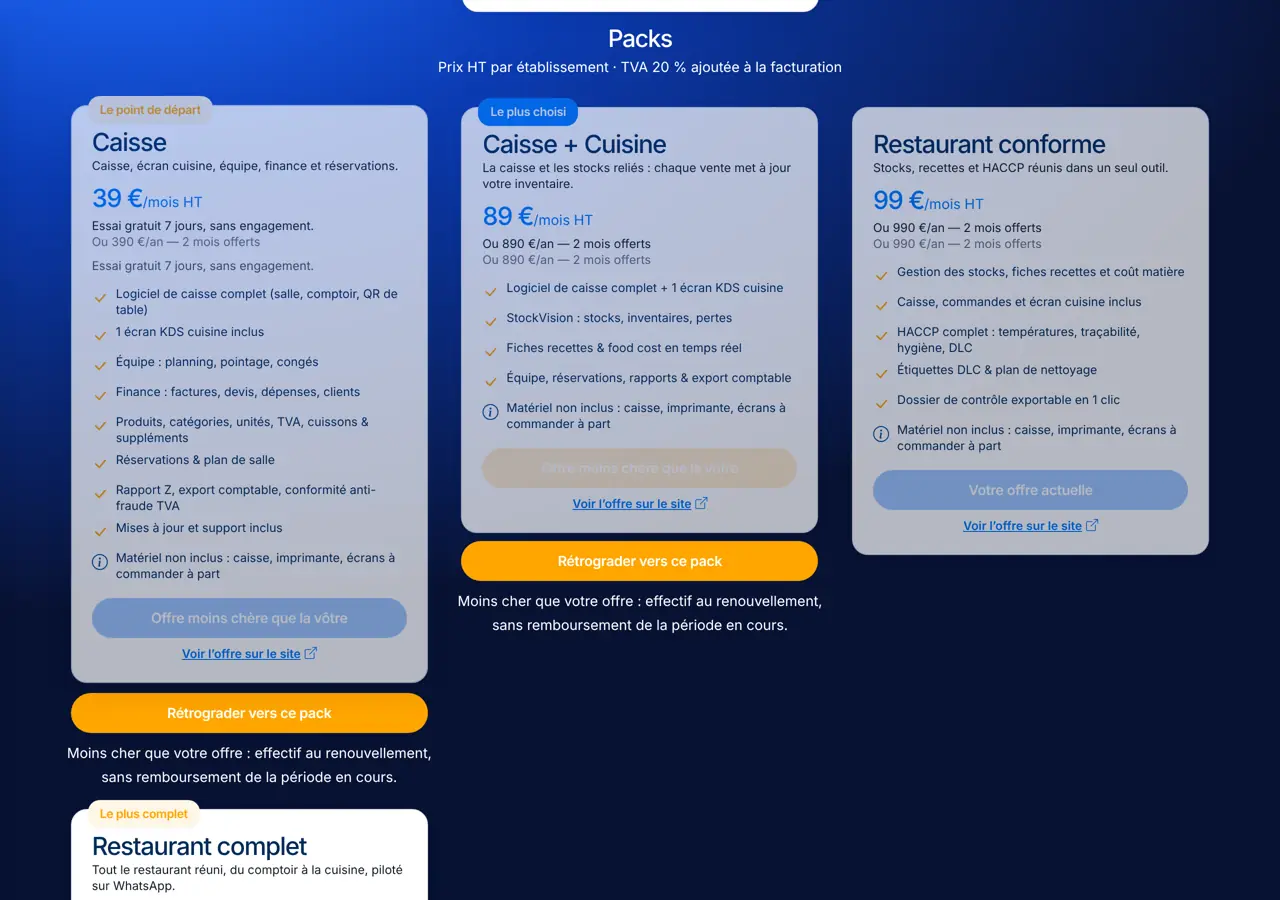
    For a cheaper plan without losing what you paid for: Abonnement › “Changer de pack” › “Rétrograder vers ce pack”. The change happens at renewal; “Annuler la rétrogradation” stays possible until then.

    Cheaper plans: “Rétrograder vers ce pack”
  6. 6Step 6

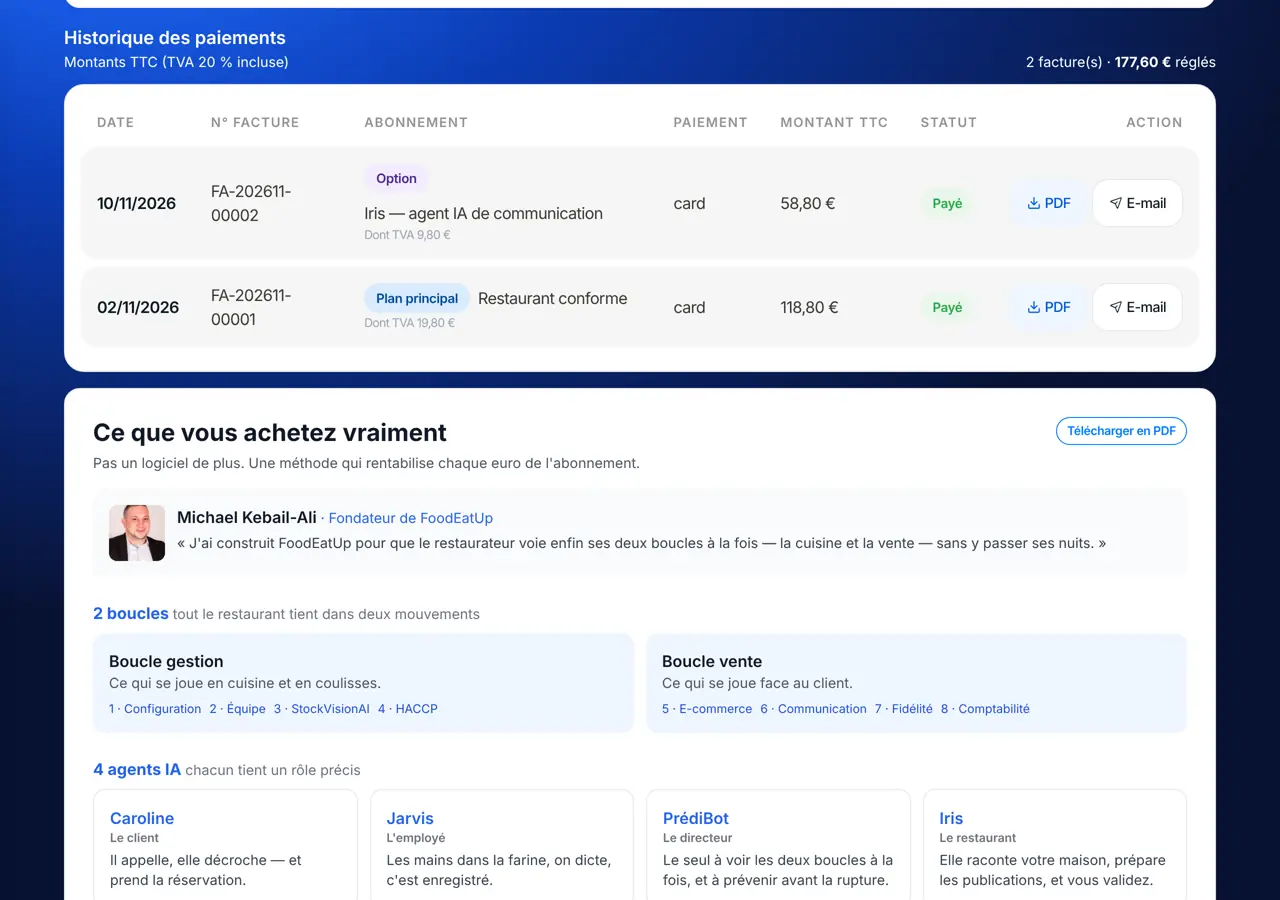
    Find your invoices

    Tap “Gérer l’abonnement”. “Historique des paiements” gives each invoice as a PDF or by e-mail; “Facturation” › “Modifier” changes the address that receives them.

    Payment history and its invoices

Every screen, every button

Each screen in detail: what every button is for and what it triggers.

Take a subscription

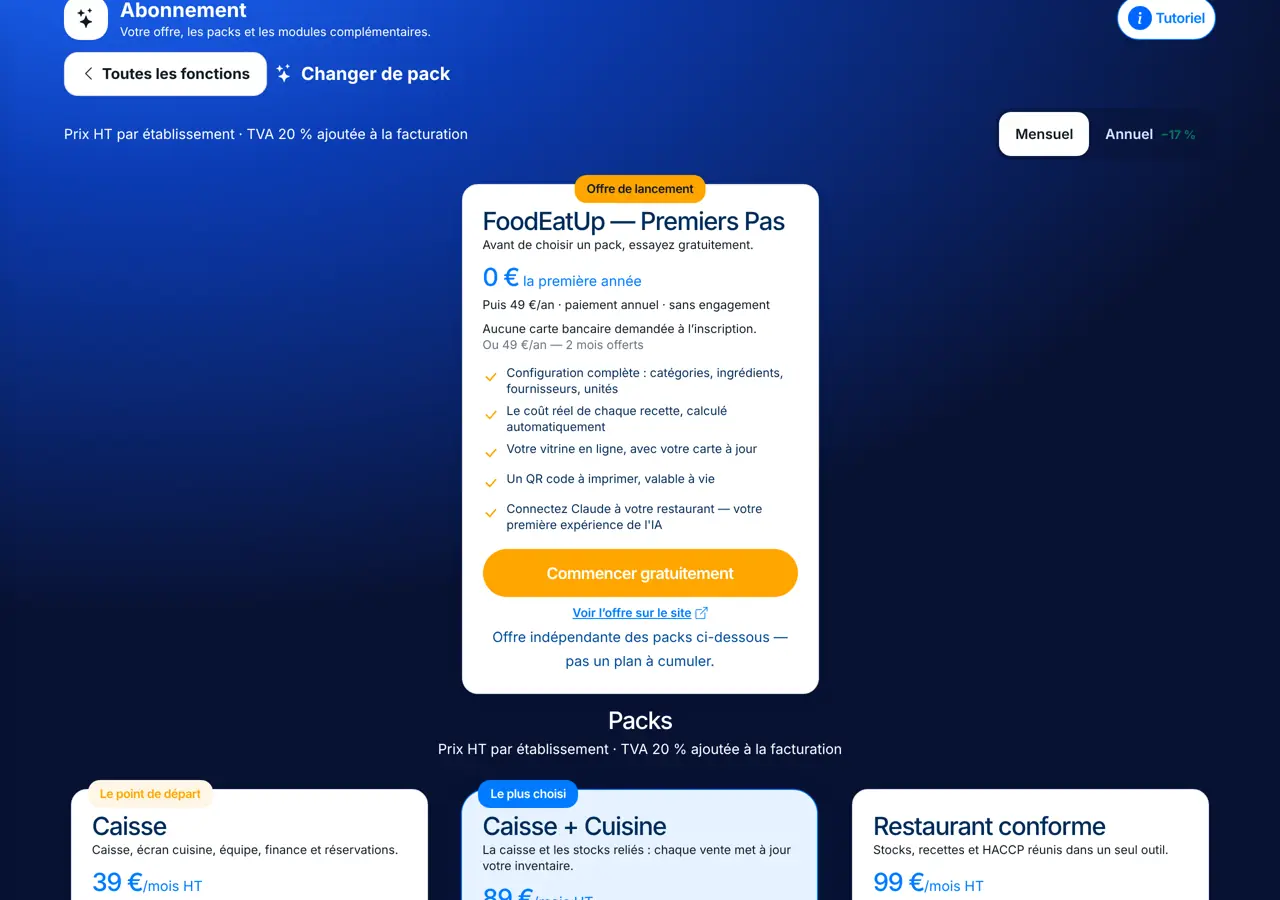
With no subscription, the Subscription screen opens straight on the plans. Two paths: Premiers Pas, free for the first year, or a paid plan.
Subscription — Take a subscription
Commencer gratuitement
On the Premiers Pas card: the first year is free, no bank card. It can only be taken once per establishment; after that the card shows “Souscrire” at the yearly price.
Mensuel / Annuel
Above the plans: the price changes with the billing period. Yearly shows the months saved.
Choisir ce pack
Opens the payment window, with a “Code promo” field, then Stripe’s secure page. You then come back to FoodEatUp.
Voir l’offre sur le site
Opens the plan’s presentation on foodeatup.com.
  1. Choose Mensuel or Annuel.
  2. Tap “Commencer gratuitement” (Premiers Pas) or “Choisir ce pack”.
  3. Pay on the Stripe page: the plan is active when you come back, and a confirmation e-mail is sent.

A paid plan’s trial only applies to a first subscription, and no longer at all once the free year of Premiers Pas has been used. The plan’s page says so before you pay.
Compare before choosing

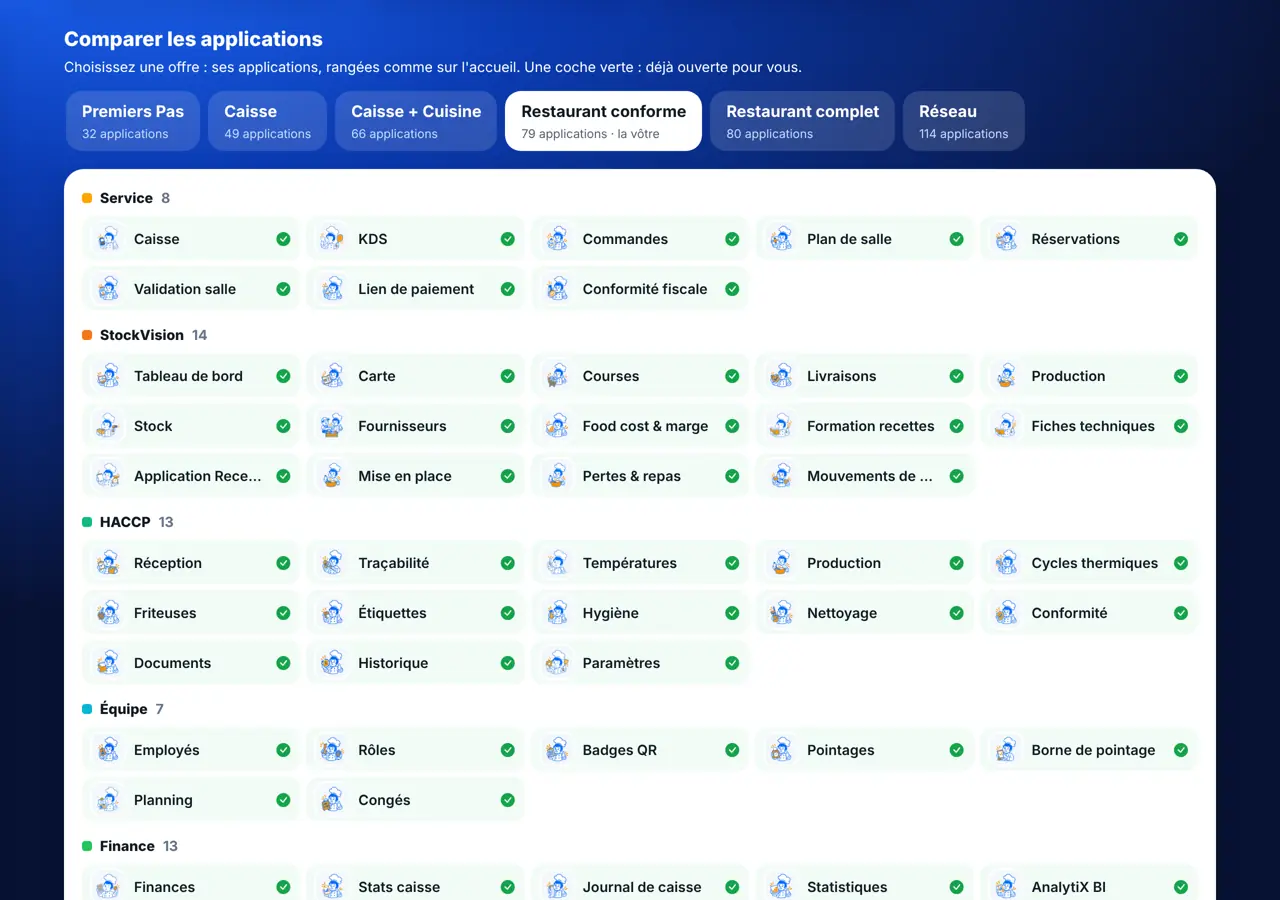
“Ajouter des applications” puts all plans side by side, in the words of your home screen: what they add, what they remove.

Subscription — Compare before choosing
+N / −N applications
On each plan: apps added and removed compared with your current home screen.
Votre offre
The current plan is outlined; its link becomes “Voir mon offre”.
Comparer les applications
Choose a plan: its apps appear sorted by category. A green tick = already open for you.
Mon abonnement
Top right: back to the Subscription screen.

A plan’s page

Everything to know before paying, in one place. The price comes from the FoodEatUp catalogue: it is the one shown on the page.

Subscription — A plan’s page
Les applications
“Ajoutées à votre accueil” (“Nouveau” badge), then “Déjà sur votre accueil”. A yellow banner counts the apps of your current plan that are not part of it.
Mensuel / Annuel
Changes the price shown and the button’s price.
Avec / Sans Smile&Pay
On the Caisse plan only: a lower price with a Smile&Pay terminal linked to the till. Without an active terminal within 60 days, the price moves to the “sans” price after 14 days’ notice.
L’essai
The number of trial days, or why it no longer applies to this restaurant.
Souscrire / Changer d’offre
The button says what happens: Stripe payment for a first subscription, plan replacement if you already have a paid one.

Only the restaurant owner can subscribe: an employee sees the reason instead of the button.

Move to a fuller plan

With a paid subscription running, the button becomes “Changer d’offre”. Your subscription is not doubled: its price is replaced.

Subscription — Move to a fuller plan
Changer d’offre
Replaces the plan right away. Stripe issues an invoice for the difference, worked out to the day over the current period.
Pourquoi ce prix ?
On some plans, the price is compared with the base plan plus the option it contains.
Your options
They stay: they are separate subscriptions, the change does not touch them.
  1. Open the plan’s page and choose the billing period.
  2. Read the apps banner: a more expensive plan may not contain all your apps.
  3. Tap “Changer d’offre”: you come back to the Subscription screen, the new plan is active.

A plan change replaces a scheduled downgrade and cancels a scheduled cancellation: the chosen plan continues.

Downgrade to a cheaper plan

In Abonnement › “Changer de pack”, plans cheaper than yours are greyed out, with an orange “Rétrograder vers ce pack” button.

Subscription — Downgrade to a cheaper plan
Offre moins chère que la vôtre
The label of a plan whose price, for the chosen period, is lower than your plan’s.
Rétrograder vers ce pack
Asks for confirmation, then schedules the change on the renewal date. Nothing changes until then, and the current period is not refunded.
Votre offre actuelle
Your plan stays greyed out: it continues until renewal.
  1. Tap “Changer de pack”, then choose Mensuel or Annuel.
  2. Tap “Rétrograder vers ce pack” under the plan you want, then confirm.
  3. On renewal day, your subscription moves to the new price and the new plan.

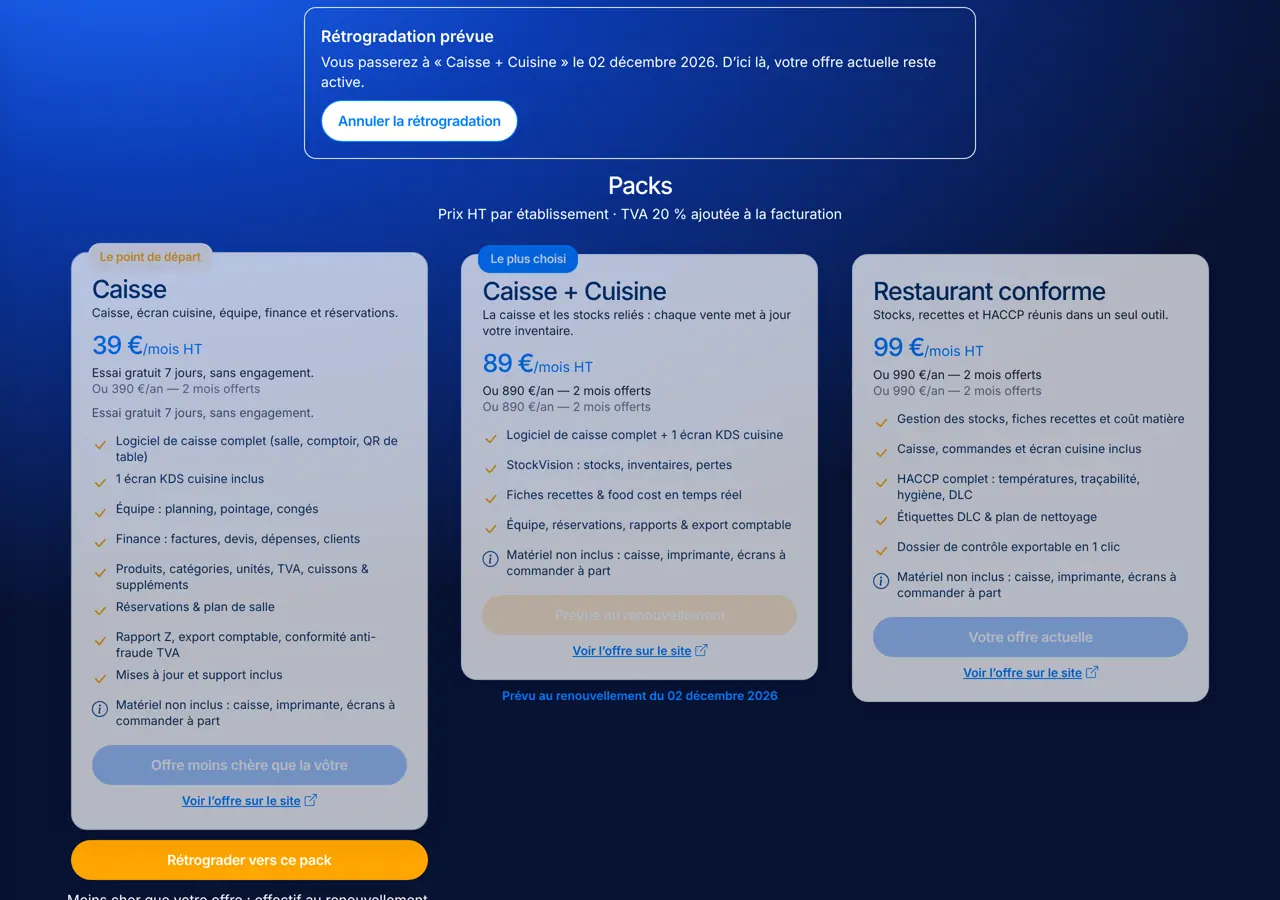
A scheduled downgrade

Until it happens, the downgrade is shown above the plans, with its date.

Subscription — A scheduled downgrade
Rétrogradation prévue
The name of the future plan and the date of the change.
Annuler la rétrogradation
Your current plan continues, as if nothing had been asked.
Prévu au renouvellement
Under the chosen plan, with the date.

At renewal, apps that are not part of the new plan leave your home screen and menu. Your data stays saved: it comes back if you take a plan that contains it again.

Careful: from a plan’s page, the change is immediate

Opening a cheaper plan from “Ajouter des applications” and tapping “Changer d’offre” schedules nothing: the plan changes right away.

Subscription — Careful: from a plan’s page, the change is immediate
N applications de votre offre actuelle n’en font pas partie
The yellow banner counts what disappears from your home screen as soon as you confirm.
Changer d’offre
Replaces the plan immediately. Stripe works out the difference to the day: the unused part of your current plan is credited on your next invoices.

Want to keep your apps until the end of the paid period? Use Abonnement › “Changer de pack” › “Rétrograder vers ce pack”.

Going back to Premiers Pas

Premiers Pas has no “Rétrograder” button: it is a separate plan, not a cheaper pack.

Annuler l’abonnement
In “Gérer l’abonnement”: “Annuler à la fin de la période” keeps everything until the end date. Cancelling also ends your options.
Commencer gratuitement / Souscrire
Once your plan has ended, choose Premiers Pas: free for the first year if it was never used, otherwise at the yearly price shown.

Premiers Pas only accepts a few options (Google reviews, Caroline, website editor, Iris). The others are not removed automatically: check your options before switching.

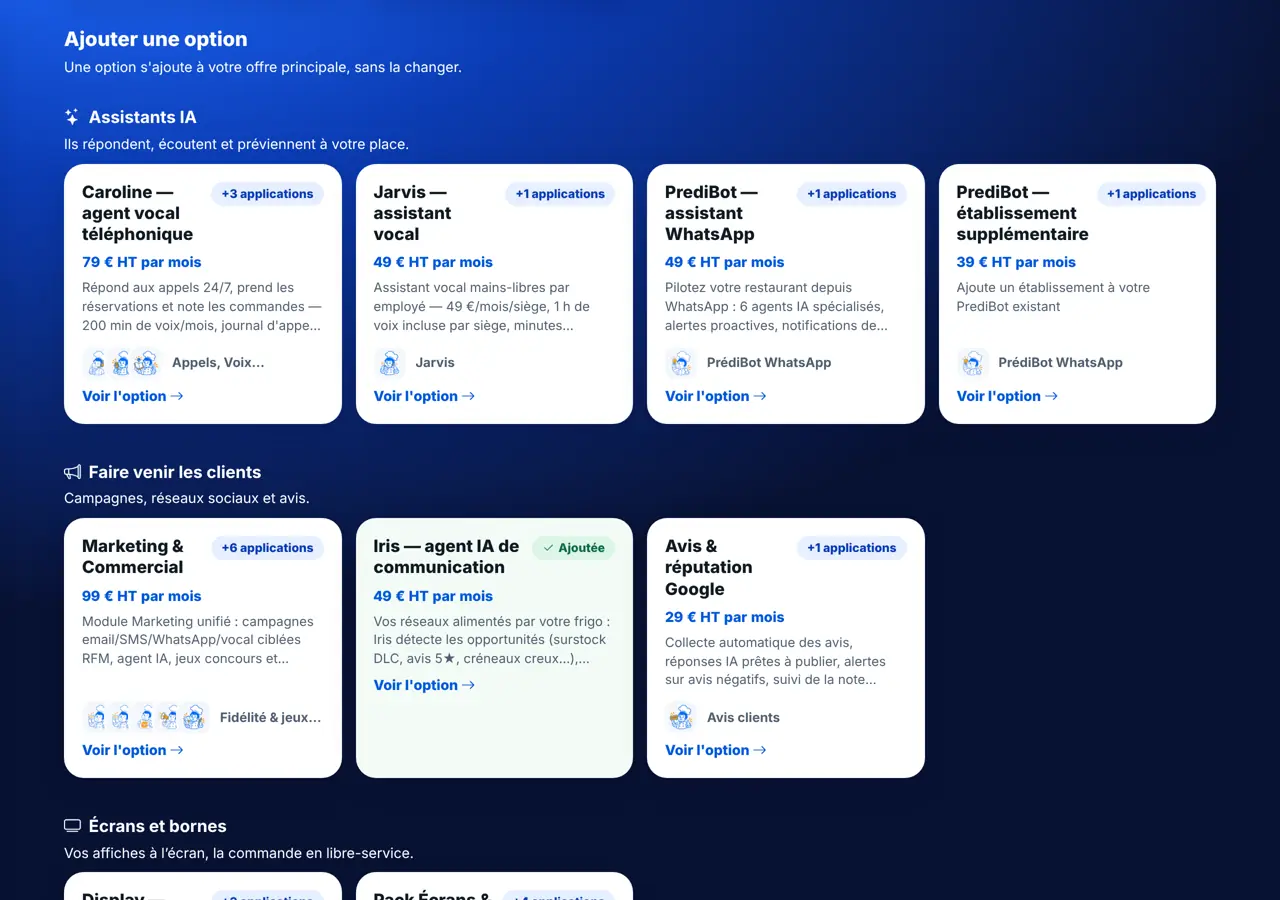
Add or remove an option

An option is added to your main plan without changing it. It has its own subscription, and so its own invoice.

Subscription — Add or remove an option
Ajouter une option
In “Ajouter des applications”, options are grouped by family: AI assistants, bringing customers in, screens and kiosks, your website, network and events.
Ajoutée
The green badge of an option already taken.
Ajouter · price
On the option’s page: a 14-day trial, once per option and per restaurant, then the price shown.
Pas avec votre offre
Some plans do not accept every option, and some options need another one first: the page says so instead of the button.
  1. Open “Voir l’option”, read the apps added and the trial.
  2. Tap “Ajouter” and pay on the Stripe page.
  3. To remove a single option, use “Gérer le paiement” (the Stripe portal) in “Gérer l’abonnement”; otherwise, write to support.

There is no button to remove a single option in FoodEatUp: “Annuler l’abonnement” ends the plan AND all options.

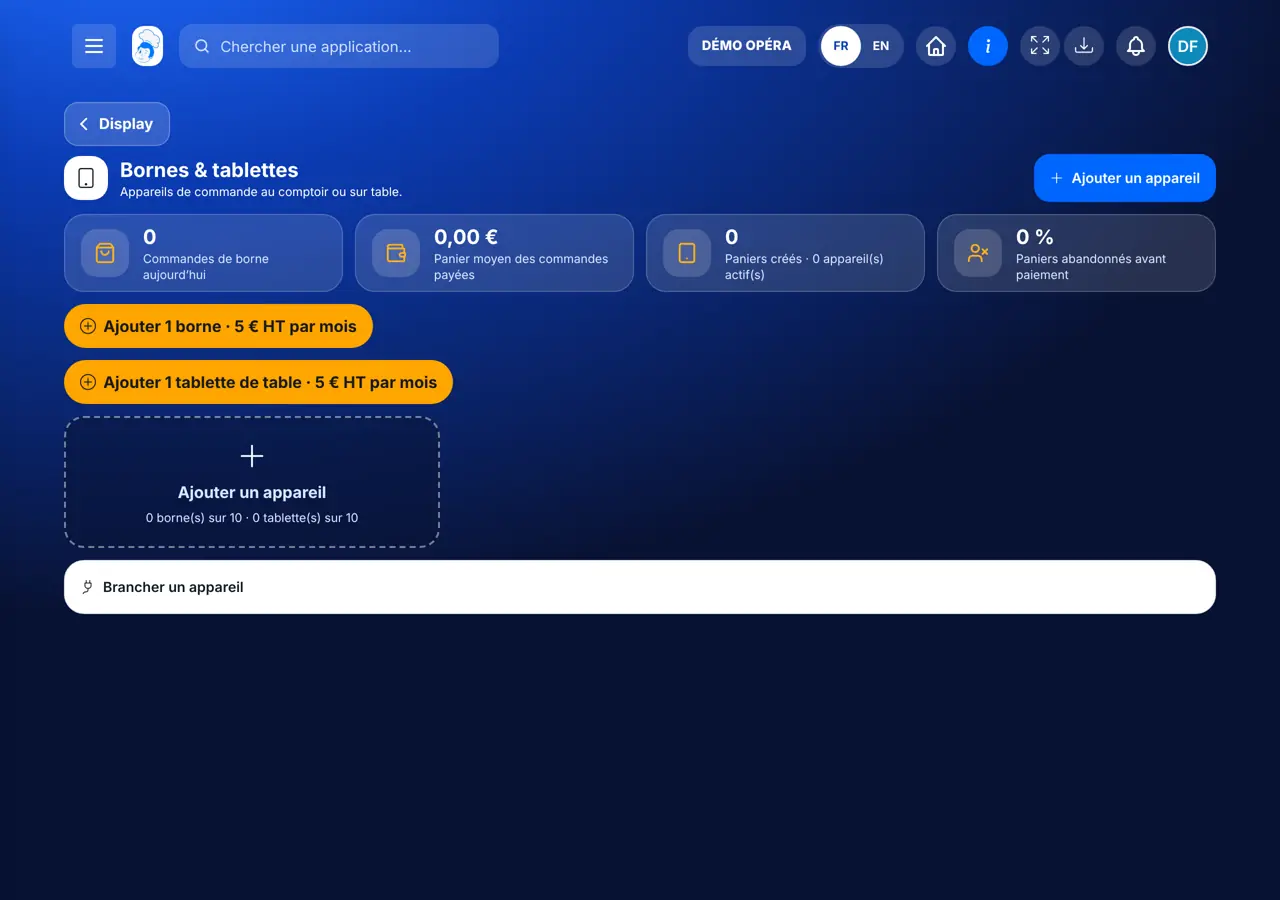
One more kiosk, screen or kitchen station

Beyond what your plan includes, add a unit in one click from the device’s screen: Bornes & tablettes, Écrans d’affichage or Postes KDS.

Subscription — One more kiosk, screen or kitchen station
Ajouter 1 borne · price excl. VAT per month
First tap: the button asks for confirmation. Second tap: the unit is added and the limit goes up at once.
En retirer 1
Removes one extra unit.

The unit is added to the subscription that carries the feature; the difference comes with the next payment. An already unlimited plan offers nothing. Only the owner buys.

Invoices and payment method

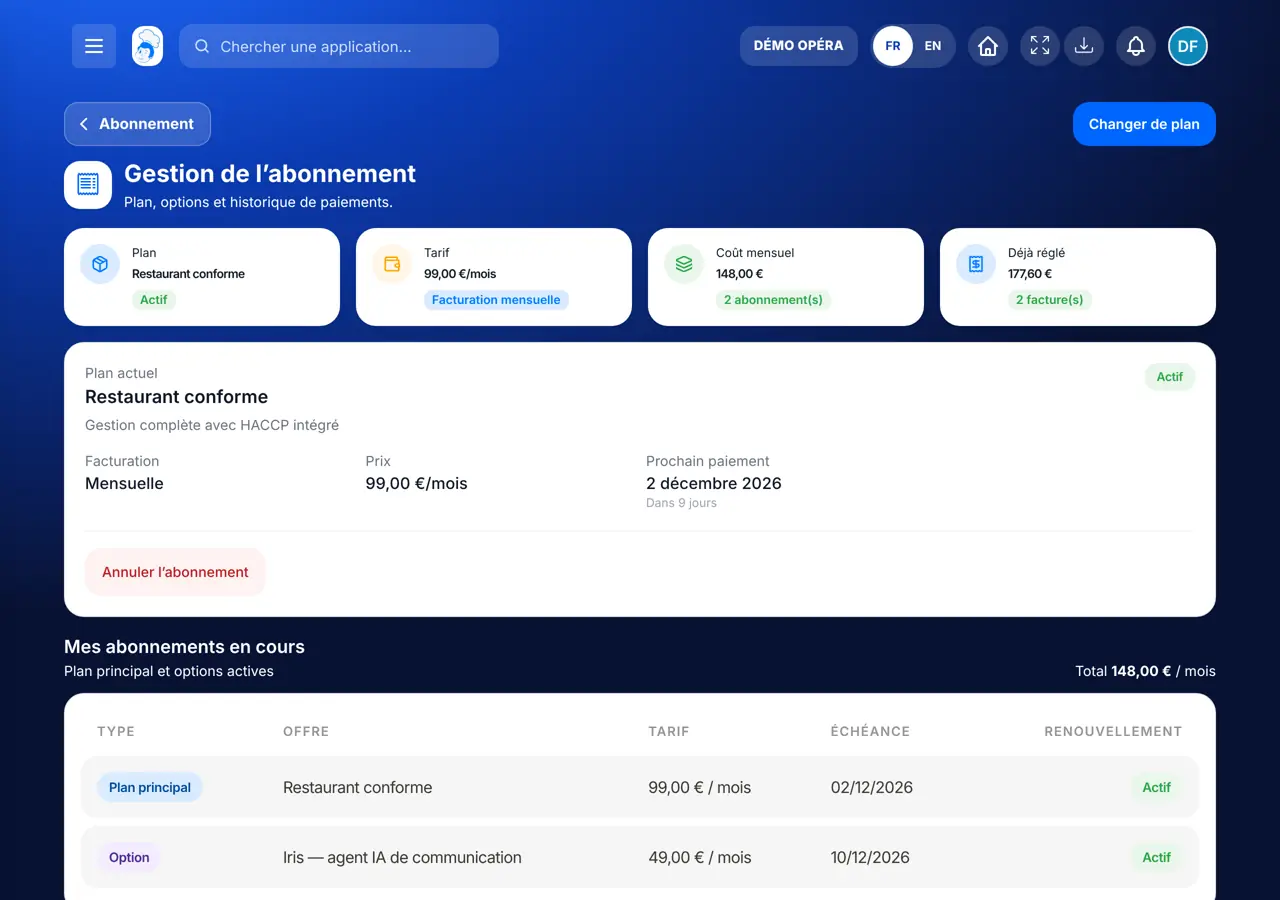
“Gérer l’abonnement” gathers your plan, your options, your billing details and every payment.

Subscription — Invoices and payment method
Mes abonnements en cours
The main plan and each option, with their price, renewal date and the monthly total.
Gérer le paiement
Opens the Stripe portal: change card, read your Stripe invoices. Shown when your subscription is paid through Stripe.
Facturation › Modifier
The e-mail that receives invoices, the billing name and address.
PDF / E-mail
In “Historique des paiements”, for each invoice: download it or send it again by e-mail.
Annuler l’abonnement
“Annuler à la fin de la période” or “Annuler immédiatement”. Options are ended with the plan.
Reprendre l’abonnement
After a cancellation, while the period has not ended.

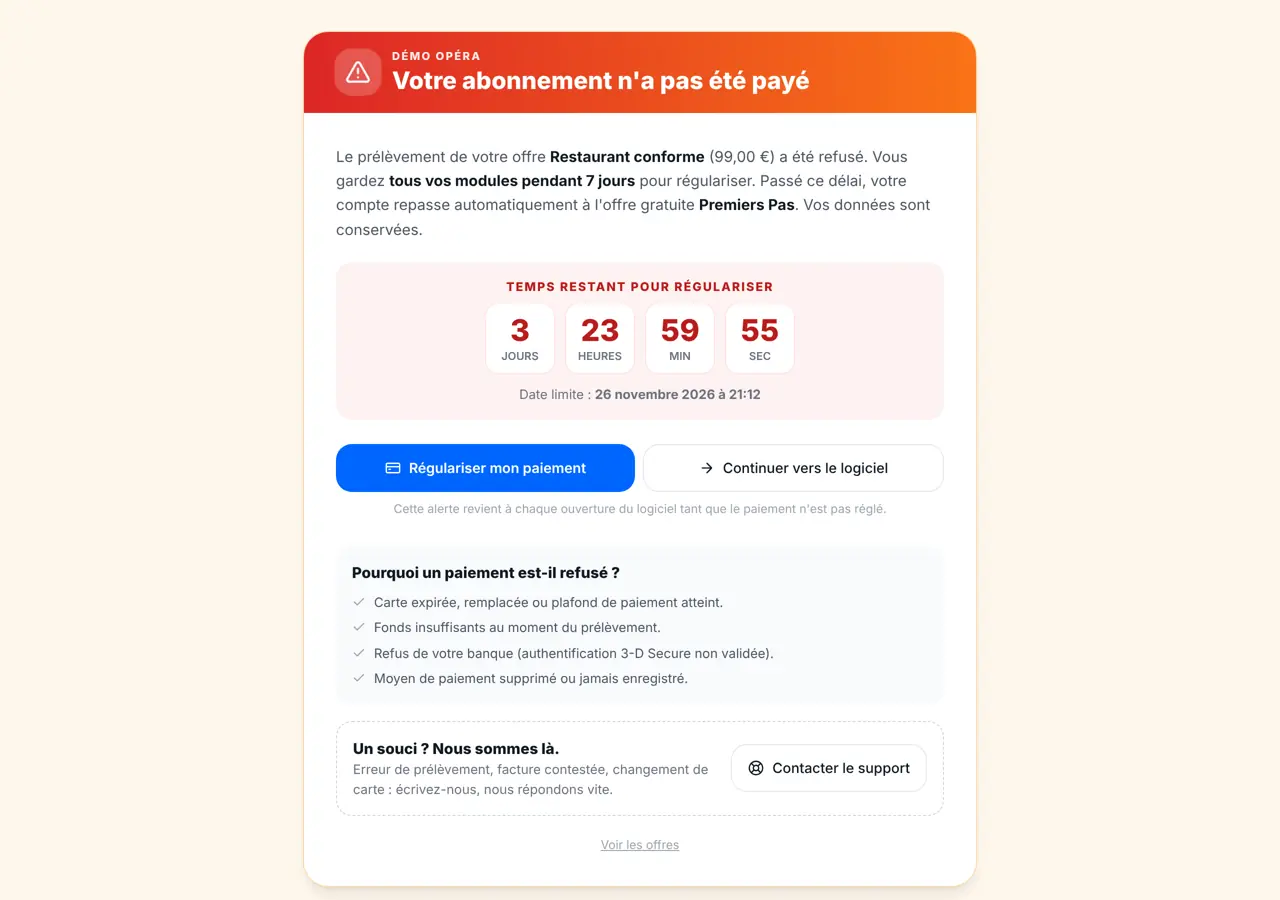
A refused payment

If the bank refuses a payment, the service continues for seven days. An alert page shows when the software opens, with a countdown.

Subscription — A refused payment
Régulariser mon paiement
Opens the Stripe portal to pay or change card.
Continuer vers le logiciel
You work as usual; the alert comes back at the next opening until it is settled.
Contacter le support
For a disputed payment or a mistake.

Reminders arrive three days then one day before the end. After seven days, the plan is ended and the restaurant goes back to Premiers Pas (an unpaid option is simply closed). No data is deleted. Employees never see this page.

The result

The result

Your new plan is active or scheduled for renewal, your options and extra units are listed in “Gestion de l’abonnement”, and each payment leaves an invoice to download or receive by e-mail.

Compare plans on the website (in French) →
The result : Take or change your plan

Owner and employee: what changes

The owner

Only they subscribe, change plan, downgrade, add an option or a unit, and can cancel.

Subscription — The owner

The employee

They only see the subscription if their role has the “Abonnement” right. They can neither subscribe nor change plan; changing billing also needs the right to manage it. Standard roles, even the manager, do not have it.

Do it with your assistant

Claude, ChatGPT or Mistral’s Le Chat, connected to FoodEatUp. Copy the request and replace your establishment number.

What does my subscription include?

In FoodEatUp, for my establishment [number], sum up my subscription: main plan, active options, open features and trial end date.

What you getYour active plans and what they open, with no price or payment method.

Tools used : get_subscription_summary

Find my invoices

In FoodEatUp, for my establishment [number], list my subscription payments with their invoice number and status.

What you getThe list of payments, dated, with each invoice number.

Tools used : list_subscription_invoices

What is left to set up?

In FoodEatUp, for my establishment [number], show me the setup steps done and those left in my current plan.

What you getThe finished steps, those to do, and those that do not apply to your plan.

Tools used : get_onboarding_progress

What you gain

Choose knowingly

Each plan says what it adds and removes.

One subscription

Moving up replaces the price, to the day.

Nothing lost going down

The downgrade waits for renewal.

Invoices at hand

Downloaded or sent again by e-mail.

The Chef’s tip

Before downgrading, open the target plan’s page from “Ajouter des applications” without touching the button: the yellow banner tells you how many apps you would lose. Then downgrade from Abonnement › “Changer de pack” to keep everything until renewal.

Frequently asked questions

I move to a cheaper plan: do I lose my data?

No. Apps that are no longer in your plan leave your home screen and menu, but your data stays saved. It comes back if you take a plan that contains it again.

Am I refunded if I downgrade?

With “Rétrograder vers ce pack”, no: you keep your plan until renewal, then pay the new price. With “Changer d’offre” from a plan’s page, the change is immediate and Stripe credits the unused part on your next invoices.

What happens if a payment is refused?

The service continues for seven days, with an alert page and a button to settle. After that, the restaurant goes back to Premiers Pas. No data is deleted.

How do I remove a single option?

Through “Gérer le paiement” (Stripe portal) in “Gérer l’abonnement”, or by writing to support. “Annuler l’abonnement” ends the plan and all options.

Text version for AI assistants →

Share this tutorial

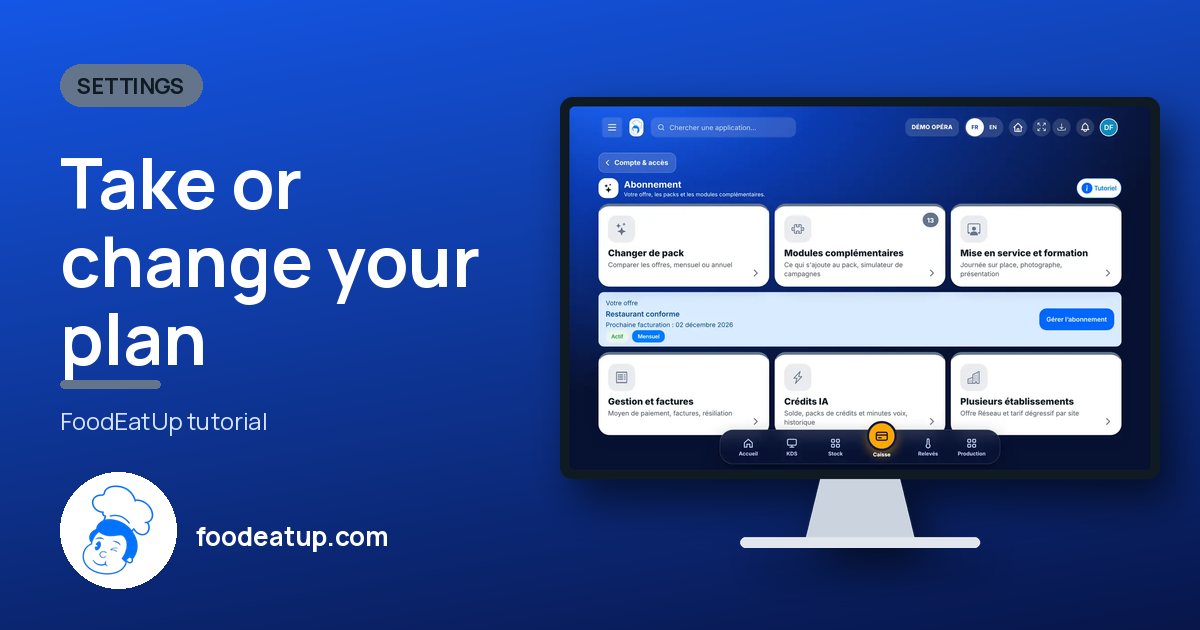
Send it to your team, your partner or your accountant. The image below appears in the message.

Share preview : Take or change your plan
WhatsAppLinkedInFacebookEmail

Send to an AI assistant

Claude, ChatGPT or Le Chat read this tutorial and explain it to you. Connected to FoodEatUp, they do it with you.

Read this FoodEatUp tutorial: https://foodeatup.com/en/academy/configuration/subscription.md Explain it to me simply, step by step, then help me do it in my restaurant. If FoodEatUp is connected to you, do it with me and show me the preview before every change.

ClaudeLe ChatChatGPT

Open in my software

Type your establishment number: the link takes you straight to this screen. The number stays on this device.

See plans and options (in French) →

You can read it in the software address: foodeatup.com/establishment/number/…