Who has access to my restaurant?
In FoodEatUp, for my establishment [number], list my employees with their role.
What you getThe list of employees and each one’s role.
Tools used : list_employees, list_roles
 Settings · Security
Everyone creates a personal code and sees their devices. The owner also sees the team’s devices and the access log.
 Patron / gérant
 Directeur
 Responsable de salle
 Chef de cuisine
A computer, or the device you use every day: it is the one that appears in the list.
The real software screens, as they appear on each device.
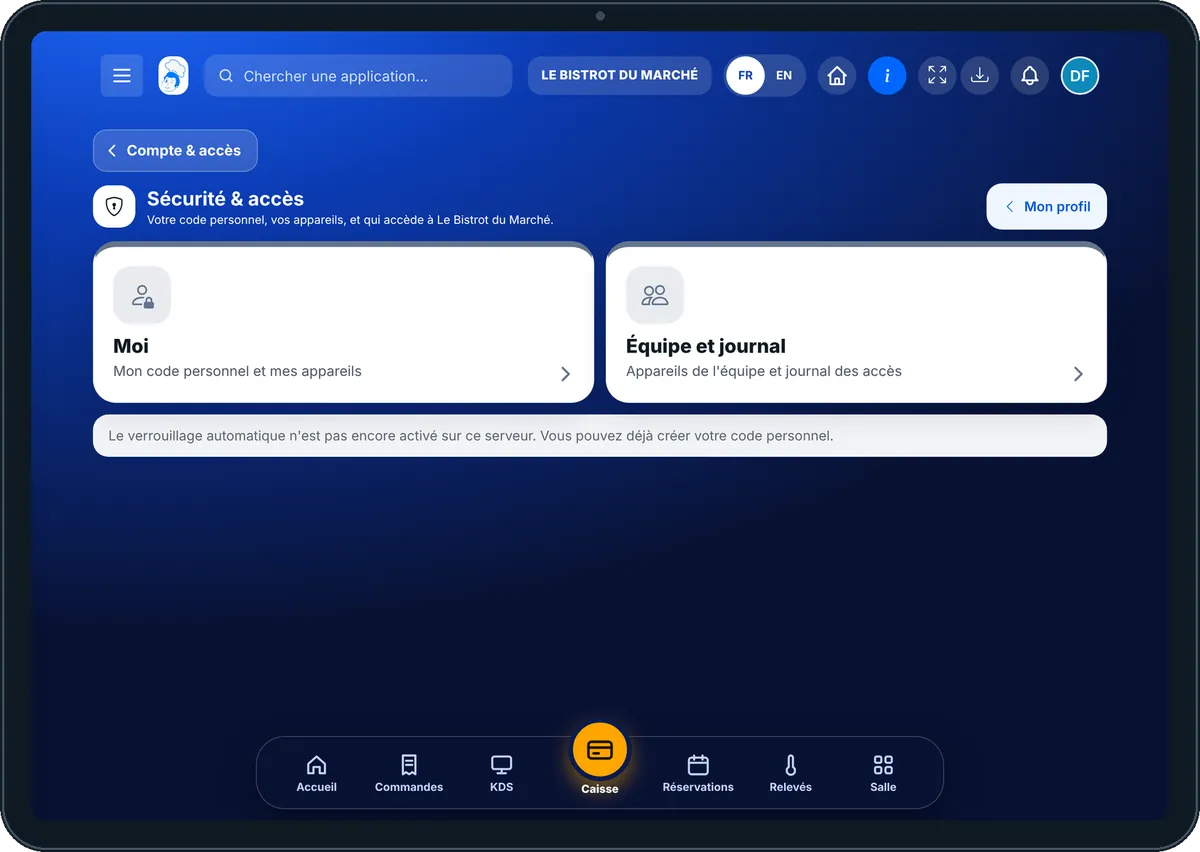
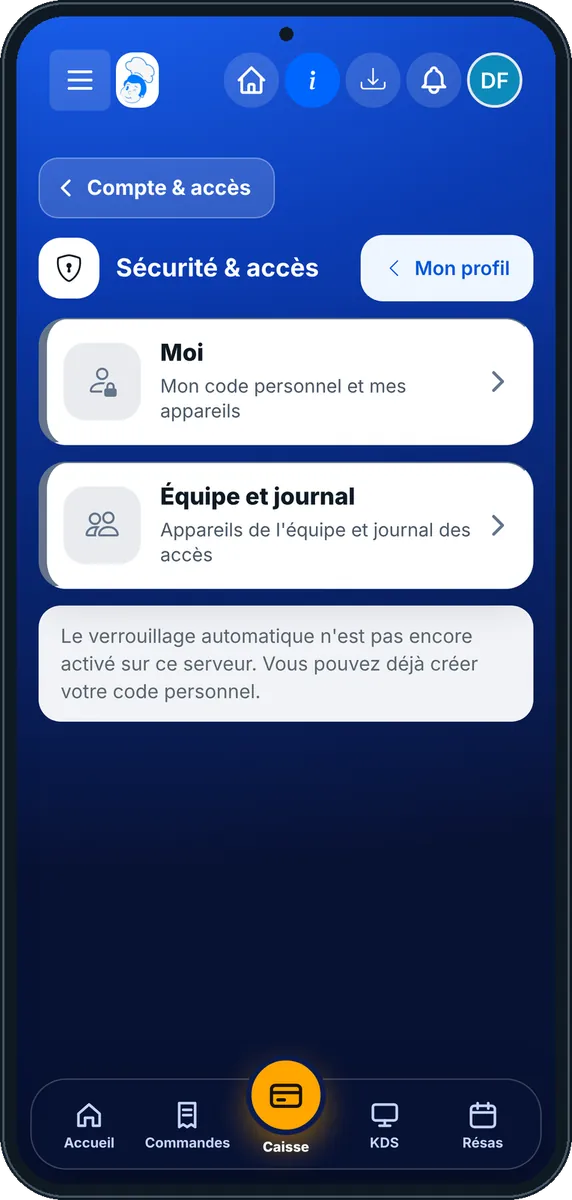
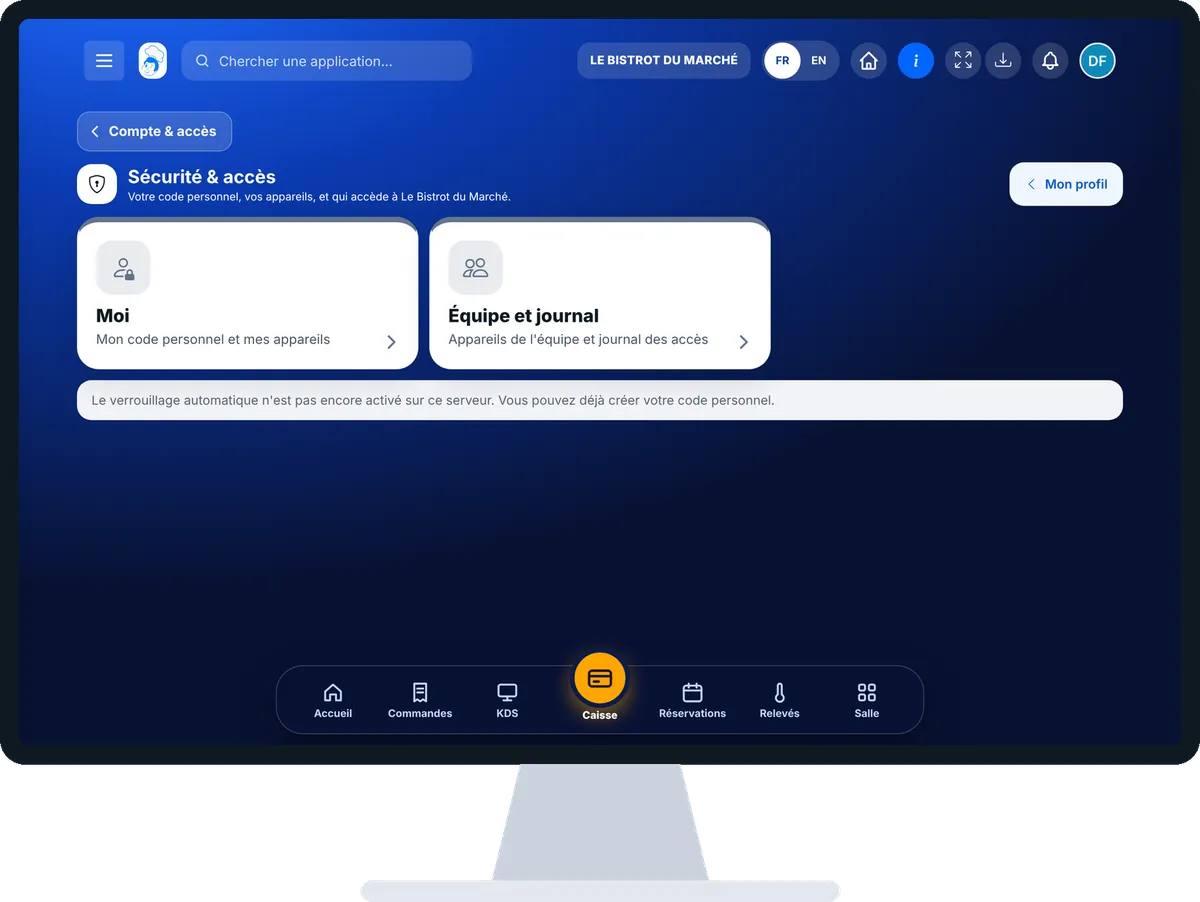
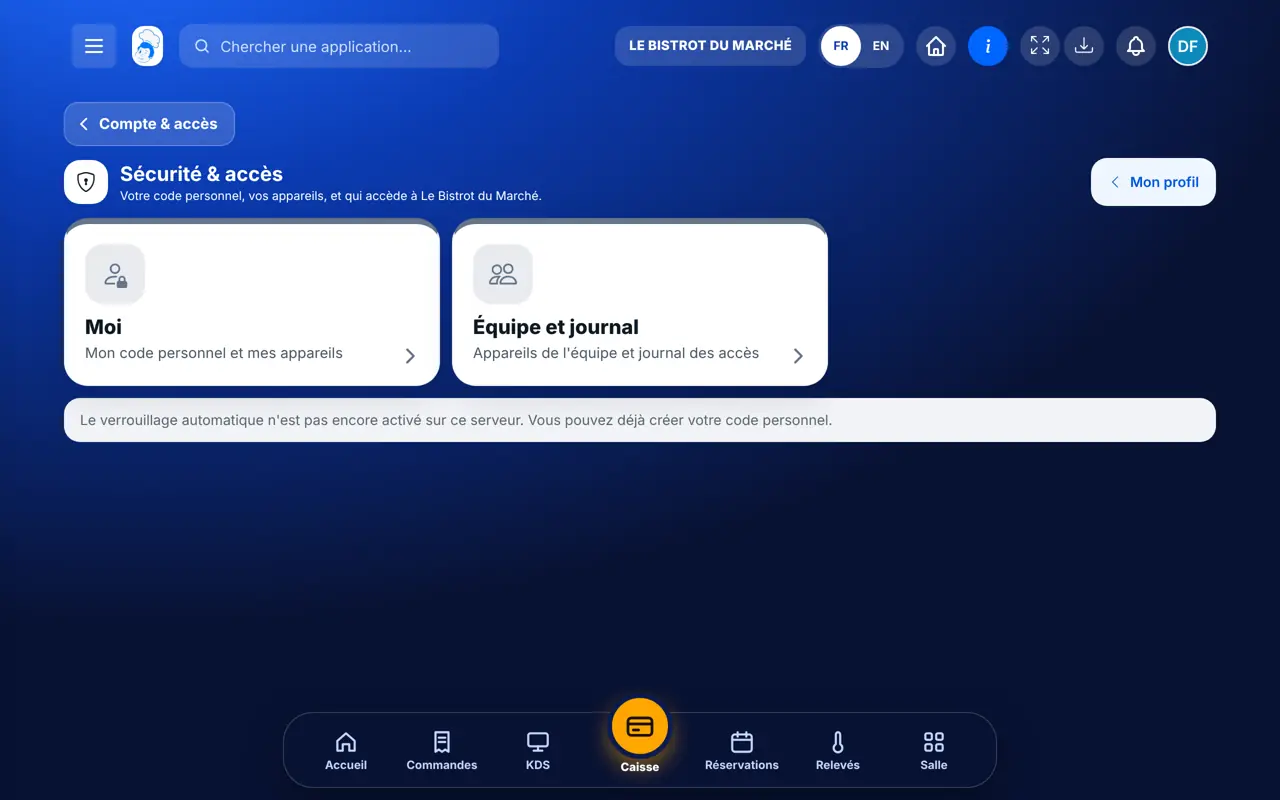
Protect your access : 4 steps, with the real software screens.
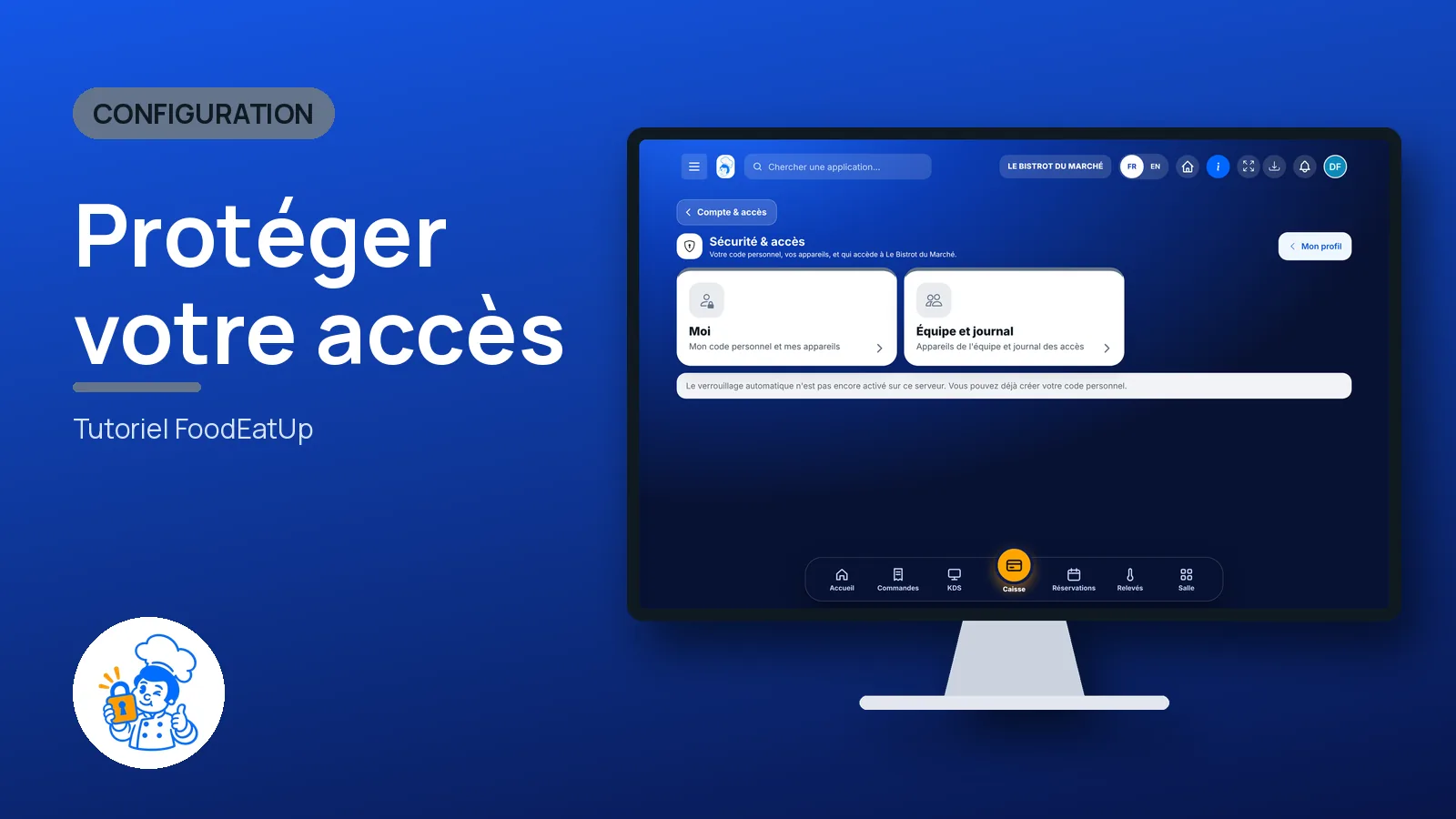
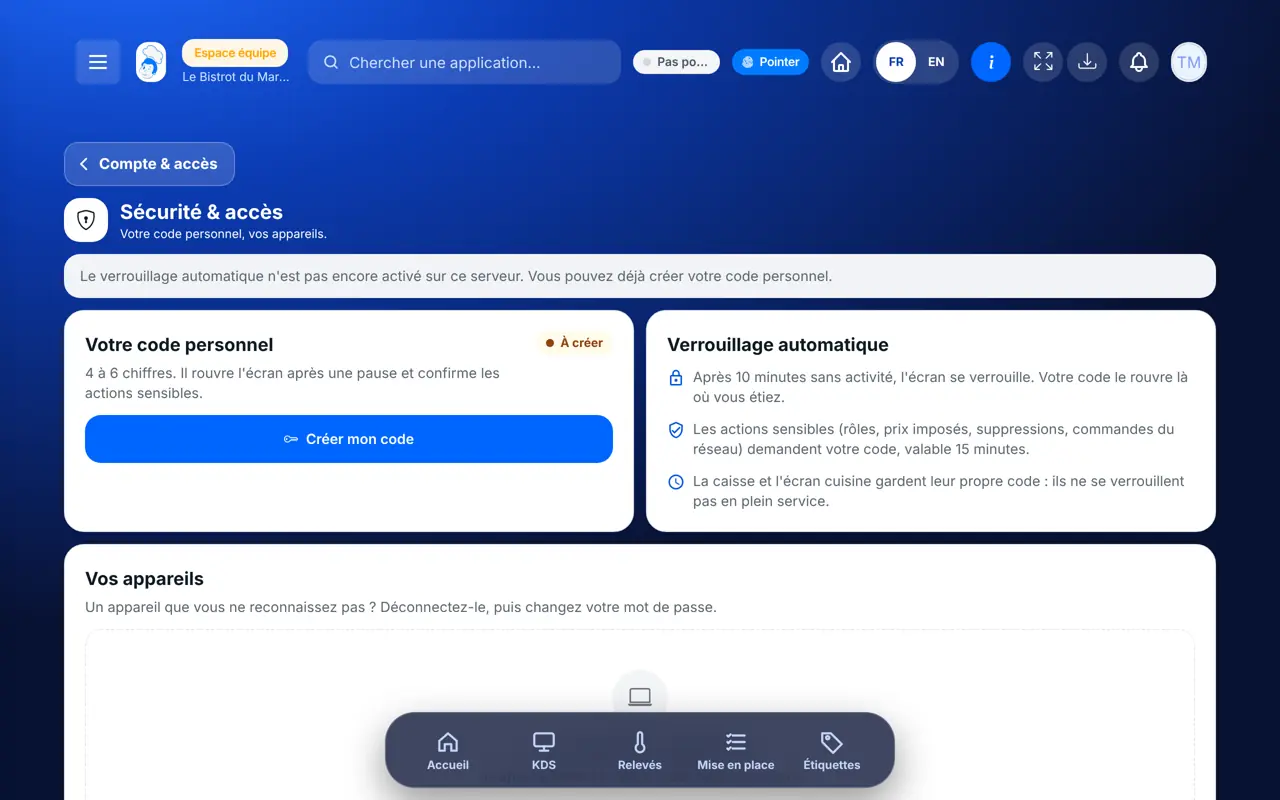
In the Configuration category, open “Sécurité”. The “Moi” tab shows your personal code, the automatic lock and your devices.
Tap “Créer mon code” (or “Changer mon code”). Type the new code, type it again, enter your current password, then “Enregistrer”. A code that is too simple, such as 1234, is refused.
Under “Vos appareils”, the device you are using is marked “Cet appareil”. An unknown device? Tap “Déconnecter”, then change your password.
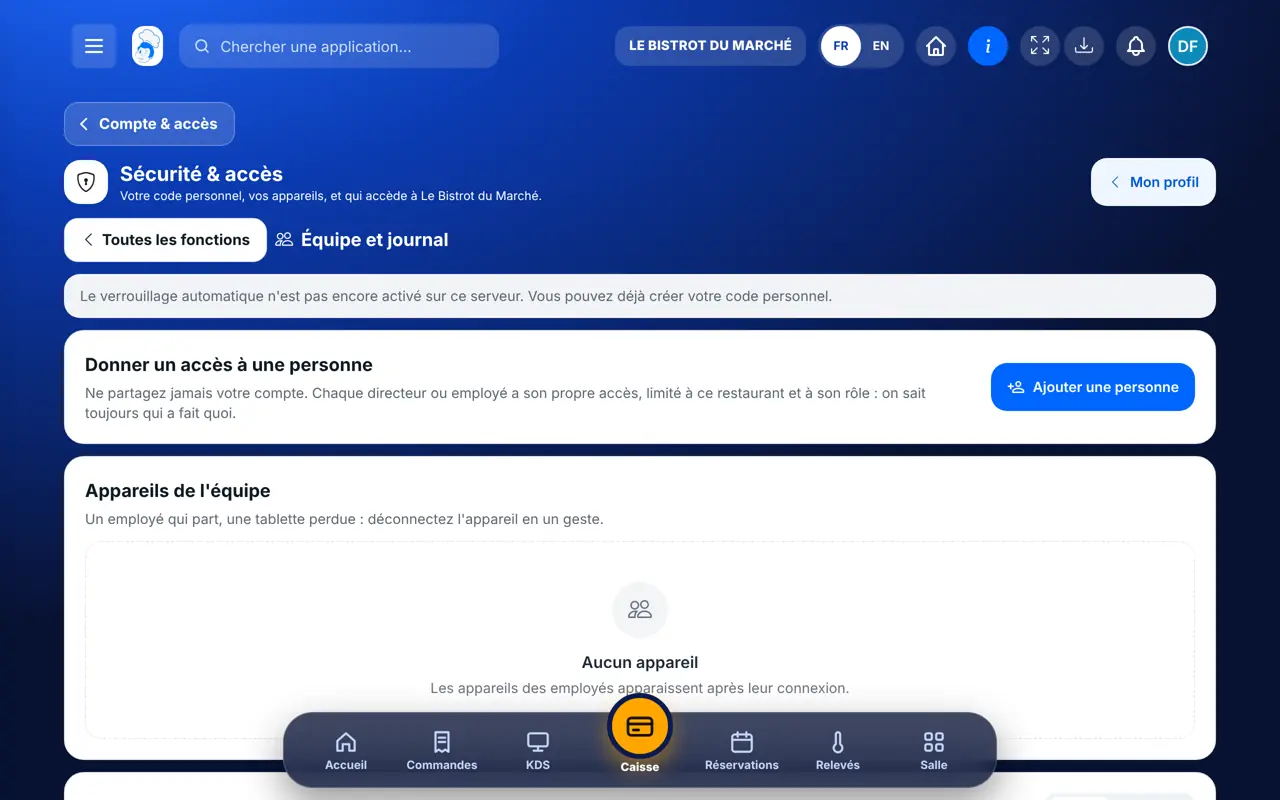
The owner opens the “Équipe et journal” tab: the team’s devices, and the “Journal des accès”. The “Alertes” filter keeps only what deserves a look.
Your code is “Défini”. When the lock is switched on, the screen closes after a break and your code reopens it where you were. Sensitive actions, such as roles or deletions, ask for this code.
Give everyone their role →Manages their code and devices. Also sees the team’s devices and the log, and can disconnect an employee’s device.
Manages their code and devices. They only see the team’s devices if they have the right to edit the restaurant’s configuration.
Claude, ChatGPT or Mistral’s Le Chat, connected to FoodEatUp. Copy the request and replace your establishment number.
In FoodEatUp, for my establishment [number], list my employees with their role.
What you getThe list of employees and each one’s role.
Tools used : list_employees, list_roles
In FoodEatUp, for my establishment [number], list my roles and sum up in one line what each one can do.
What you getEach role, with its rights summed up in plain words.
Tools used : list_roles
In FoodEatUp, for my establishment [number], list my API keys without showing their secret.
What you getThe existing keys. You spot those no longer in use.
Tools used : list_api_clients
4 to 6 digits, never shared.
You see who is connected, and from where.
Lost tablet: “Déconnecter”.
Sign-ins and alerts, dated.
Never lend your account, even “just for tonight”. In the “Équipe et journal” tab, tap “Ajouter une personne”: your deputy gets their own access, limited to their role.
In FoodEatUp, one action triggers others. Here are the screens that work with this one.
It is switched on at server level, by request. Until then, the screen says so at the top of the page, and you can already create your code.
The screen shows how many tries are left. After five wrong codes, you are signed out and must sign in again with your password.
No. The till and the kitchen screen keep their own code: they do not lock during service.
Send it to your team, your partner or your accountant. The image below appears in the message.
Claude, ChatGPT or Le Chat read this tutorial and explain it to you. Connected to FoodEatUp, they do it with you.
Read this FoodEatUp tutorial: https://foodeatup.com/en/academy/configuration/securite.md Explain it to me simply, step by step, then help me do it in my restaurant. If FoodEatUp is connected to you, do it with me and show me the preview before every change.
Type your establishment number: the link takes you straight to this screen. The number stays on this device.
Discover roles and access (in French) →
Répond avec les fiches du site, sans IA
Le chef cherche dans les fiches…
 Claude
 Le Chat
 ChatGPT