
Aller au contenu
Settings · My brand

Set your logo and colours

You upload your logo and choose your colours and fonts once. The website, the shop page, e-mails and printed materials all reuse them.

  • Computer
  • 5 steps
  • Level : Beginner
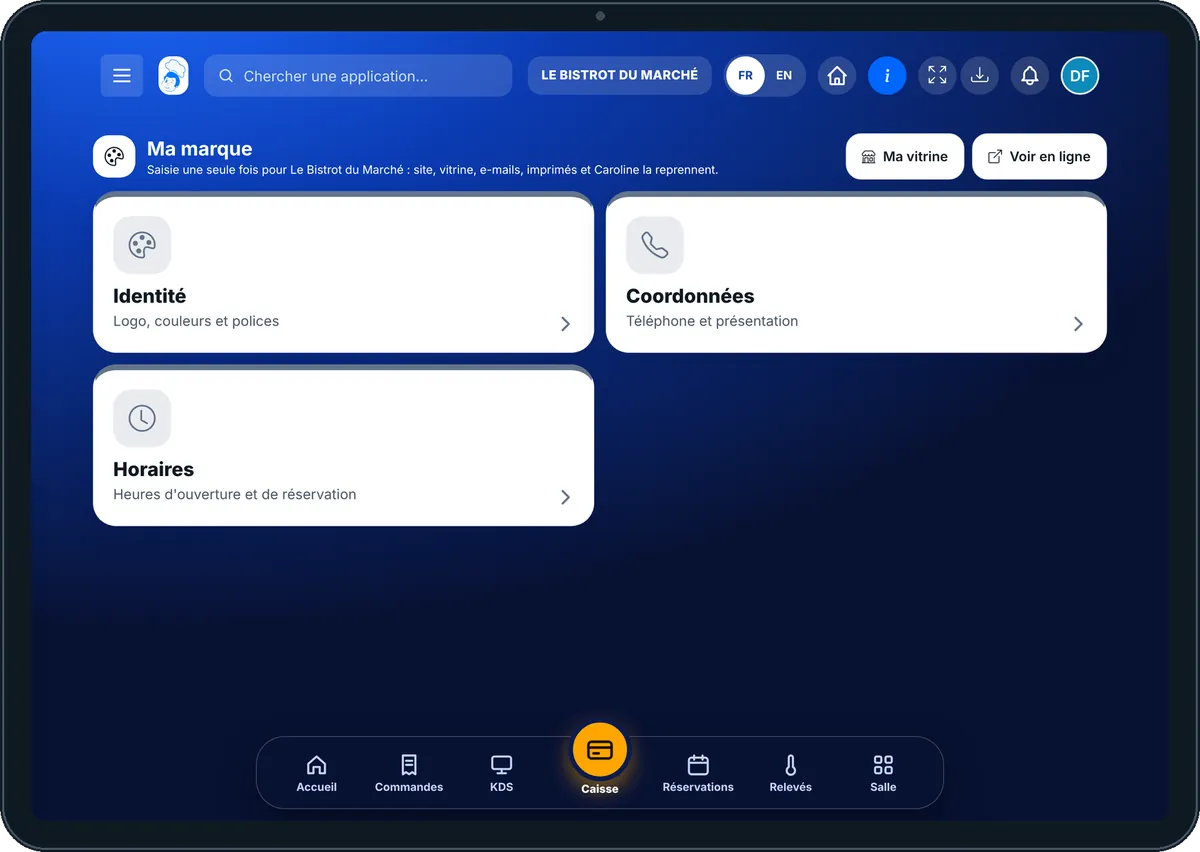
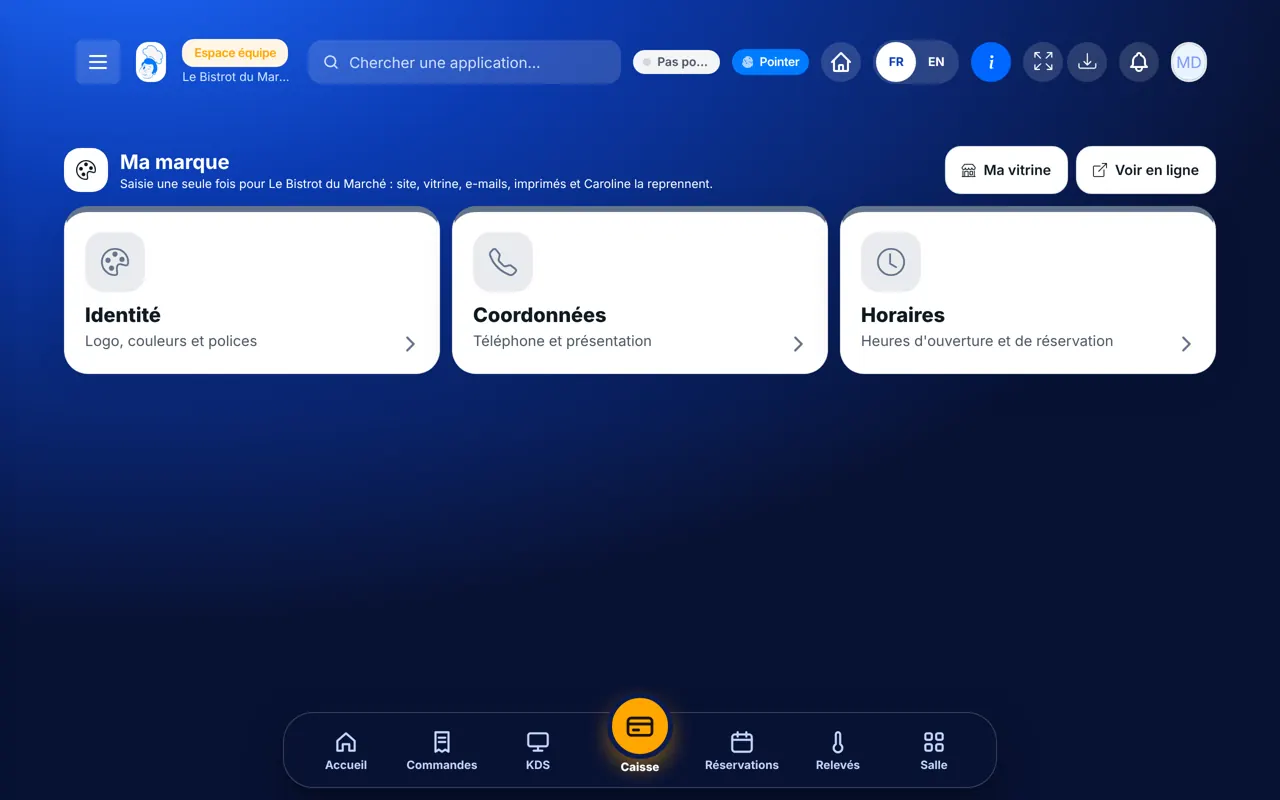
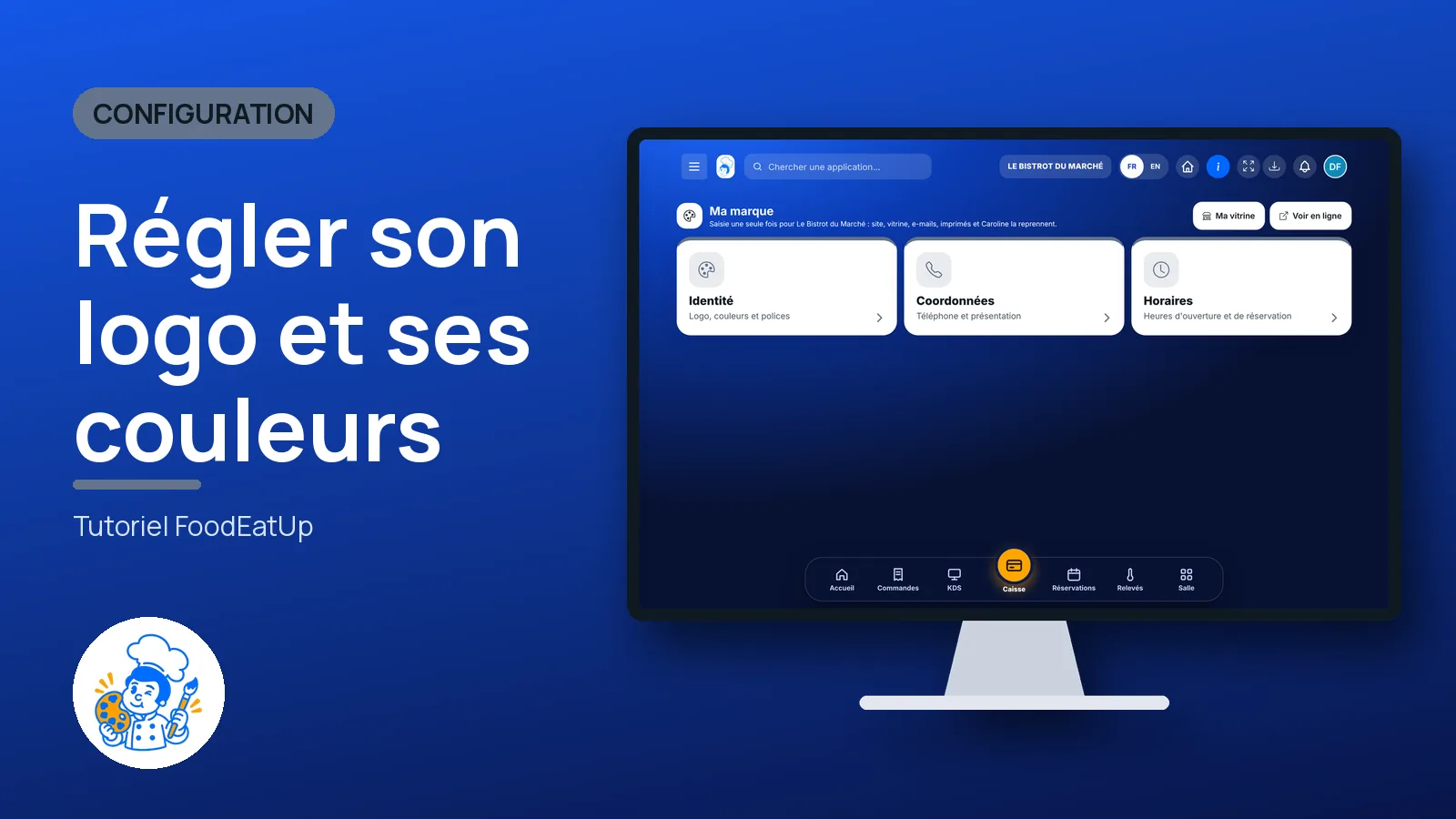
Set your logo and colours : Ma marque: the three cards Identité, Coordonnées and Horaires

Who is it for?

  • Patron / gérant
  • Directeur
  • Responsable de salle
  • Responsable de boulangerie

Roles with access

  • Gérant·e
  • Marketing · view
  • Boutique (réseau)
  • Franchisé·e (réseau)
  • Directeur·rice d'établissement
  • Responsable site web & intégration
  • Responsable marketing · view
  • Responsable communication

The owner always has access. See what each role sees →

Recommended hardware

Computer

A computer. Colours are easier to judge on a large screen.

See the hardware →

What it is for

  • Upload your logo and choose four colours: main, secondary, background and text.
  • Choose the font for titles and the font for text.
  • Keep your phone number, your presentation, your opening hours and your booking hours up to date.

Why set it up

  • You enter your brand once. You no longer copy it into each tool.
  • Your customers see the same colours everywhere: website, e-mails, posters, kids’ menu.
  • The screen checks that your text stays readable on your background. Text that is too pale is corrected, and the screen tells you.

The same screen, on every device

The real software screens, as they appear on each device.

My brand — On the tablet
On the tablet
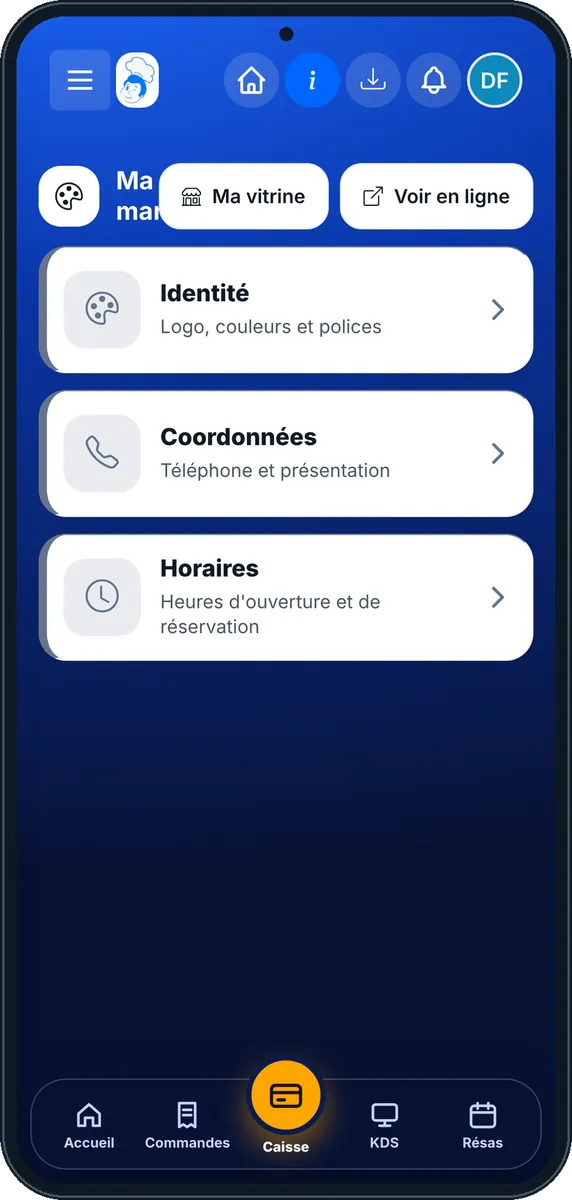
My brand — On the phone
On the phone
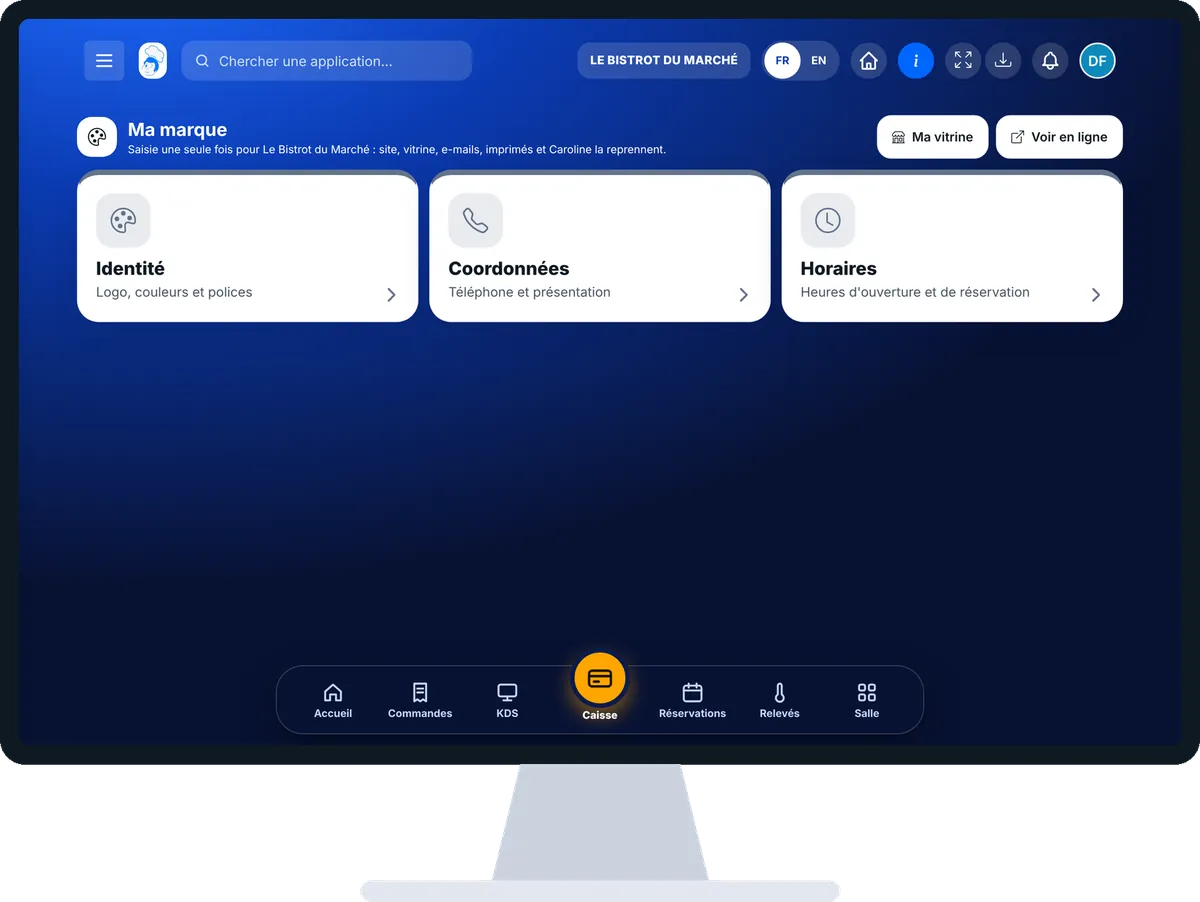
My brand — On the computer
On the computer

Step by step

Set your logo and colours : 5 steps, with the real software screens.

  1. 1Step 1

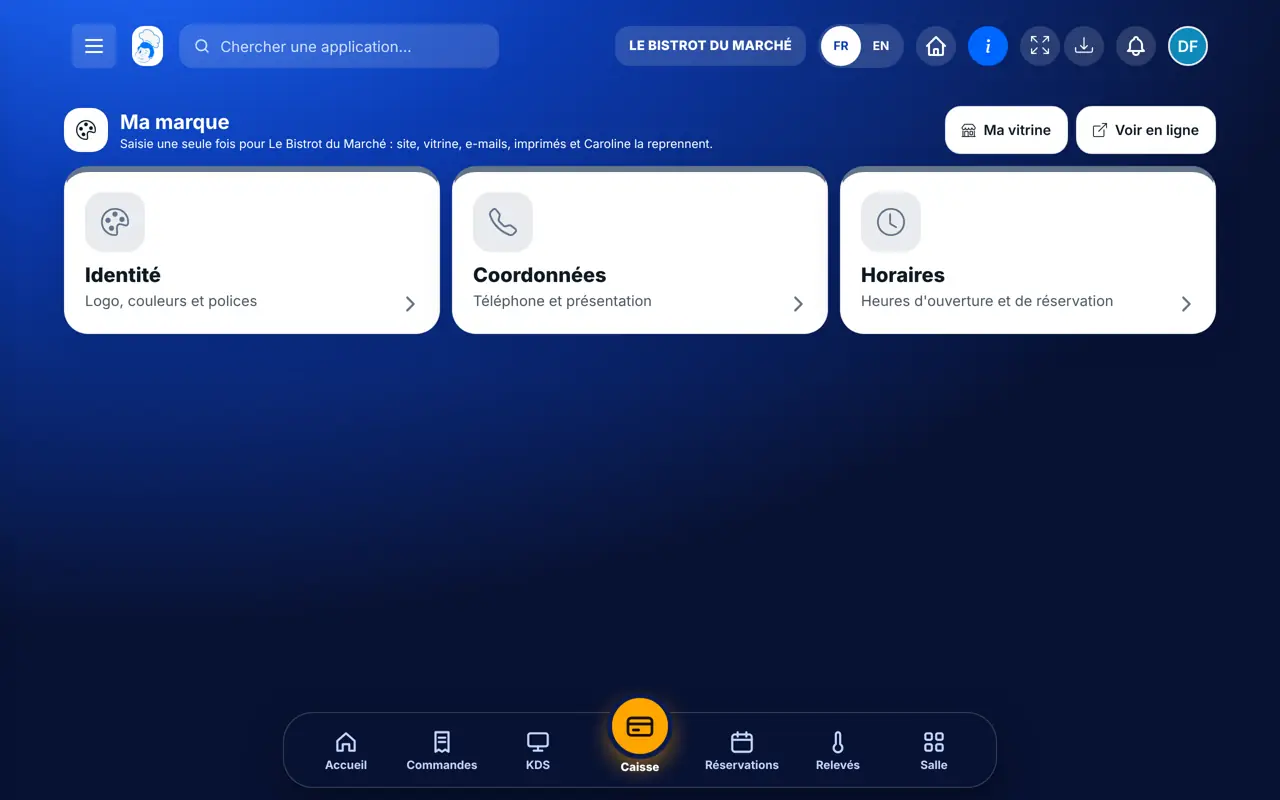
    Open Ma marque

    In the Configuration category, open “Ma marque”. Three cards appear: “Identité”, “Coordonnées” and “Horaires”.

    Ma marque: the three cards Identité, Coordonnées and Horaires
  2. 2Step 2

    Upload the logo

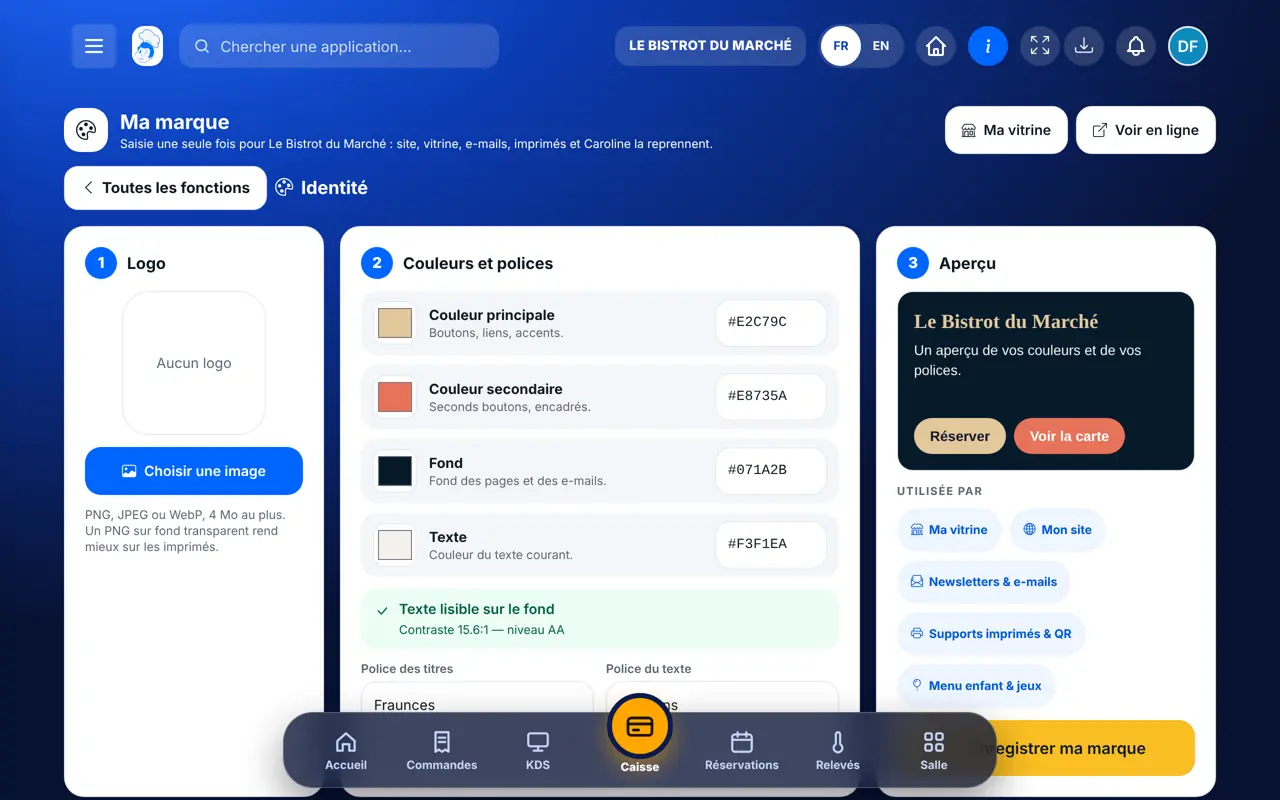
    Open “Identité”. In the “Logo” column, tap “Choisir une image”. A PNG with a transparent background looks better on printed materials.

    The “Identité” tab: logo, colours, fonts and preview
  3. 3Step 3

    Choose colours and fonts

    In “Couleurs et polices”, set the “Couleur principale”, the “Couleur secondaire”, the “Fond” and the “Texte”. The screen shows “Texte lisible sur le fond” when the contrast is good. Then choose the “Police des titres” and the “Police du texte”.

  4. 4Step 4

    Save

    Look at the “Aperçu”, then tap “Enregistrer ma marque”. If a colour was corrected to stay readable, the message says so.

  5. 5Step 5

    Fill in contact details and hours

    In “Coordonnées”, enter the phone number and the presentation, then “Enregistrer les coordonnées”. In “Horaires”, set the days, then “Enregistrer les horaires d’ouverture”.

The result

The result

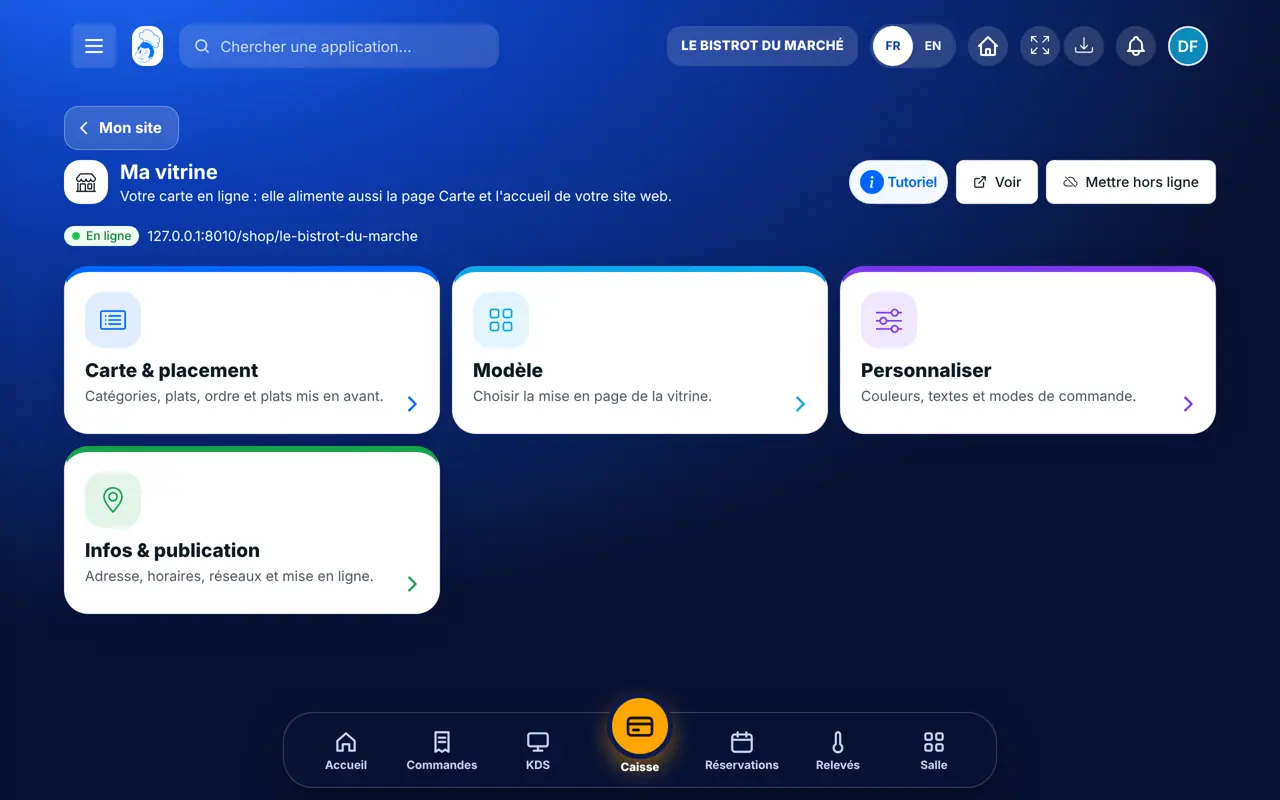
Your shop page, your website, your e-mails, your printed materials and the kids’ menu take your logo and colours. You see it right away by opening “Ma vitrine”.

Set up your shop page →
The result : Set your logo and colours

Owner and employee: what changes

The owner

Sets the logo, colours, fonts, contact details and hours.

My brand — The owner

The employee

With the right to view, they read the brand: the screen shows “Lecture seule”. With the right to edit, they can set it like the owner.

My brand — The employee

Do it with your assistant

Claude, ChatGPT or Mistral’s Le Chat, connected to FoodEatUp. Copy the request and replace your establishment number.

Read my details

In FoodEatUp, for my establishment [number], show me my establishment details: name, address, phone, and what is still missing.

What you getYour details as customers see them, with the empty fields.

Tools used : get_establishment_profile

Change my hours

In FoodEatUp, for my establishment [number], set my opening hours: Tuesday to Saturday, 12:00 to 14:30 and 19:00 to 22:30, closed Sunday and Monday. Show me the preview before confirming.

What you getThe new hours, and the old ones so you can go back.

Tools used : set_opening_hours

What you gain

Entered once

Logo and colours set one time.

The same look everywhere

Website, e-mails, print, kids’ menu.

Text always readable

Contrast is checked for you.

Correct hours

Shop page, website and Caroline up to date.

The Chef’s tip

Start with the logo and the main colour: they are what your customers remember. Keep a light background and dark text, and your posters and e-mails will be easier to read.

Frequently asked questions

Which file for the logo?

A PNG, JPEG or WebP image, 4 MB at most. A PNG with a transparent background looks better on printed materials.

What happens if my text is too light?

The screen shows “Texte peu lisible sur le fond”. On saving, the text is replaced by a readable colour, and the message tells you.

Does changing my brand change my website pages?

No. Only the logo, colours and fonts change. Your pages and texts are not touched.

Text version for AI assistants →

Share this tutorial

Send it to your team, your partner or your accountant. The image below appears in the message.

Share preview : Set your logo and colours
WhatsAppLinkedInFacebookEmail

Send to an AI assistant

Claude, ChatGPT or Le Chat read this tutorial and explain it to you. Connected to FoodEatUp, they do it with you.

Read this FoodEatUp tutorial: https://foodeatup.com/en/academy/configuration/marque.md Explain it to me simply, step by step, then help me do it in my restaurant. If FoodEatUp is connected to you, do it with me and show me the preview before every change.

ClaudeLe ChatChatGPT

Open in my software

Type your establishment number: the link takes you straight to this screen. The number stays on this device.

Discover how FoodEatUp is set up (in French) →

You can read it in the software address: foodeatup.com/establishment/number/…