Choose a template
In FoodEatUp, for my establishment [number], list the e-mail templates for a seasonal newsletter and tell me which suits my restaurant best.
What you getA short list of suitable templates.
Tools used : list_email_templates
 Marketing · E-mails
Over 500 ready e-mail templates, in your colours and with your footer: newsletter, order confirmation, win-back, birthday. You choose, you edit, you send.
 Patron / gérant
 Directeur
 Responsable de salle
The owner always has access. See what each role sees →
A computer to edit the e-mail block by block and see it as on a computer or a phone.
The real software screens, as they appear on each device.
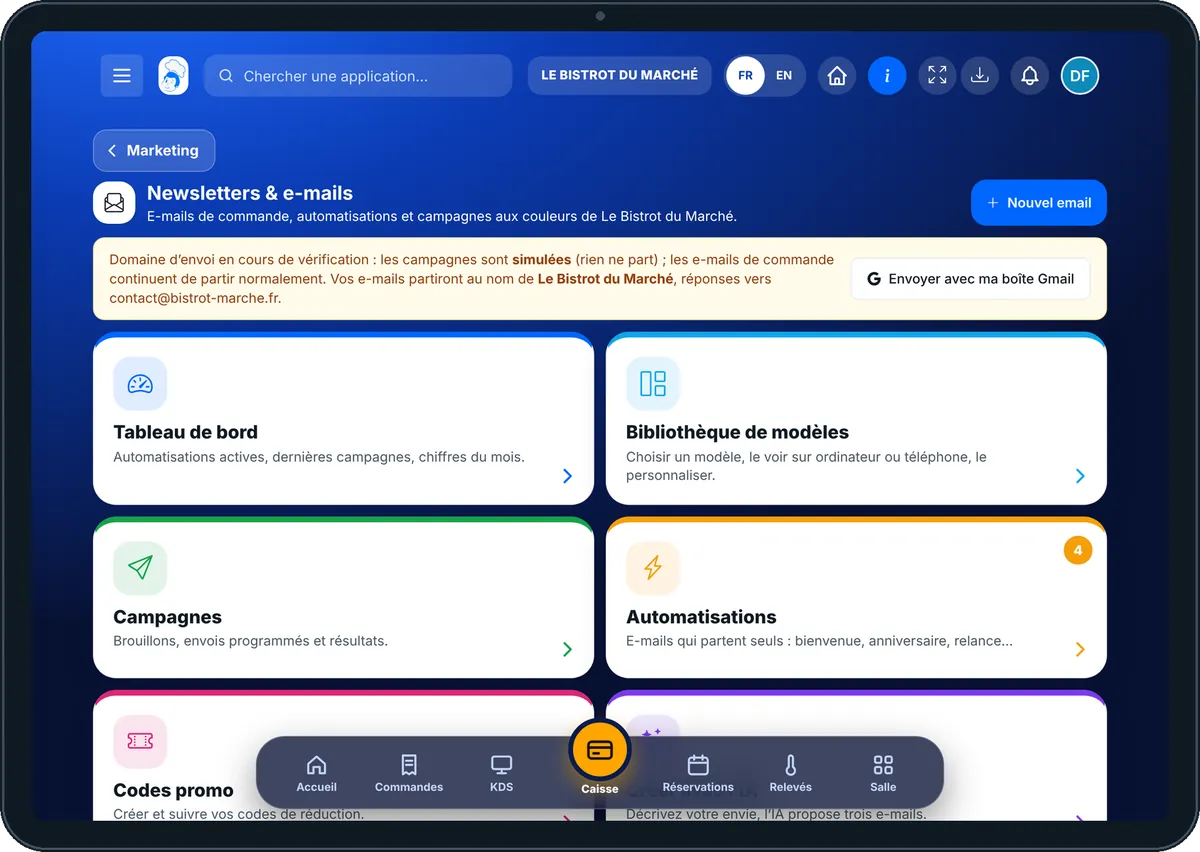
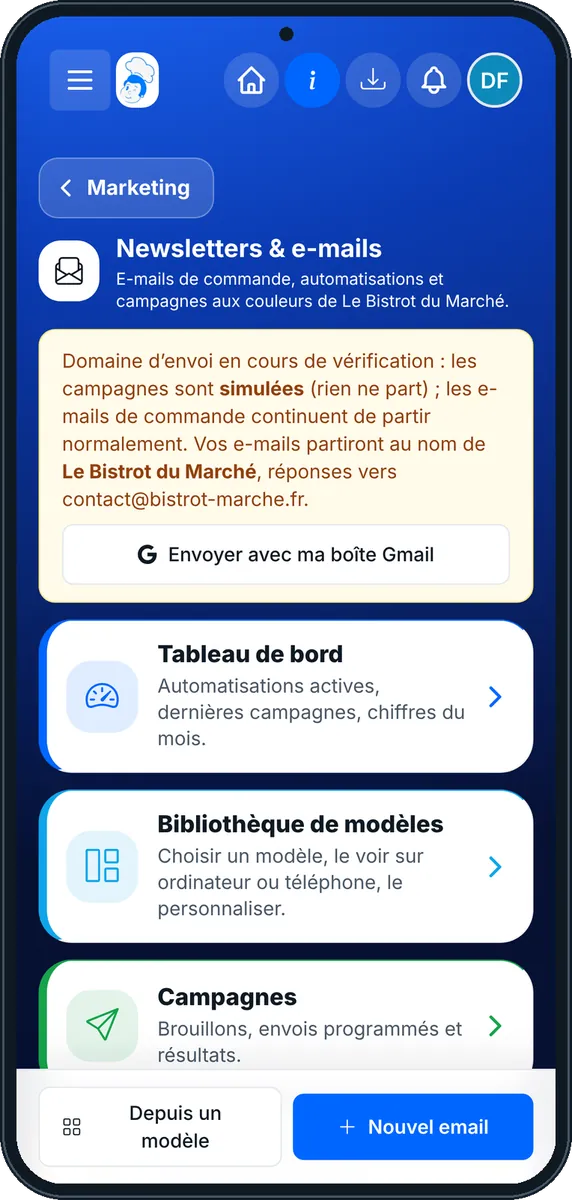
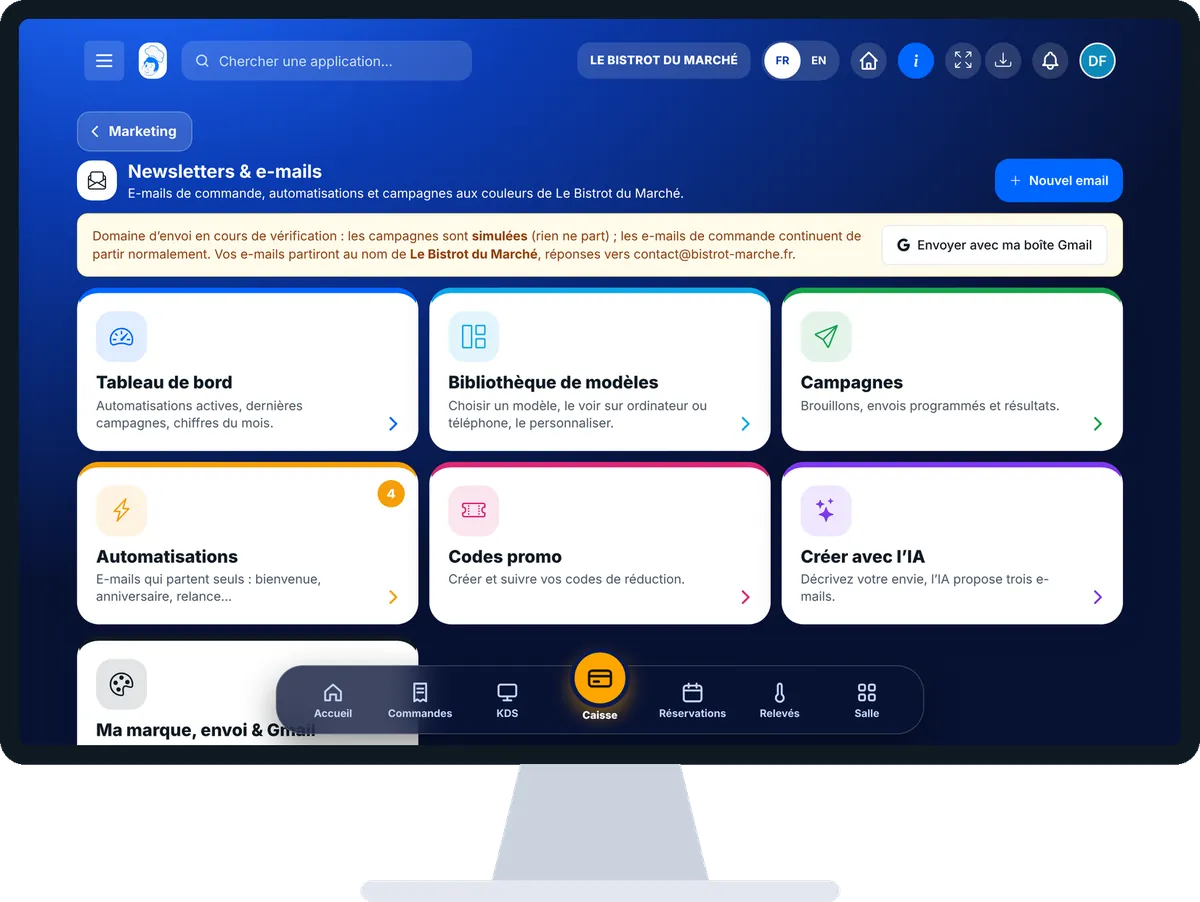
Send a newsletter in my colours : 5 steps, with the real software screens.
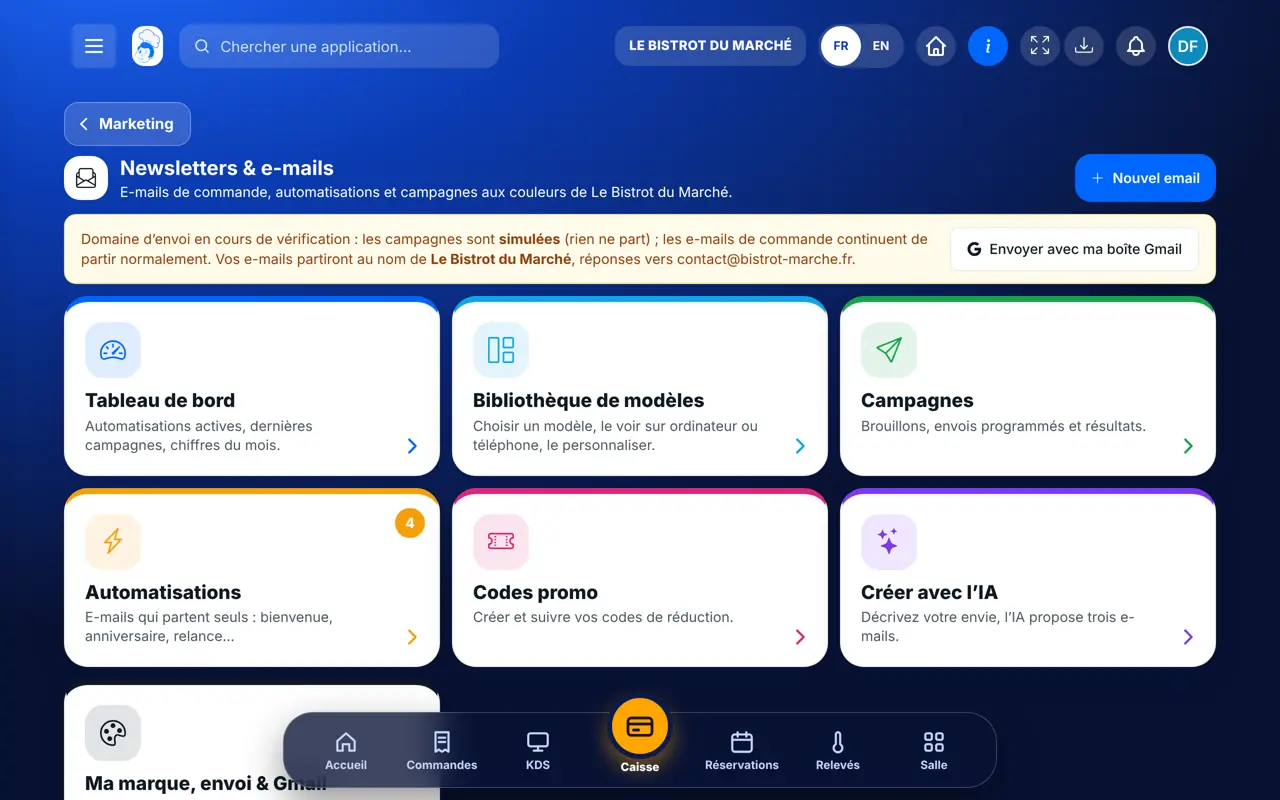
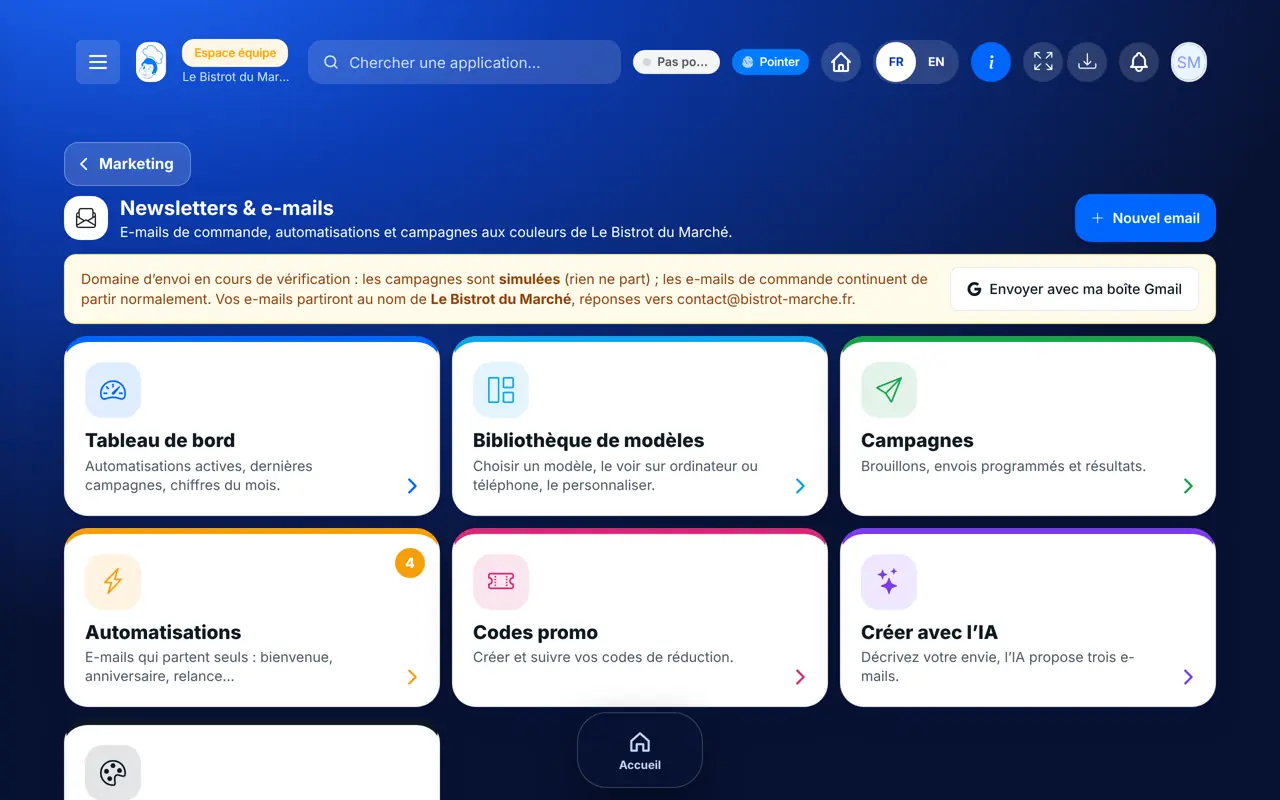
From the home screen, open Communication then “E-mails”. Seven cards: “Tableau de bord”, “Bibliothèque de modèles”, “Campagnes”, “Automatisations”, “Codes promo”, “Créer avec l’IA” and “Ma marque, envoi & Gmail”.
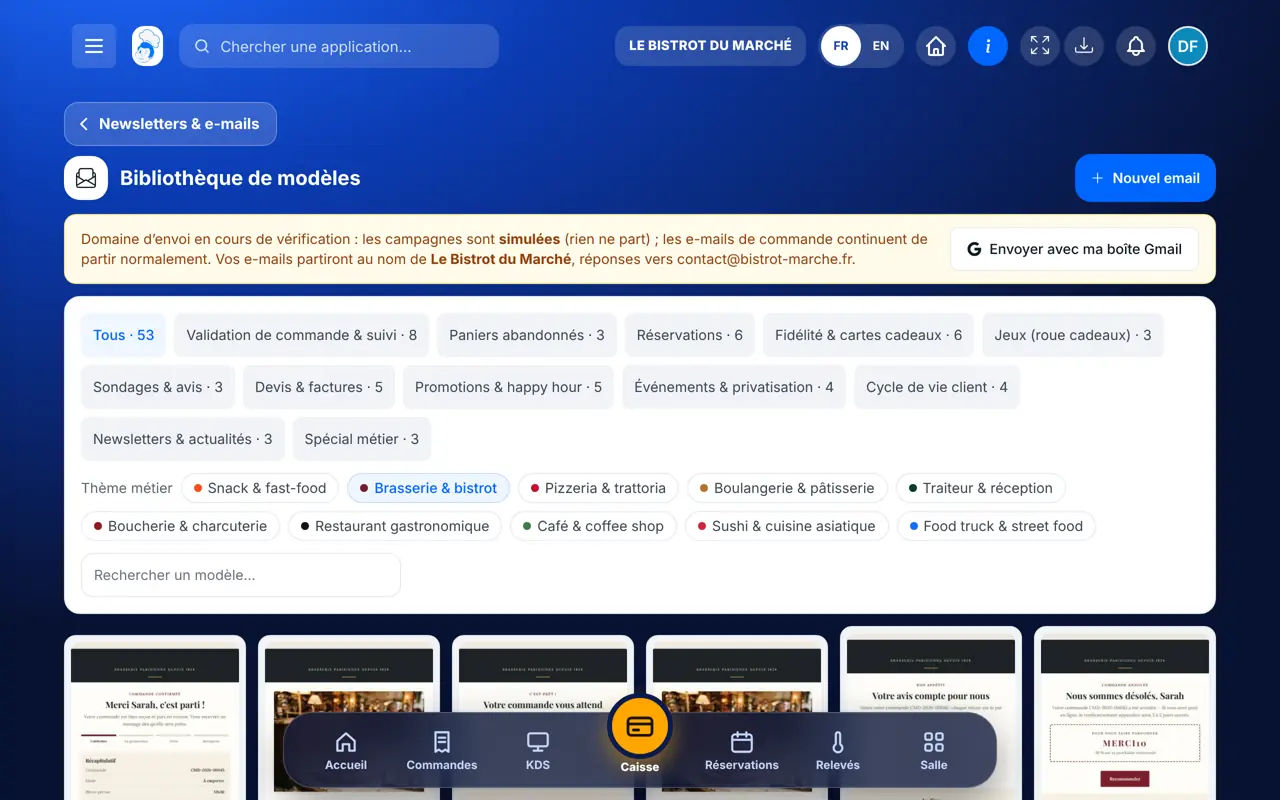
Tap “Bibliothèque de modèles”. Filter by use (newsletters, loyalty, bookings…) and by trade, then tap a template to see it full size.
Tap “Nouvel email” or “Utiliser ce modèle”. The editor shows the blocks: tap one to change the text, image or button. The preview switches between computer and phone.
In “Cible & envoi”, choose the customer group. The software leaves out those who have not agreed. Send yourself a test, then send or schedule.
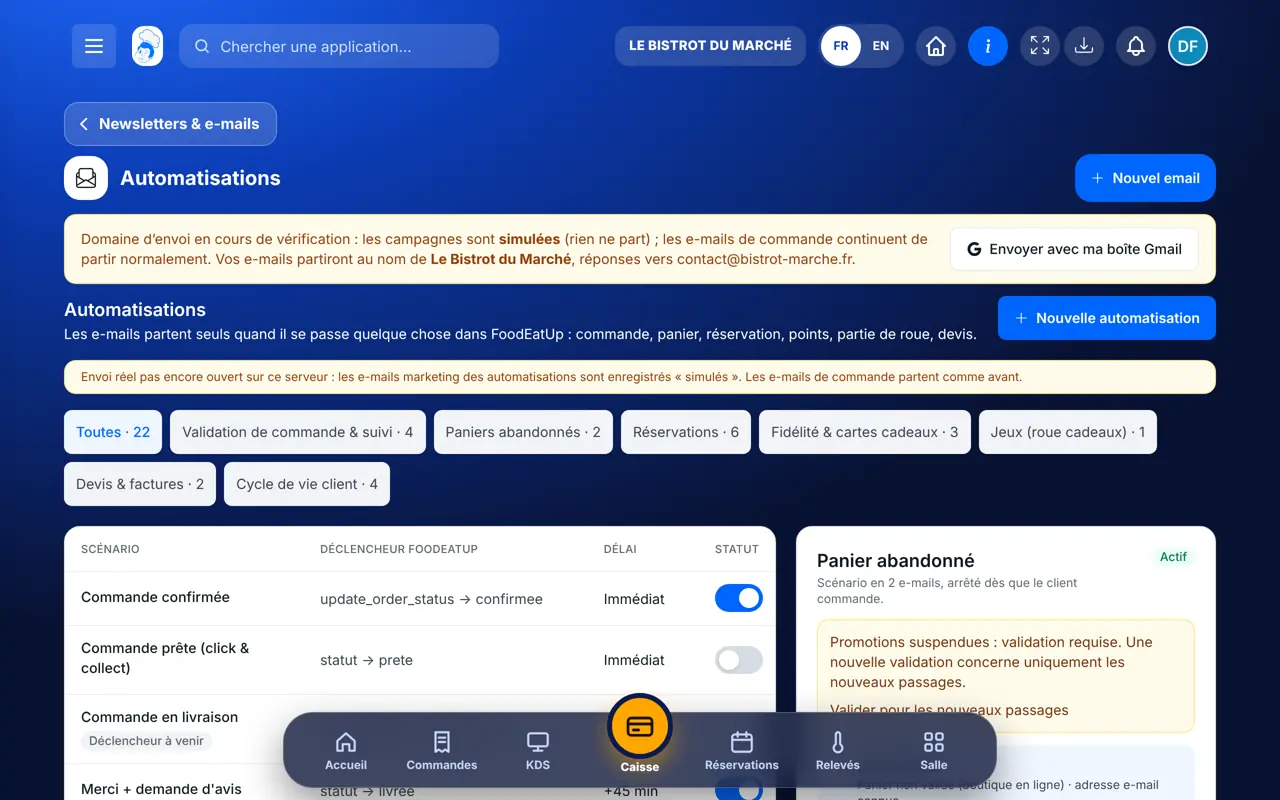
Tap “Automatisations”: welcome, birthday, abandoned basket, review request… Switch on the ones you want. Results are in “Tableau de bord”.
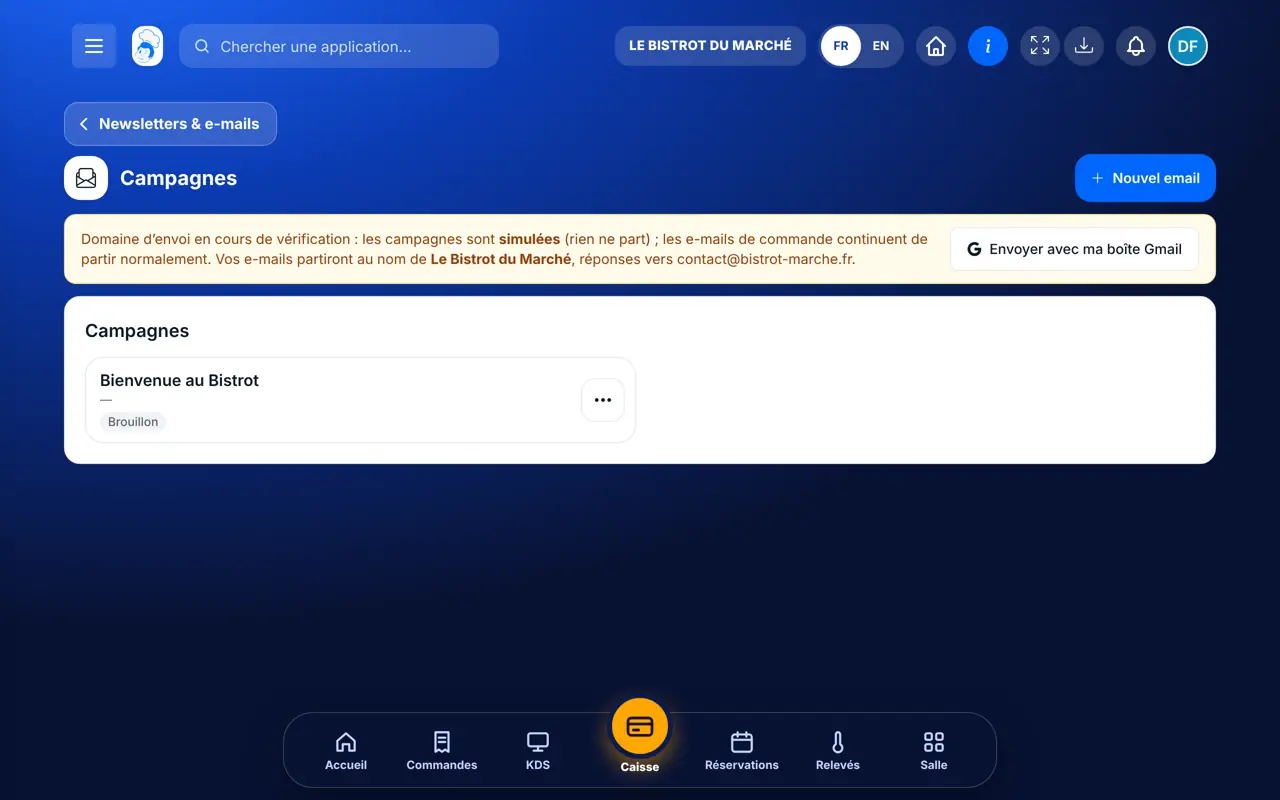
Your newsletter ready in Campaigns, in your colours and your restaurant’s name. Once sent, opens and clicks show in the dashboard.
Chooses, edits and sends e-mails, and sets the sender.
The screen only opens with the right to manage e-mail campaigns.
Claude, ChatGPT or Mistral’s Le Chat, connected to FoodEatUp. Copy the request and replace your establishment number.
In FoodEatUp, for my establishment [number], list the e-mail templates for a seasonal newsletter and tell me which suits my restaurant best.
What you getA short list of suitable templates.
Tools used : list_email_templates
In FoodEatUp, for my establishment [number], create an e-mail from the template [template] and show me the preview. Do not send it.
What you getA draft e-mail and its preview; nothing is sent.
Tools used : create_email_from_template, preview_email
In FoodEatUp, for my establishment [number], send me a test of e-mail [number] at my address.
What you getA single test e-mail, to you.
Tools used : send_test_email
By use and by trade, in your colours.
Your restaurant, your reply address.
Customer consent and unsubscribe included.
Welcome, birthday, win-back.
Switch on the welcome e-mail and the birthday e-mail first: they go out on their own, at the right time, and they are the ones customers read most.
In FoodEatUp, one action triggers others. Here are the screens that work with this one.
Until the sending domain is verified, campaigns do not really go out. Order e-mails do go out normally. You can also send from your Gmail inbox.
They go out in your restaurant’s name, and replies reach your address.
Yes, “Créer avec l’IA” suggests three versions from what you describe; you choose and correct before anything is sent.
Send it to your team, your partner or your accountant. The image below appears in the message.

Claude, ChatGPT or Le Chat read this tutorial and explain it to you. Connected to FoodEatUp, they do it with you.
Read this FoodEatUp tutorial: https://foodeatup.com/en/academy/marketing/emails.md Explain it to me simply, step by step, then help me do it in my restaurant. If FoodEatUp is connected to you, do it with me and show me the preview before every change.
Type your establishment number: the link takes you straight to this screen. The number stays on this device.
Discover FoodEatUp e-mails (in French) →
Répond avec les fiches du site, sans IA
Le chef cherche dans les fiches…
 Claude
 Le Chat
 ChatGPT