My current codes
In FoodEatUp, for my establishment [number], list my active promo codes with their discount, uses and end date.
What you getThe list of your codes and where they stand.
Tools used : list_promo_codes
 Marketing · Codes promo
A discount code to give your customers: as a percentage or in euros, with a number of uses and an end date. It works on your online shop and on the kiosk.
 Patron / gérant
 Directeur
 Responsable de salle
The owner always has access. See what each role sees →
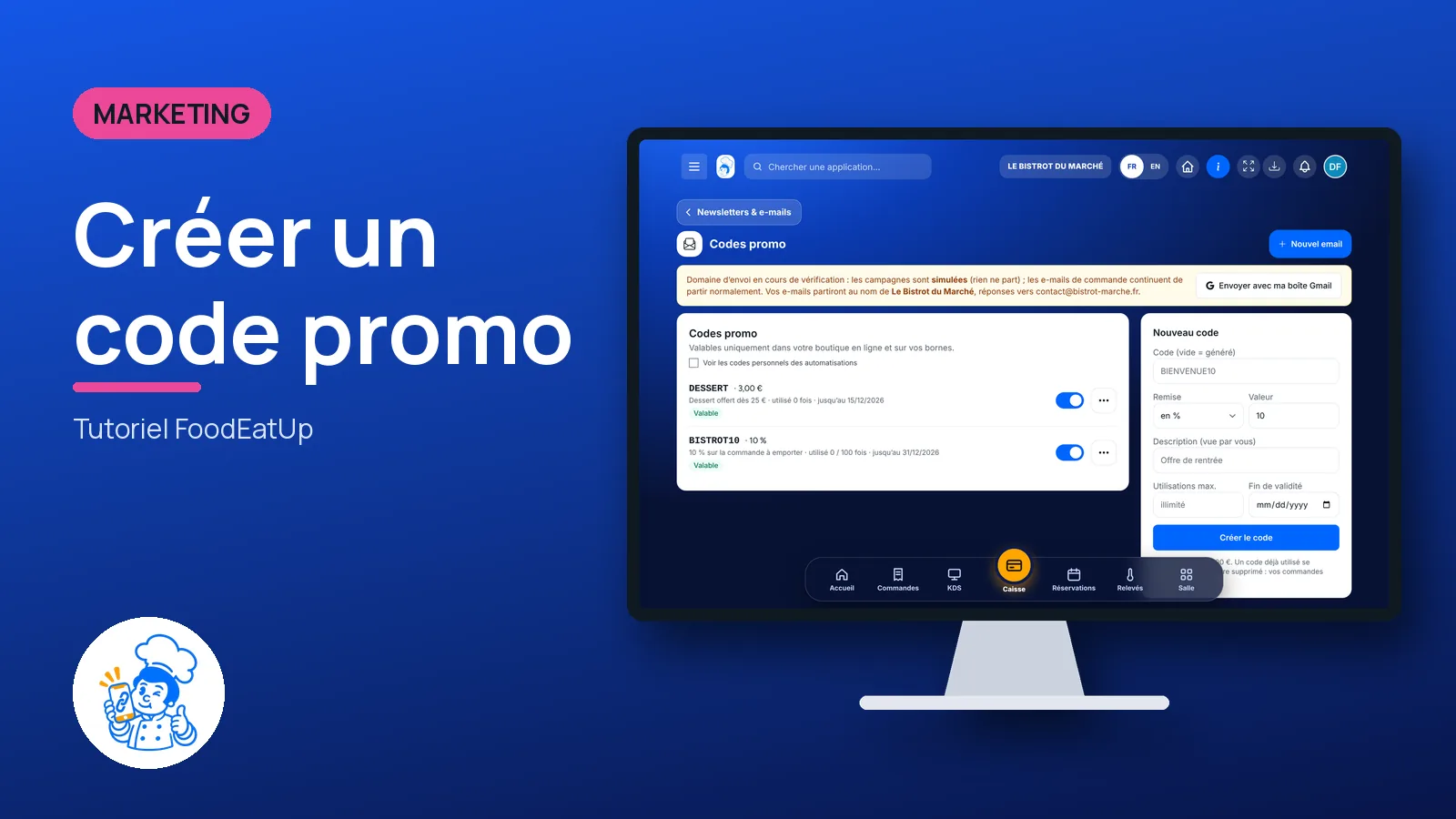
A computer to create the code in a minute. The same screen works on a tablet and a phone.
The real software screens, as they appear on each device.
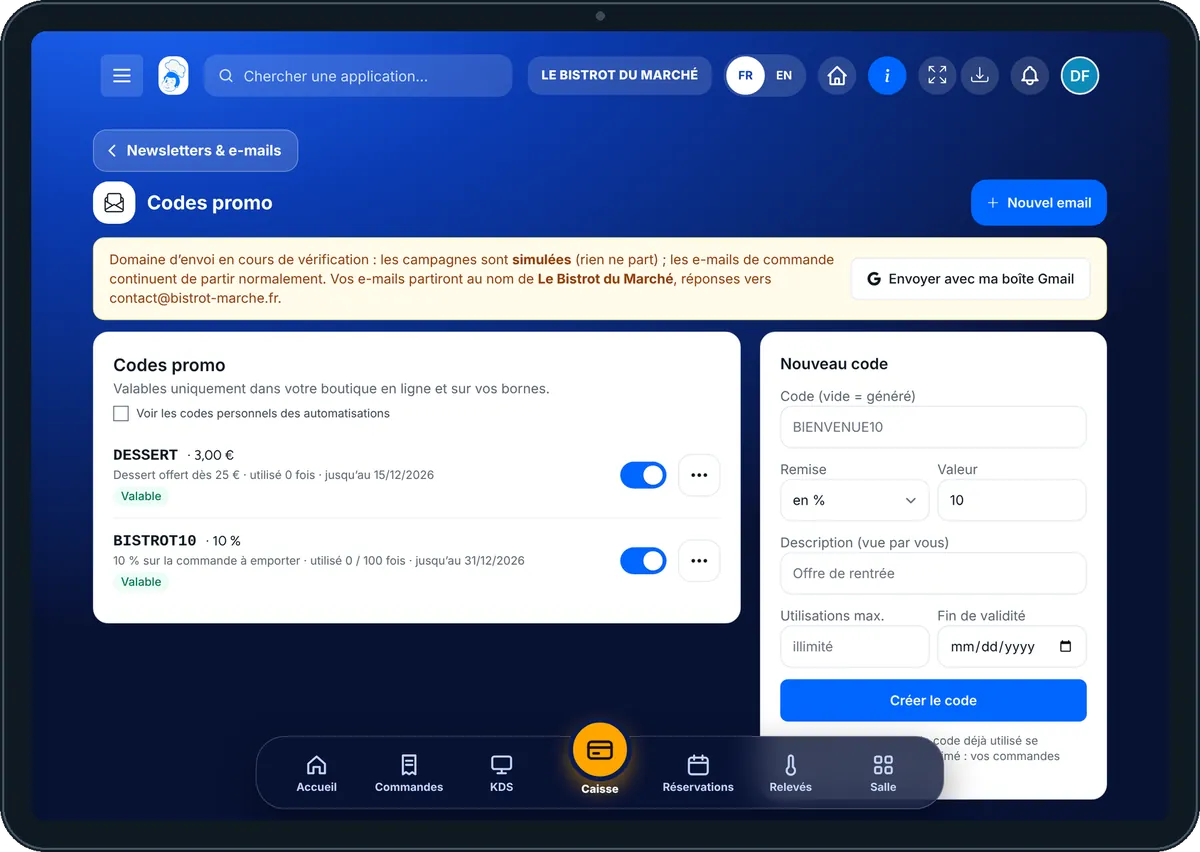
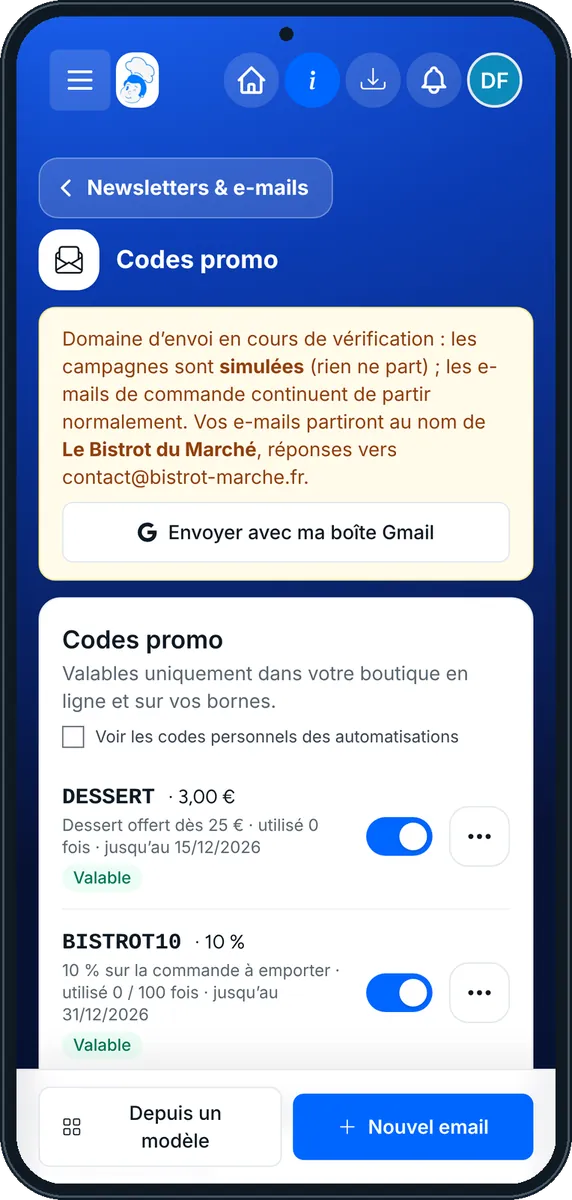
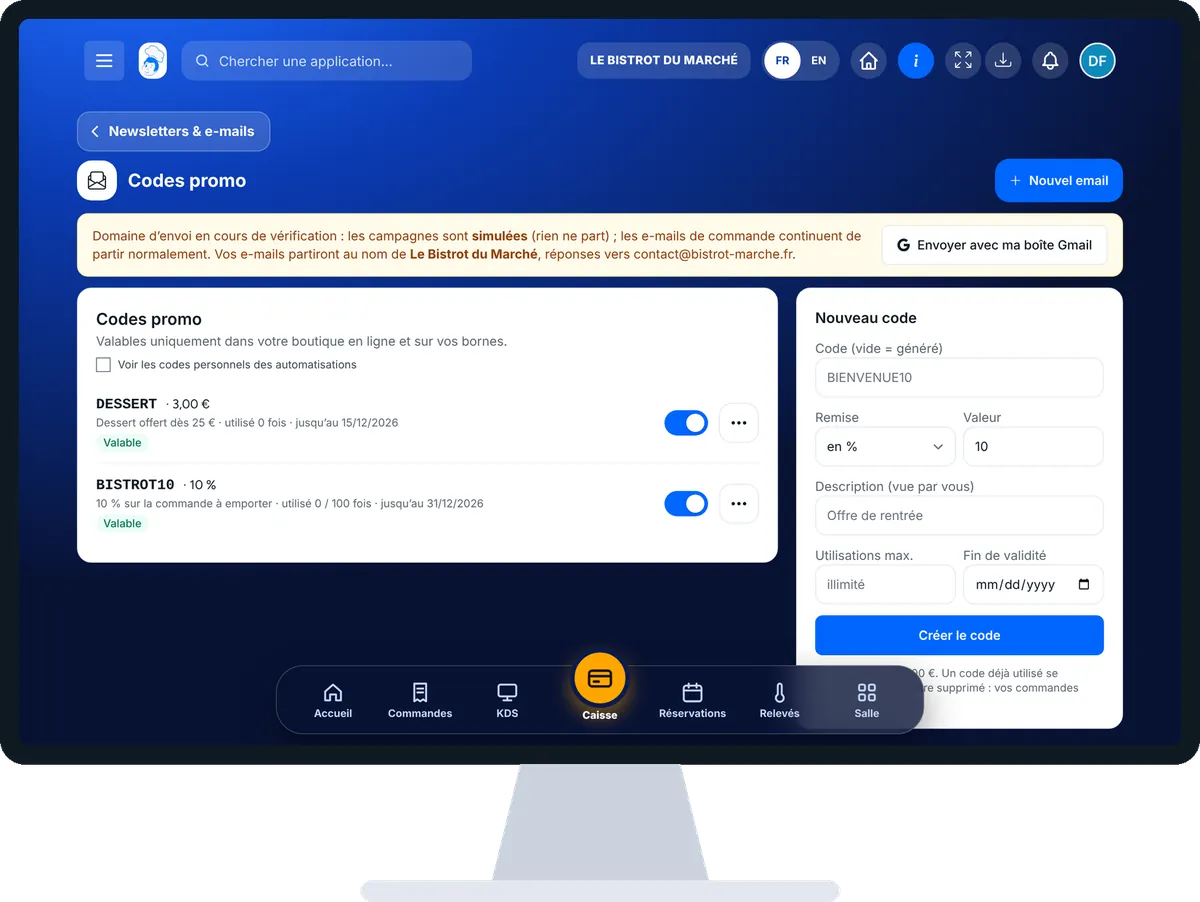
Create a promo code : 5 steps, with the real software screens.
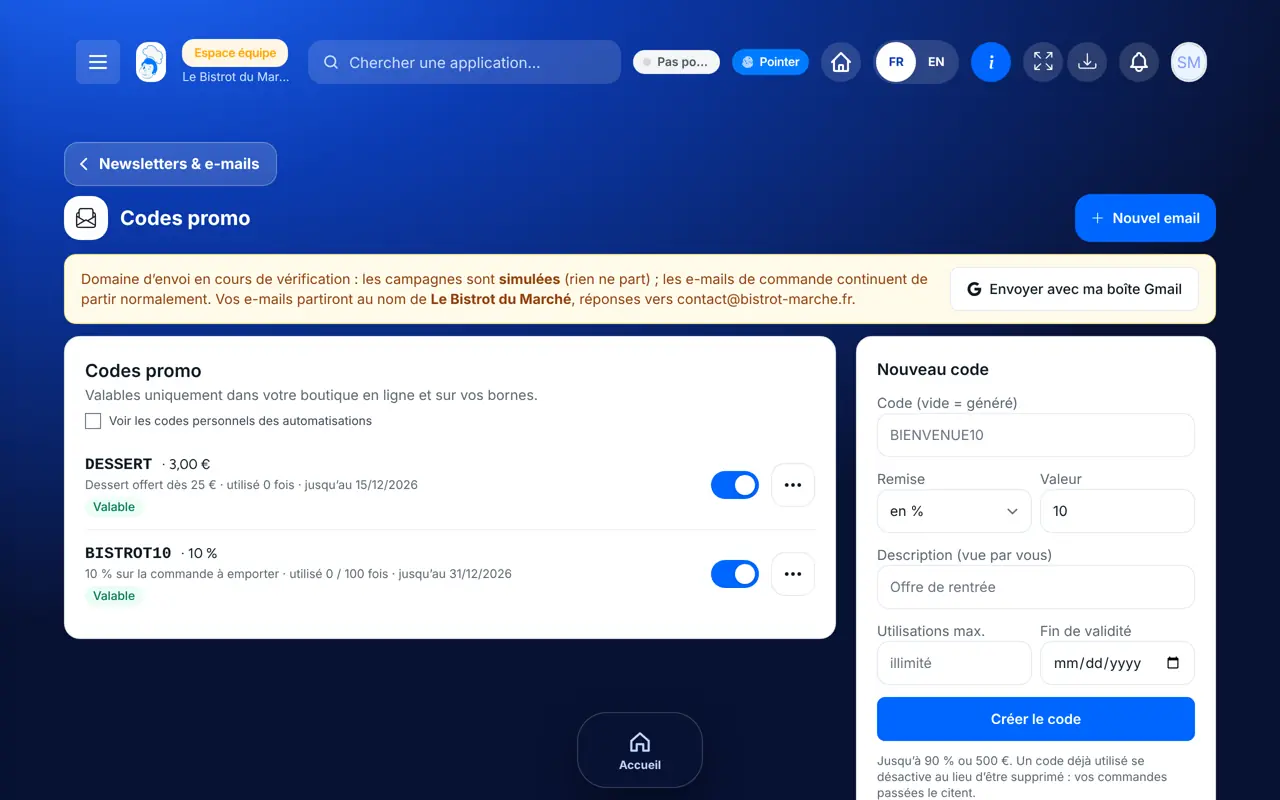
From the home screen, open Marketing then “Codes promo”. The list shows each code, its discount, how many times it was used and its end date.
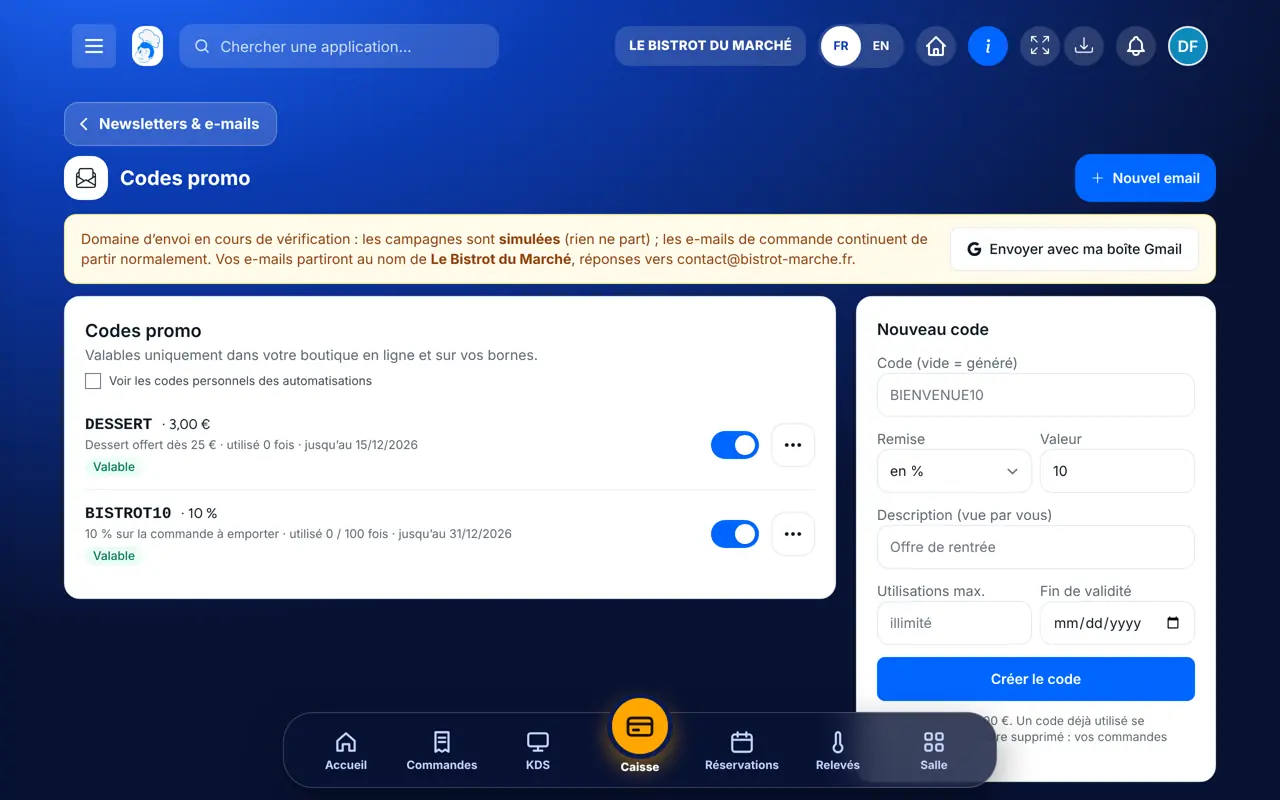
In “Nouveau code”, type the code (leave it empty to have one generated), then choose the discount “en %” or “en €” and its value.
Write a description for yourself (“Back to school offer”), the maximum number of uses (empty = unlimited) and the end date.
Tap “Créer le code”. It appears in the list marked “Valable” (valid).
The switch to the right of each code pauses or restarts it. A code already used cannot be deleted: it is switched off.
Your customers type the code when ordering online or on the kiosk; the software calculates the discount and counts the uses.
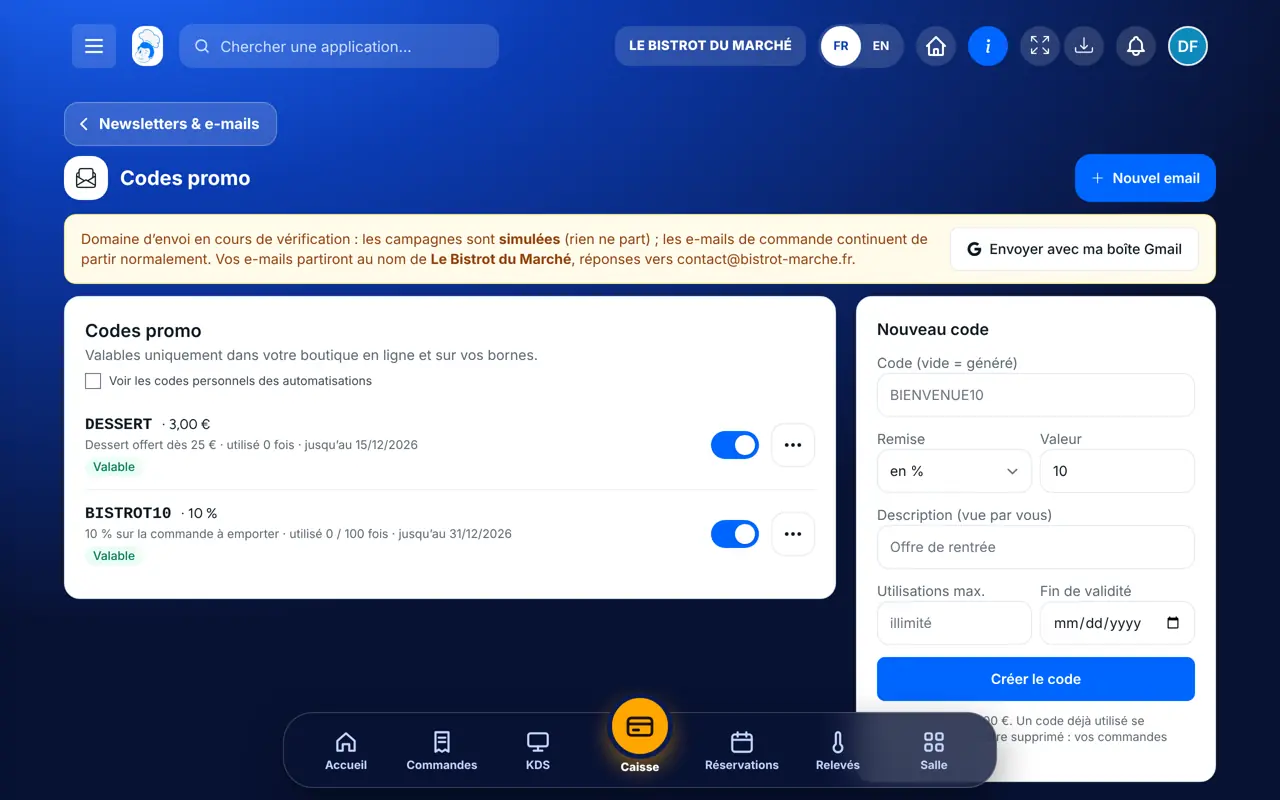
Creates, pauses and follows the codes.
With the right to manage e-mail campaigns, can create a code. Otherwise, the screen is not open to them.
Claude, ChatGPT or Mistral’s Le Chat, connected to FoodEatUp. Copy the request and replace your establishment number.
In FoodEatUp, for my establishment [number], list my active promo codes with their discount, uses and end date.
What you getThe list of your codes and where they stand.
Tools used : list_promo_codes
In FoodEatUp, for my establishment [number], create the code “[CODE]” at [value] % valid until [date], for [number] uses. Show me the preview before confirming.
What you getThe code is created once you agree.
Tools used : list_promo_codes, create_promo_code
In FoodEatUp, for my establishment [number], create a free-dessert code worth [amount] € until [date], then prepare a draft e-mail campaign to loyal customers with this code.
What you getThe code and a draft campaign, to check before sending.
Tools used : create_promo_code, create_campaign
A code, a discount, an end date.
The code only works in your restaurant.
Uses are tracked without a spreadsheet.
Automations give one code per customer.
Give a short end date (two or three weeks): a code with no date invites people to put it off, a code that ends soon brings them in.
In FoodEatUp, one action triggers others. Here are the screens that work with this one.
In the “code promo” field when ordering online and on the kiosk. At the till, the team applies the discount.
No. A code created here only works in your restaurant.
A code never used, yes. A code already used is paused: its history stays.
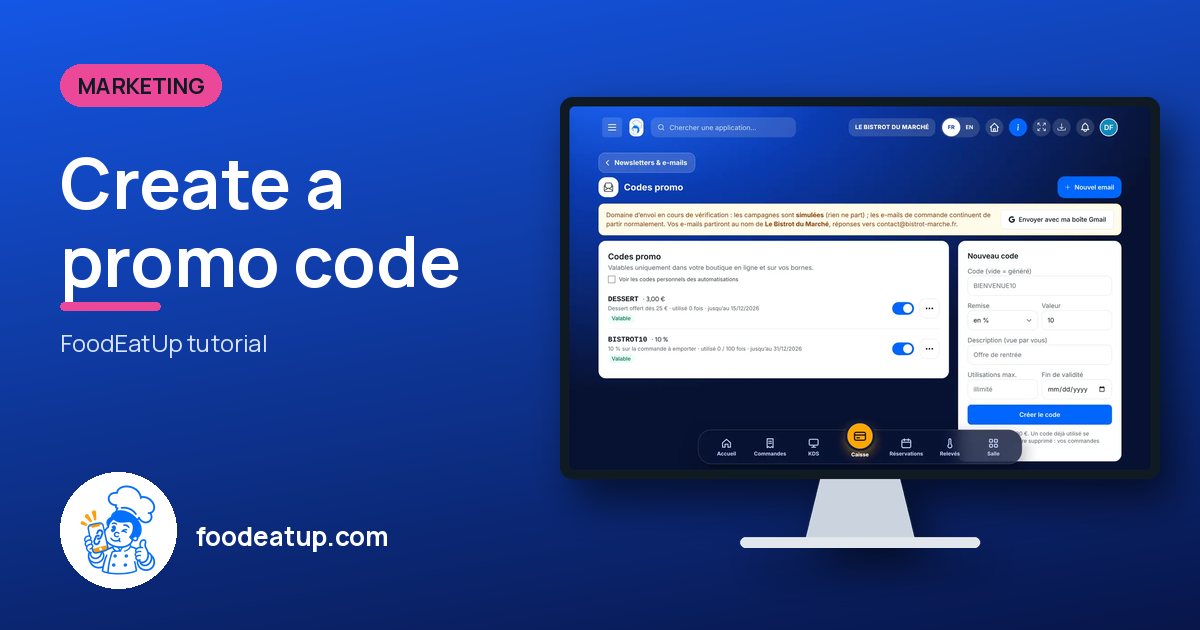
Send it to your team, your partner or your accountant. The image below appears in the message.
Claude, ChatGPT or Le Chat read this tutorial and explain it to you. Connected to FoodEatUp, they do it with you.
Read this FoodEatUp tutorial: https://foodeatup.com/en/academy/marketing/emails-codes.md Explain it to me simply, step by step, then help me do it in my restaurant. If FoodEatUp is connected to you, do it with me and show me the preview before every change.
Type your establishment number: the link takes you straight to this screen. The number stays on this device.
Discover e-mails and promo codes (in French) →
Répond avec les fiches du site, sans IA
Le chef cherche dans les fiches…
 Claude
 Le Chat
 ChatGPT