Aller au contenu
Settings · Categories
Sort your menu into categories

You create your categories for dishes, ingredients, products and recipes. The till, the kiosk and the website use them to organise your menu.

  • Computer
  • 5 steps
  • Level : Beginner
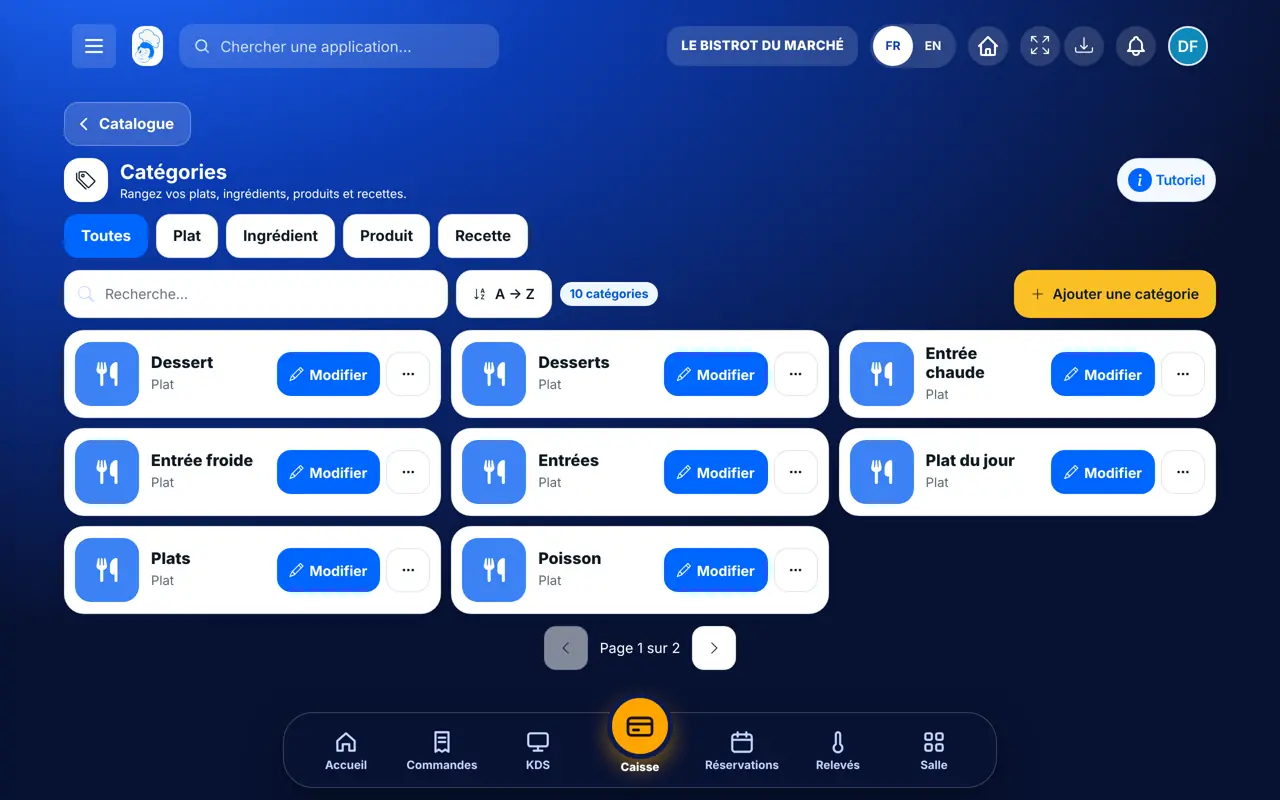
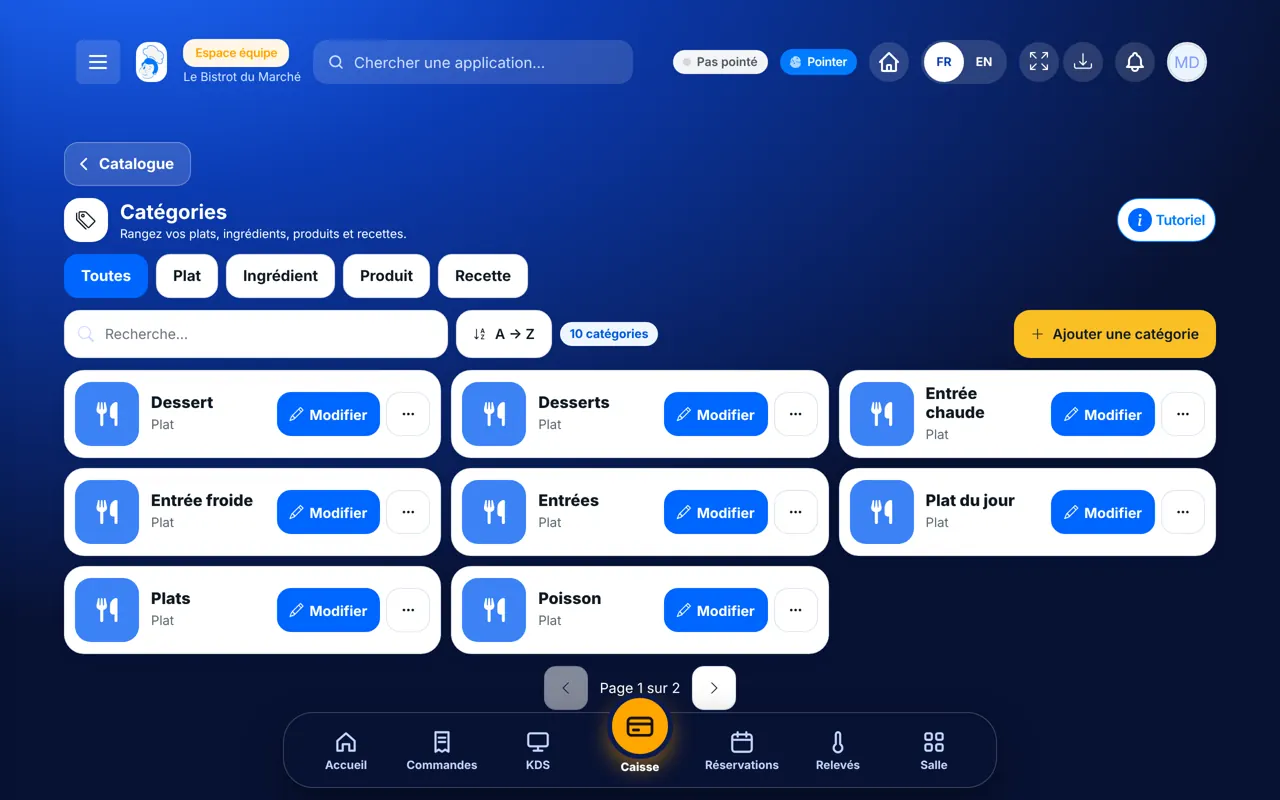
Sort your menu into categories : The list of categories, with type filters

Who is it for?

  • Patron / gérant
  • Directeur
  • Chef de cuisine
  • Responsable de salle

Roles with access

  • Gérant·e
  • Boutique (réseau)
  • Franchisé·e (réseau)
  • Directeur·rice d'établissement

The owner always has access. See what each role sees →

Recommended hardware

Computer

A computer. The category window is wide: name, photo, icon and colour.

See the hardware →

What it is for

  • Create a category and say what it holds: dishes, ingredients, products or recipes.
  • Place a dish category under another one, such as “Matcha” in “Thé”.
  • Give each category an icon, a colour and, for dishes, a photo.

Why set it up

  • At the till, the waiter finds a dish in two taps instead of searching the whole menu.
  • Your customers read a tidy menu: starters, mains, desserts, drinks.
  • A dish category with its photo makes the menu on the website and in the apps clearer.

The same screen, on every device

The real software screens, as they appear on each device.

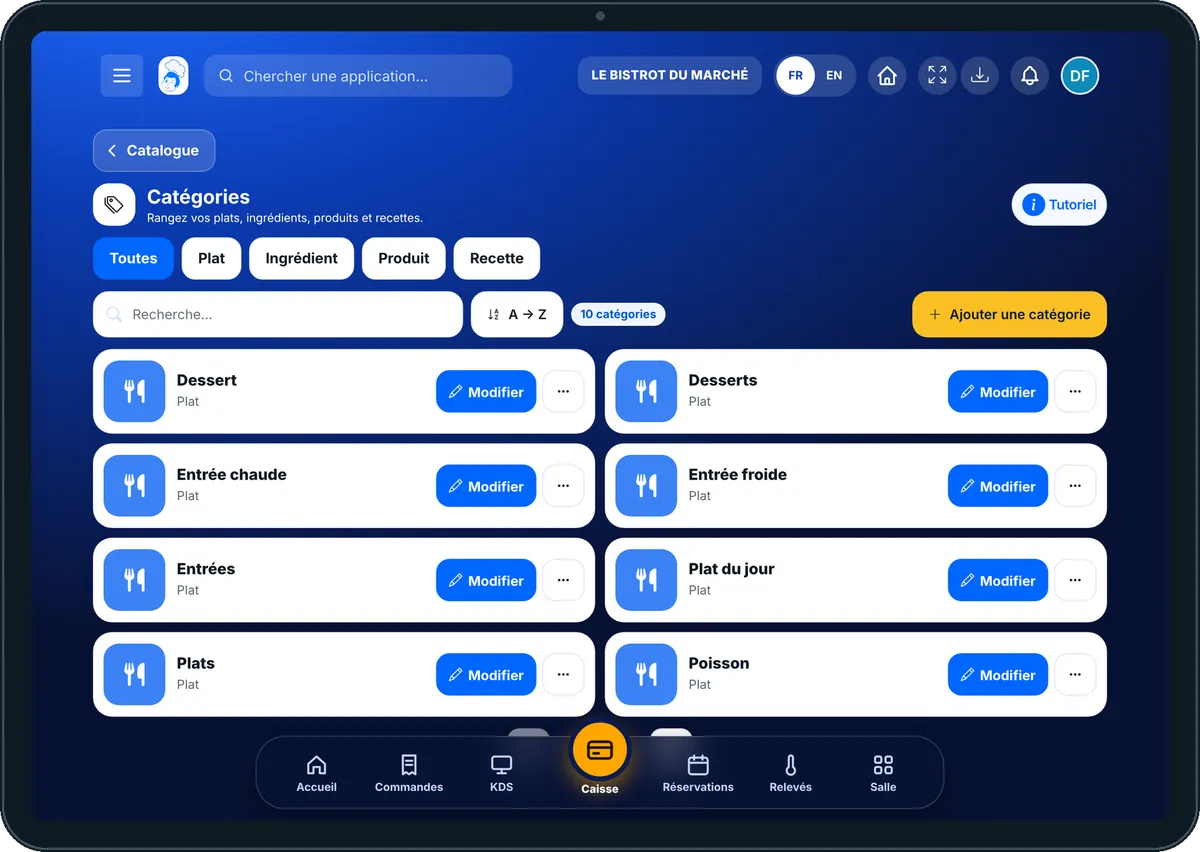
Categories — On the tablet
On the tablet
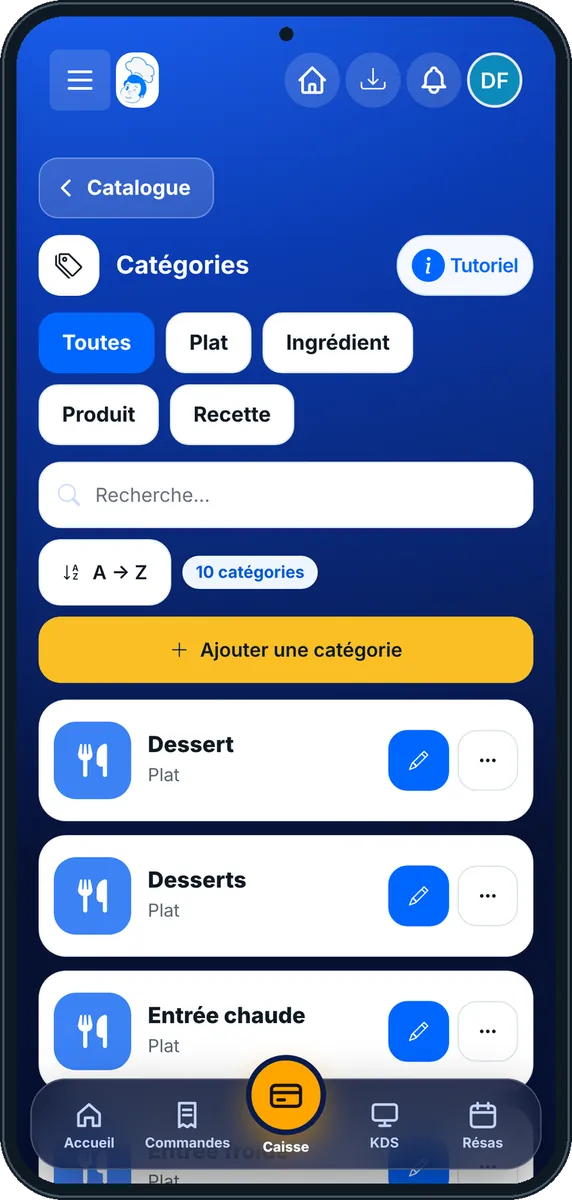
Categories — On the phone
On the phone
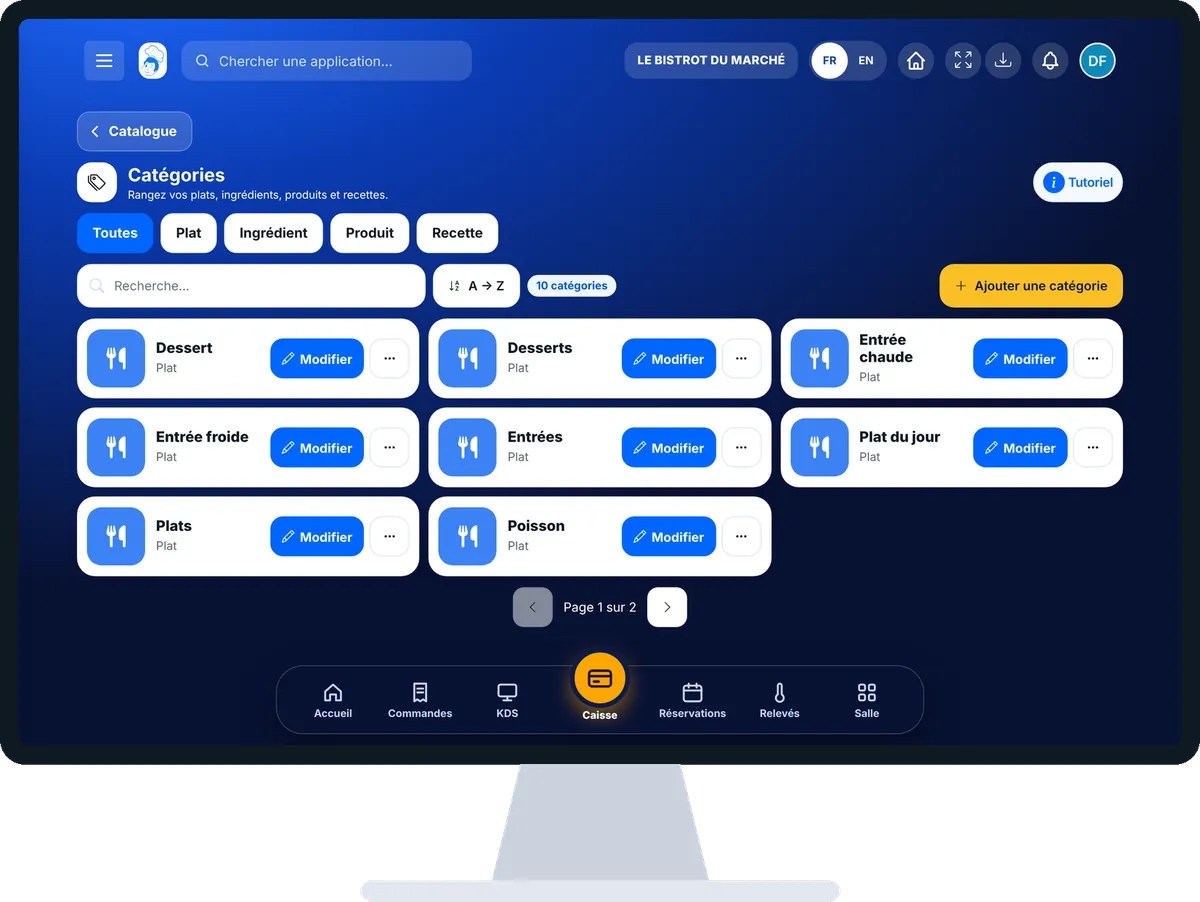
Categories — On the computer
On the computer

Step by step

Sort your menu into categories : 5 steps, with the real software screens.

  1. 1Step 1

    Open the categories

    In the Configuration category, open “Catégories”. The filters at the top sort by type: “Toutes”, “Plat”, “Ingrédient”, “Produit”, “Recette”.

    The list of categories, with type filters
  2. 2Step 2

    Create a category

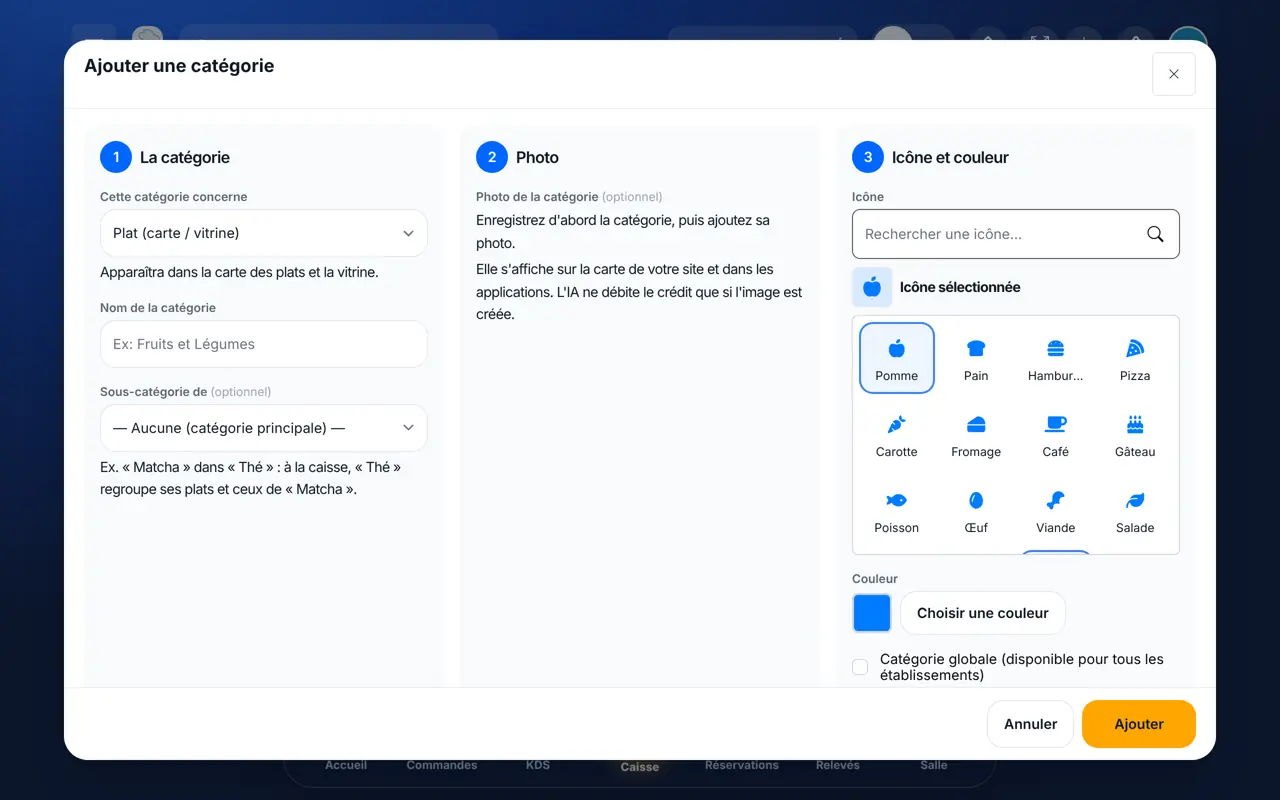
    Tap “Ajouter une catégorie”. Under “Cette catégorie concerne”, choose the type. Enter the “Nom de la catégorie”.

    The “Ajouter une catégorie” window
  3. 3Step 3

    Place it under another

    For a dish category, “Sous-catégorie de” lets you place it under a main category. This choice is optional.

  4. 4Step 4

    Choose icon and colour

    Choose an “Icône” and a “Couleur”, then tap “Ajouter”.

  5. 5Step 5

    Add the photo

    Reopen the dish category with “Modifier”. Tap “Déposer une photo”, then “Sauvegarder”.

The result

The result

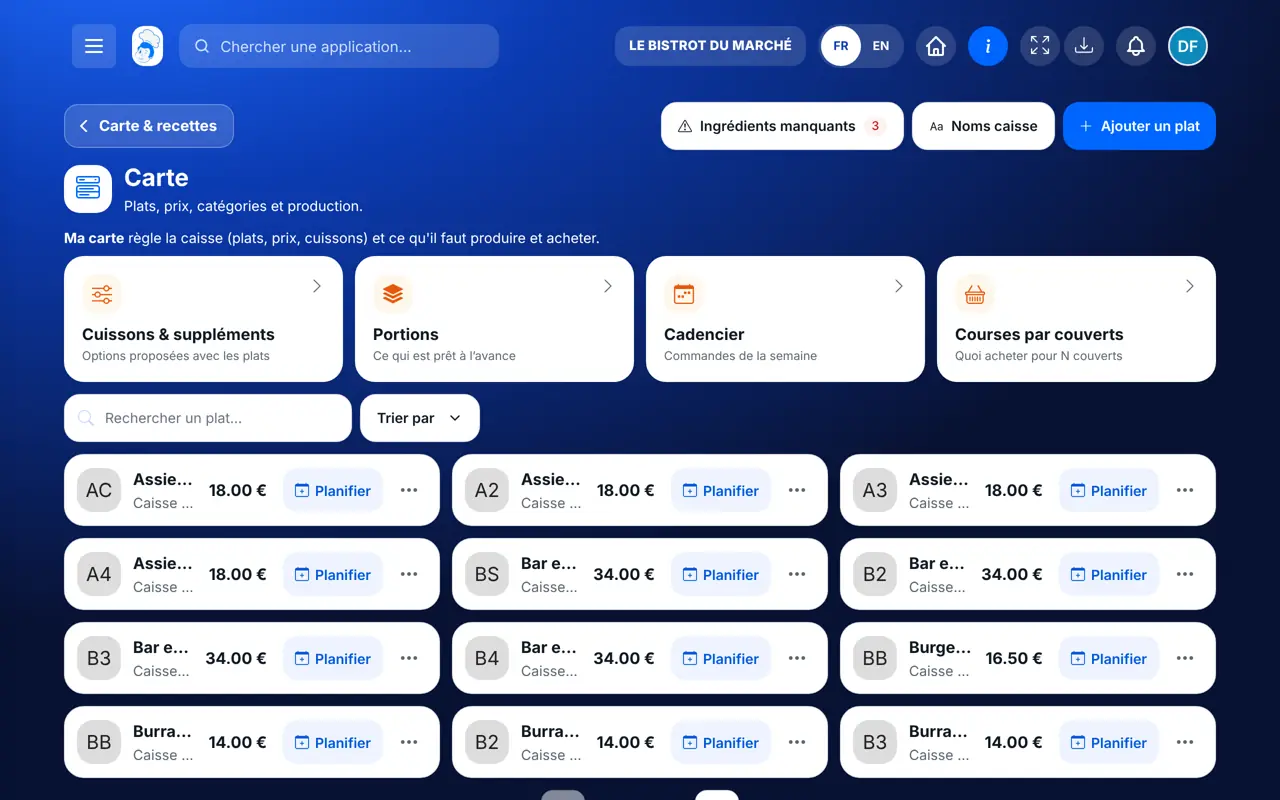
Your dish categories organise the menu. You find them in “Ma carte”, then at the till, on the kiosk and on your website.

Create your menu →
The result : Sort your menu into categories

Owner and employee: what changes

The owner

Creates, renames, organises and deletes categories.

Categories — The owner

The employee

With the right to view, they look at the list. With the right to create or edit, they add a category or correct it.

Categories — The employee

Do it with your assistant

Claude, ChatGPT or Mistral’s Le Chat, connected to FoodEatUp. Copy the request and replace your establishment number.

See how my menu is organised

In FoodEatUp, for my establishment [number], list my dish categories with their sub-categories and the number of dishes in each.

What you getYour dish categories, how they are organised and their number of dishes.

Tools used : list_dish_categories

Create a sub-category

In FoodEatUp, for my establishment [number], create the dish category [name] as a sub-category of [main category]. Show me the preview before confirming.

What you getThe new category, placed under the right main category.

Tools used : create_dish_category, list_dish_categories

List my other categories

In FoodEatUp, for my establishment [number], list my ingredient and product categories.

What you getThe available categories, with their type.

Tools used : list_categories

What you gain

A faster till

The dish is found in two taps.

A readable menu

Your customers find their way.

Two levels

A category and its sub-categories.

One photo per category

On the website and in the apps.

The Chef’s tip

Keep few main categories: five to eight are enough for most menus. Use sub-categories when a category goes beyond about twenty dishes.

Frequently asked questions

When can a category photo be added?

After saving it. The photo only concerns dish categories: menu, shop page, kiosk.

How many category levels?

Two: a main category and its sub-categories. A category that already has sub-categories stays a main one.

What does a sub-category do at the till?

The main category groups its dishes and those of its sub-categories. For example, “Thé” also shows the dishes of “Matcha”.

Text version for AI assistants →

Share this tutorial

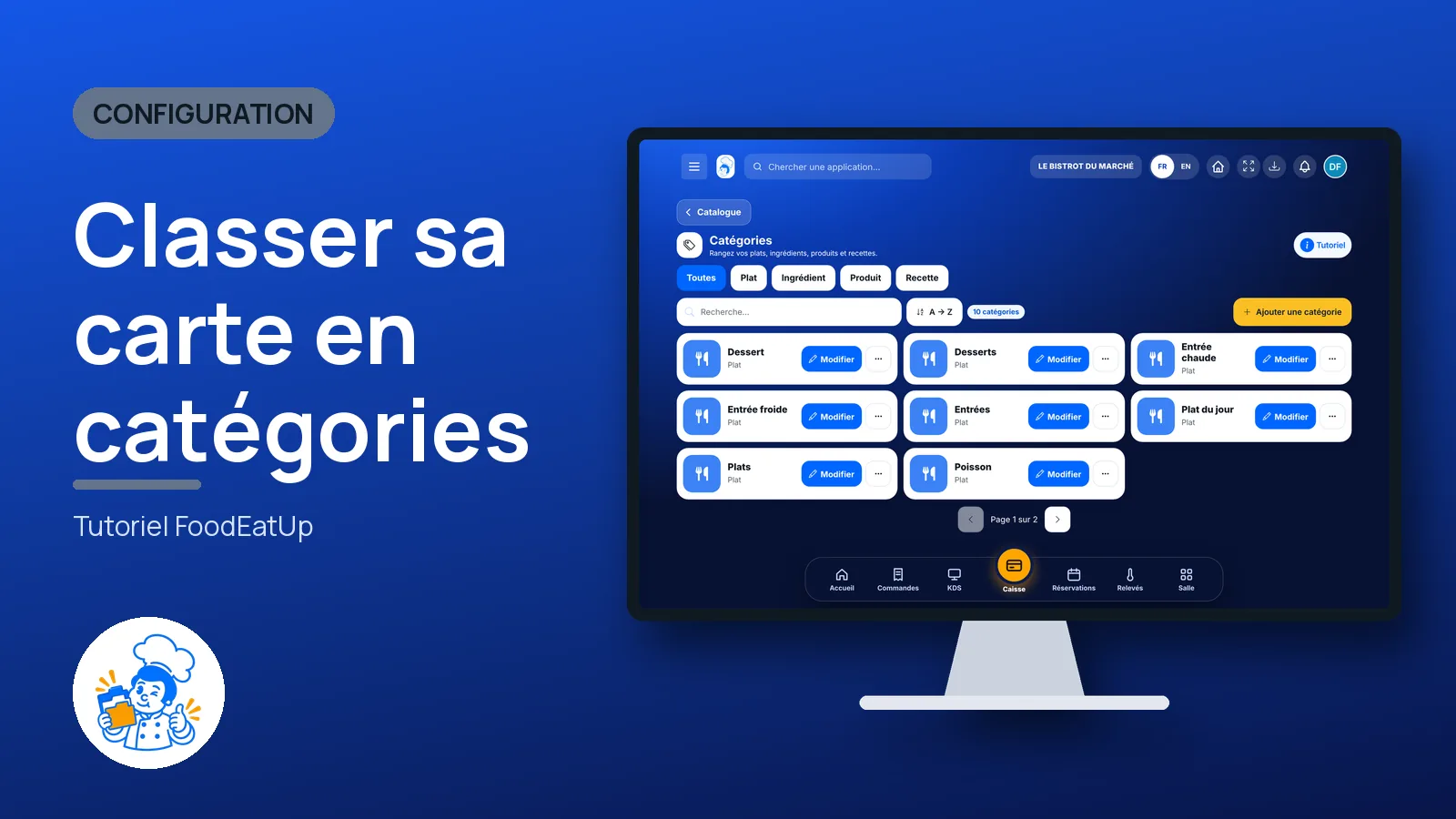
Send it to your team, your partner or your accountant. The image below appears in the message.

Share preview : Sort your menu into categories
WhatsAppLinkedInFacebookEmail

Send to an AI assistant

Claude, ChatGPT or Le Chat read this tutorial and explain it to you. Connected to FoodEatUp, they do it with you.

Read this FoodEatUp tutorial: https://foodeatup.com/en/academy/configuration/categories.md Explain it to me simply, step by step, then help me do it in my restaurant. If FoodEatUp is connected to you, do it with me and show me the preview before every change.

ClaudeLe ChatChatGPT

Open in my software

Type your establishment number: the link takes you straight to this screen. The number stays on this device.

Discover how FoodEatUp is set up (in French) →

You can read it in the software address: foodeatup.com/establishment/number/…