Find incomplete sheets
In FoodEatUp, for my establishment [number], list my ingredients and tell me which ones have no price or no alert level.
What you getThe list of ingredients, with those to complete.
Tools used : list_ingredients
 Settings · Ingredients
Each ingredient has its own sheet: unit, price, stock, alert level and allergens. Your recipes rely on it.
 Chef de cuisine
 Second de cuisine
 Commis / cuisinier
 Patron / gérant
 Responsable de boulangerie
The owner always has access. See what each role sees →
A tablet or a phone in the storeroom: the camera reads the product barcode.
The real software screens, as they appear on each device.
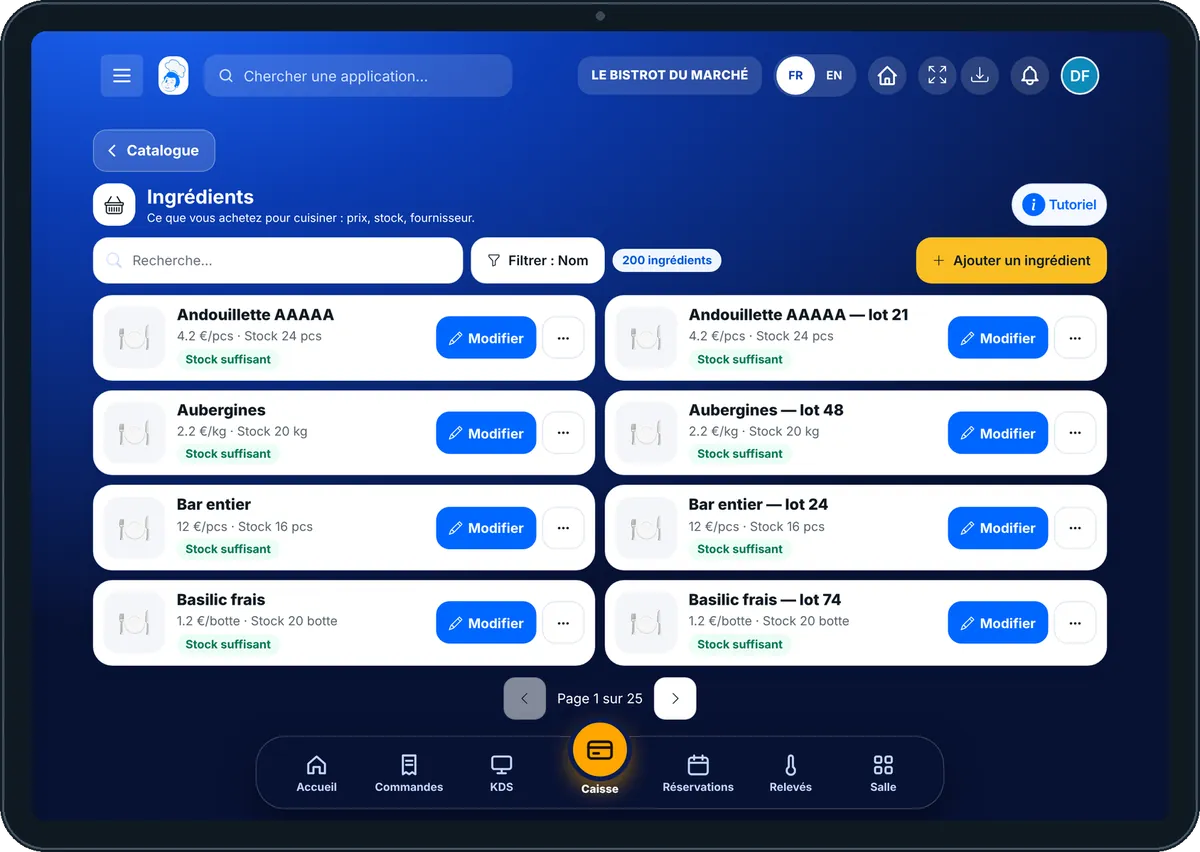
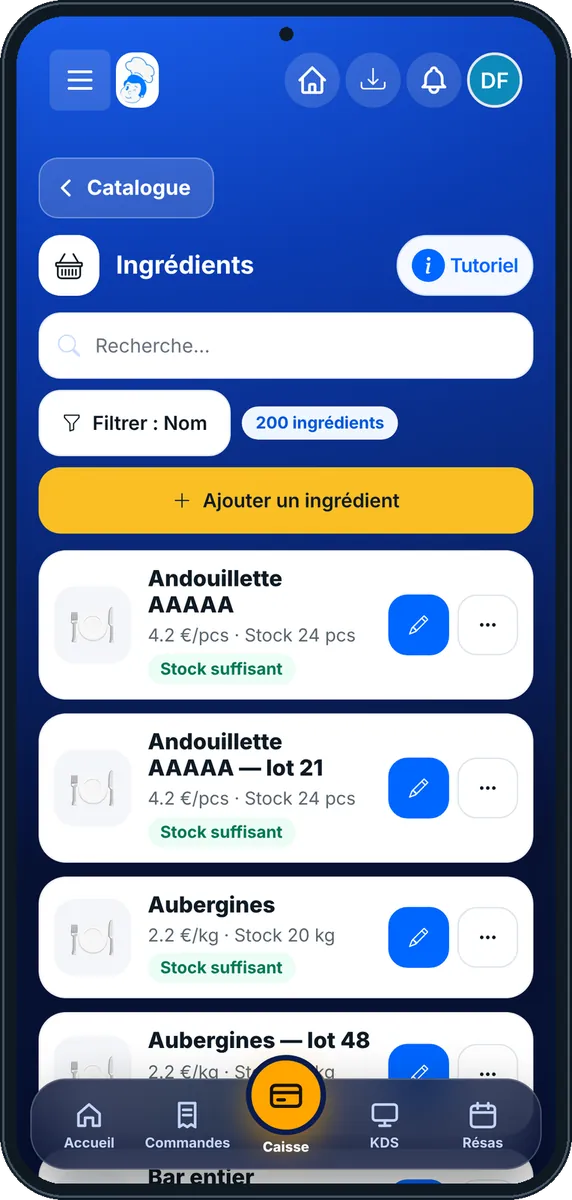
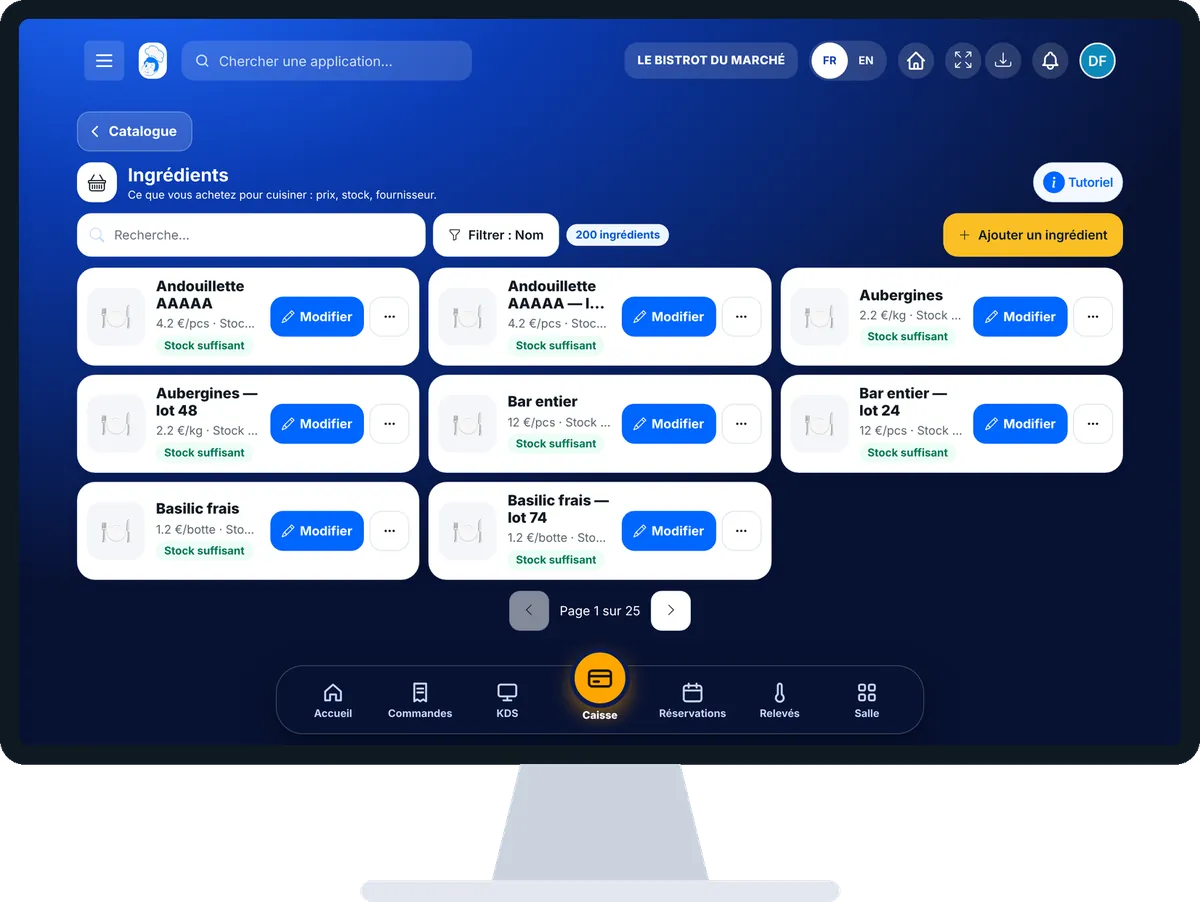
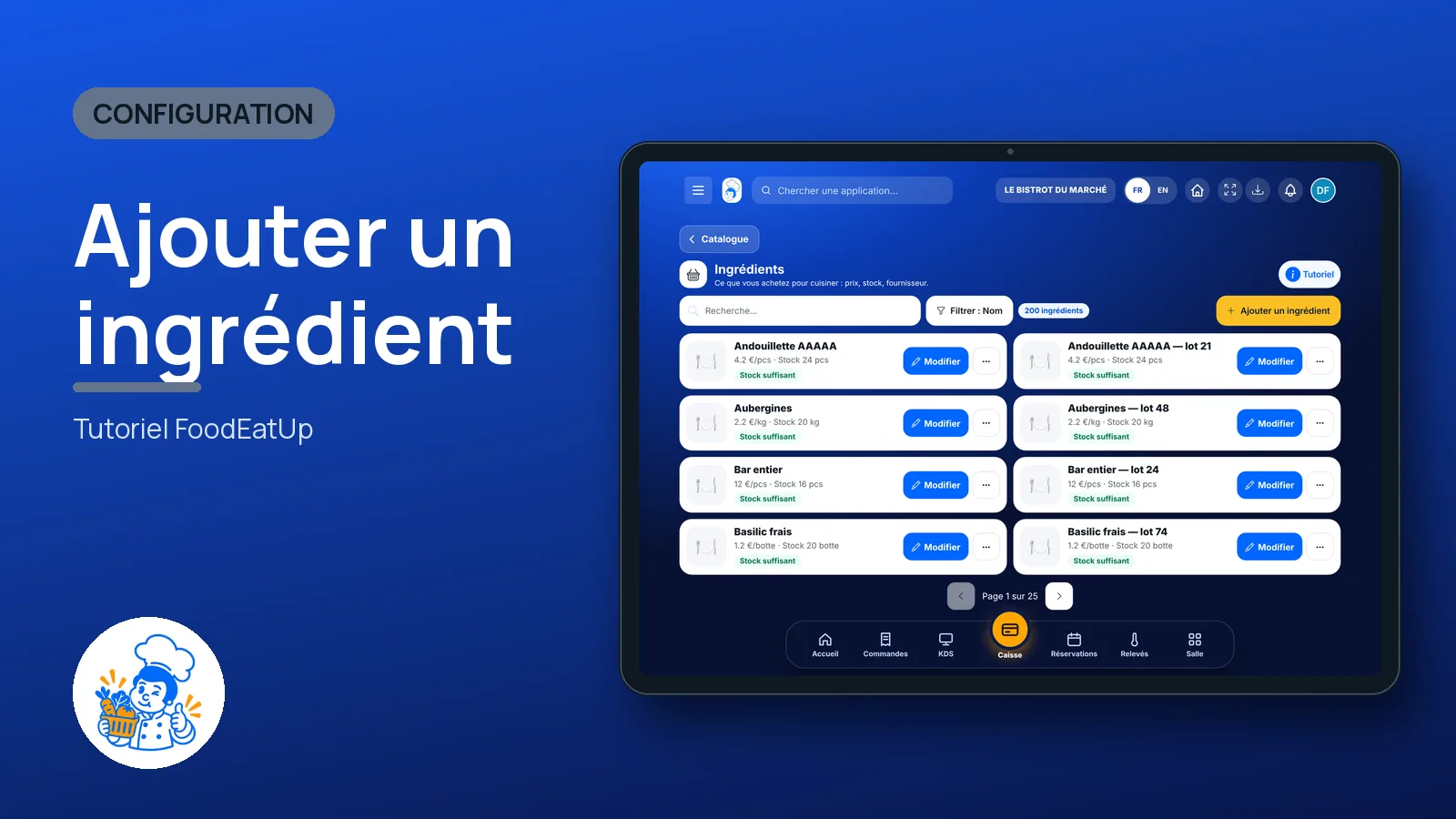
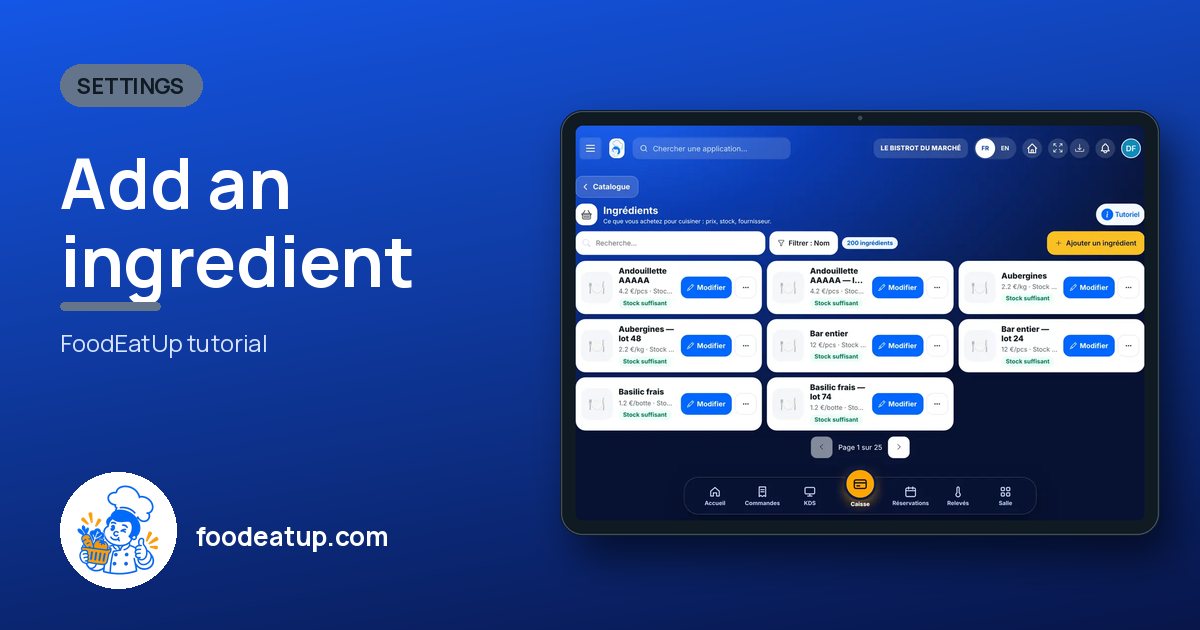
Add an ingredient : 5 steps, with the real software screens.
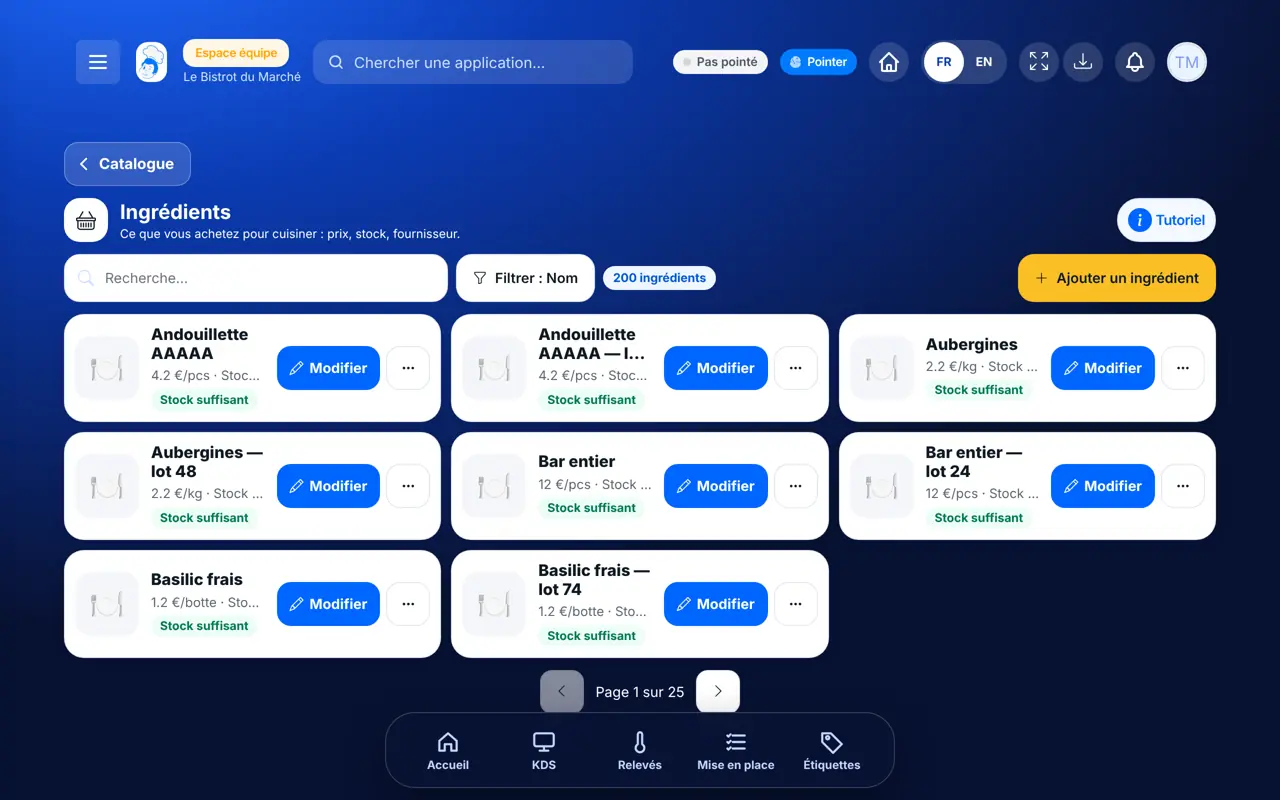
In the Configuration category, open “Ingrédients”. Each card shows an ingredient and the state of its stock.
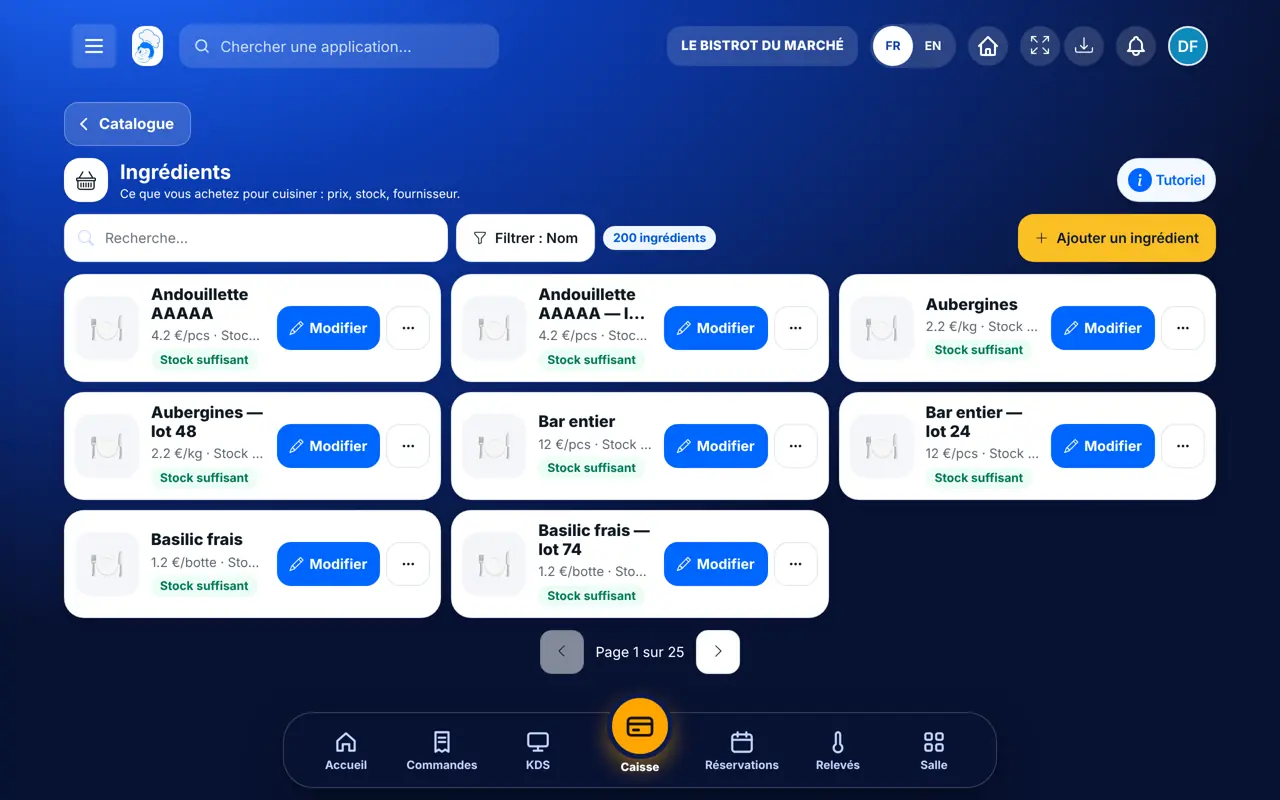
Tap “Ajouter un ingrédient”. In “Scanner ou nommer”, tap “Scanner un code-barres”: the name, nutrition and allergens fill in. Otherwise, type the “Nom de l’ingrédient”.
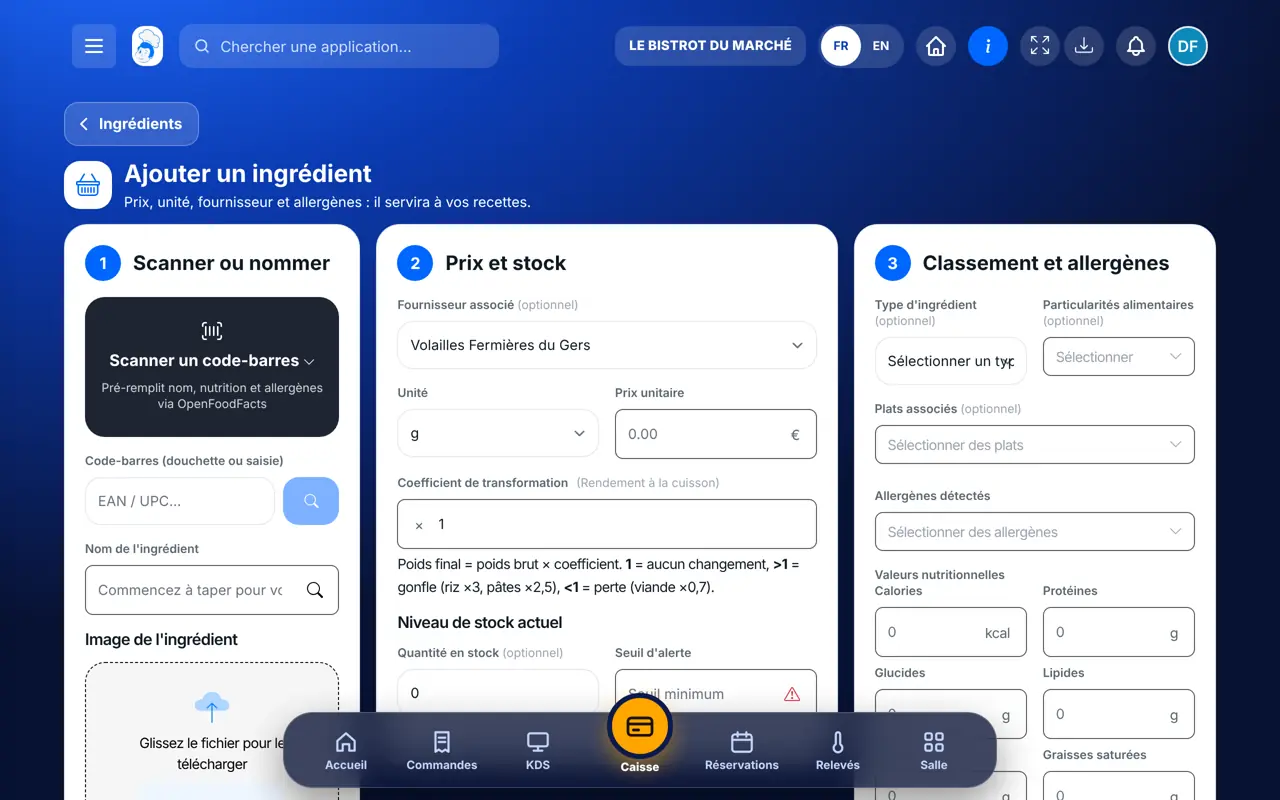
In “Prix et stock”, choose the “Unité”, enter the “Prix unitaire”, the current stock and the “Seuil d’alerte”.
In “Classement et allergènes”, choose the category and check the “Allergènes détectés”.
Tap “Enregistrer”. The ingredient joins the list. Tap “Modifier” on its card to change its price later.
The ingredient can be chosen in your recipes. Its price goes into their cost, and its allergens show on the recipe sheet.
Create a recipe sheet →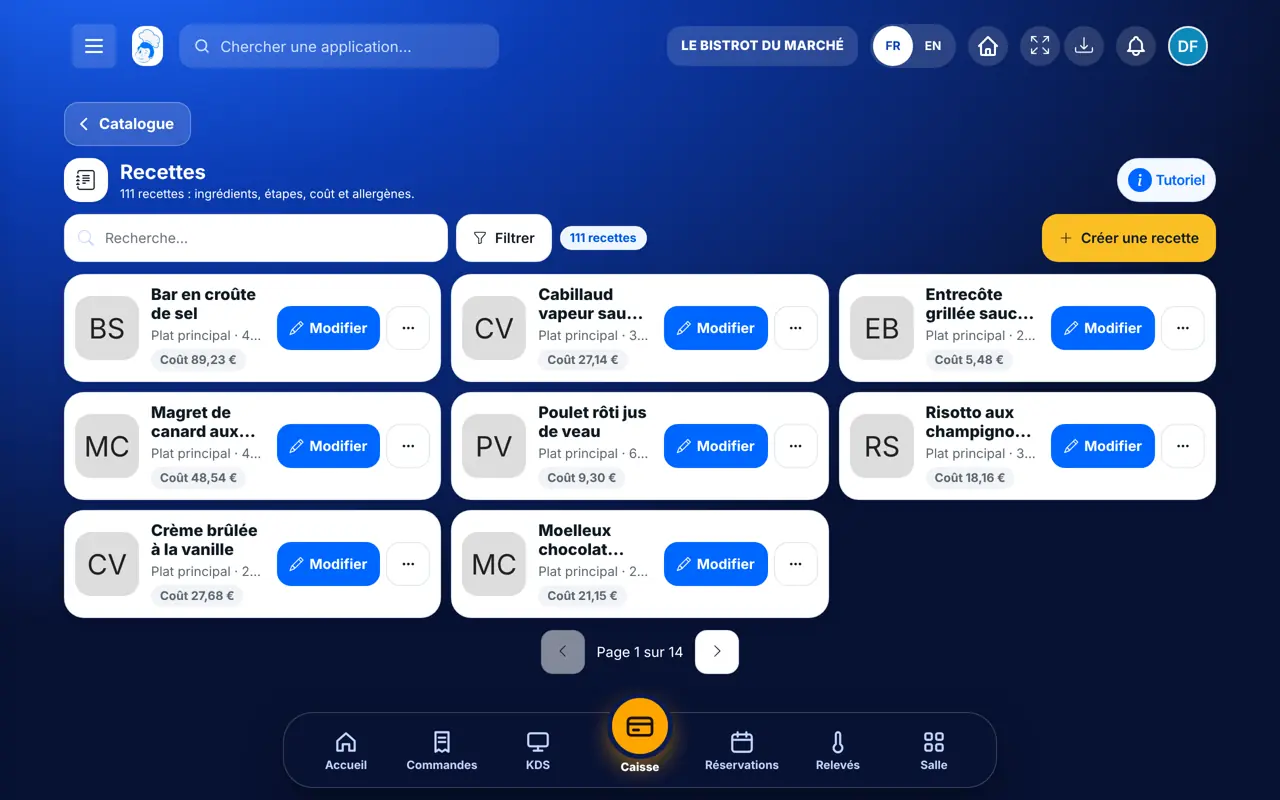
Creates, edits and deletes ingredients, and sets their price.
With the right to view, they look at the sheets and the stock. With the right to create or edit, they add an ingredient or correct a sheet.
Claude, ChatGPT or Mistral’s Le Chat, connected to FoodEatUp. Copy the request and replace your establishment number.
In FoodEatUp, for my establishment [number], list my ingredients and tell me which ones have no price or no alert level.
What you getThe list of ingredients, with those to complete.
Tools used : list_ingredients
In FoodEatUp, for my establishment [number], update the price of these ingredients: [list of names and prices]. Show me the preview before confirming.
What you getThe old and new price of each ingredient, then the update after your approval.
Tools used : bulk_update_ingredients
In FoodEatUp, for my establishment [number], look up the barcode [code] and complete the sheet of the ingredient [name] with what is missing. Show me the preview before confirming.
What you getWhat the barcode brings, and the fields you had already entered, kept as they are.
Tools used : lookup_ean, fill_ingredient_from_ean
The price feeds your recipes.
The alert level warns you.
Reused by recipes and labels.
The barcode fills in the sheet.
Enter the price in the unit you count the ingredient in: per kilo, per litre or per piece. Always read the allergens again after a scan: you are the one who validates the sheet.
In FoodEatUp, one action triggers others. Here are the screens that work with this one.
The name, nutrition values and allergens, taken from OpenFoodFacts. The price is never filled in: you enter it yourself.
An ingredient is what you buy to cook with. A product is what you resell as it is, such as a drink.
Yes, from its card, with “Supprimer”. The screen asks you to confirm: the action cannot be undone.
Send it to your team, your partner or your accountant. The image below appears in the message.
Claude, ChatGPT or Le Chat read this tutorial and explain it to you. Connected to FoodEatUp, they do it with you.
Read this FoodEatUp tutorial: https://foodeatup.com/en/academy/configuration/ingredients.md Explain it to me simply, step by step, then help me do it in my restaurant. If FoodEatUp is connected to you, do it with me and show me the preview before every change.
Type your establishment number: the link takes you straight to this screen. The number stays on this device.
Discover stock and food cost (in French) →
Répond avec les fiches du site, sans IA
Le chef cherche dans les fiches…
 Claude
 Le Chat
 ChatGPT