List my products
In FoodEatUp, for my establishment [number], list my products and tell me which ones are not linked to any ingredient.
What you getThe list of products, with their linked ingredient when there is one.
Tools used : list_products
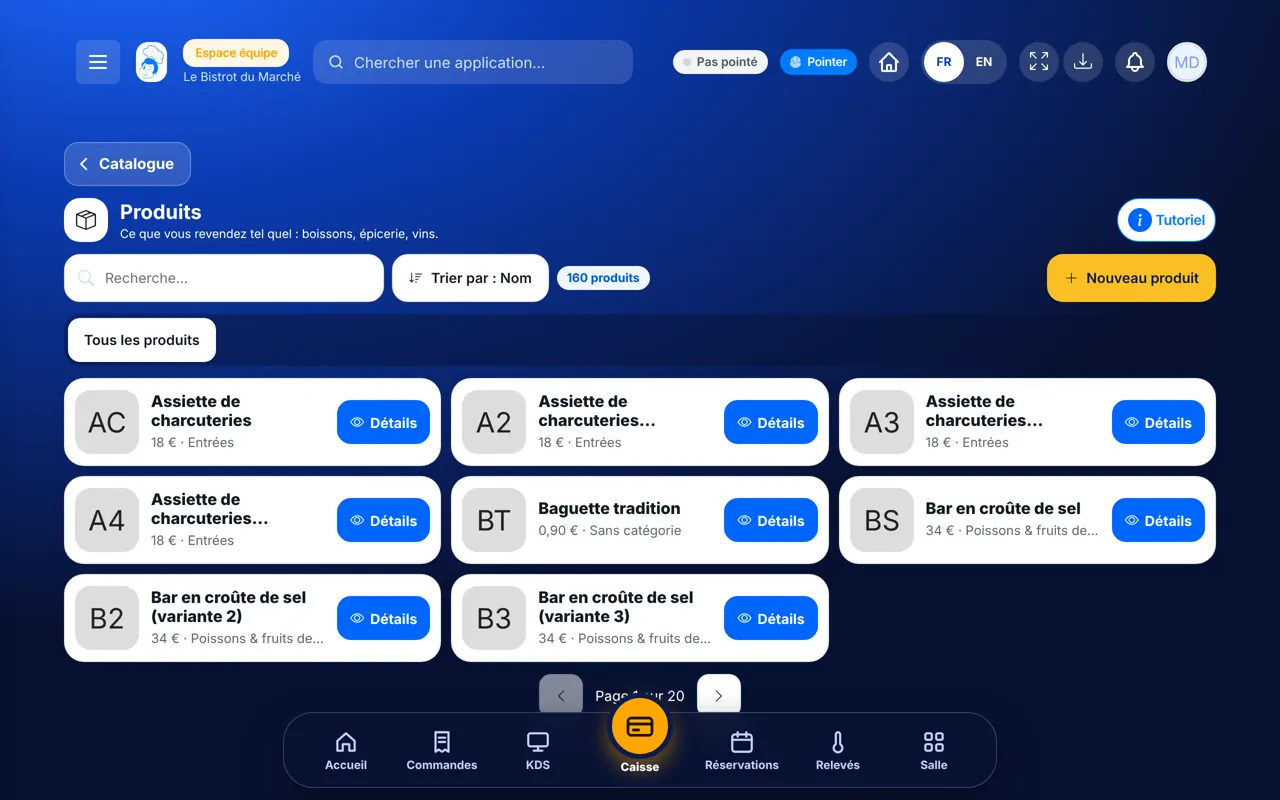
 Settings · Products
A product is what you buy ready-made: drinks, groceries, wines. You create its sheet, often by scanning its barcode.
 Patron / gérant
 Directeur
 Chef de cuisine
 Responsable de salle
The owner always has access. See what each role sees →
A computer, or a tablet to scan barcodes with the camera.
The real software screens, as they appear on each device.
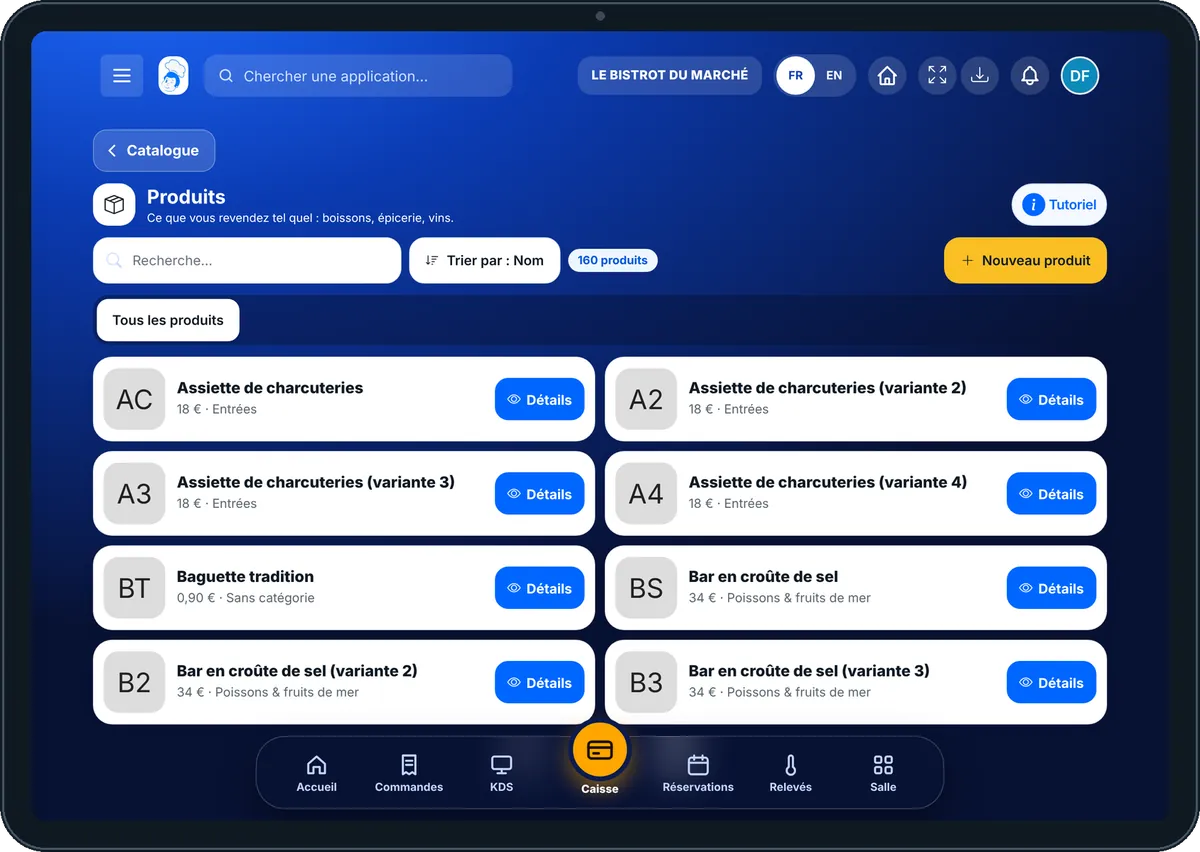
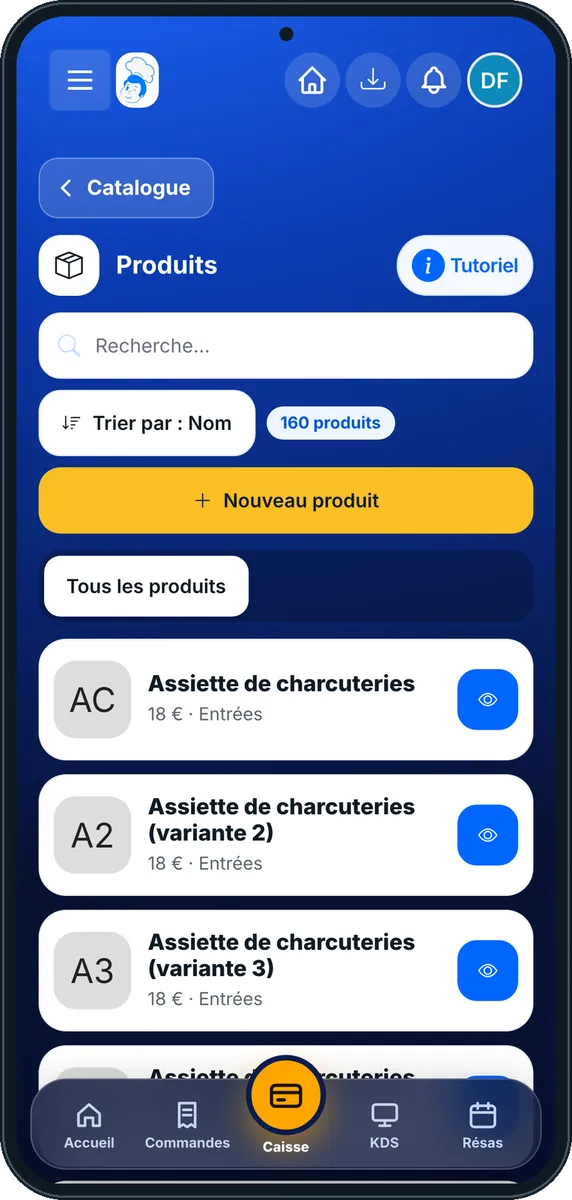
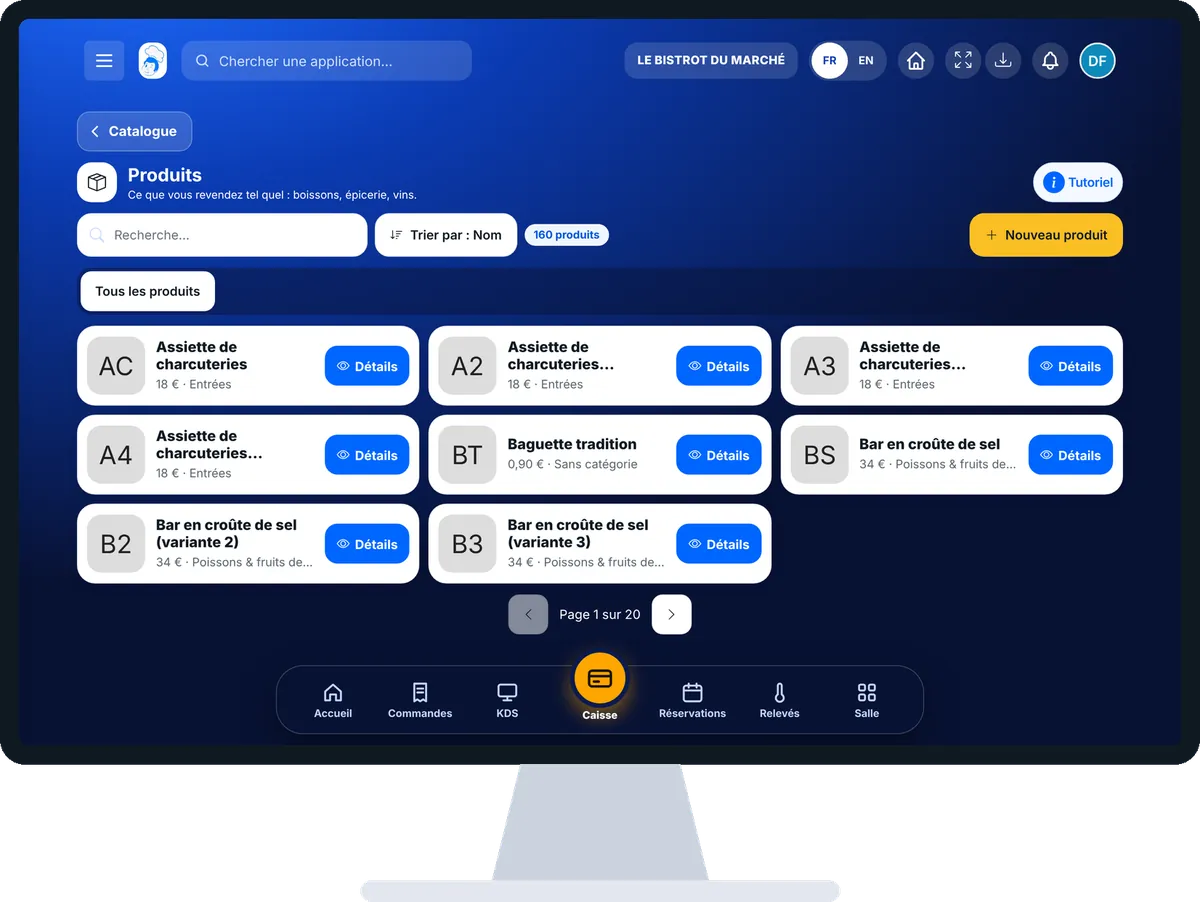
Add a purchased product : 5 steps, with the real software screens.
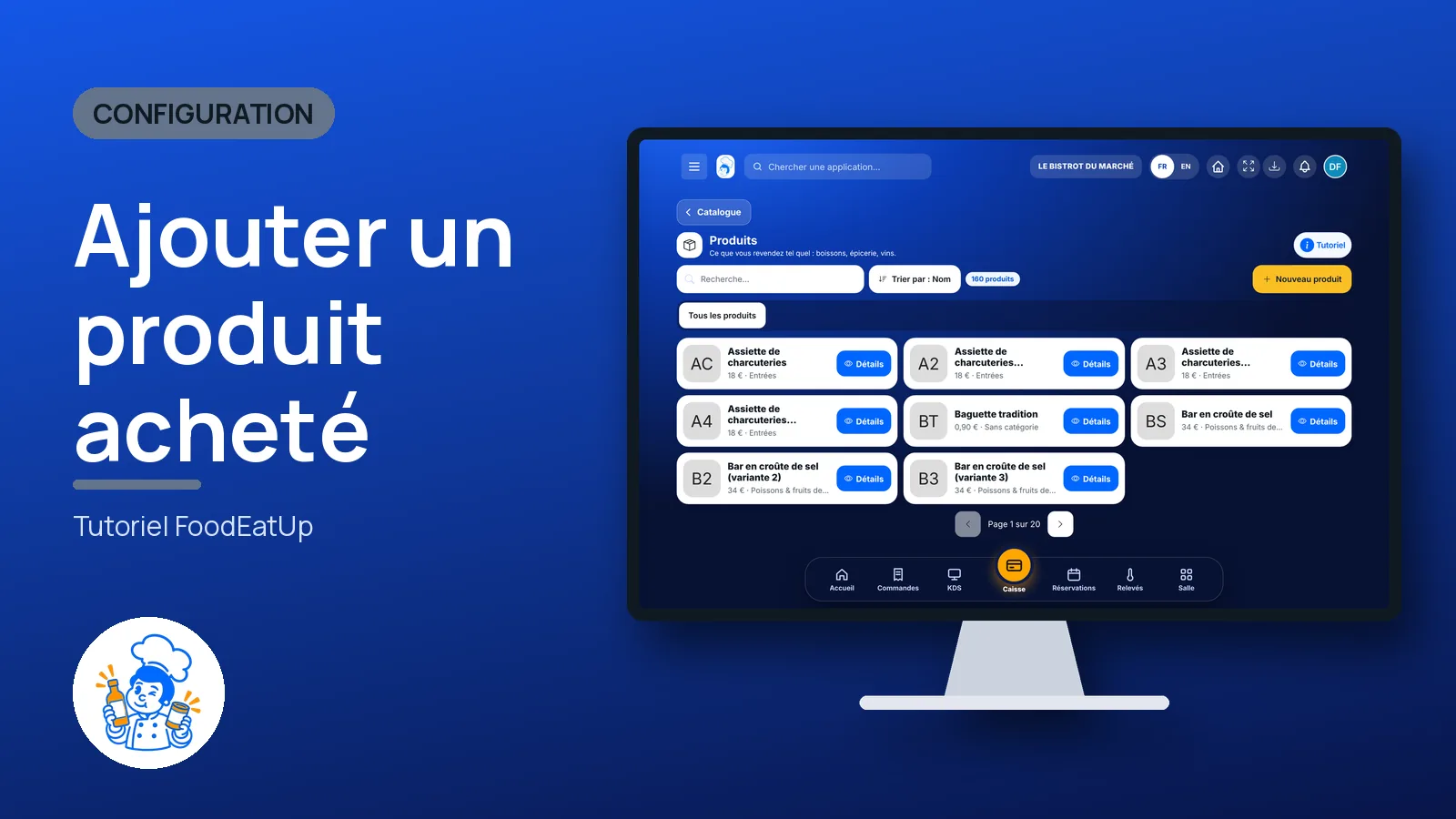
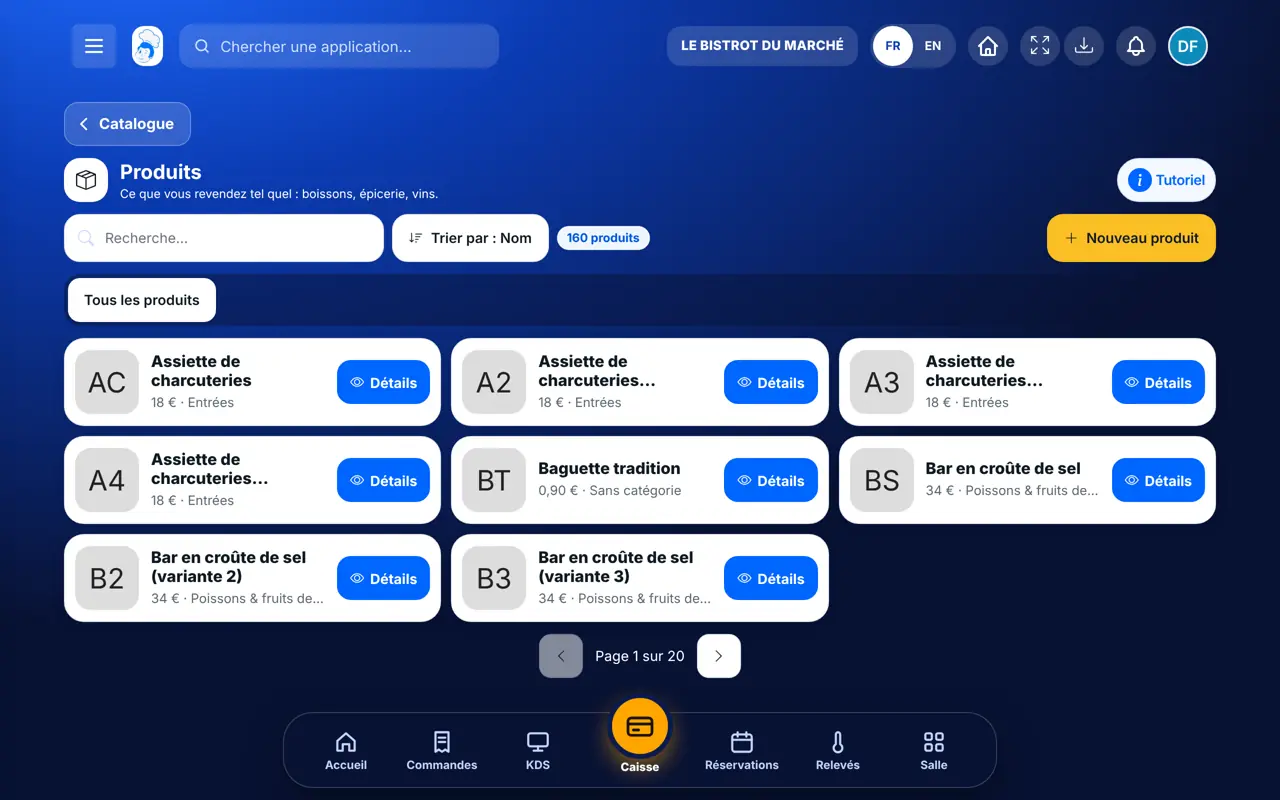
In the Configuration category, open “Produits”. The tabs at the top filter by category; “Tous les produits” shows everything.
Tap “Nouveau produit”. In “Scanner et photo”, tap “Scanner un code-barres”, or type the “Code-barres”. The name, brand and image fill in.
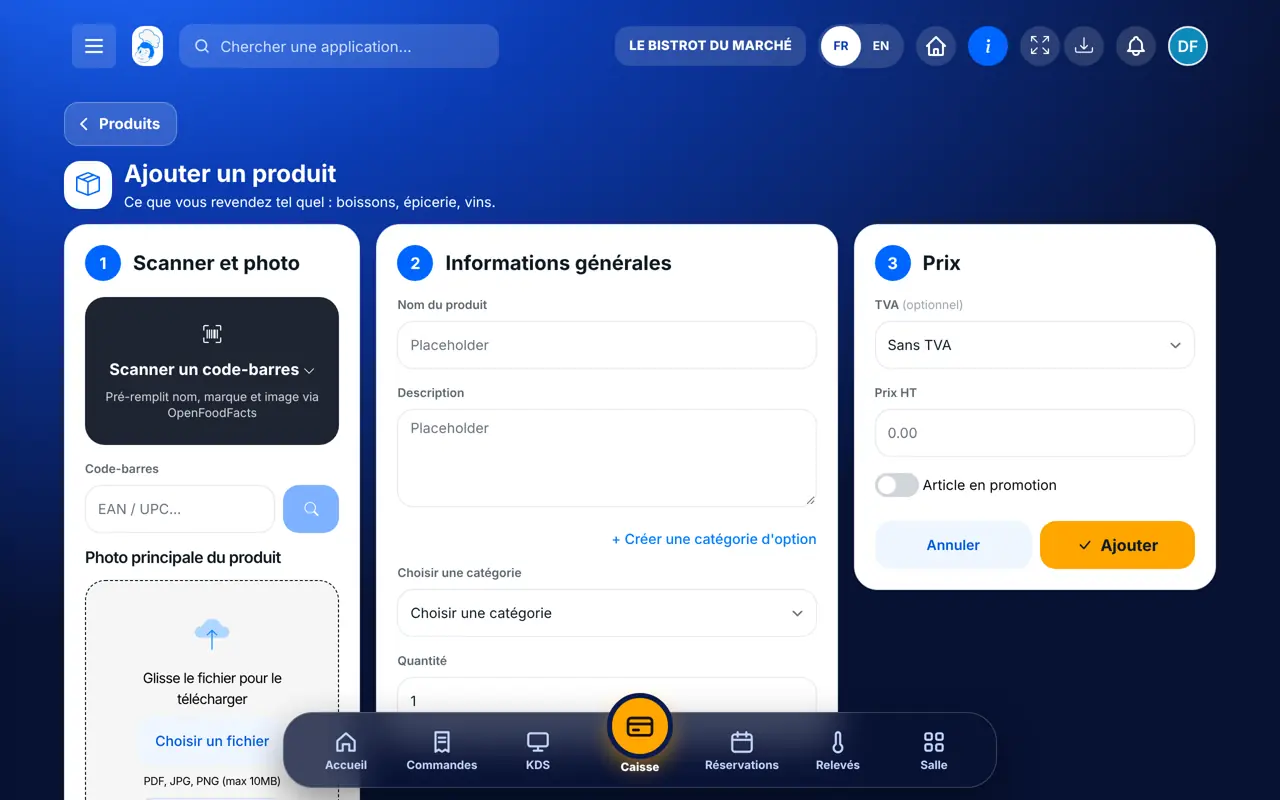
In “Informations générales”, check the “Nom du produit”, then choose a category.
In “Prix”, choose the “TVA” and enter the “Prix HT”. Tap “Ajouter”.
Open the product sheet with “Détails”. In the “Ingrédient alimenté” block, choose the ingredient and say what one purchase unit contains.
Once linked to an ingredient, the product is used for your orders. The shopping list turns your needs into whole cases of this product, by supplier.
Prepare your shopping →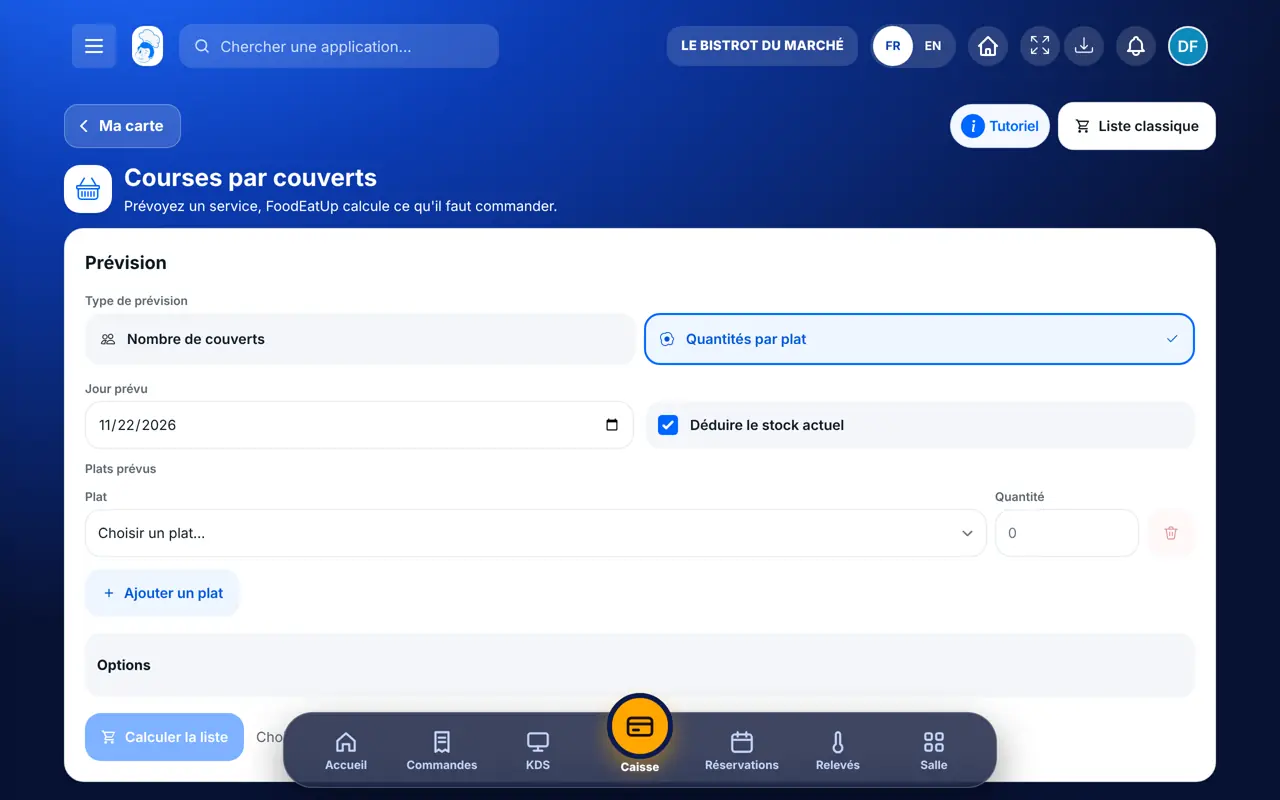
Creates products, sets their price and links them to ingredients.
With the right to view, they look at the sheets. With the right to create or edit, they add a product or correct a sheet.
Claude, ChatGPT or Mistral’s Le Chat, connected to FoodEatUp. Copy the request and replace your establishment number.
In FoodEatUp, for my establishment [number], list my products and tell me which ones are not linked to any ingredient.
What you getThe list of products, with their linked ingredient when there is one.
Tools used : list_products
In FoodEatUp, for my establishment [number], add the product with barcode [code], at a price before tax of [price] per [unit]. Show me the preview before confirming.
What you getThe sheet found for this barcode, then the product created after your approval.
Tools used : import_openfoodfacts_product
In FoodEatUp, for my establishment [number], list the products of the supplier [name], with their packaging.
What you getThis supplier’s products and what each case contains.
Tools used : list_suppliers, list_supplier_products
Name, brand and image filled in.
The linked product is used for orders.
By category, in one tap.
Before tax, with its VAT.
First link the products you order every week. Say clearly what one case contains: this figure gives the right number of cases to order.
In FoodEatUp, one action triggers others. Here are the screens that work with this one.
No. It fills in the name, brand and image. You enter the price and the unit yourself.
The existing sheet is reused and attached to your restaurant. If you already have it, the software refuses the duplicate.
So that the shopping list knows what to order. Without this link, the ingredient shows as having no product.
Send it to your team, your partner or your accountant. The image below appears in the message.
Claude, ChatGPT or Le Chat read this tutorial and explain it to you. Connected to FoodEatUp, they do it with you.
Read this FoodEatUp tutorial: https://foodeatup.com/en/academy/configuration/products.md Explain it to me simply, step by step, then help me do it in my restaurant. If FoodEatUp is connected to you, do it with me and show me the preview before every change.
Type your establishment number: the link takes you straight to this screen. The number stays on this device.
Discover stock and food cost (in French) →
Répond avec les fiches du site, sans IA
Le chef cherche dans les fiches…
 Claude
 Le Chat
 ChatGPT