Which tools are connected?
In FoodEatUp, for my establishment [number], list my integrations and tell me which ones are connected.
What you getThe list of integrations with their status. No token or password is shown.
Tools used : list_integrations
 Settings · Integrations
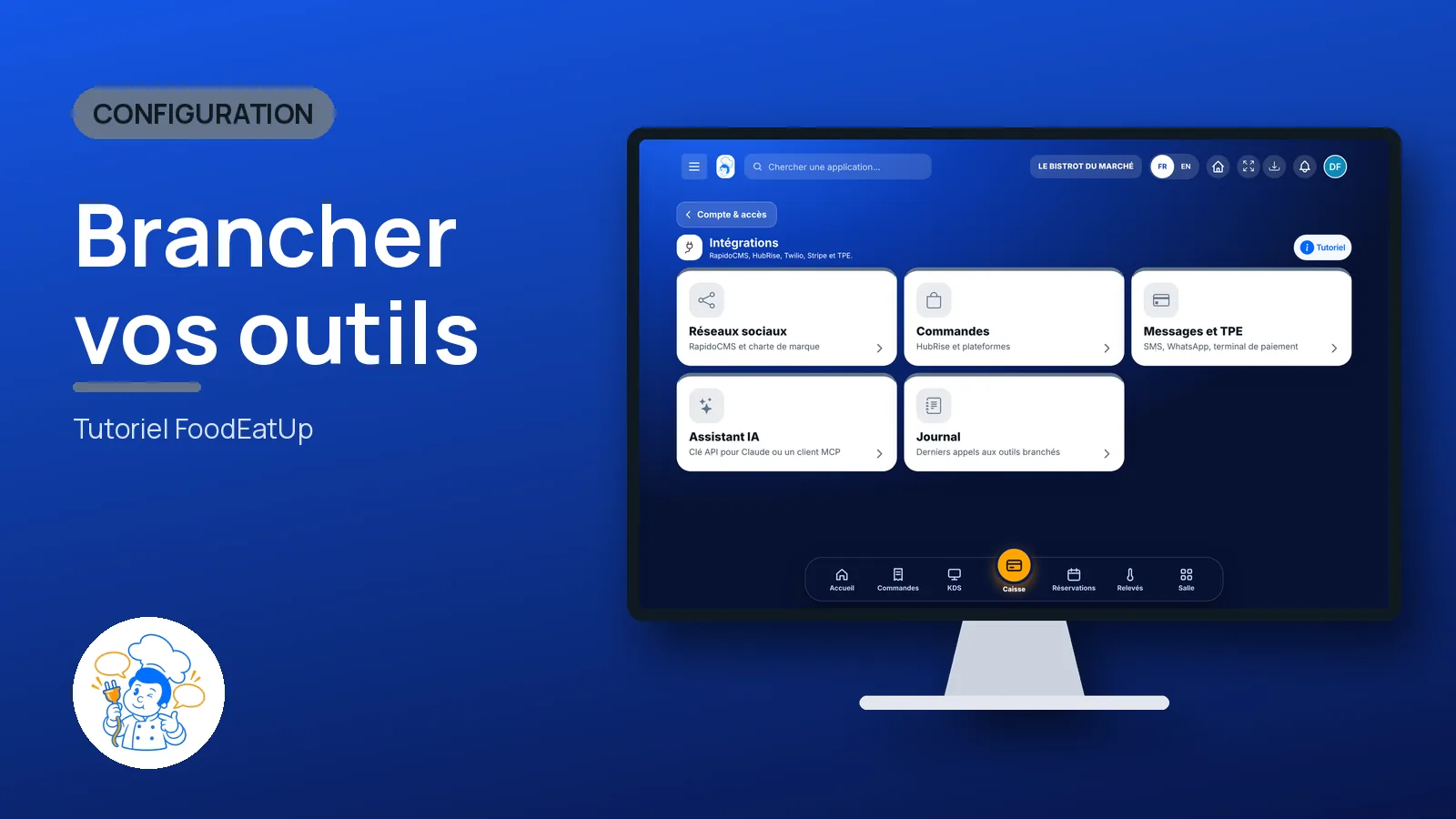
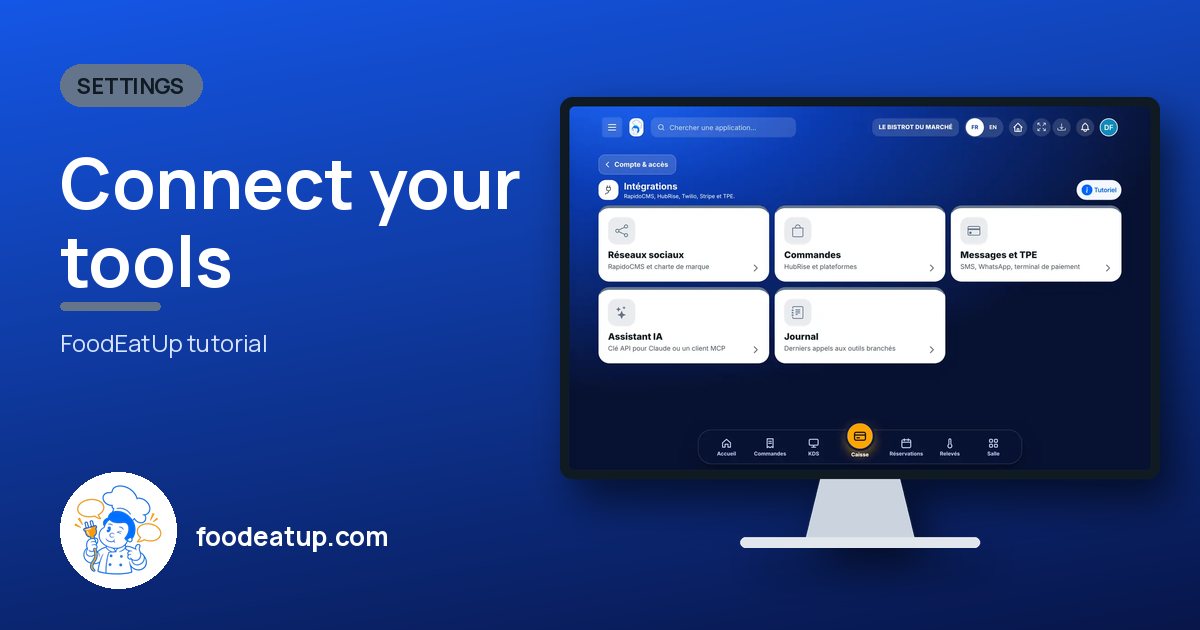
One screen to link FoodEatUp to your other tools: social networks, HubRise, SMS and WhatsApp, payment terminal, and your AI assistant.
 Patron / gérant
 Directeur
 Responsable multi-sites
The owner always has access. See what each role sees →
A computer. You paste tokens and addresses here: it is safer with a real keyboard.
The real software screens, as they appear on each device.
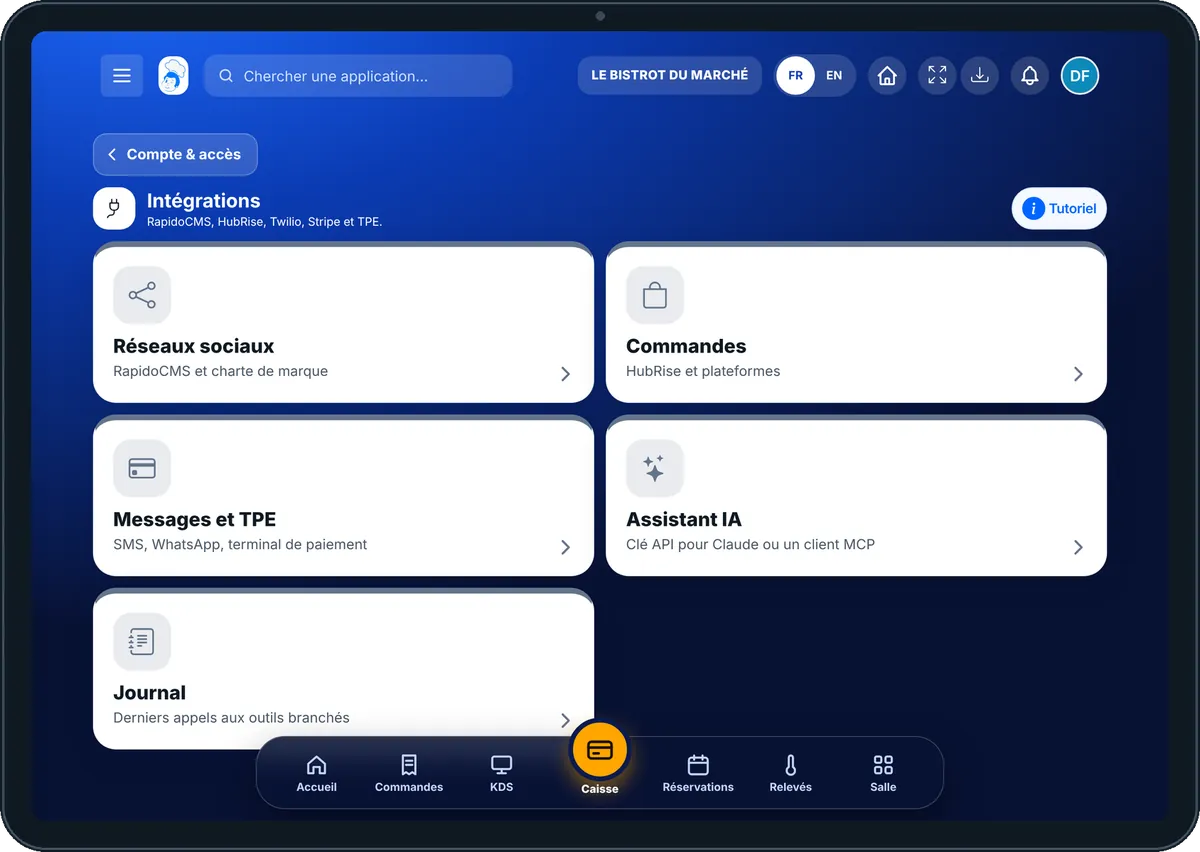
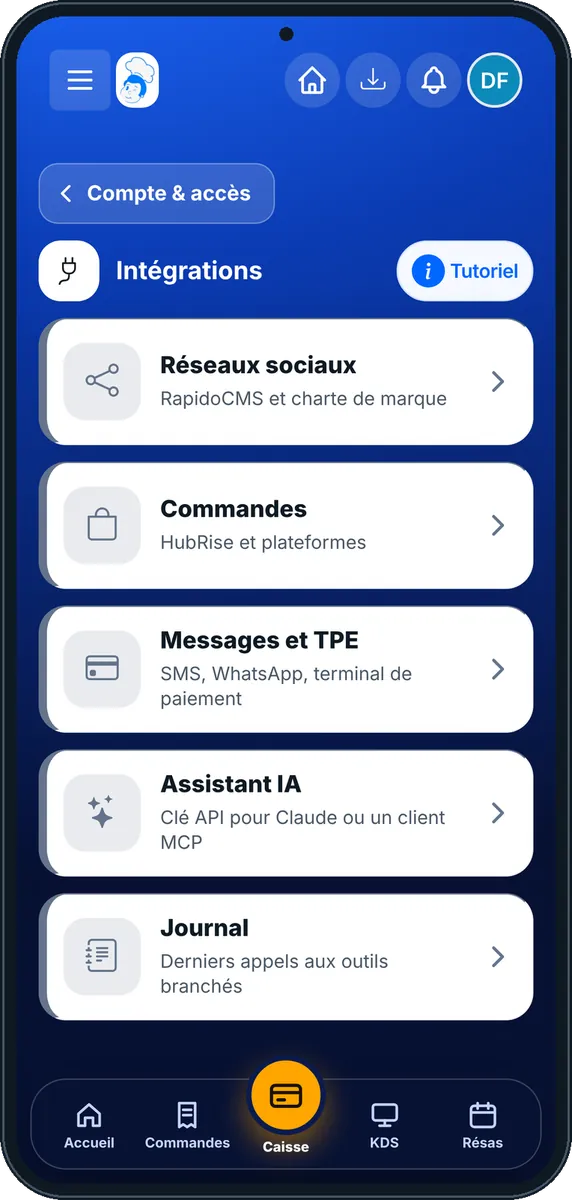
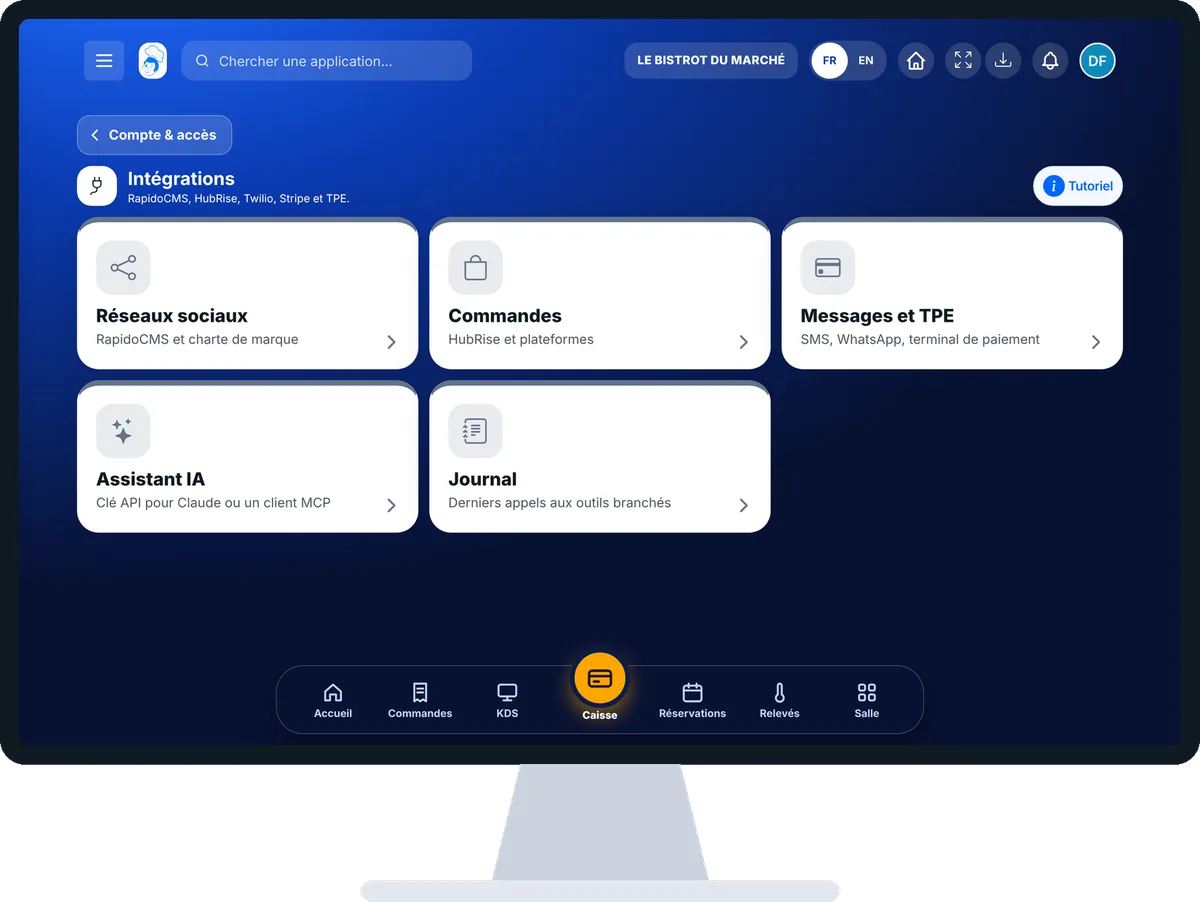
Connect your tools : 4 steps, with the real software screens.
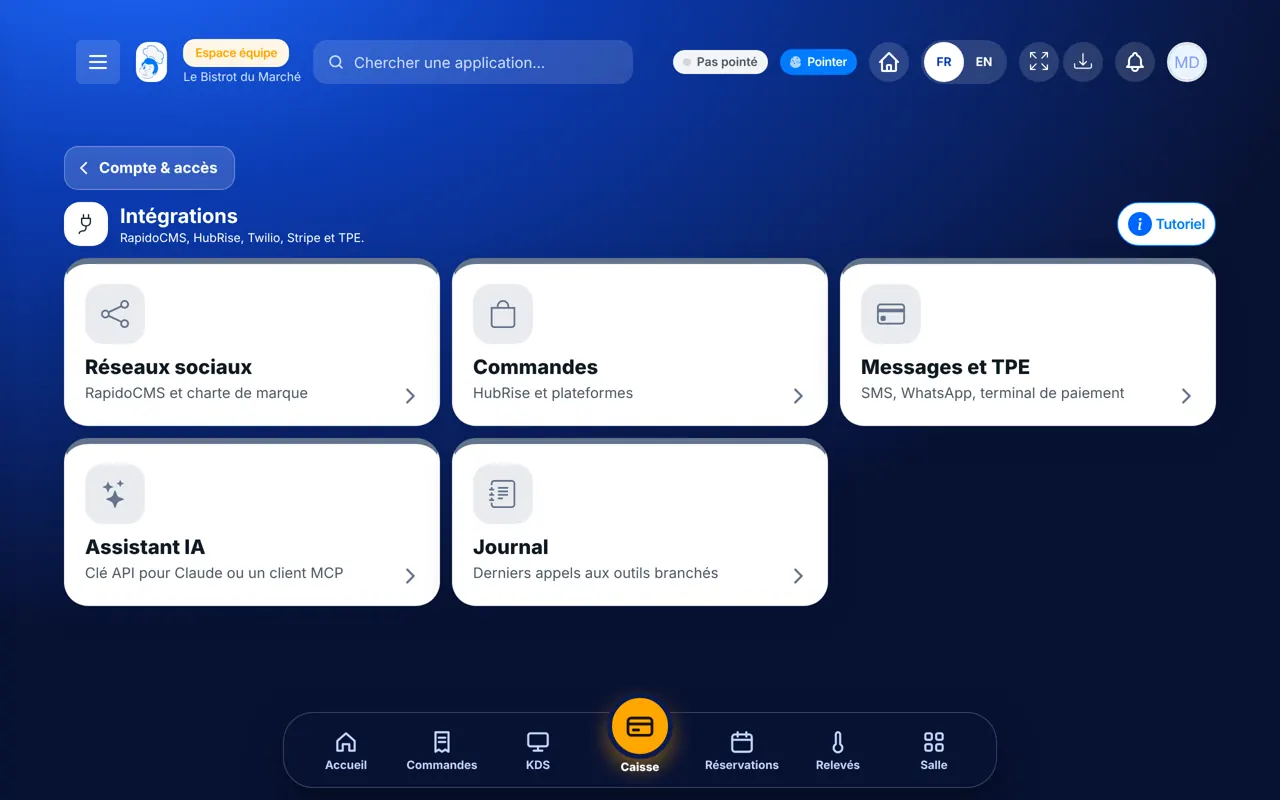
In the Configuration category, open “Intégrations”. Five tabs hold the connections: “Réseaux sociaux”, “Commandes”, “Messages et TPE”, “Assistant IA” and “Journal”.
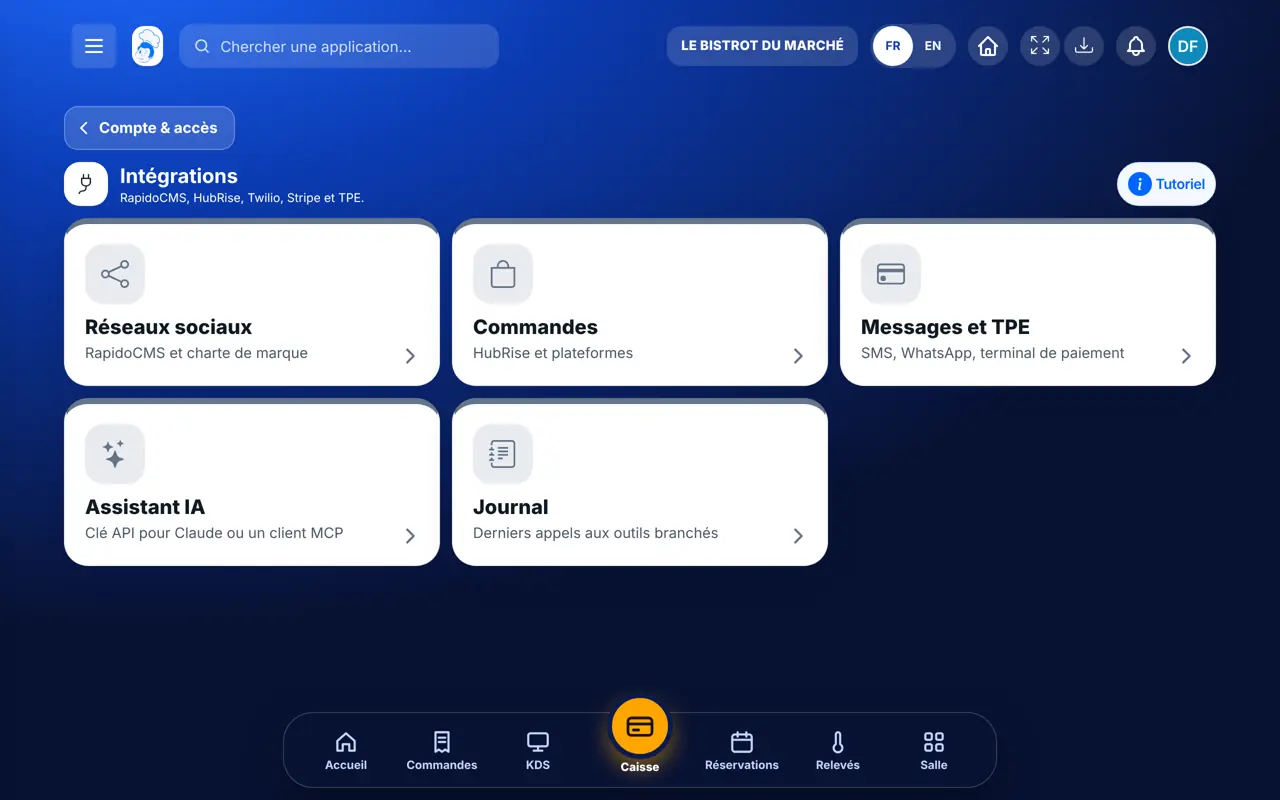
In “Réseaux sociaux”, paste your RapidoCMS “Jeton MCP”, tap “Enregistrer”, then “Tester”. The badge turns to “Connecté” and the list of available tools appears. Then tap “Charger les comptes” to choose your accounts.
Open the “Assistant IA” tab. Copy the “Adresse du serveur” with “Copier”, or tap “Ajouter à Claude”. The access key is created in your profile, with “Créer ou révoquer une clé”.
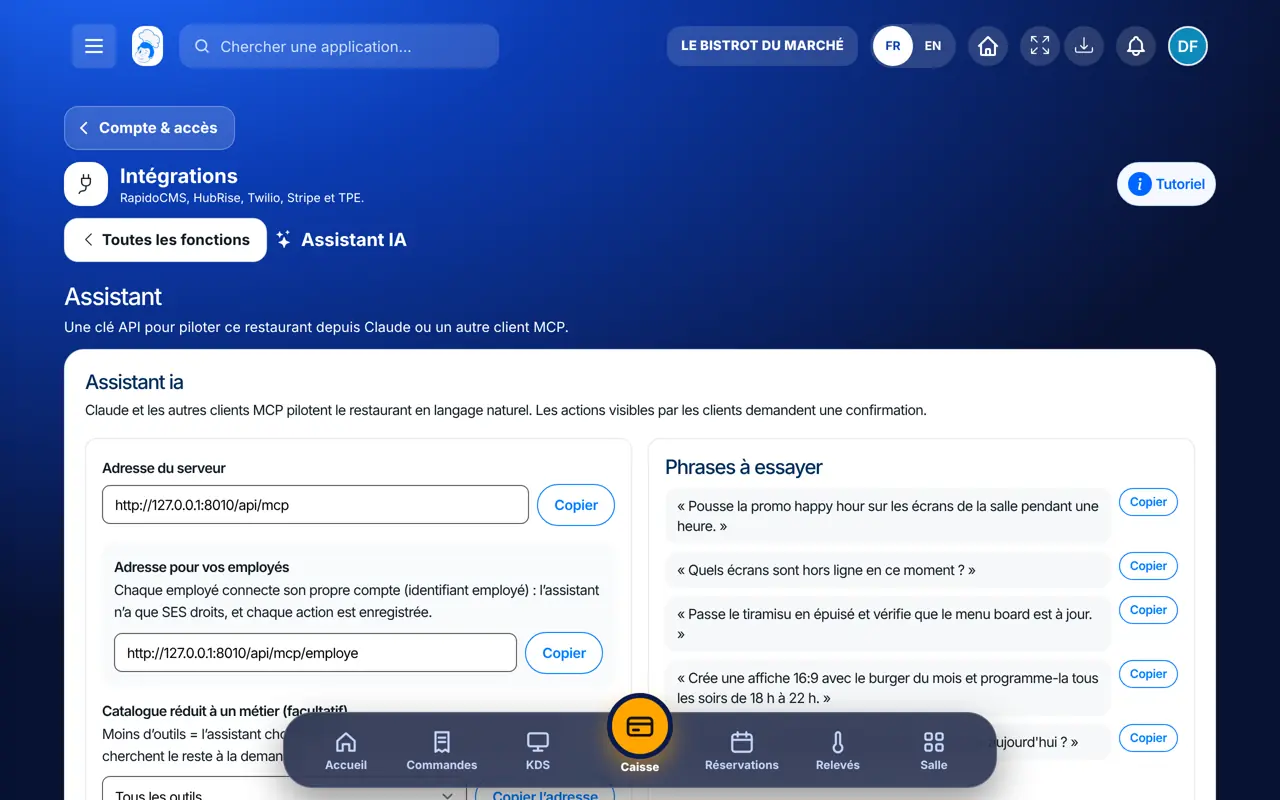
The “Journal” tab lists the latest calls to connected tools. In “Assistant IA”, the “Derniers appels” table says for each one: “Réussi”, “Erreur” or “Accès refusé”.
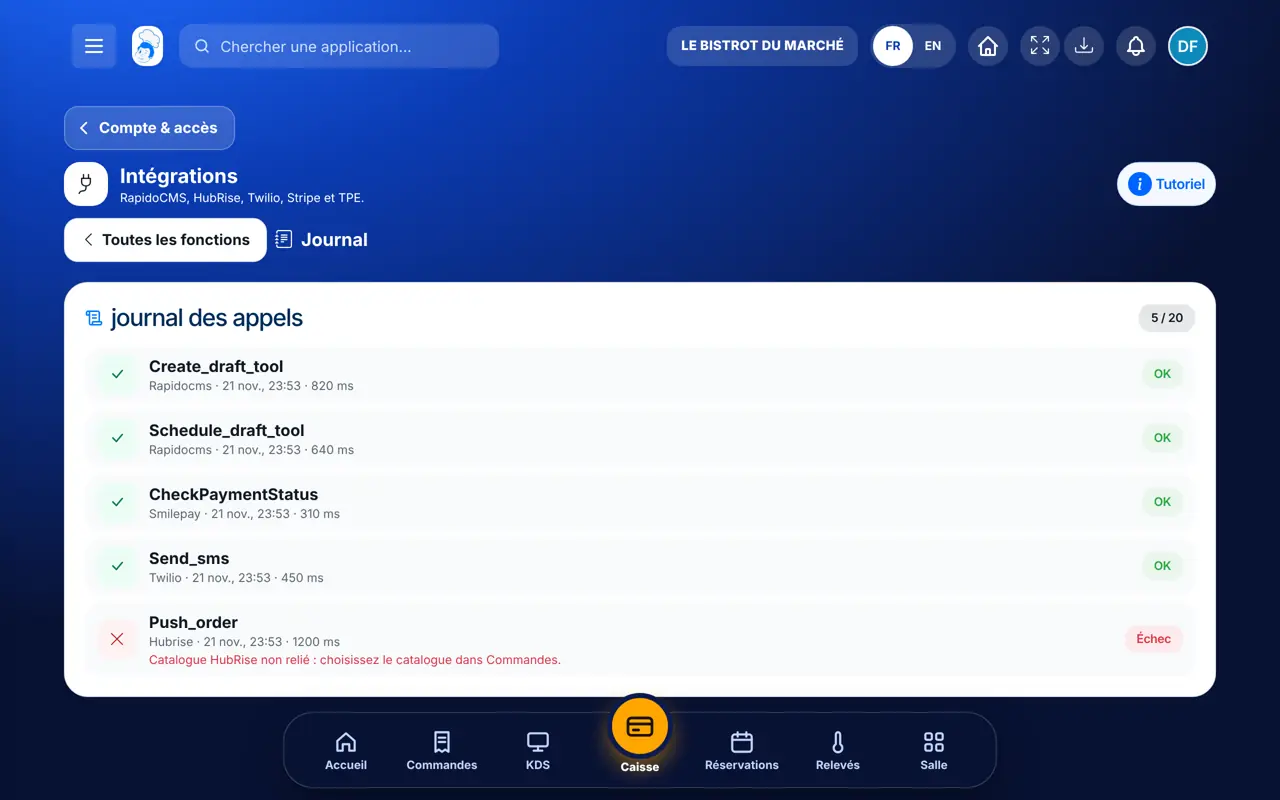
Your tools are linked. Iris can publish on your networks through RapidoCMS, the till sends a payment to the terminal, and your AI assistant answers with the restaurant’s real data. Every call shows up in the log.
See what the AI assistant can do (in French) →Links the tools, tests each connection and creates the assistant’s access key in the profile. Only the owner can create a key.
With the “Intégrations” right, they see the screen and the connections. For their own assistant, they use the “Adresse pour vos employés”: the assistant then only has their rights.
Claude, ChatGPT or Mistral’s Le Chat, connected to FoodEatUp. Copy the request and replace your establishment number.
In FoodEatUp, for my establishment [number], list my integrations and tell me which ones are connected.
What you getThe list of integrations with their status. No token or password is shown.
Tools used : list_integrations
In FoodEatUp, for my establishment [number], check the status of my social network accounts and tell me which ones need reconnecting.
What you getThe status of each account, and those to reconnect.
Tools used : get_iris_accounts_health
In FoodEatUp, for my establishment [number], list my API keys without showing their secret.
What you getThe existing keys, with their name. The secret is never shown.
Tools used : list_api_clients
Networks, orders, messages, payment, assistant.
You know right away whether it works.
A saved token is never displayed again.
Success, error or access refused.
After every token change, always tap “Tester”. A badly pasted token shows up in ten seconds here, whereas it would cost you a post that very evening.
In FoodEatUp, one action triggers others. Here are the screens that work with this one.
In your profile, under API keys. It only opens this restaurant and it is shown once. Only the owner can create it.
No. Once saved, the field stays empty and says “Jeton enregistré”. Leave it empty to keep it.
Yes, with the “Adresse pour vos employés”. They connect their employee account: the assistant only has their rights, and every action is recorded.
Send it to your team, your partner or your accountant. The image below appears in the message.
Claude, ChatGPT or Le Chat read this tutorial and explain it to you. Connected to FoodEatUp, they do it with you.
Read this FoodEatUp tutorial: https://foodeatup.com/en/academy/configuration/service-integrations.md Explain it to me simply, step by step, then help me do it in my restaurant. If FoodEatUp is connected to you, do it with me and show me the preview before every change.
Type your establishment number: the link takes you straight to this screen. The number stays on this device.
Discover FoodEatUp integrations (in French) →
Répond avec les fiches du site, sans IA
Le chef cherche dans les fiches…
 Claude
 Le Chat
 ChatGPT