This week’s ideas
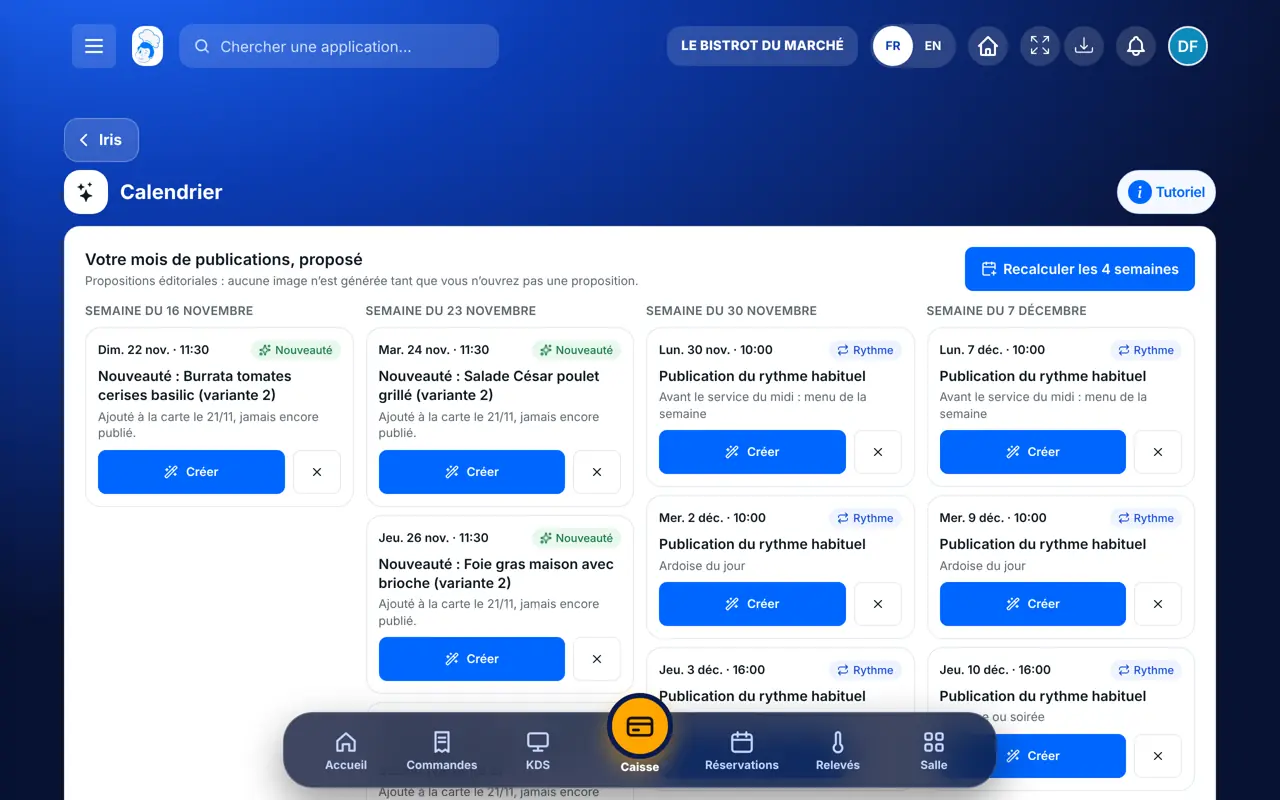
In FoodEatUp, for my establishment [number], show me the post calendar Iris suggests for the next four weeks.
What you getIris’s suggestions, to accept or refuse one by one.
Tools used : get_iris_calendar
 Communication · Iris
Iris prepares your posts for Instagram, Facebook, TikTok and LinkedIn: a visual in your colours, a caption and the right date. You check, you correct, and nothing goes out without your consent.

 Patron / gérant
 Directeur
 Responsable de salle
 Responsable multi-sites
The owner always has access. See what each role sees →
A computer to compose and check the visual at full size. The same screen works on a tablet, to approve a post between two services.
The real software screens, as they appear on each device.
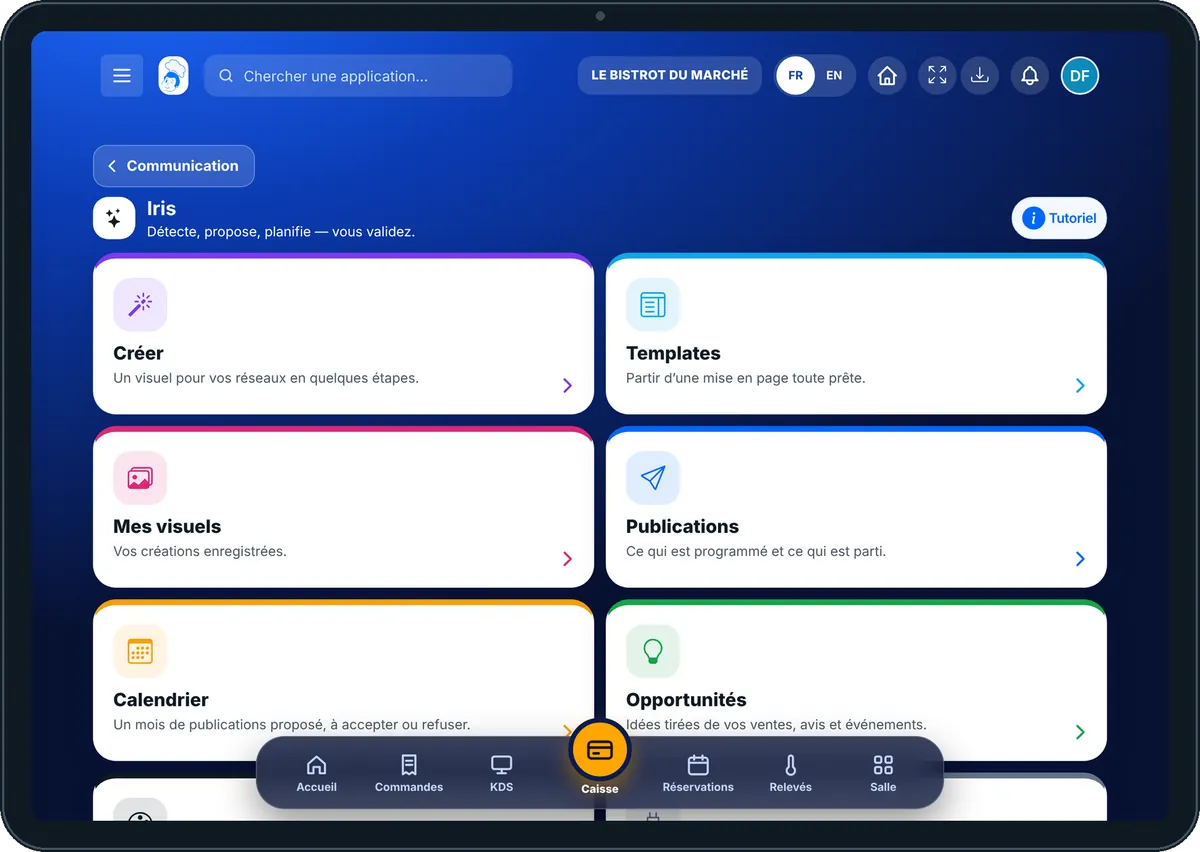
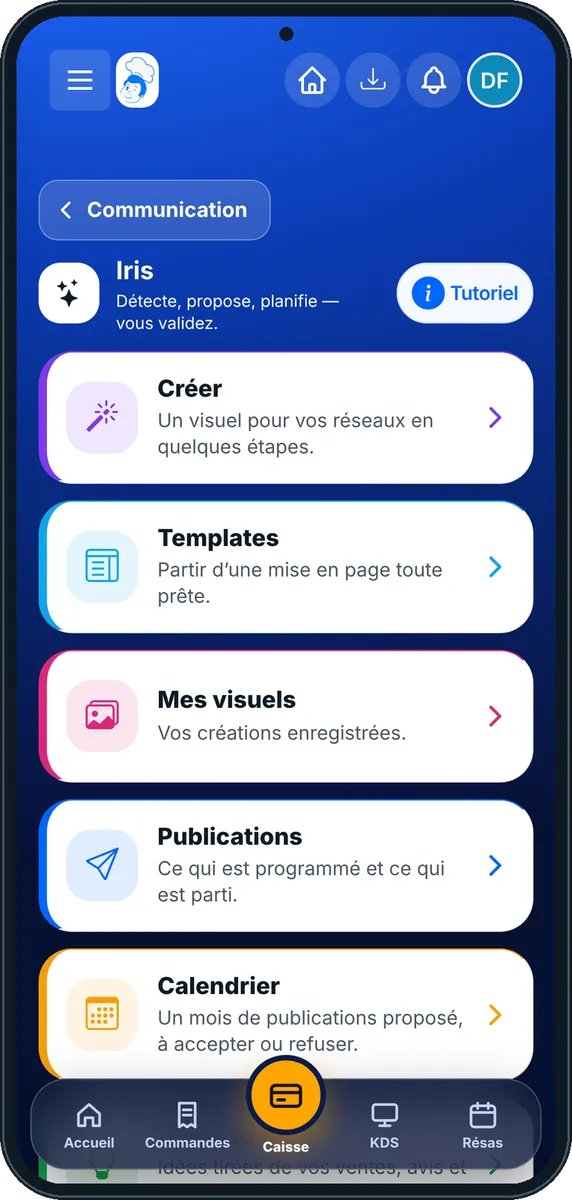
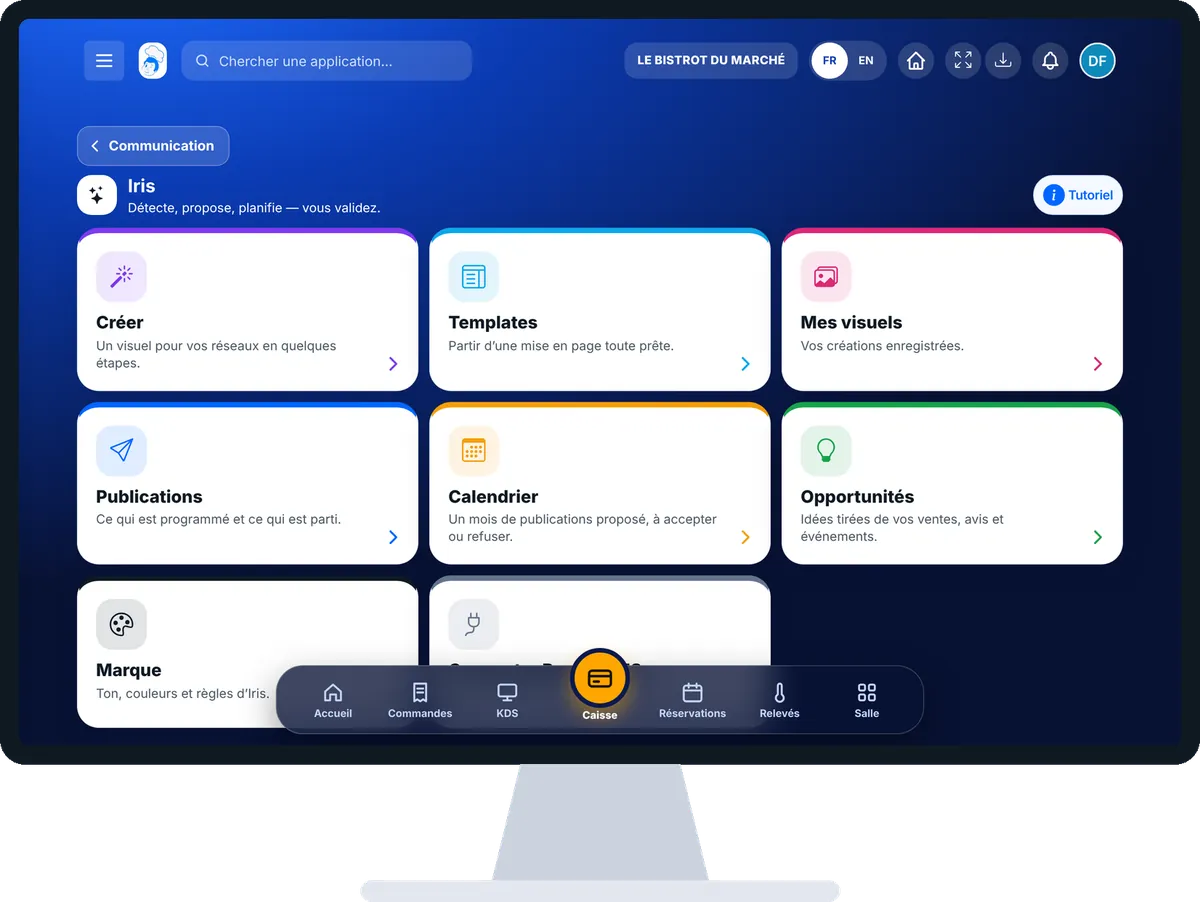
Prepare a post with Iris : 5 steps, with the real software screens.
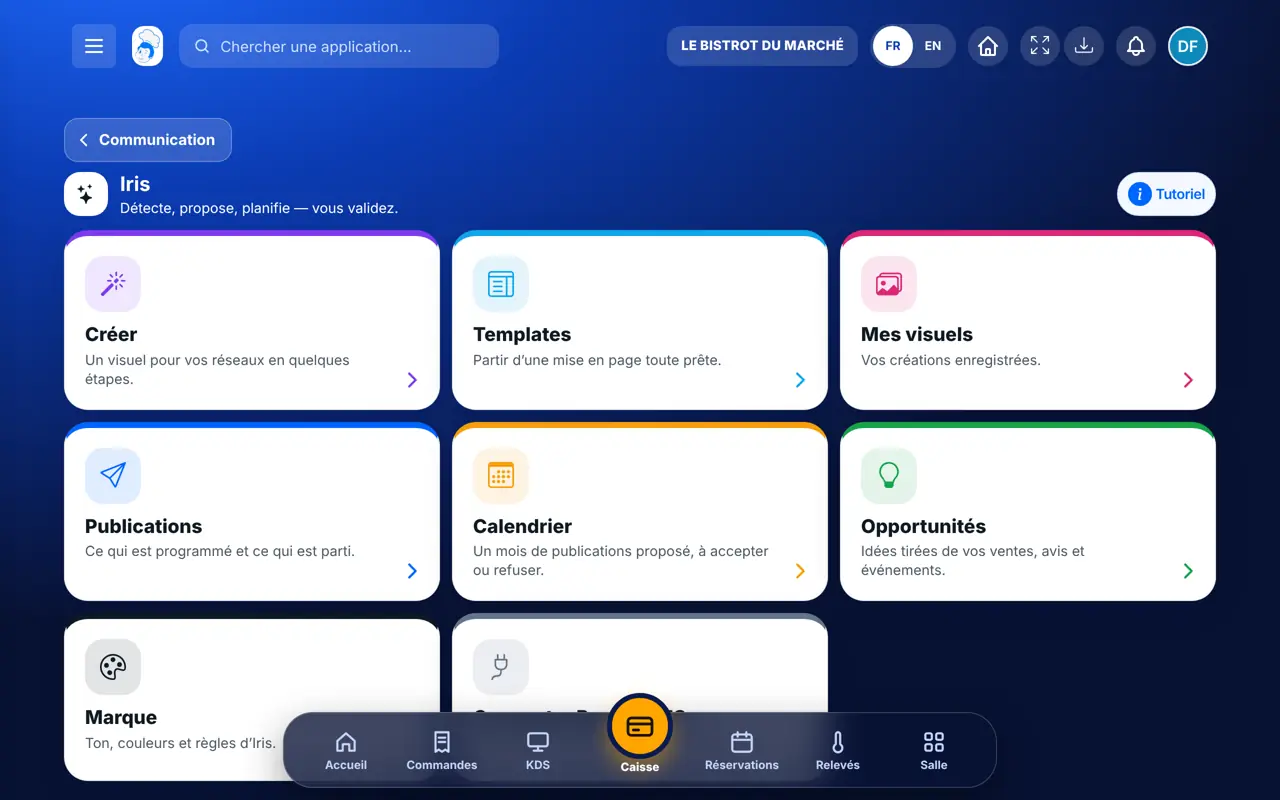
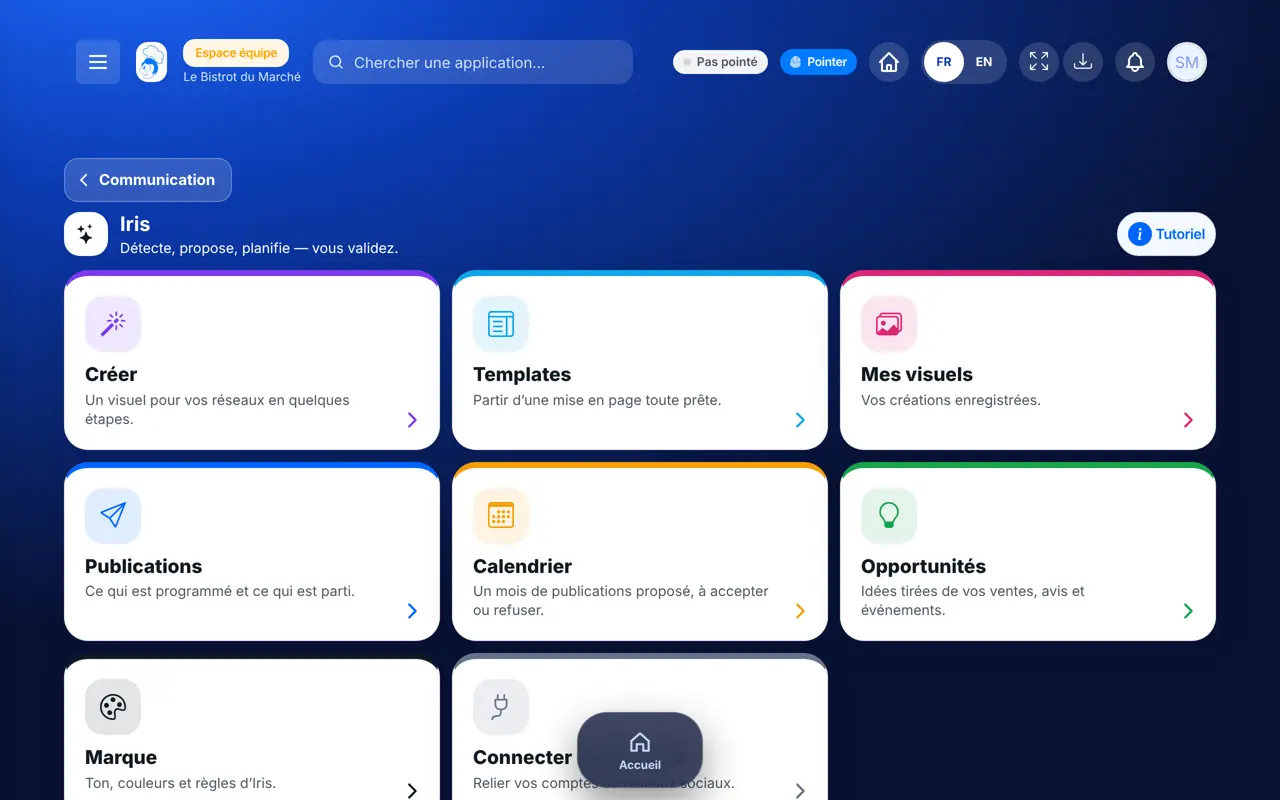
From the home screen, open Communication then “Iris”. Eight cards: “Créer”, “Templates”, “Mes visuels”, “Publications”, “Calendrier”, “Opportunités”, “Marque” and “Connecter RapidoCMS”.
Tap “Créer”. Step “Métier & besoin”: your trade (brasserie, pizzeria…) and what you want (sell, bring people in, build loyalty…). Tap “Continuer”.
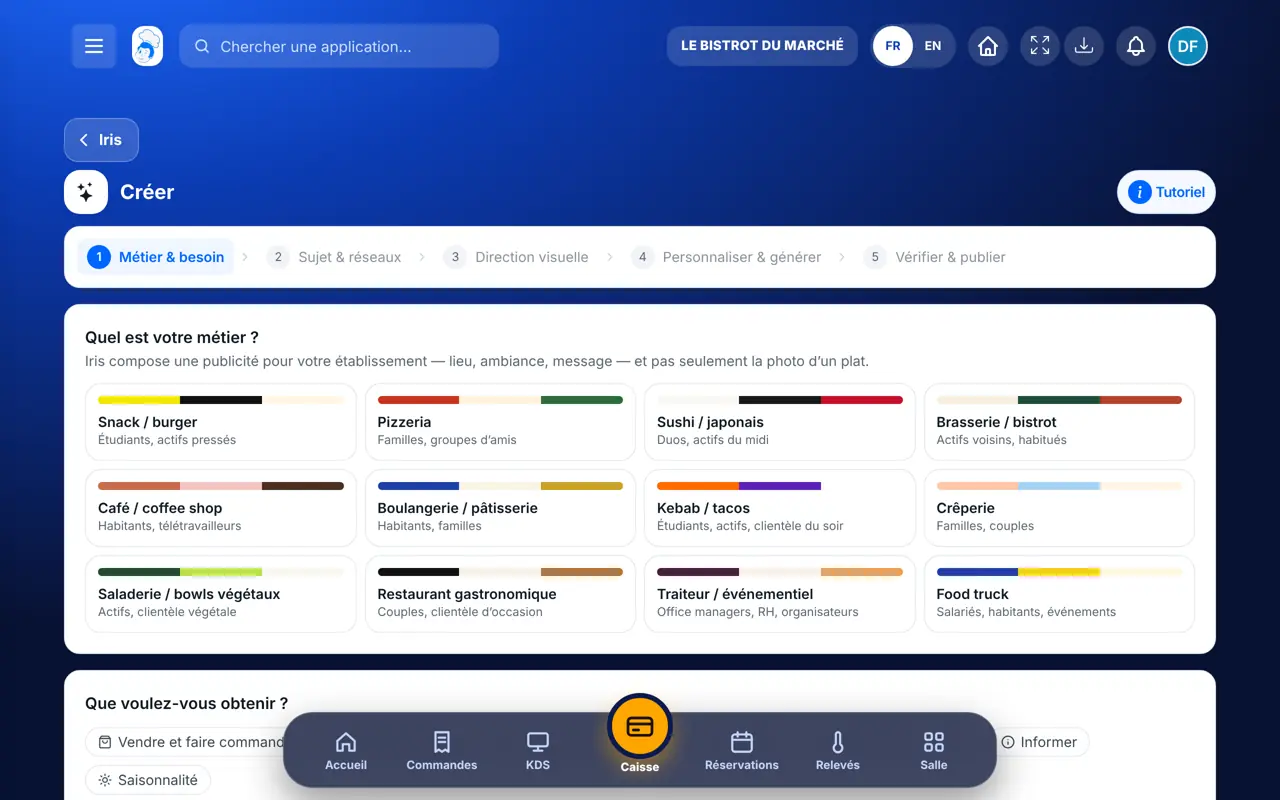
Step “Sujet & réseaux”: the dish, offer or event, and the networks. Step “Direction visuelle”: the image style and the composition.
Step “Personnaliser & générer”: title, hook, caption. The cost in credits is shown before the image is launched; tap to confirm.
Step “Vérifier & publier”: the preview for each network. Schedule the date, or keep the visual in “Mes visuels”. Publishing goes through your linked RapidoCMS account.
A post in your colours, with the real price and a caption you checked, scheduled at the right time on your networks.
Creates, generates, schedules and publishes.
With the right to view, browses visuals and posts. Creating, generating and publishing are three separate rights the owner grants or not.
Claude, ChatGPT or Mistral’s Le Chat, connected to FoodEatUp. Copy the request and replace your establishment number.
In FoodEatUp, for my establishment [number], show me the post calendar Iris suggests for the next four weeks.
What you getIris’s suggestions, to accept or refuse one by one.
Tools used : get_iris_calendar
In FoodEatUp, for my establishment [number], prepare an Iris draft for my dish [dish name] as an Instagram post, style [style]. Give me the quote in credits before any generation.
What you getA draft and its cost; nothing is generated without your consent.
Tools used : list_iris_styles, create_iris_draft, quote_iris_generation
In FoodEatUp, for my establishment [number], suggest three captions for my Iris draft [number], one mouth-watering, one funny, one professional, with no made-up price.
What you getThree captions to choose from; nothing is saved until you say which one.
Tools used : suggest_iris_caption
Logo, colours and real price on every visual.
Nothing is generated or sent without your consent.
Iris suggests the dates that matter for your trade.
Tracked links show what a post brings in.
Start from “Opportunités”: Iris puts there what already works at your place (a dish that sells, a good review, a quiet day to fill). A post drawn from your real figures speaks better than an idea from nowhere.
In FoodEatUp, one action triggers others. Here are the screens that work with this one.
No. You confirm each generation and each post. Calendar suggestions remain suggestions.
An AI visual is paid in credits; the quote is shown before generating. Composing a visual from your own photos costs nothing.
Instagram, Facebook, TikTok and LinkedIn, through your linked RapidoCMS account.
Send it to your team, your partner or your accountant. The image below appears in the message.
Claude, ChatGPT or Le Chat read this tutorial and explain it to you. Connected to FoodEatUp, they do it with you.
Read this FoodEatUp tutorial: https://foodeatup.com/en/academy/communication/service-iris.md Explain it to me simply, step by step, then help me do it in my restaurant. If FoodEatUp is connected to you, do it with me and show me the preview before every change.
Type your establishment number: the link takes you straight to this screen. The number stays on this device.
Discover Iris (in French) →
Répond avec les fiches du site, sans IA
Le chef cherche dans les fiches…
 Claude
 Le Chat
 ChatGPT