
Aller au contenu
Settings · Network

Organise your network

You declare one restaurant as the head office, then attach your central kitchens, company-owned shops and franchises to it. This is the starting point for all network work.

  • Computer
  • 5 steps
  • Level : Advanced
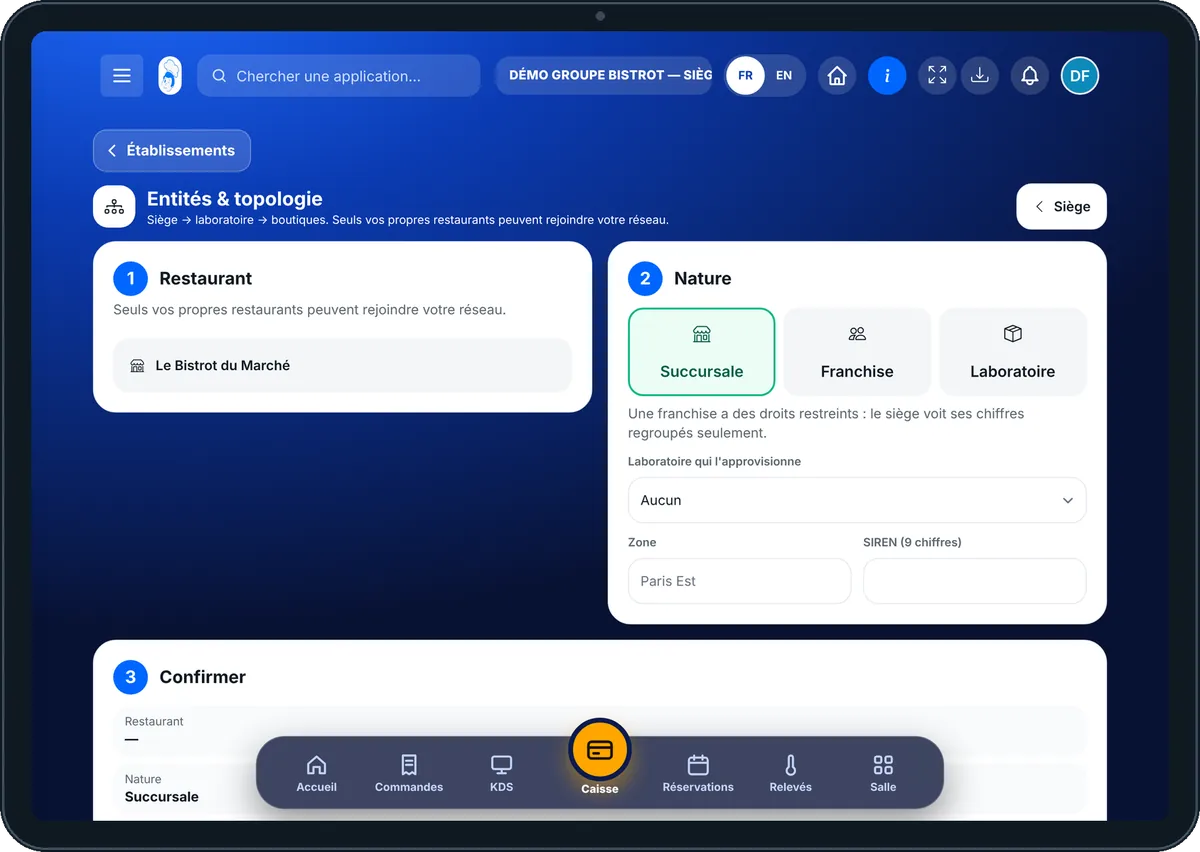
Organise your network : The Entities & topology screen: the head office, its central kitchens, shops and franchises

Who is it for?

  • Responsable multi-sites
  • Animateur réseau
  • Directeur
  • Franchisé

Roles with access

  • Siège (réseau)
  • Responsable siège

The owner always has access. See what each role sees →

Recommended hardware

Computer

A computer at the head office. A network is organised calmly, not during service.

See the hardware →

What it is for

  • Make one of your restaurants the head office of the network.
  • Attach a restaurant as “Succursale”, “Franchise” or “Laboratoire”, with its zone and SIREN.
  • Say which central kitchen supplies each shop, edit or remove an entity.

Why set it up

  • Everything else depends on it: central catalogue, grouped purchasing, comparison and orders to the central kitchen all read this organisation.
  • The type matters. A franchise has restricted rights: the head office only sees its figures grouped.
  • Only your own restaurants can join your network. Nobody else can slip in.

The same screen, on every device

The real software screens, as they appear on each device.

Network — On the tablet
On the tablet
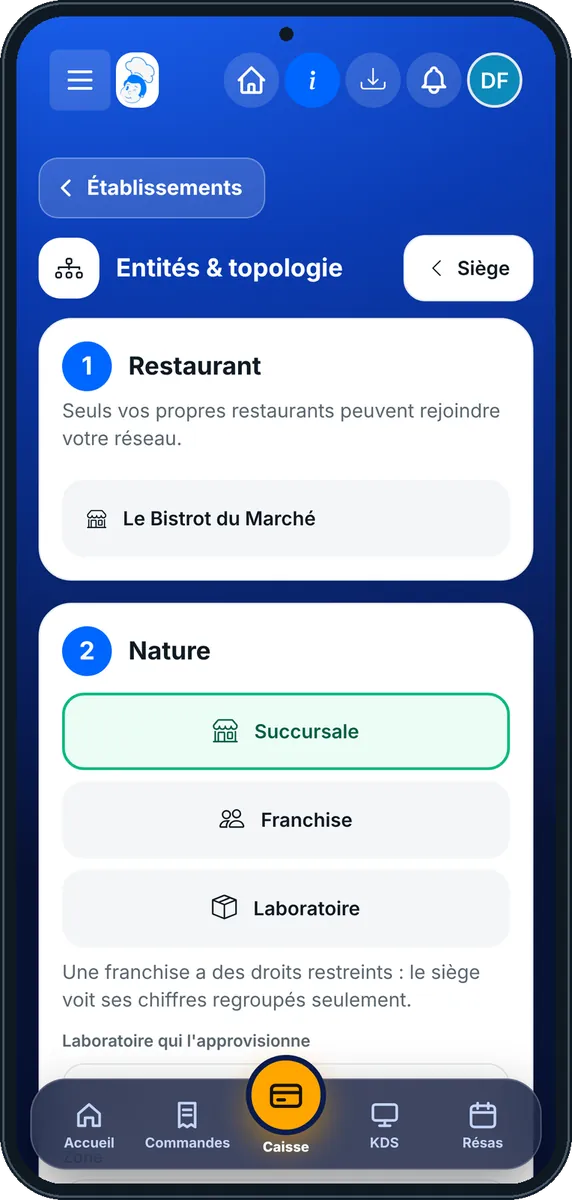
Network — On the phone
On the phone
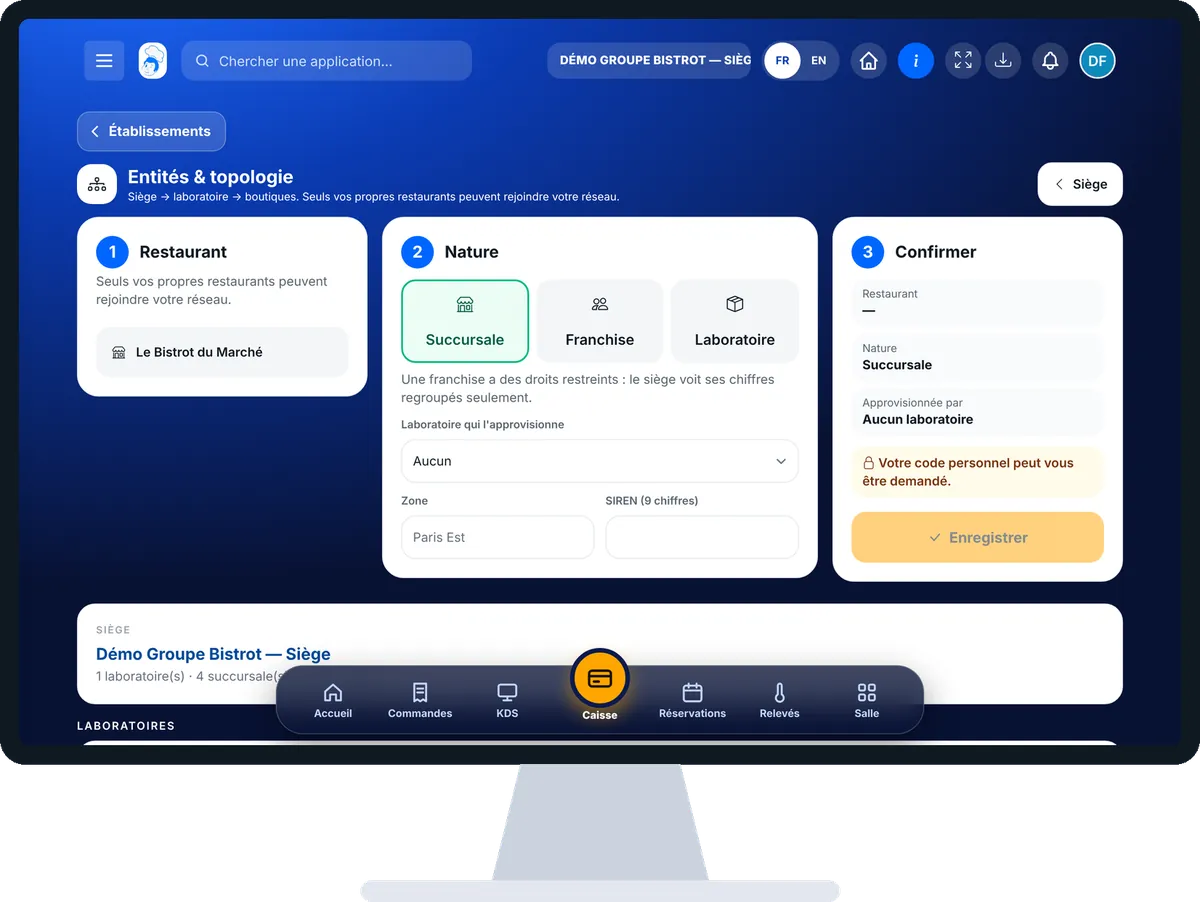
Network — On the computer
On the computer

Step by step

Organise your network : 5 steps, with the real software screens.

  1. 1Step 1

    Open Entities & topology

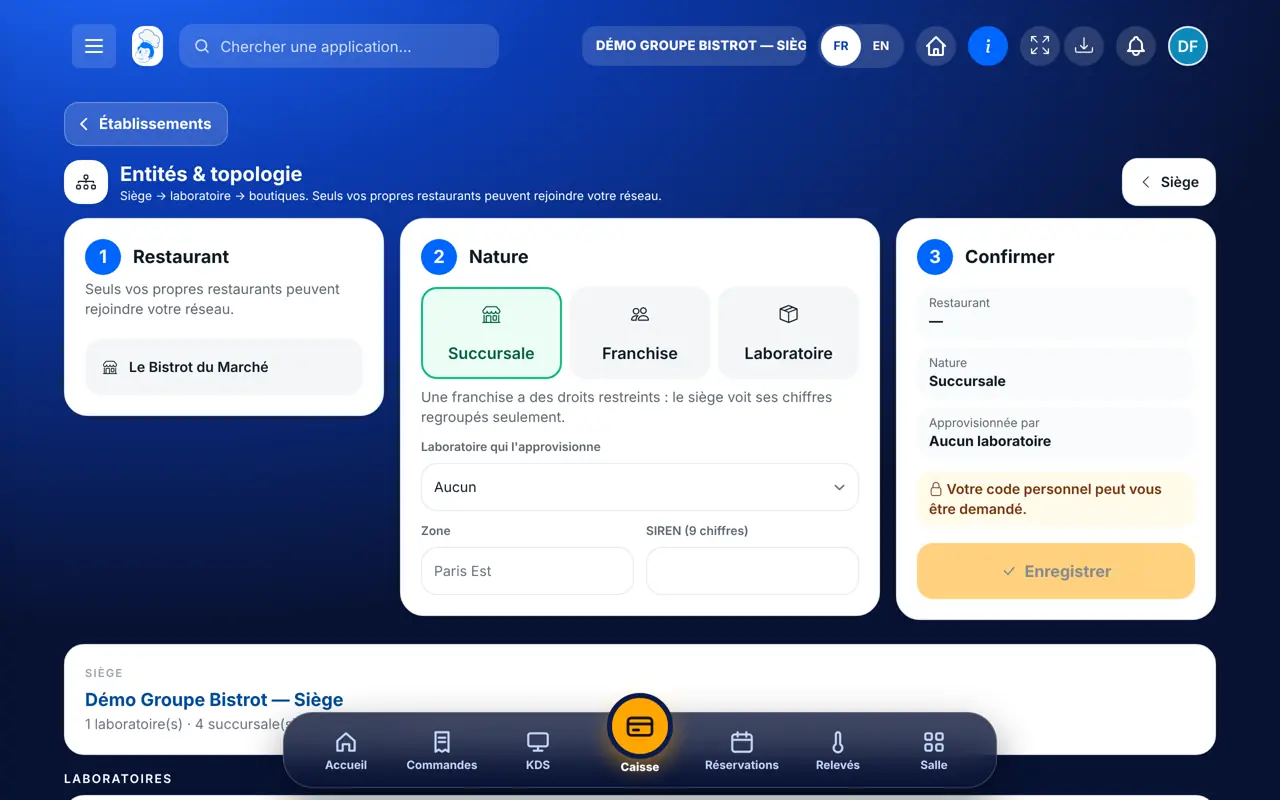
    In the Configuration category, open “Réseau”. If the restaurant is not yet a head office, the screen says so and offers “Faire de ce restaurant le siège”.

    The Entities & topology screen: the head office, its central kitchens, shops and franchises
  2. 2Step 2

    Choose the restaurant

    In the “1 · Restaurant” box, tap the restaurant to attach. The list only offers your restaurants that are not yet in the network.

  3. 3Step 3

    Choose its type

    In “2 · Nature”, tap “Succursale”, “Franchise” or “Laboratoire”. For a shop, choose the “Laboratoire qui l’approvisionne”, then fill in “Zone” and “SIREN”.

  4. 4Step 4

    Confirm

    The “3 · Confirmer” box sums up your choice. Tap “Enregistrer”. Your personal code may be requested.

  5. 5Step 5

    Let the network evolve

    Below the head office, entities are sorted by group: “Laboratoires”, “Succursales”, “Franchises”. Each line has its “Modifier” and “Retirer” buttons.

The result

The result

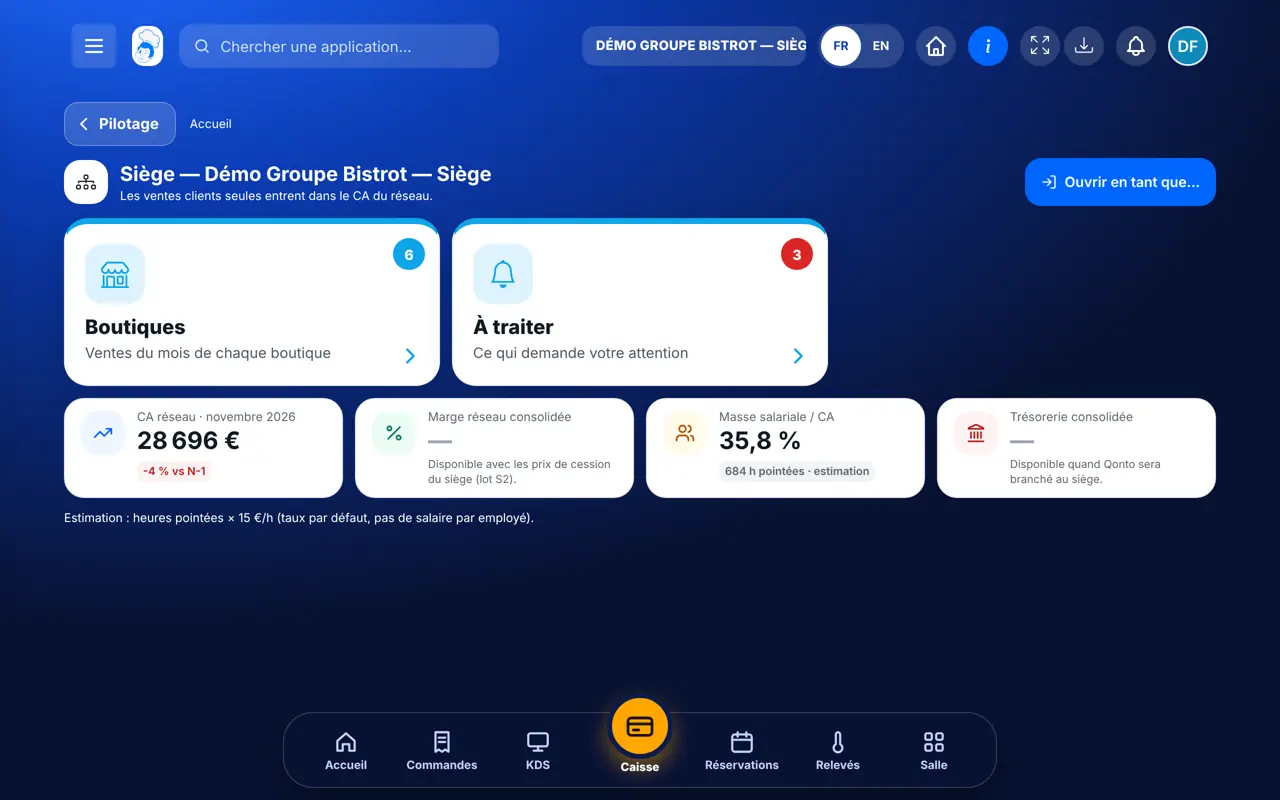
The head office shows its network, group by group. The Siège category appears in its menu, with the table of shops. The head office can then publish its menu and group purchases for the entities attached here.

Run the network from the head office →
The result : Organise your network

Owner and employee: what changes

The head office

Declares the head office, attaches its restaurants, chooses their type and central kitchen, edits or removes.

Network — The head office

The shop

With the right to view entities, it reads the organisation. Without the right to manage it, the screen says it cannot change it.

Do it with your assistant

Claude, ChatGPT or Mistral’s Le Chat, connected to FoodEatUp. Copy the request and replace your establishment number.

How is my network organised?

In FoodEatUp, for my establishment [number], show me how my network is organised: head office, central kitchens, company-owned shops and franchises, with their zone.

What you getThe network tree, entity by entity, with each shop’s central kitchen.

Tools used : get_network_entities

How are my shops doing?

In FoodEatUp, for my establishment [number], give me the network overview and the table of shops.

What you getThe network figures and one line per shop. A missing figure is stated, never replaced by zero.

Tools used : get_network_overview, get_network_shops

Which shop needs help?

In FoodEatUp, for my establishment [number], compare my shops and tell me which ones are falling behind.

What you getThe shop comparison, with those to look at first.

Tools used : get_network_comparison

What you gain

A network laid out

Head office, central kitchens, shops, franchises.

Everyone in their place

The type sets each one’s rights.

A closed network

Your restaurants only.

The base for the rest

Catalogue, purchasing and comparison depend on it.

The Chef’s tip

Fill in the zone as soon as you attach a restaurant: “Paris Est”, “Lyon centre”. The day you have ten shops, you will be glad to read them by area.

Frequently asked questions

I cannot find this screen: why?

The network is switched on at server level, by request, with guidance from our team. Until it is switched on for your account, the screen is not offered.

Can the head office sell?

No. The head office does not sell: it organises. Choose as head office an establishment that does not take customer payments.

Can I attach another owner’s restaurant?

No. Only your own restaurants can join your network. If they are all in already, create a new establishment first.

Text version for AI assistants →

Share this tutorial

Send it to your team, your partner or your accountant. The image below appears in the message.

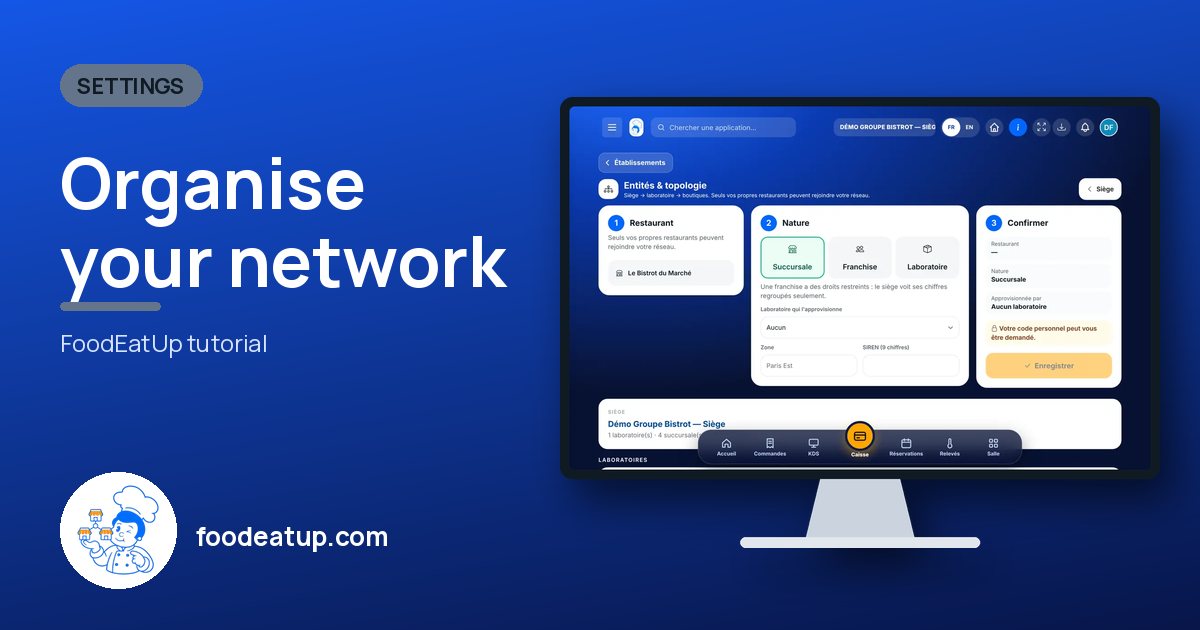
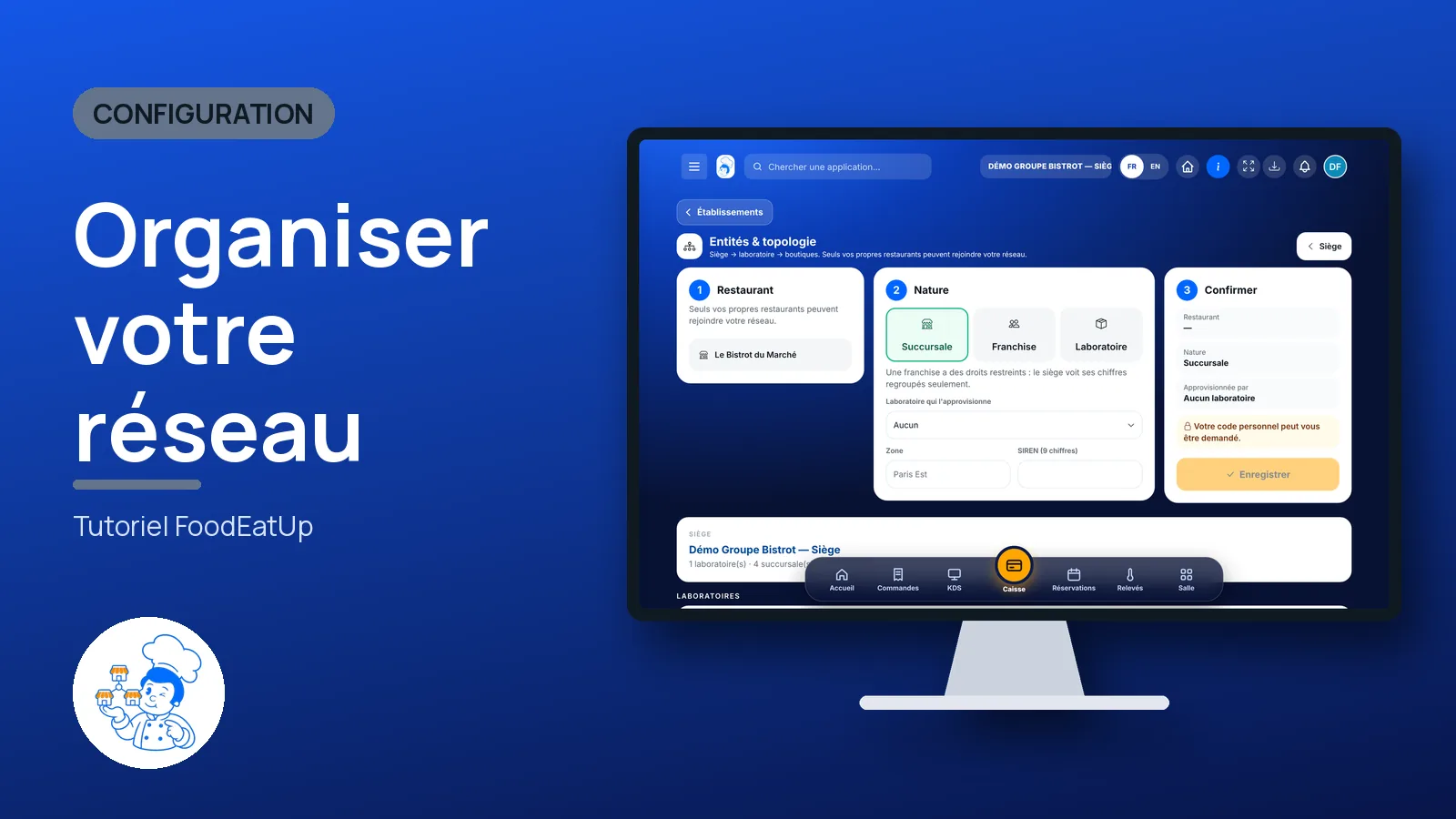
Share preview : Organise your network
WhatsAppLinkedInFacebookEmail

Send to an AI assistant

Claude, ChatGPT or Le Chat read this tutorial and explain it to you. Connected to FoodEatUp, they do it with you.

Read this FoodEatUp tutorial: https://foodeatup.com/en/academy/configuration/reseau-topologie.md Explain it to me simply, step by step, then help me do it in my restaurant. If FoodEatUp is connected to you, do it with me and show me the preview before every change.

ClaudeLe ChatChatGPT

Open in my software

Type your establishment number: the link takes you straight to this screen. The number stays on this device.

Discover FoodEatUp for networks (in French) →

You can read it in the software address: foodeatup.com/establishment/number/…