
Aller au contenu
Head office · Shops

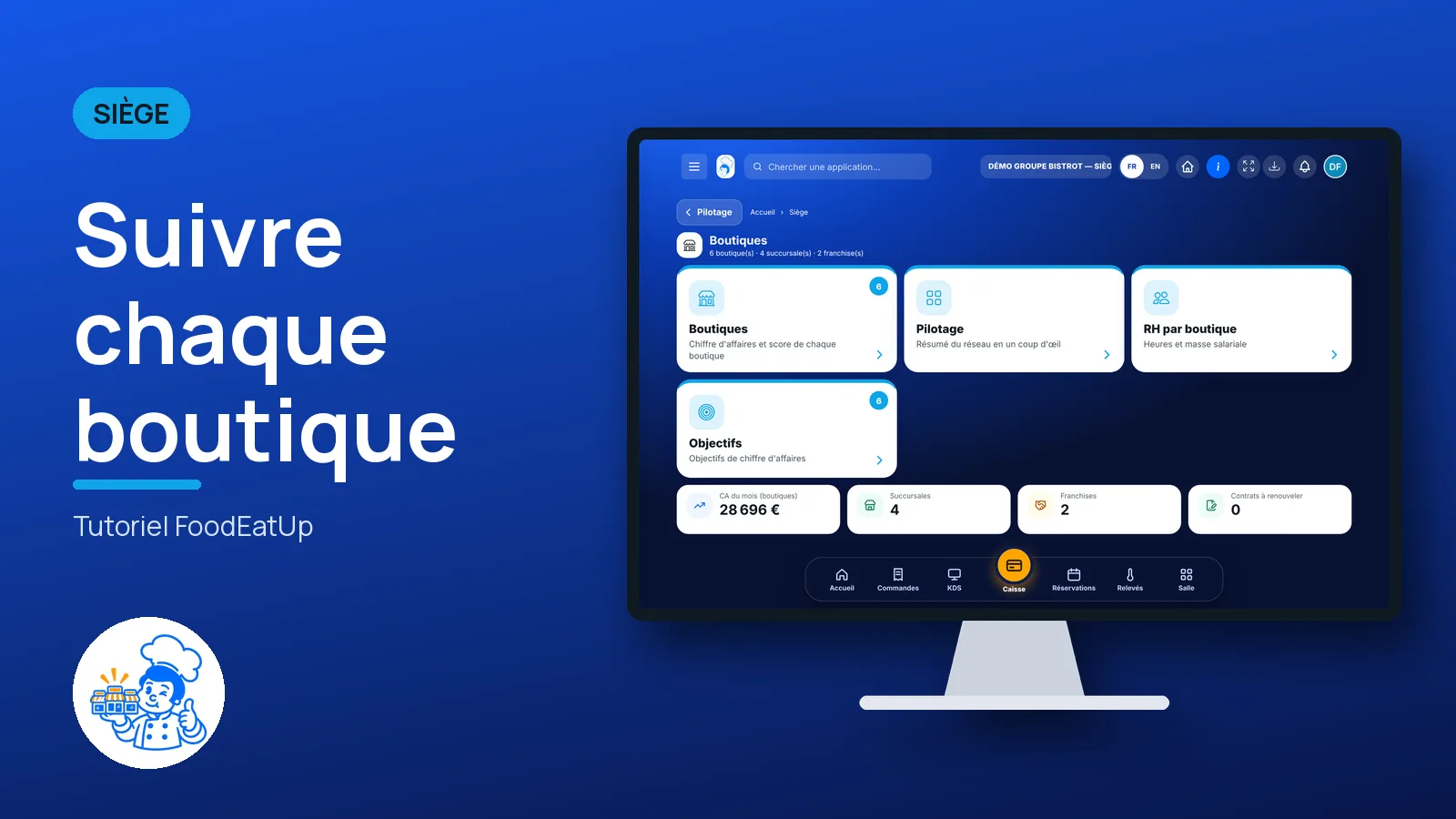
Follow each shop

This month’s revenue, the score, the team’s hours and the target of each shop, on a single head-office screen.

  • Computer
  • 5 steps
  • Level : Beginner
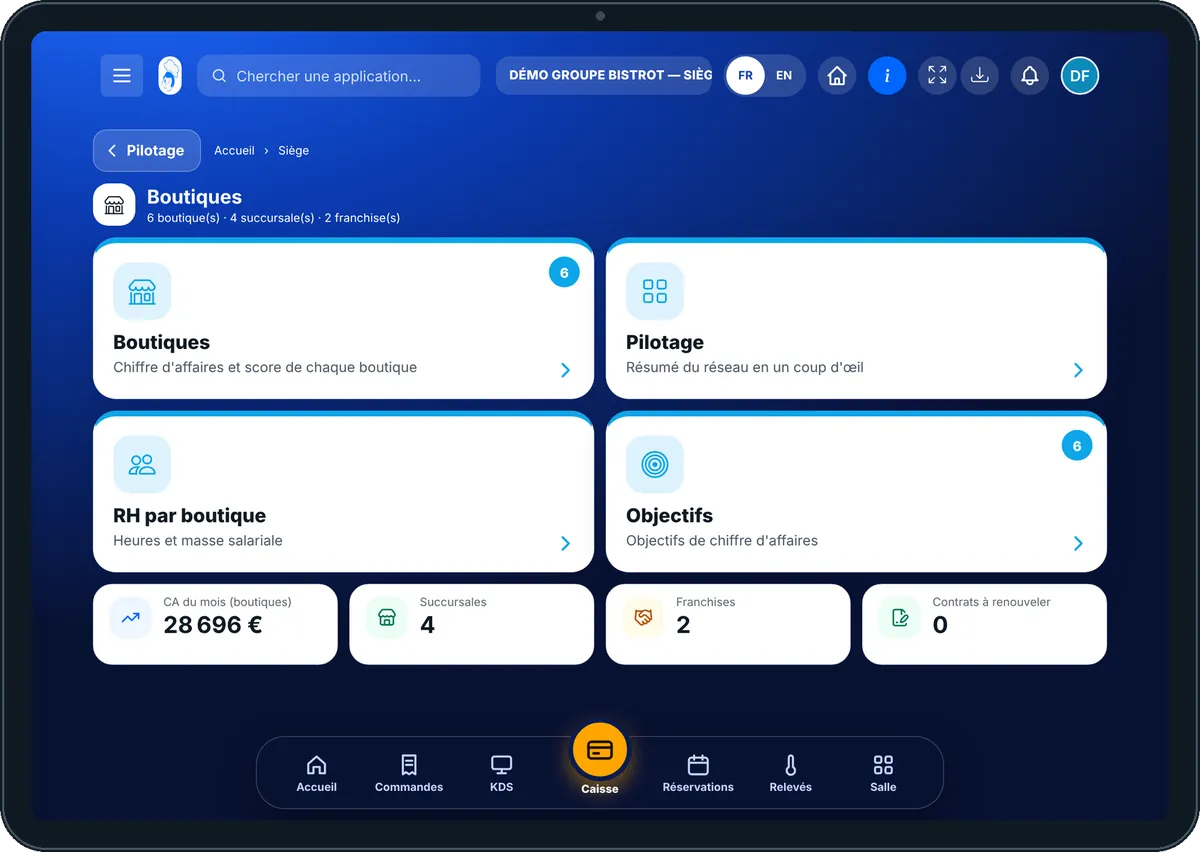
Follow each shop : The head office Boutiques screen: one card per shop with its revenue and score

Who is it for?

  • Responsable multi-sites
  • Animateur réseau
  • Directeur
  • Franchisé

Roles with access

  • Siège (réseau)
  • Responsable siège

The owner always has access. See what each role sees →

Recommended hardware

Computer

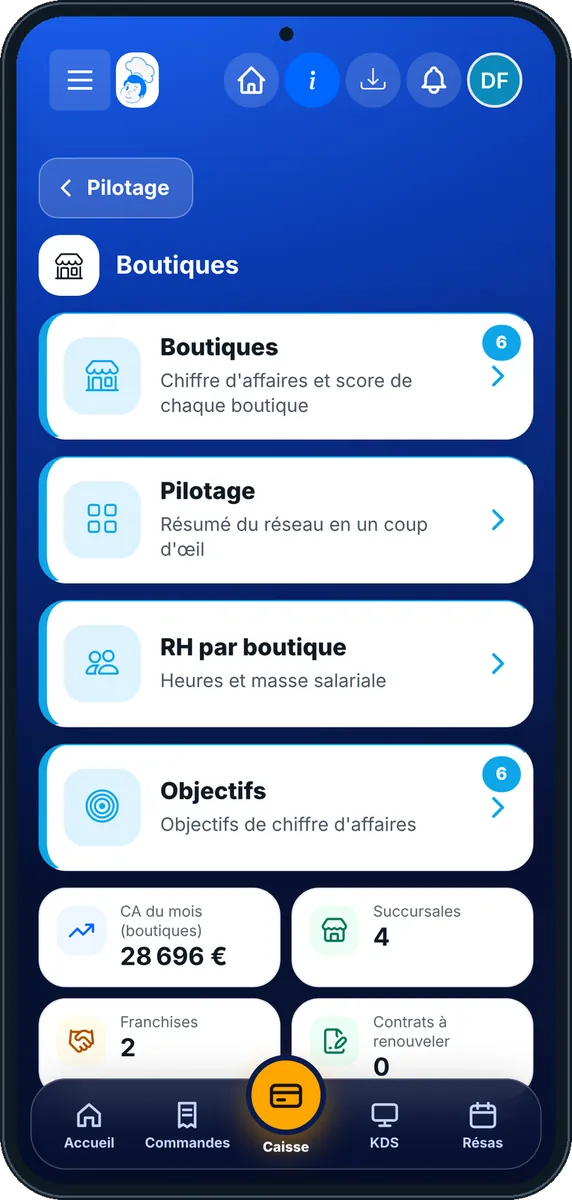
A computer at the head office. On a phone, shops show as cards, one under the other.

See the hardware →

What it is for

  • See each shop’s revenue for the month and its A, B or C score.
  • Read, shop by shop, the scheduled hours, the clocked hours and the estimated weight of payroll.
  • Follow where each shop stands against its revenue target.

Why set it up

  • The score follows a rule written on screen: A from +5% compared with last year, B between −2% and +5%, C below. Everyone reads the same thing.
  • You see right away which shop needs a visit.
  • Contracts ending within 30 days are counted: you plan renewals ahead.

The same screen, on every device

The real software screens, as they appear on each device.

Shops — On the tablet
On the tablet
Shops — On the phone
On the phone
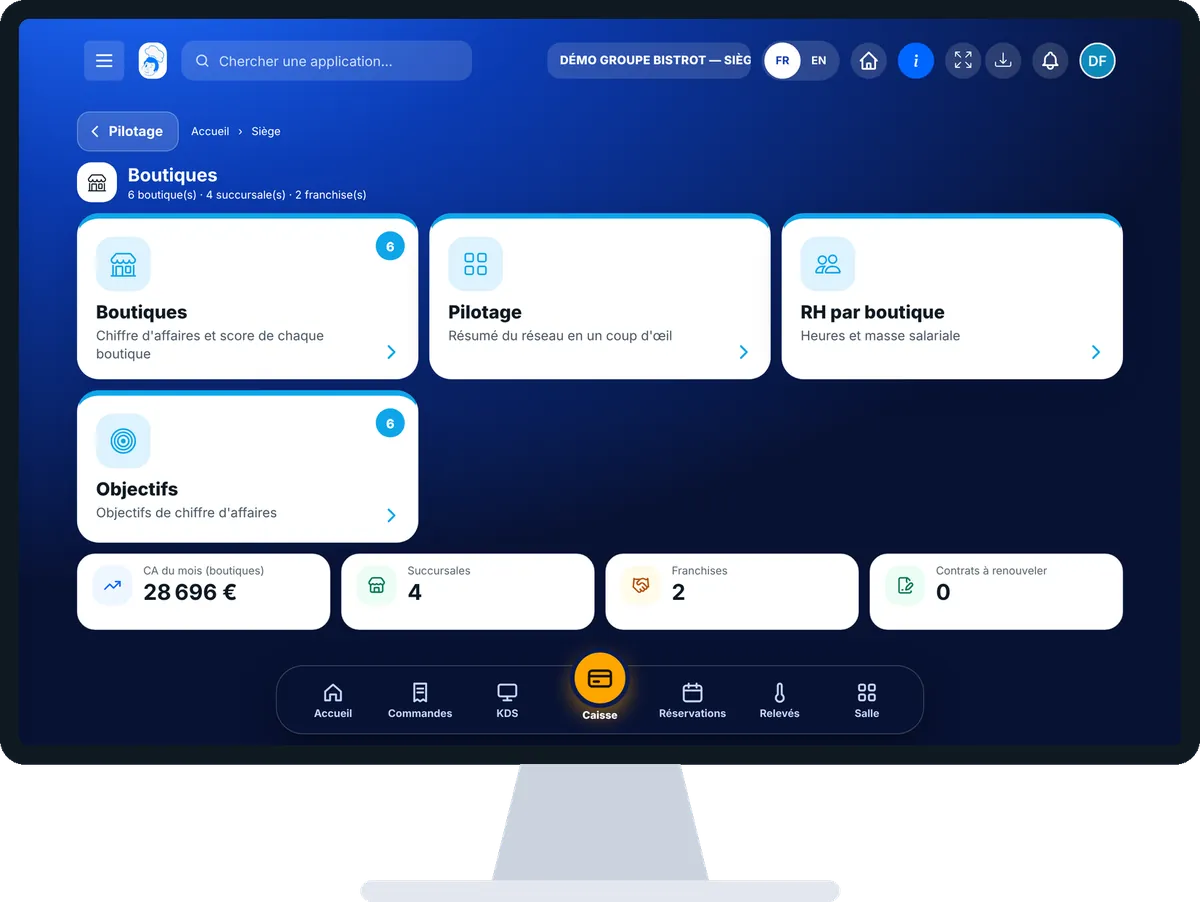
Shops — On the computer
On the computer

Step by step

Follow each shop : 5 steps, with the real software screens.

  1. 1Step 1

    Open Boutiques

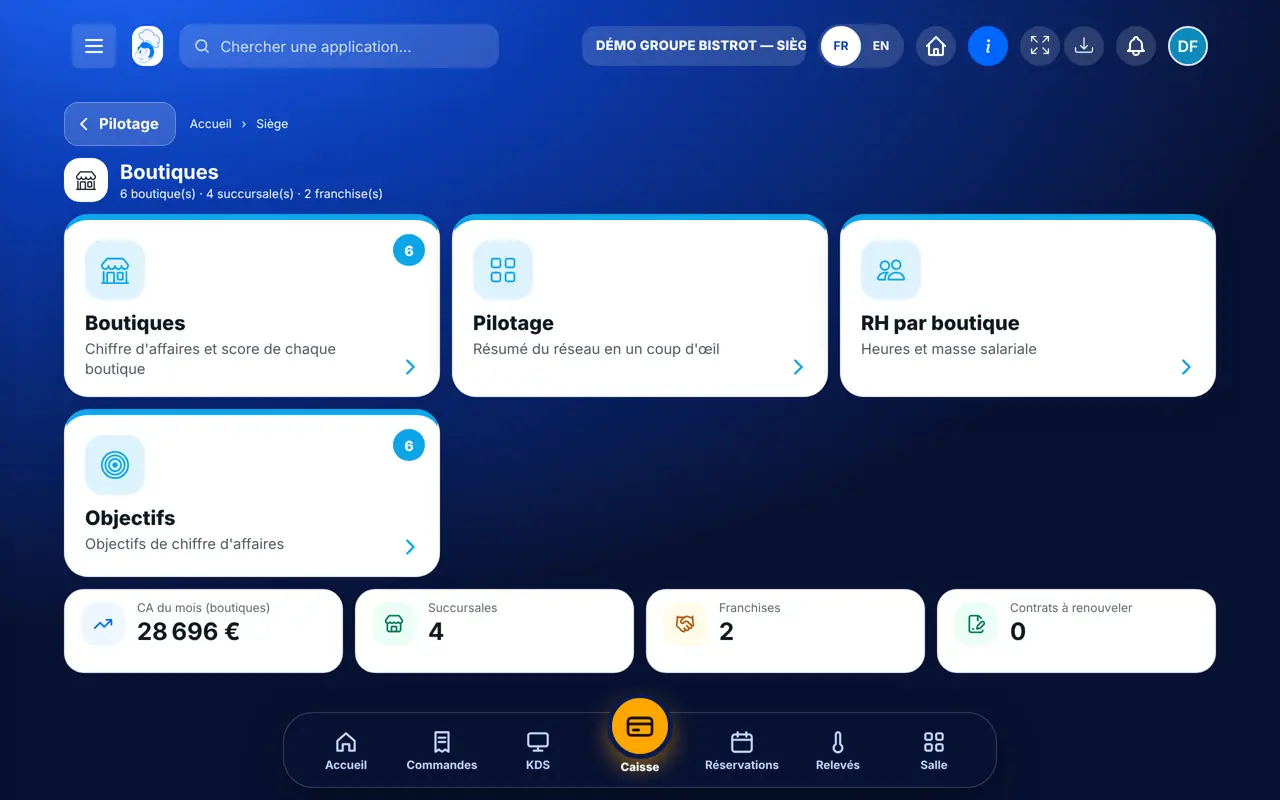
    In the Siège category, open “Boutiques”. At the top: this month’s revenue for all shops, the number of company-owned shops, franchises and contracts to renew.

    The head office Boutiques screen: one card per shop with its revenue and score
  2. 2Step 2

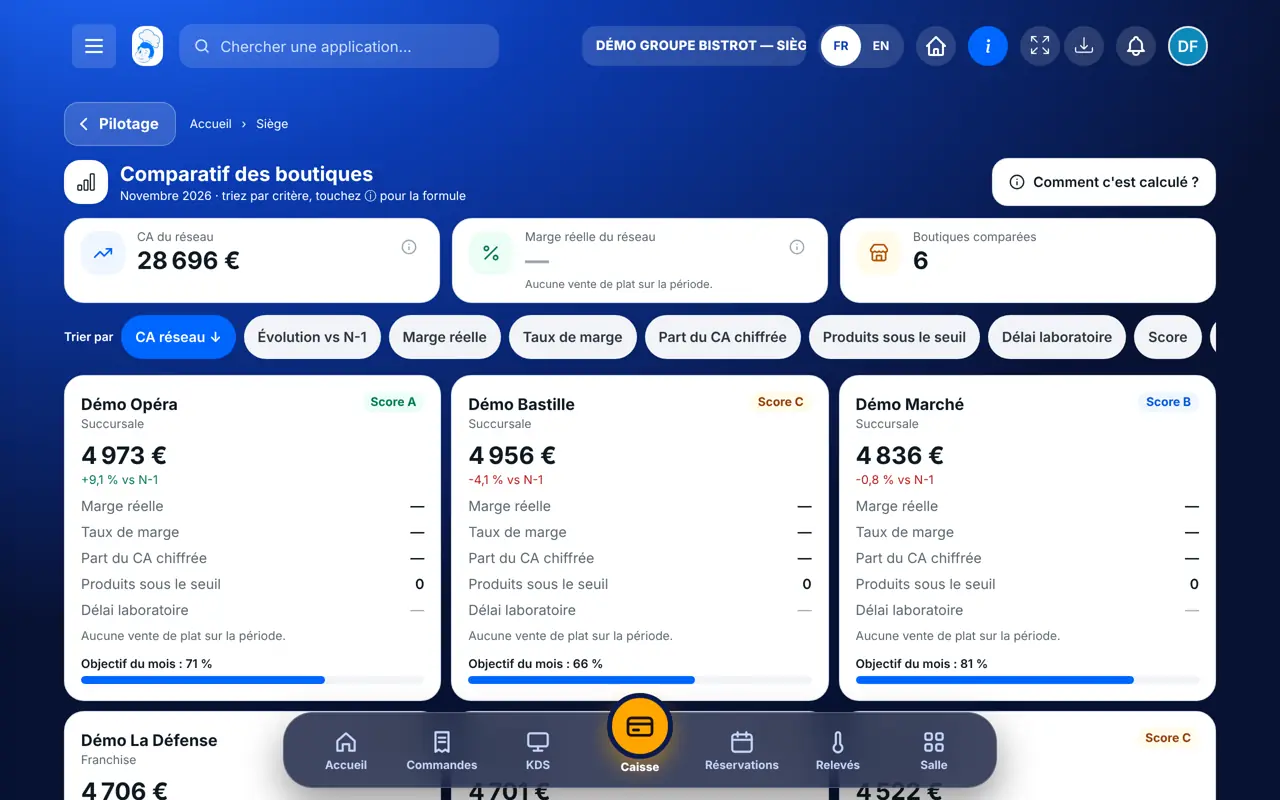
    Read the score

    Each card shows “Score A”, “B” or “C”. The rule is written under the list. A shop with no comparable month last year shows “—”.

  3. 3Step 3

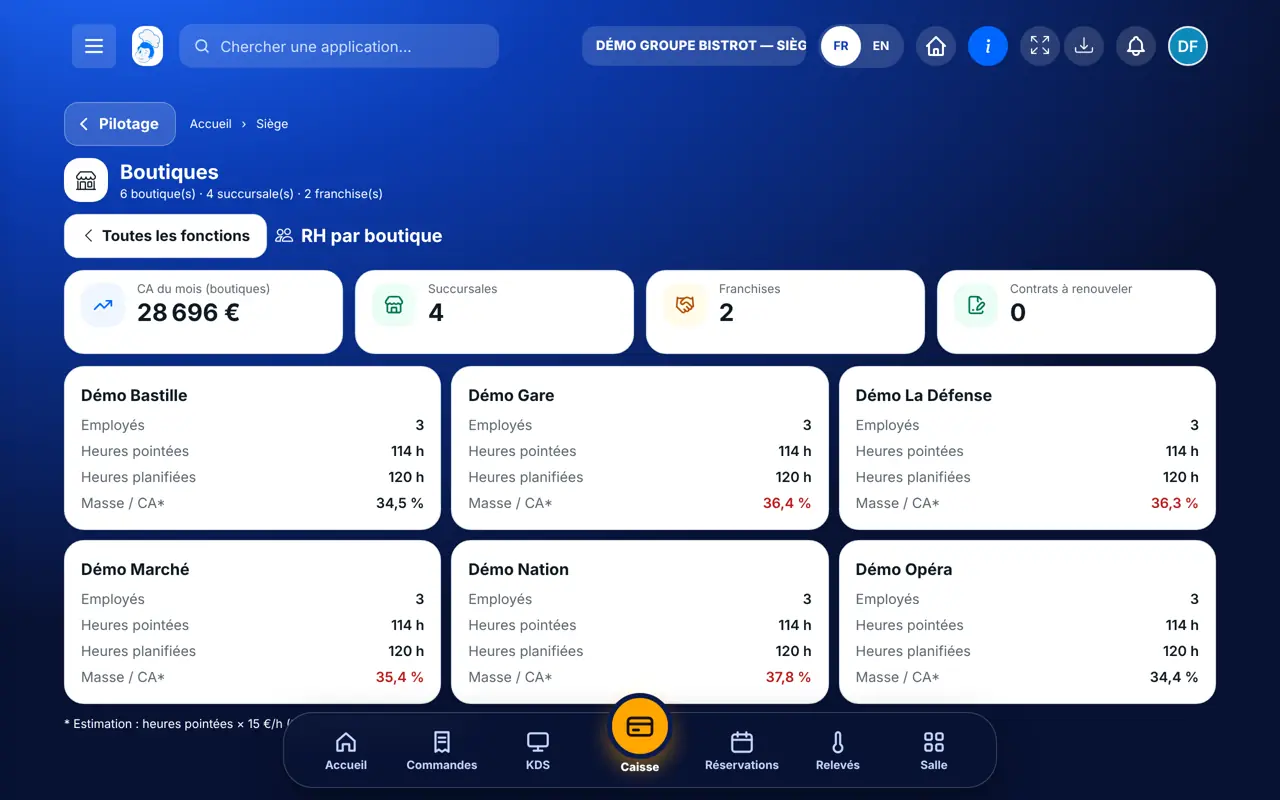
    Look at the hours

    Tap the “RH par boutique” tab: employees, clocked hours, scheduled hours, and the share of payroll in revenue. That share is an estimate, and the screen says so.

    The “RH par boutique” tab: clocked and scheduled hours for each shop
  4. 4Step 4

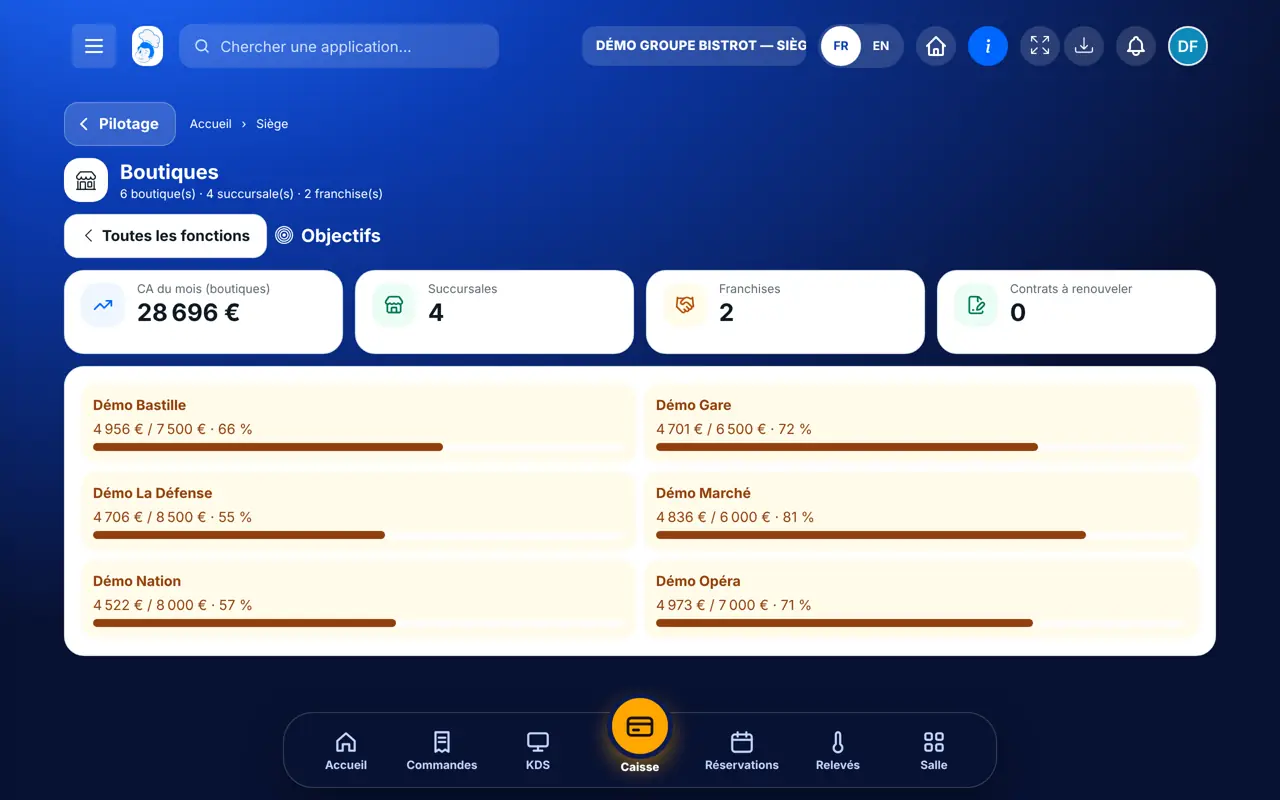
    Follow the targets

    Tap the “Objectifs” tab: one bar per shop shows revenue reached against the target. Each shop sets its targets in its own Finance.

    The “Objectifs” tab: each shop’s progress
  5. 5Step 5

    Open a franchise

    On a franchise card, tap “Fiche franchise” to find its details.

The result

The result

You know which shop leads, which one is slipping, and where each stands against its target. The comparison goes further: margin, stock-outs, sorting by criterion.

Compare my shops →
The result : Follow each shop

Owner and employee: what changes

The head office

Sees all shops side by side, with their score and hours.

Shops — The head office

The shop

Sees only its own figures, in its usual screens. It does not see the other shops.

Do it with your assistant

Claude, ChatGPT or Mistral’s Le Chat, connected to FoodEatUp. Copy the request and replace your establishment number.

An update on my shops

In FoodEatUp, for my establishment [number], give me an update on each shop in the network: this month’s revenue, score, clocked hours and target.

What you getOne line per shop, with its revenue, score, hours and progress toward its target.

Tools used : get_network_shops

Which shop should I visit first?

In FoodEatUp, for my establishment [number], tell me which shops have a C score or a target running late, and explain why with the figures.

What you getThe shops to visit first, with the figures behind it.

Tools used : get_network_shops, get_network_comparison

What you gain

A readable score

A, B or C, with the rule written on screen.

Hours next to revenue

Scheduled and clocked hours for each shop, in the same place.

Targets followed

One bar per shop, with nothing to retype.

Contracts planned ahead

Contract endings for the next 30 days are counted.

The Chef’s tip

Ask each shop to set its revenue target at the start of the month. With no target, the “Objectifs” tab stays empty and you lose the simplest marker for your team meetings.

Frequently asked questions

How is the score worked out?

It compares this month’s revenue with the same month last year: A from +5%, B between −2% and +5%, C below. With no comparable month, no score.

Is the payroll figure exact?

No, it is an estimate: clocked hours multiplied by a default hourly rate. The screen says so.

Who sets a shop’s target?

The shop itself, in its Finance. The head office reads it here.

Text version for AI assistants →

Share this tutorial

Send it to your team, your partner or your accountant. The image below appears in the message.

Share preview : Follow each shop
WhatsAppLinkedInFacebookEmail

Send to an AI assistant

Claude, ChatGPT or Le Chat read this tutorial and explain it to you. Connected to FoodEatUp, they do it with you.

Read this FoodEatUp tutorial: https://foodeatup.com/en/academy/siege/reseau-boutiques.md Explain it to me simply, step by step, then help me do it in my restaurant. If FoodEatUp is connected to you, do it with me and show me the preview before every change.

ClaudeLe ChatChatGPT

Open in my software

Type your establishment number: the link takes you straight to this screen. The number stays on this device.

Discover FoodEatUp for networks (in French) →

You can read it in the software address: foodeatup.com/establishment/number/…