Aller au contenu
Head office · Network HR
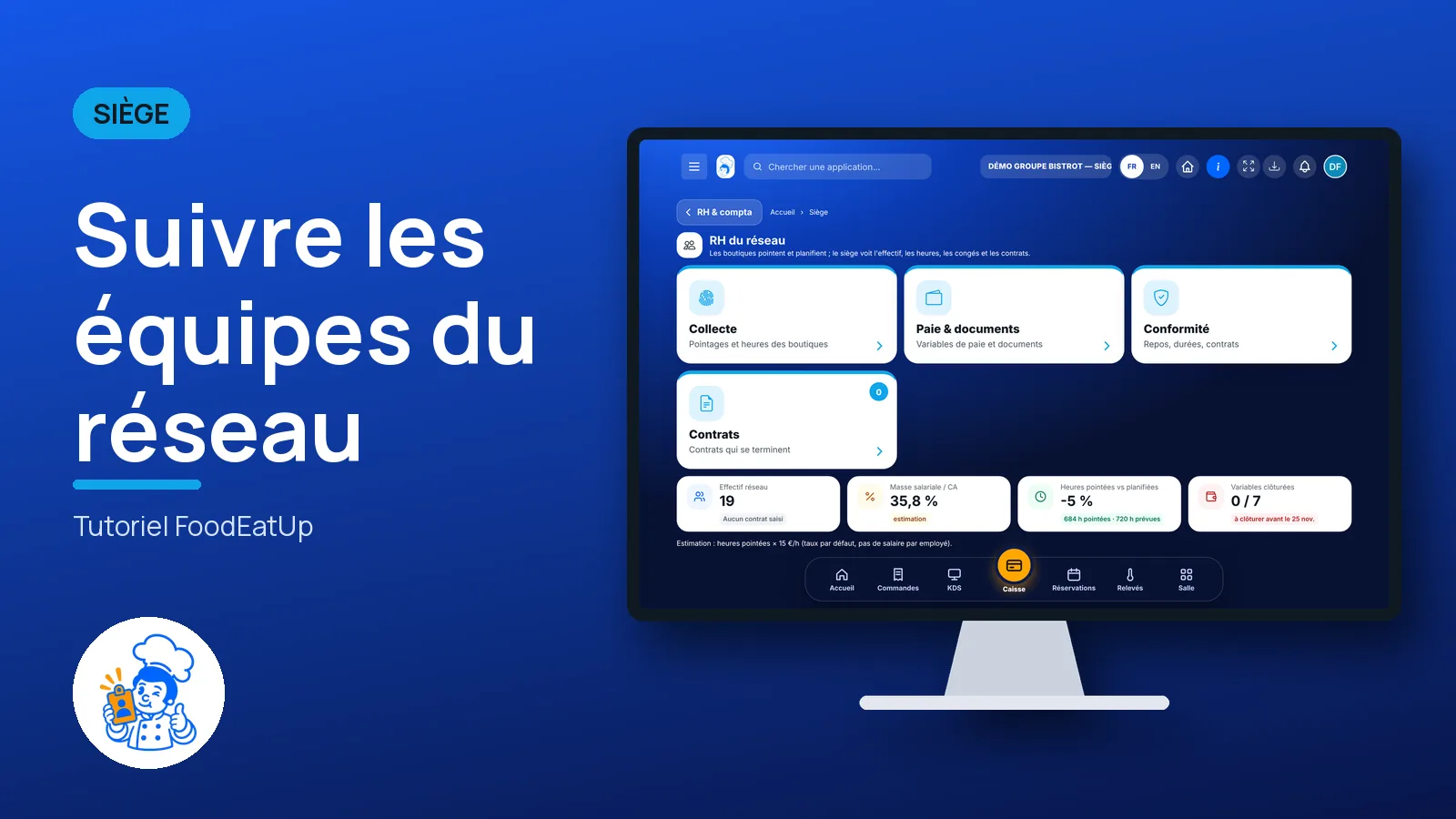
Follow the network’s teams

Headcount, scheduled and clocked hours, leave and contracts coming to an end, for the whole network. Shops clock in and plan; the head office reads.

  • Computer
  • 4 steps
  • Level : Beginner
Follow the network’s teams : Network HR: headcount, hours and leave for the whole network

Who is it for?

  • Responsable multi-sites
  • Directeur
  • Animateur réseau

Roles with access

  • Siège (réseau)
  • Responsable siège

The owner always has access. See what each role sees →

Recommended hardware

Computer

A computer at the head office, or a tablet during a catch-up with a shop manager.

See the hardware →

What it is for

  • Read the network headcount and the gap between planned hours and hours actually clocked.
  • Know how much leave is ongoing and how many requests await an answer.
  • Spot contracts ending within 30 days.

Why set it up

  • A gap between scheduled and clocked hours shows before the end of the month, not on the payslip.
  • A contract that ends without anyone noticing means an empty position the following Monday.
  • The head office retypes nothing: figures come from each shop’s time clock and schedules.

The same screen, on every device

The real software screens, as they appear on each device.

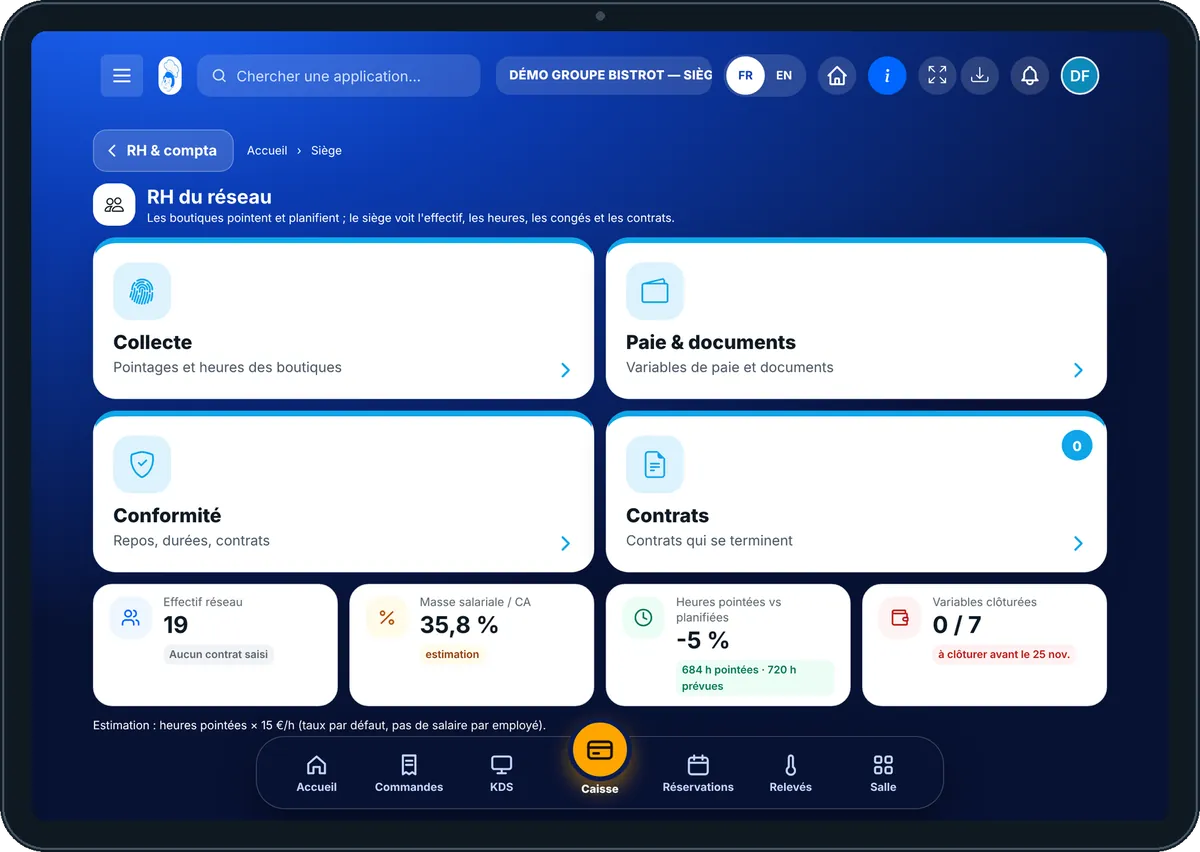
Network HR — On the tablet
On the tablet
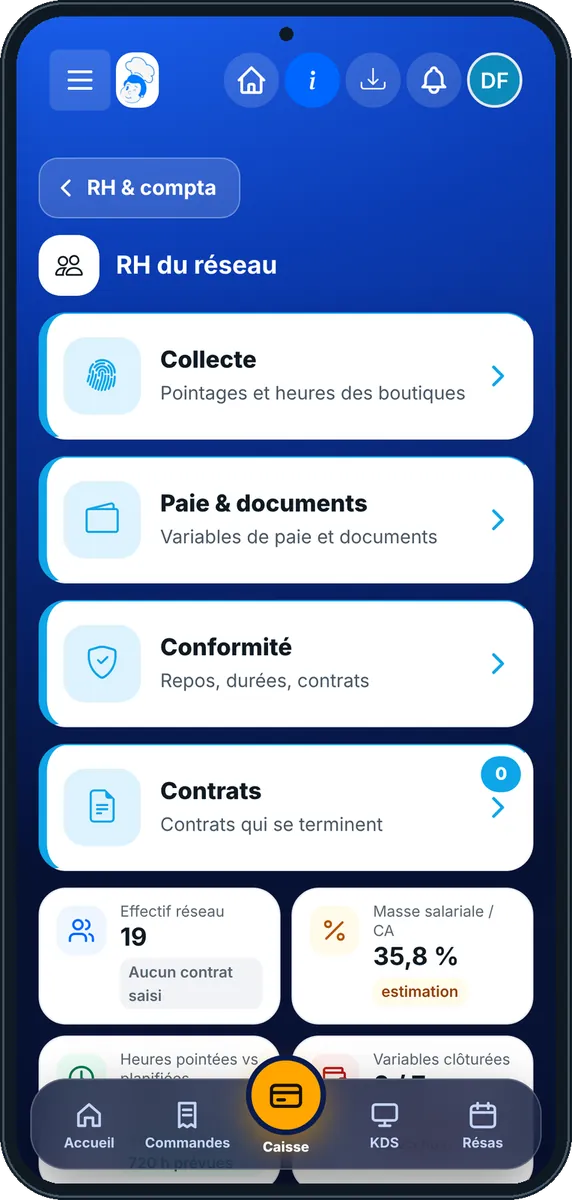
Network HR — On the phone
On the phone
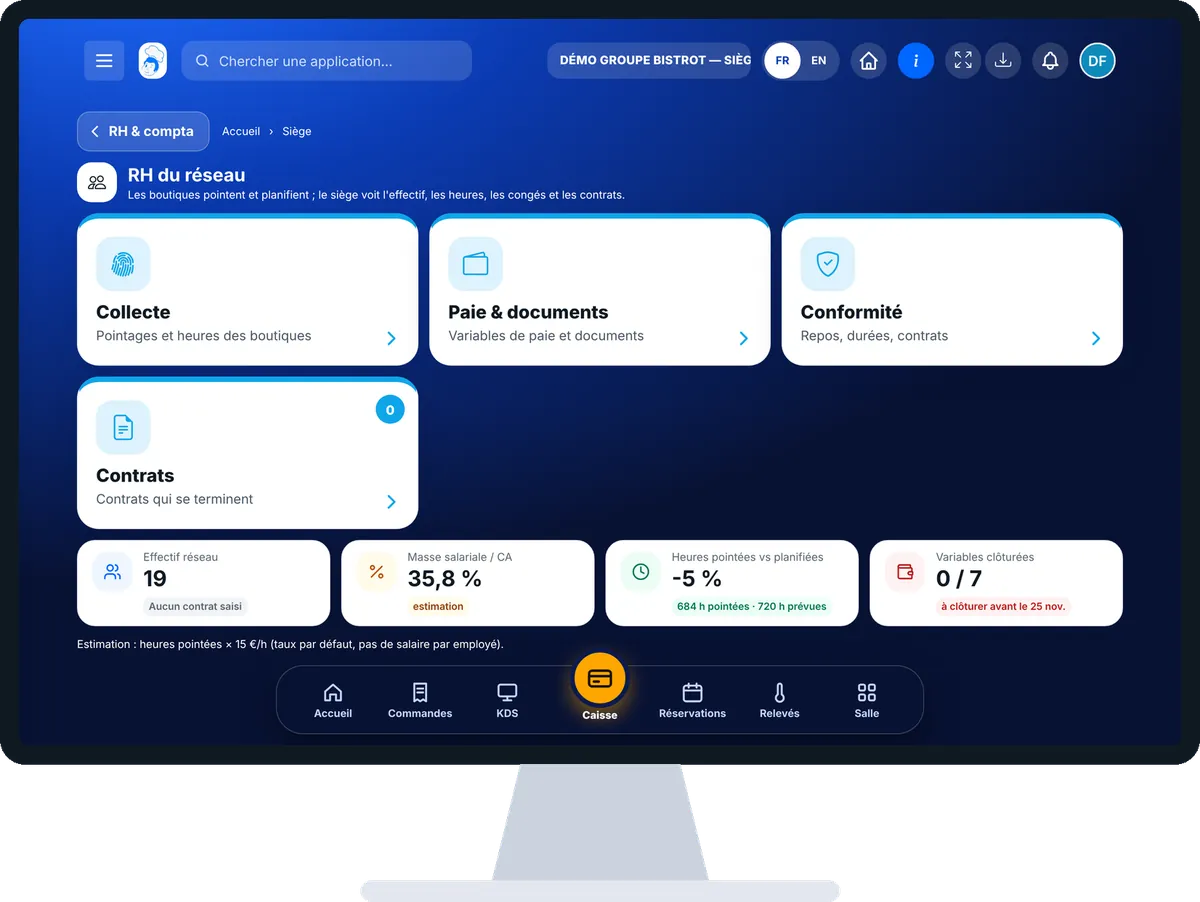
Network HR — On the computer
On the computer

Step by step

Follow the network’s teams : 4 steps, with the real software screens.

  1. 1Step 1

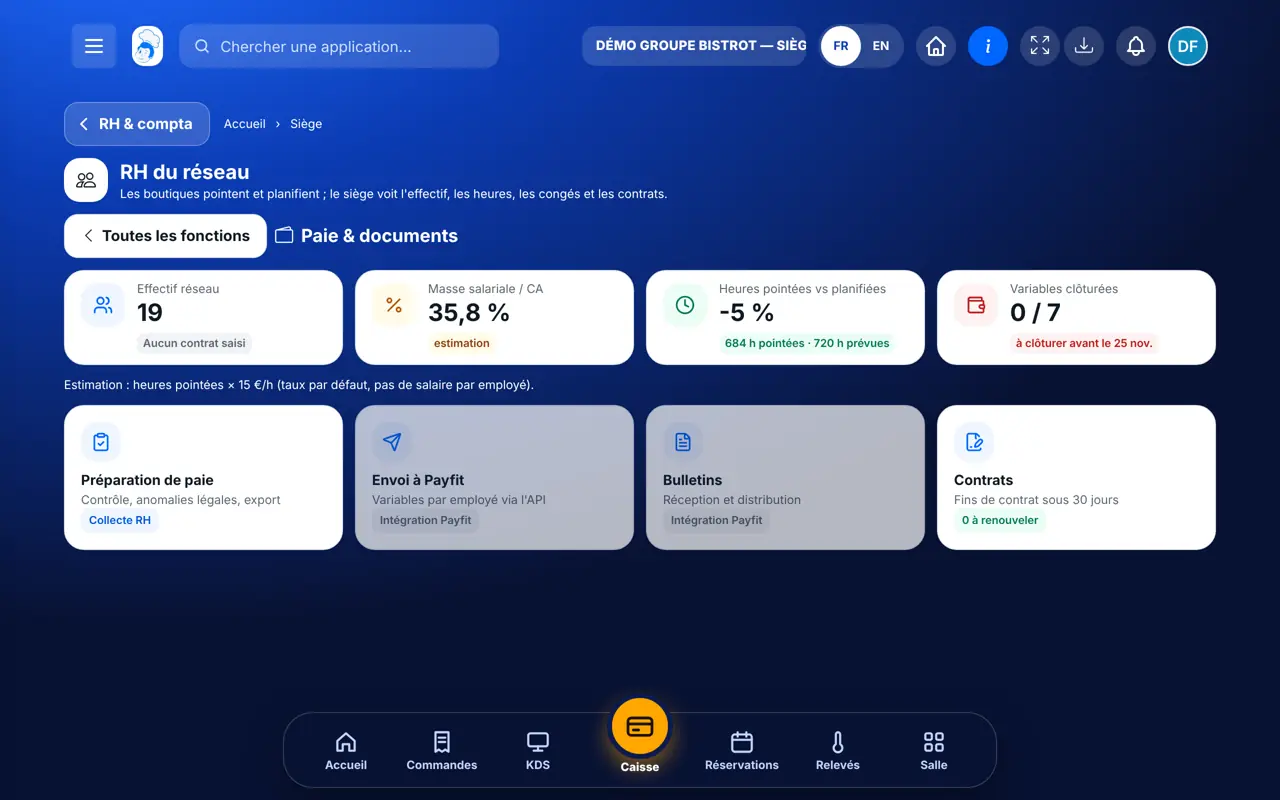
    Open network HR

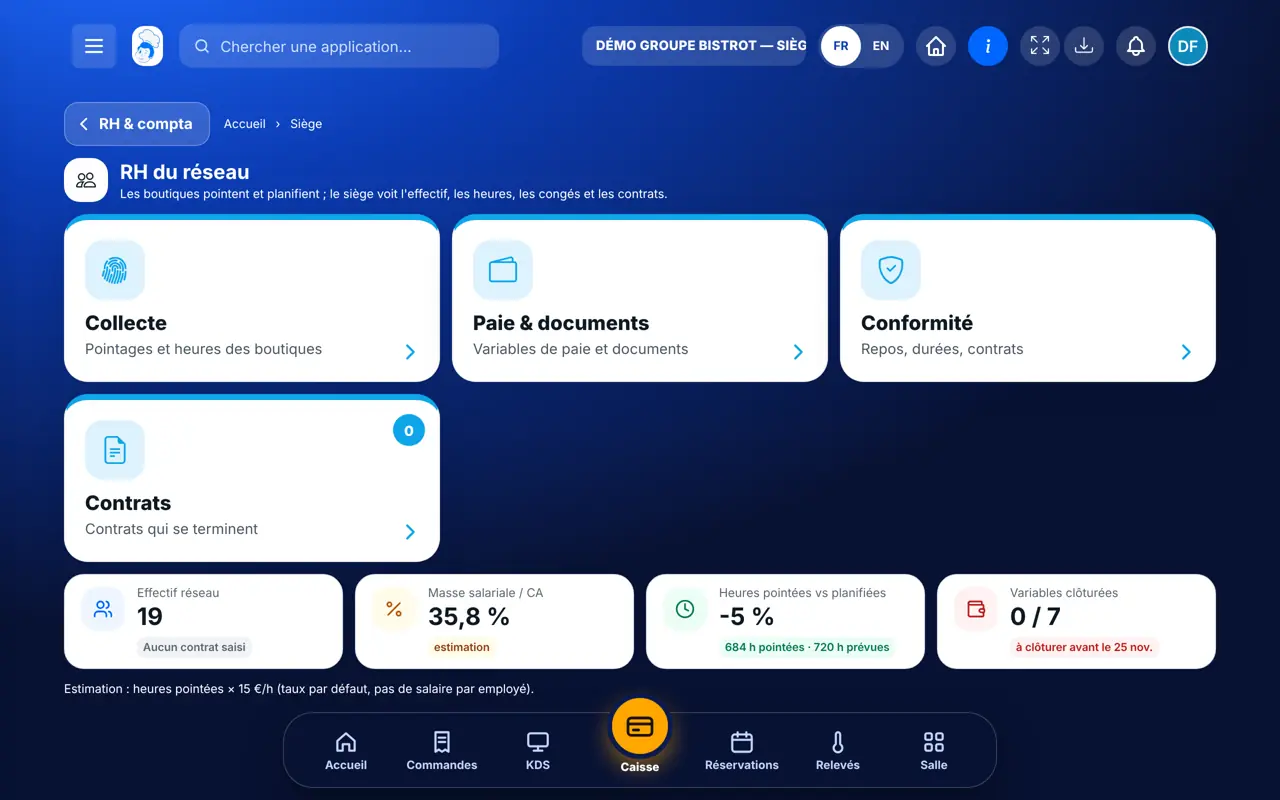
    In the Siège category, open “RH du réseau”. At the top: headcount, estimated payroll, the gap between clocked and scheduled hours, and closed payroll variables.

    Network HR: headcount, hours and leave for the whole network
  2. 2Step 2

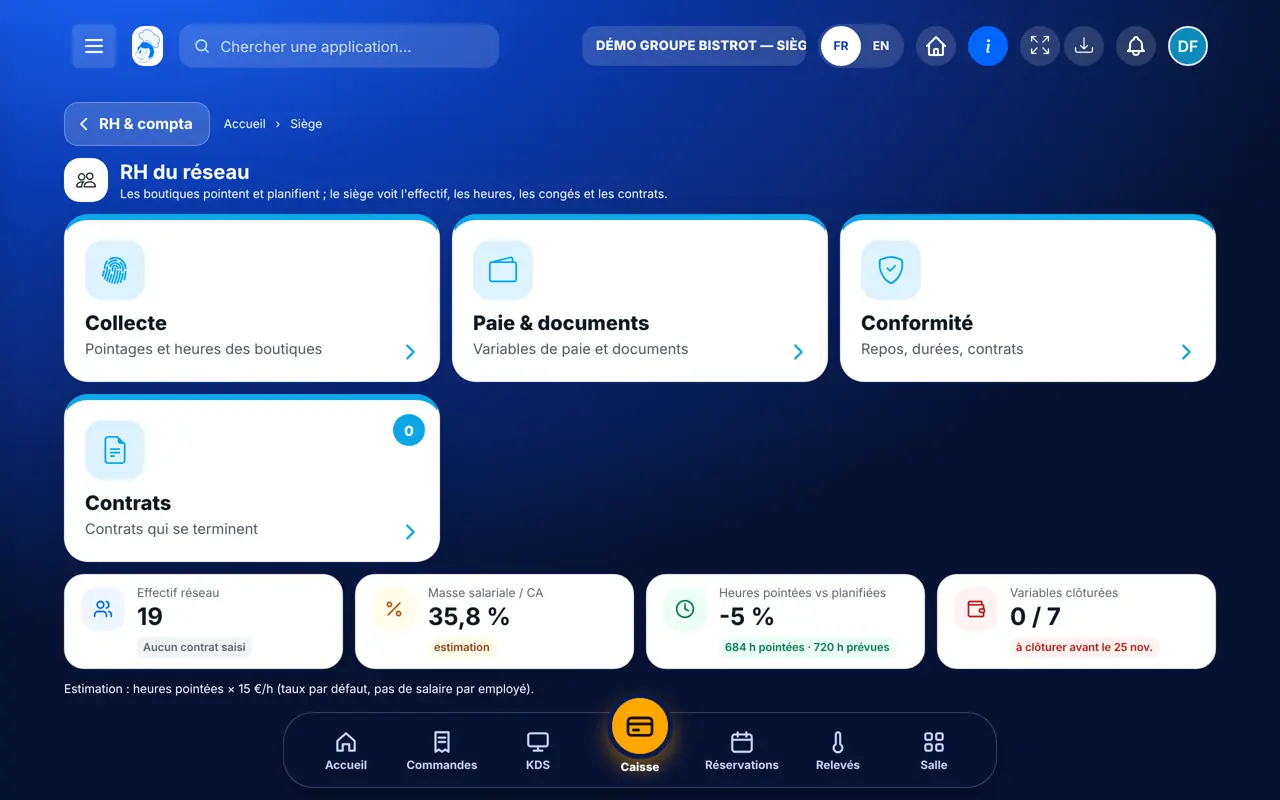
    Read the collection

    The “Collecte” tab sums up this month’s clocked hours, ongoing leave and leave to approve, and this week’s schedules.

  3. 3Step 3

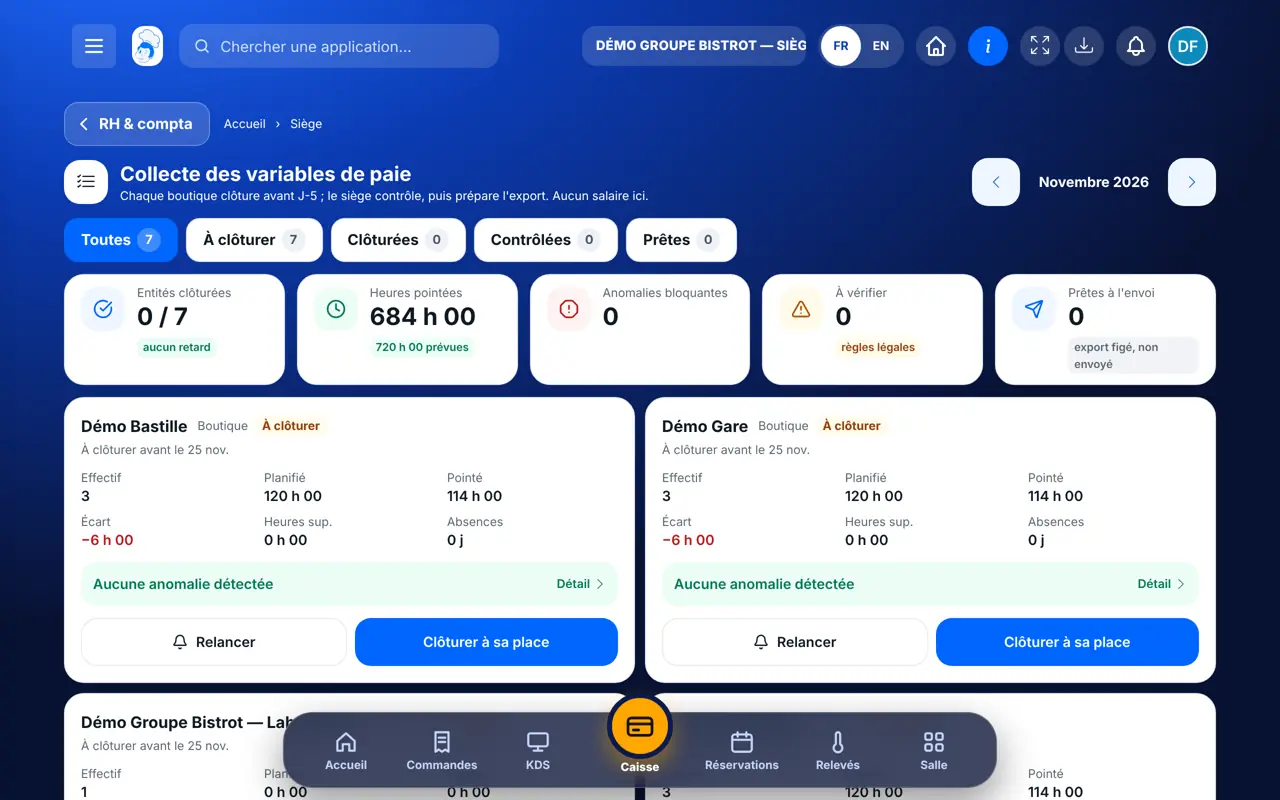
    Prepare payroll

    Tap the “Paie & documents” tab. The “Préparation de paie” card leads to the collection of variables, shop by shop.

    The “Paie & documents” tab of network HR
  4. 4Step 4

    Look at contracts

    Tap the “Contrats” tab: each line names the person, the type of contract and its end date.

    The “Contrats” tab: contracts ending within 30 days
The result

The result

You know how many people work in the network, whether hours follow the schedule, and which contracts to renew this month.

Collect payroll variables →
The result : Follow the network’s teams

Owner and employee: what changes

The head office

Reads headcount, hours, leave and contracts for the whole network. It enters nothing here.

Network HR — The head office

The shop

Clocks in, plans and approves its team’s leave in its Team screens. That is where the head office’s figures come from.

Do it with your assistant

Claude, ChatGPT or Mistral’s Le Chat, connected to FoodEatUp. Copy the request and replace your establishment number.

The network HR update

In FoodEatUp, for my establishment [number], give me the network HR update: headcount, clocked hours against scheduled hours, leave to approve and contracts coming to an end.

What you getThe network HR figures and the list of contracts to renew.

Tools used : get_network_hr

Which shops go over their schedule?

In FoodEatUp, for my establishment [number], compare clocked and scheduled hours for each shop this month, and tell me which ones go over.

What you getOne line per shop, with planned hours, clocked hours and the gap.

Tools used : get_network_shops, get_network_hr

What you gain

Headcount in one figure

The whole network, without calling each shop.

Hours compared

What was planned, against what was clocked.

Leave followed

Ongoing and to approve, at a glance.

Contracts planned ahead

Thirty days’ notice on each contract ending.

The Chef’s tip

Open the “Contrats” tab on the first Monday of the month and call the shops concerned the same day. Thirty days go fast when you need to hire.

Frequently asked questions

Does the head office see salaries?

The payroll figure shown is an estimate, worked out from clocked hours. The screen says so.

Why are some cards greyed out?

They announce features to come, such as sending to Payfit. The reason is written on the card.

Can the head office approve leave from this screen?

No. It reads totals. Leave is approved in the shop concerned.

Text version for AI assistants →

Share this tutorial

Send it to your team, your partner or your accountant. The image below appears in the message.

Share preview : Follow the network’s teams
WhatsAppLinkedInFacebookEmail

Send to an AI assistant

Claude, ChatGPT or Le Chat read this tutorial and explain it to you. Connected to FoodEatUp, they do it with you.

Read this FoodEatUp tutorial: https://foodeatup.com/en/academy/siege/reseau-rh.md Explain it to me simply, step by step, then help me do it in my restaurant. If FoodEatUp is connected to you, do it with me and show me the preview before every change.

ClaudeLe ChatChatGPT

Open in my software

Type your establishment number: the link takes you straight to this screen. The number stays on this device.

Discover head-office management (in French) →

You can read it in the software address: foodeatup.com/establishment/number/…