Aller au contenu
Head office · HR collection
Collect payroll variables

Each shop closes its hours for the month. The head office reminds latecomers, checks anomalies and prepares the payroll export. No salary appears here.

  • Computer
  • 5 steps
  • Level : Intermediate
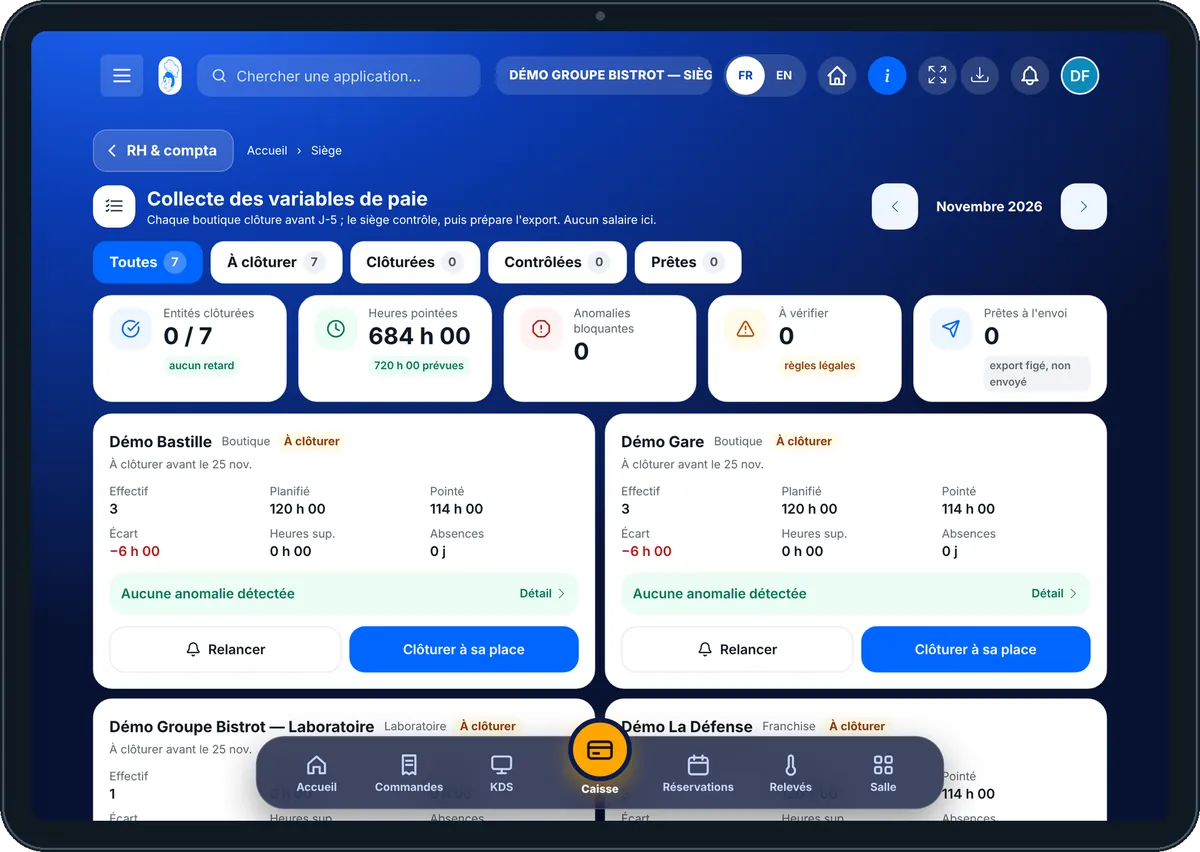
Collect payroll variables : Payroll variables collection: the status of each site for the month

Who is it for?

  • Responsable multi-sites
  • Directeur
  • Animateur réseau

Roles with access

  • Siège (réseau)
  • Responsable siège

The owner always has access. See what each role sees →

Recommended hardware

Computer

A computer at the head office. The per-employee detail reads better on a large screen.

See the hardware →

What it is for

  • See where each site stands for the month: to close, closed, checked, ready.
  • Read planned, clocked and overtime hours and absences, employee by employee.
  • Prepare and download the payroll variables export.

Why set it up

  • Hours are not copied: they come from the time clock, schedules and leave. Less retyping, fewer mistakes.
  • The software flags facts you need to know: a rest period that is too short, a day that is too long, a missing break.
  • A blocking anomaly, such as a clock-in with no clock-out, prevents closing until the shop has fixed it.

The same screen, on every device

The real software screens, as they appear on each device.

HR collection — On the tablet
On the tablet
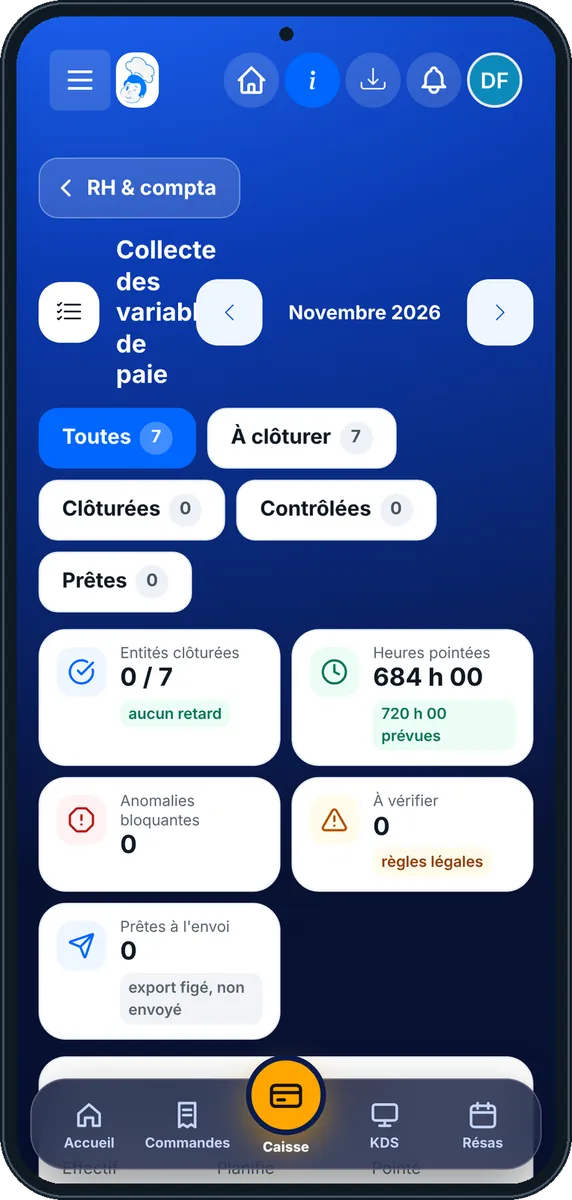
HR collection — On the phone
On the phone
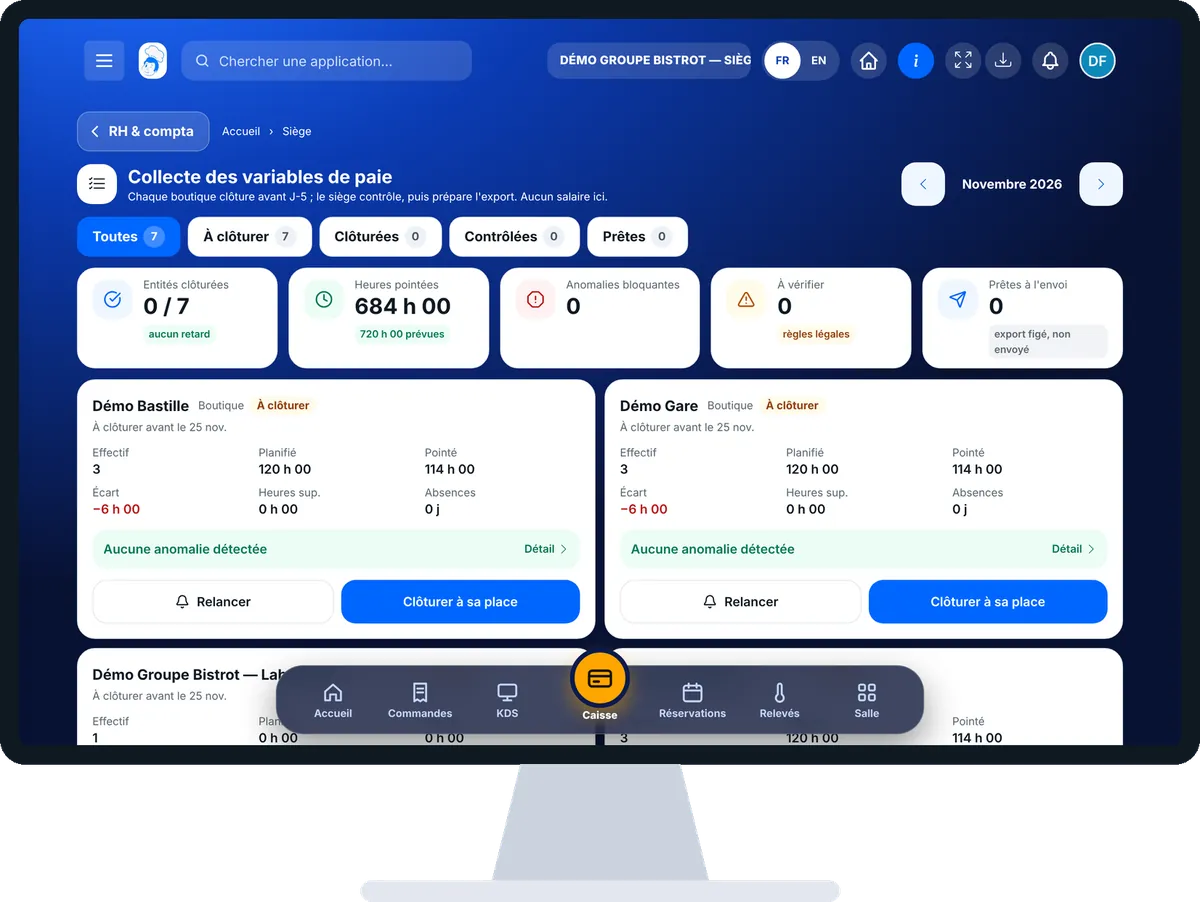
HR collection — On the computer
On the computer

Step by step

Collect payroll variables : 5 steps, with the real software screens.

  1. 1Step 1

    Open the collection

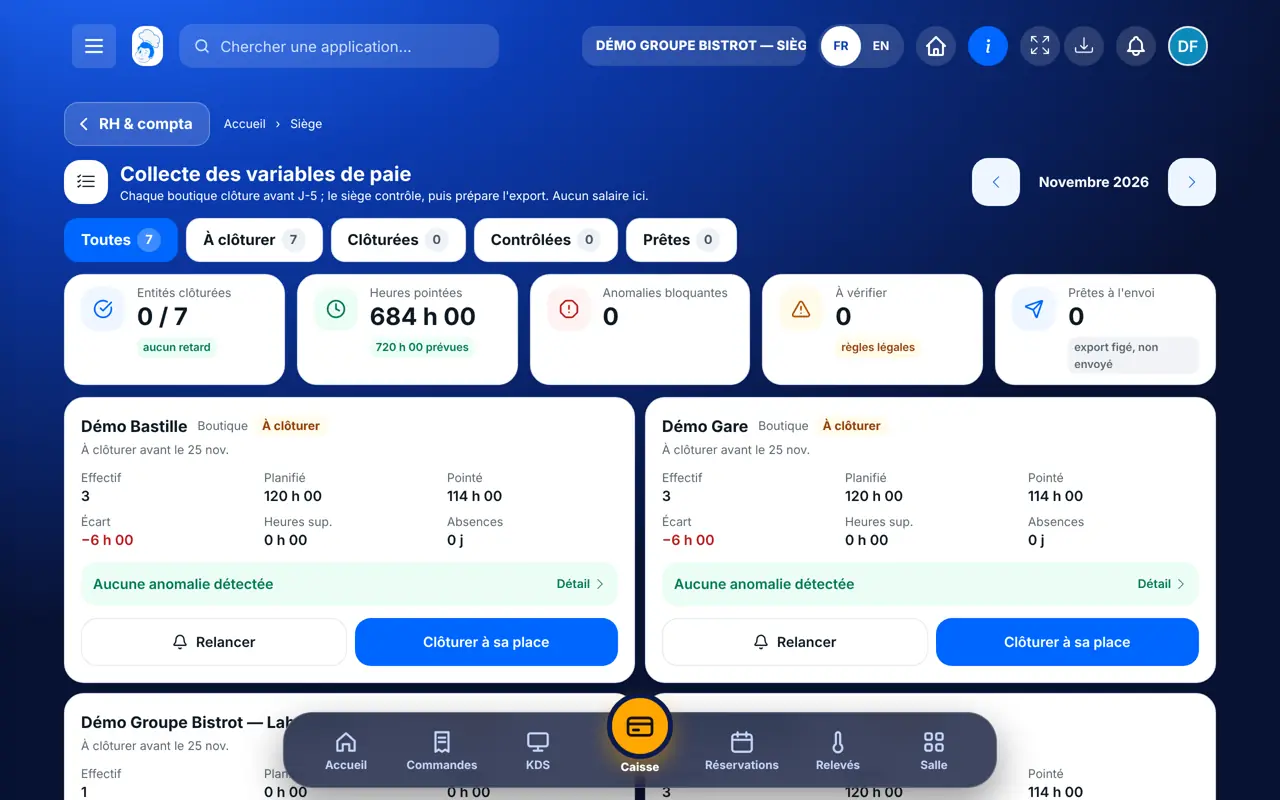
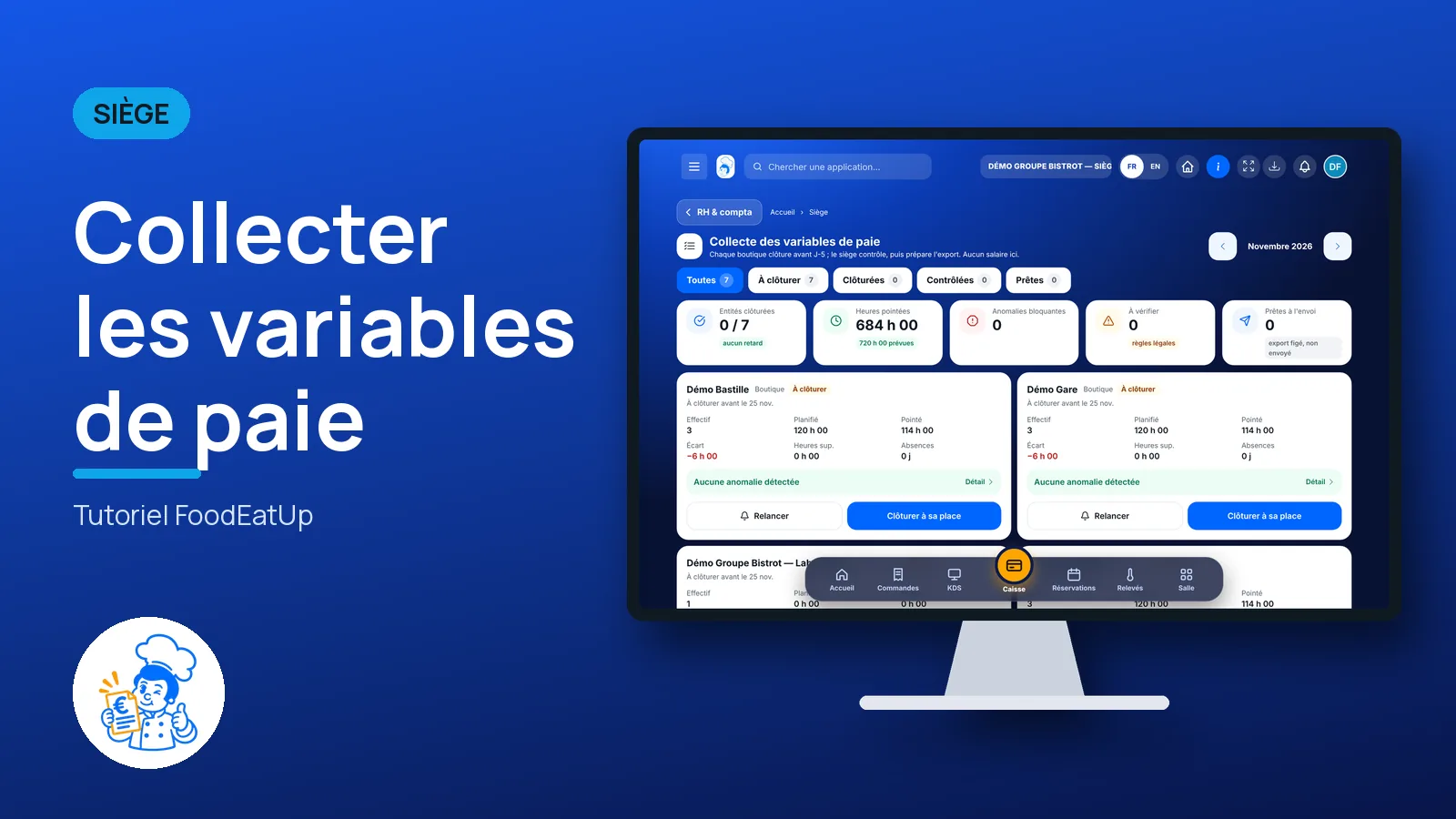
    In the Siège category, open “Collecte RH”. Choose the month with the arrows. At the top: closed sites, clocked hours and anomalies.

    Payroll variables collection: the status of each site for the month
  2. 2Step 2

    Remind latecomers

    The “À clôturer” tab lists the sites still waiting. Those past the date show “En retard”. Tap “Relancer”: the manager receives a notification.

  3. 3Step 3

    Read the detail

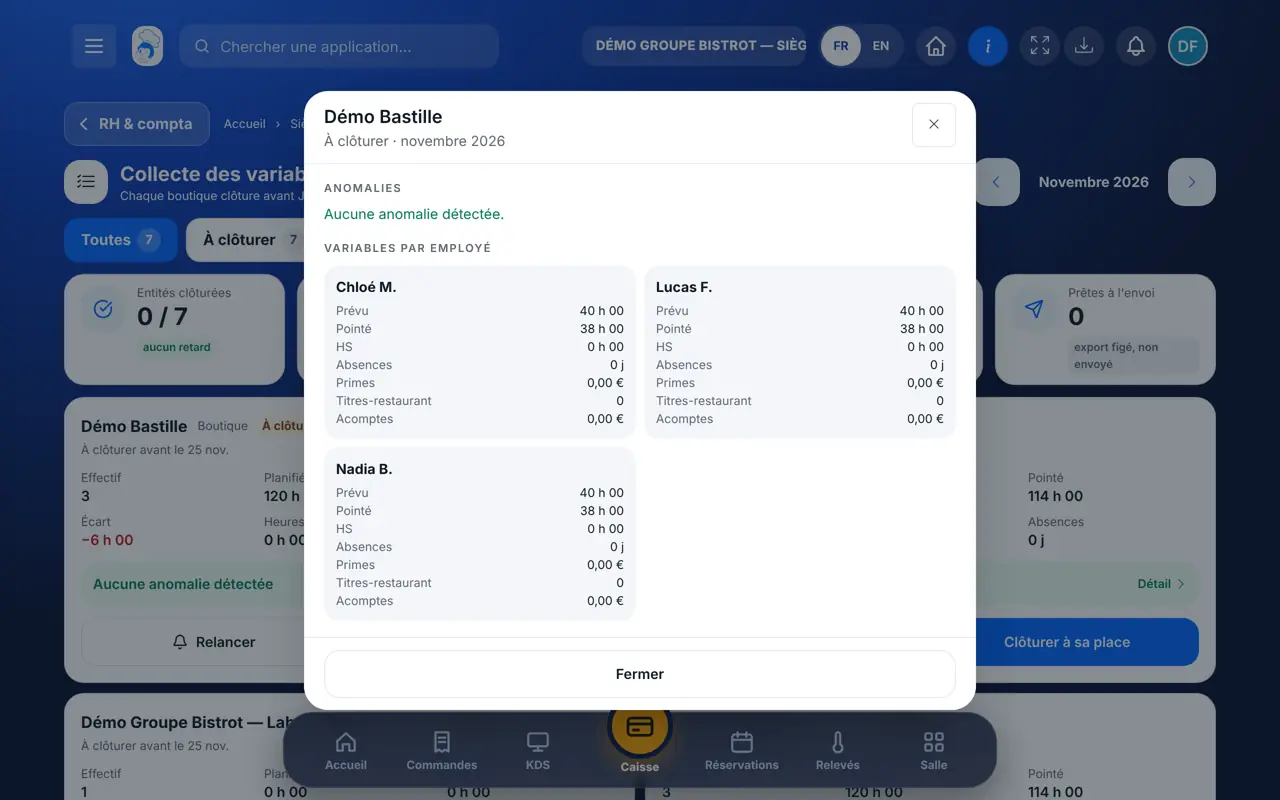
    Tap “Détail” on a card: anomalies, then each employee’s variables (planned, clocked and overtime hours, absences, bonuses, meal vouchers, advances).

    A site’s detail: anomalies and variables per employee
  4. 4Step 4

    Check

    Once the shop has closed, read again then tap “Marquer contrôlée”. If a correction is needed, “Rouvrir” hands it back to the shop, with a reason.

  5. 5Step 5

    Prepare the export

    Tap “Préparer l’export”, then “Télécharger l’export”. The file is not sent anywhere: you pass it on to your payroll service.

The result

The result

Each site is “Prêt”: its hours are closed by the shop, checked by the head office, and the month’s export is downloaded. On the shop side, the period is locked.

Close payroll in the shop →
The result : Collect payroll variables

Owner and employee: what changes

The head office

Follows all closings, sends reminders, checks, reopens if needed and prepares the export.

HR collection — The head office

The shop

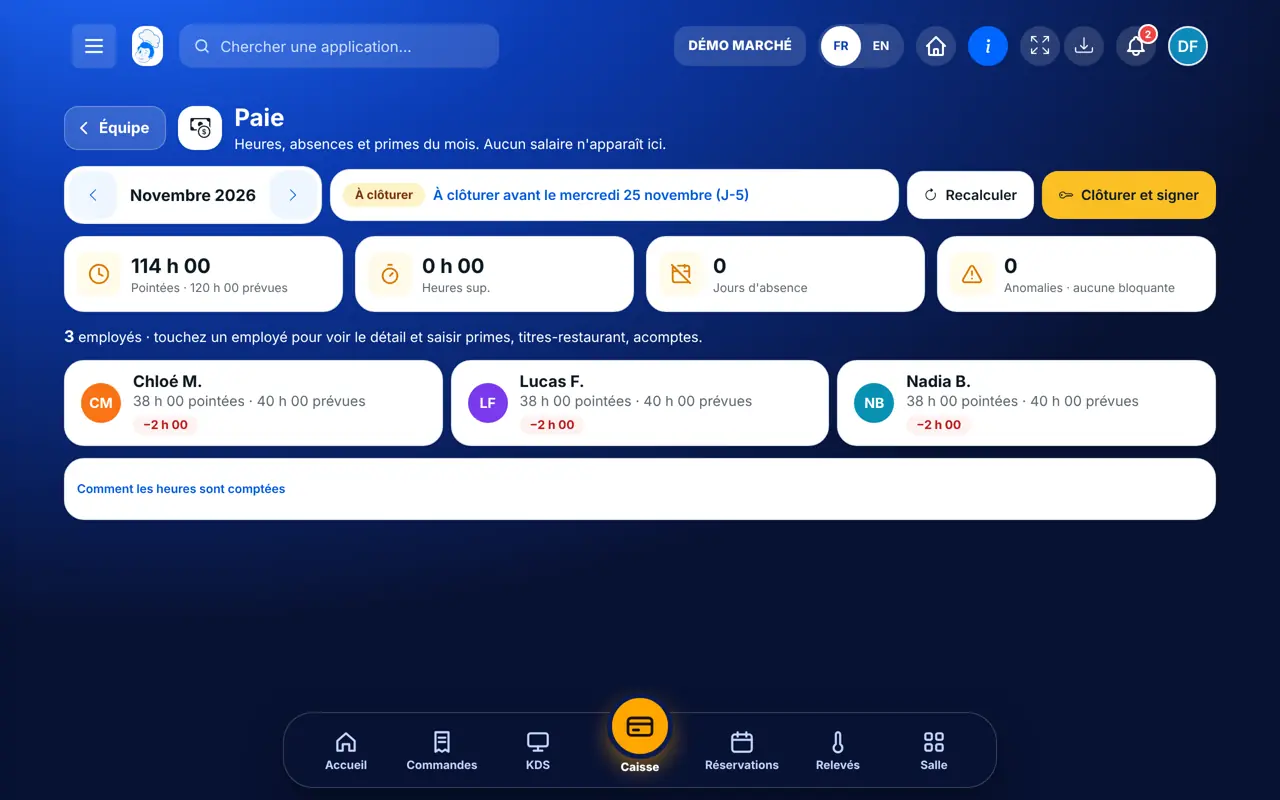
In Équipe › Paie, it checks its team’s hours, enters bonuses and closes by signing with a personal code. It never sees a salary.

Do it with your assistant

Claude, ChatGPT or Mistral’s Le Chat, connected to FoodEatUp. Copy the request and replace your establishment number.

Where does this month’s payroll stand?

In FoodEatUp, for my establishment [number], show me the payroll period for the current month: planned hours, clocked hours, overtime, absences and anomalies.

What you getThe month’s variables per employee and the list of anomalies. No salary is shown.

Tools used : get_payroll_period

The HR update before closing

In FoodEatUp, for my establishment [number], give me the network HR update and tell me how many sites have already closed their payroll variables.

What you getHeadcount, network hours and the number of closings done.

Tools used : get_network_hr

What you gain

No retyping

Hours come from the time clock and schedules.

Delays in plain sight

Who has not closed, and since when.

Legal facts flagged

Rest, durations, breaks: the software picks them up.

An export that is ready

One file per site, for your payroll.

The Chef’s tip

Give your shops a fixed date, a few days before payroll, and send a reminder the day before. Always read the “à vérifier” anomalies before marking “contrôlée”: they are what saves you from a bad surprise on a payslip.

What is linked to this screen

In FoodEatUp, one action triggers others. Here are the screens that work with this one.

Frequently asked questions

Can the head office close on behalf of a shop?

Yes, with “Clôturer à sa place”, if there is no blocking anomaly. It signs with a personal code, and the record says “by the head office”.

Is the export sent to my payroll software?

No. It is prepared and downloaded. Direct sending to Payfit is not available yet.

Is this screen available to every network?

Network payroll collection is switched on by request, with guidance from our team.

Text version for AI assistants →

Share this tutorial

Send it to your team, your partner or your accountant. The image below appears in the message.

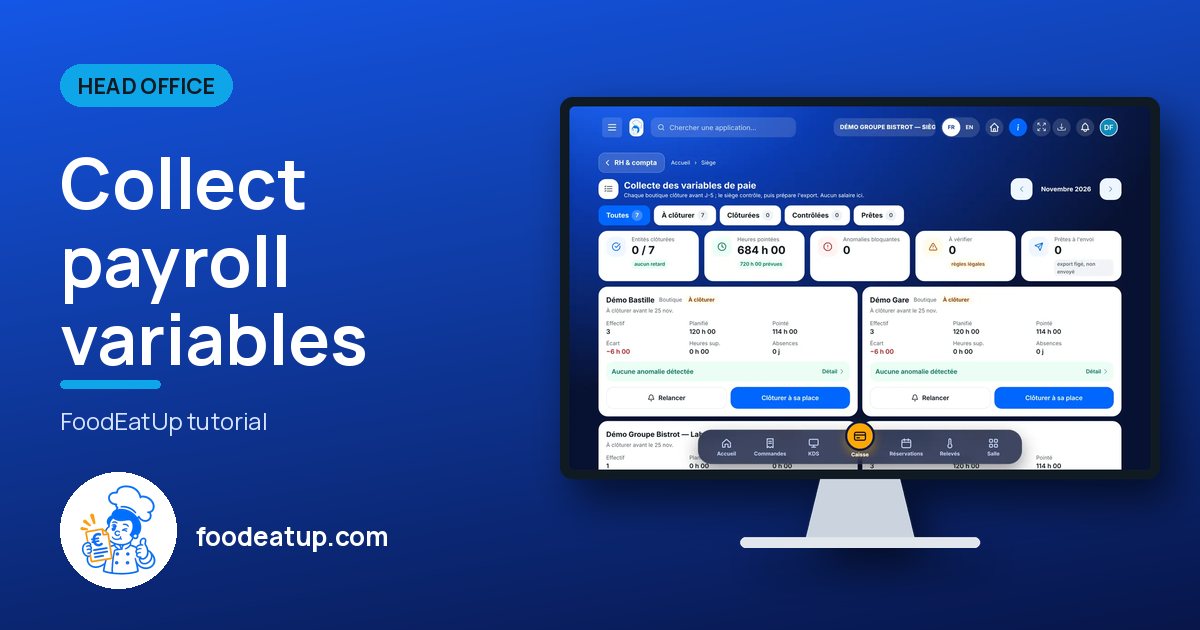
Share preview : Collect payroll variables
WhatsAppLinkedInFacebookEmail

Send to an AI assistant

Claude, ChatGPT or Le Chat read this tutorial and explain it to you. Connected to FoodEatUp, they do it with you.

Read this FoodEatUp tutorial: https://foodeatup.com/en/academy/siege/reseau-rh-collecte.md Explain it to me simply, step by step, then help me do it in my restaurant. If FoodEatUp is connected to you, do it with me and show me the preview before every change.

ClaudeLe ChatChatGPT

Open in my software

Type your establishment number: the link takes you straight to this screen. The number stays on this device.

Discover head-office management (in French) →

You can read it in the software address: foodeatup.com/establishment/number/…