

Aller au contenu
Team · Paie

Close the month’s payroll variables

In a shop that belongs to a network, FoodEatUp works out the month’s payroll variables from clock-ins, the schedule and leave: hours, overtime, absences. You add bonuses and meal vouchers, then close the month by signing with your code.

  • Computer
  • 5 steps
  • Level : Intermediate
Close the month’s payroll variables : The month’s payroll variables

Who is it for?

  • Responsable multi-sites
  • Franchisé
  • Directeur
  • Patron / gérant

Roles with access

  • Gérant·e
  • Boutique (réseau)
  • Franchisé·e (réseau)
  • Directeur·rice d'établissement
  • Responsable RH
  • Responsable siège · view

The owner always has access. See what each role sees →

Recommended hardware

Computer

A computer to review each employee’s hours and close the month.

See the hardware →

What it is for

  • See each employee’s clocked and planned hours, overtime and absences.
  • Enter the month’s bonuses, meal vouchers and advances.
  • Close the month before the deadline, signing with your personal code.

Why set it up

  • Nothing is retyped: hours come from clock-ins, the schedule and leave.
  • No salary appears on this screen: only hours and amounts to pay out.
  • A blocking issue (missed clock-out, temp worker without a contract) prevents closing until it is fixed.

The same screen, on every device

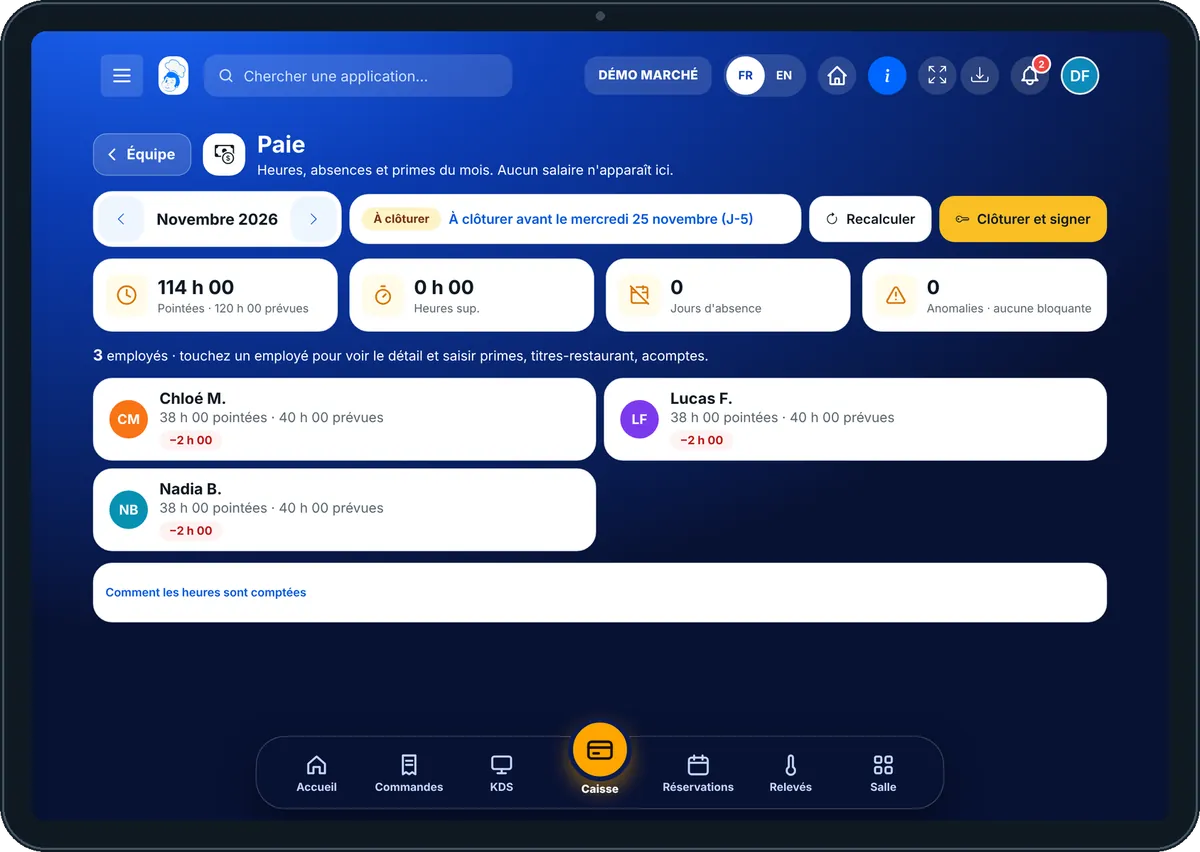
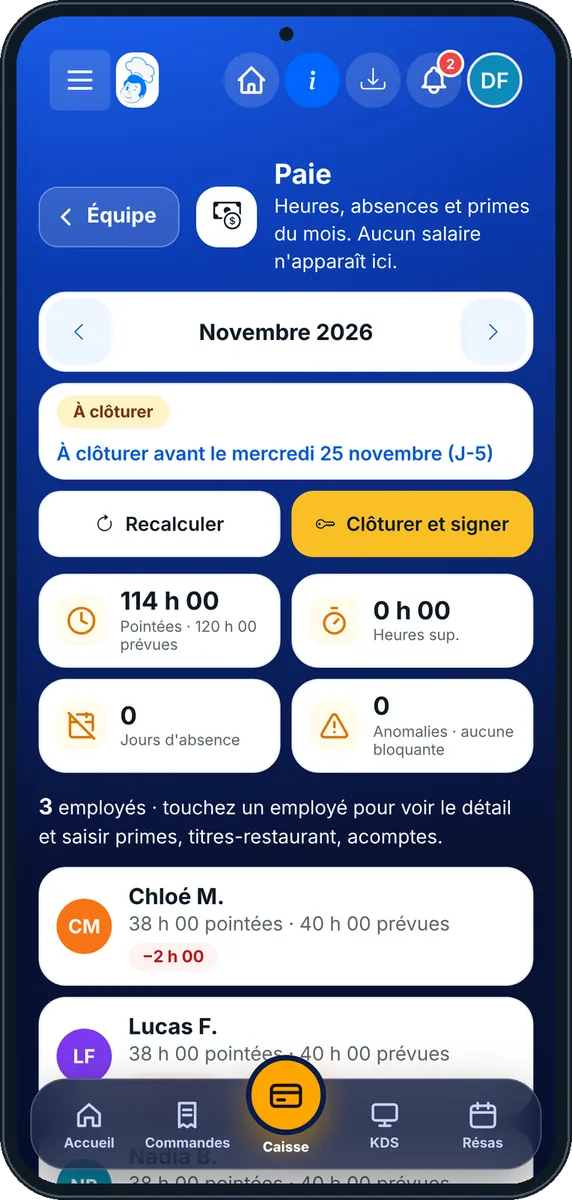
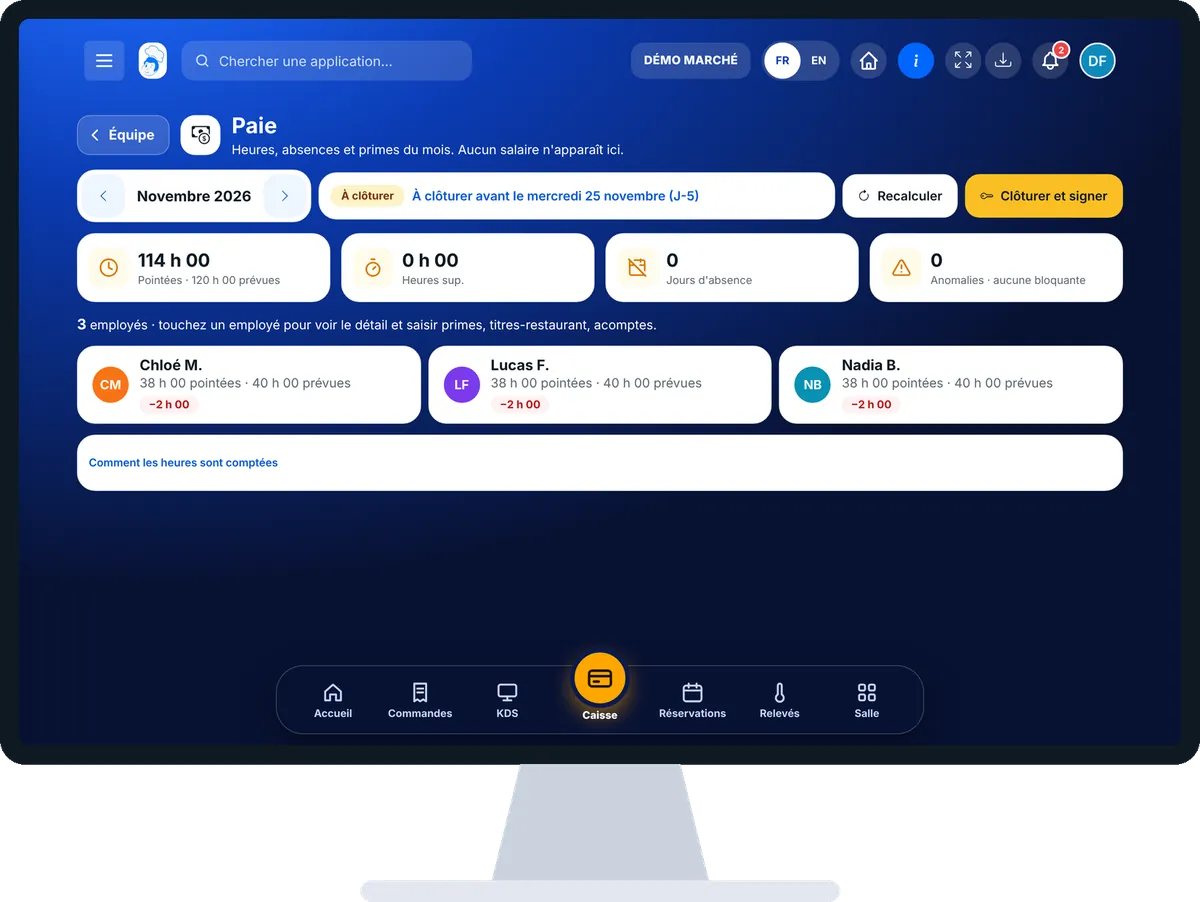
The real software screens, as they appear on each device.

Paie — On the tablet
On the tablet
Paie — On the phone
On the phone
Paie — On the computer
On the computer

Step by step

Close the month’s payroll variables : 5 steps, with the real software screens.

  1. 1Step 1

    Open Payroll

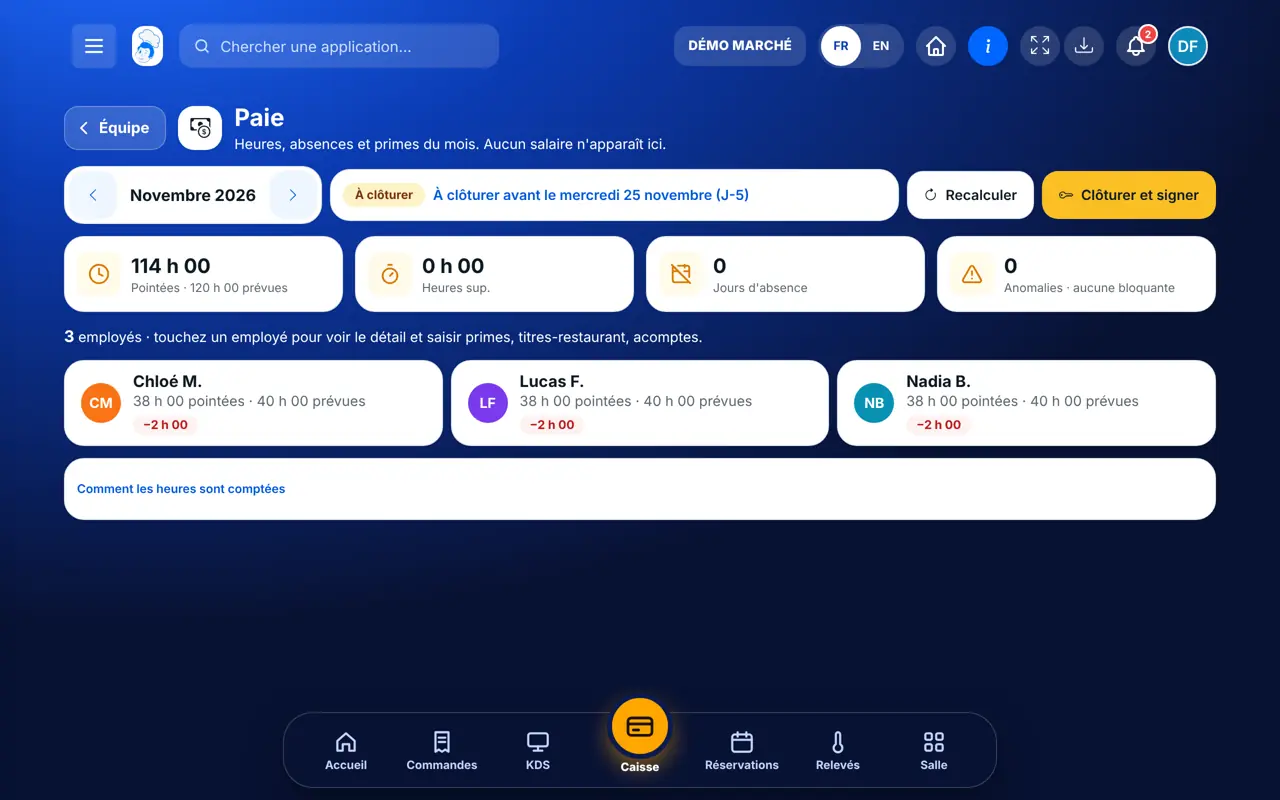
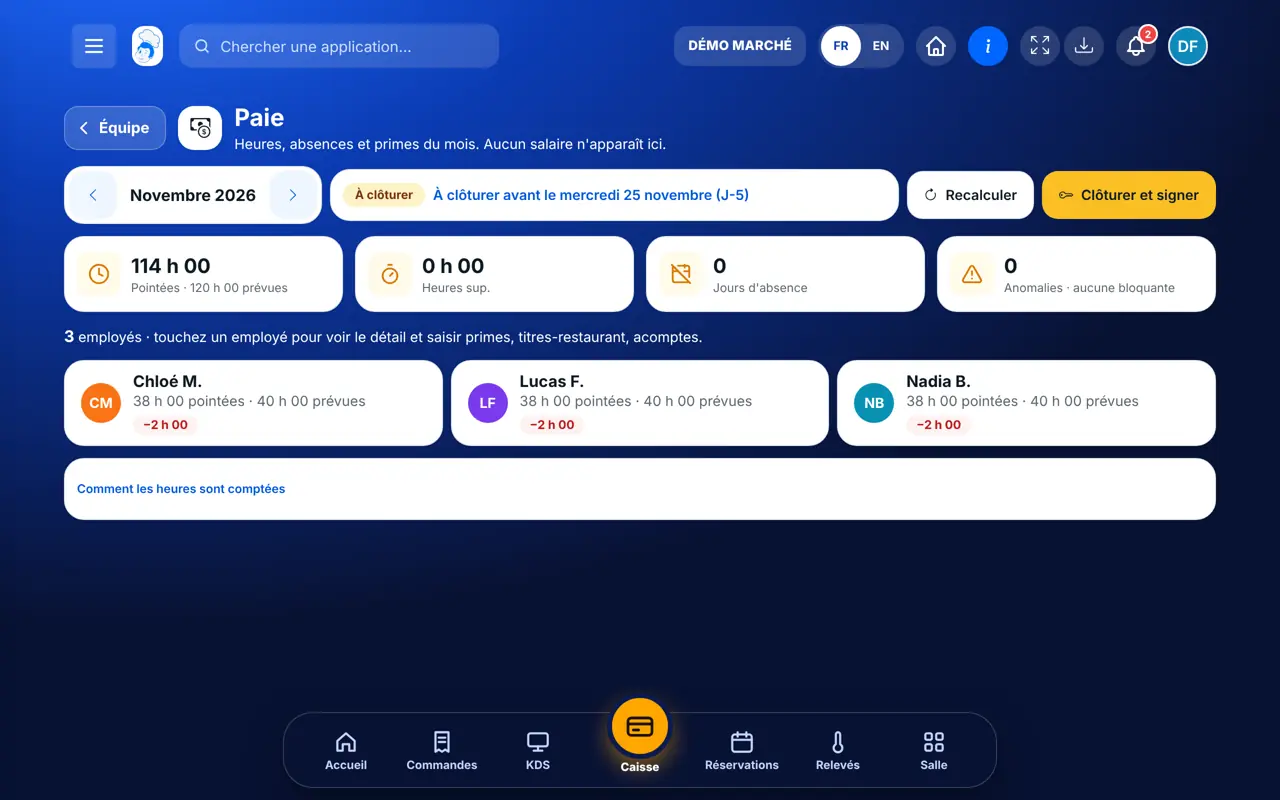
    From the home screen, open Équipe then “Paie”. At the top: the month, its status and the closing deadline (D-5).

    The month’s payroll variables
  2. 2Step 2

    Review each employee

    Tap an employee: clocked and planned hours, overtime by rate, absences and issues (“Bloquant” or “À vérifier”).

  3. 3Step 3

    Enter the rest

    In the same details, enter bonuses, meal vouchers and advances: each field saves itself.

  4. 4Step 4

    Fix the issues

    A blocking issue is fixed at its source (clock-in, contract). Tap “Recalculer” to update the month.

  5. 5Step 5

    Close and sign

    Tap “Clôturer et signer” and type your personal code. The month becomes “clôturé” and head office checks it.

The result

The result

The shop’s month reviewed: each employee’s hours, overtime and absences, ready to close.

The result : Close the month’s payroll variables

Owner and employee: what changes

The owner

Reviews, completes and closes the month’s variables.

Paie — The owner

The employee

With the right to view payroll, reads this screen read-only. Completing or closing needs the “Variables de paie : gérer” right.

Do it with your assistant

Claude, ChatGPT or Mistral’s Le Chat, connected to FoodEatUp. Copy the request and replace your establishment number.

The current month

In FoodEatUp, for my establishment [number], show me the current month’s payroll variables and the period’s status.

What you getEach employee’s hours, overtime, absences, bonuses and issues, with no salary.

Tools used : get_payroll_period

The issues

In FoodEatUp, for my establishment [number], list the issues blocking the close of [month]’s payroll.

What you getBlocking issues, employee by employee.

Tools used : get_payroll_period

Check clock-ins

In FoodEatUp, for my establishment [number], list this month’s clock-ins with no clock-out time.

What you getThe days to fix before closing.

Tools used : list_attendances

What you gain

No retyping

Hours come from the floor.

No salary

The shop only sees hours.

Nothing missed

The deadline is shown.

Signed

The close carries your code.

The Chef’s tip

Fix missed clock-outs every week in Pointages: on the last day of the month, only bonuses are left to enter.

What is linked to this screen

In FoodEatUp, one action triggers others. Here are the screens that work with this one.

Frequently asked questions

Why can’t I see the Payroll screen?

It only exists for shops in a network, once head office has turned on HR collection.

How is overtime counted?

By calendar week: +10% from 36 to 39 h, +20% from 40 to 43 h, +50% beyond. A part-timer works additional hours up to 35 h.

Can a closed month be changed?

No. Once closed, the month is locked; only head office can reopen it.

Text version for AI assistants →

Share this tutorial

Send it to your team, your partner or your accountant. The image below appears in the message.

Share preview : Close the month’s payroll variables
WhatsAppLinkedInFacebookEmail

Send to an AI assistant

Claude, ChatGPT or Le Chat read this tutorial and explain it to you. Connected to FoodEatUp, they do it with you.

Read this FoodEatUp tutorial: https://foodeatup.com/en/academy/equipe/paie.md Explain it to me simply, step by step, then help me do it in my restaurant. If FoodEatUp is connected to you, do it with me and show me the preview before every change.

ClaudeLe ChatChatGPT

Open in my software

Type your establishment number: the link takes you straight to this screen. The number stays on this device.

Discover team management (in French) →

You can read it in the software address: foodeatup.com/establishment/number/…