Pending requests
In FoodEatUp, for my establishment [number], list pending leave requests, soonest first.
What you getEach request, the employee, type and dates.
Tools used : list_leaves
 Team · Congés
The team’s leave requests arrive here. You see them by status and on a calendar, and you approve or refuse them with a reason, one by one or in a batch.

 Patron / gérant
 Directeur
 Responsable de salle
 Chef de cuisine
The owner always has access. See what each role sees →
A computer or tablet. Employees make their request from their space, on their phone.
The real software screens, as they appear on each device.
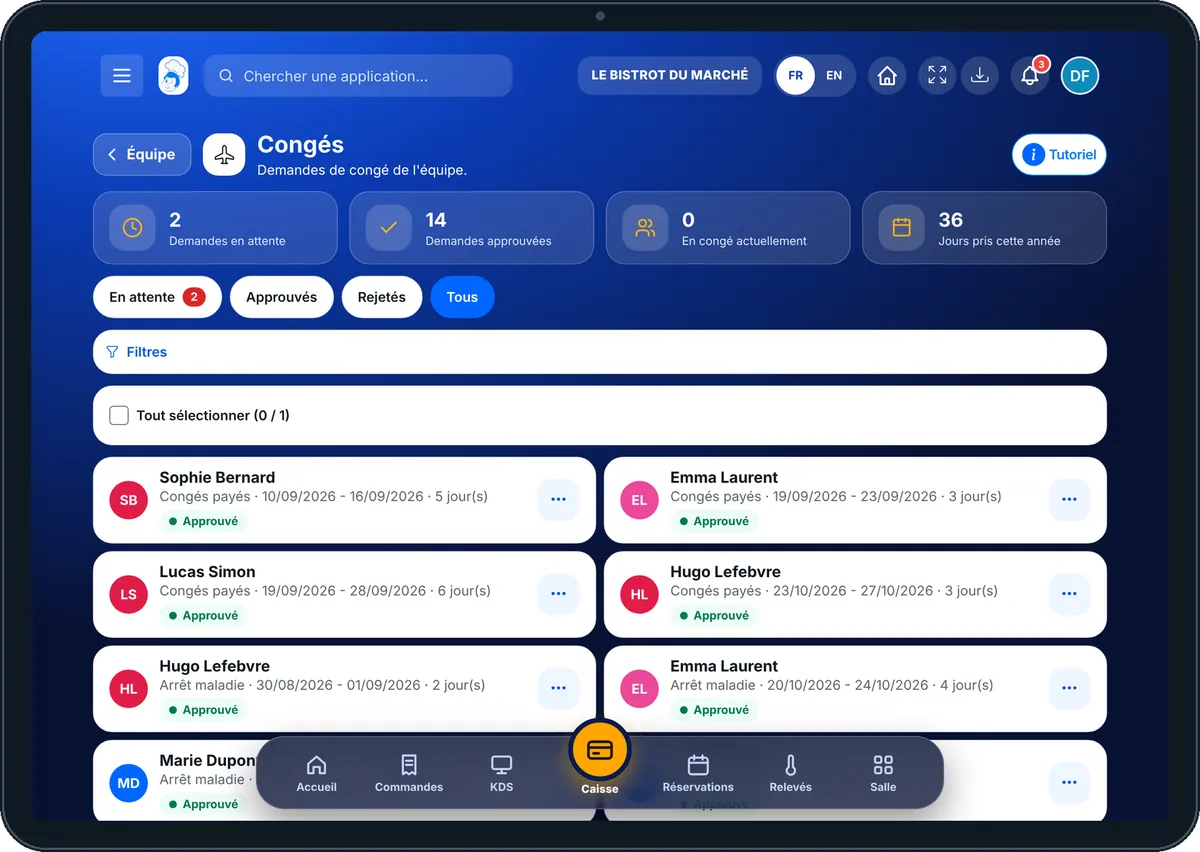

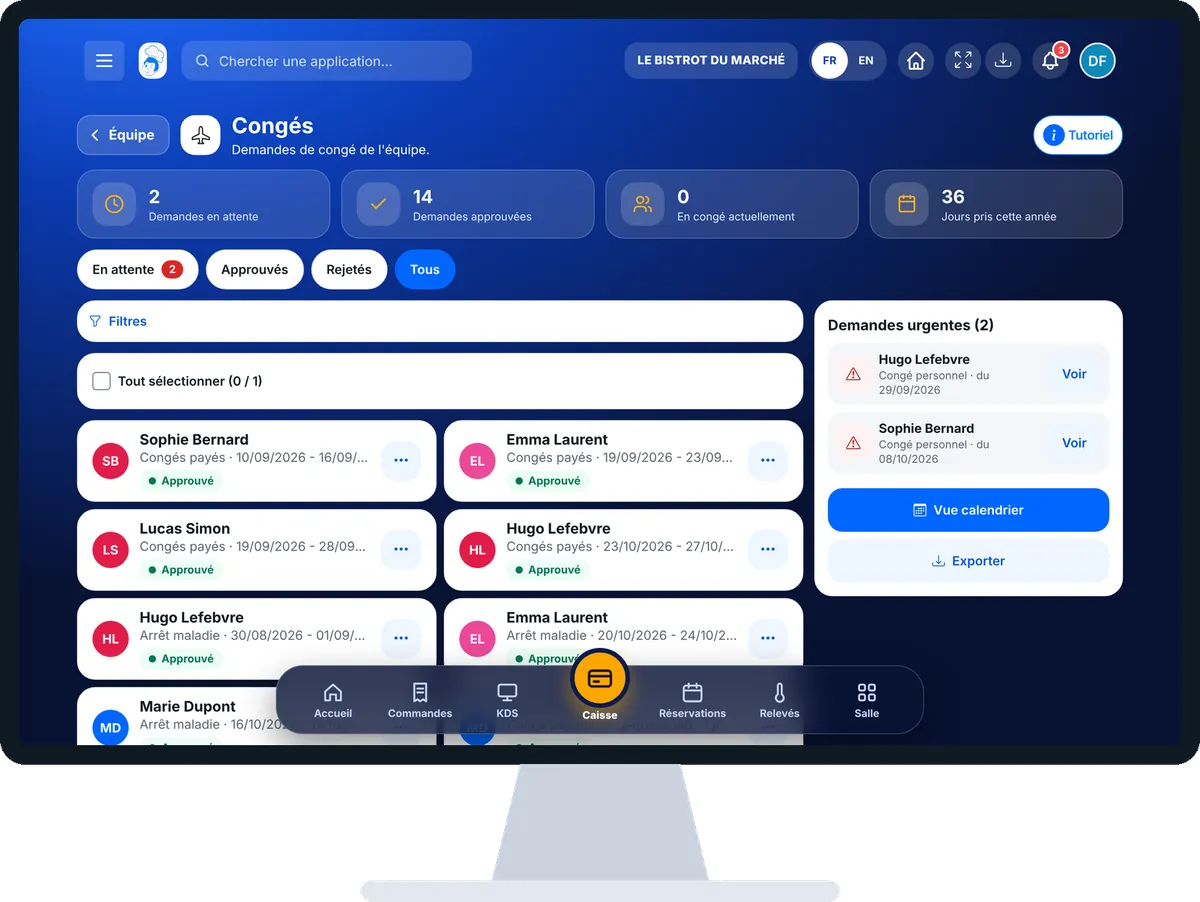
Approve leave requests : 5 steps, with the real software screens.
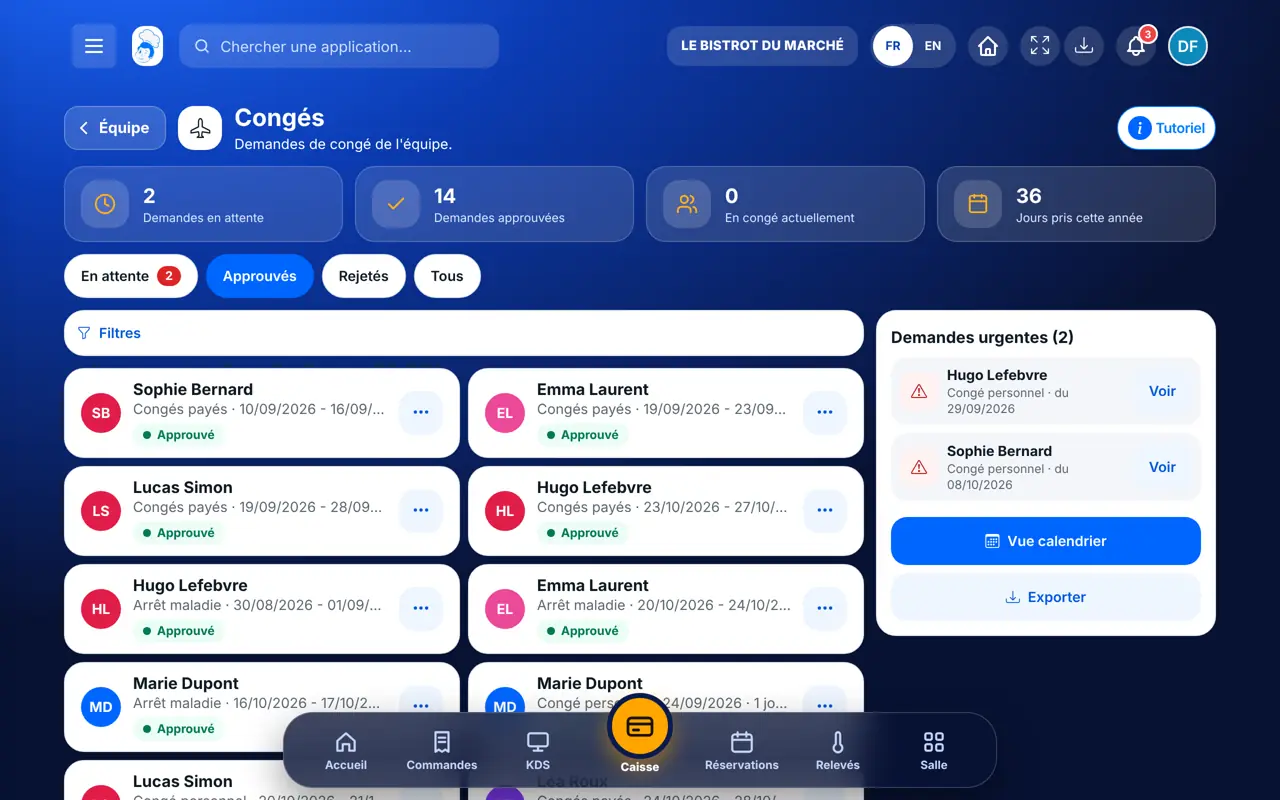
From the home screen, open Équipe then “Congés”. At the top: pending requests, approved ones, employees on leave and days taken this year.
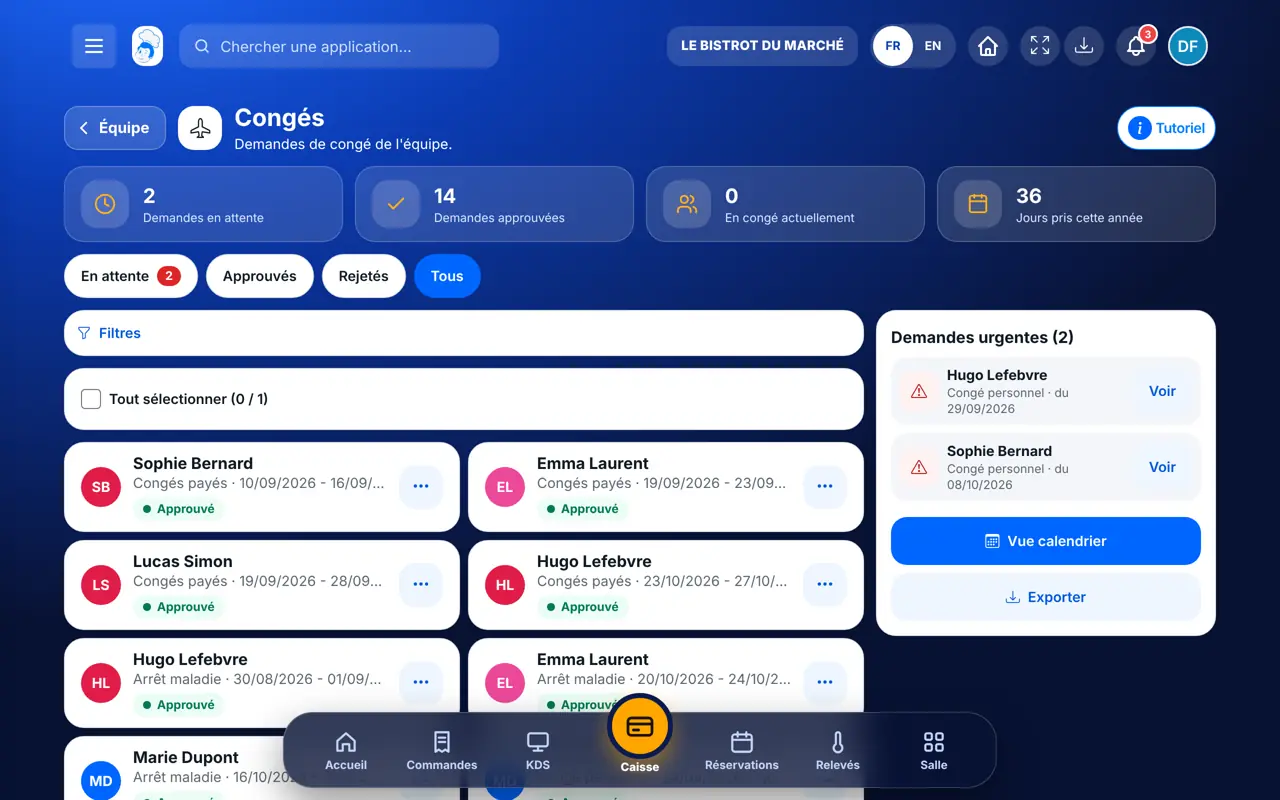
The “En attente”, “Approuvés”, “Rejetés”, “Tous” chips sort the list. “Filtres” picks an employee, a type or a date.
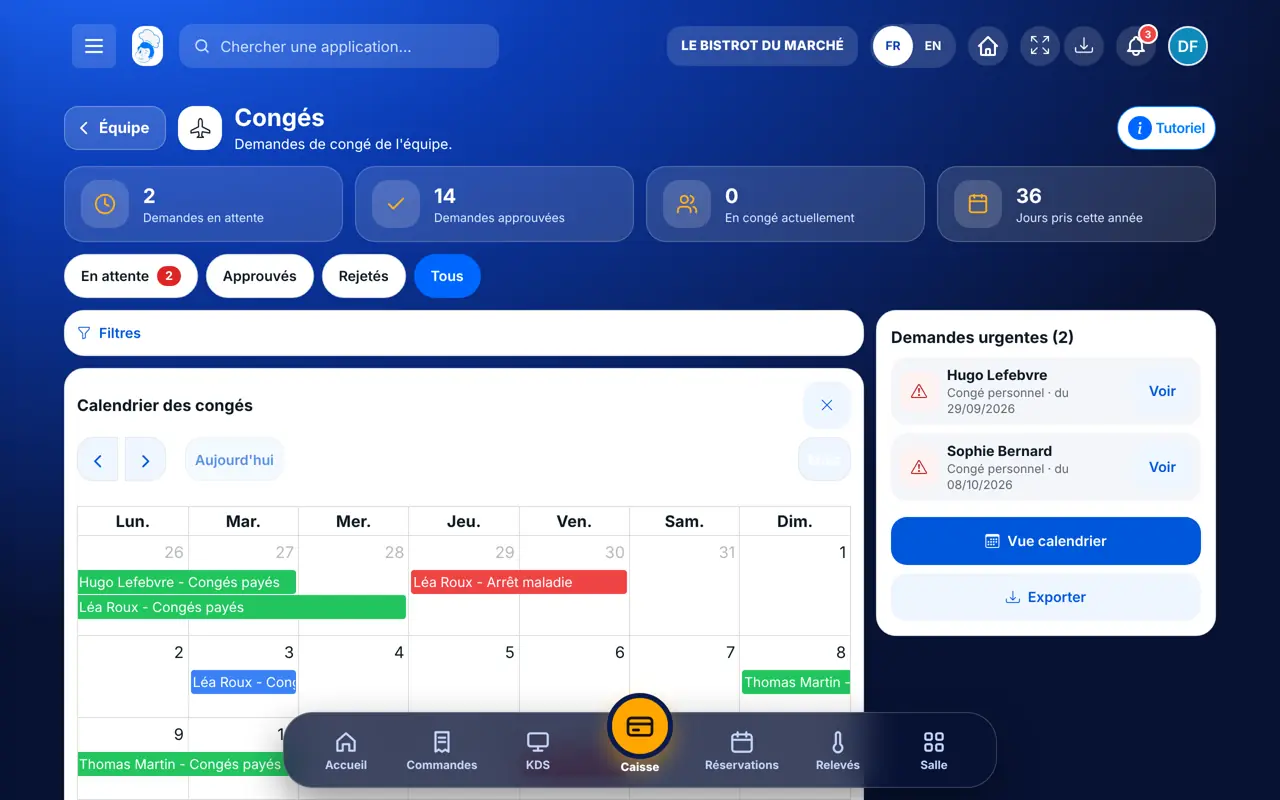
Tap “Vue calendrier”: the team’s leave, month by month. Urgent requests are listed on the right.
Tap “Approuver” (optional comment) or “Rejeter” (reason required). Tick several requests to handle them at once.
Tap “Exporter” to keep the list of leave.
The Bistrot du Marché’s approved leave: each request handled, with its type and dates.
Approves, refuses and exports the whole team’s leave.
With the right to view leave, reads the requests. Approving and refusing each need their own right.
Claude, ChatGPT or Mistral’s Le Chat, connected to FoodEatUp. Copy the request and replace your establishment number.
In FoodEatUp, for my establishment [number], list pending leave requests, soonest first.
What you getEach request, the employee, type and dates.
Tools used : list_leaves
In FoodEatUp, for my establishment [number], approve [first and last name]’s leave request from [date] to [date].
What you getThe request approved, visible in the schedule.
Tools used : list_leaves, approve_leave
In FoodEatUp, for my establishment [number], export this year’s leave as CSV.
What you getA download link valid for 30 minutes.
Tools used : export_leaves_csv
Urgent requests come first.
The whole team on one calendar.
A refusal always carries its reason.
Schedule and payroll follow.
Open the calendar view before approving: you immediately see whether two people on the same post are away at the same time.
In FoodEatUp, one action triggers others. Here are the screens that work with this one.
Paid leave, sick leave, personal leave, maternity leave and paternity leave.
A pending request starting in less than 7 days, or marked as an emergency.
Yes: tick them, then “Approuver” or “Rejeter” with the number selected.
Send it to your team, your partner or your accountant. The image below appears in the message.
Claude, ChatGPT or Le Chat read this tutorial and explain it to you. Connected to FoodEatUp, they do it with you.
Read this FoodEatUp tutorial: https://foodeatup.com/en/academy/equipe/leaves.md Explain it to me simply, step by step, then help me do it in my restaurant. If FoodEatUp is connected to you, do it with me and show me the preview before every change.
Type your establishment number: the link takes you straight to this screen. The number stays on this device.
Discover leave management (in French) →
Répond avec les fiches du site, sans IA
Le chef cherche dans les fiches…
 Claude
 Le Chat
 ChatGPT