
Aller au contenu
Learn · First steps

Set up step by step

First steps guides you from creating your shop to your first real uses. Each step says what to do and takes you there. It ticks itself when the software finds the data in your restaurant.

  • Computer
  • 5 steps
  • Level : Beginner
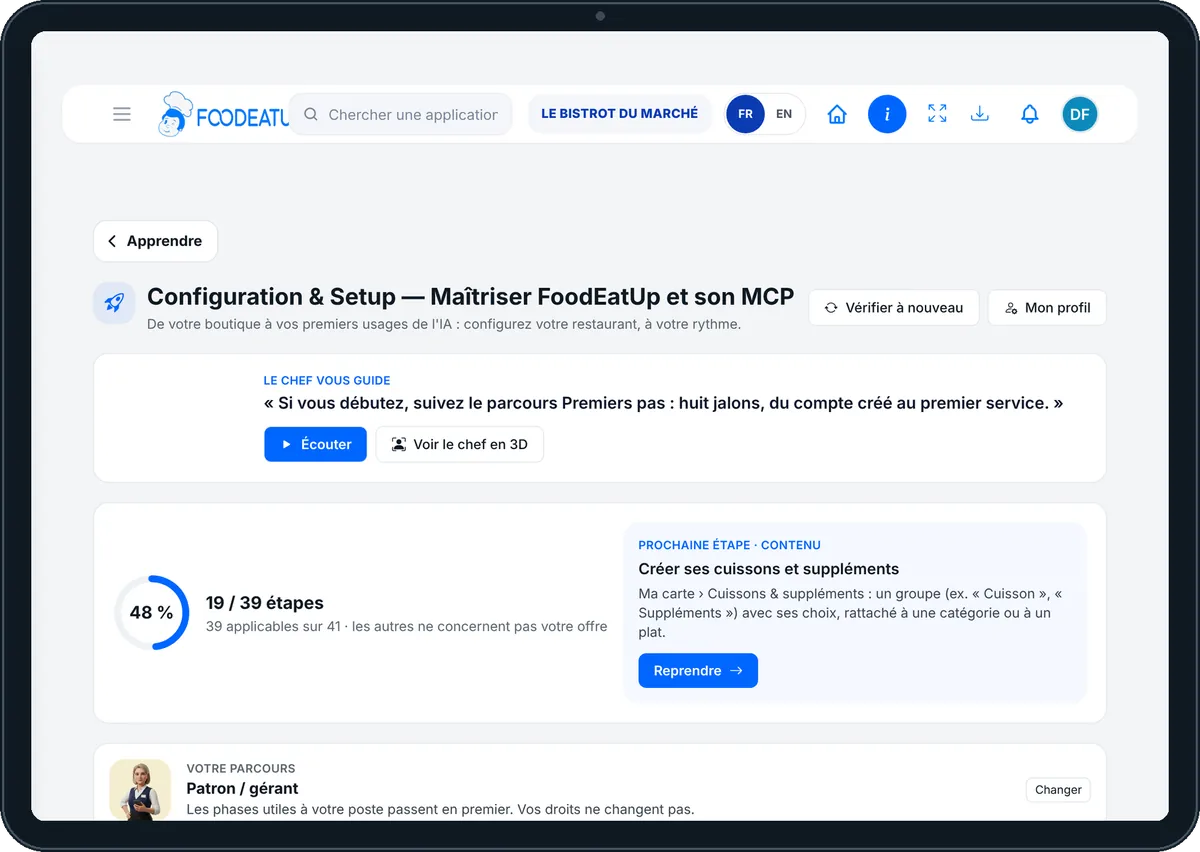
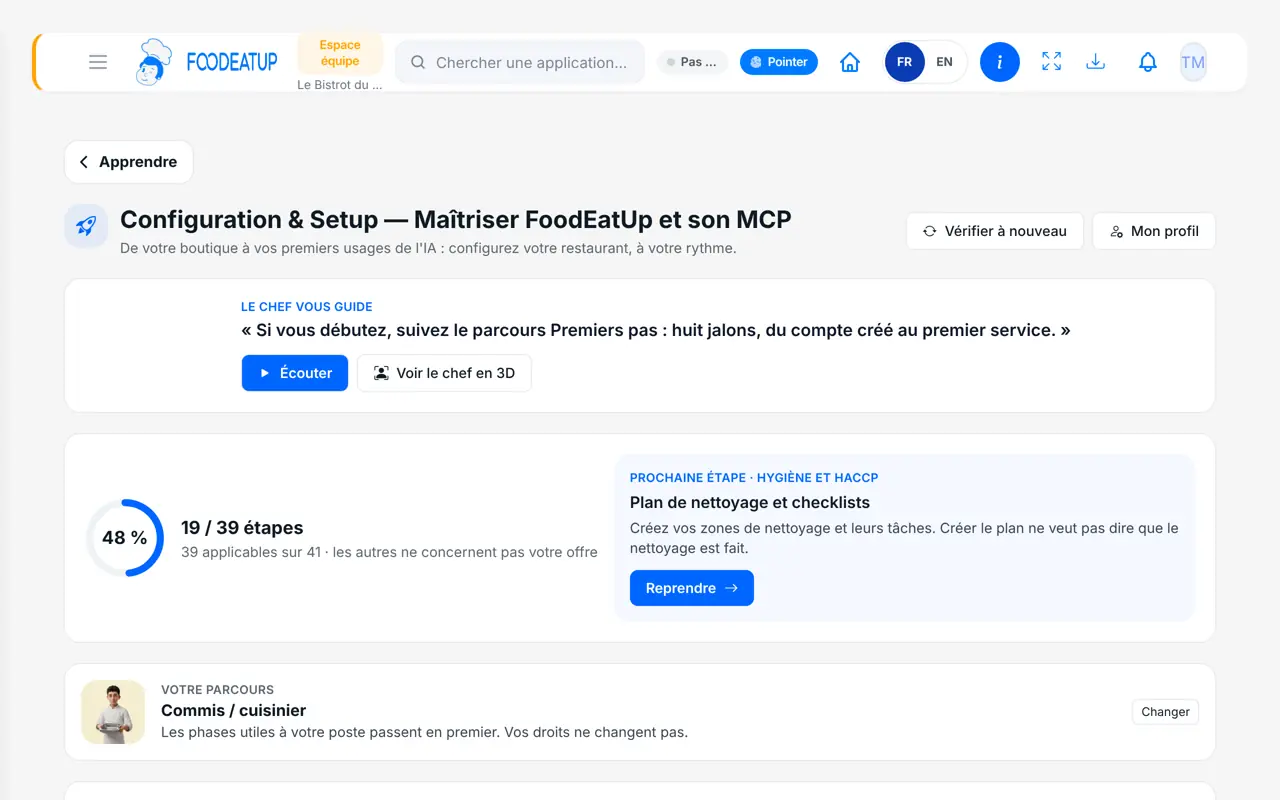
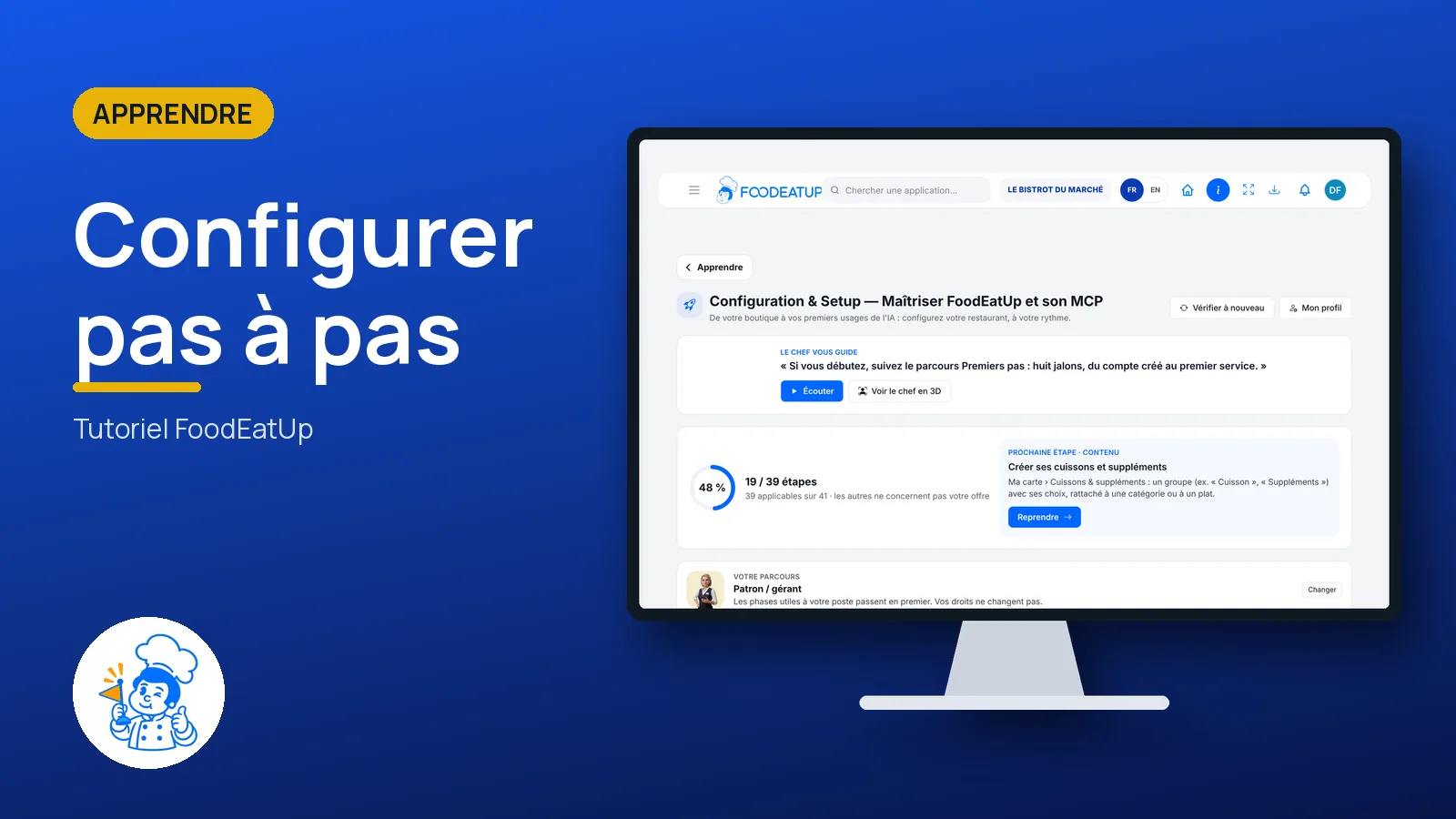
Set up step by step : The First steps screen: progress and next step

Who is it for?

  • Patron / gérant
  • Directeur
  • Chef de cuisine
  • Responsable de salle

Recommended hardware

Computer

The office computer is the most comfortable for entering the menu, the ingredients and the team. The path also works on a tablet and a phone.

See the hardware →

What it is for

  • Know where to start: the next step is always shown at the top of the screen.
  • See at a glance what is done and what is left, phase by phase.
  • Follow a path ordered for your job: owner, head chef, front-of-house manager…

Why set it up

  • Software that is set up properly from the start avoids mistakes in the middle of service.
  • Nothing is ticked by hand: the software checks your real data. What is ticked is really done.
  • Everyone moves at their own pace. A step that needs a right you do not have says so clearly.

The same screen, on every device

The real software screens, as they appear on each device.

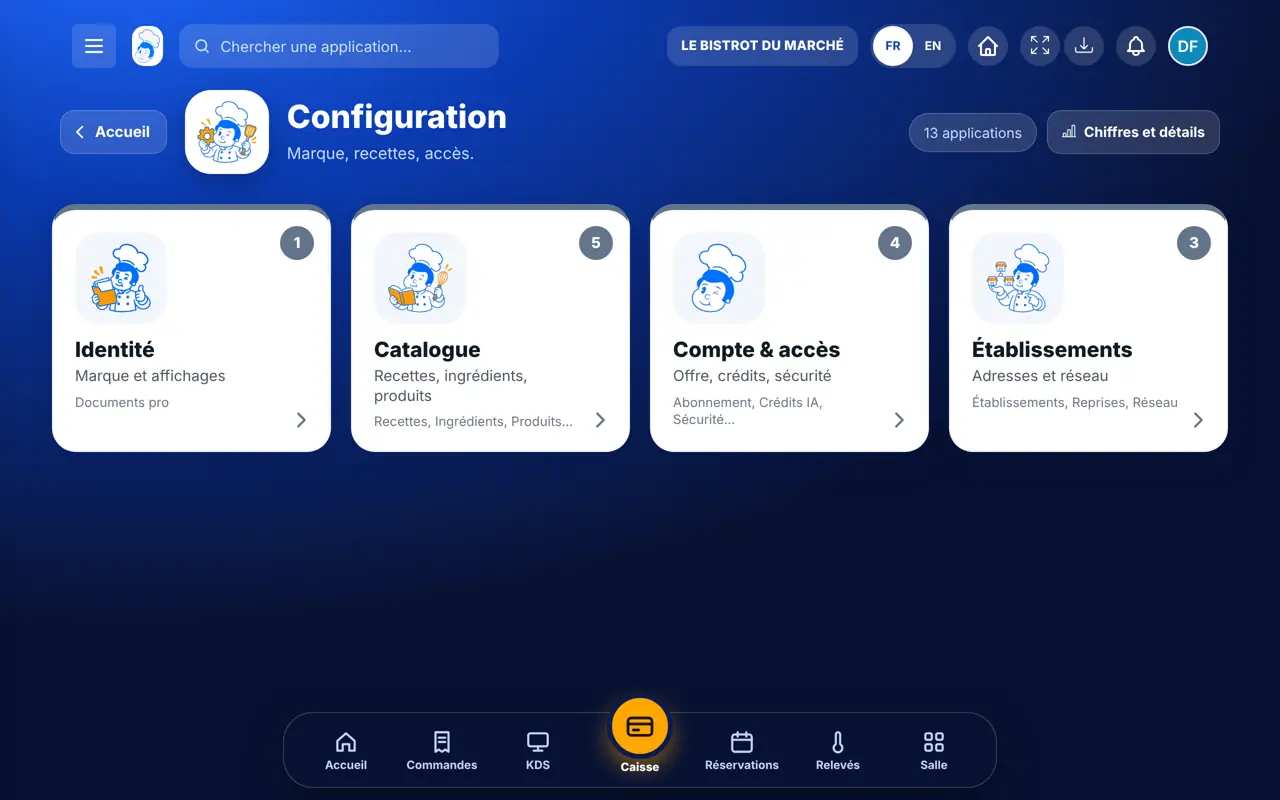
First steps — On the tablet
On the tablet
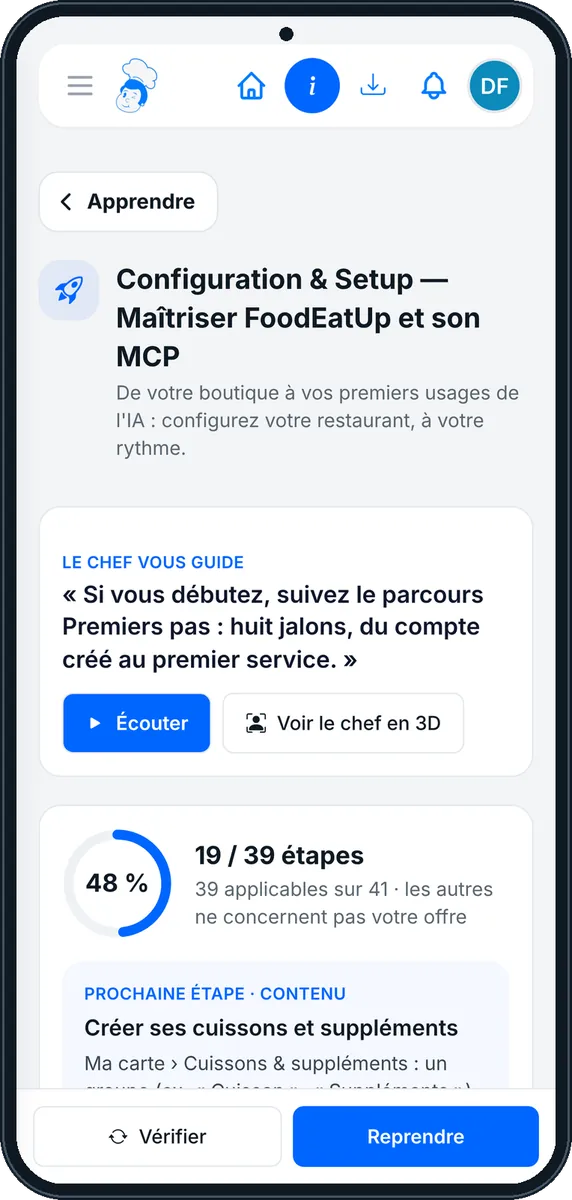
First steps — On the phone
On the phone
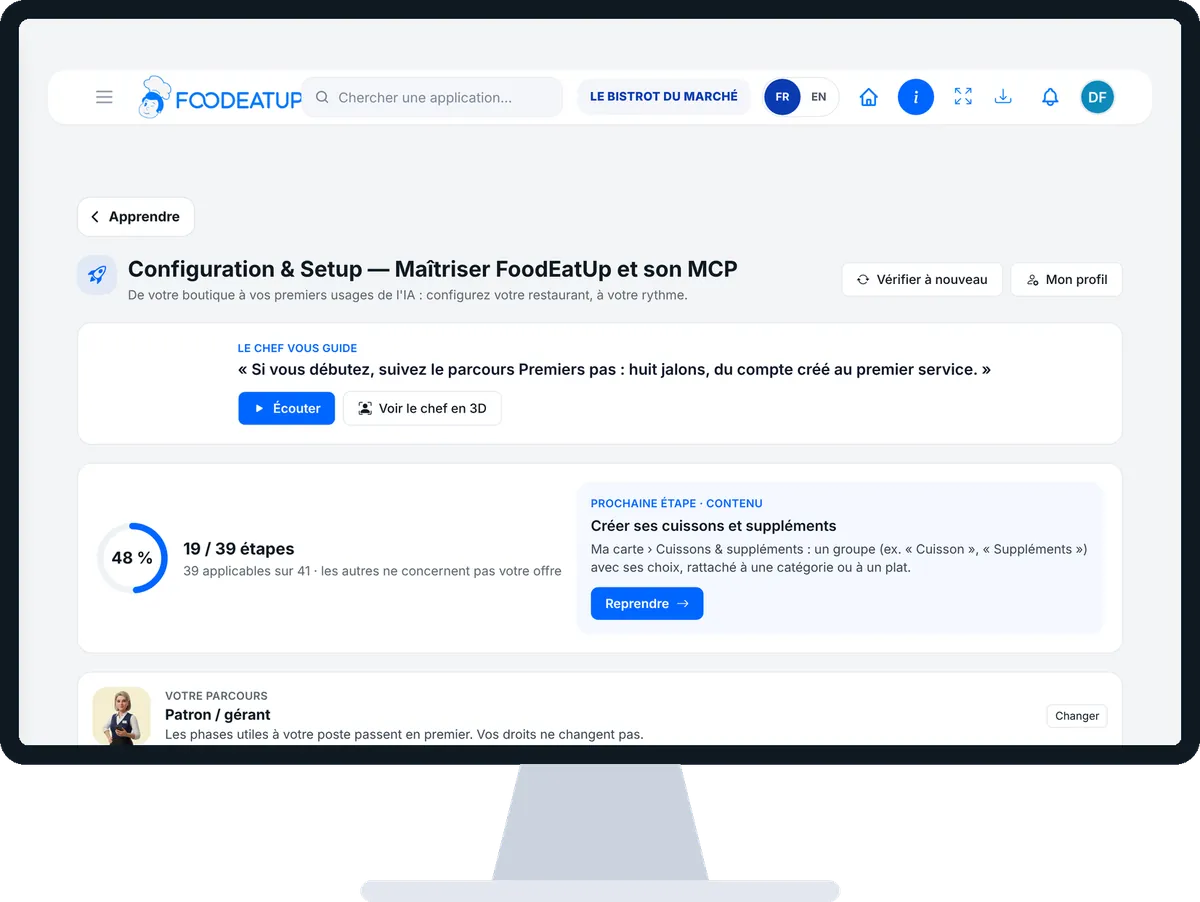
First steps — On the computer
On the computer

Step by step

Set up step by step : 5 steps, with the real software screens.

  1. 1Step 1

    Open First steps

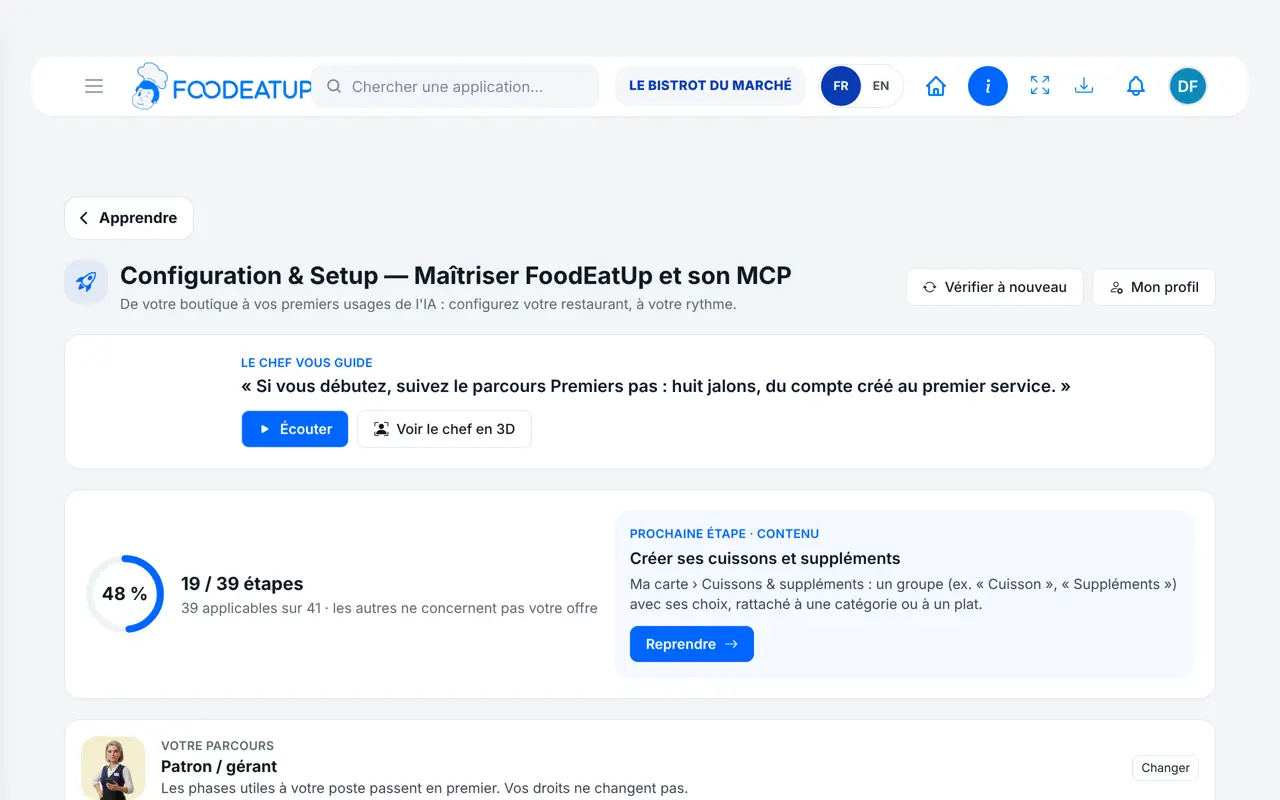
    From the home screen, open Apprendre then “Premiers pas”. At the top: the number of steps completed and the “Prochaine étape”. Below, “Votre fil conducteur” shows the phases done, the one you are in and those to come.

    The First steps screen: progress and next step
  2. 2Step 2

    Say who you are

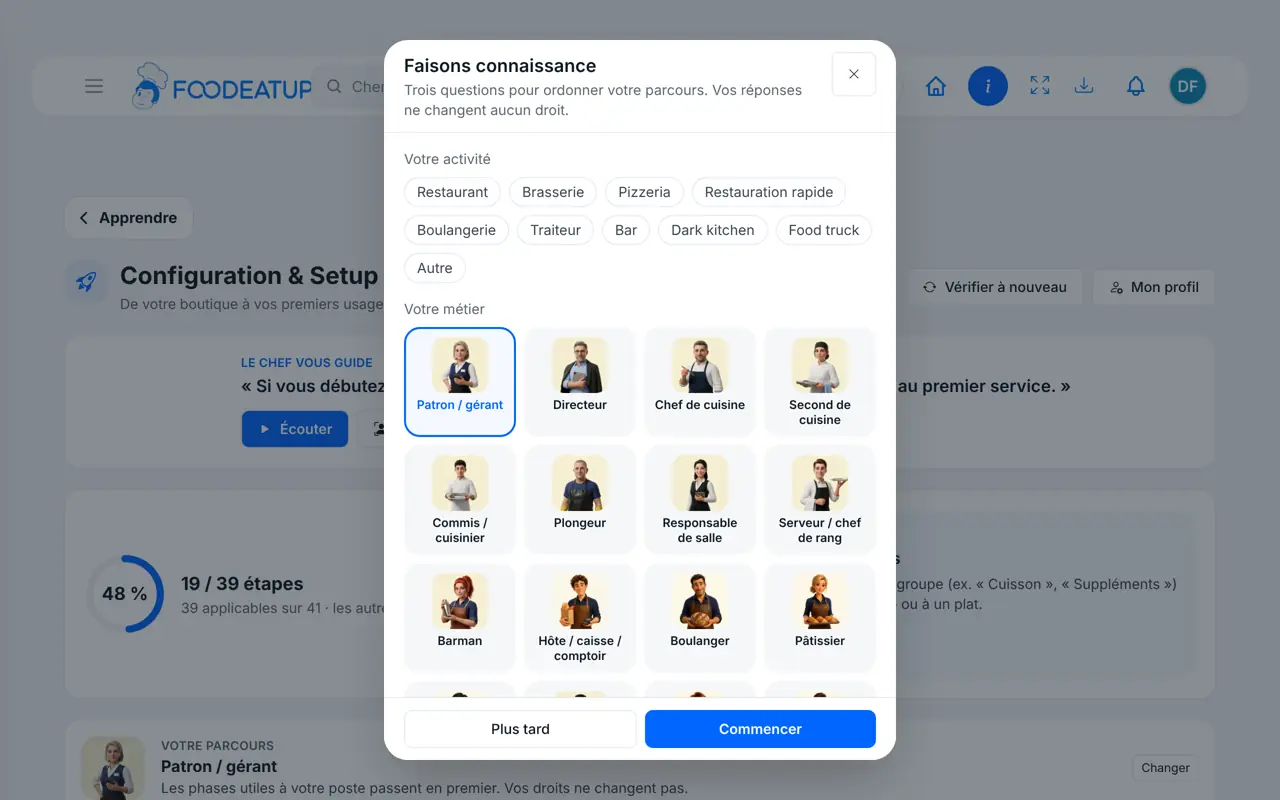
    Tap “Mon profil”. The “Faisons connaissance” window asks three questions: your business, your job, your goal. Tap “Commencer”. The phases useful to your job come first; your rights do not change.

    The “Faisons connaissance” window
  3. 3Step 3

    Do the next step

    Tap “Reprendre”: the software opens the right screen (VAT, categories, menu, ingredients…). In the list, tap a step to read what to do and “Comment on vérifie”, then “Aller à l’étape”.

  4. 4Step 4

    Come back and check

    Go back to First steps and tap “Vérifier à nouveau”. The step is ticked if the data is there. The “À faire” filter keeps only what is left.

  5. 5Step 5

    Get help from an assistant

    Each step offers a ready-made text for your AI assistant: tap “Copier pour Claude” or “Ouvrir dans mon assistant”. The words in square brackets are for you to fill in.

The result

The result

Your restaurant is set up: the menu, the ingredients, the team and hygiene are in place. The screen shows “Toutes les étapes applicables sont terminées.”

See the Premiers Pas plan (in French) →
The result : Set up step by step

Owner and employee: what changes

The owner

Sees every step of the plan. Can set aside an optional step with “Cette étape ne me concerne pas” and reset the path with “Réinitialiser la progression”.

First steps — The owner

The employee

Sees the same path, ordered for the job. A step that needs a right the employee does not have is marked blocked, with the reason. Only a manager can set a step aside.

First steps — The employee

Do it with your assistant

Claude, ChatGPT or Mistral’s Le Chat, connected to FoodEatUp. Copy the request and replace your establishment number.

Where do I stand?

In FoodEatUp, for my establishment [number], tell me where I stand in the first steps: the steps completed, those in progress and the next one to do.

What you getYour progress, step by step, and the next thing to do.

Tools used : get_onboarding_progress

Make me a plan

In FoodEatUp, for my establishment [number], ask me the setup questions then suggest a plan in order, suited to my restaurant.

What you getA few simple questions, then a setup plan to follow.

Tools used : get_setup_questionnaire, get_setup_plan

Follow the plan week after week

In FoodEatUp, for my establishment [number], compare my setup plan with what is already done and tell me the three steps to do this week.

What you getThree steps to do, chosen from what is already in place.

Tools used : get_setup_plan, get_onboarding_progress

What you gain

You know where to start

The next step is always shown, with a button to go there.

Nothing is declared by hand

A step is only ticked if the software finds the data.

A path for your job

The phases useful to your job come first.

Videos at each step

Each step opens its Academy tutorials.

The Chef’s tip

Do one or two steps a day, outside service, rather than everything at once. Start with VAT and categories: the menu, the till and the recipes rely on them.

Frequently asked questions

Can I tick a step myself?

No. A step ticks itself when the software finds the data in your restaurant. If you delete that data, the step goes back.

Does “Réinitialiser la progression” erase my data?

No. Only the history of the path is erased. Your dishes, ingredients and employees stay intact, and steps already done are ticked again at the next check.

Do I have to do every step?

No. Only the steps in your plan are counted, and an optional step can be set aside. You move at your own pace.

Text version for AI assistants →

Share this tutorial

Send it to your team, your partner or your accountant. The image below appears in the message.

Share preview : Set up step by step
WhatsAppLinkedInFacebookEmail

Send to an AI assistant

Claude, ChatGPT or Le Chat read this tutorial and explain it to you. Connected to FoodEatUp, they do it with you.

Read this FoodEatUp tutorial: https://foodeatup.com/en/academy/apprendre/onboarding.md Explain it to me simply, step by step, then help me do it in my restaurant. If FoodEatUp is connected to you, do it with me and show me the preview before every change.

ClaudeLe ChatChatGPT

Open in my software

Type your establishment number: the link takes you straight to this screen. The number stays on this device.

Discover the Premiers Pas plan (in French) →

You can read it in the software address: foodeatup.com/establishment/number/…