See my missions
In FoodEatUp, for my establishment [number], show me the school mode missions: those completed and those I still have to do.
What you getThe list of missions, with their status.
Tools used : get_school_status
 Learn · School mode
School mode gives you a fictional restaurant to practise on. You create an ingredient, a dish, a reading, you take a payment: nothing is sent, charged or declared, and your real data does not move.
 Patron / gérant
 Chef de cuisine
 Commis / cuisinier
 Serveur / chef de rang
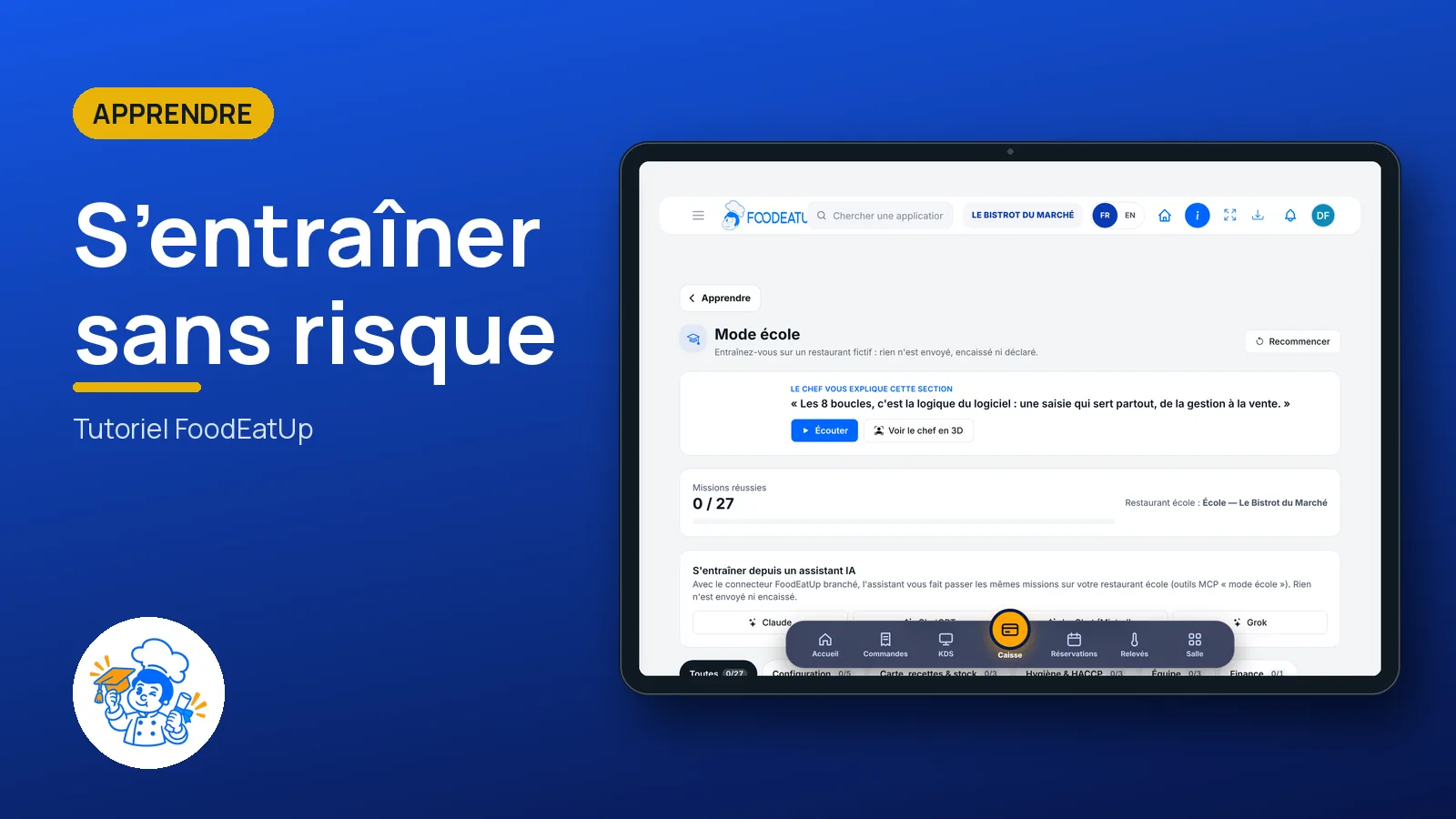
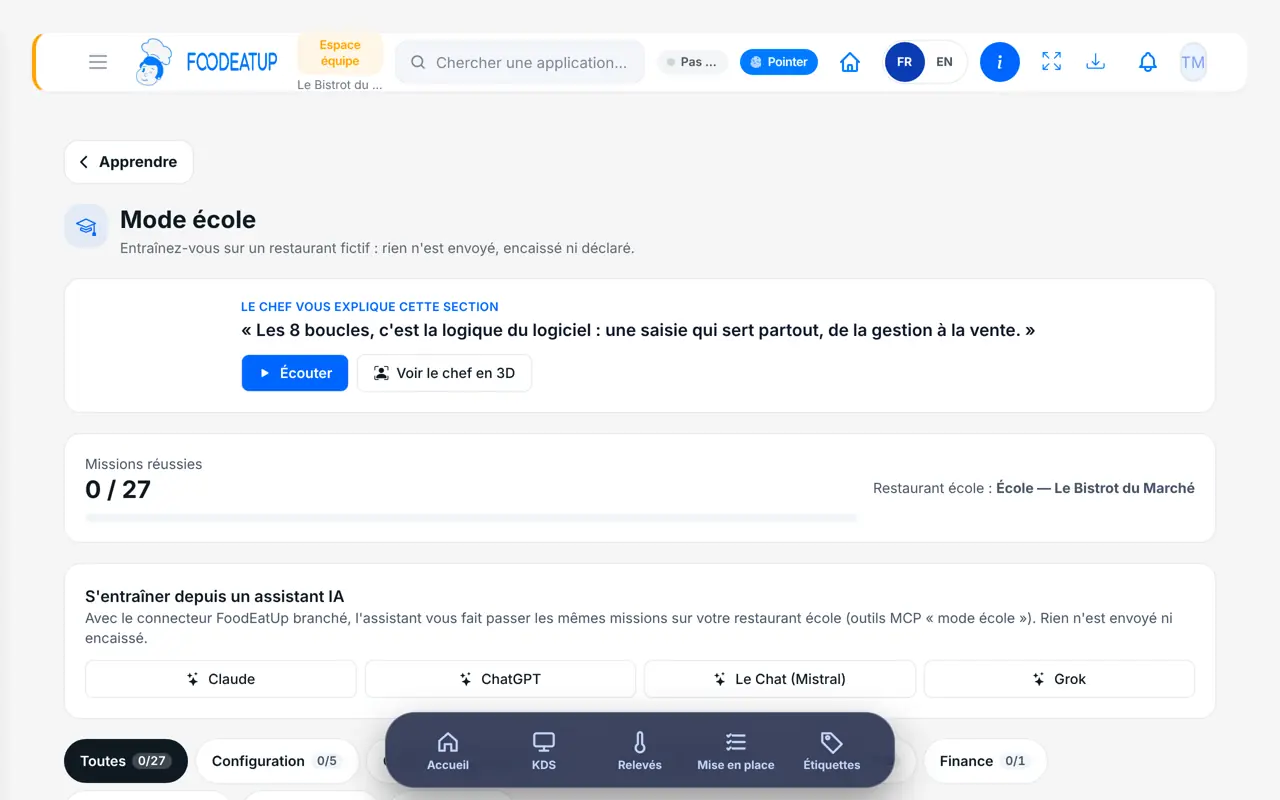
A tablet, as in service: you practise with the same gestures as on the day. School mode also works on a phone and a computer.
The real software screens, as they appear on each device.
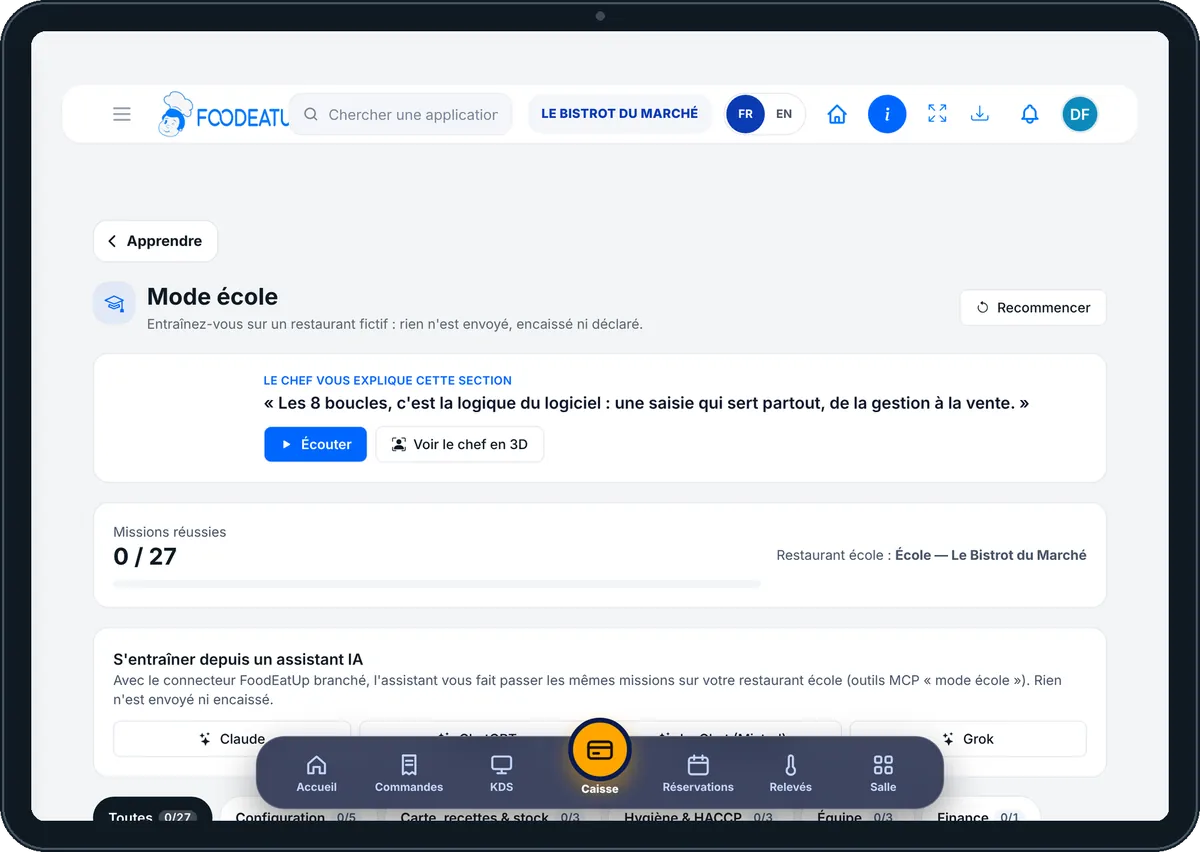
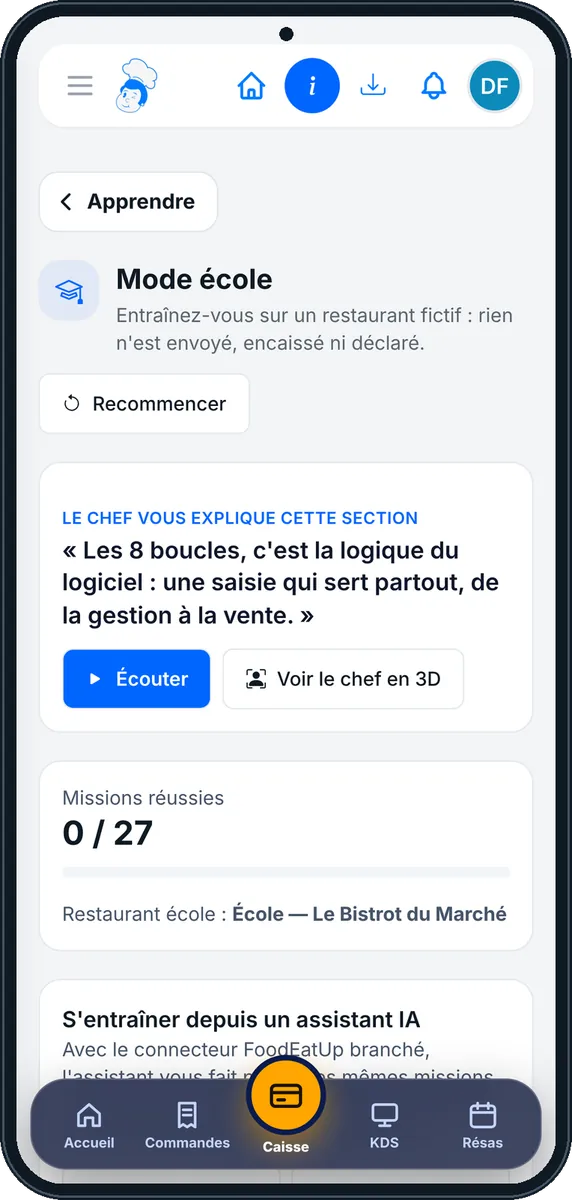
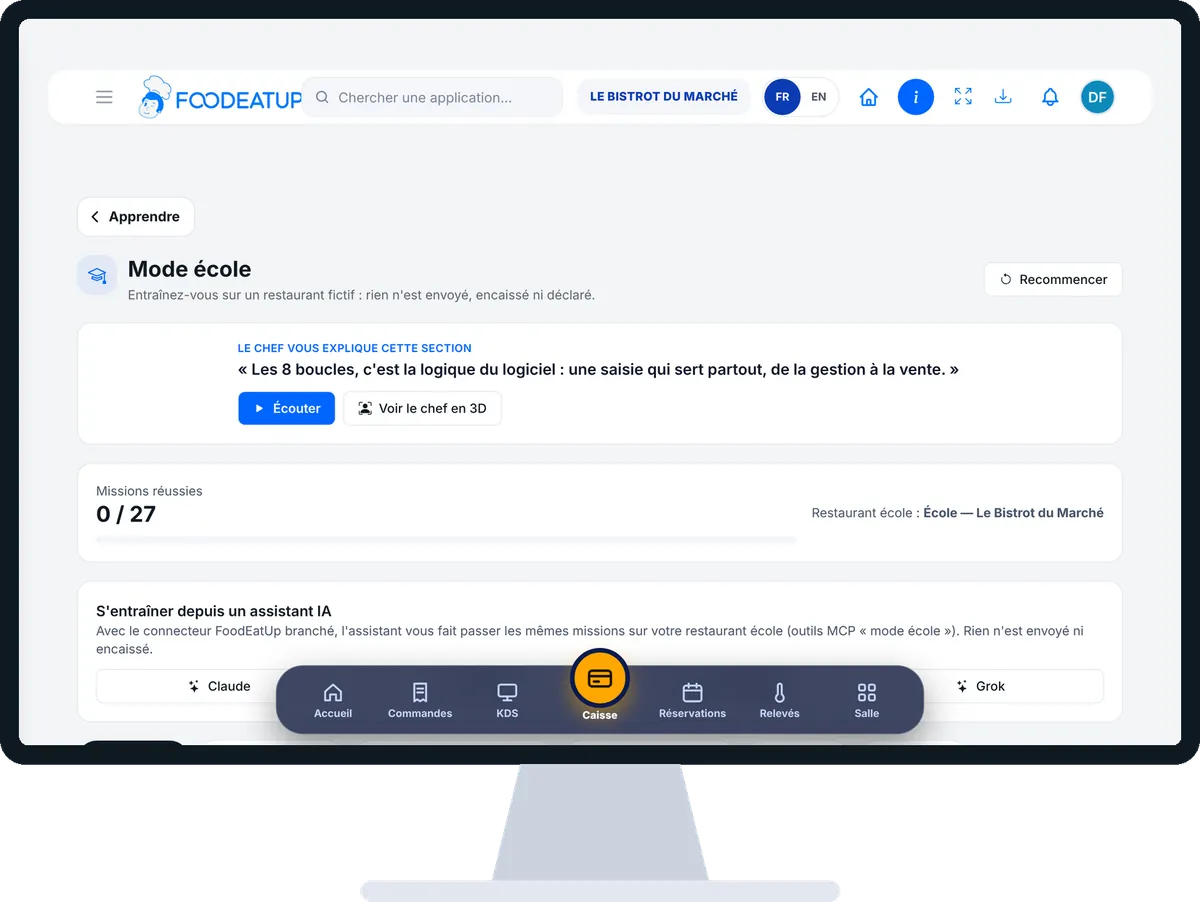
Practise without risk : 5 steps, with the real software screens.
From the home screen, open Apprendre then “Mode école”. The first time, tap “Créer mon restaurant école”. The “Missions réussies” counter follows your progress.
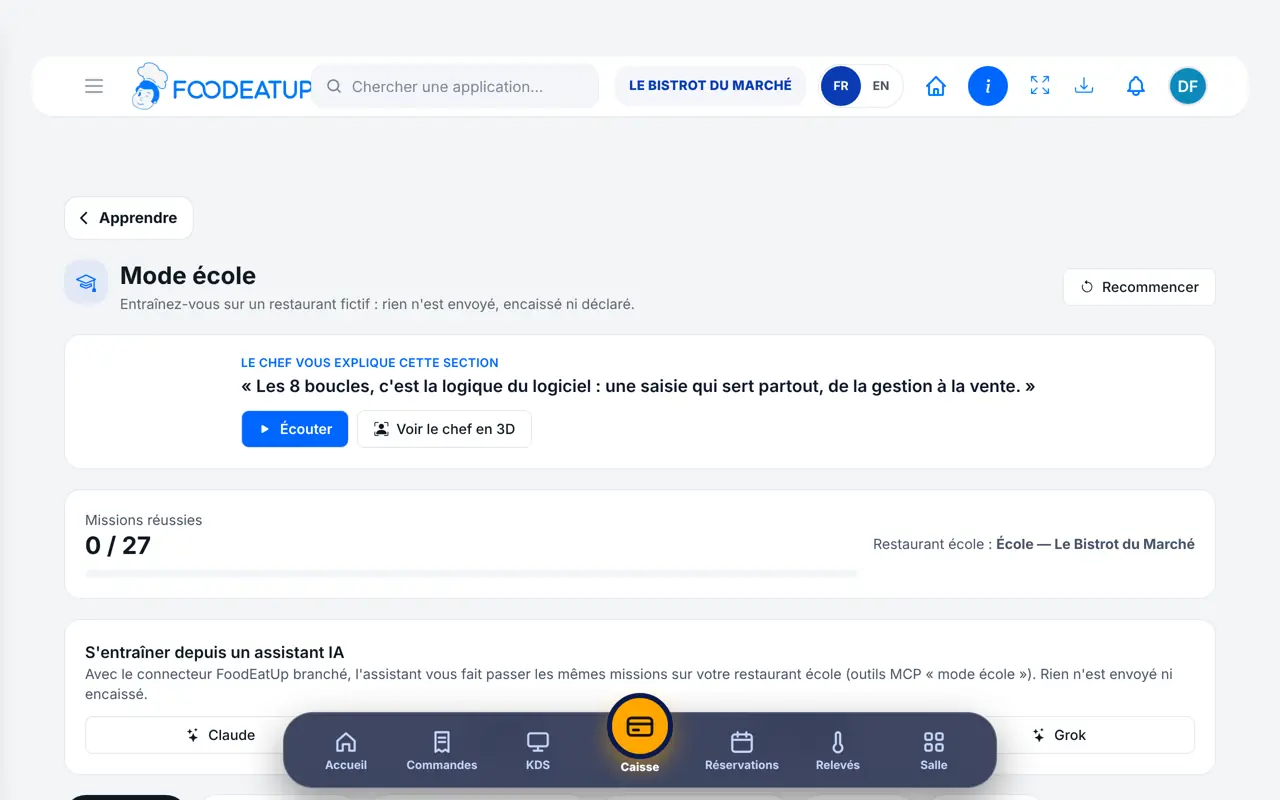
Missions are grouped by section of the software. Tap one: you read its goal, its steps and what the software will check. A mission marked “Module à découvrir” shows a module outside your plan.
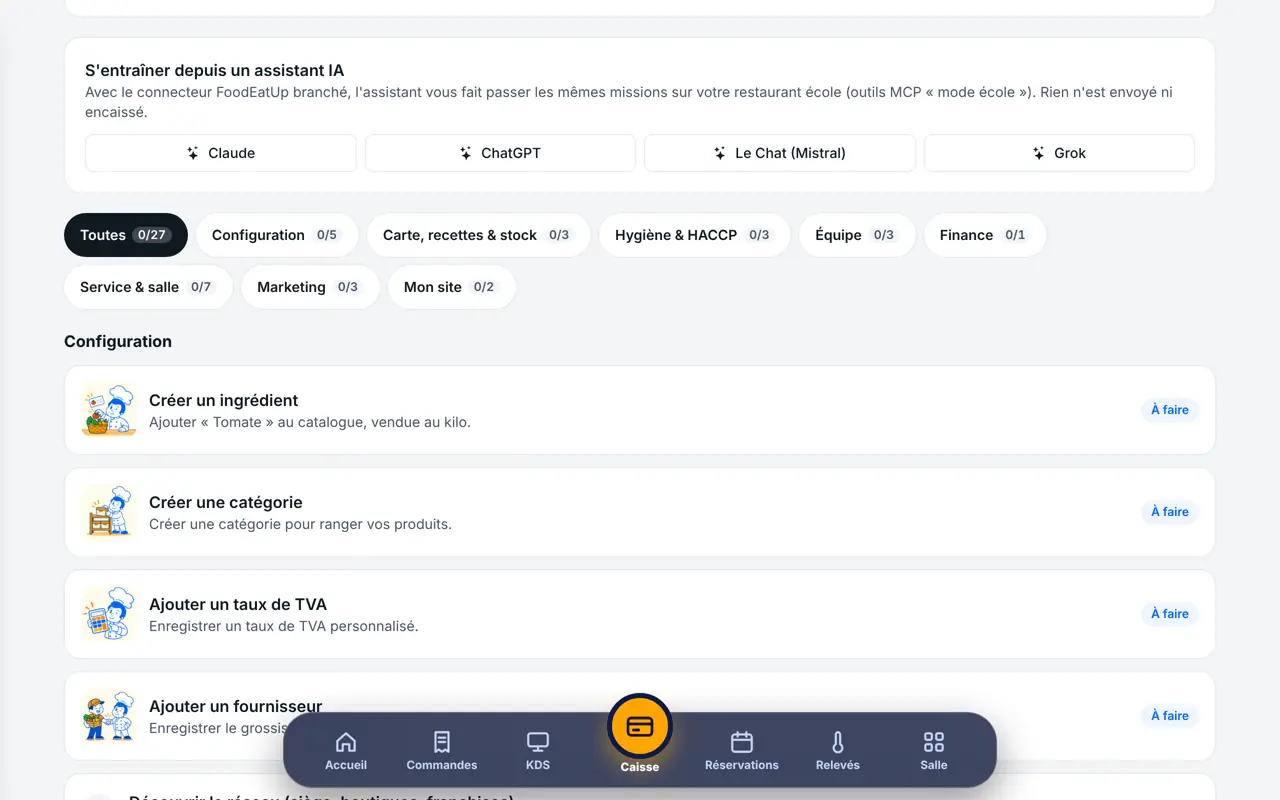
Tap “Commencer l’exercice”. The software opens the right screen in your school restaurant; a banner reminds you that you are in school mode. Do what the mission asks.
Go back to the missions and tap “J’ai terminé, vérifier”. The software checks that the record was created in the school.
Answer the questions then tap “Valider mes réponses”. Each answer is explained. The mission becomes “Terminée” once the exercise is checked and the quiz passed.
Your missions are “Terminées” and you know the gestures. You can repeat them in your real restaurant, without hesitating and without beginner’s mistakes.
Try the demo game, no account needed (in French) →Creates the school restaurant, follows the missions, and is the only one who can erase everything with “Recommencer”.
Enters the school of their restaurant with the rights of their role and follows their own missions. Does not have the “Recommencer” button.
Claude, ChatGPT or Mistral’s Le Chat, connected to FoodEatUp. Copy the request and replace your establishment number.
In FoodEatUp, for my establishment [number], show me the school mode missions: those completed and those I still have to do.
What you getThe list of missions, with their status.
Tools used : get_school_status
In FoodEatUp, for my establishment [number], open my school restaurant if it does not exist, then guide me through the “Créer un ingrédient” mission: start it, tell me what to do, check it, then ask me the quiz one question at a time.
What you getThe assistant takes you through the mission in the school restaurant, then corrects the quiz with you.
Tools used : open_school, get_school_status, start_school_mission, check_school_mission, answer_school_quiz
Nothing is sent, charged or declared: it is a fictional restaurant.
The school is separate from your restaurant, records included.
An exercise checked by the software, then an explained quiz.
Even those outside your plan can be discovered here.
Have each new employee do two or three missions before their first service: they arrive knowing the screens. The quiz can be done before or after the exercise, during a quiet moment.
In FoodEatUp, one action triggers others. Here are the screens that work with this one.
No. The school is a separate restaurant: what you create there enters neither your menu, nor your till, nor your records.
No. In school mode, nothing is sent, charged or declared. The school till is always a training till.
Yes. Each employee enters the school of their restaurant with the rights of their role and follows their own missions. Only the owner can reset everything.
Send it to your team, your partner or your accountant. The image below appears in the message.
Claude, ChatGPT or Le Chat read this tutorial and explain it to you. Connected to FoodEatUp, they do it with you.
Read this FoodEatUp tutorial: https://foodeatup.com/en/academy/apprendre/ecole.md Explain it to me simply, step by step, then help me do it in my restaurant. If FoodEatUp is connected to you, do it with me and show me the preview before every change.
Type your establishment number: the link takes you straight to this screen. The number stays on this device.
Try the demo game, no account needed (in French) →
Répond avec les fiches du site, sans IA
Le chef cherche dans les fiches…
 Claude
 Le Chat
 ChatGPT