Aller au contenu
HACCP · Temperatures
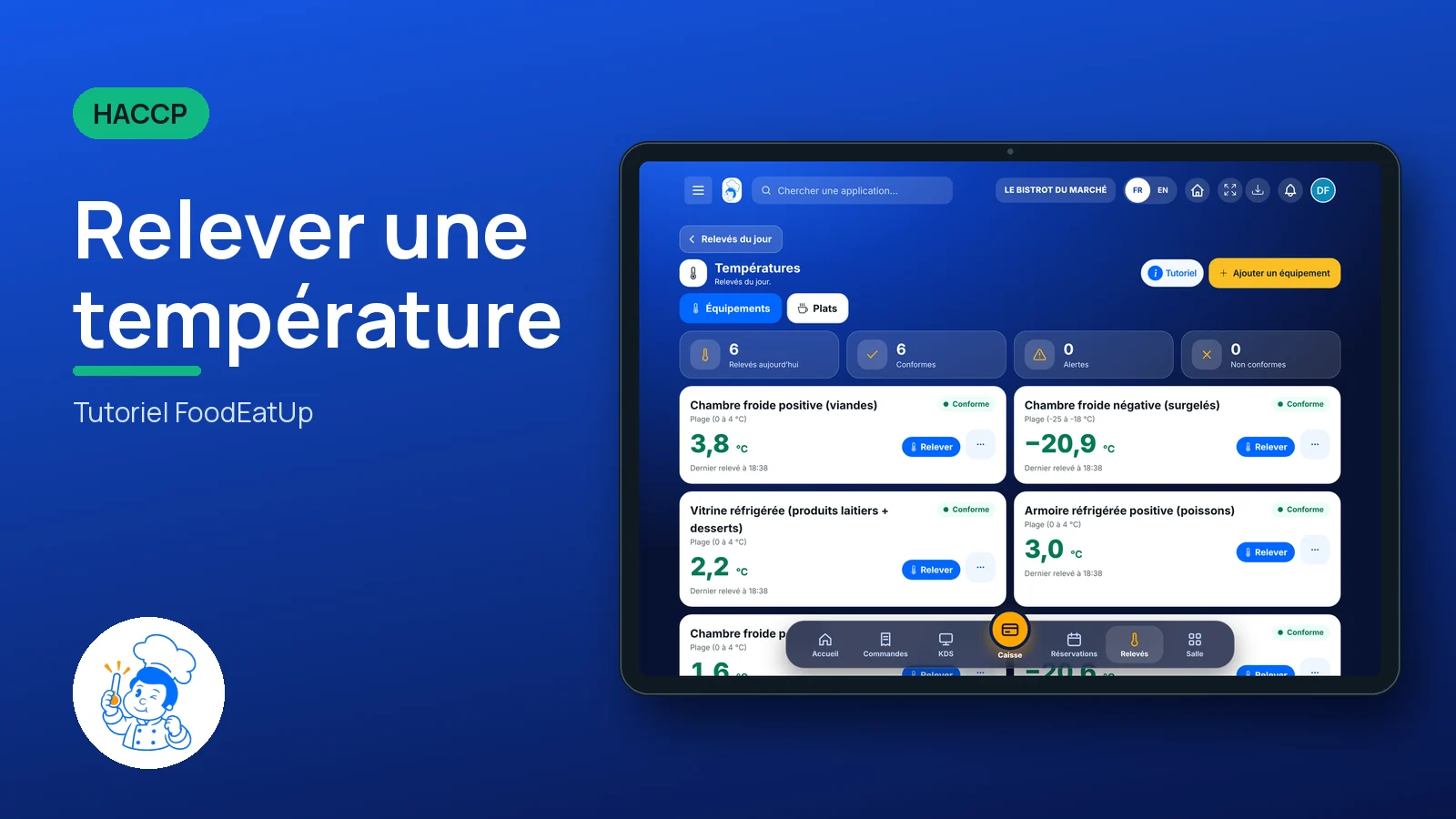
Log a temperature

Every fridge, cold room and bain-marie: type the temperature on the keypad, the software tells you right away whether it is within range, and the record keeps itself.

  • Tablet
  • 5 steps
  • Level : Beginner
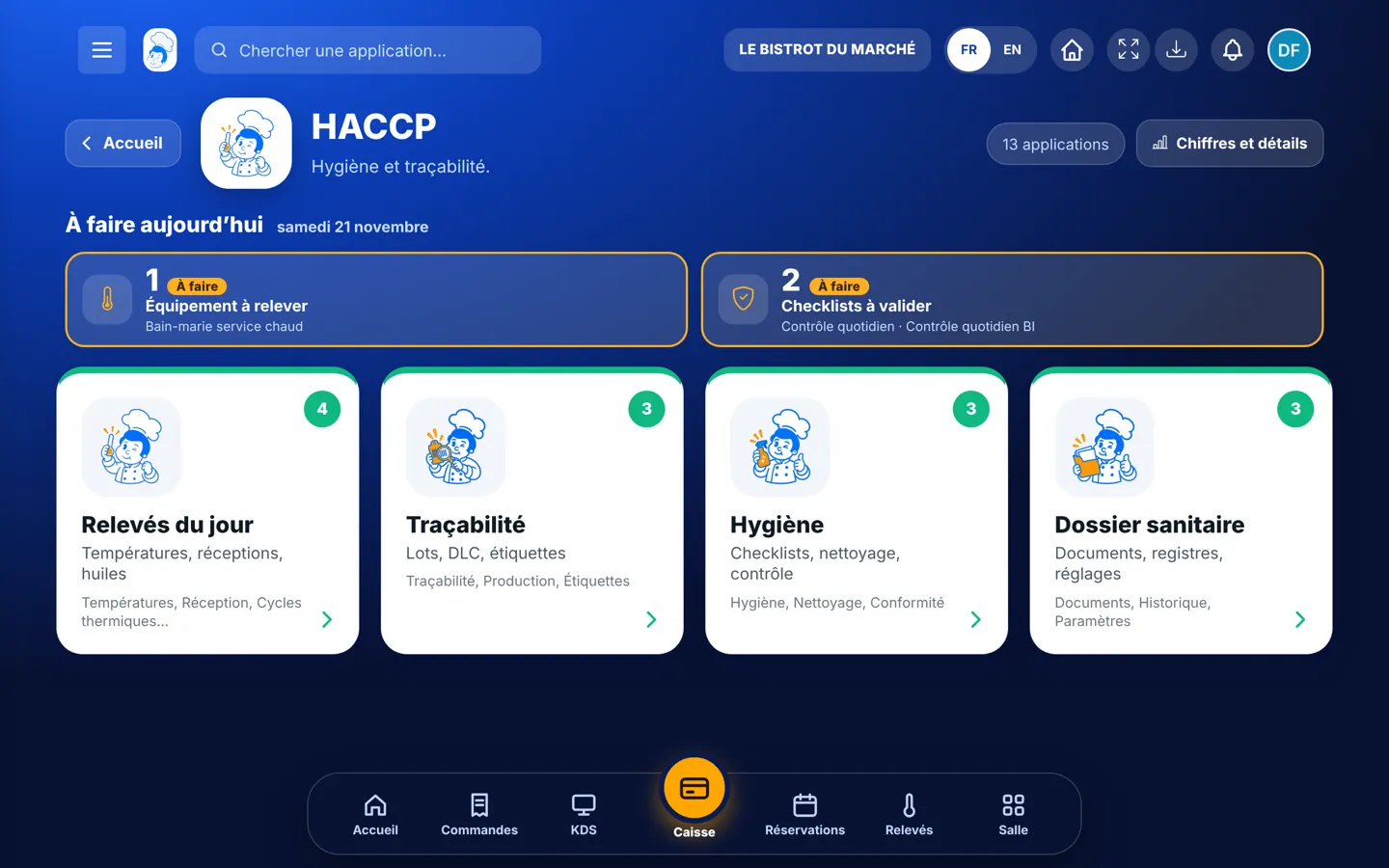
Log a temperature : The HACCP home screen and what is left to do today

Who is it for?

  • Chef de cuisine
  • Second de cuisine
  • Commis / cuisinier
  • Plongeur

Roles with access

  • Gérant·e
  • Chef de cuisine
  • Cuisinier·ère
  • Barman·maid
  • Responsable HACCP
  • Laboratoire (réseau)
  • Boutique (réseau)
  • Franchisé·e (réseau)
  • Directeur·rice d'établissement

The owner always has access. See what each role sees →

Recommended hardware

Tablet

A tablet in the kitchen, within reach of the fridges. The same screen works on the team’s phones and on the office computer.

See the hardware →

What it is for

  • Keep the temperature record at the moment you take the reading, not from memory in the evening or on a sheet taped to the fridge door.
  • See right away when a piece of equipment leaves its range, and note what you did about it.
  • Find any reading on inspection day: date, time, value, person.

Why set it up

  • A health inspection asks for the record. It must be complete and dated: here it is, with no extra effort.
  • A failing cold room shows at the next reading, before you lose the goods.
  • Each reading carries the name of the person who took it: you know who logged what.

The same screen, on every device

The real software screens, as they appear on each device.

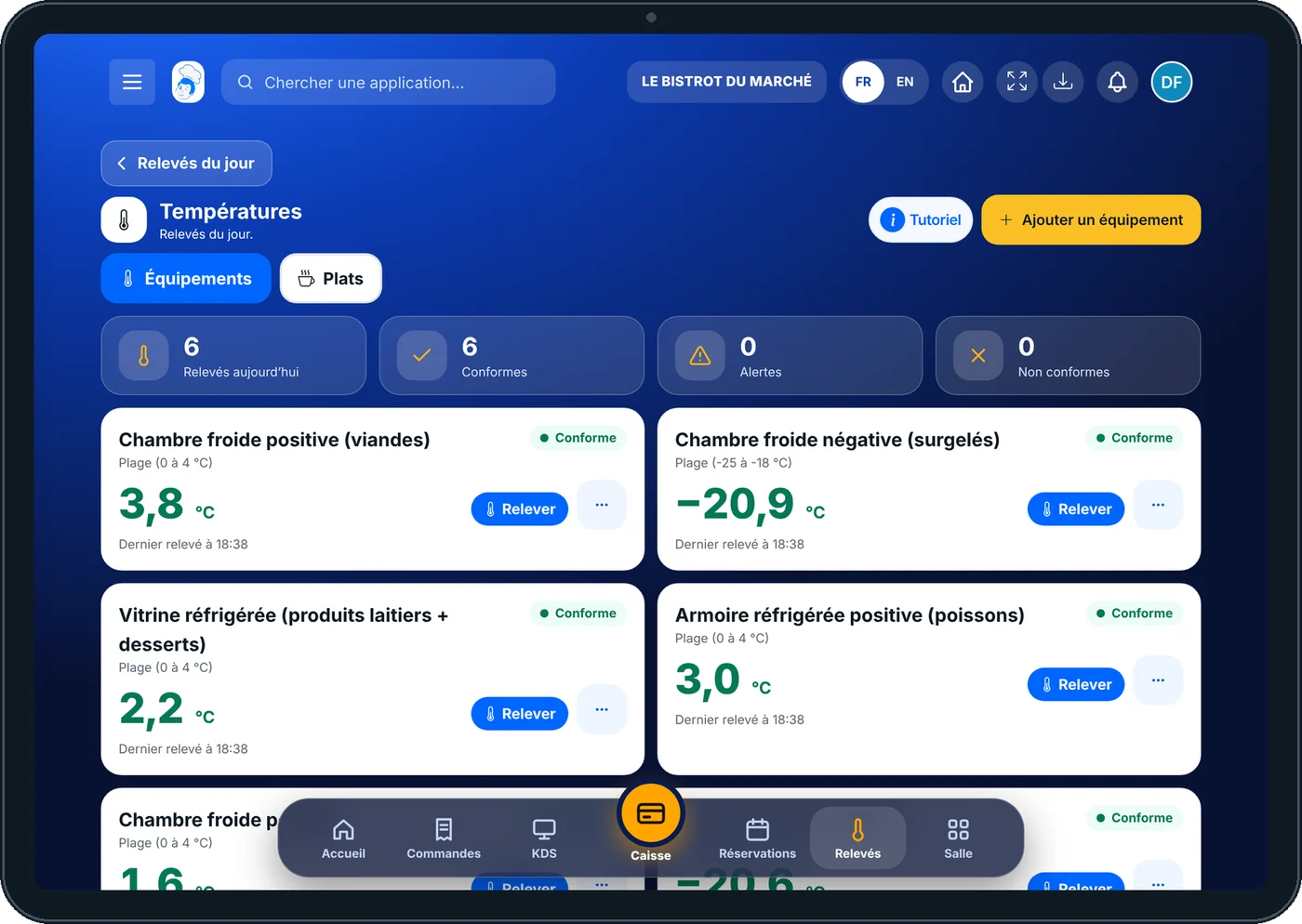
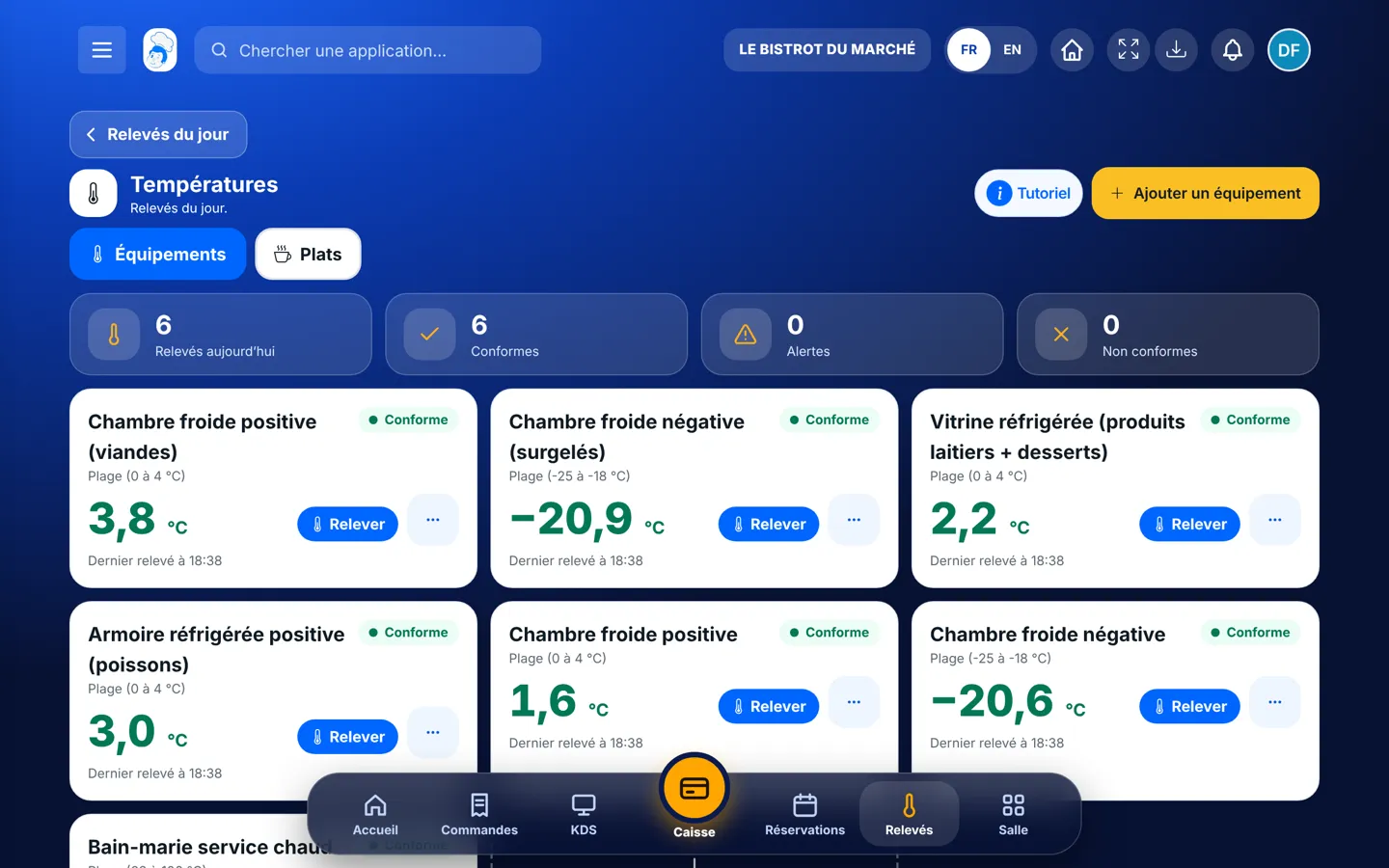
Temperatures — On the tablet
On the tablet
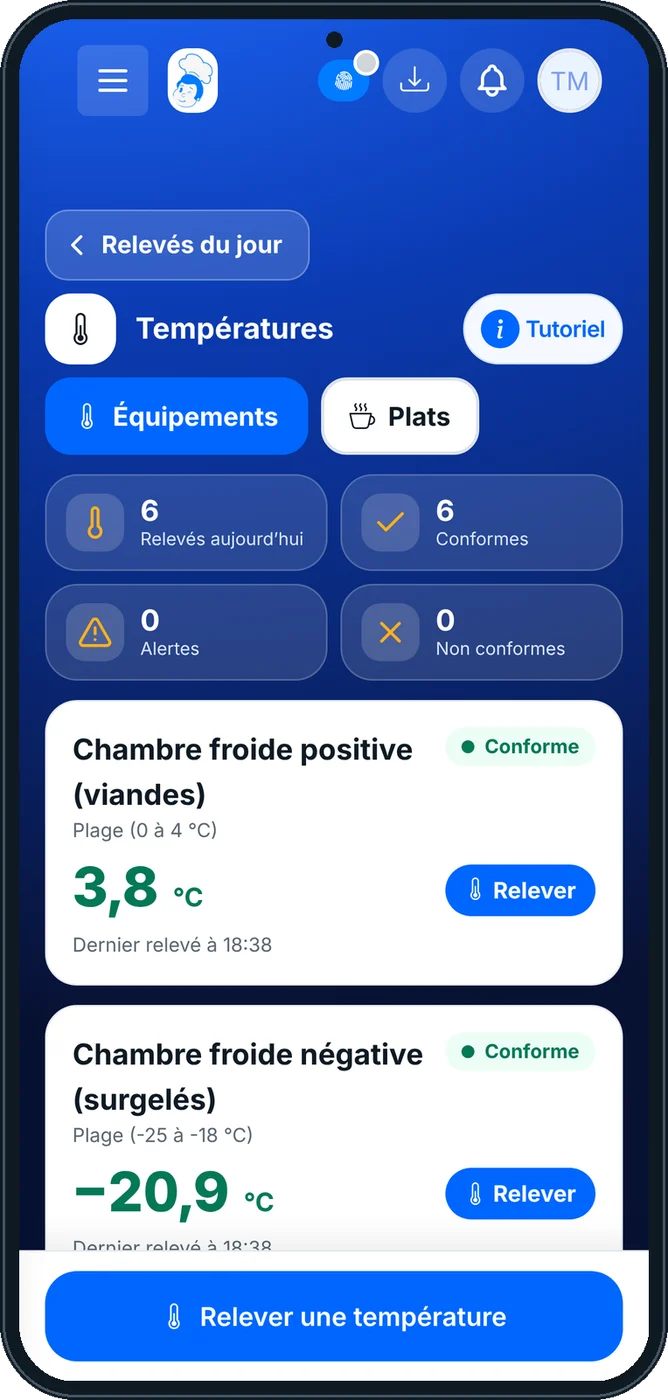
Temperatures — On the phone
On the phone
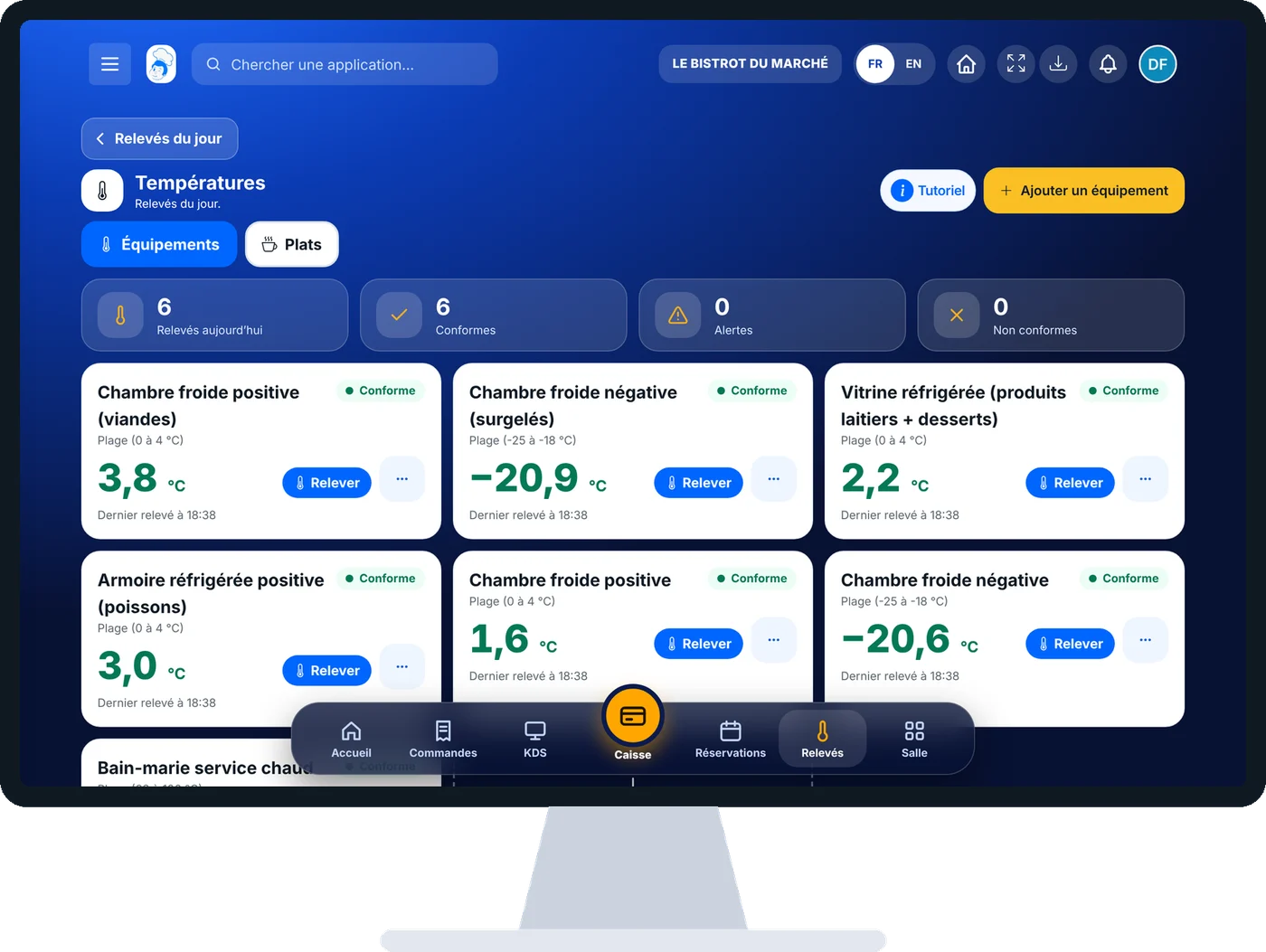
Temperatures — On the computer
On the computer

Step by step

Log a temperature : 5 steps, with the real software screens.

  1. 1Step 1

    Open today’s readings

    From the home screen, open HACCP. The “To do today” banner shows which equipment is waiting for a reading. Tap “Relevés du jour”, then “Températures” — or the “Relevés” button in the bottom bar.

    The HACCP home screen and what is left to do today
  2. 2Step 2

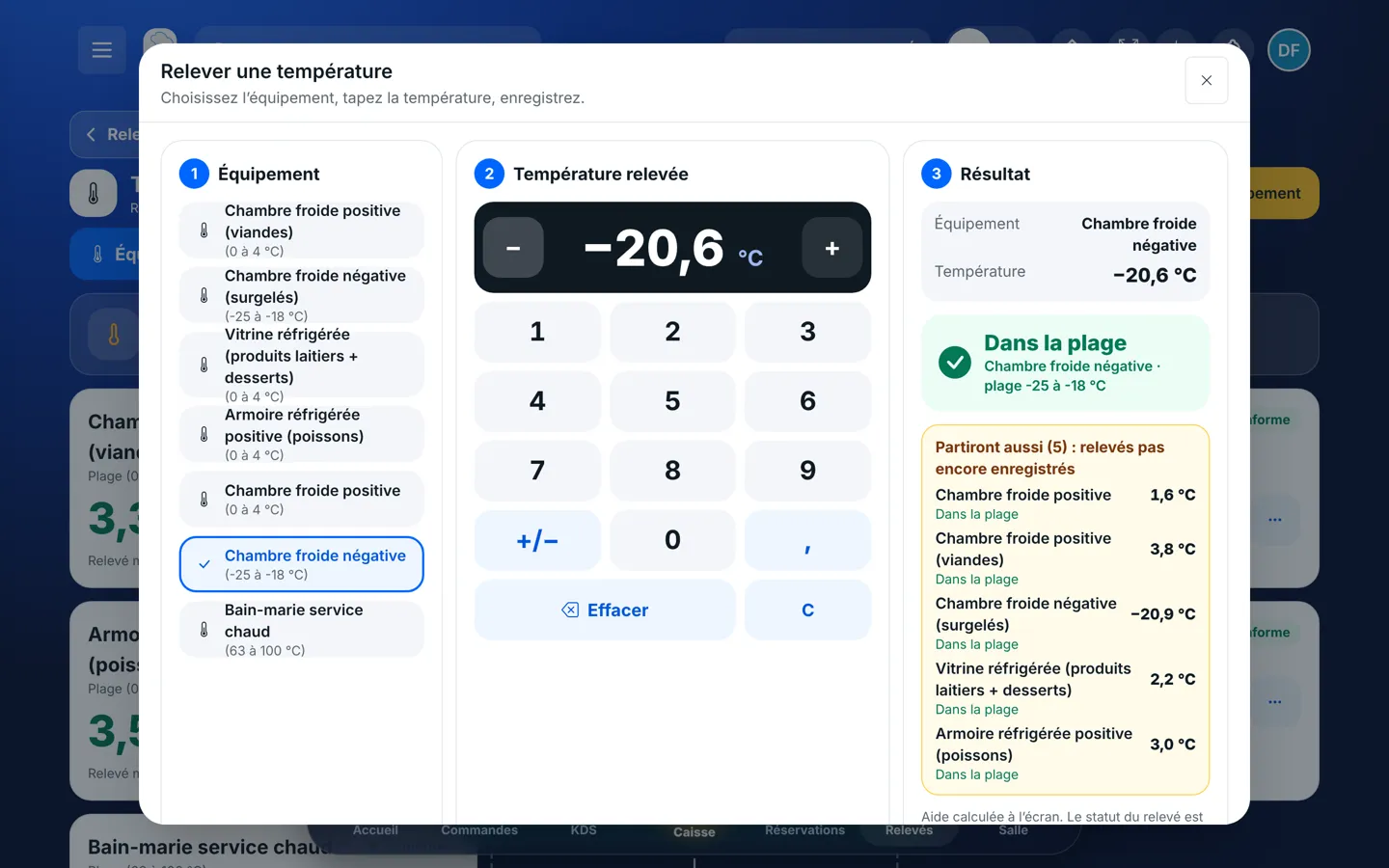
    Tap the equipment and type the temperature

    Tap the equipment card. Pick it in the list on the left and type the value on the keypad (the − and + buttons adjust by one tenth). On the right, the software says “within range” or “out of range” before you even save.

    Entering a reading: equipment, keypad, result
  3. 3Step 3

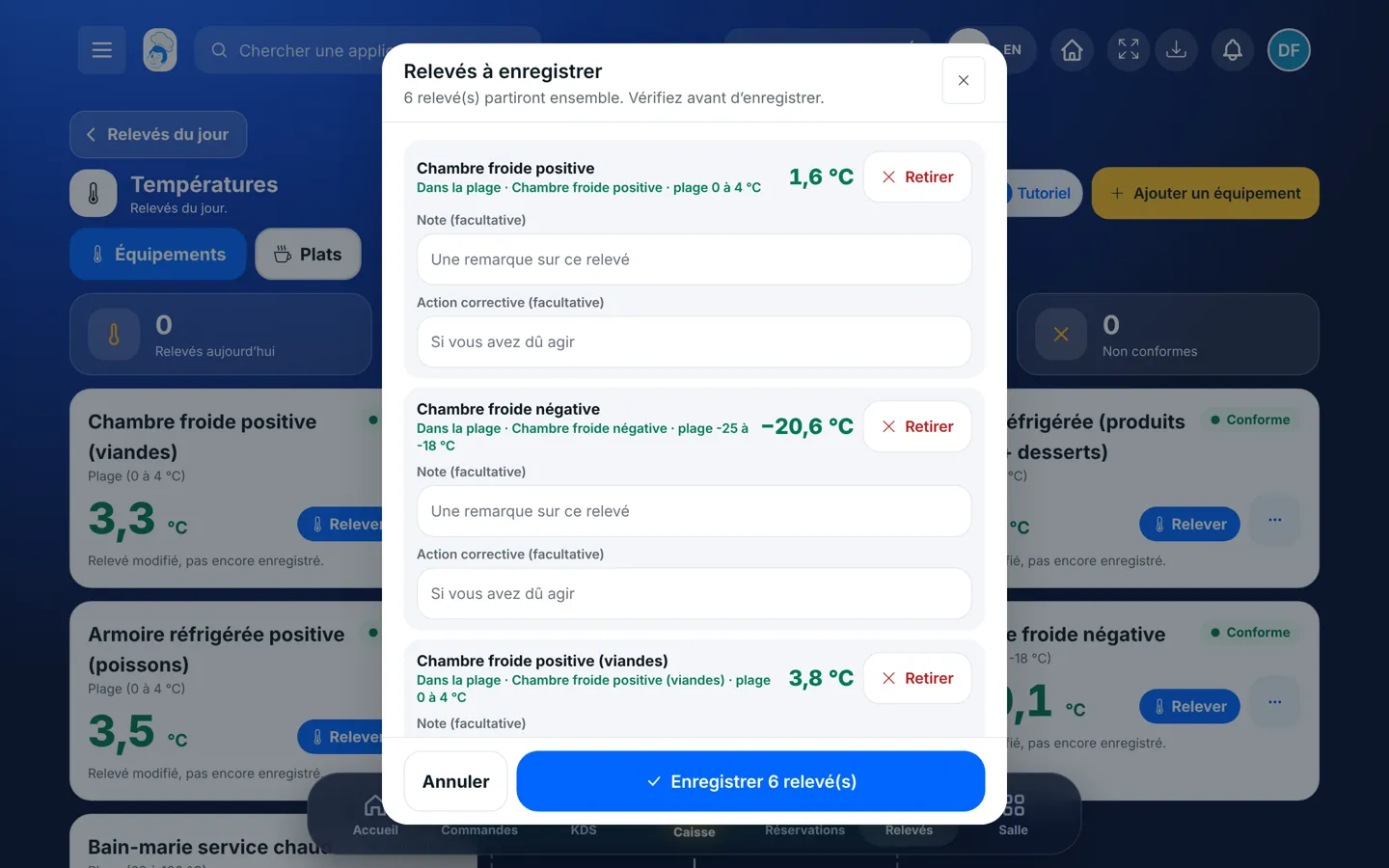
    Check before saving

    Tap “Vérifier et enregistrer”. All the readings you entered go together: read them again. You can add a note, and a corrective action if you had to act (door left open, product moved).

    The summary of readings before saving
  4. 4Step 4

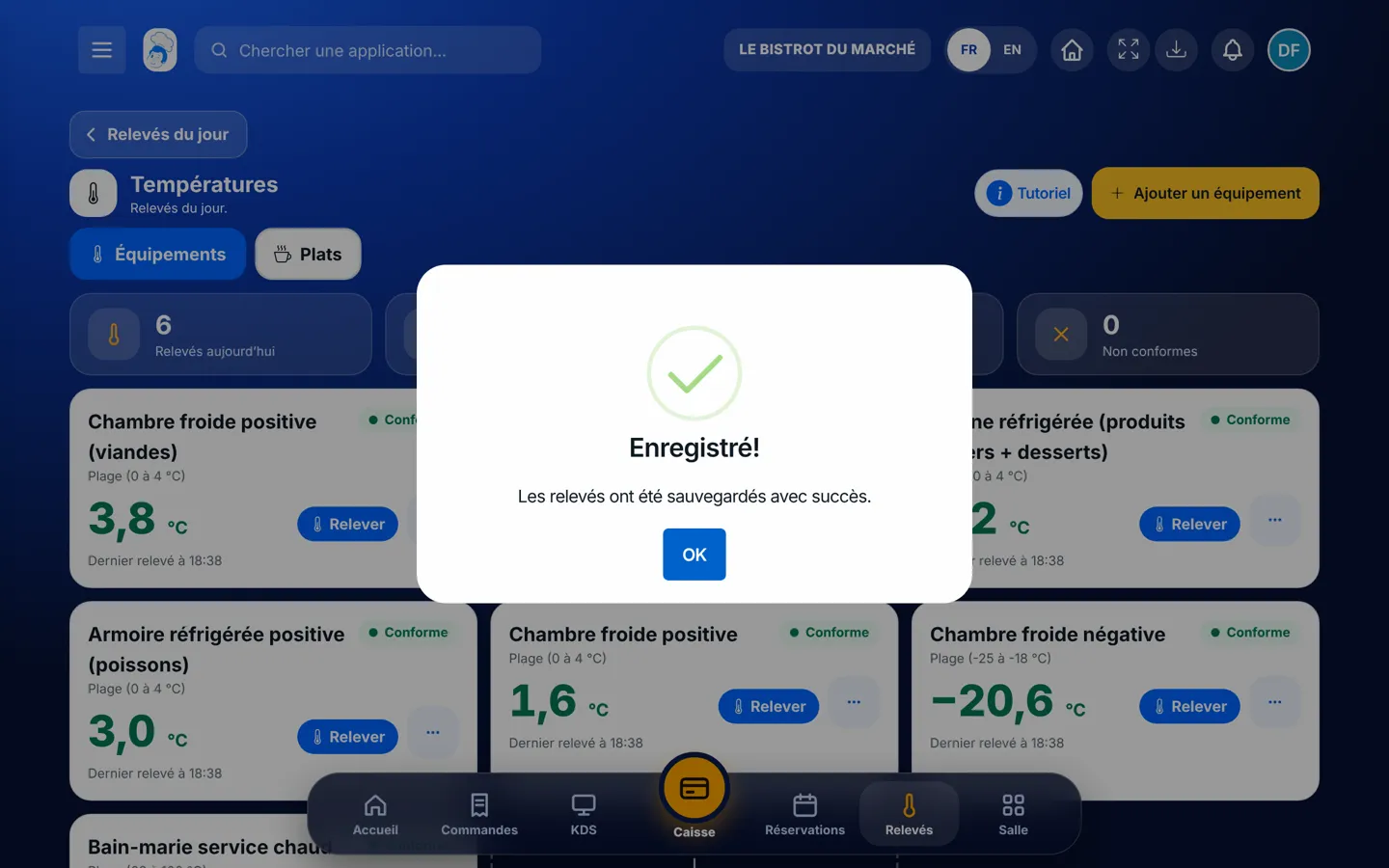
    Save

    Tap “Enregistrer”. The “Saved” message appears and today’s counters update: readings done, compliant, alerts, non-compliant.

    Readings are saved and today’s counters are up to date
  5. 5Step 5

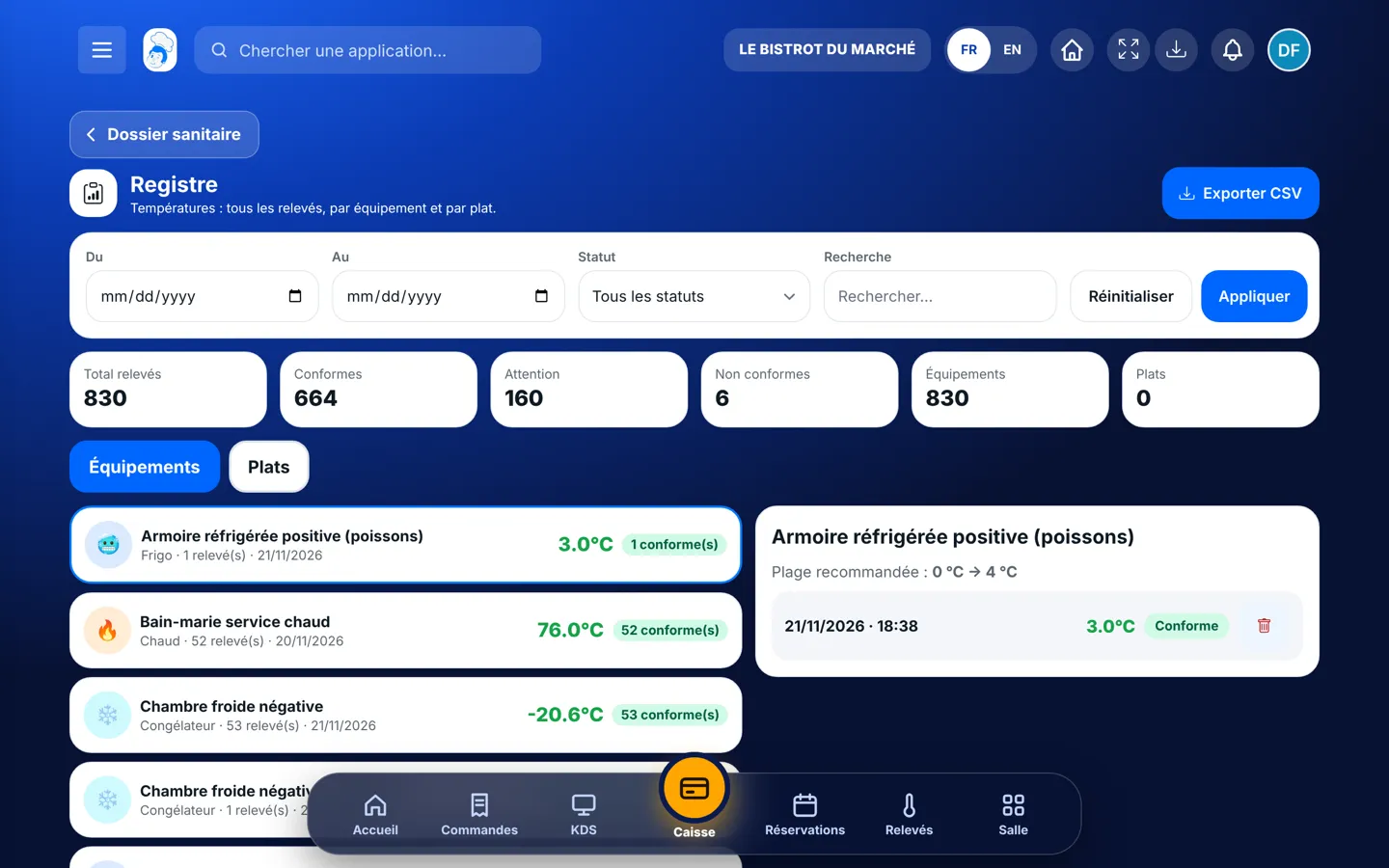
    Find the record

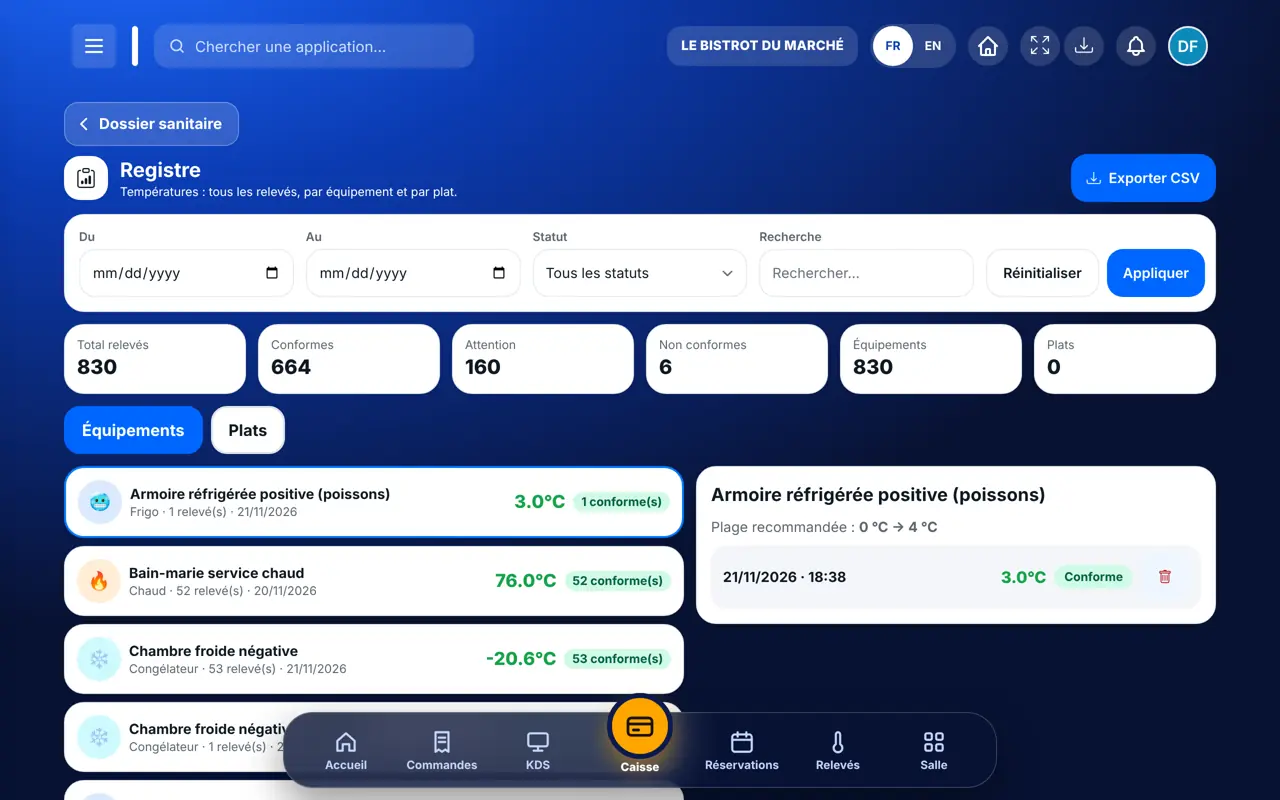
    In HACCP › Dossier sanitaire › Historique › Températures: every reading, by equipment, with a filter by date and status. The “Exporter CSV” button exports the record for the period.

    The temperature record and its export
The result

A complete log, ready for inspection

Every reading lands in the temperature log with its date, time, value and the person who took it. On inspection day, filter by period and export.

A complete log, ready for inspection : Log a temperature

Owner and employee: what changes

The owner

Logs readings and sets things up: add equipment, set its temperature range, archive it.

Temperatures — The owner

The employee

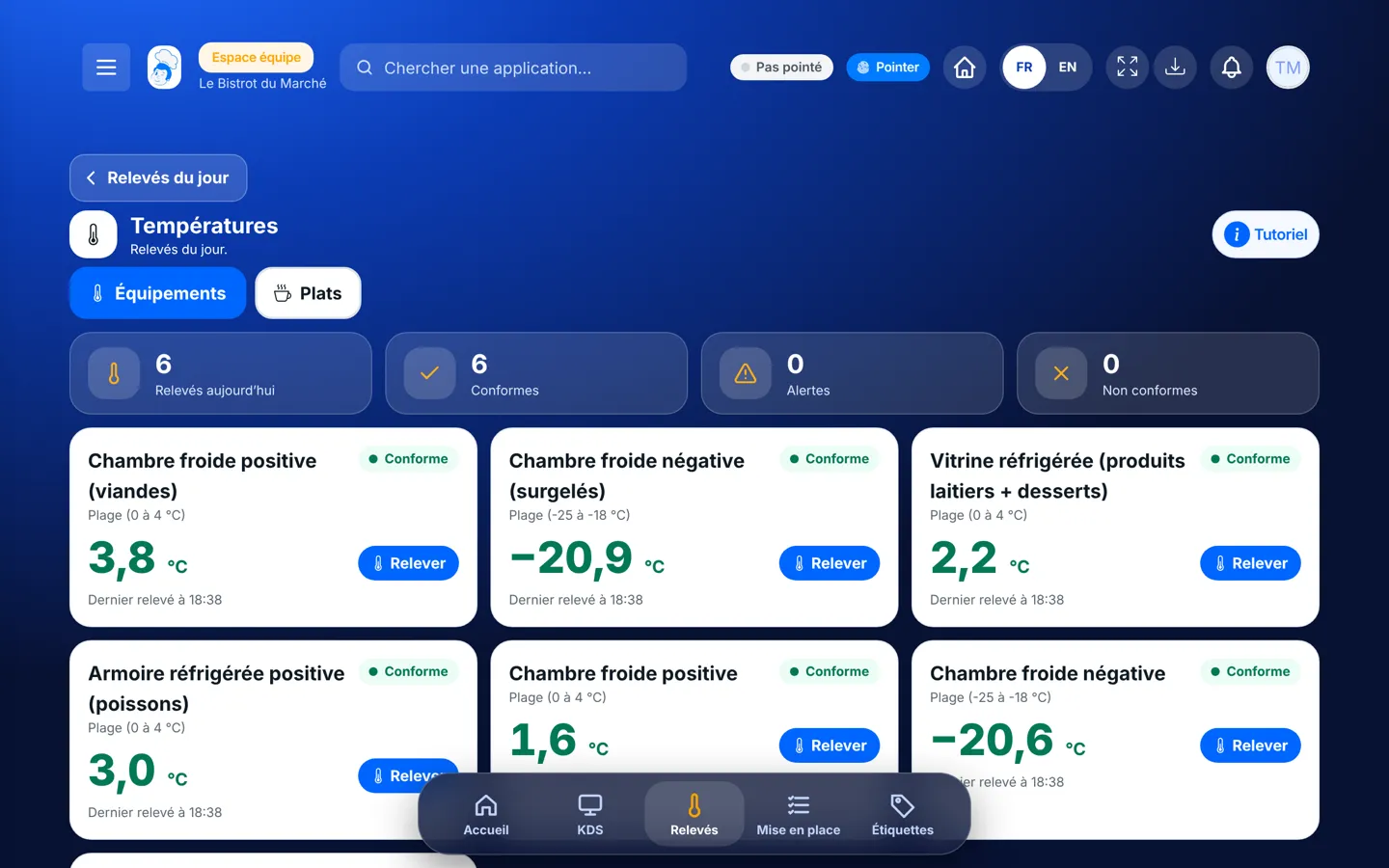
Sees the same equipment and logs readings the same way. The “Add equipment” button is hidden if the role does not allow it. The reading carries the employee’s first name.

Temperatures — The employee

Do it with your assistant

Claude, ChatGPT or Mistral’s Le Chat, connected to FoodEatUp. Copy the request and replace your establishment number.

What is left to log?

In FoodEatUp, for my establishment [number], tell me what is left to do in HACCP today: which equipment is waiting for a temperature reading and which is out of range.

What you getThe list of equipment to log, most urgent first, and today’s out-of-range readings.

Tools used : get_haccp_todo, list_equipment

Save a reading by voice or keyboard

In FoodEatUp, for my establishment [number], save a temperature reading: positive cold room, 3.2 °C, taken by me just now. Show me the result before confirming.

What you getThe assistant finds the equipment, saves the reading and tells you whether it is within range.

Tools used : list_equipment, add_temperature

Prepare an inspection

In FoodEatUp, for my establishment [number], export the temperature record for the last 30 days and list the non-compliant readings with the corrective action noted.

What you getThe record for the period, a download link, and the list of deviations to explain.

Tools used : get_haccp_history_temperatures, list_non_conformities

What you gain

A record that is always ready

Dated, signed by the person, exportable on inspection day.

Deviations seen right away

“Out of range” shows as you type, with room to note what you did.

No sheet to copy out

Log in front of the fridge, on the tablet or the phone.

The whole team logs the same way

Same screen, same large buttons, whether you are the chef or the dishwasher.

The Chef’s tip

Take the readings at set times, at opening and before the evening service, and leave the tablet near the cold room. When a reading is out of range, write the corrective action right away: it is the first thing an inspector asks for.

Frequently asked questions

What happens if a temperature is out of range?

The reading is saved as “out of range” and shows at the top of “To do today”. You can note the corrective action on the reading: it is kept in the log.

Can an employee take the readings?

Yes, if their role allows temperature readings (the Cook role does). The reading carries their first name and last-name initial.

Can the log be exported?

Yes. The temperature log exports to a spreadsheet file from the food-safety file, for the period you choose.

Text version for AI assistants →

Share this tutorial

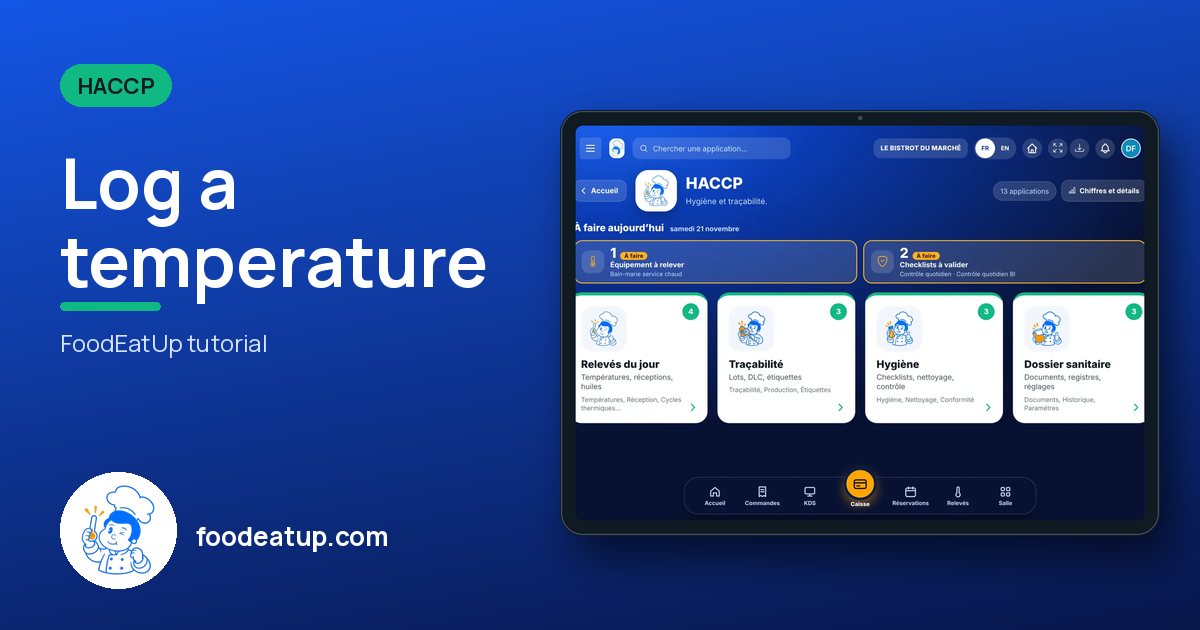
Send it to your team, your partner or your accountant. The image below appears in the message.

Share preview : Log a temperature
WhatsAppLinkedInFacebookEmail

Send to an AI assistant

Claude, ChatGPT or Le Chat read this tutorial and explain it to you. Connected to FoodEatUp, they do it with you.

Read this FoodEatUp tutorial: https://foodeatup.com/en/academy/haccp/haccp-temperatures.md Explain it to me simply, step by step, then help me do it in my restaurant. If FoodEatUp is connected to you, do it with me and show me the preview before every change.

ClaudeLe ChatChatGPT

Open in my software

Type your establishment number: the link takes you straight to this screen. The number stays on this device.

Discover FoodEatUp HACCP (in French) →

You can read it in the software address: foodeatup.com/establishment/number/…