Today’s labels
In FoodEatUp, for my establishment [number], list the HACCP labels printed today and their use-by dates.
What you getToday’s labels with their use-by dates.
Tools used : list_haccp_labels
 HACCP · Labels
Tap the products to label, choose the label type, check the use-by date and batch, then print. Every label is kept in the history.
 Chef de cuisine
 Second de cuisine
 Commis / cuisinier
The owner always has access. See what each role sees →
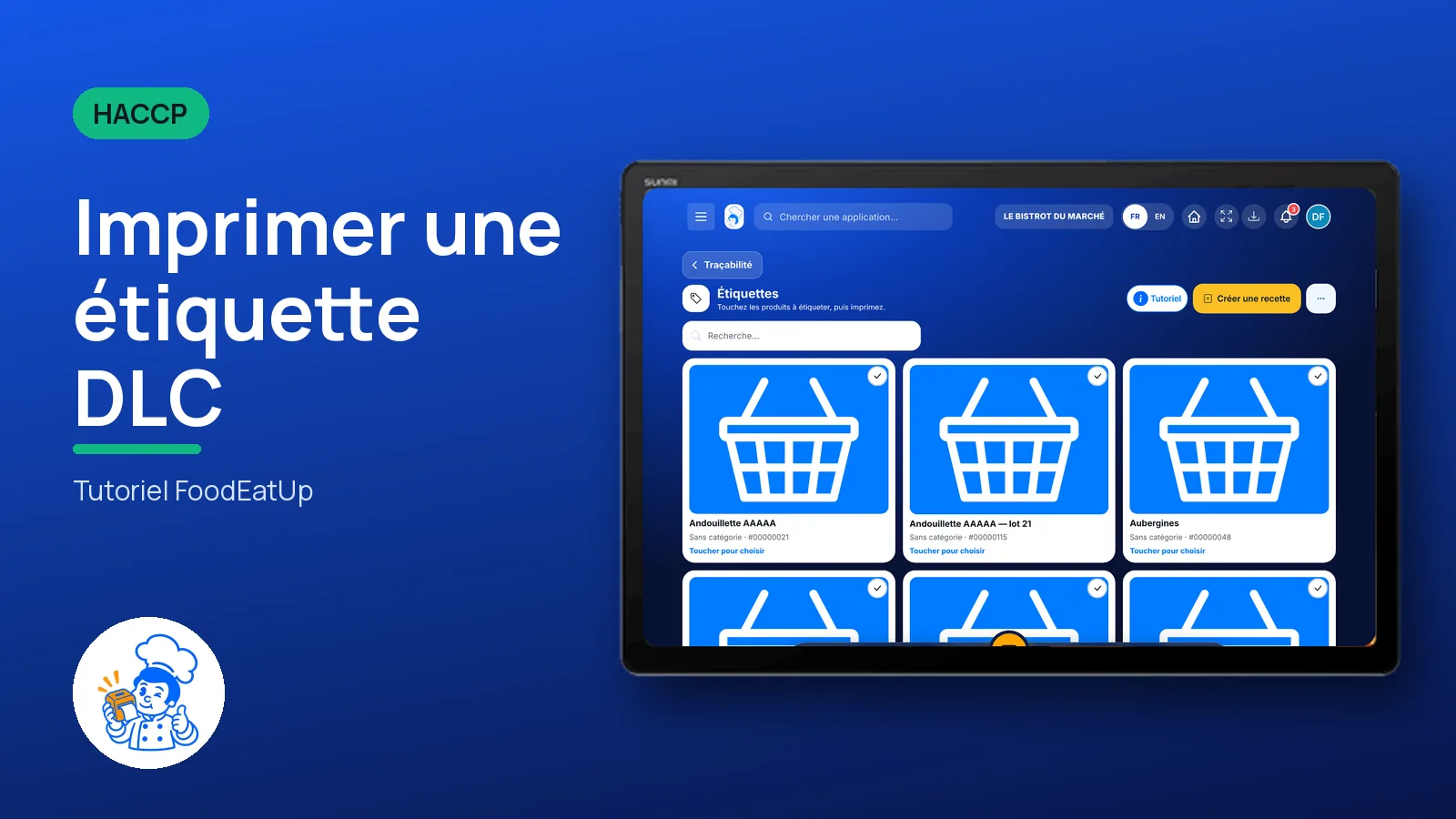
A tablet in the kitchen, connected to the label printer. Labels can also be created in the FoodEatUp HACCP mobile app, on Google Play.
The real software screens, as they appear on each device.
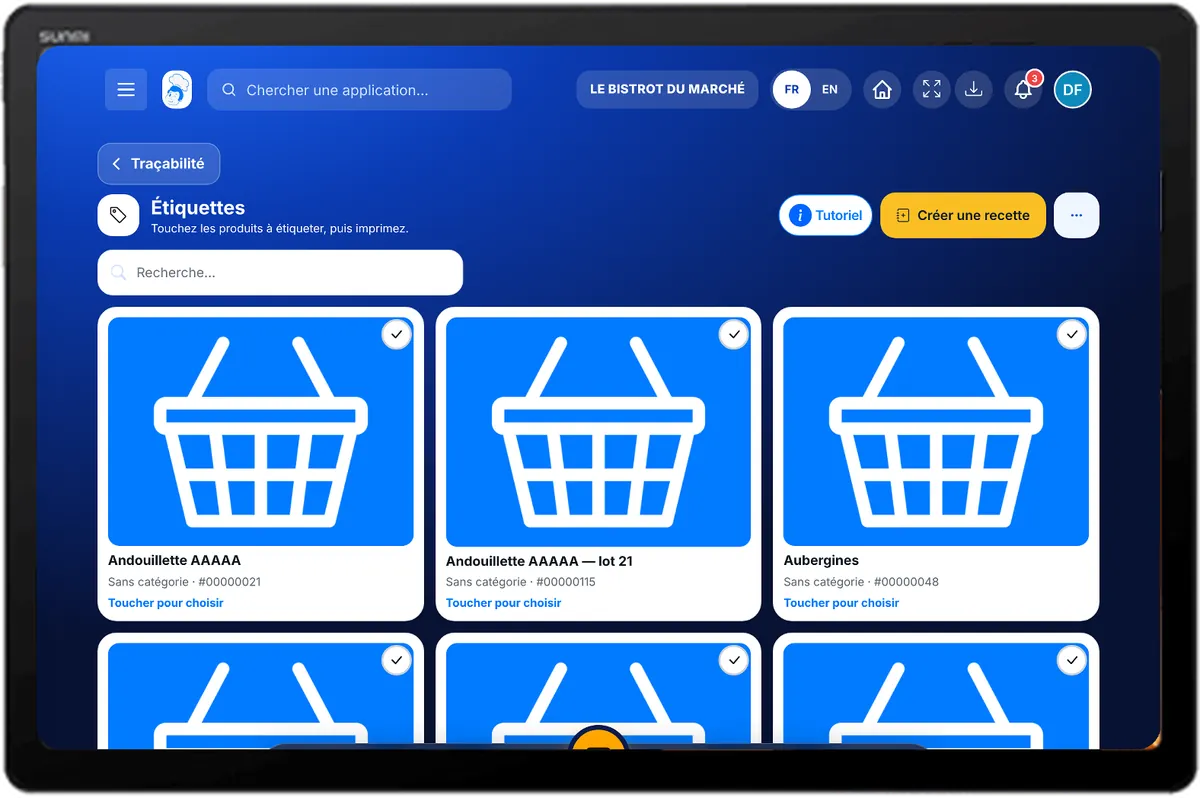
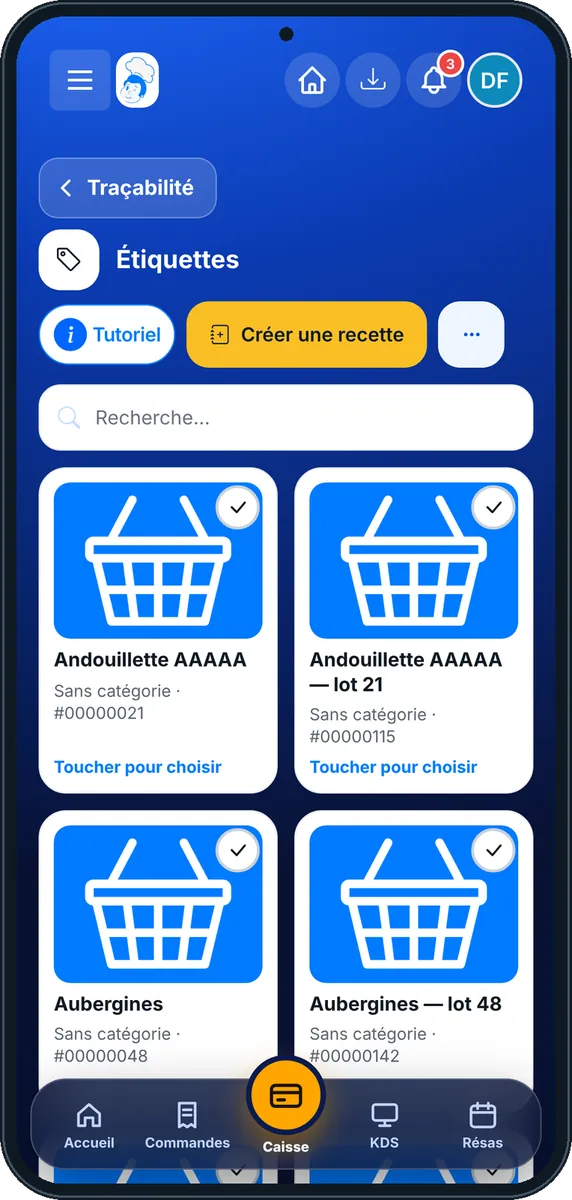
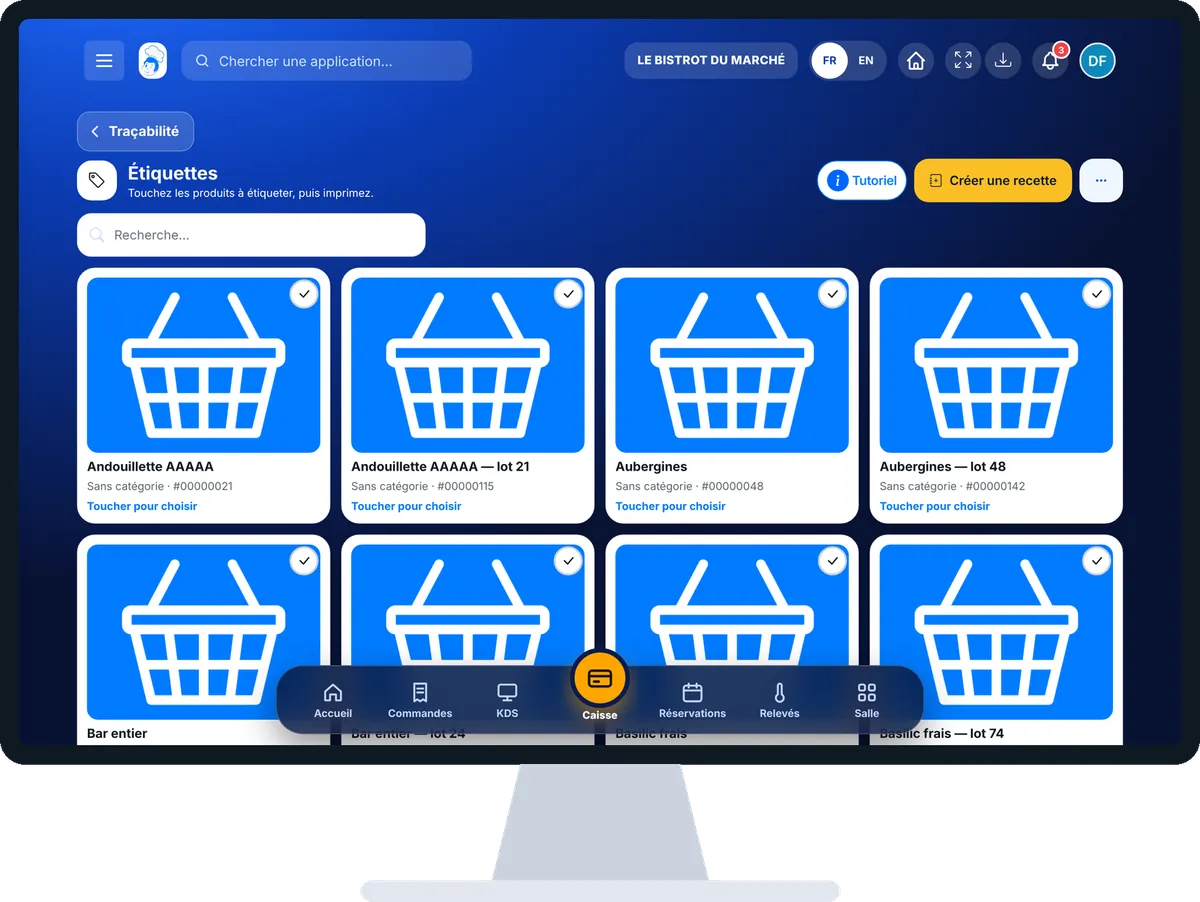
Print a use-by label : 5 steps, with the real software screens.
In HACCP, open “Étiquettes”. Your products and recipes are listed, with a search.
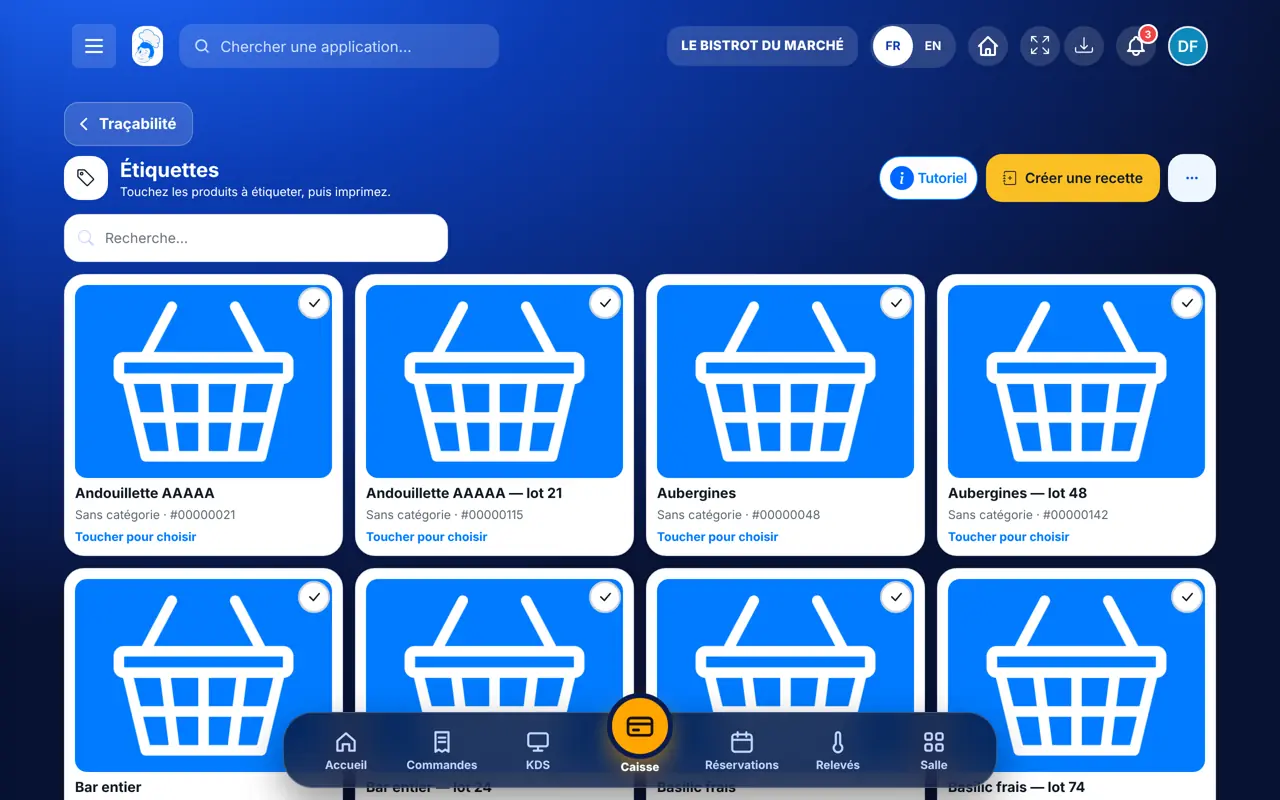
Tap the products to label. The bottom button counts the labels: “Imprimer N étiquette(s)”.
In the label maker, choose the type (opened, ready to eat, frozen, fresh or sale) and the date. For each product: use-by date, batch number (automatic if empty), number of labels and storage equipment. For “Vente”, add the price.
Tap “Aperçu” to check, then “Imprimer”.
Tap “Valider → Historique”: the labels join the label history.
Printed labels join the label history with type, use-by date, batch and person.
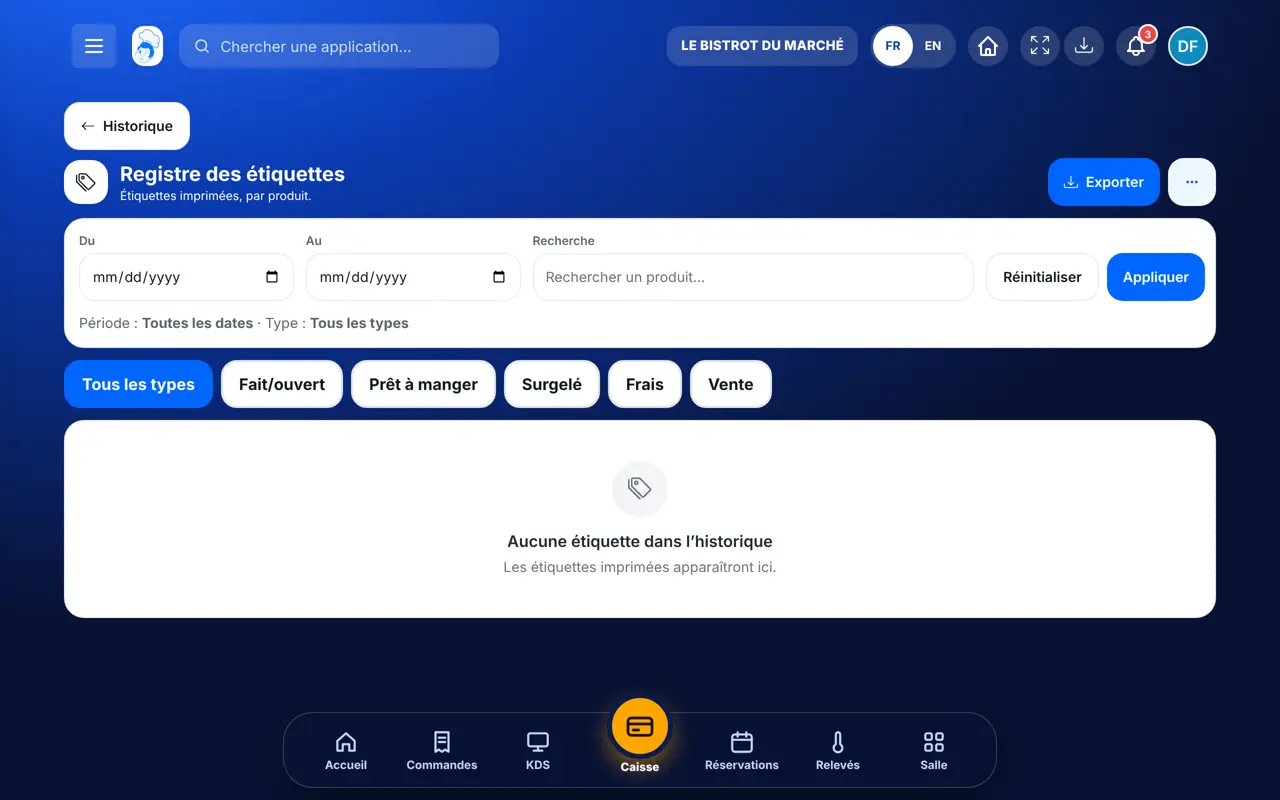
Prints, adds products and creates recipes to label.
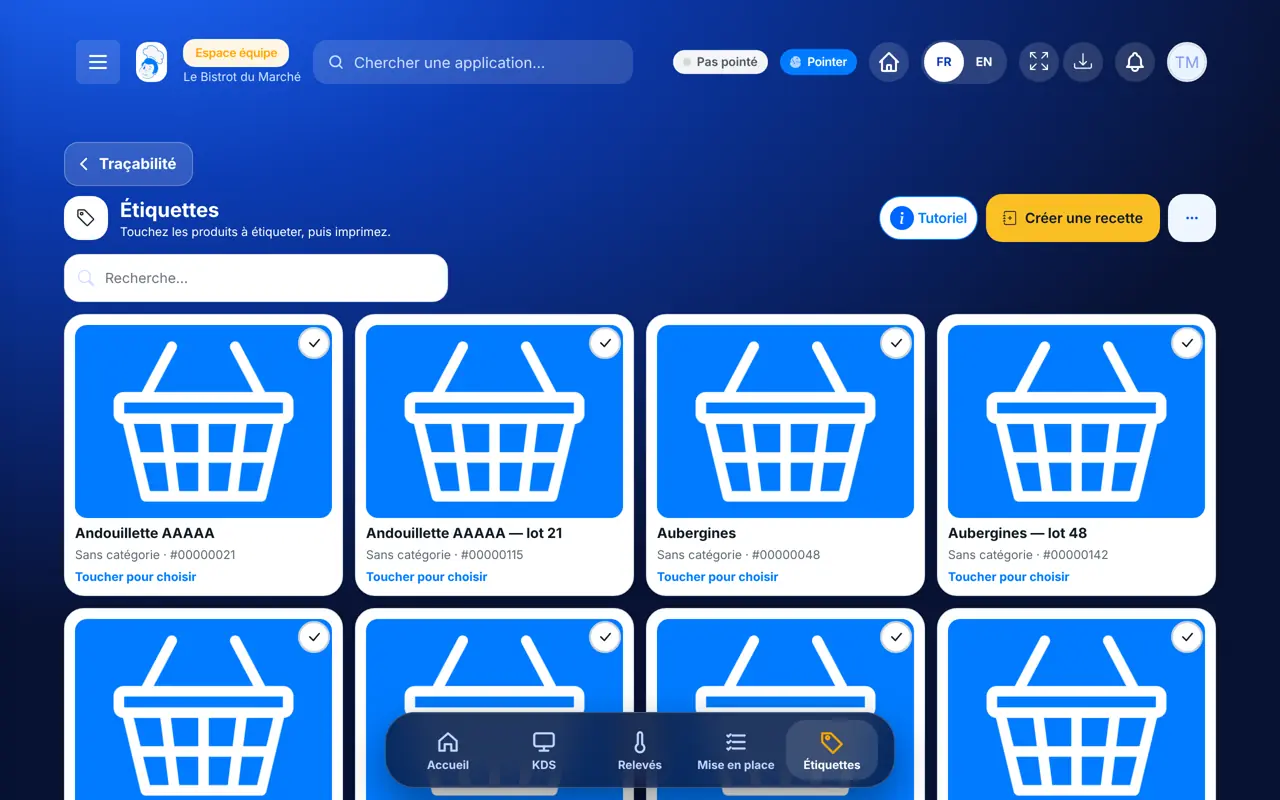
With the label right, prints the same way. The label carries the employee’s first name.
Claude, ChatGPT or Mistral’s Le Chat, connected to FoodEatUp. Copy the request and replace your establishment number.
In FoodEatUp, for my establishment [number], list the HACCP labels printed today and their use-by dates.
What you getToday’s labels with their use-by dates.
Tools used : list_haccp_labels
In FoodEatUp, for my establishment [number], create an “opened” label for [product], use-by [date]. Show me the label before confirming.
What you getThe assistant prepares the label and shows it before creating it.
Tools used : create_haccp_label
In FoodEatUp, for my establishment [number], mark label [number] as discarded, reason [reason].
What you getThe label is marked and the reason kept in the history.
Tools used : list_haccp_labels, update_haccp_label_status
Type, date, batch and storage printed.
With each one’s number of labels.
Automatic when the field is empty.
Each label joins the history.
Label when you put the preparation in its box. Always choose the storage equipment: it tells where to find the box, and the record keeps it.
In FoodEatUp, one action triggers others. Here are the screens that work with this one.
No. If empty, it is filled in automatically.
The label says where the preparation is stored. Add your equipment in “Températures”.
In the label history, in the food-safety file.
Send it to your team, your partner or your accountant. The image below appears in the message.
Claude, ChatGPT or Le Chat read this tutorial and explain it to you. Connected to FoodEatUp, they do it with you.
Read this FoodEatUp tutorial: https://foodeatup.com/en/academy/haccp/haccp-etiquettes.md Explain it to me simply, step by step, then help me do it in my restaurant. If FoodEatUp is connected to you, do it with me and show me the preview before every change.
Type your establishment number: the link takes you straight to this screen. The number stays on this device.
Discover FoodEatUp HACCP (in French) →
Répond avec les fiches du site, sans IA
Le chef cherche dans les fiches…
 Claude
 Le Chat
 ChatGPT