Aller au contenu
Mon compte · App store
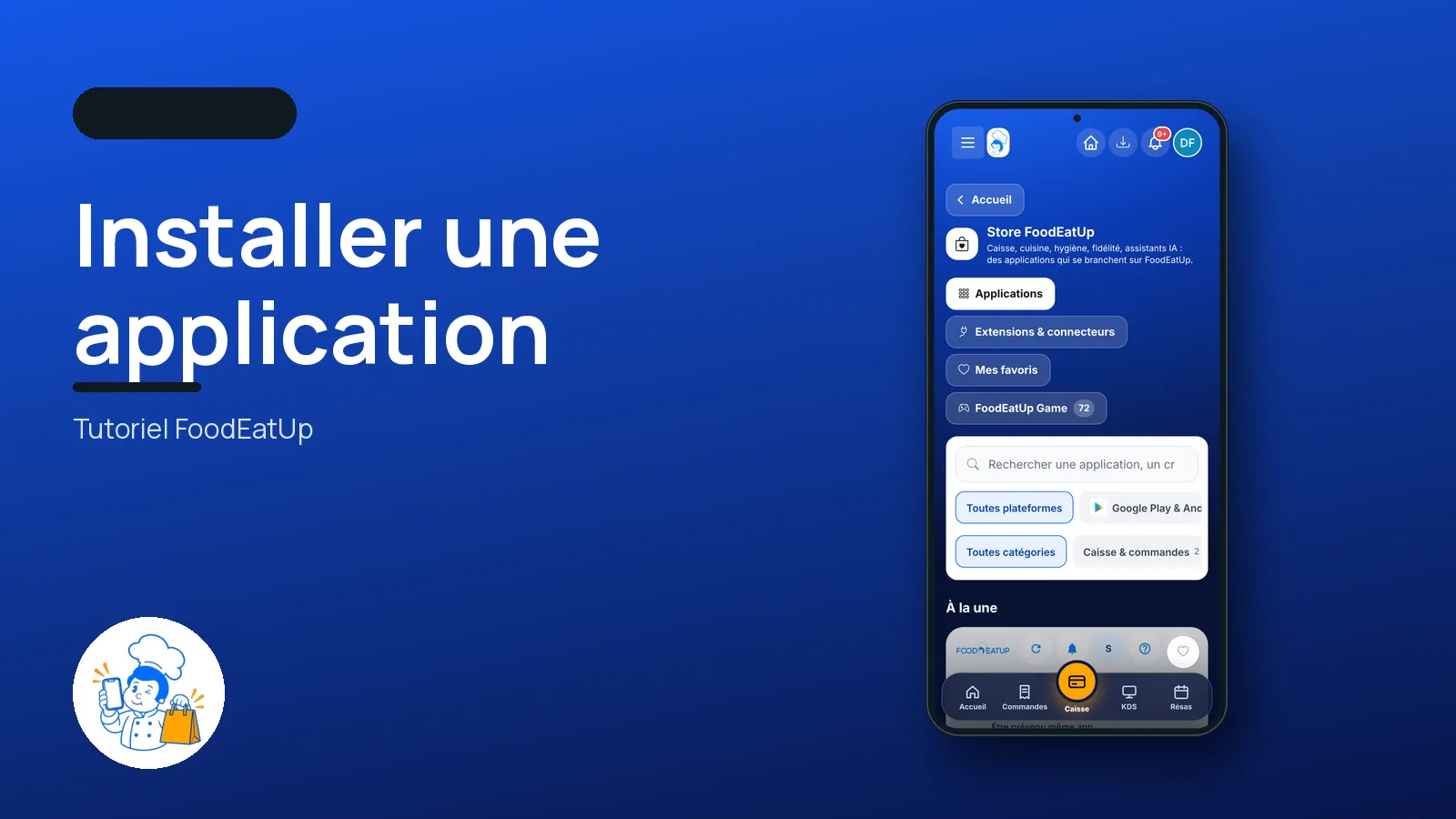
Install an app

The FoodEatUp Store gathers the apps that work for your restaurant: mobile till, kitchen screen, digital menu, HACCP, recipes, loyalty… You search for them, read their page, and install them.

  • Phone
  • 5 steps
  • Level : Beginner
Install an app : The FoodEatUp Store

Who is it for?

  • Patron / gérant
  • Directeur
  • Chef de cuisine
  • Responsable de salle

Recommended hardware

Phone

The phone or tablet the app will be used on: that is where you download it. The Store also opens on the computer to compare.

See the hardware →

What it is for

  • Find the app you need, by category, by platform or by search.
  • Read its page: screenshots, video, reviews, creator, and where to install it (Google Play, App Store, Web, Claude).
  • Keep your favourite apps, and leave your review.

Why set it up

  • Every app connects to FoodEatUp: it reads and writes in your restaurant.
  • The “Certifiée” badge means an app is published and checked by FoodEatUp.
  • A creator can publish their own app: FoodEatUp audits it before putting it online.

The same screen, on every device

The real software screens, as they appear on each device.

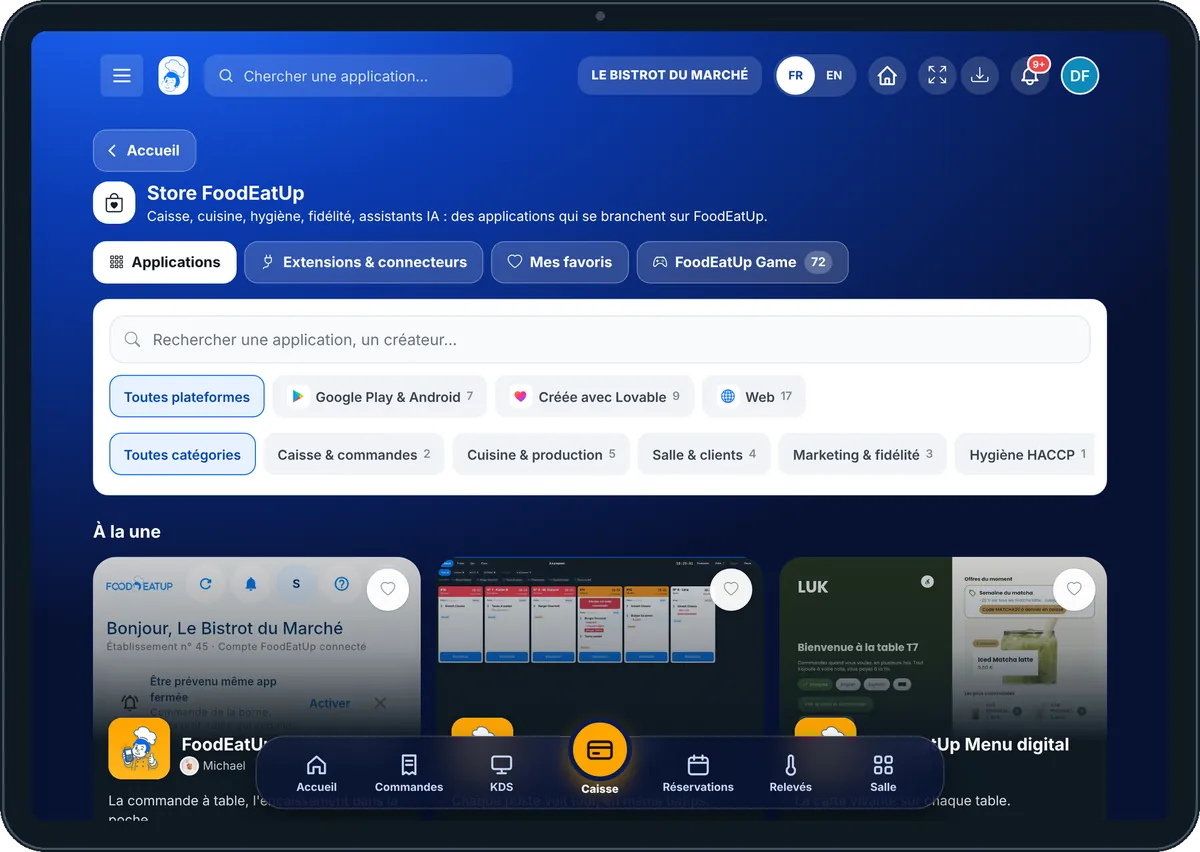
App store — On the tablet
On the tablet
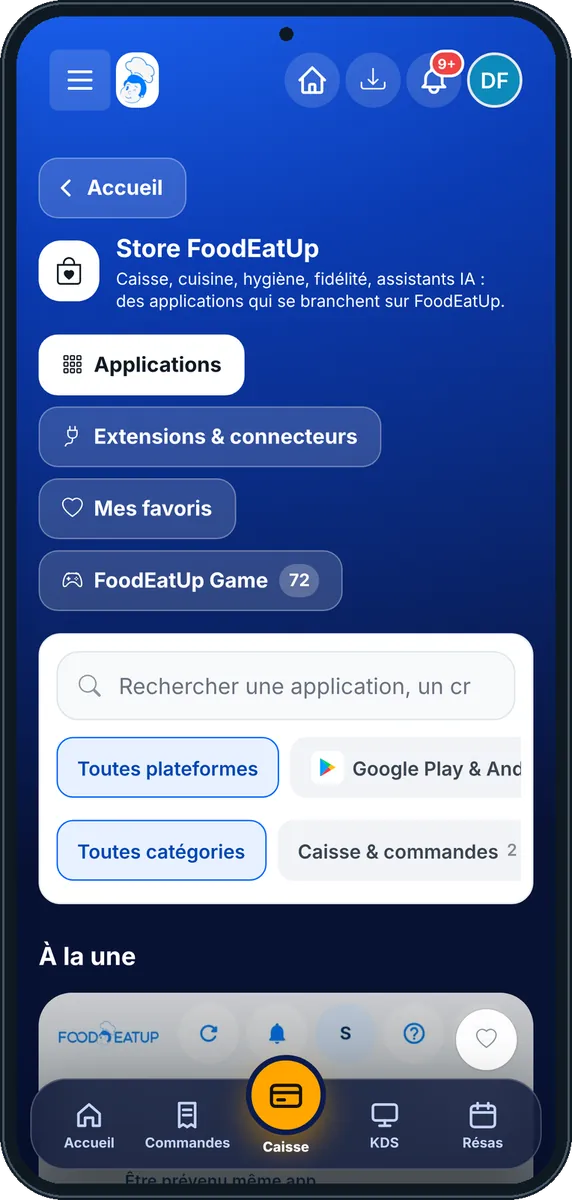
App store — On the phone
On the phone
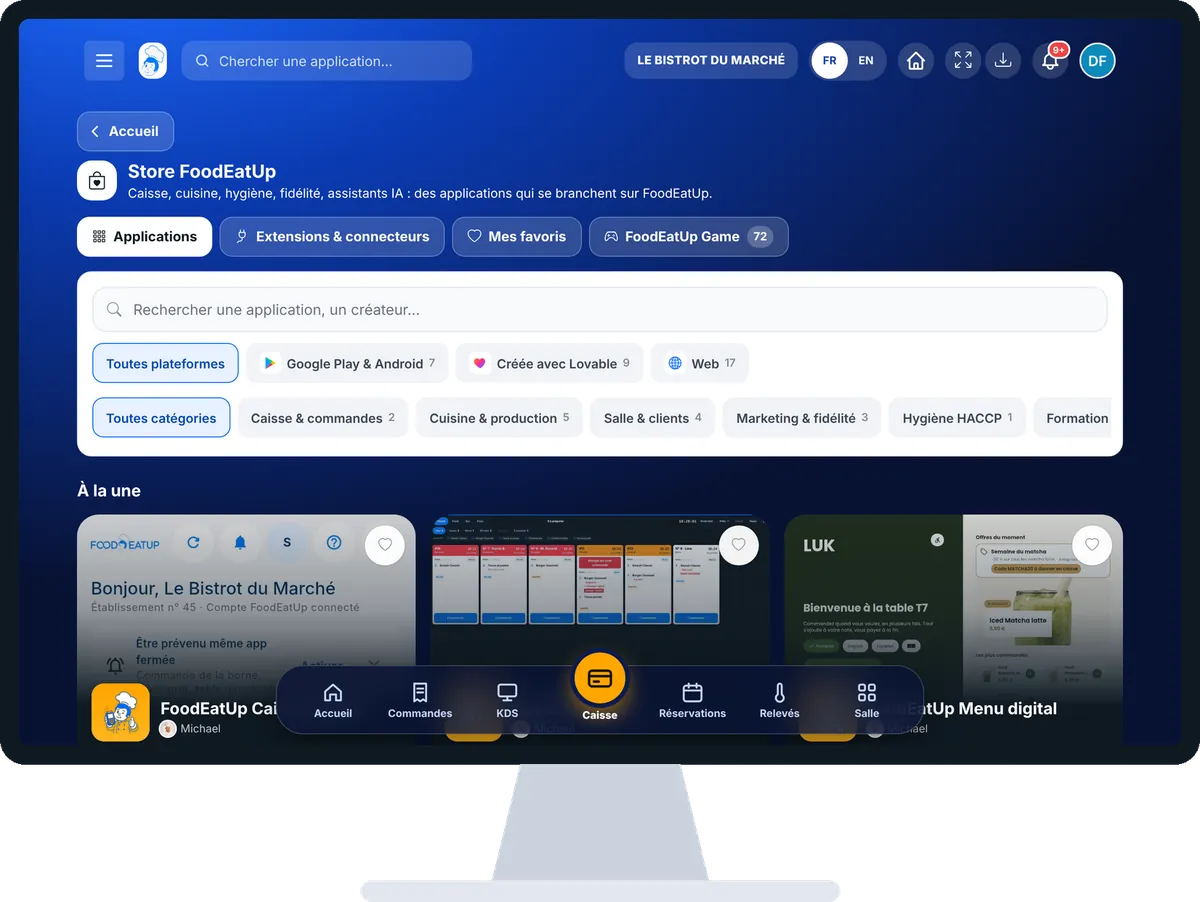
App store — On the computer
On the computer

Step by step

Install an app : 5 steps, with the real software screens.

  1. 1Step 1

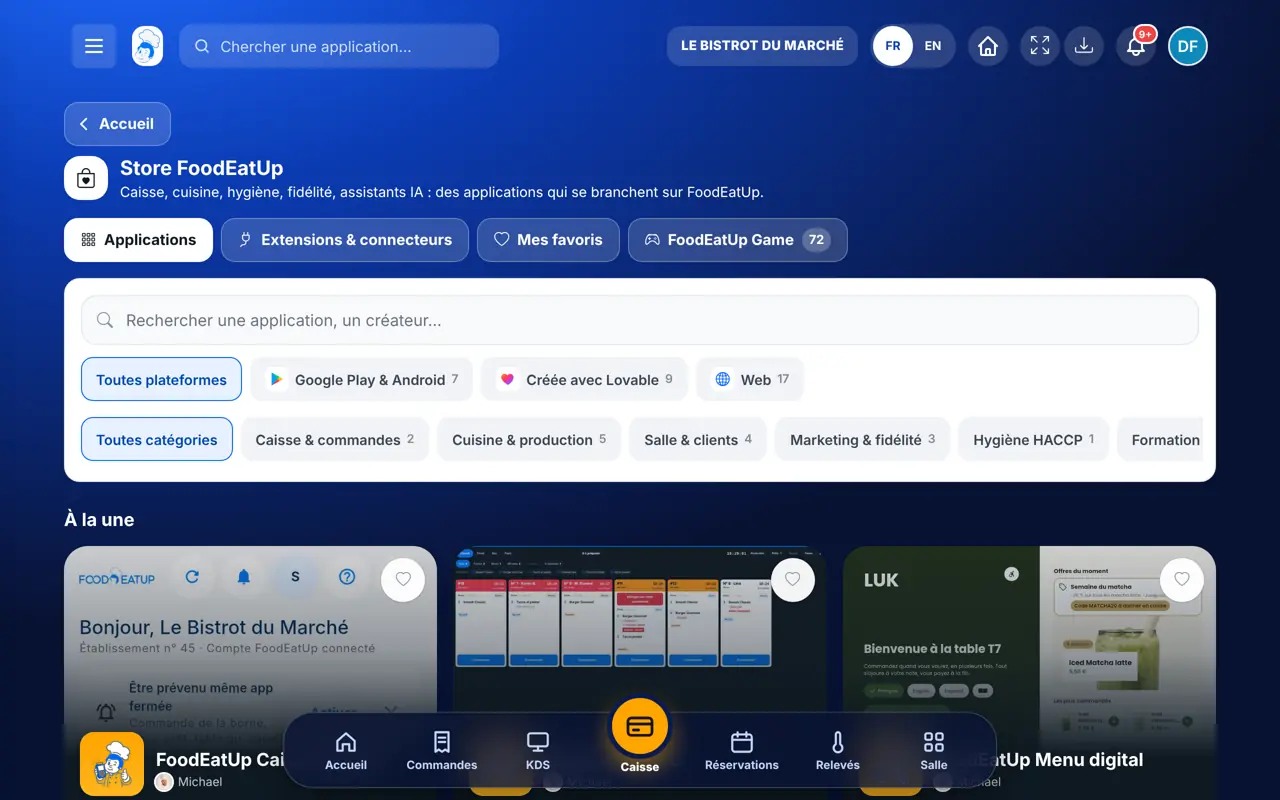
    Open the Store

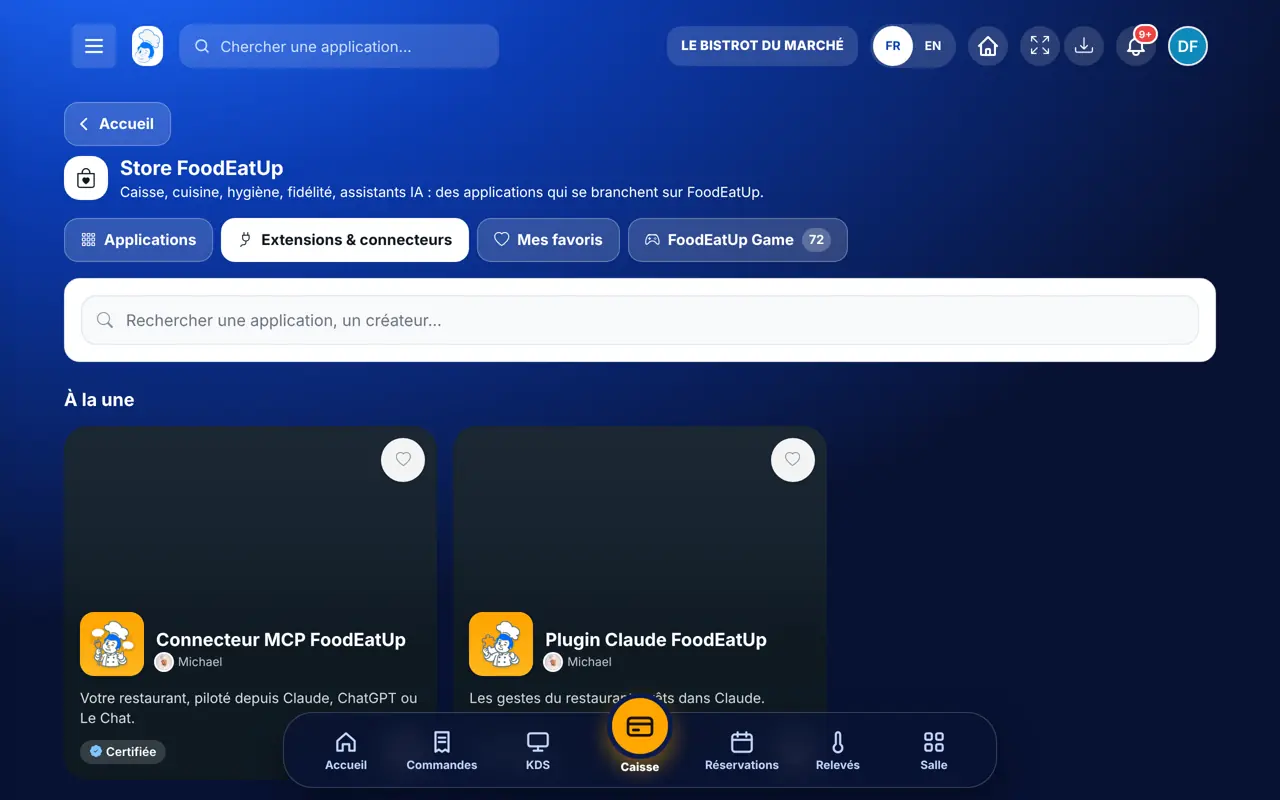
    From My profile, tap “Store FoodEatUp”. At the top: the search and the platforms (Google Play & Android, App Store, Claude, Web). Below: “À la une”, then “Toutes les applications”.

    The FoodEatUp Store
  2. 2Step 2

    Search for an app

    Type a word in “Rechercher une application, un créateur…”, or tap a category (Caisse & commandes, Cuisine & production, Salle & clients…). The “Extensions & connecteurs” tab shows what connects to your assistant.

    The Store tabs and categories
  3. 3Step 3

    Read the page

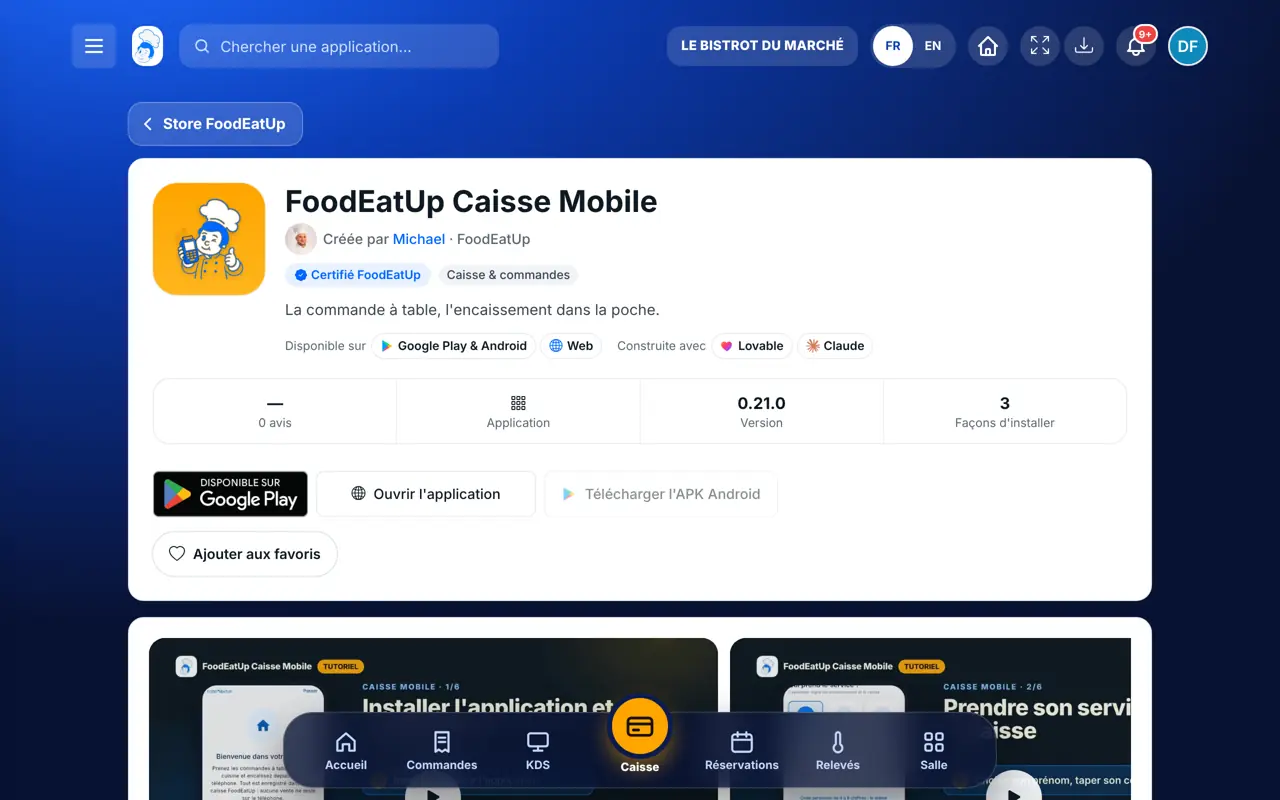
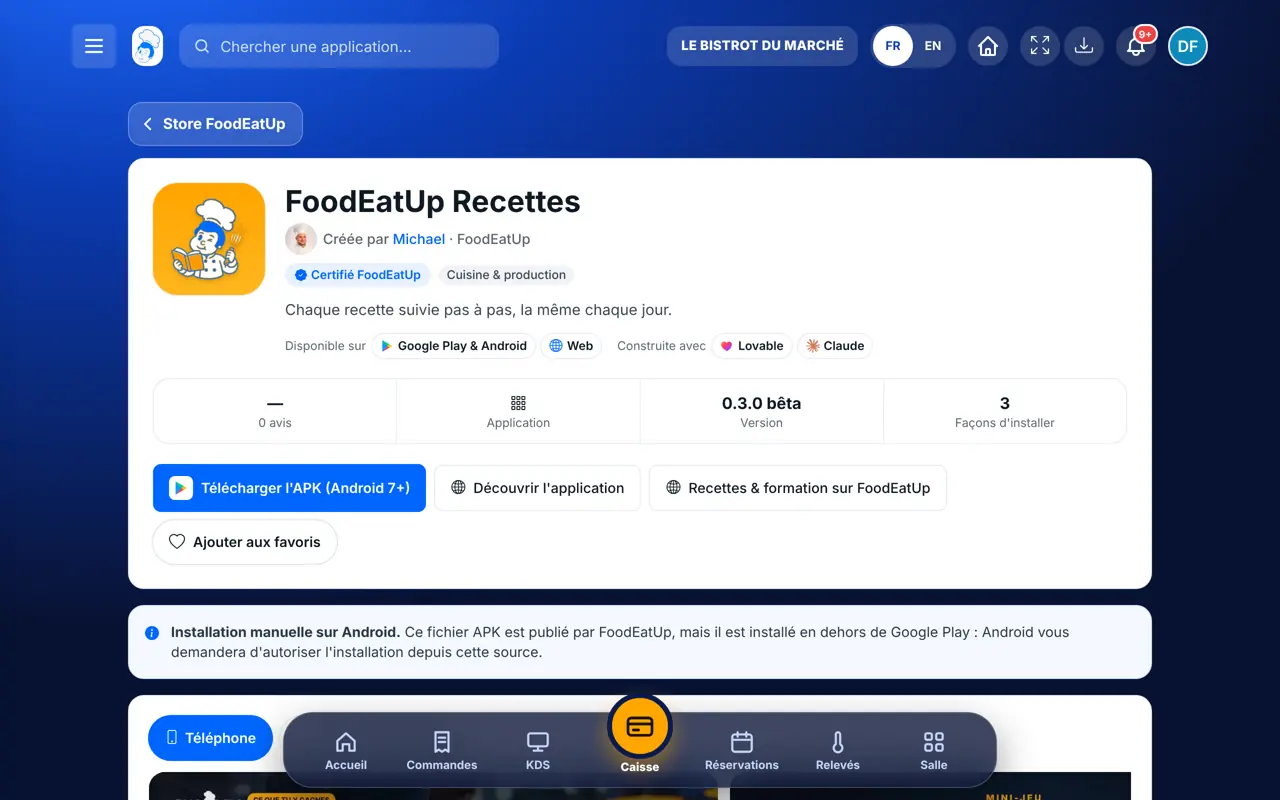
    Tap an app. Its page shows the screenshots, the video, what it does, the reviews and the install buttons, by platform.

    An app page
  4. 4Step 4

    Install

    Tap the button for your platform: the Google Play badge, the App Store, the Web version or the Claude connector. An app outside Google Play downloads as a file: the page explains how to install it.

  5. 5Step 5

    Keep as favourite and leave a review

    The heart adds the app to “Mes favoris”. On the page, you rate the app and leave a review, which you can edit later.

The result

The result

The app is installed on your team’s device and connected to your restaurant. Your favourites are kept, and your review helps other restaurant owners choose.

See the apps on the website (in French) →
The result : Install an app

Owner and employee: what changes

The owner

Browses the Store, installs apps, keeps favourites, leaves reviews and can publish their own app.

App store — The owner

The employee

Browses the same Store and keeps their own favourites. Once installed, the app only opens what their role allows.

Do it with your assistant

Claude, ChatGPT or Mistral’s Le Chat, connected to FoodEatUp. Copy the request and replace your establishment number.

Which app for my need?

In FoodEatUp, for my establishment [number], I want to [my need, for example take orders at the table]. Tell me which screen or app to use, and the tutorial that explains it.

What you getThe app or screen to use, with the tutorial that shows how.

Tools used : search_foodeatup_help, get_foodeatup_tutorial

The tutorials for this screen

In FoodEatUp, for my establishment [number], give me the tutorials for the screen I name.

What you getThe list of tutorials for that screen, to follow step by step.

Tools used : list_screen_tutorials

Ready for the Recipes app?

In FoodEatUp, for my establishment [number], tell me whether my recipes are ready for the Recipes app and what is missing.

What you getThe recipes that are ready and those to complete before installing the app.

Tools used : get_recipes_app_readiness

What you gain

One place

All the FoodEatUp apps, and the creators’ apps.

Connected to your restaurant

They work on your real data.

A badge to find your way

“Certifiée”: published and checked by FoodEatUp.

Your favourites and reviews

Kept on your account, useful to others.

The Chef’s tip

Install the app on the device that will really use it: the mobile till on the waiter’s phone, the kitchen screen on the pass tablet. Try it before service, never during.

Frequently asked questions

What does the “Certifiée” badge mean?

The app is published and checked by FoodEatUp. Apps from other creators do not have this badge.

Can I publish my own app?

Yes. Tap “Soumettre une application”: FoodEatUp audits it (security, data, page) before putting it online. “Mes soumissions” shows where it stands.

Is an app outside Google Play safe?

A FoodEatUp app carries the “Certifiée” badge and is installed by hand following its page. An app from another creator outside Google Play is flagged as unofficial.

Text version for AI assistants →

Share this tutorial

Send it to your team, your partner or your accountant. The image below appears in the message.

Share preview : Install an app
WhatsAppLinkedInFacebookEmail

Send to an AI assistant

Claude, ChatGPT or Le Chat read this tutorial and explain it to you. Connected to FoodEatUp, they do it with you.

Read this FoodEatUp tutorial: https://foodeatup.com/en/academy/compte/store.md Explain it to me simply, step by step, then help me do it in my restaurant. If FoodEatUp is connected to you, do it with me and show me the preview before every change.

ClaudeLe ChatChatGPT

Open in my software

Type your establishment number: the link takes you straight to this screen. The number stays on this device.

Discover the FoodEatUp apps (in French) →

You can read it in the software address: foodeatup.com/establishment/number/…