Aller au contenu
StockVision · Recettes app
Set up the Recettes app

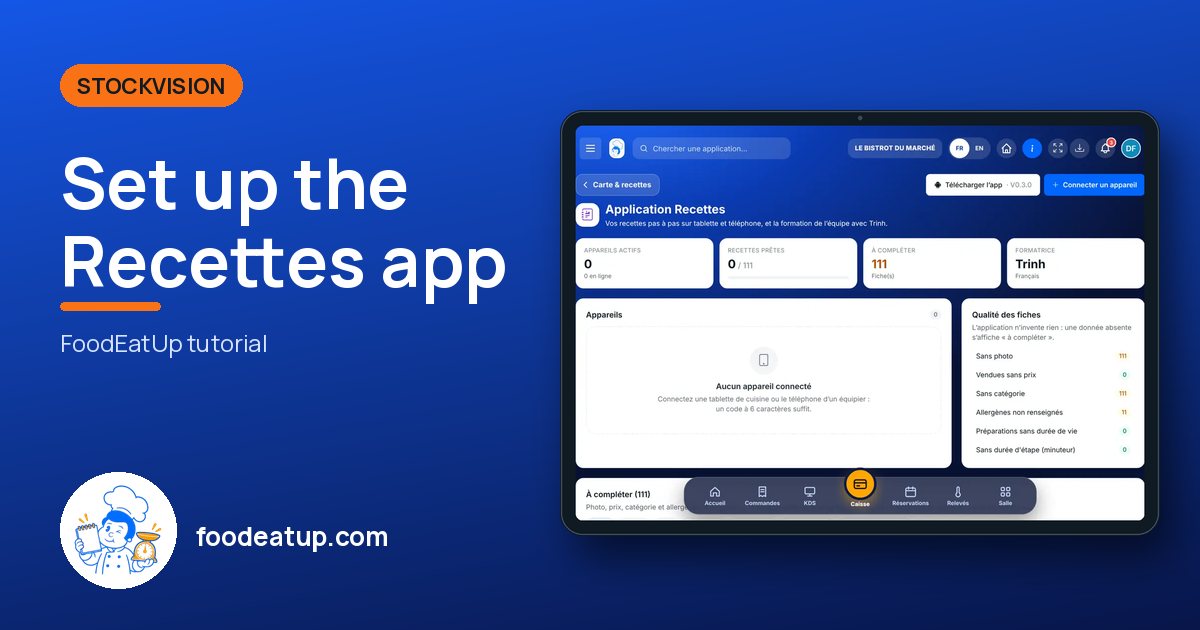
You link the kitchen tablets to the FoodEatUp Recettes app: the team follows each recipe step by step, with a timer. Here you see the devices and what the recipes are missing.

  • Tablet
  • 5 steps
  • Level : Beginner
Set up the Recettes app : The state of the app

Who is it for?

  • Chef de cuisine
  • Second de cuisine
  • Commis / cuisinier

Roles with access

  • Gérant·e
  • Chef de cuisine
  • Cuisinier·ère · view
  • Barman·maid · view
  • Laboratoire (réseau)
  • Boutique (réseau)
  • Franchisé·e (réseau)
  • Directeur·rice d'établissement

The owner always has access. See what each role sees →

Recommended hardware

Tablet

An Android tablet in the kitchen with the FoodEatUp Recettes app. This screen is set up from the computer or the tablet.

See the hardware →

What it is for

  • Link a tablet to the app with a 6-character code.
  • See devices online, their version and whether they have an update.
  • Complete what the recipes are missing before the team follows them.

Why set it up

  • Recipes, ingredients and the team come from your account: nothing to enter again.
  • The app makes nothing up: missing data shows as “à compléter”.
  • Step times give the timer; shelf life allows the use-by label.

The same screen, on every device

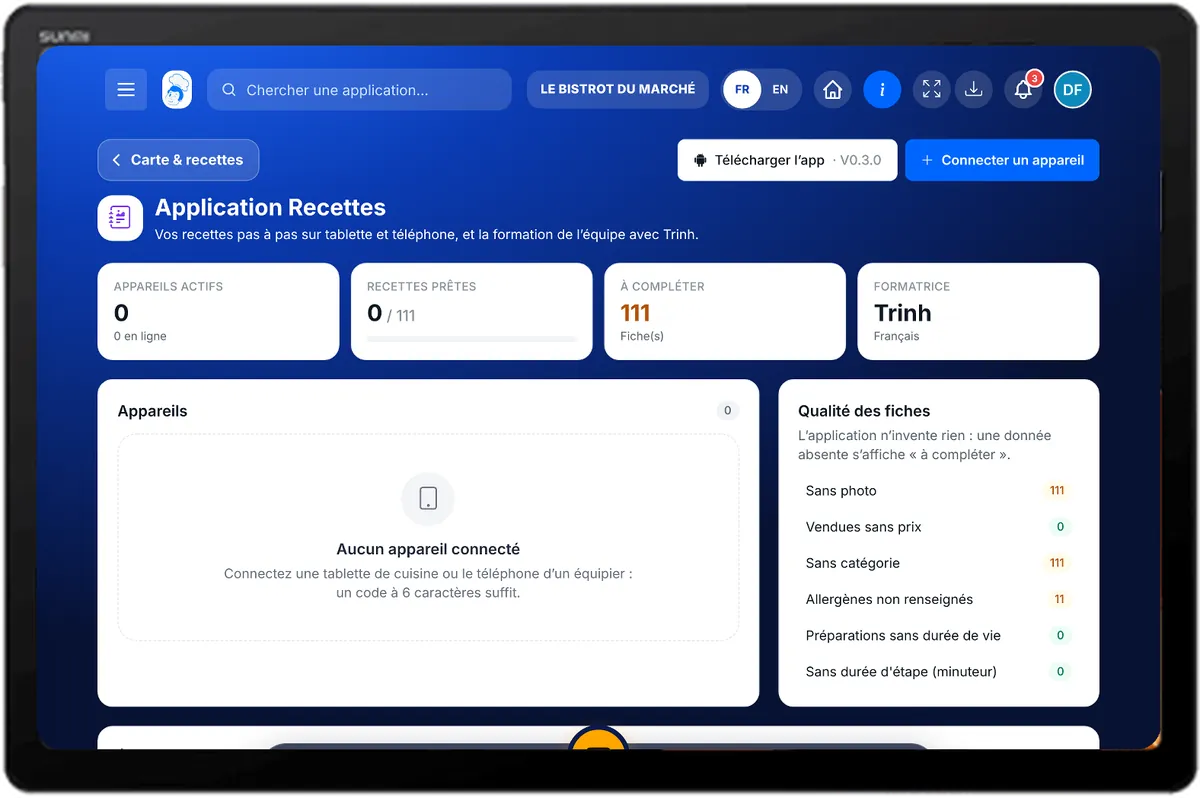
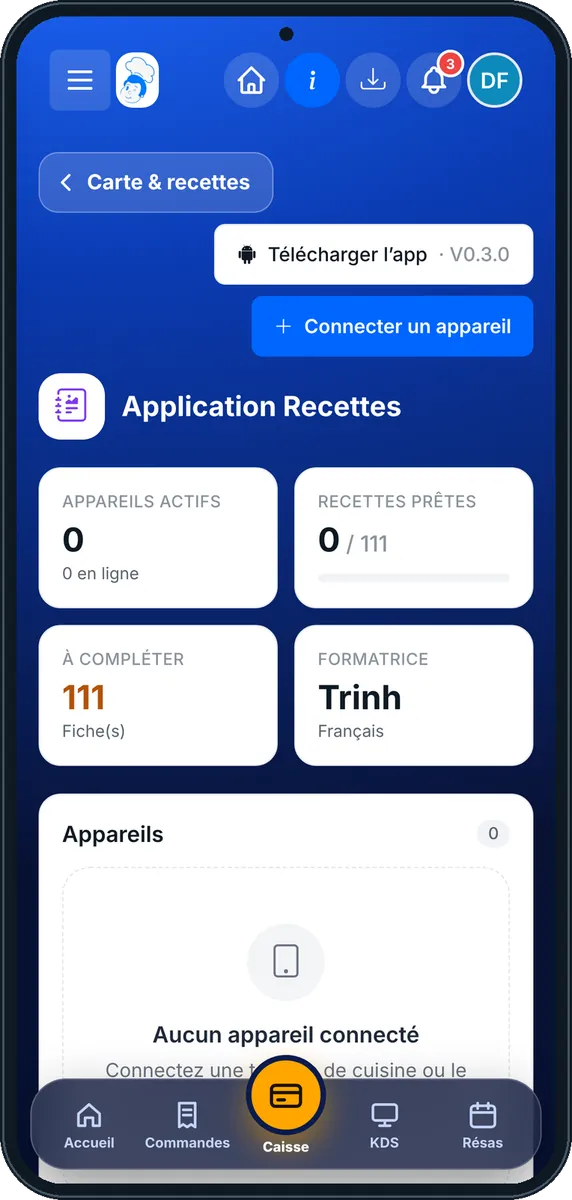
The real software screens, as they appear on each device.

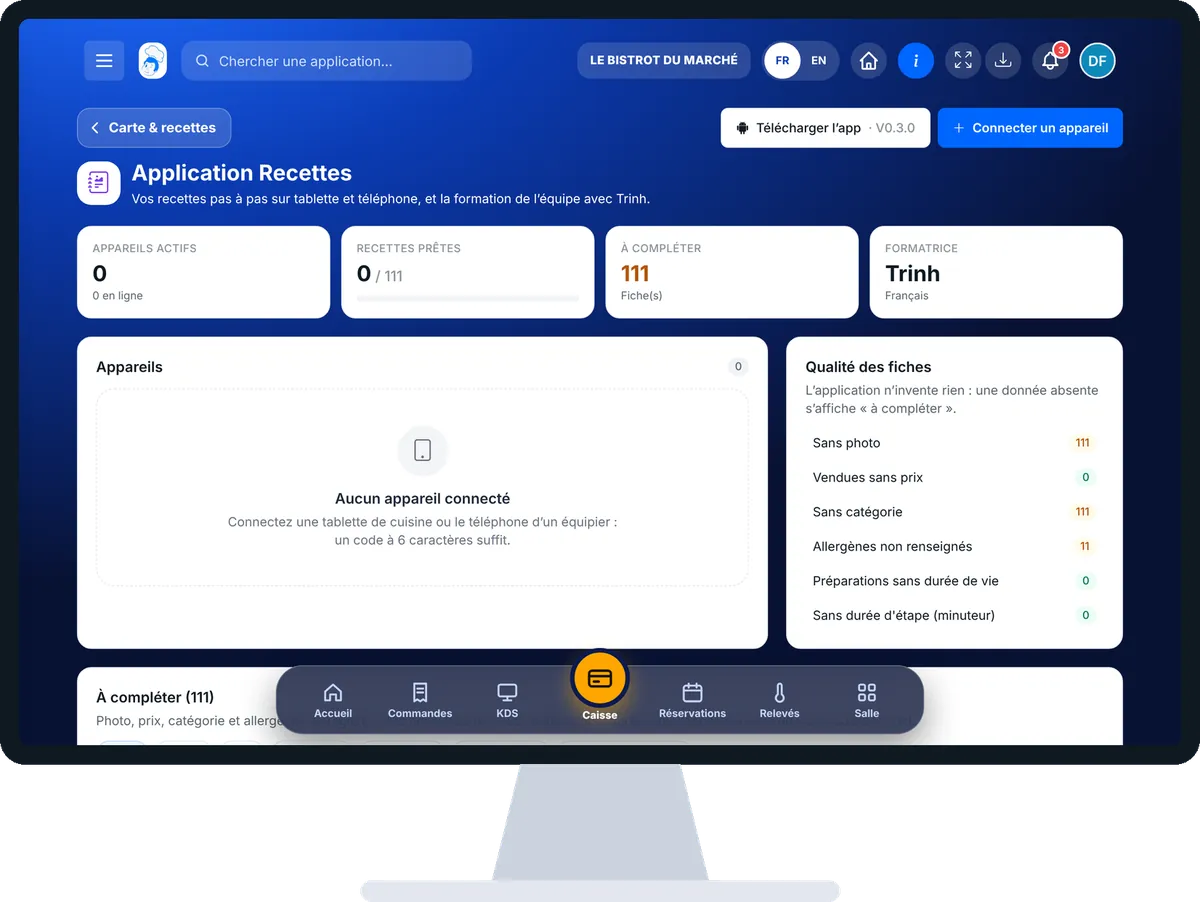
Recettes app — On the tablet
On the tablet
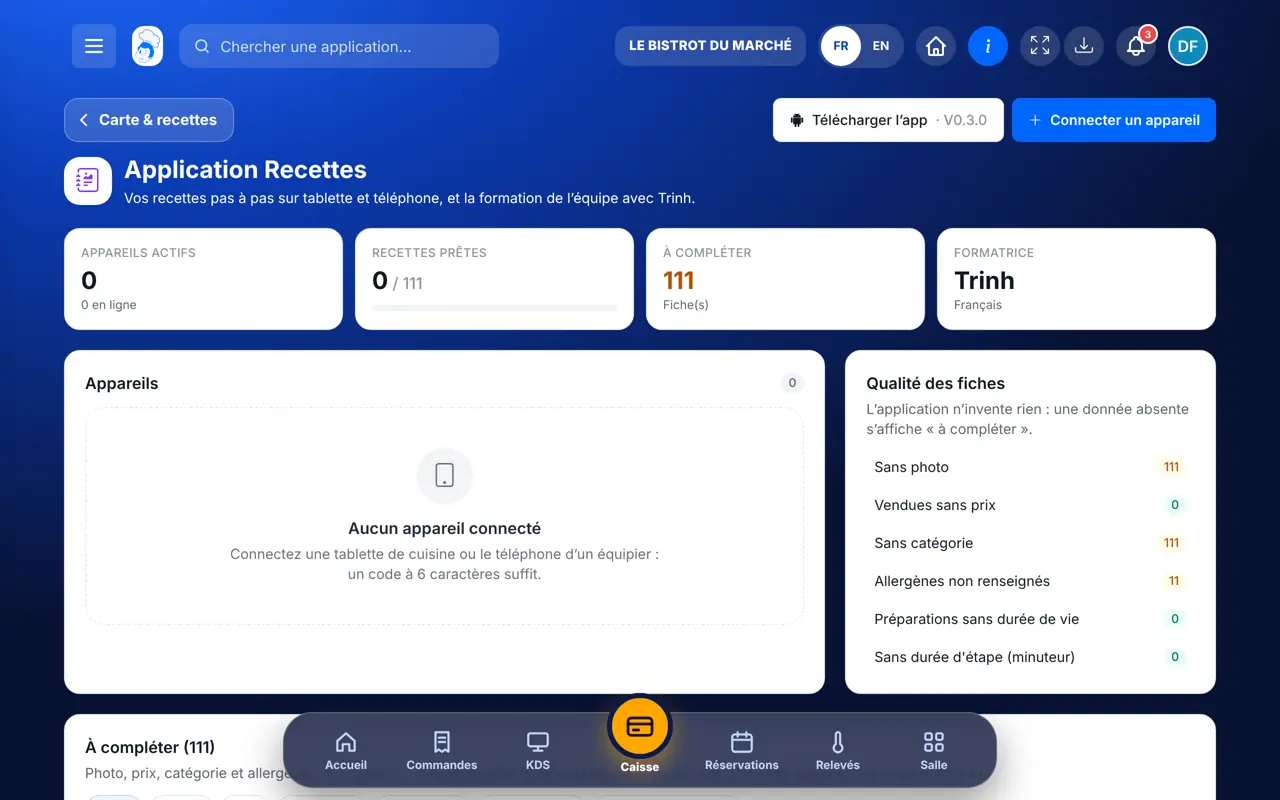
Recettes app — On the phone
On the phone
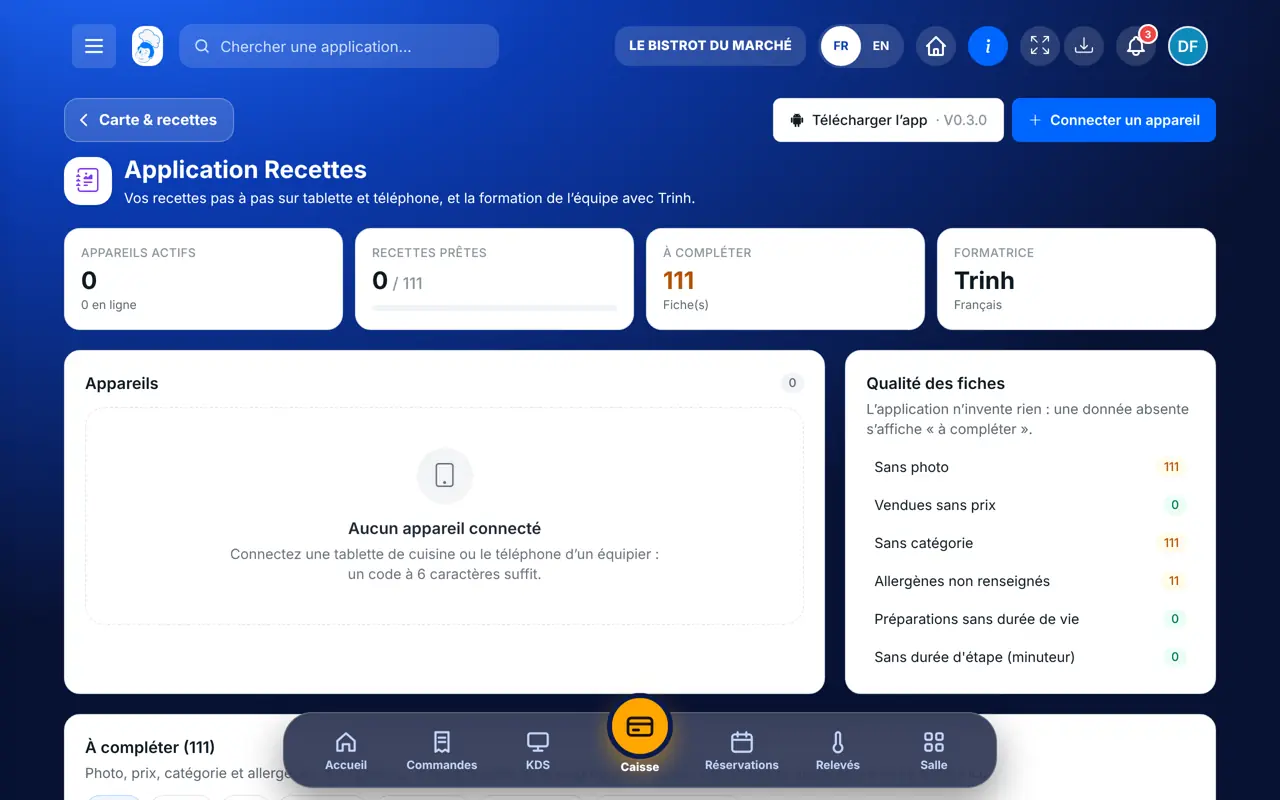
Recettes app — On the computer
On the computer

Step by step

Set up the Recettes app : 5 steps, with the real software screens.

  1. 1Step 1

    Open the Recettes app screen

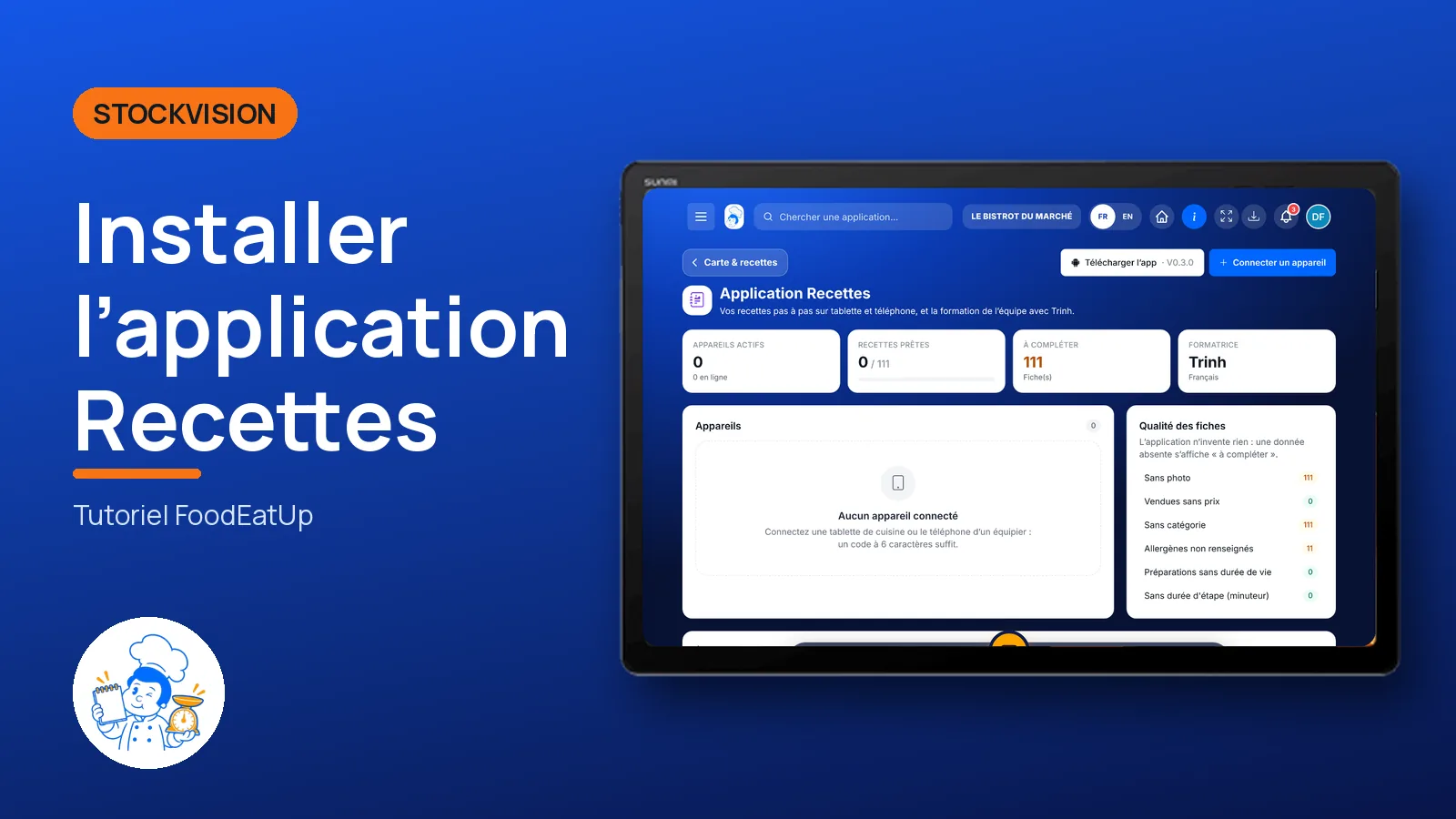
    From the home screen, open StockVision then “Application Recettes”. At the top: active devices, ready recipes and sheets to complete.

    The state of the app
  2. 2Step 2

    Download the app

    Tap “Télécharger l’app” and install FoodEatUp Recettes on the tablet.

  3. 3Step 3

    Connect a device

    Tap “Connecter un appareil”, give it a name (for example “Tablette cuisine”), then “Créer le code”. Type this code into the app.

  4. 4Step 4

    Complete the sheets

    In “Qualité des fiches”, pick a gap (no photo, no shelf life, no step time…) and tap “Compléter”.

  5. 5Step 5

    Set up the app

    In “Réglages de l’application”: trainer’s name, theme, languages, then “Enregistrer les réglages”.

The result

A tablet linked, recipes ready

The tablet shows in the devices, online. The team follows recipes step by step, and you see what is left to complete.

A tablet linked, recipes ready : Set up the Recettes app

Owner and employee: what changes

The owner

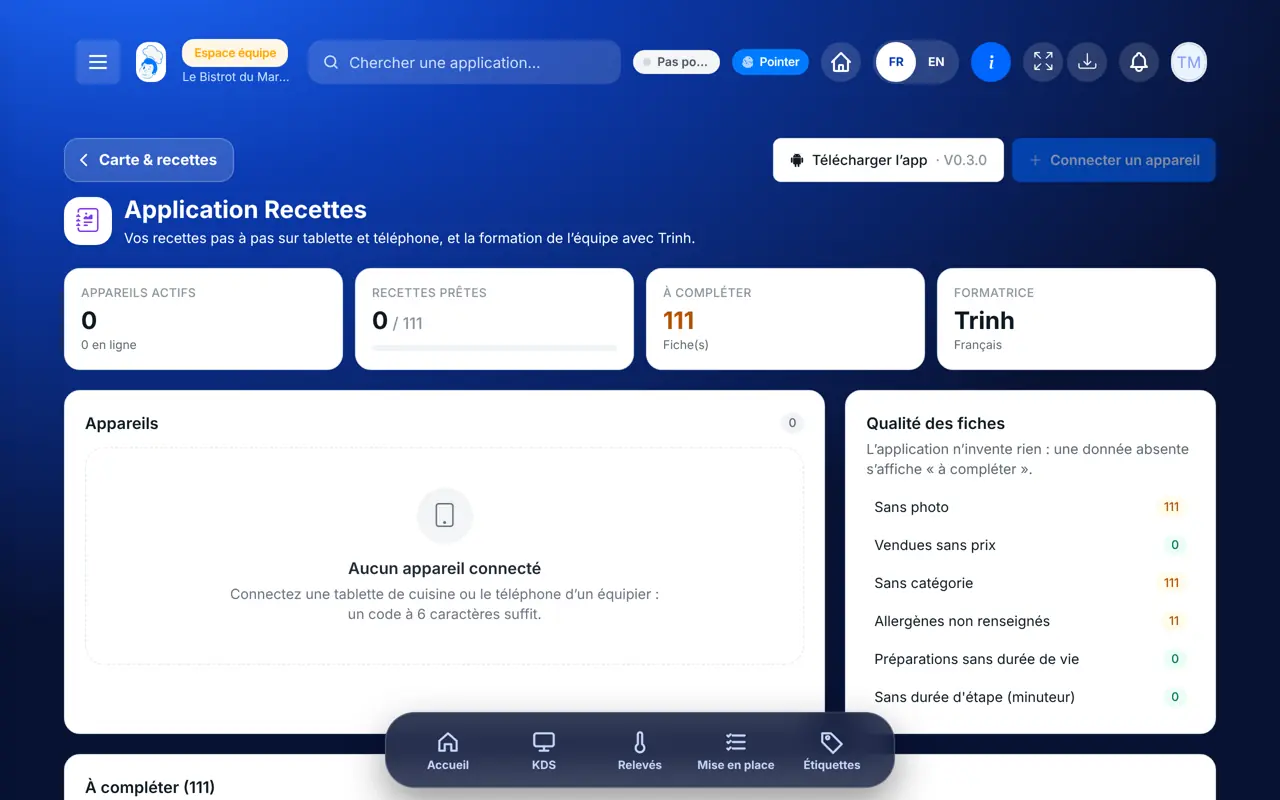
Links devices, removes a device, completes recipes and sets up the app.

Recettes app — The owner

The employee

Follows recipes in the app on the tablet. With the right to view the screen, reads the state; linking a device needs the right to manage the app.

Recettes app — The employee

Do it with your assistant

Claude, ChatGPT or Mistral’s Le Chat, connected to FoodEatUp. Copy the request and replace your establishment number.

Are my recipes ready?

In FoodEatUp, for my establishment [number], tell me which recipes are ready for the Recettes app and what the others are missing.

What you getReady recipes and the list of what is missing.

Tools used : get_recipes_app_readiness

Link a tablet

In FoodEatUp, for my establishment [number], create a code to link the tablet “[name]” to the Recettes app.

What you getA code to type into the app on the tablet.

Tools used : create_recettes_pairing_code

My devices

In FoodEatUp, for my establishment [number], list the tablets linked to the Recettes app and tell me which have an update.

What you getDevices, their last connection and their version.

Tools used : list_recettes_devices

What you gain

Nothing to re-enter

The app reads your account.

Linked with one code

Six characters to type.

Nothing made up

What is missing shows as “à compléter”.

A timer per step

Times come from the recipe.

The Chef’s tip

Enter each step’s time and the shelf life of preparations before setting up the tablet: the team then has the timer and the use-by label from day one.

Frequently asked questions

Where do I get the app?

The “Télécharger l’app” button on this screen gives the Android installation file.

What if a tablet is lost?

Remove the device from the list: it can no longer connect. Link the new tablet with a new code.

Why “à compléter” in the app?

The data is missing on the recipe. Complete it here or on the recipe.

Text version for AI assistants →

Share this tutorial

Send it to your team, your partner or your accountant. The image below appears in the message.

Share preview : Set up the Recettes app
WhatsAppLinkedInFacebookEmail

Send to an AI assistant

Claude, ChatGPT or Le Chat read this tutorial and explain it to you. Connected to FoodEatUp, they do it with you.

Read this FoodEatUp tutorial: https://foodeatup.com/en/academy/stockvision/recettes-app.md Explain it to me simply, step by step, then help me do it in my restaurant. If FoodEatUp is connected to you, do it with me and show me the preview before every change.

ClaudeLe ChatChatGPT

Open in my software

Type your establishment number: the link takes you straight to this screen. The number stays on this device.

Discover recipes for the team (in French) →

You can read it in the software address: foodeatup.com/establishment/number/…