Aller au contenu
Mon compte · My profile
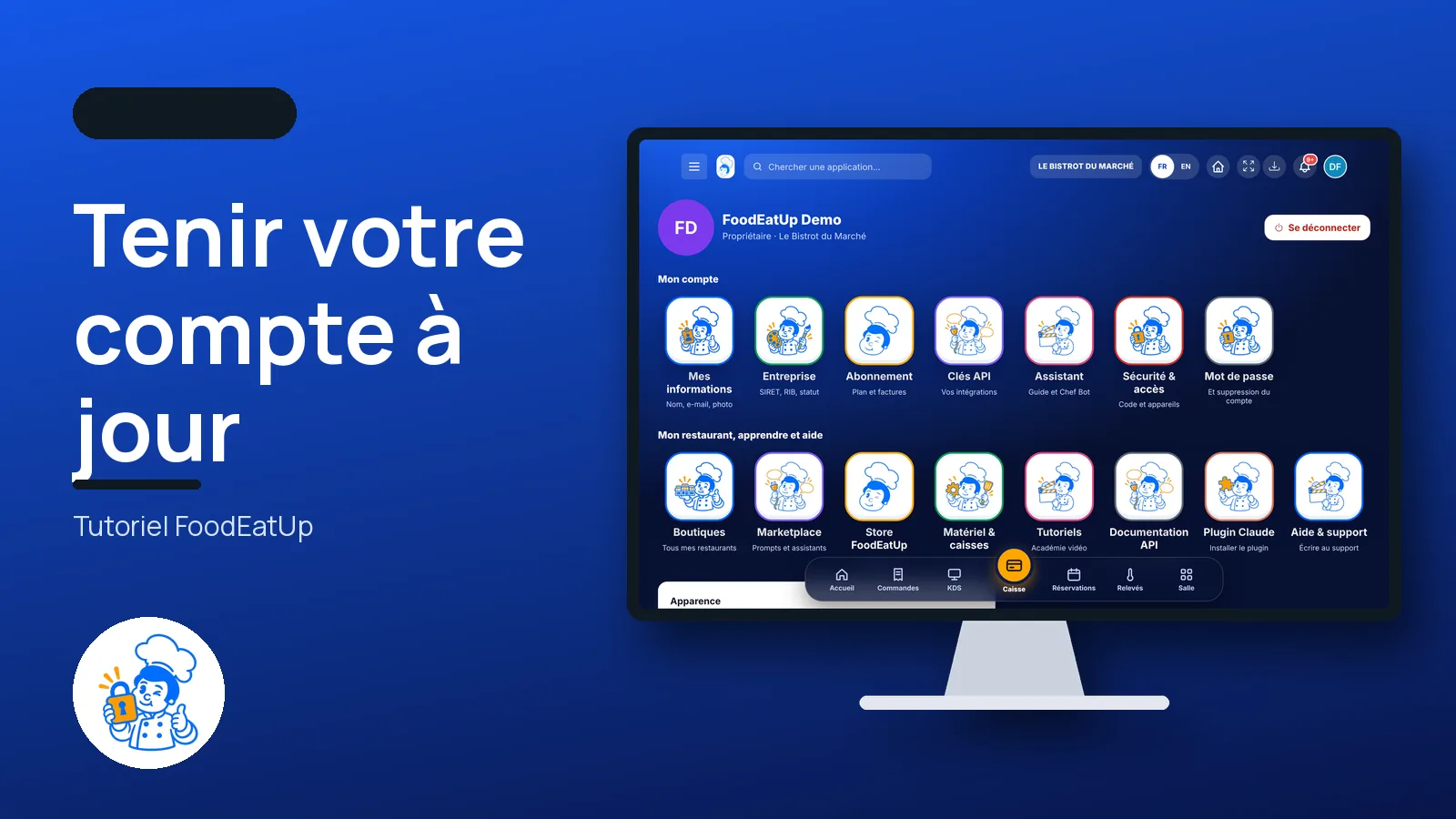
Keep your account up to date

My profile gathers everything about you: your details, your business, your subscription and invoices, your API keys, the assistant and the look of the screen. The password is changed on its own page.

  • Computer
  • 5 steps
  • Level : Beginner
Keep your account up to date : The profile home and its cards

Who is it for?

  • Patron / gérant
  • Directeur
  • Responsable multi-sites
  • Franchisé

Recommended hardware

Computer

The office computer is the most convenient to enter the SIRET number or download an invoice. The same sections open on the tablet and on the phone.

See the hardware →

What it is for

  • Change your name, photo and phone number, and your business details (SIRET number, legal form, VAT number).
  • Find your plan and download your subscription invoices.
  • Choose the look of the screen (Blue or White), the language and what the assistant does.

Why set it up

  • Your business details are then used everywhere: quotes, invoices, legal notices.
  • Your subscription invoices are always at hand, without writing to support.
  • A strong password, used only for FoodEatUp, protects the till, the team and the figures.

The same screen, on every device

The real software screens, as they appear on each device.

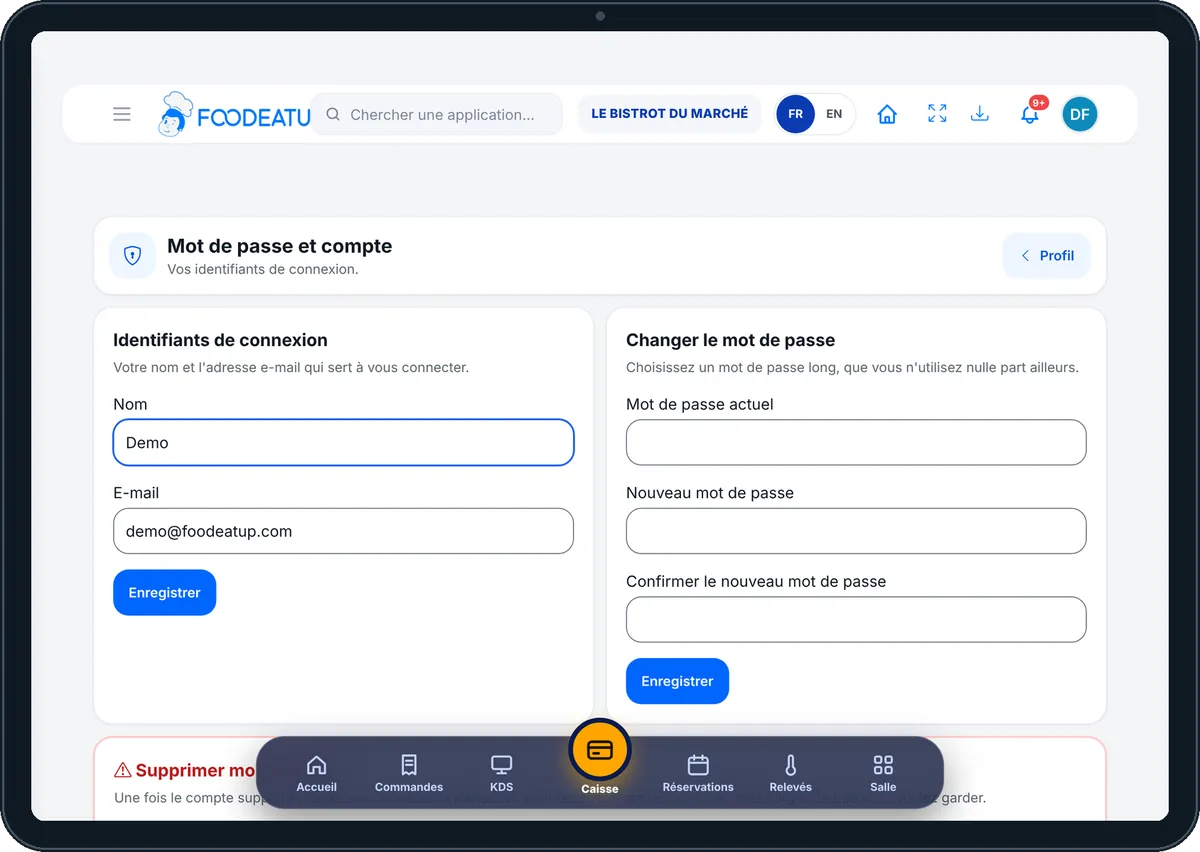
My profile — On the tablet
On the tablet
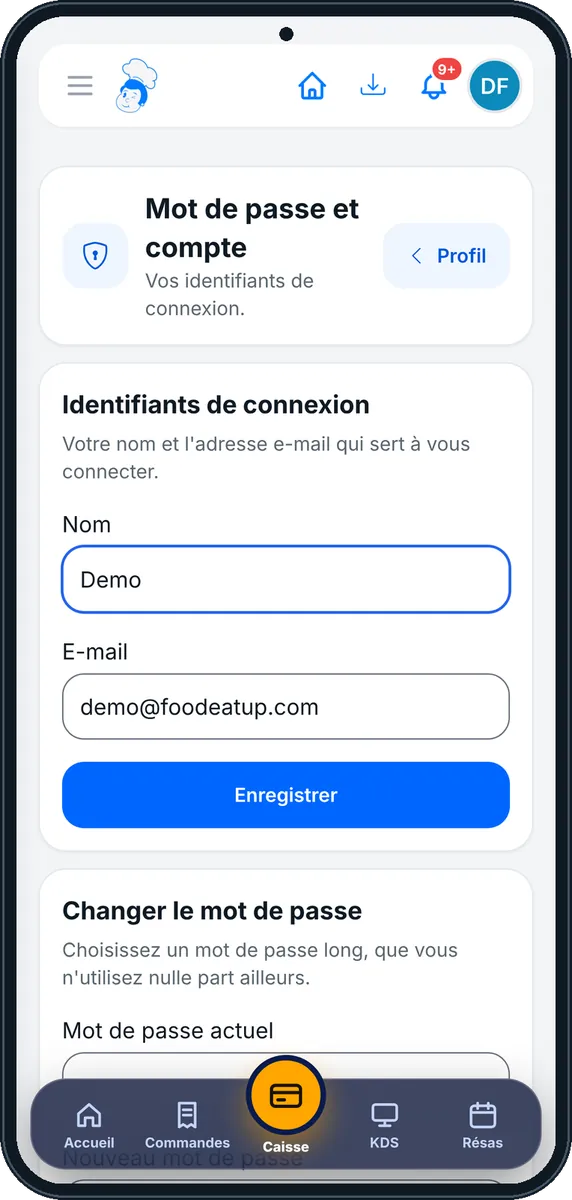
My profile — On the phone
On the phone
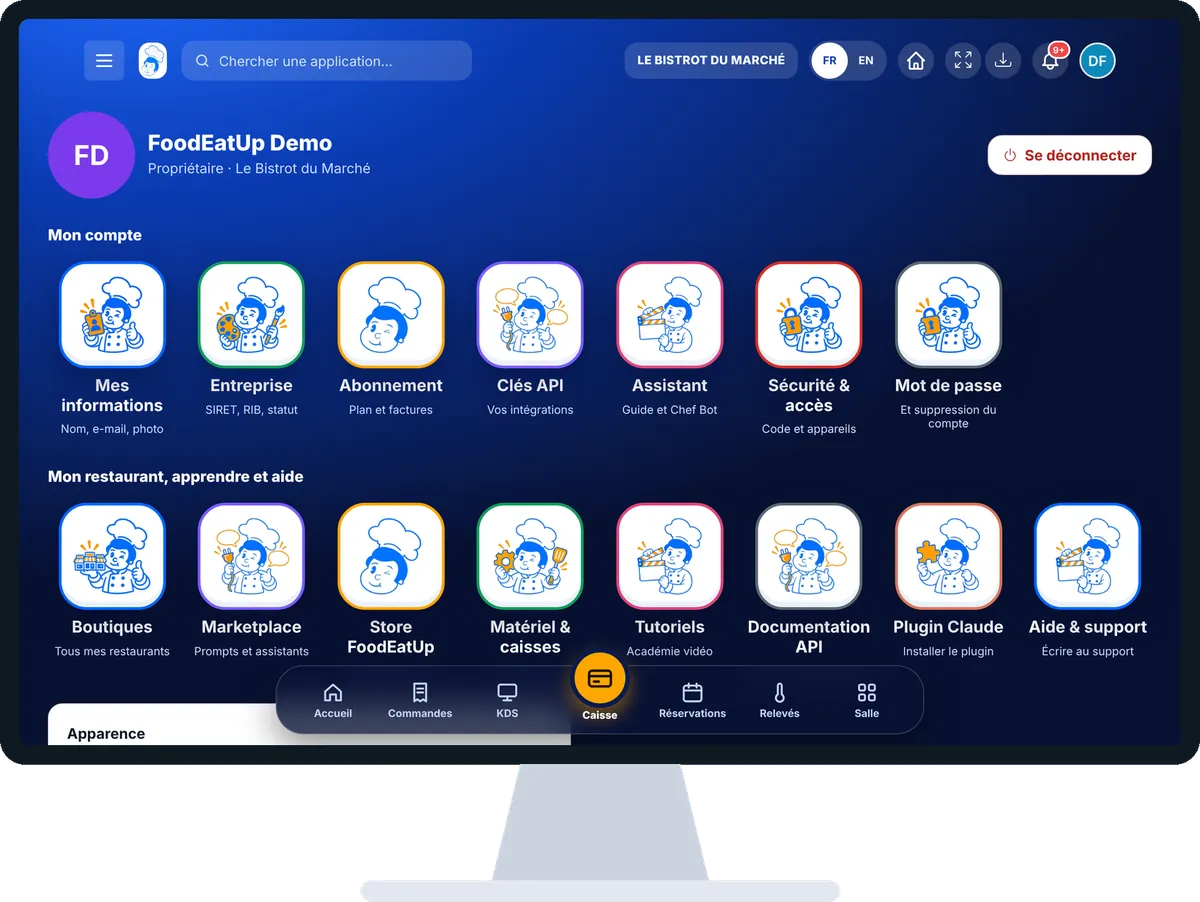
My profile — On the computer
On the computer

Step by step

Keep your account up to date : 5 steps, with the real software screens.

  1. 1Step 1

    Open My profile

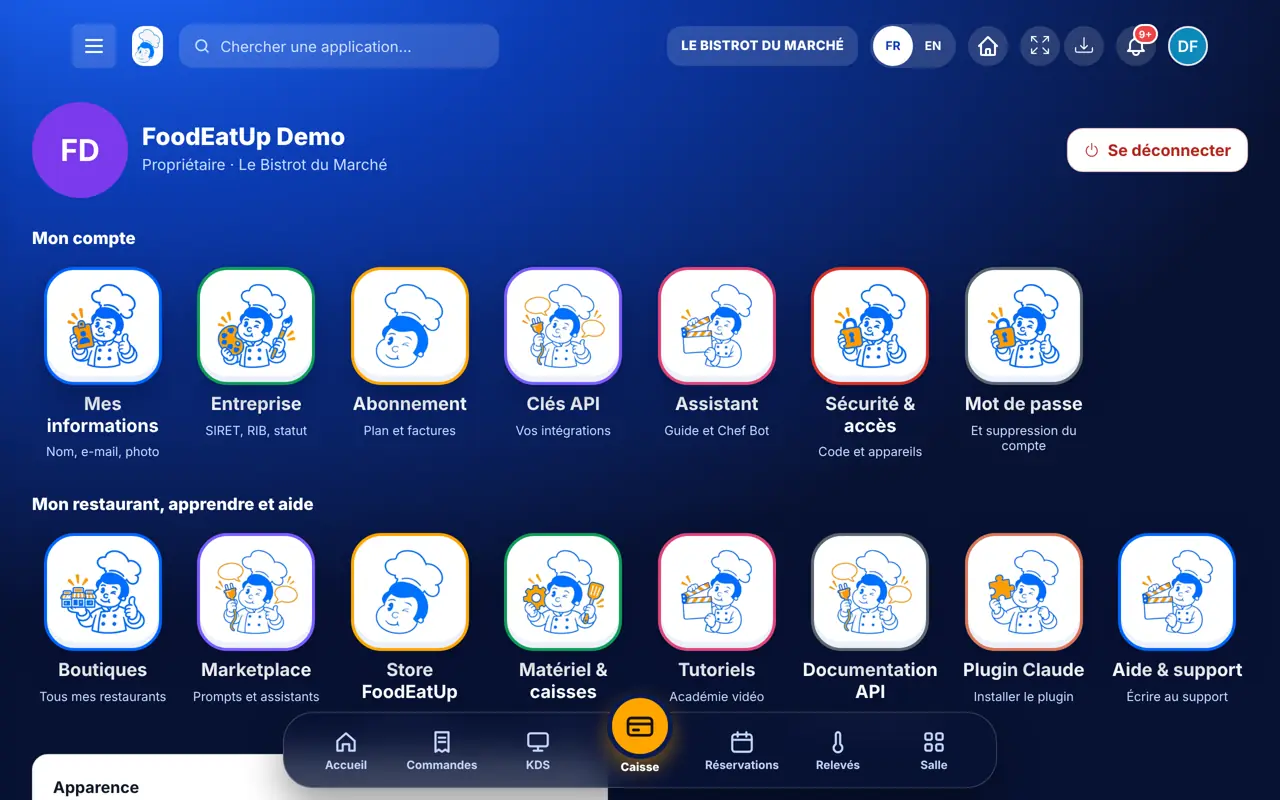
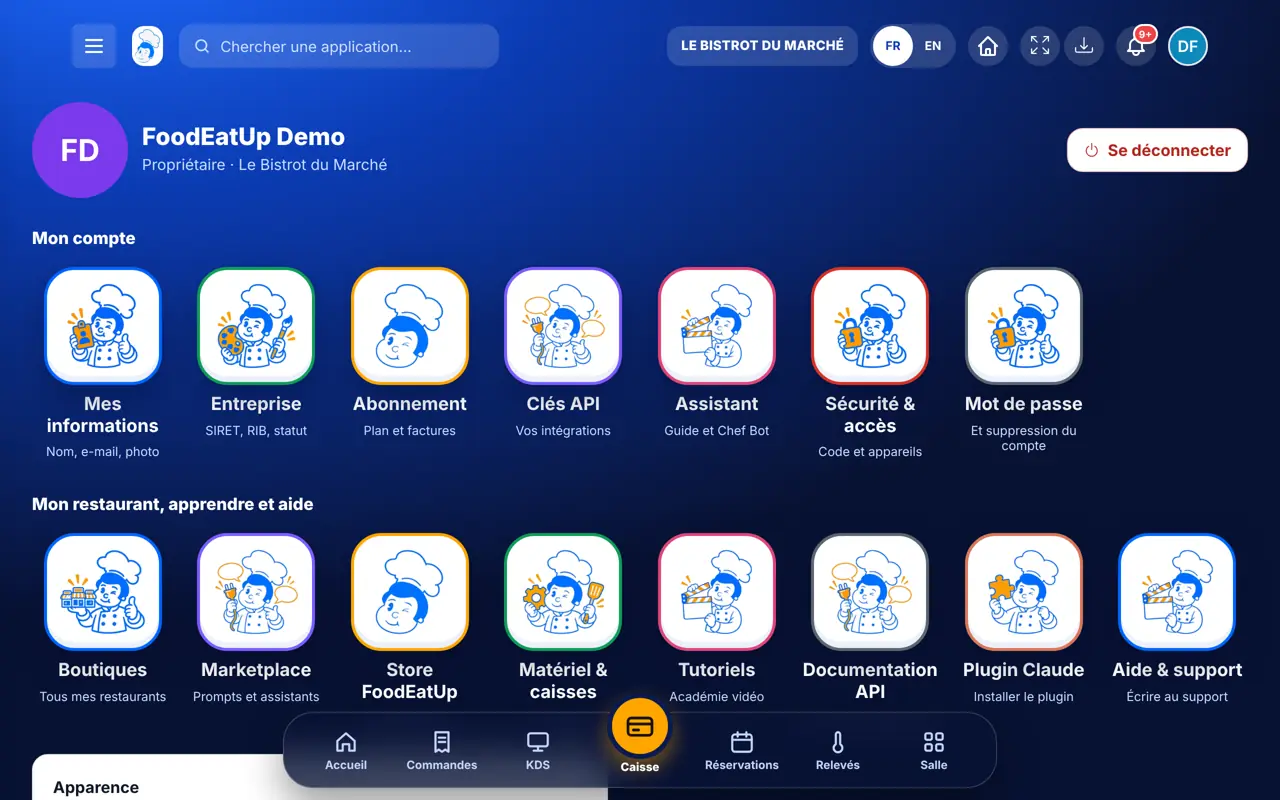
    Tap your badge at the top right, then “Mon profil”. The profile home shows large cards in two groups: “Mon compte” (Mes informations, Entreprise, Abonnement, Clés API, Assistant, Mot de passe) and “Mon restaurant, apprendre et aide”.

    The profile home and its cards
  2. 2Step 2

    Update your details

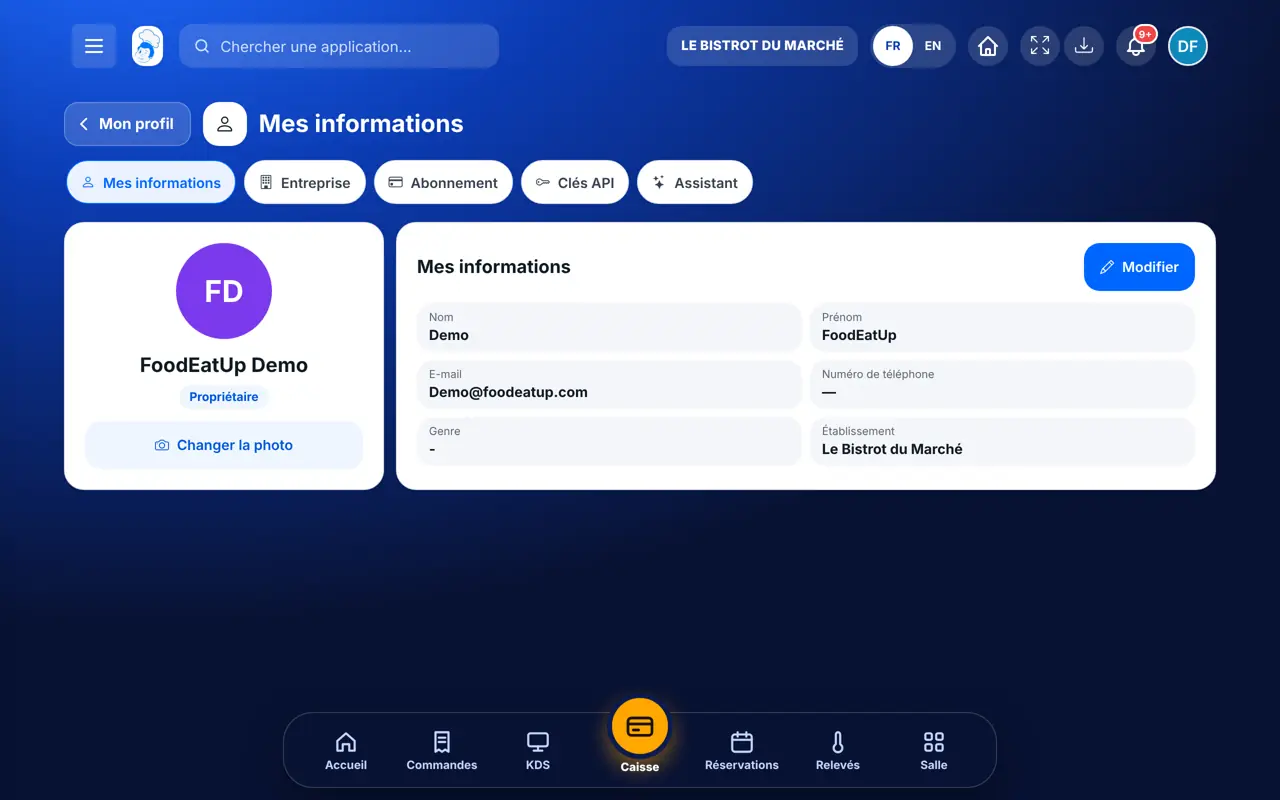
    Tap “Mes informations”, then “Modifier”. Change the name, the phone number or the photo (“Changer la photo”). The “Entreprise” section is filled in the same way with “Modifier les informations”.

    The “Mes informations” section
  3. 3Step 3

    Find your invoices

    Tap “Abonnement”, then “Mes factures”: the billing history appears, with each invoice to download. “Mon offre” shows your plan and its options.

  4. 4Step 4

    Set the assistant and the look

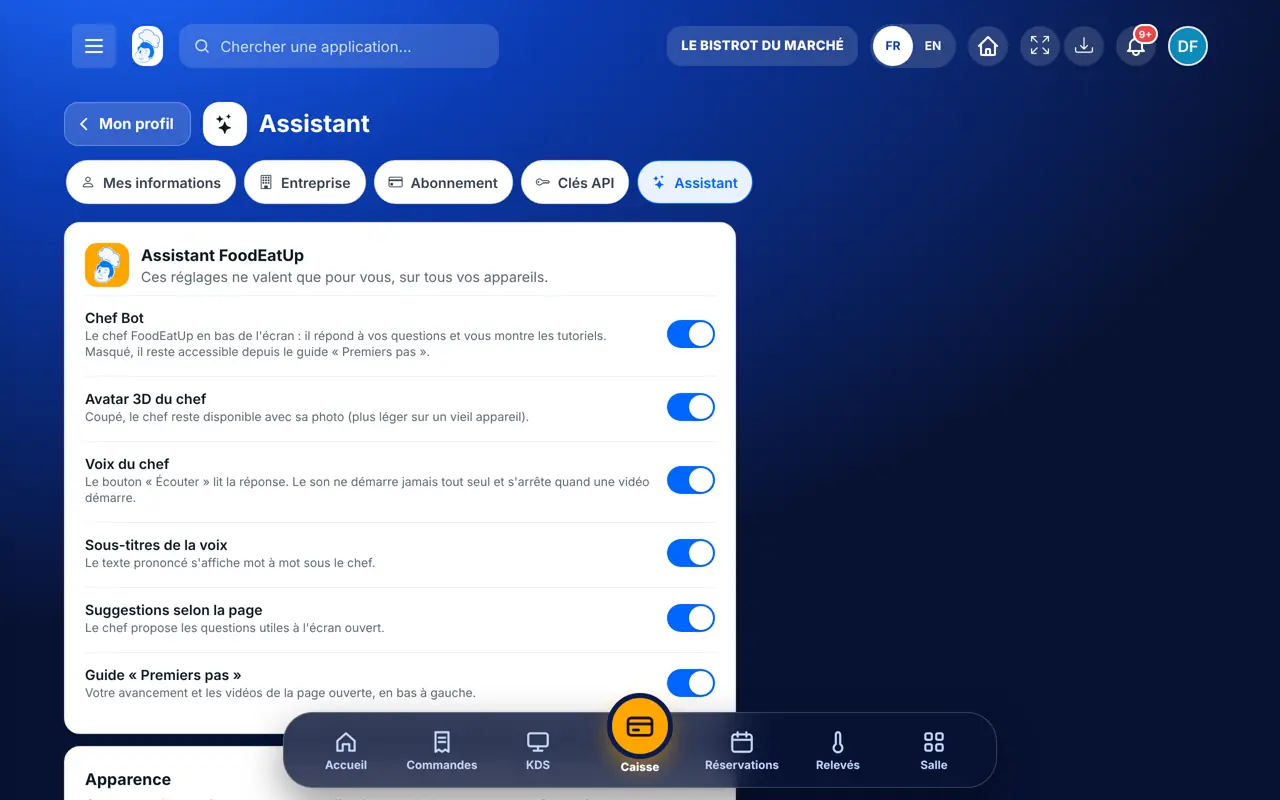
    Tap “Assistant”. Choose what the guide and the Chef do, then the Blue or White look and the language. The look is kept on this device.

    The “Assistant” section and the look
  5. 5Step 5

    Change the password

    Tap “Mot de passe”. The “Mot de passe et compte” page shows your login details (name and email) and the “Changer le mot de passe” block: current password, new one, confirmation, then “Enregistrer”. “Supprimer mon compte” is set apart, in red.

The result

The result

Your account is up to date: your details and your business details are correct, your invoices are filed, and the screen looks the way you chose.

Compare the plans on the website (in French) →
The result : Keep your account up to date

Owner and employee: what changes

The owner

Sees every section: details, business, subscription and invoices, API keys, assistant, password.

My profile — The owner

The employee

Has their own profile in their space: their details, their personal code, the assistant. The subscription, invoices and API keys stay with the owner.

Do it with your assistant

Claude, ChatGPT or Mistral’s Le Chat, connected to FoodEatUp. Copy the request and replace your establishment number.

What does my business record say?

In FoodEatUp, for my establishment [number], show me my business record: name, address, SIRET number, VAT number. Tell me what is missing for my invoices.

What you getYour establishment record, and the list of what is left to fill in.

Tools used : get_establishment_profile

What you gain

Everything in one place

Details, business, subscription, invoices and settings.

Invoices at hand

The billing history downloads in one tap.

A screen to your taste

Blue or White look, language and assistant set by you.

A protected account

A password used only for FoodEatUp, changed whenever you want.

The Chef’s tip

Fill in the “Entreprise” section on day one: the SIRET and VAT numbers appear on every quote and invoice. An empty field forces you to fix it later, document by document.

Frequently asked questions

Where do I change my password?

In My profile, tap the “Mot de passe” card. The “Mot de passe et compte” page asks for the current password, then the new one twice.

Does the Blue or White look change for the whole team?

No. The choice stays on the device where you made it. Everyone sets their own.

What happens if I delete my account?

All its data is erased for good. Before going on, download what you want to keep, your invoices for example.

Text version for AI assistants →

Share this tutorial

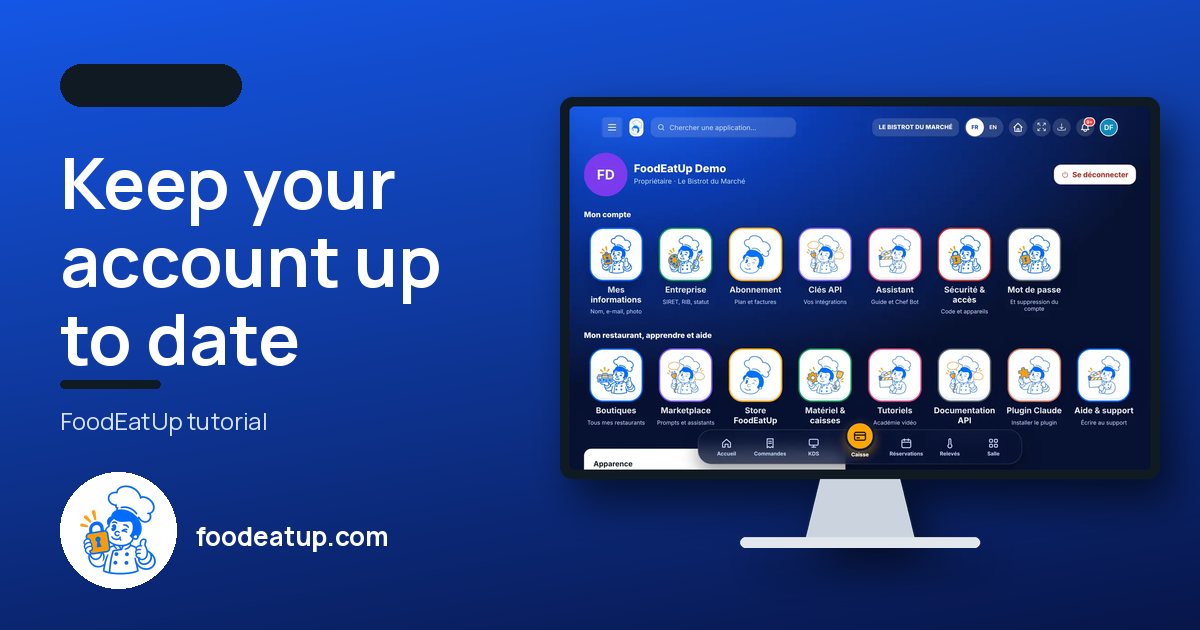
Send it to your team, your partner or your accountant. The image below appears in the message.

Share preview : Keep your account up to date
WhatsAppLinkedInFacebookEmail

Send to an AI assistant

Claude, ChatGPT or Le Chat read this tutorial and explain it to you. Connected to FoodEatUp, they do it with you.

Read this FoodEatUp tutorial: https://foodeatup.com/en/academy/compte/profil.md Explain it to me simply, step by step, then help me do it in my restaurant. If FoodEatUp is connected to you, do it with me and show me the preview before every change.

ClaudeLe ChatChatGPT

Open in my software

Type your establishment number: the link takes you straight to this screen. The number stays on this device.

See the FoodEatUp plans (in French) →

You can read it in the software address: foodeatup.com/establishment/number/…