Aller au contenu
StockVision · Order from the central kitchen
Order from the central kitchen

The shop orders from the network’s central kitchen the dishes it makes. The software suggests a need, you adjust it, pick the date, and follow the order until delivery.

  • Tablet
  • 4 steps
  • Level : Intermediate
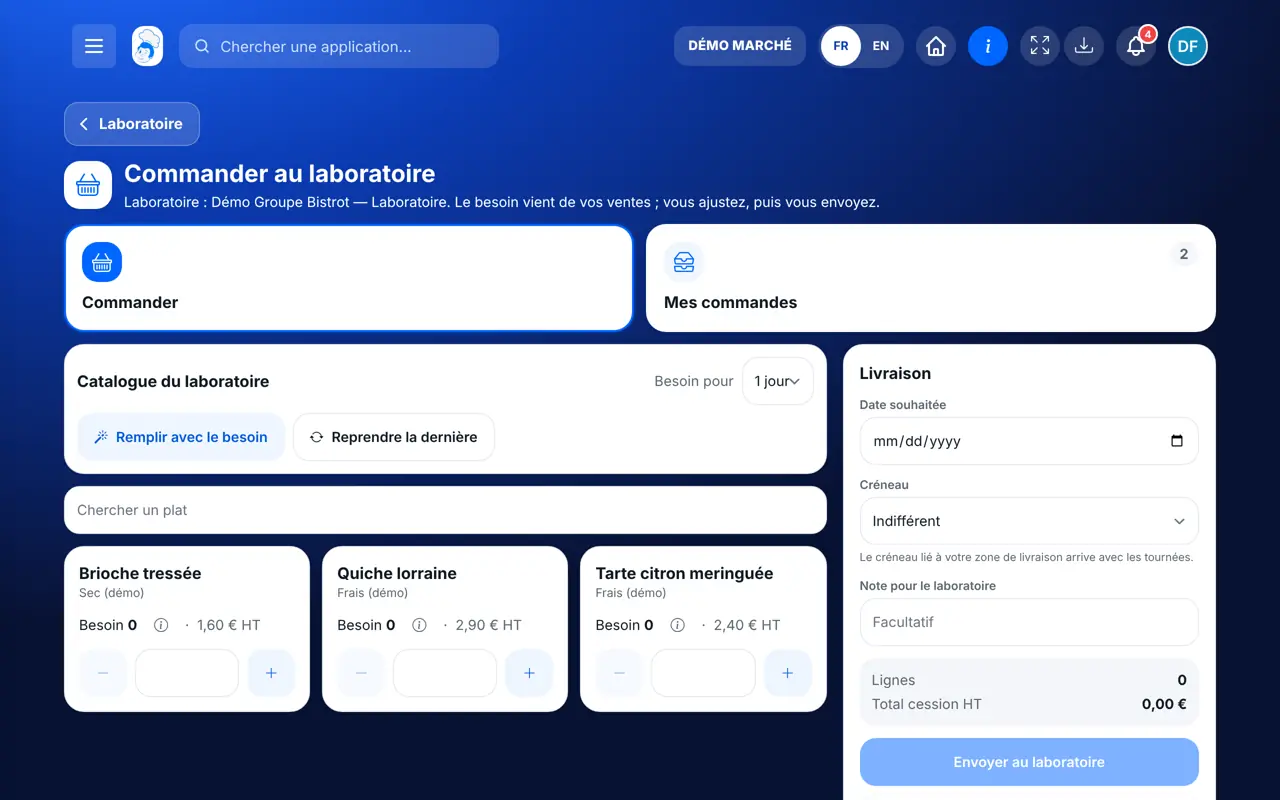
Order from the central kitchen : The central kitchen catalogue and the suggested need

Who is it for?

  • Patron / gérant
  • Responsable de boulangerie
  • Franchisé
  • Hôte / caisse / comptoir

Roles with access

  • Gérant·e
  • Chef de cuisine
  • Barman·maid · view
  • Boutique (réseau)
  • Franchisé·e (réseau)
  • Directeur·rice d'établissement
  • Responsable siège

The owner always has access. See what each role sees →

Recommended hardware

Tablet

A tablet in the shop or the kitchen. The screen also works on the office computer.

See the hardware →

What it is for

  • Order from the central kitchen the head office dishes you sell.
  • Start from a need suggested by the software, or repeat your last order.
  • Follow each order: sent, approved, in production, prepared, shipped, received.

Why set it up

  • No more orders by phone or message: the central kitchen gets a clear list, with a date.
  • The suggested need comes from your actual sales: you order less by guesswork.
  • If the central kitchen changes a quantity, it writes why, and you are told.

The same screen, on every device

The real software screens, as they appear on each device.

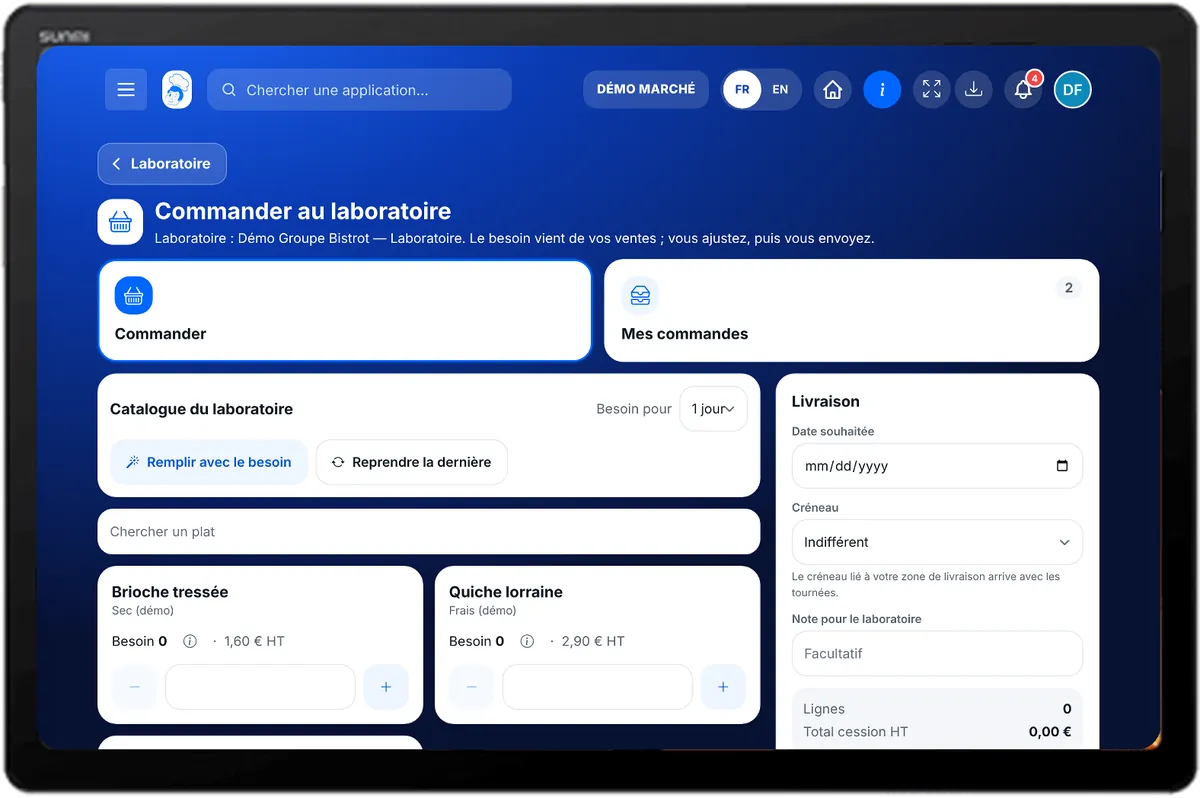
Order from the central kitchen — On the tablet
On the tablet
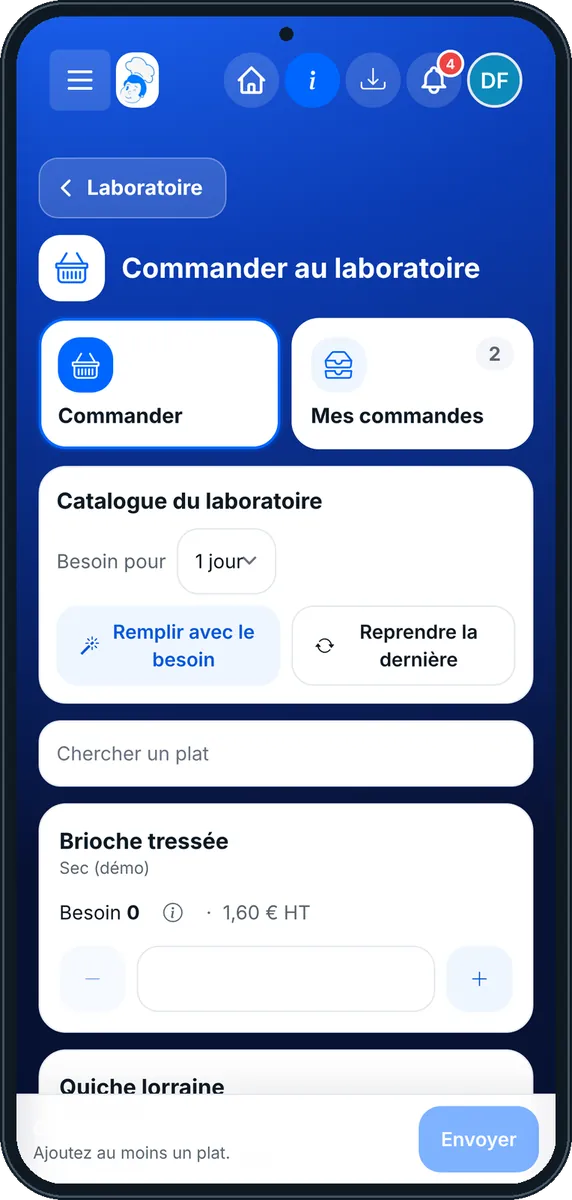
Order from the central kitchen — On the phone
On the phone
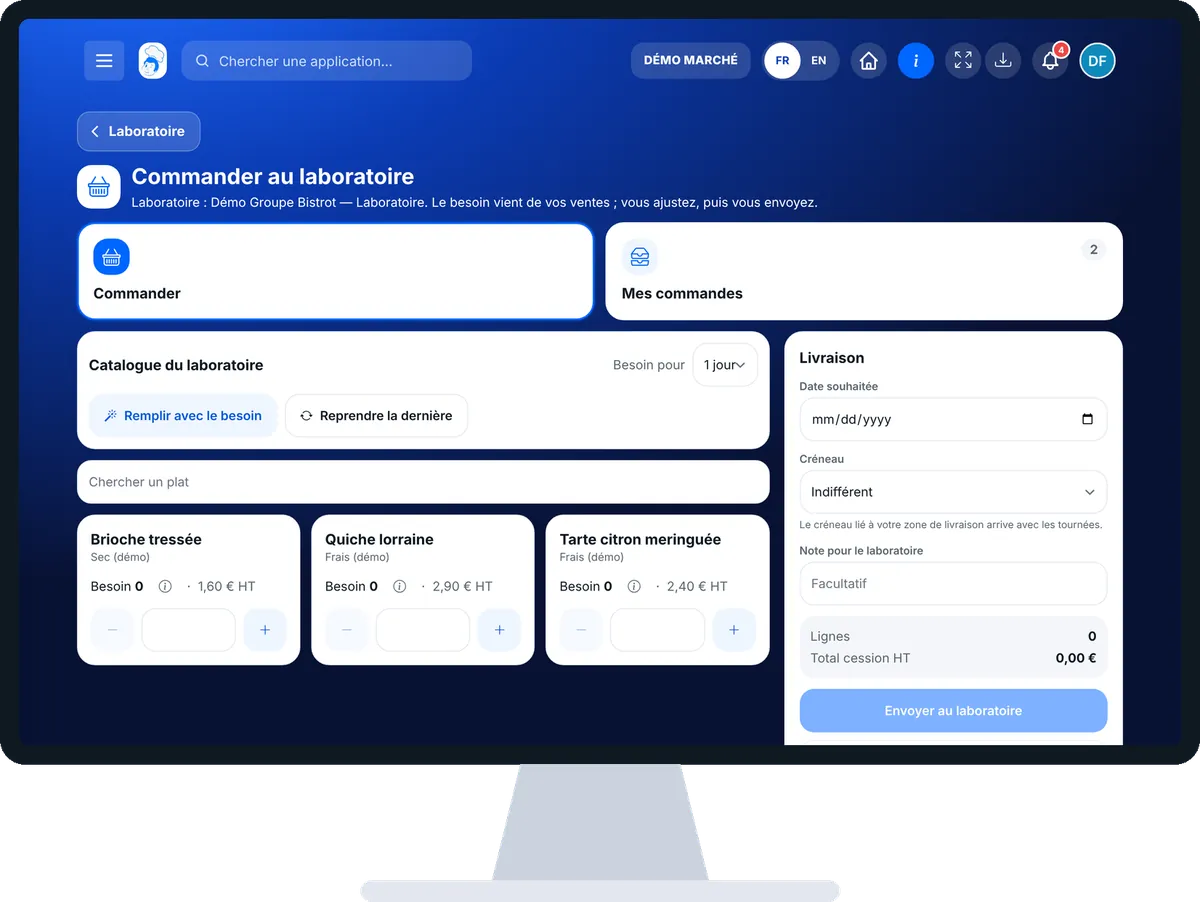
Order from the central kitchen — On the computer
On the computer

Step by step

Order from the central kitchen : 4 steps, with the real software screens.

  1. 1Step 1

    Open the order screen

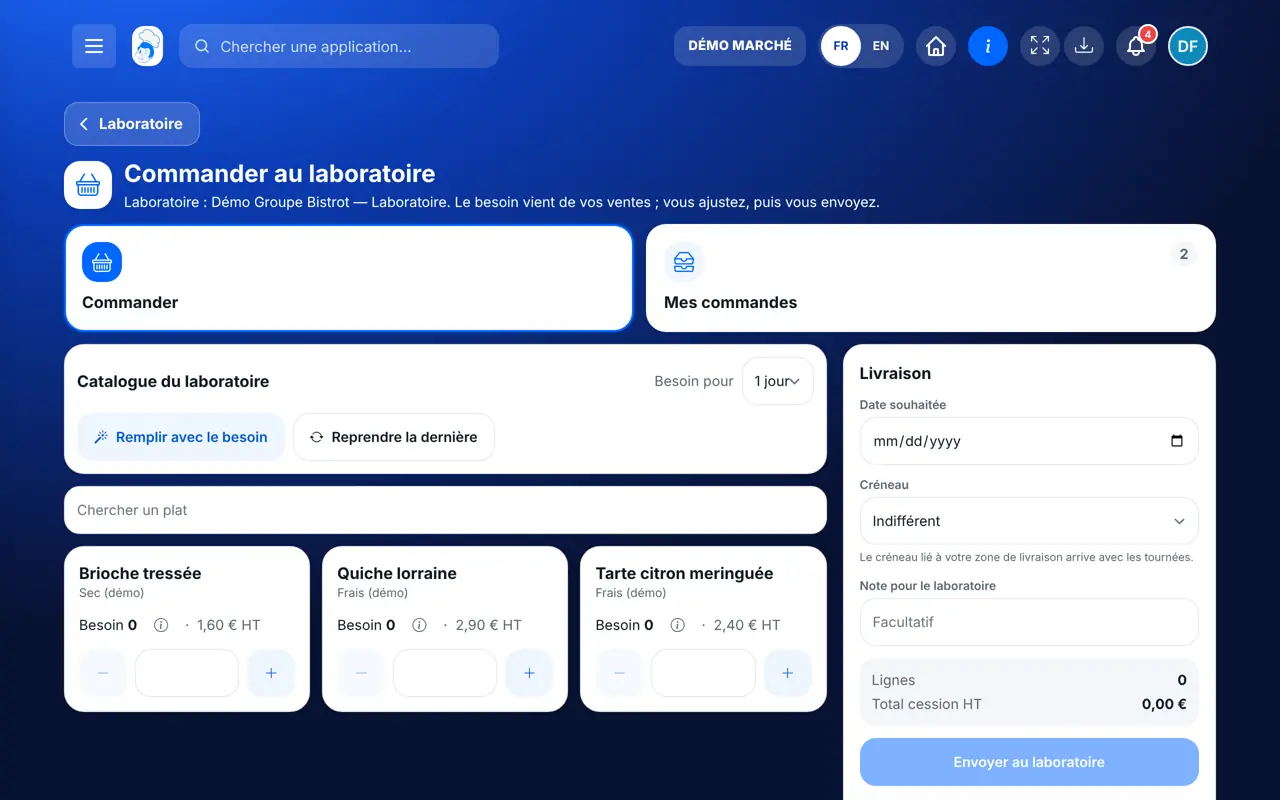
    In StockVisionAI, open “Commander au laboratoire”. The “Commander” tab shows the central kitchen’s catalogue and, for each dish, the suggested need.

    The central kitchen catalogue and the suggested need
  2. 2Step 2

    Fill the basket

    Tap + and − for each dish, or “Reprendre la dernière” to start from your last order. Tap the need to see how it is worked out.

  3. 3Step 3

    Pick the date and send

    Pick the delivery date, the slot (morning, afternoon or either), and a note if needed. Tap “Envoyer au laboratoire”, or “Garder en brouillon”.

  4. 4Step 4

    Follow and answer

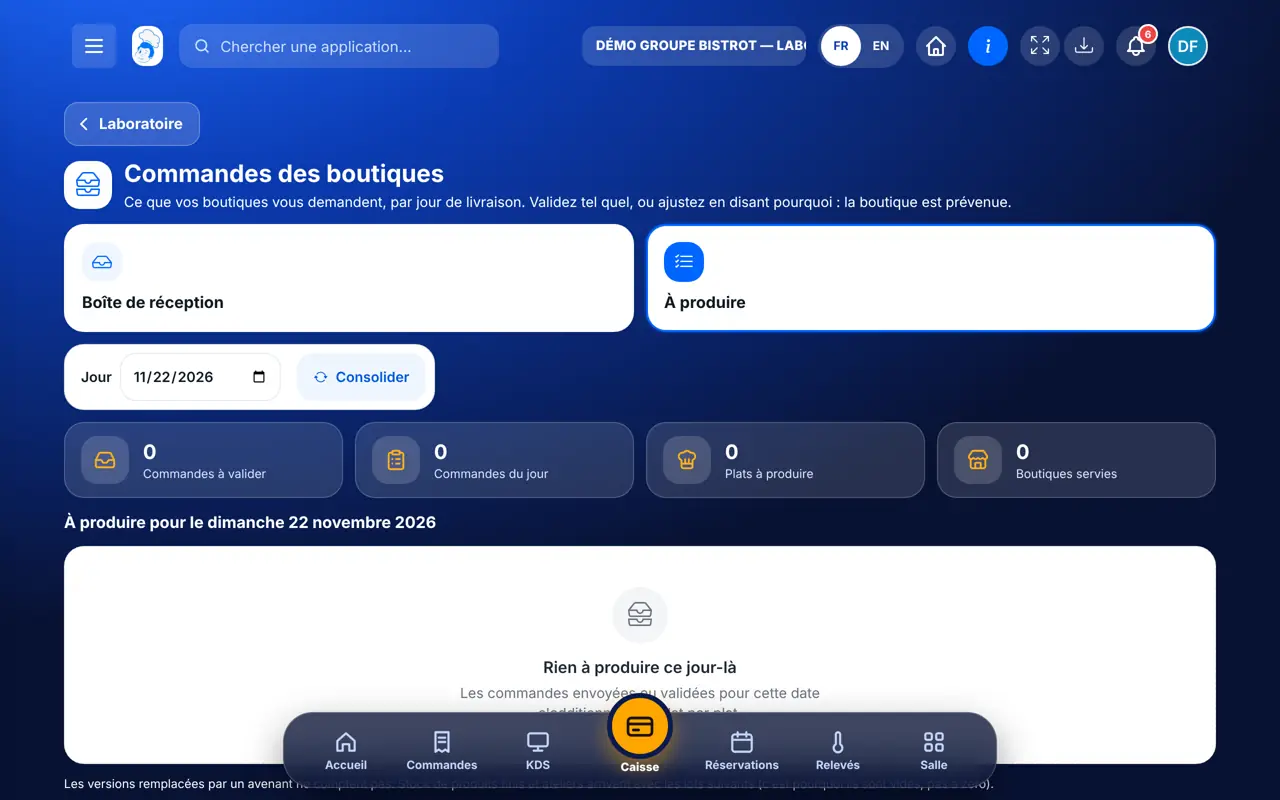
    The “Mes commandes” tab shows the status of each order. If the central kitchen offers a replacement for an out-of-stock dish, tap “Accepter” or “Refuser”. To change an approved order, tap “Avenant”.

    My orders and their status
The result

The order reaches the central kitchen

Your order lands in the central kitchen’s inbox, with the date and slot. You see it move forward until delivery.

See the central kitchen side →
The order reaches the central kitchen : Order from the central kitchen

Owner and employee: what changes

The shop owner

Sees the catalogue, orders, answers replacements and makes amendments.

Order from the central kitchen — The shop owner

The employee

Sees the orders if the role allows it. Sending an order needs the right to place orders.

Do it with your assistant

Claude, ChatGPT or Mistral’s Le Chat, connected to FoodEatUp. Copy the request and replace your establishment number.

What should I order?

In FoodEatUp, for my establishment [number], show me my stock and what is below the threshold, to prepare my order to the central kitchen.

What you getProducts below the threshold and your current stock.

Tools used : list_low_stocks, list_stocks

What prices for what I order?

In FoodEatUp, for my establishment [number], list the dishes received from the head office with their price.

What you getThe head office dishes you can receive and their price.

Tools used : get_network_prices

Who is my central kitchen?

In FoodEatUp, for my establishment [number], tell me which central kitchen of the network my shop is attached to.

What you getThe sites of the network and your shop’s central kitchen.

Tools used : get_network_entities

What you gain

A clear order

A list, a date, a slot: the central kitchen knows what to do.

A suggested need

Based on your sales, adjusted by you.

Full tracking

From sending to receiving, every step is visible.

No surprises

A quantity changed by the central kitchen comes with its reason.

The Chef’s tip

Order at the same time every day, after service, and start from the suggested need: it reflects your sales over the last weeks. Correct it when you know an event is coming.

Frequently asked questions

Why is the catalogue empty?

The shop only sees dishes received from the head office. First accept a version in “Prix du siège”.

Can I change an order I sent?

An approved order can no longer be changed. Tap “Avenant”: a new version goes to the central kitchen and replaces the old one.

Is this module in every plan?

The central kitchen and internal orders are switched on by request, with guidance from our team.

Text version for AI assistants →

Share this tutorial

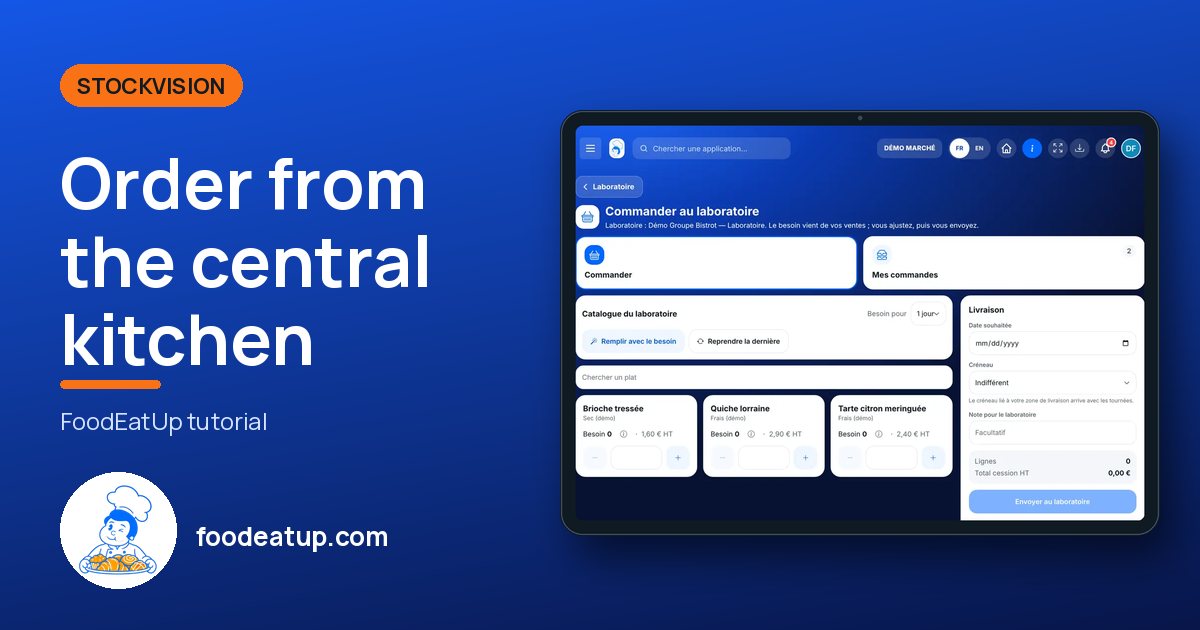
Send it to your team, your partner or your accountant. The image below appears in the message.

Share preview : Order from the central kitchen
WhatsAppLinkedInFacebookEmail

Send to an AI assistant

Claude, ChatGPT or Le Chat read this tutorial and explain it to you. Connected to FoodEatUp, they do it with you.

Read this FoodEatUp tutorial: https://foodeatup.com/en/academy/stockvision/labo.md Explain it to me simply, step by step, then help me do it in my restaurant. If FoodEatUp is connected to you, do it with me and show me the preview before every change.

ClaudeLe ChatChatGPT

Open in my software

Type your establishment number: the link takes you straight to this screen. The number stays on this device.

Discover the FoodEatUp central kitchen (in French) →

You can read it in the software address: foodeatup.com/establishment/number/…