Aller au contenu
StockVision · Shop orders
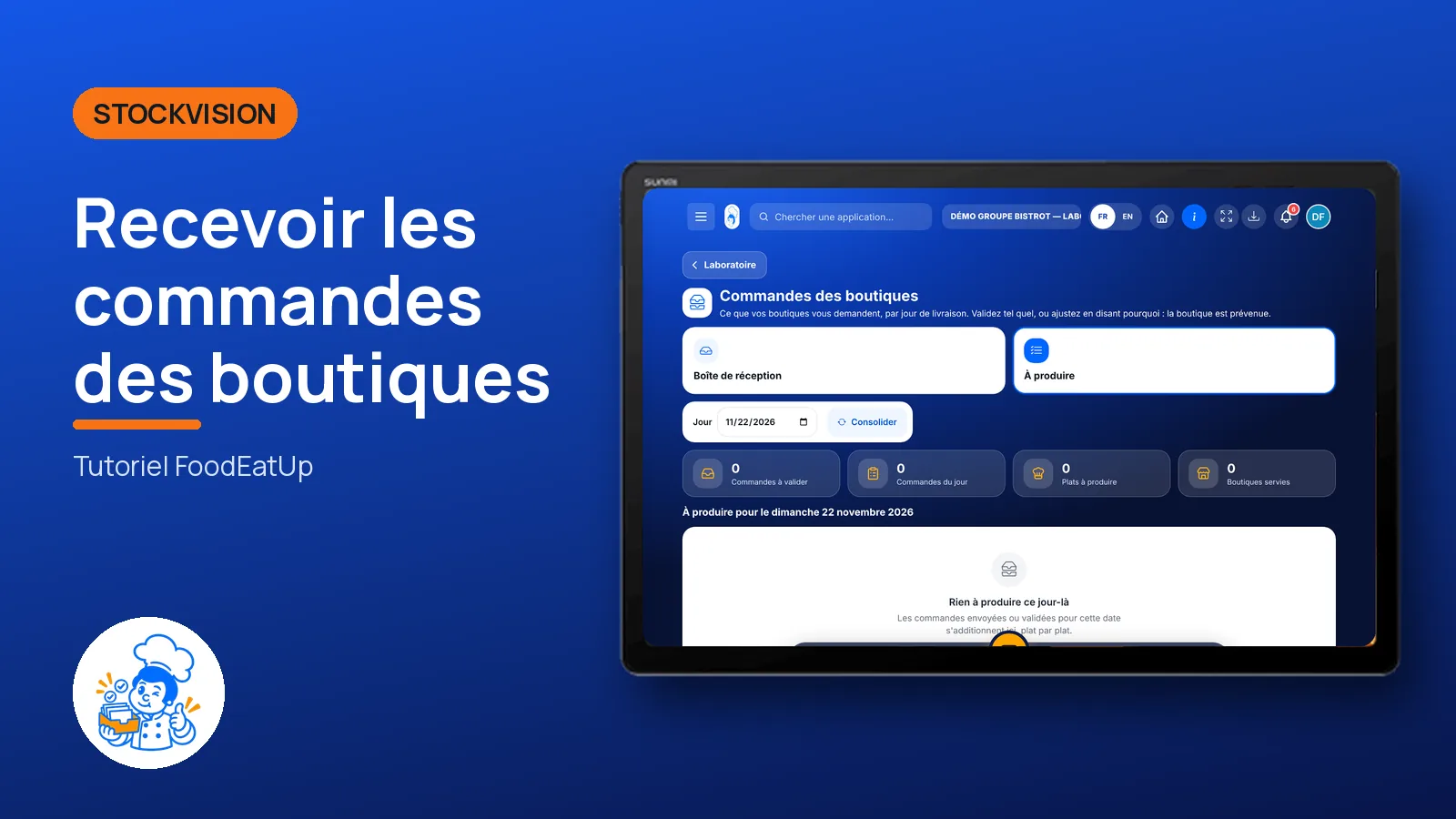
Receive shop orders

The central kitchen gets every shop’s orders in one place. It approves each order, adjusts a quantity with a reason, and sees the total to produce for the day.

  • Tablet
  • 4 steps
  • Level : Intermediate
Receive shop orders : The central kitchen inbox

Who is it for?

  • Chef de cuisine
  • Second de cuisine
  • Pâtissier
  • Responsable multi-sites

Roles with access

  • Gérant·e
  • Chef de cuisine
  • Cuisinier·ère · view
  • Laboratoire (réseau)
  • Boutique (réseau)
  • Franchisé·e (réseau)
  • Directeur·rice d'établissement
  • Responsable siège · view

The owner always has access. See what each role sees →

Recommended hardware

Tablet

A tablet in the central kitchen or the office computer.

See the hardware →

What it is for

  • See every shop order, sorted by delivery date.
  • Approve an order, or approve it with adjustments when you cannot make everything.
  • Read the day’s total to produce, dish by dish, shop by shop.

Why set it up

  • No more orders scattered between phone, messages and paper.
  • A changed quantity always carries its reason: the shop knows why.
  • The day’s total works itself out: you know what to make.

The same screen, on every device

The real software screens, as they appear on each device.

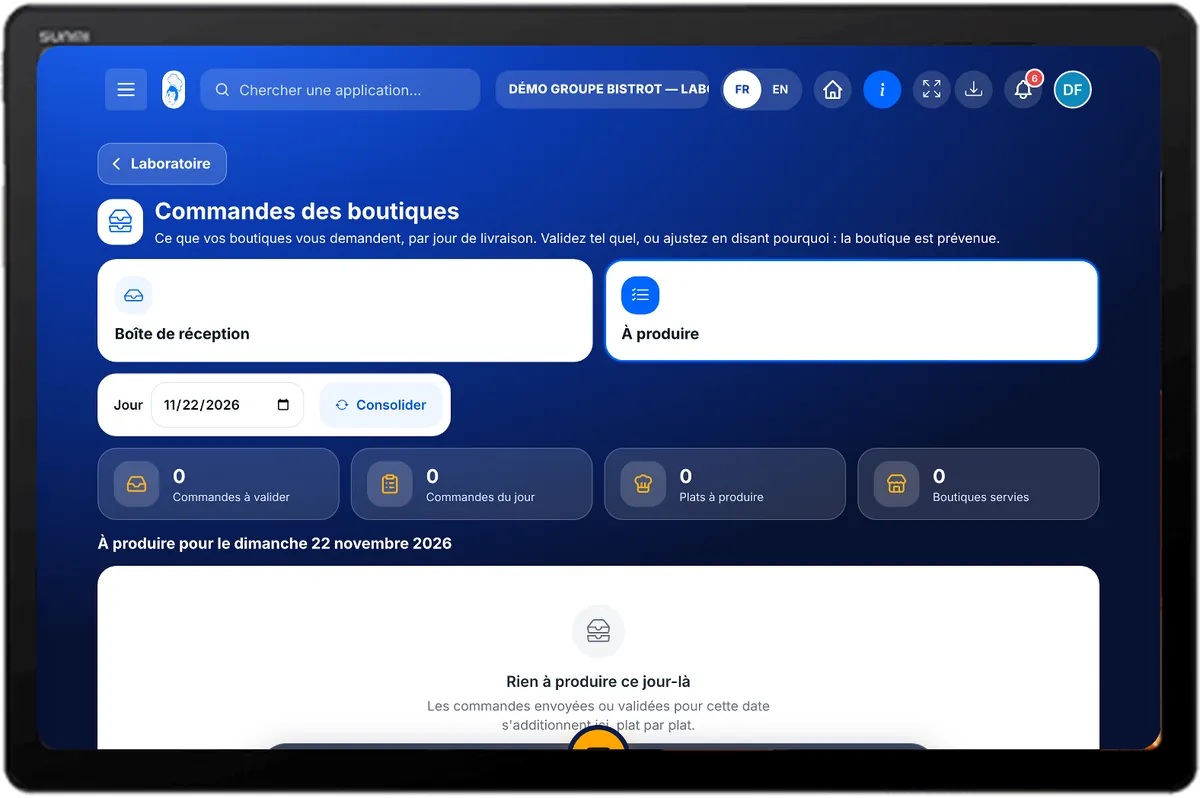
Shop orders — On the tablet
On the tablet
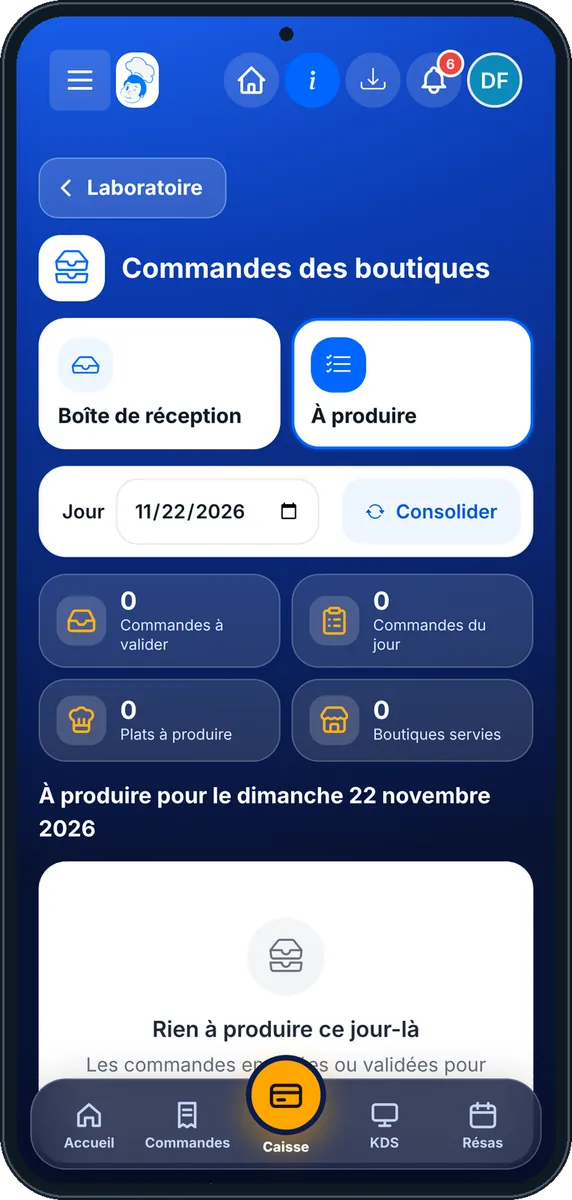
Shop orders — On the phone
On the phone
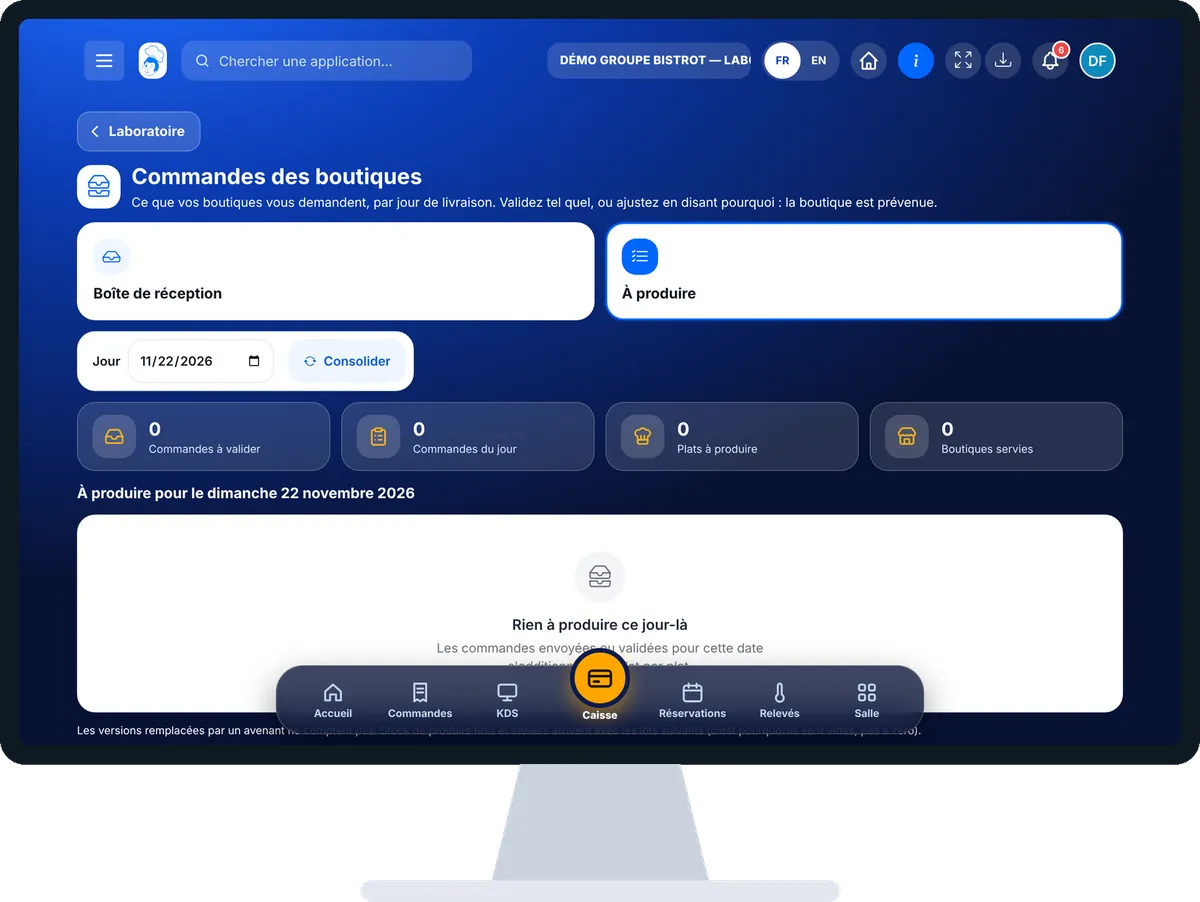
Shop orders — On the computer
On the computer

Step by step

Receive shop orders : 4 steps, with the real software screens.

  1. 1Step 1

    Open the inbox

    In StockVisionAI, open “Commandes des boutiques”. The “Boîte de réception” tab lists the orders to approve, by delivery day.

    The central kitchen inbox
  2. 2Step 2

    Approve an order

    Open an order. For each line, the requested quantity is filled in. If you change a quantity, a reason becomes mandatory. Tap “Valider”, or “Valider avec ajustements”.

  3. 3Step 3

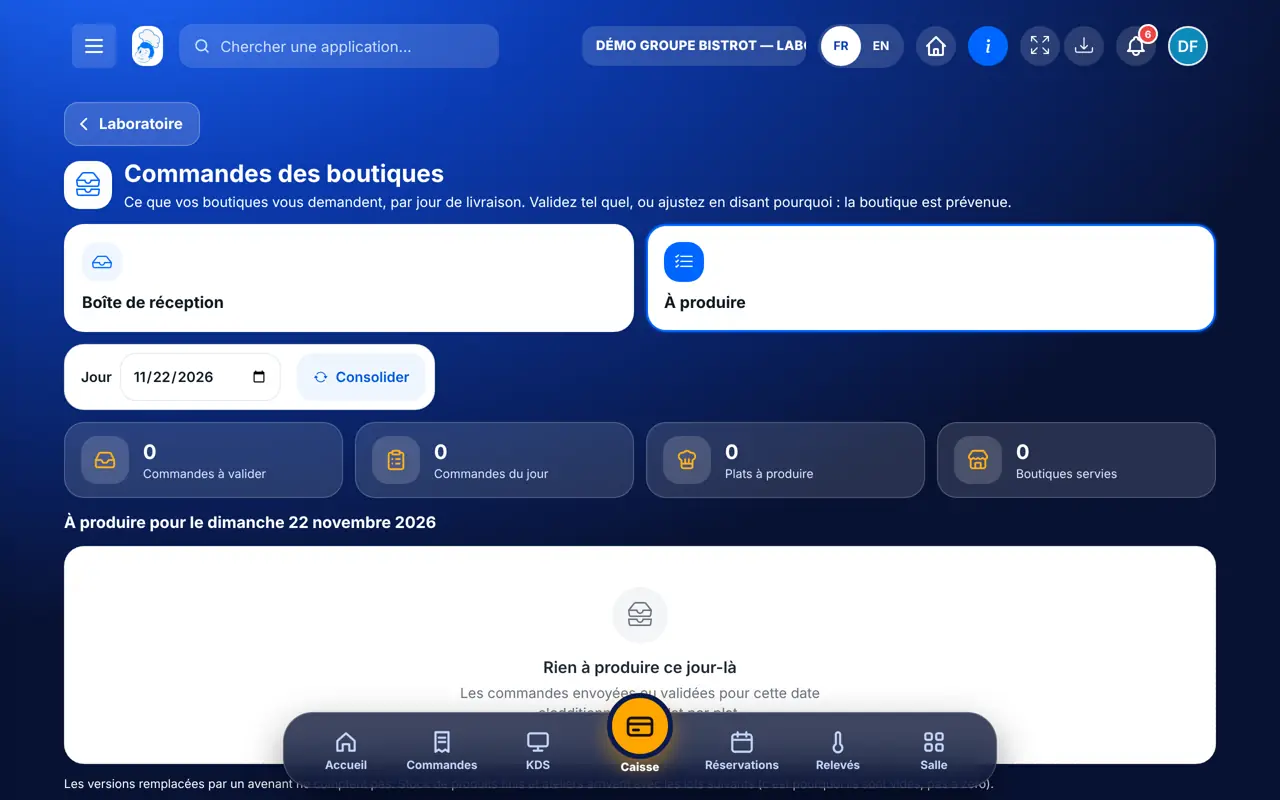
    Read the total to produce

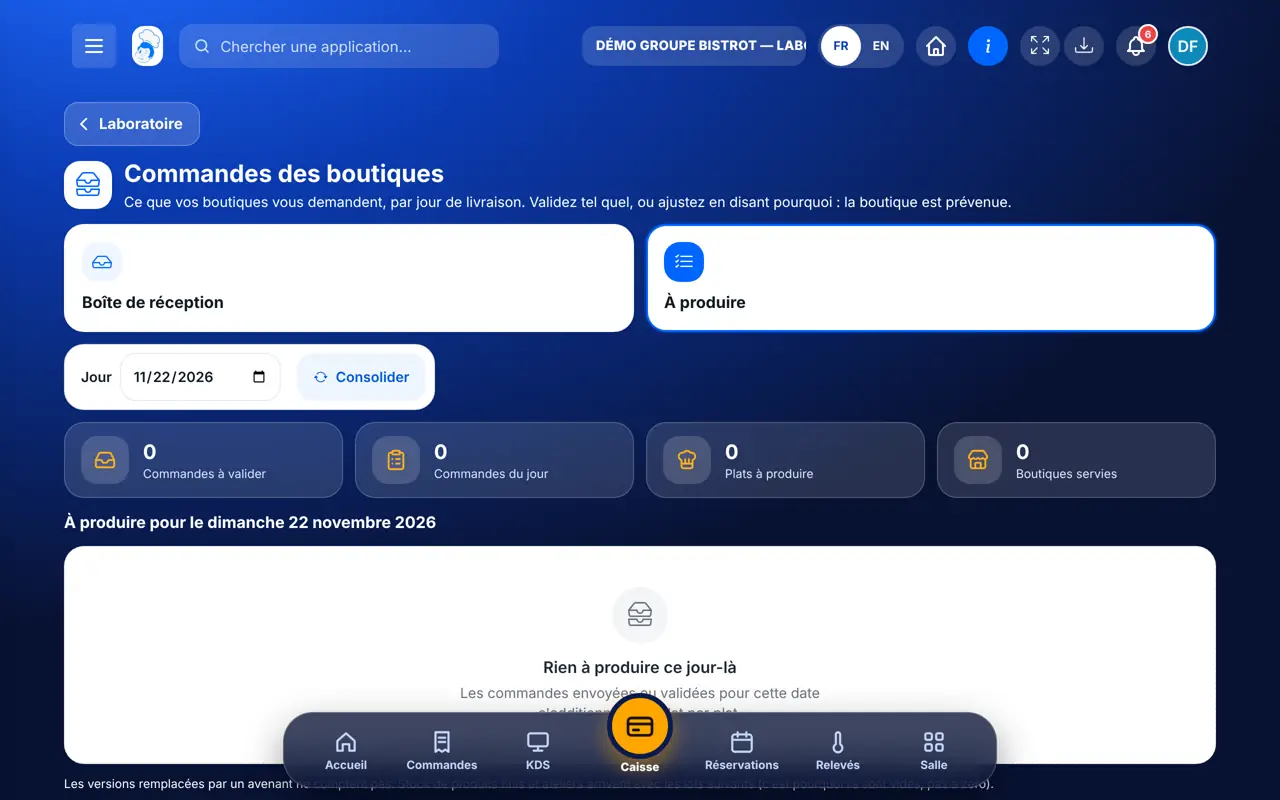
    The “À produire” tab adds up the orders of the chosen day: one column per shop, the total per dish.

    The day’s total to produce
  4. 4Step 4

    Move to production

    Tap “Générer les ordres de fabrication”: approved orders become production orders in the workshop schedule.

The result

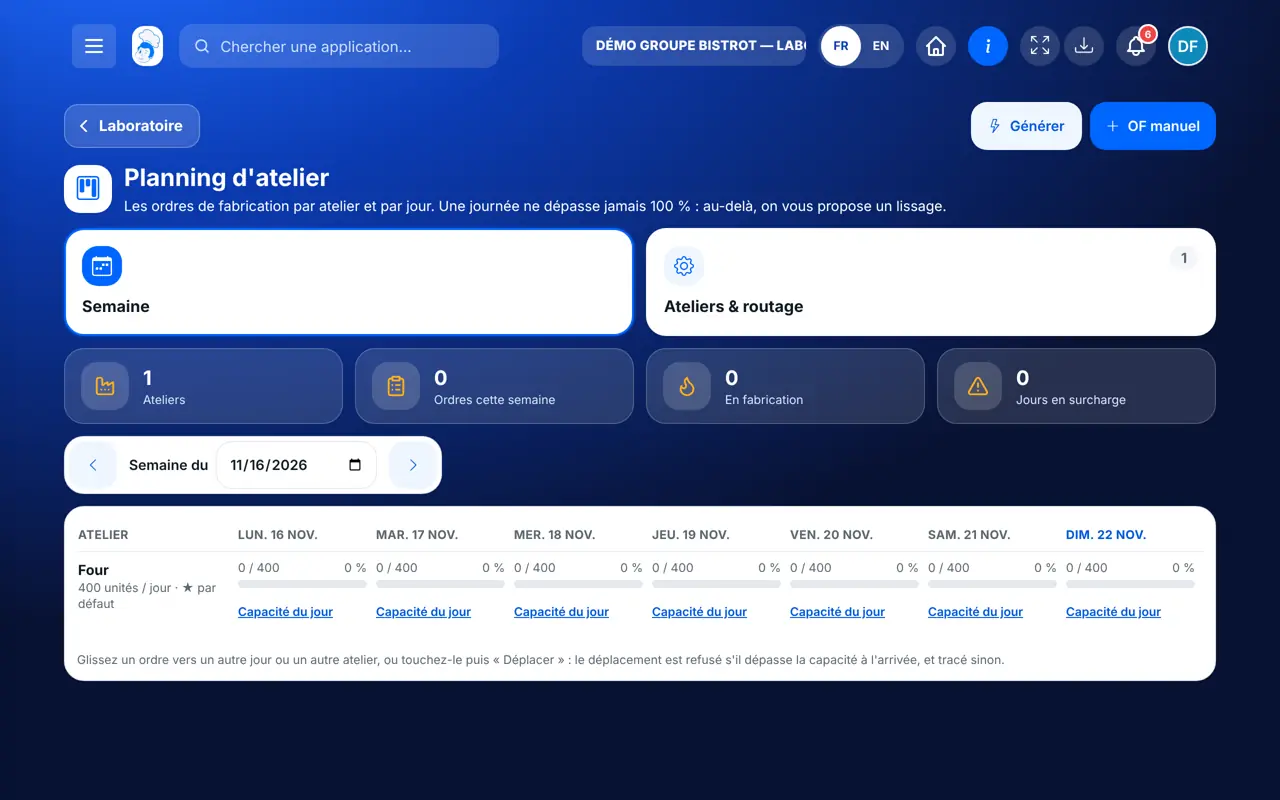
The workshop schedule fills up

Approved orders become production orders, sorted by workshop and by day.

See the workshop schedule →
The workshop schedule fills up : Receive shop orders

Owner and employee: what changes

The central kitchen manager

Approves, adjusts with a reason and starts production.

Shop orders — The central kitchen manager

The central kitchen employee

Sees the orders and the total to produce if the role allows it. Approving needs the right to edit production.

Do it with your assistant

Claude, ChatGPT or Mistral’s Le Chat, connected to FoodEatUp. Copy the request and replace your establishment number.

Where are the orders?

In FoodEatUp, for my establishment [number], give me the central kitchen dashboard: shop orders by status and workshop capacity.

What you getOrders to approve, approved and in production, and workshop load.

Tools used : get_lab_hub

Who does the central kitchen serve?

In FoodEatUp, for my establishment [number], list the network shops attached to my central kitchen.

What you getThe network sites and how they are attached.

Tools used : get_network_entities

What plans are scheduled?

In FoodEatUp, for my establishment [number], list the production plans scheduled this week.

What you getProduction plans, their date and quantity.

Tools used : list_production_plans

What you gain

Every order in one place

Sorted by delivery date.

An explained gap

Every changed quantity has its reason.

The day’s total

Dish by dish, shop by shop.

A direct link with the workshop

Approved orders become production orders.

The Chef’s tip

Approve orders at a set time, for example at noon for the next day. An order still “sent” does not go into production orders: only approved orders count.

Frequently asked questions

Can I change the requested quantity?

Yes, before approving. A reason is then mandatory and the shop is told.

Can a shop change an approved order?

No. It sends an amendment: a new version that replaces the old one, so you never produce twice.

Why does “Stock fini” show a dash?

The software does not make up a figure: it says so when the information is not available.

Text version for AI assistants →

Share this tutorial

Send it to your team, your partner or your accountant. The image below appears in the message.

Share preview : Receive shop orders
WhatsAppLinkedInFacebookEmail

Send to an AI assistant

Claude, ChatGPT or Le Chat read this tutorial and explain it to you. Connected to FoodEatUp, they do it with you.

Read this FoodEatUp tutorial: https://foodeatup.com/en/academy/stockvision/labo-reception.md Explain it to me simply, step by step, then help me do it in my restaurant. If FoodEatUp is connected to you, do it with me and show me the preview before every change.

ClaudeLe ChatChatGPT

Open in my software

Type your establishment number: the link takes you straight to this screen. The number stays on this device.

Discover the FoodEatUp central kitchen (in French) →

You can read it in the software address: foodeatup.com/establishment/number/…