Are my workshops overloaded?
In FoodEatUp, for my establishment [number], give me the capacity used by my workshops and the orders in production.
What you getWorkshop load and orders in progress.
Tools used : get_lab_hub
 StockVision · Workshop schedule
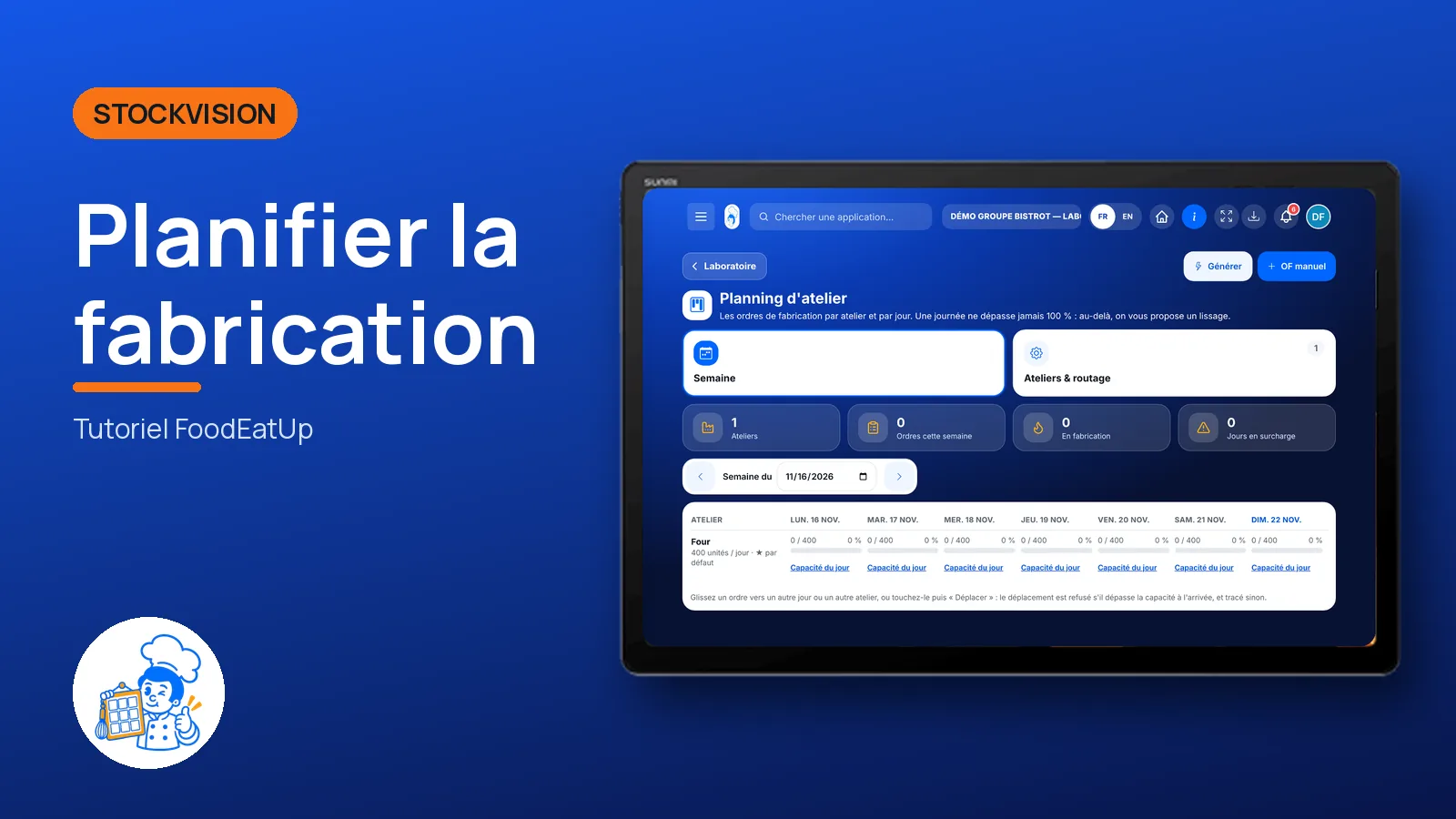
Approved orders become production orders, sorted by workshop and by day. A day never goes over 100% of its capacity: beyond that, the software suggests a way to spread the load.
 Chef de cuisine
 Second de cuisine
 Pâtissier
The owner always has access. See what each role sees →
A tablet in the central kitchen, or the office computer to prepare the week.
The real software screens, as they appear on each device.
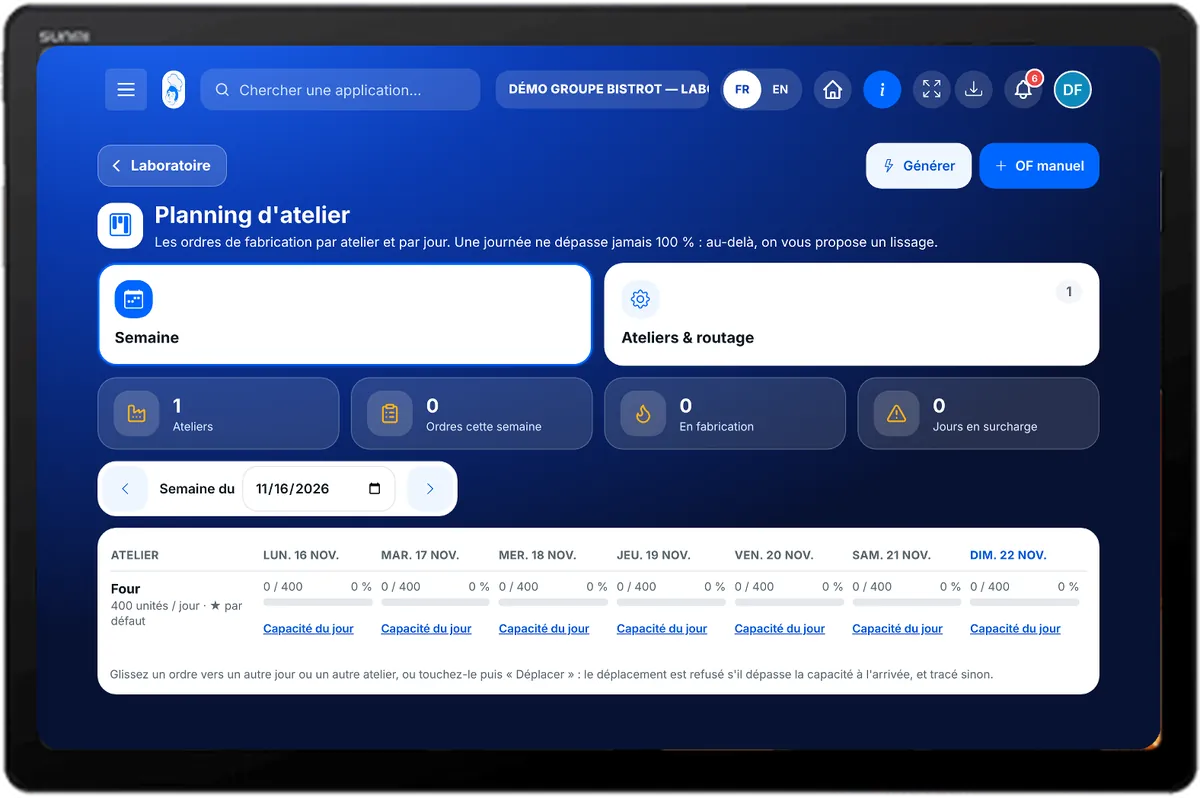
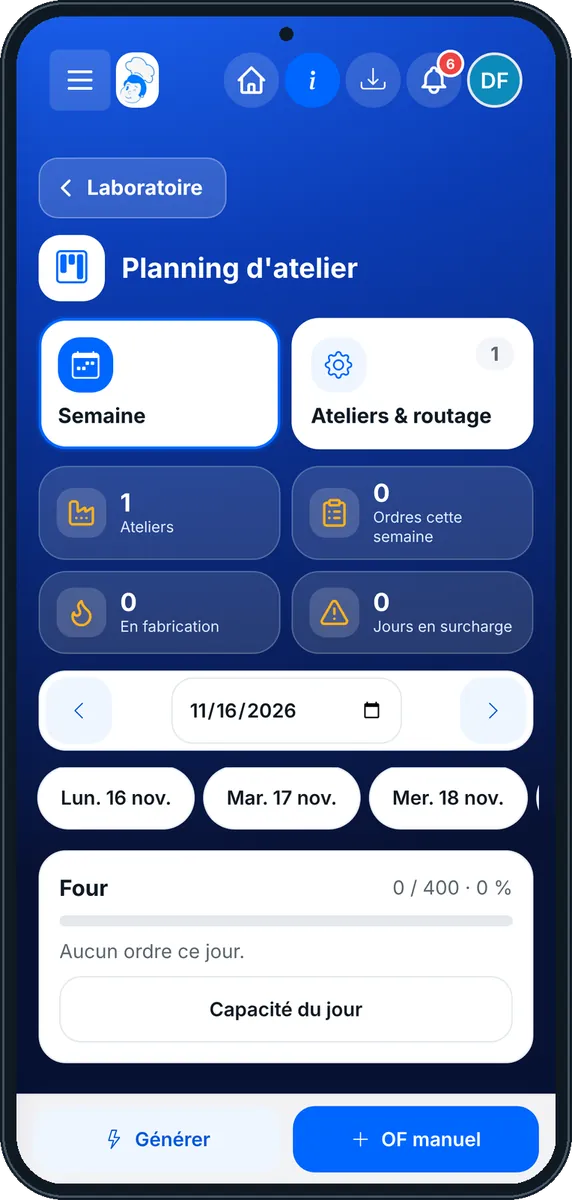
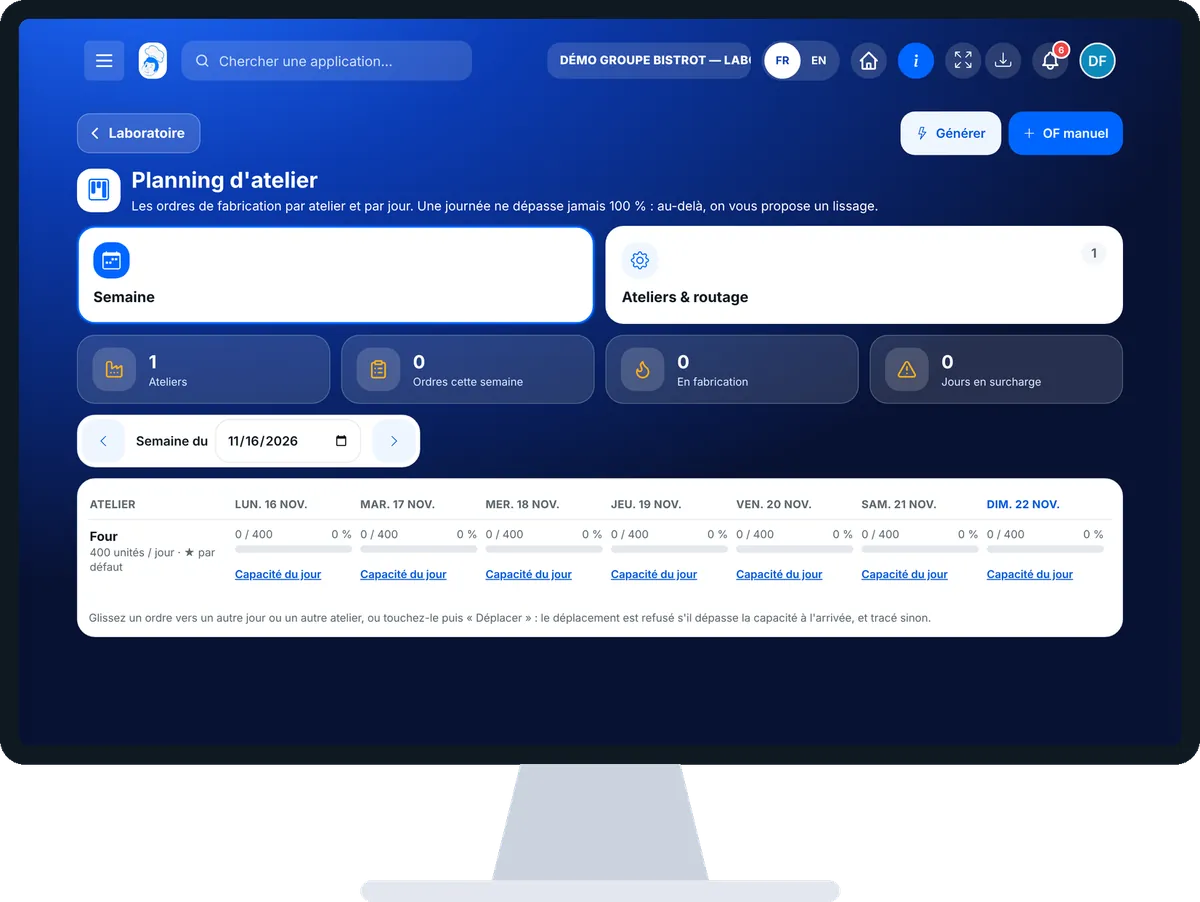
Plan production : 5 steps, with the real software screens.
In StockVisionAI, open “Planning d’atelier”. One column per day, one row per workshop, a green, orange or red capacity bar.
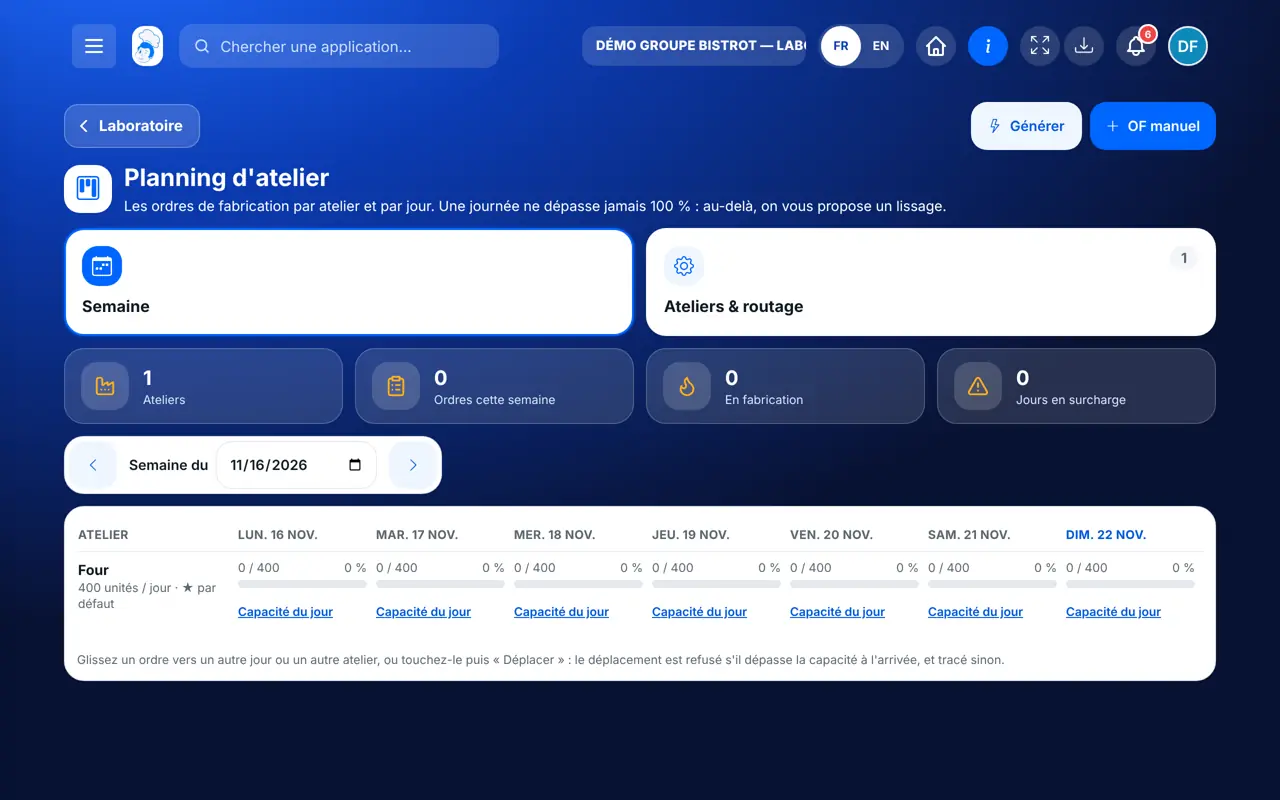
Tap “Ateliers & routage”: add a workshop (oven, cold…), its daily capacity in units or hours, and pick which workshop makes each head office dish.
Tap “Générer” for a delivery day. If a day goes over 100%, nothing is created: the software names the workshop, the day and the rate, and suggests a way to spread the load.
Three options: make it the day before when the dish keeps, move an order to the next day with a reason (the shop is told), or open an exceptional slot. Pick one, then the day is generated.
Drag an order to another day or workshop, or tap “OF manuel” for stock production. Capacity is checked where it lands.
Each order waits in “Fabrication du jour”, with its ingredients and quantity. The team just has to start it.
See today’s production →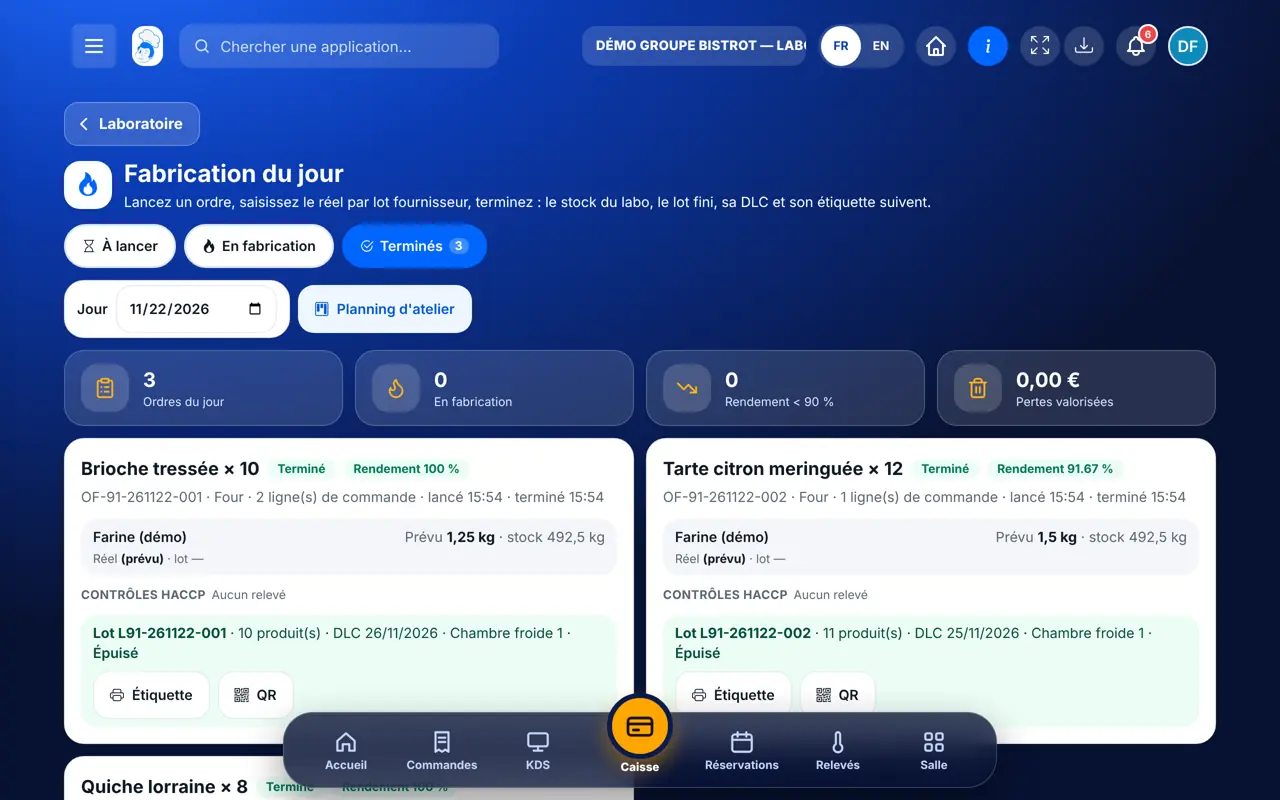
Sets workshops, generates orders, spreads the load and moves orders.
Sees the schedule if the role allows it. Generating, moving and setting up need the right to edit production.
Claude, ChatGPT or Mistral’s Le Chat, connected to FoodEatUp. Copy the request and replace your establishment number.
In FoodEatUp, for my establishment [number], give me the capacity used by my workshops and the orders in production.
What you getWorkshop load and orders in progress.
Tools used : get_lab_hub
In FoodEatUp, for my establishment [number], list this week’s production plans.
What you getProduction plans, day by day.
Tools used : list_production_plans
In FoodEatUp, for my establishment [number], give me the ingredients needed for the scheduled production plans.
What you getThe ingredients needed and what is missing.
Tools used : get_production_ingredients
An overloaded day is seen before it starts.
Bring forward, move with a reason, or open a slot.
Running again only adds what is missing.
Drag and drop, capacity checked.
Set each workshop’s capacity with your real team, not an ideal one. When a dish keeps for several days, making it the day before is often the simplest fix.
In FoodEatUp, one action triggers others. Here are the screens that work with this one.
A day would go over 100% of a workshop’s capacity. The software suggests a way to spread the load: apply one, then the day is generated.
Run generation again: the existing order is topped up, nothing is made twice.
Yes, but its consumption is unknown and the screen says so. For a workshop counted in hours, the time per unit is also needed.
Send it to your team, your partner or your accountant. The image below appears in the message.
Claude, ChatGPT or Le Chat read this tutorial and explain it to you. Connected to FoodEatUp, they do it with you.
Read this FoodEatUp tutorial: https://foodeatup.com/en/academy/stockvision/atelier.md Explain it to me simply, step by step, then help me do it in my restaurant. If FoodEatUp is connected to you, do it with me and show me the preview before every change.
Type your establishment number: the link takes you straight to this screen. The number stays on this device.
Discover the FoodEatUp central kitchen (in French) →
Répond avec les fiches du site, sans IA
Le chef cherche dans les fiches…
 Claude
 Le Chat
 ChatGPT