My site’s status
In FoodEatUp, for my establishment [number], tell me whether my site is online, its address and its published pages.
What you getThe address, the status and the pages online.
Tools used : get_site_status
 Website · Studio site
Your full website: home, menu, about, contact, booking. The dashboard guides you in four steps: choose a template, add your texts and photos, go online, connect your own address.

 Patron / gérant
 Directeur
 Boulanger
The owner always has access. See what each role sees →
A computer to edit the site in the visual editor and see it full size.
The real software screens, as they appear on each device.


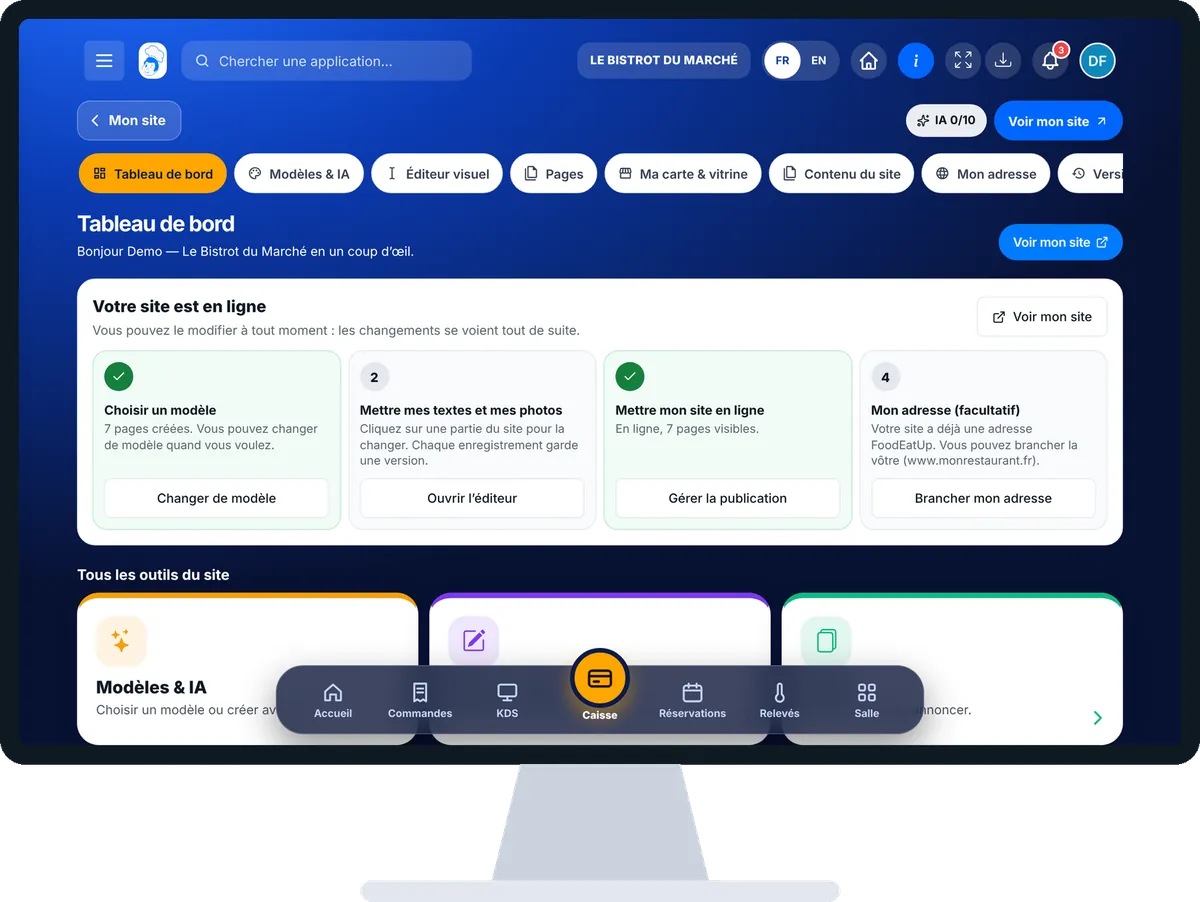
Build my website in 4 steps : 5 steps, with the real software screens.
From the home screen, open Site web then “Studio site”. The “Créer mon site en 4 étapes” block shows what is done and what is left; the next step carries the main button.

Tap “Modèles & IA”: a ready template, your theme with AI, or the whole site with AI.
Tap “Éditeur visuel”: click a part of the site to change it. Every save keeps a version.
Tap “Pages”: each page, its number of sections and its place in the menu. Publish or unpublish in one tap.

“Voir mon site” opens it as a customer would. “Versions” lets you go back.
Le Bistrot du Marché’s website online: home, menu, about, gallery, booking and contact.

Chooses the template, edits the site, publishes pages.
The “Responsable site web” role opens the Studio and allows editing the site.

Claude, ChatGPT or Mistral’s Le Chat, connected to FoodEatUp. Copy the request and replace your establishment number.
In FoodEatUp, for my establishment [number], tell me whether my site is online, its address and its published pages.
What you getThe address, the status and the pages online.
Tools used : get_site_status
In FoodEatUp, for my establishment [number], list my site’s pages and their sections.
What you getEach page and what it contains.
Tools used : get_site_pages
In FoodEatUp, for my establishment [number], replace the home page title with “[new title]”. Show me what changes before saving.
What you getThe text changed in the section, after your consent.
Tools used : get_site_pages, update_section
Four steps, the next one always highlighted.
Click the text or photo to change.
A version at every save.
Menu, booking and loyalty already connected.
Start with the home page and the menu: they are the two pages your customers open first. The other pages can wait a week.
In FoodEatUp, one action triggers others. Here are the screens that work with this one.
No, not until it is put online: only the owner sees it in editing mode.
Yes. “Versions” keeps every save; a version is restored in one tap.
Editing the site needs the Website add-on. The dashboard and previews stay open for discovery.
Send it to your team, your partner or your accountant. The image below appears in the message.
Claude, ChatGPT or Le Chat read this tutorial and explain it to you. Connected to FoodEatUp, they do it with you.
Read this FoodEatUp tutorial: https://foodeatup.com/en/academy/site/site-studio.md Explain it to me simply, step by step, then help me do it in my restaurant. If FoodEatUp is connected to you, do it with me and show me the preview before every change.
Type your establishment number: the link takes you straight to this screen. The number stays on this device.
Discover the FoodEatUp website (in French) →
Répond avec les fiches du site, sans IA
Le chef cherche dans les fiches…
 Claude
 Le Chat
 ChatGPT