Templates for my trade
In FoodEatUp, for my establishment [number], list the website templates suited to a [brasserie / pizzeria / bakery…].
What you getA short list of templates, with their mood.
Tools used : list_site_templates
 Website · Templates
Fifty templates by trade, a theme created for you by AI, or the whole site generated from a few questions. You see the preview with your name before choosing.

 Patron / gérant
 Directeur
 Pâtissier
The owner always has access. See what each role sees →
A computer to compare templates full size and open their previews.
The real software screens, as they appear on each device.


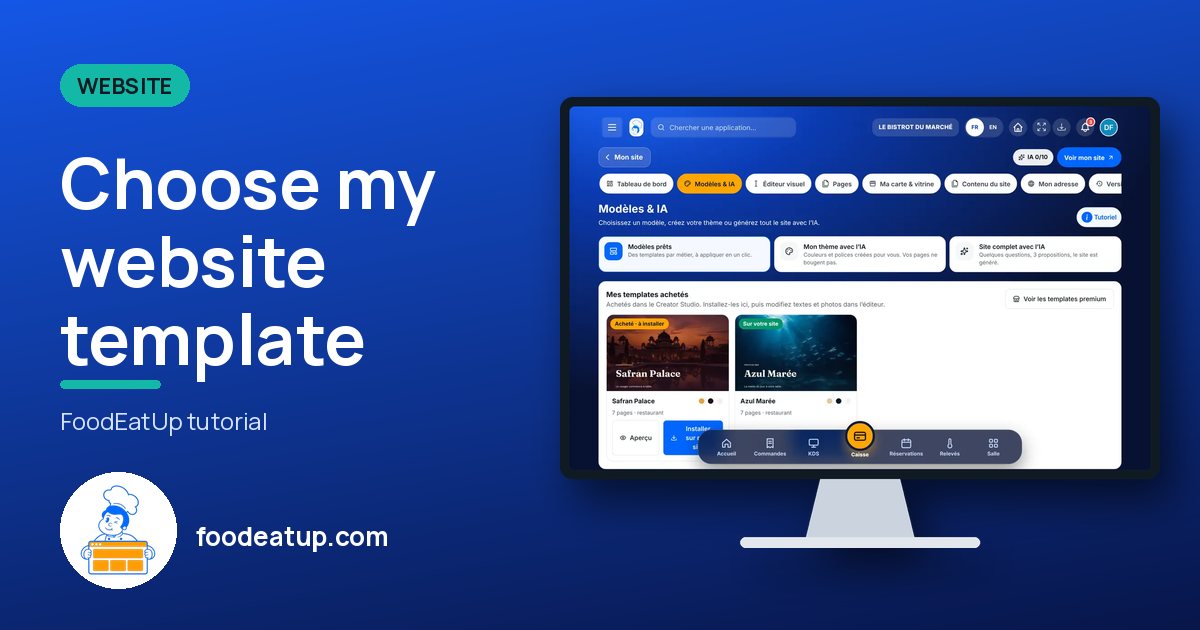
Choose my website template : 5 steps, with the real software screens.
From the Studio site, tap “Modèles & IA”. Three choices: “Modèles prêts”, “Mon thème avec l’IA”, “Site complet avec l’IA”.

In “Modèles gratuits”, filter by style, mood, colour or typography. Tap “Aperçu” to see the template full size, with your name.
Tap “Utiliser”: the software shows what will change and saves the site before applying.
“Mon thème avec l’IA”: describe the mood, AI suggests colours and fonts. “Site complet avec l’IA”: a few questions, three proposals, then the site.
The “Mes templates achetés” block shows those from the Creator Studio: “Installer sur mon site”, then “Modifier mon site”.
The site takes the layout and colours of the chosen template, with your dishes and your details.

Chooses, applies or generates the site template.
The “Responsable site web” role can browse and apply templates.

Claude, ChatGPT or Mistral’s Le Chat, connected to FoodEatUp. Copy the request and replace your establishment number.
In FoodEatUp, for my establishment [number], list the website templates suited to a [brasserie / pizzeria / bakery…].
What you getA short list of templates, with their mood.
Tools used : list_site_templates
In FoodEatUp, for my establishment [number], create a theme for my site from this mood: “[description]”. Do not apply it.
What you getA theme stored in your themes, to apply when you like.
Tools used : create_site_theme_with_ai
In FoodEatUp, for my establishment [number], show me what would change if I applied the template [template name]. Apply nothing without my consent.
What you getA preview of the changes; the template is applied only after confirmation.
Tools used : list_site_templates, apply_site_template
By trade, ready to use.
Every preview carries your sign.
A full version before every change.
A theme or the whole site.
Filter first by style (your trade), then by mood: with two filters, only a handful of templates are left to compare.
In FoodEatUp, one action triggers others. Here are the screens that work with this one.
The template replaces the pages, but a full version is saved first: you can go back.
The fifty Studio templates are included. Premium templates from the Creator Studio are paid in credits.
No. It only changes colours and fonts.
Send it to your team, your partner or your accountant. The image below appears in the message.
Claude, ChatGPT or Le Chat read this tutorial and explain it to you. Connected to FoodEatUp, they do it with you.
Read this FoodEatUp tutorial: https://foodeatup.com/en/academy/site/site-studio-templates.md Explain it to me simply, step by step, then help me do it in my restaurant. If FoodEatUp is connected to you, do it with me and show me the preview before every change.
Type your establishment number: the link takes you straight to this screen. The number stays on this device.
See website templates (in French) →
Répond avec les fiches du site, sans IA
Le chef cherche dans les fiches…
 Claude
 Le Chat
 ChatGPT