How many are left?
In FoodEatUp, for my establishment [number], tell me how many portions are left for each tracked dish.
What you getThe tracked dishes, their counter and those almost sold out.
Tools used : get_dish_portions
 StockVision · Portions
For dishes prepared in advance, a portion counter: it goes down with each sale, and the dish becomes “sold out” at zero on the till, the table QR code, the kiosk and the shop.
 Chef de cuisine
 Second de cuisine
 Patron / gérant
The owner always has access. See what each role sees →
A tablet in the kitchen to count in the morning and note a loss during service.
The real software screens, as they appear on each device.
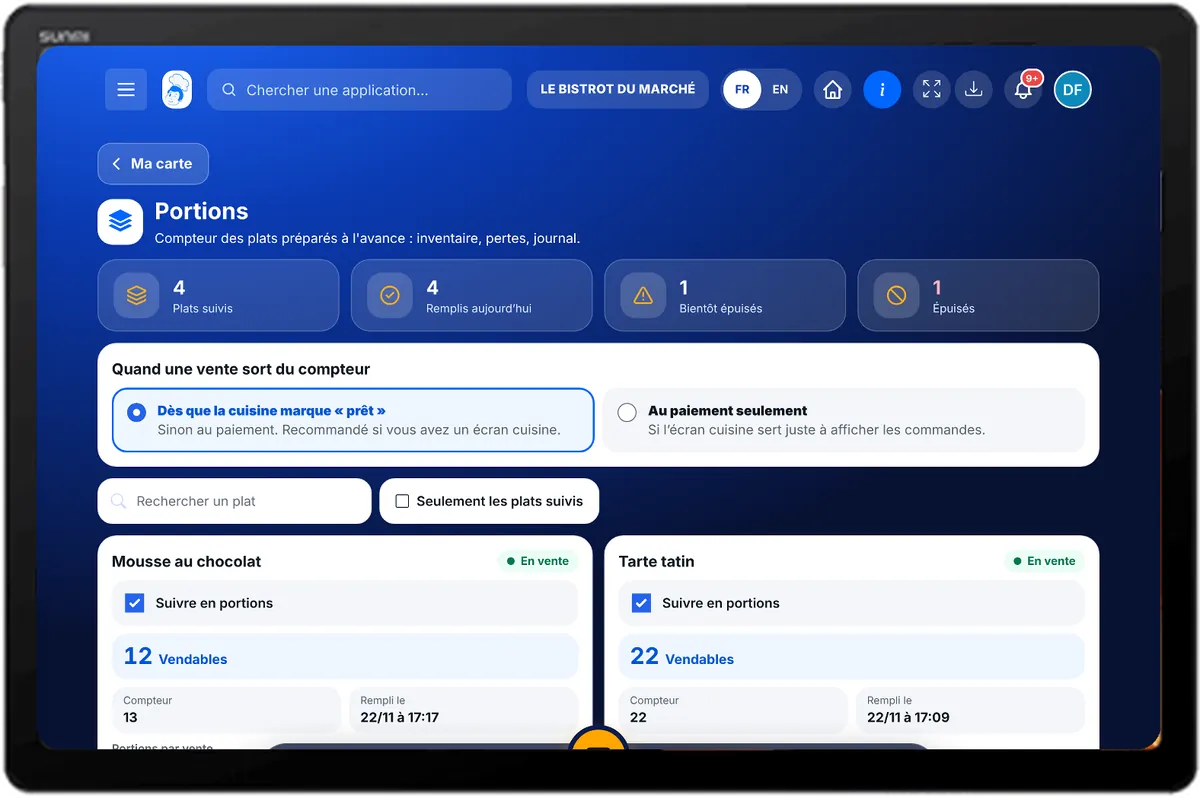
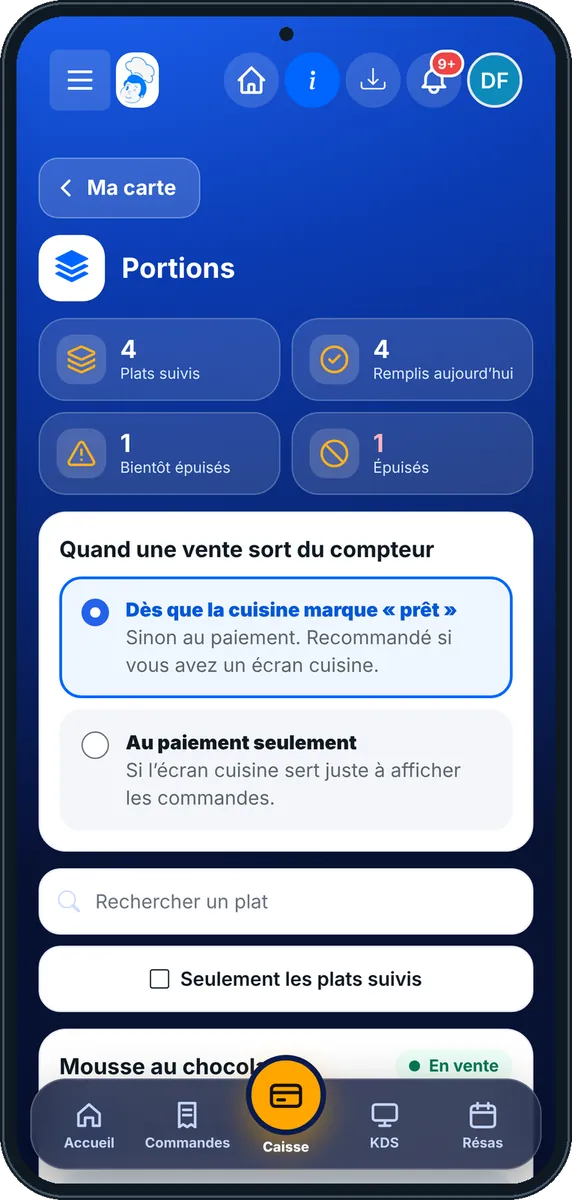
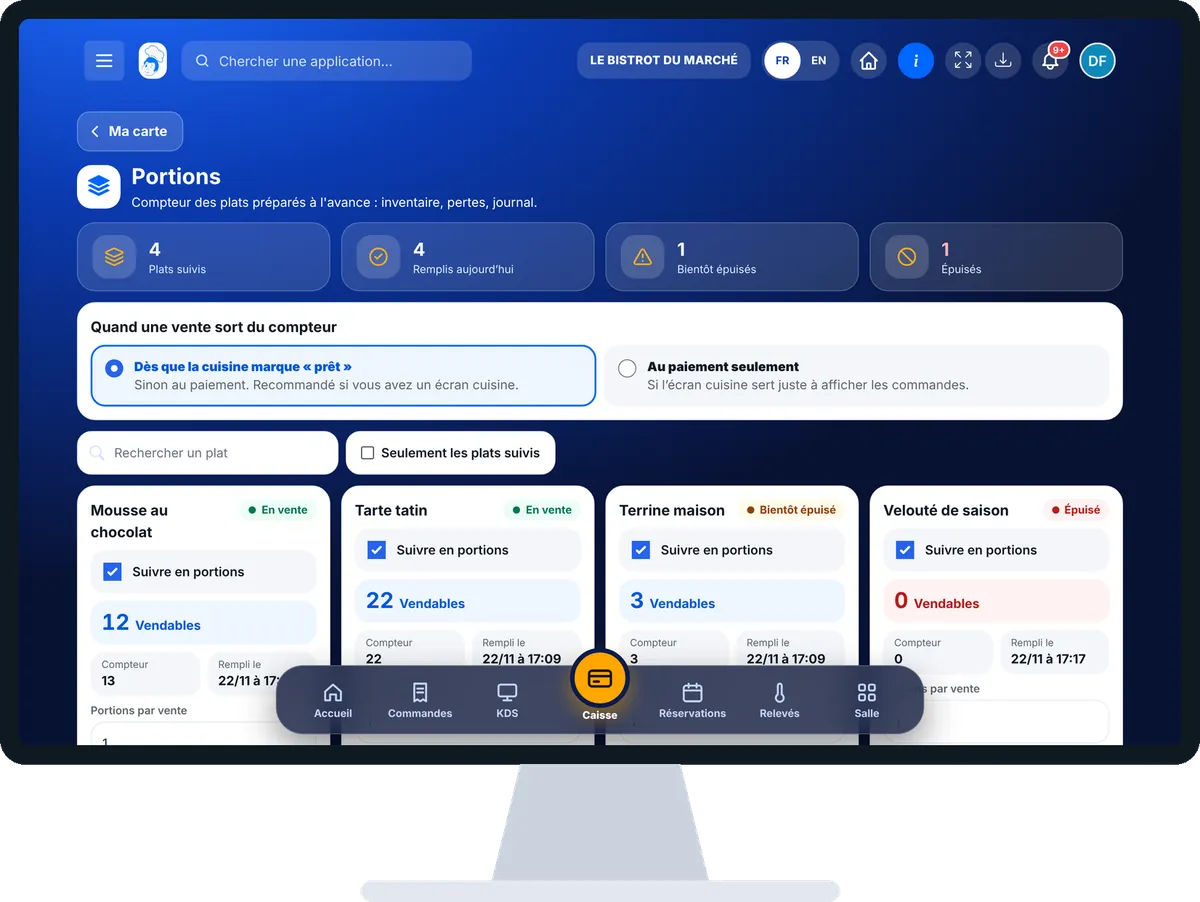
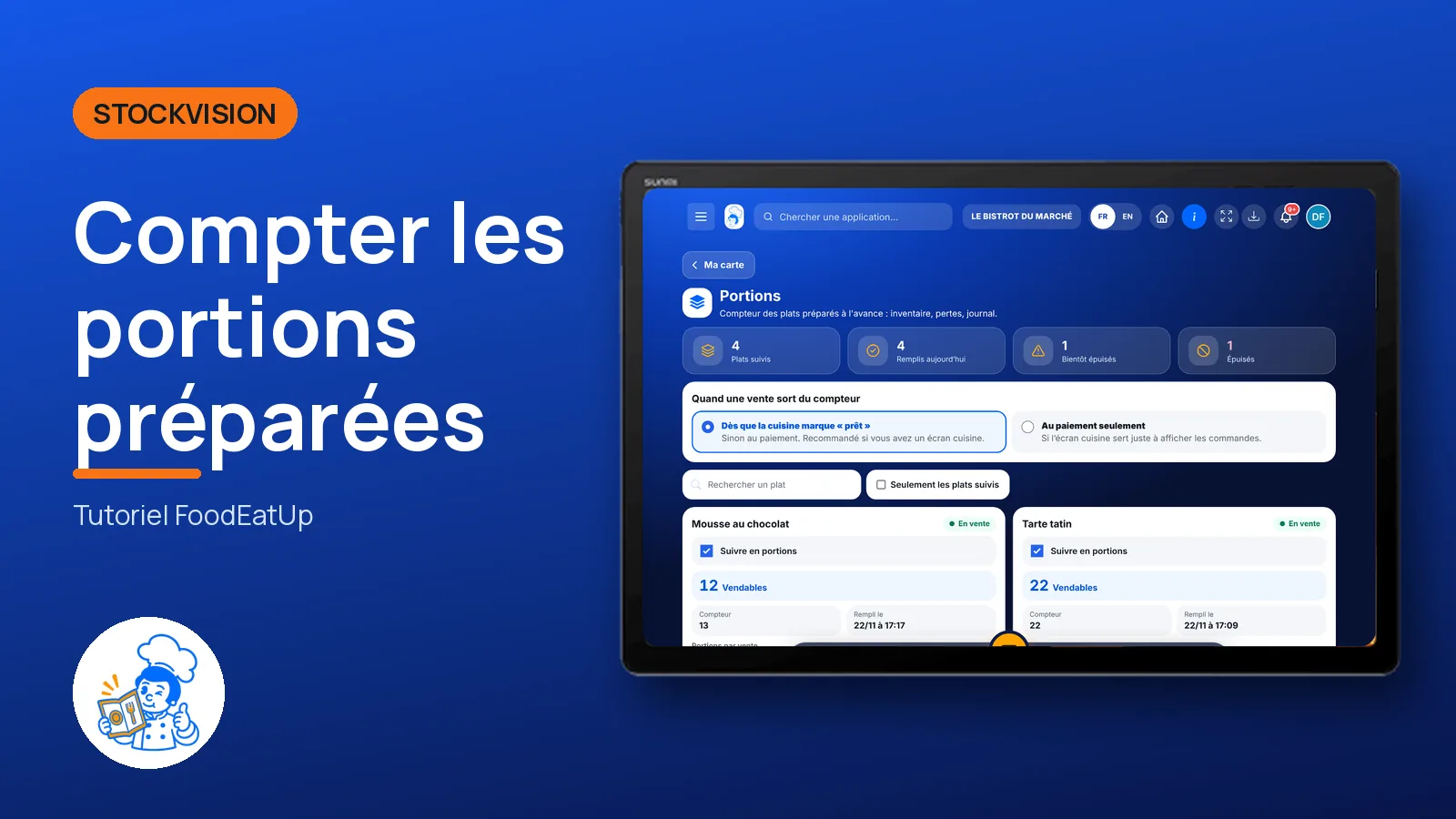
Count prepared portions : 6 steps, with the real software screens.
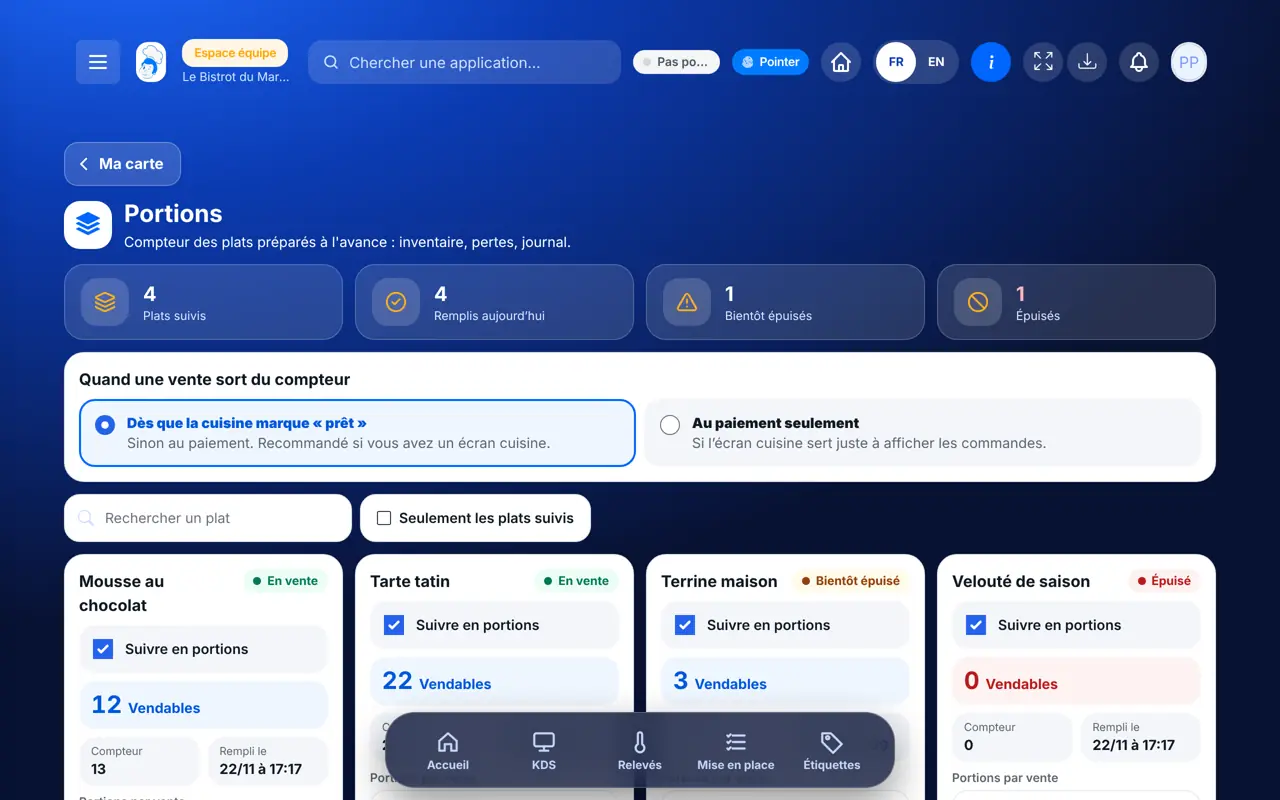
From Ma carte, tap the “Portions” view. Each card is a dish, with its state: Non suivi, Vente libre, En vente, Bientôt épuisé or Épuisé.
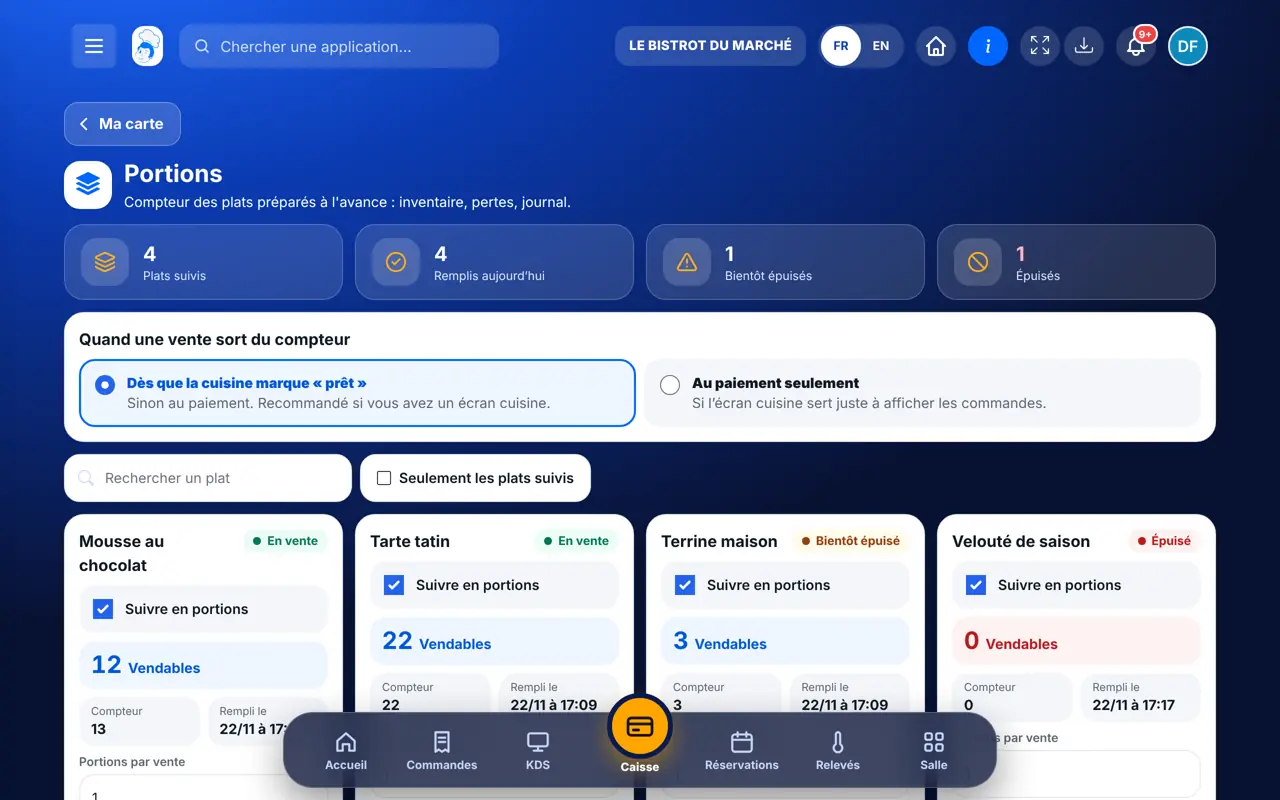
At the top, “Dès que la cuisine marque « prêt »” (if you have a kitchen screen) or “Au paiement seulement”.
Tick “Suivre en portions”. “Portions par vente” is 1; set 2 for a large size, 0.5 for a half portion.
Tap “Inventaire” and type the number of portions ready. The counter is filled for the day: at zero, the dish becomes “sold out”.

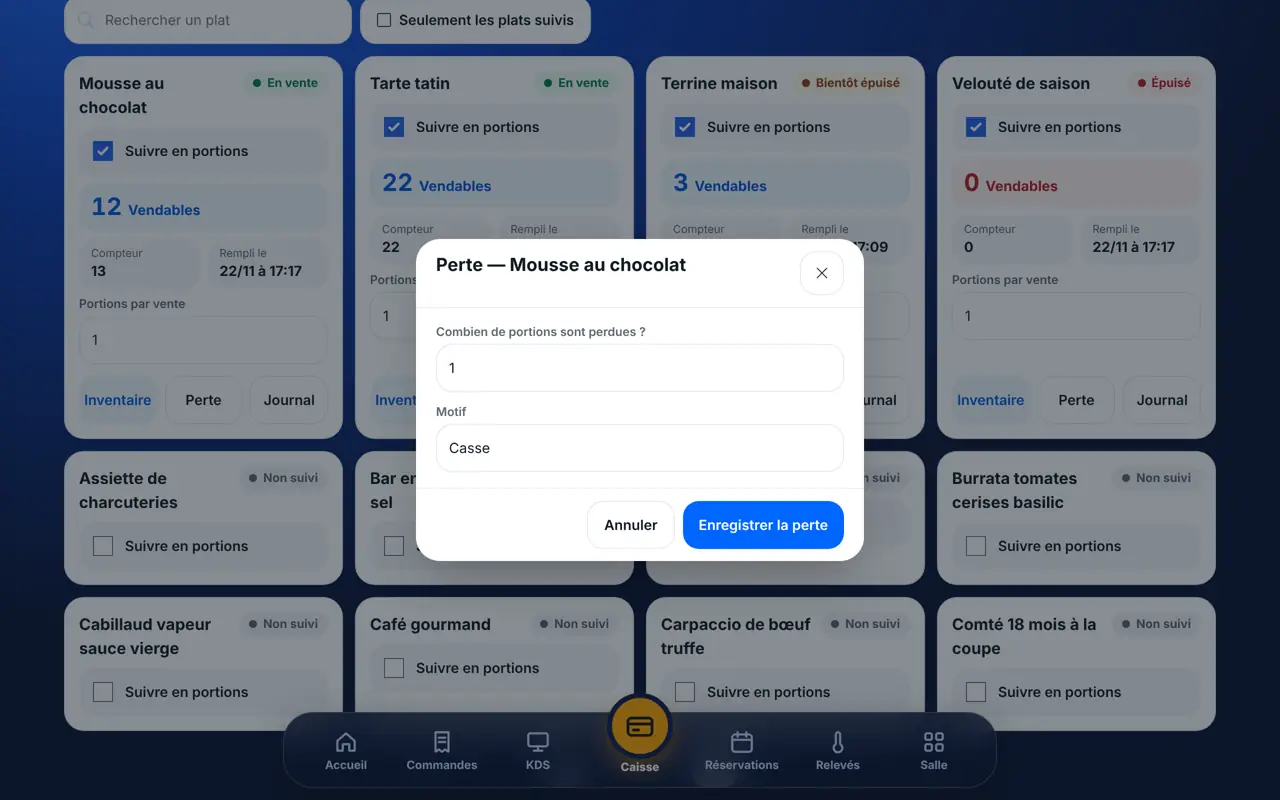
Tap “Perte”, the quantity and the reason (Casse, Date dépassée, Repas du personnel, Plat renvoyé). The counter goes down.
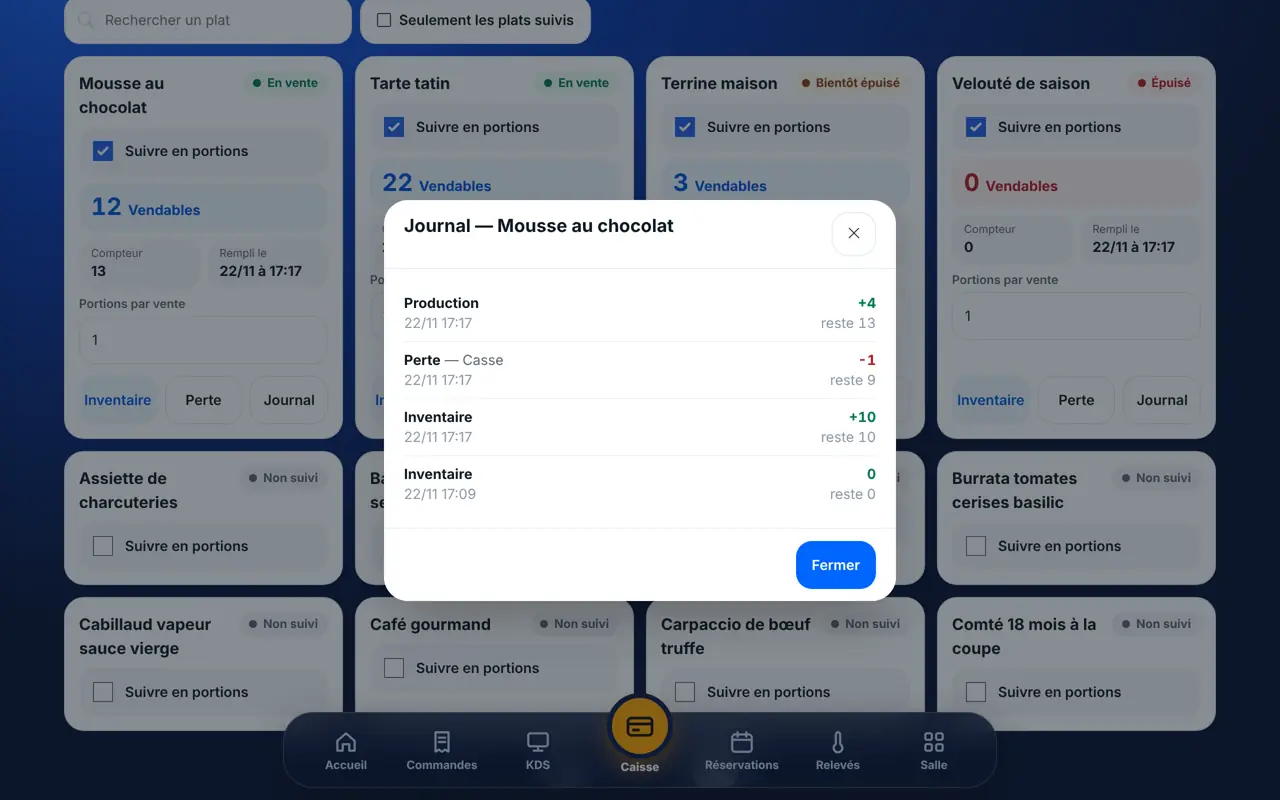
Tap “Journal”: production, sales, counts and losses, with the time and the change.
Tracked dishes show their sellable portions. At zero, they become “sold out” on the till, the table QR code, the kiosk and the shop.
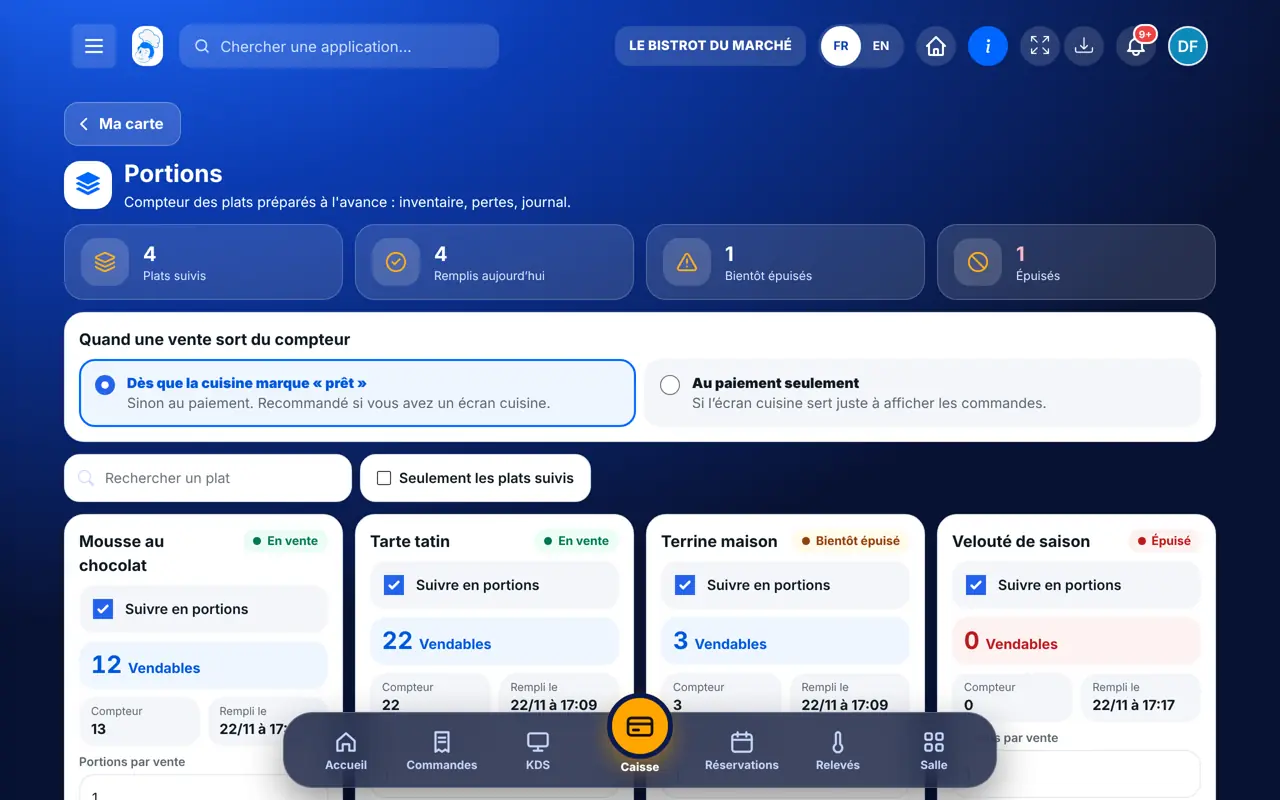
Chooses the tracked dishes and when sales are counted, and does counts and losses.
Sees the counters if their role opens the menu. Counts and losses require the right to edit dishes; otherwise the screen is read-only.
Claude, ChatGPT or Mistral’s Le Chat, connected to FoodEatUp. Copy the request and replace your establishment number.
In FoodEatUp, for my establishment [number], tell me how many portions are left for each tracked dish.
What you getThe tracked dishes, their counter and those almost sold out.
Tools used : get_dish_portions
In FoodEatUp, for my establishment [number], record [number] portions ready for the dish [dish].
What you getThe dish counter updated for the day.
Tools used : list_dishes, set_dish_portions
In FoodEatUp, for my establishment [number], note the loss of [number] portions of [dish], reason [reason].
What you getThe loss recorded and the new counter.
Tools used : set_dish_portions
At zero, the dish is sold out everywhere.
An empty counter one morning leaves the dish on free sale.
The till shows “Reste N” on the dish tile.
Each loss has its reason and its time.
Do the count right after the prep: it is what arms the automatic sold-out for the day.
In FoodEatUp, one action triggers others. Here are the screens that work with this one.
The dish stays on free sale: the counter only blocks a sale if it was filled today.
Only if the till sells “anyway”: the software notes it so you redo the count.
Yes. The quantity produced, or the portions entered, are added to the tracked dish’s counter.
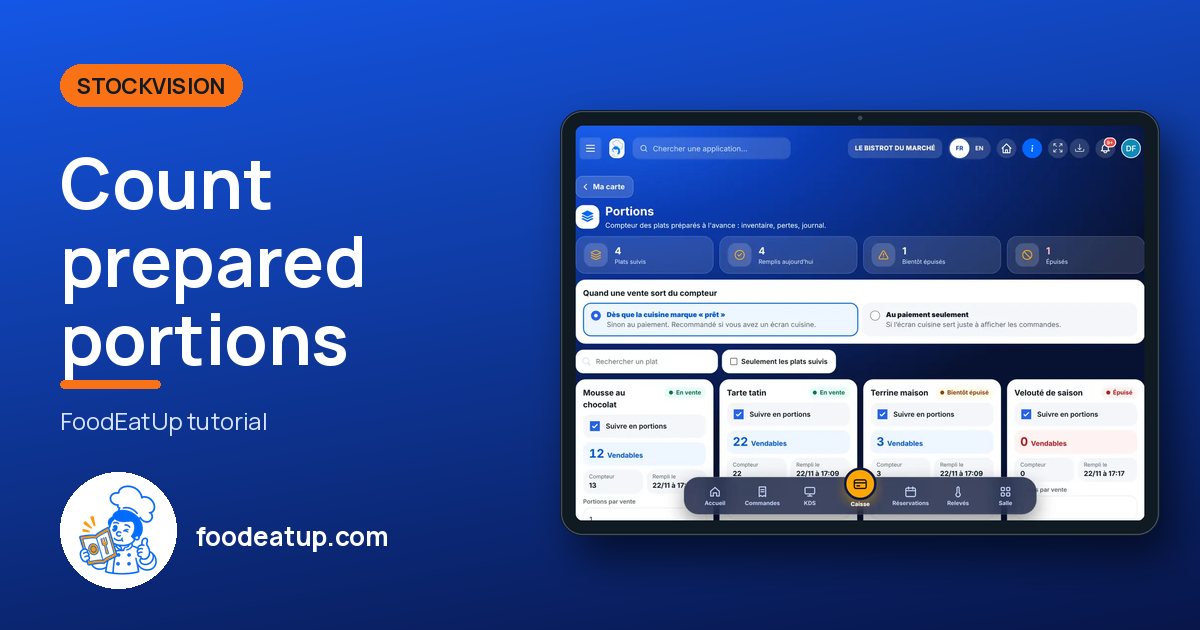
Send it to your team, your partner or your accountant. The image below appears in the message.
Claude, ChatGPT or Le Chat read this tutorial and explain it to you. Connected to FoodEatUp, they do it with you.
Read this FoodEatUp tutorial: https://foodeatup.com/en/academy/stockvision/carte-portions.md Explain it to me simply, step by step, then help me do it in my restaurant. If FoodEatUp is connected to you, do it with me and show me the preview before every change.
Type your establishment number: the link takes you straight to this screen. The number stays on this device.
Discover production (in French) →
Répond avec les fiches du site, sans IA
Le chef cherche dans les fiches…
 Claude
 Le Chat
 ChatGPT