Aller au contenu
StockVision · Delivery rounds
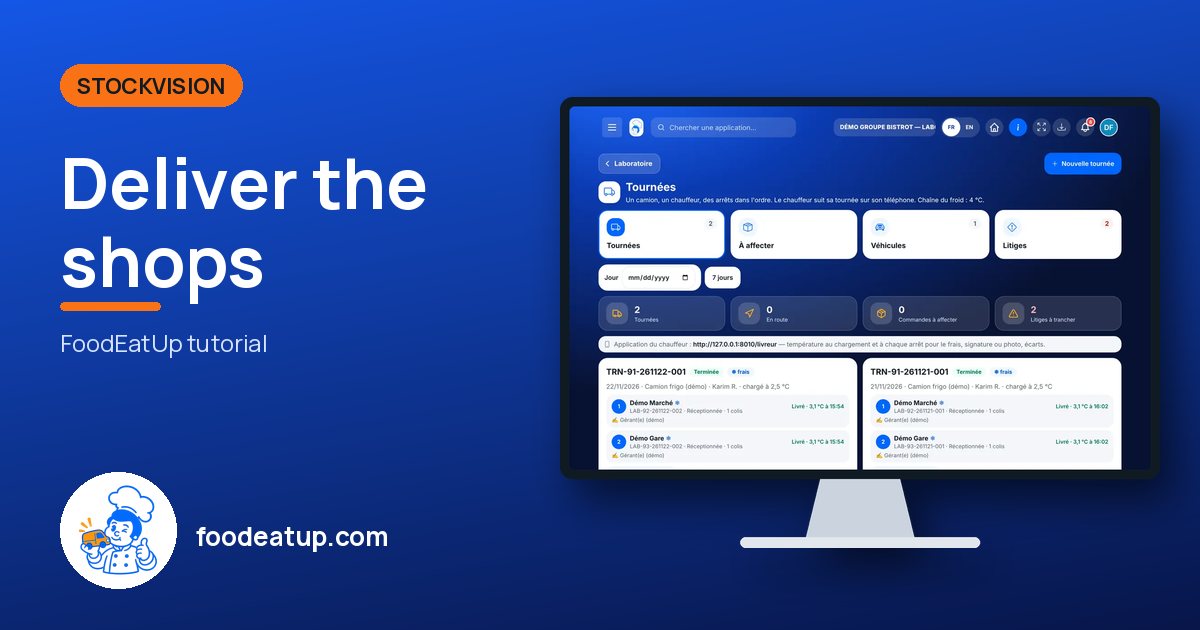
Deliver the shops

The central kitchen groups prepared orders into rounds, picks the truck and the driver, and follows each stop. For fresh products, the temperature is logged at loading and at every stop.

  • Computer
  • 5 steps
  • Level : Advanced
Deliver the shops : Today’s delivery rounds

Who is it for?

  • Chef de cuisine
  • Responsable multi-sites
  • Second de cuisine

Roles with access

  • Gérant·e
  • Chef de cuisine
  • Cuisinier·ère · view
  • Laboratoire (réseau)
  • Boutique (réseau)
  • Franchisé·e (réseau)
  • Directeur·rice d'établissement
  • Responsable siège · view

The owner always has access. See what each role sees →

Recommended hardware

Computer

The central kitchen computer to organise rounds. The driver follows the round on a phone.

See the hardware →

What it is for

  • Create a round with prepared orders, a vehicle and a driver.
  • Send the driver a link for the round, which can be revoked at any time.
  • Settle disputes: a gap at reception, an out-of-range temperature, a driver incident.

Why set it up

  • The cold chain is proven: reading at departure, reading on arrival, signature.
  • A round of fresh products does not leave without a reading, nor with an out-of-range temperature.
  • Each dispute reaches the central kitchen with its lines and its photo.

The same screen, on every device

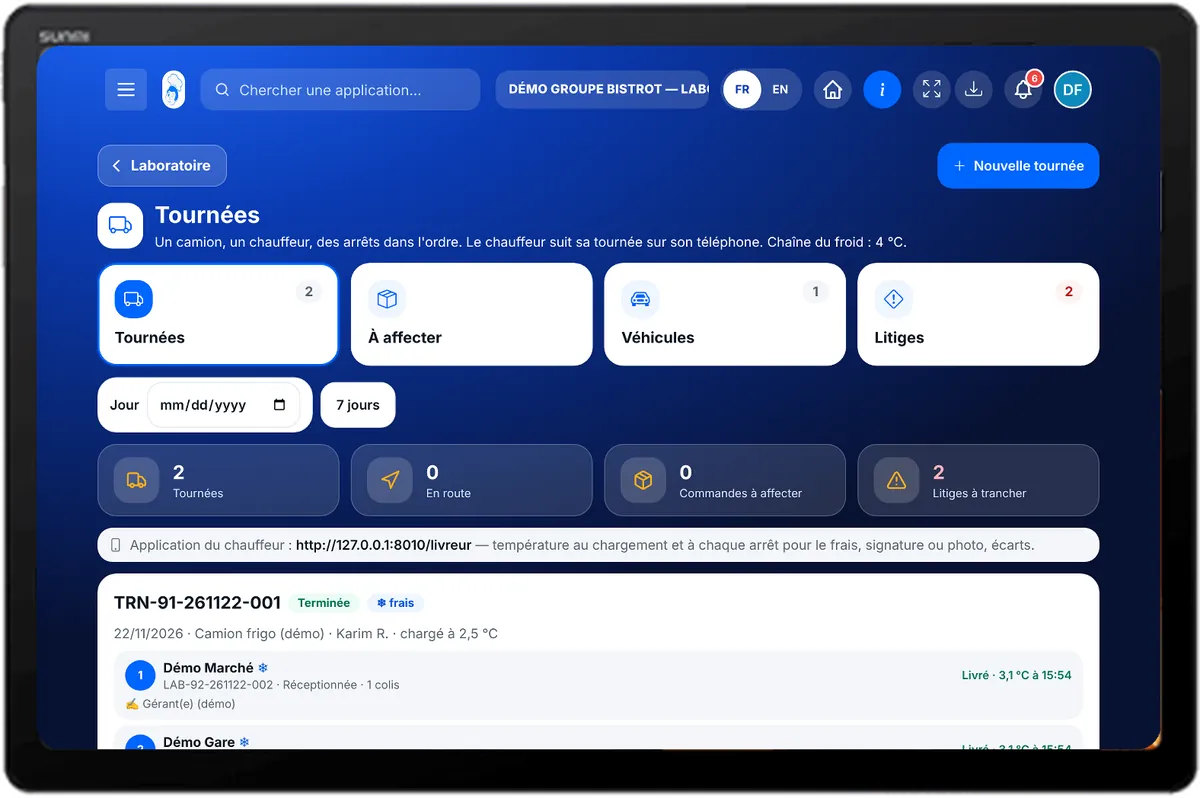
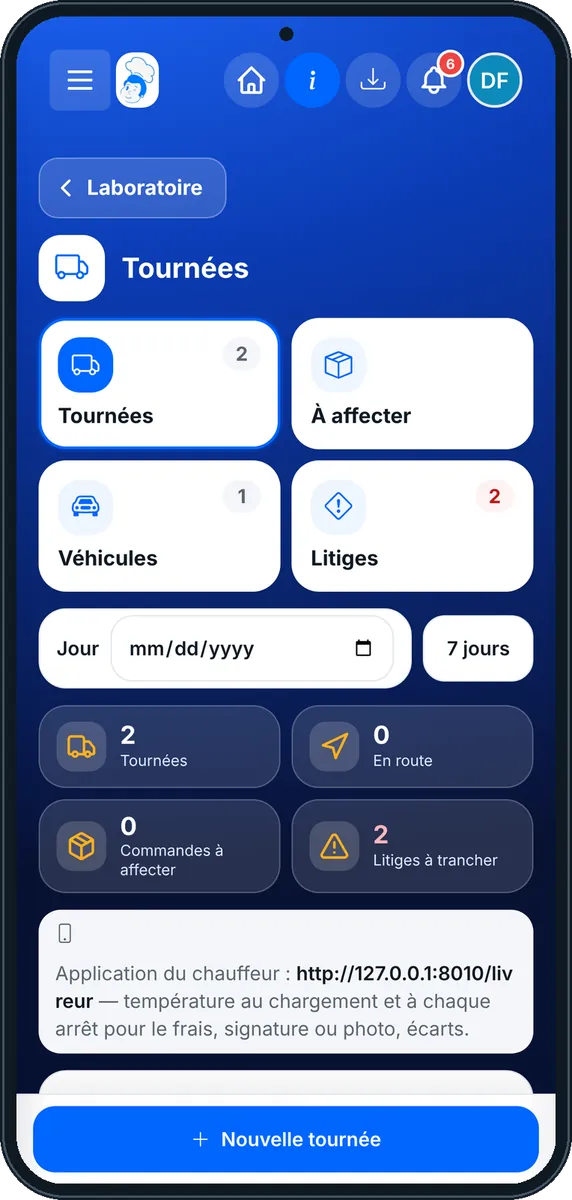
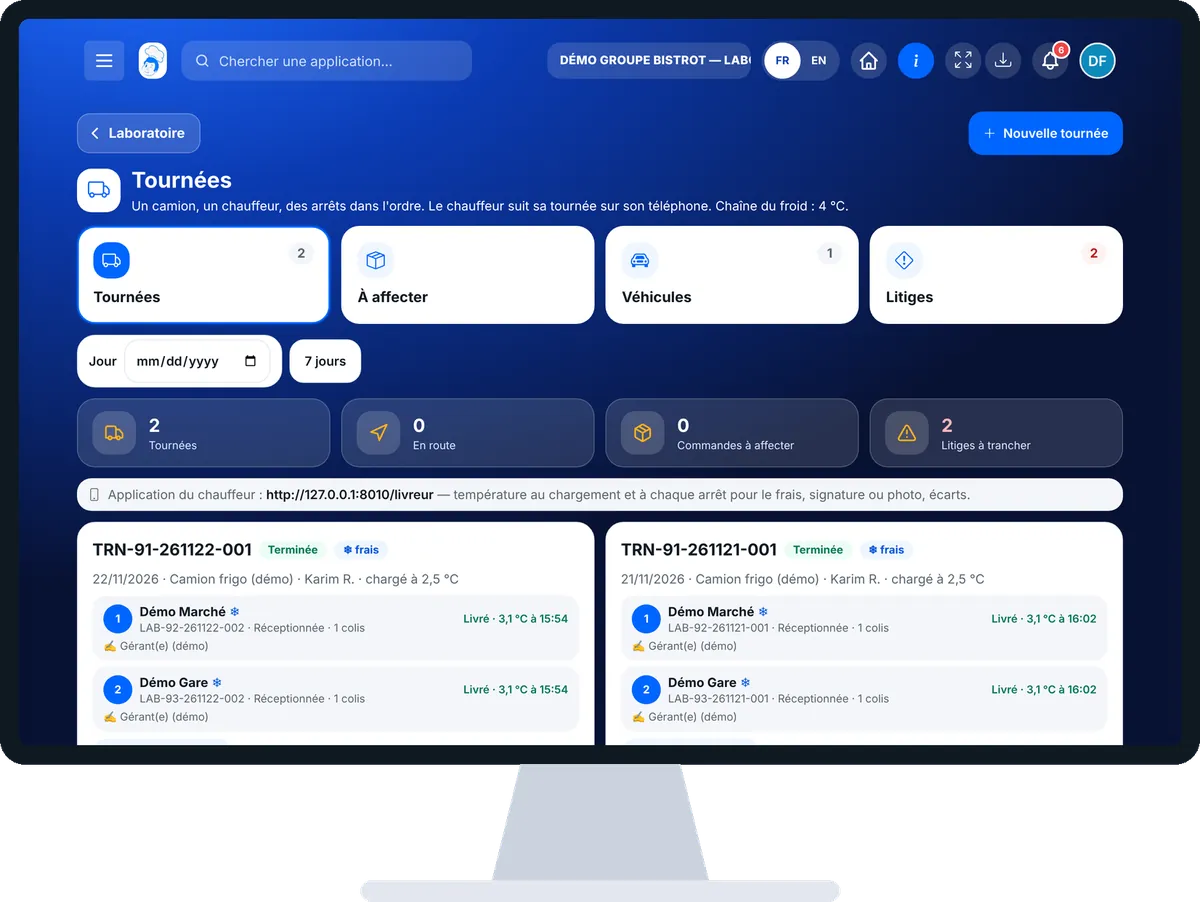
The real software screens, as they appear on each device.

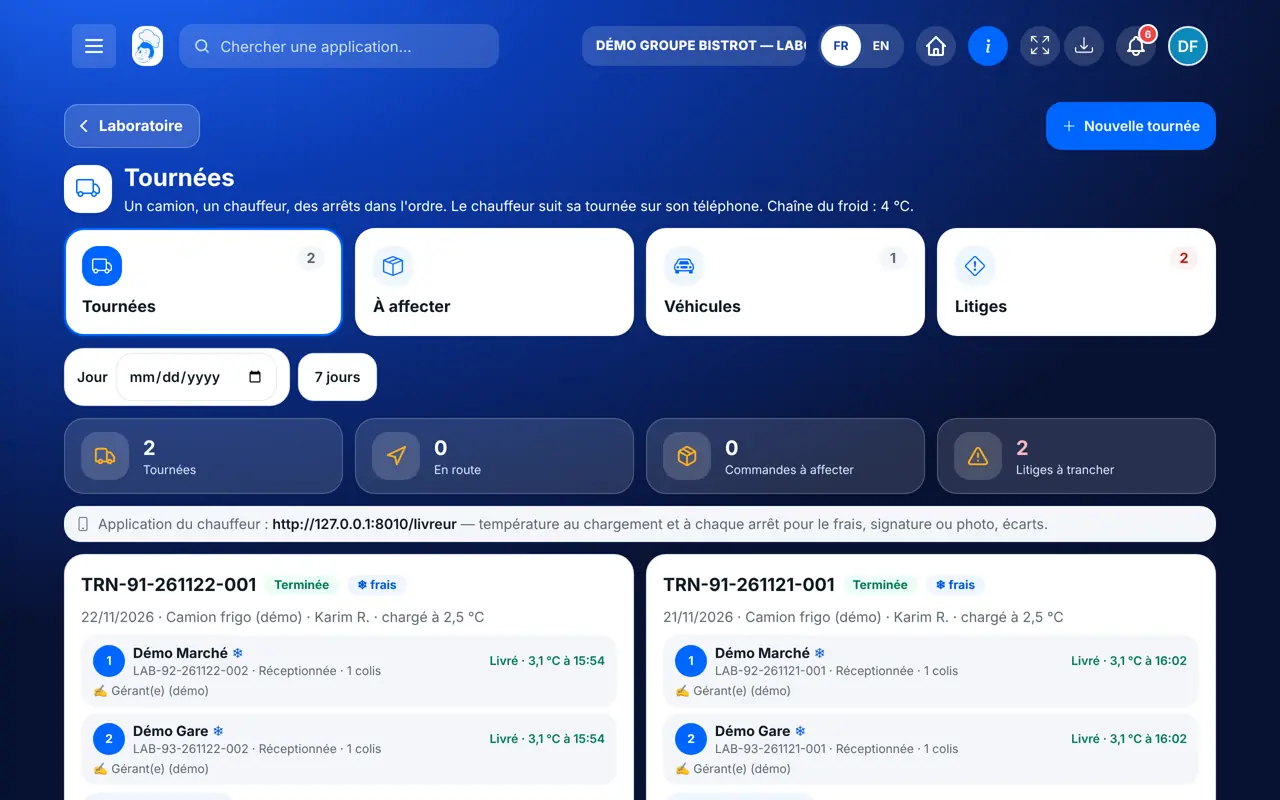
Delivery rounds — On the tablet
On the tablet
Delivery rounds — On the phone
On the phone
Delivery rounds — On the computer
On the computer

Step by step

Deliver the shops : 5 steps, with the real software screens.

  1. 1Step 1

    Open delivery rounds

    In StockVisionAI, open “Tournées”. The “Tournées” tab shows today’s rounds and their stops.

    Today’s delivery rounds
  2. 2Step 2

    Set up the vehicle

    In “Véhicules”, add the truck’s name and number plate, then “Ajouter le véhicule”.

  3. 3Step 3

    Create the round

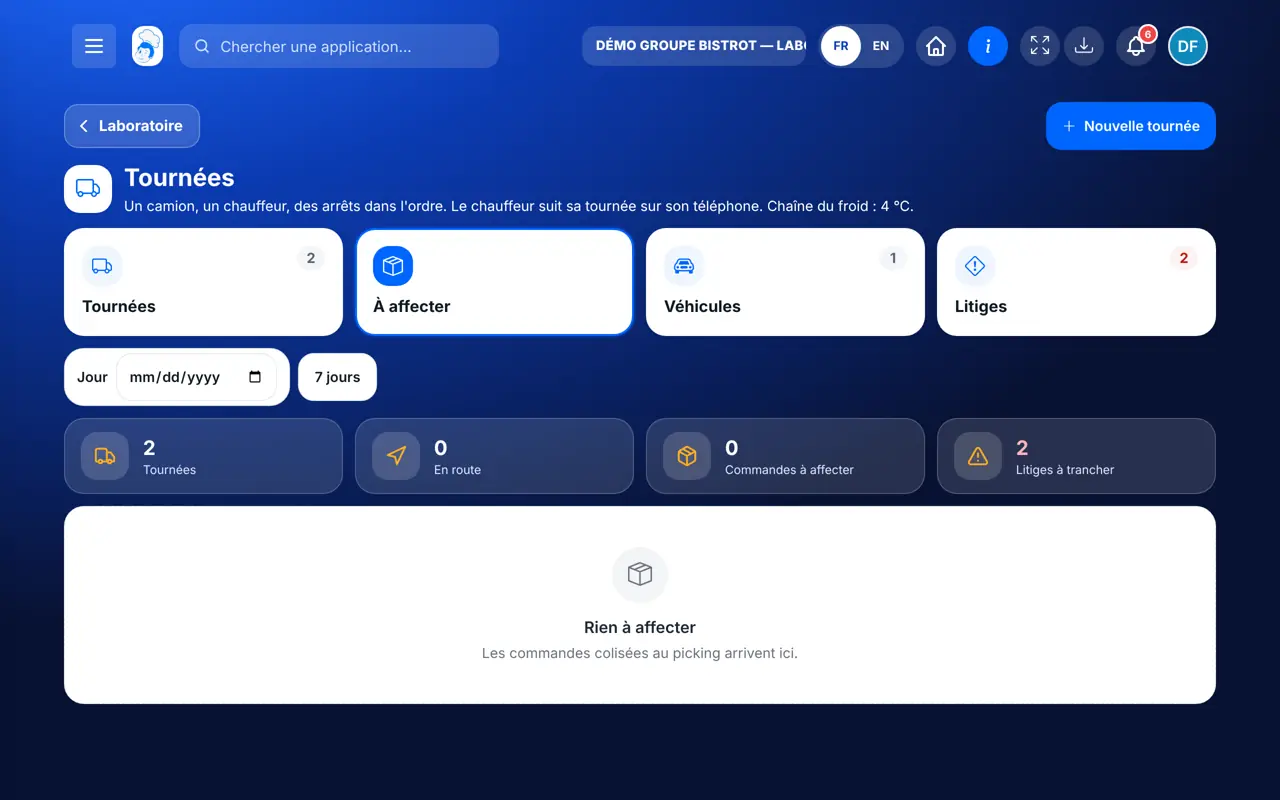
    In “À affecter”, tick the orders to deliver together, pick the vehicle and the driver (a central kitchen employee), then create the round. Reorder the stops with the arrows.

    Prepared orders to assign
  4. 4Step 4

    Load and ship

    Tap “Lien chauffeur” and send the link to the driver. Tap “Charger et expédier” and type the truck temperature: for a round of fresh products it is mandatory, and an out-of-range temperature blocks departure.

  5. 5Step 5

    Settle disputes

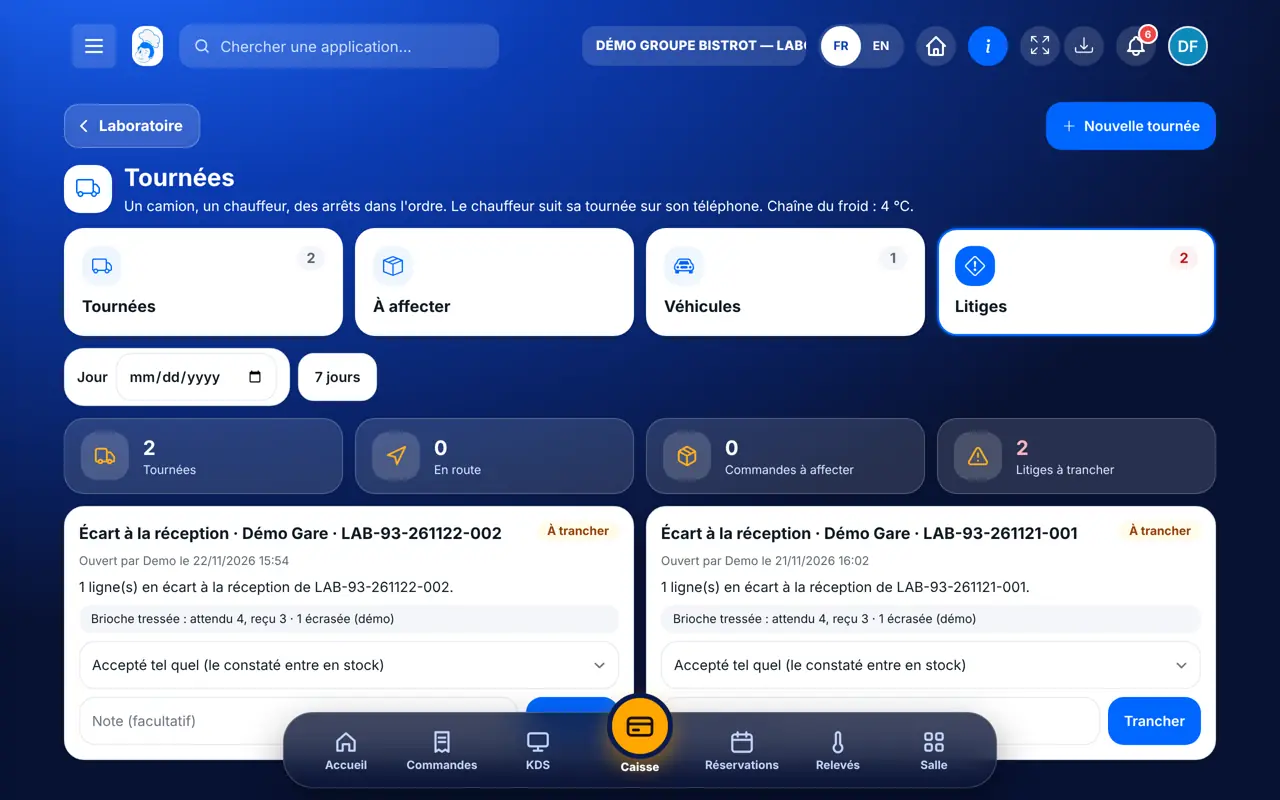
    In “Litiges”, read each gap and pick the decision: accepted, internal credit, replacement, re-shipment, or refused and destroyed. Then “Trancher”.

    Disputes to settle
The result

The shop receives its delivery

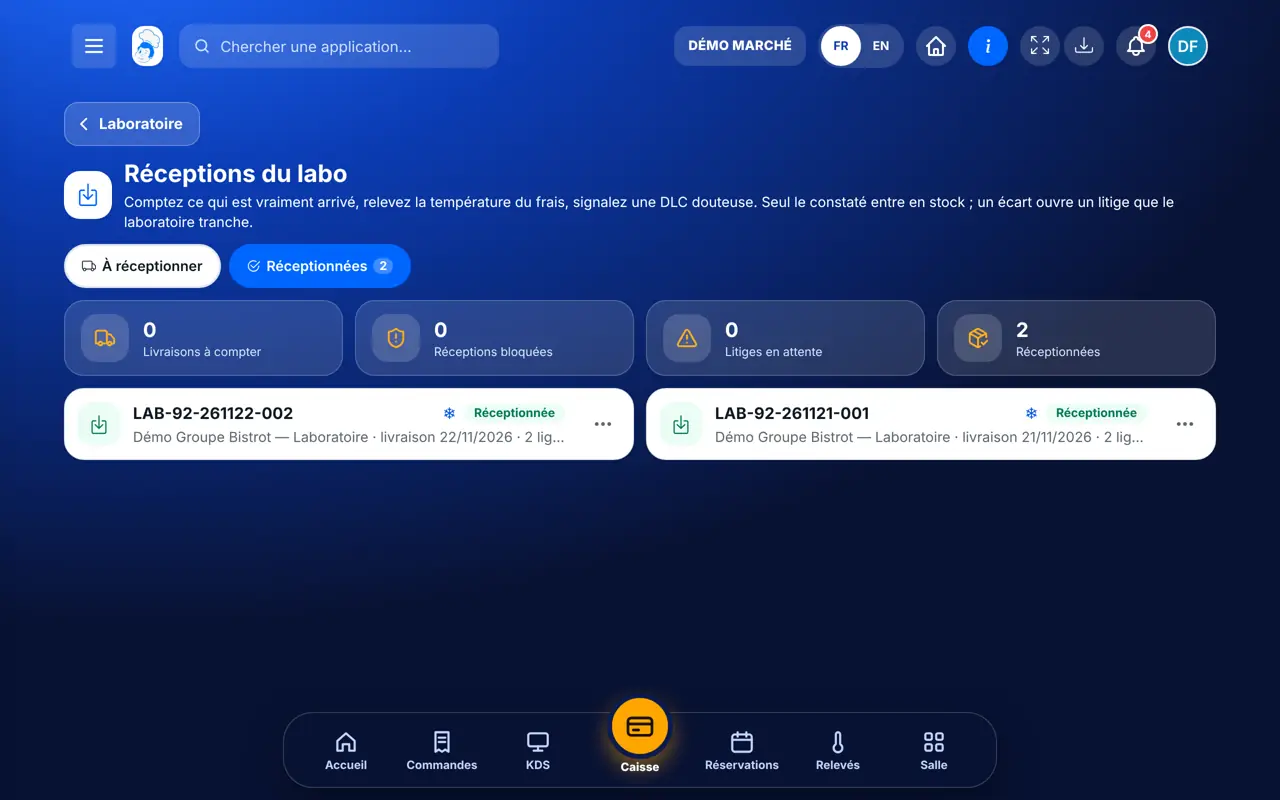
On arrival, the shop counts what it receives. Only the quantity counted goes into its stock.

See reception at the shop →
The shop receives its delivery : Deliver the shops

Owner and employee: what changes

The central kitchen manager

Creates rounds, gives the driver the link, ships and settles disputes.

Delivery rounds — The central kitchen manager

The driver

Does not open this screen. Follows the round on a phone with the link received: loading, stops, temperature, signature. The link works without network; actions are sent when the network is back.

Do it with your assistant

Claude, ChatGPT or Mistral’s Le Chat, connected to FoodEatUp. Copy the request and replace your establishment number.

Where are the deliveries?

In FoodEatUp, for my establishment [number], give me the central kitchen deliveries dashboard: today’s rounds, stops, temperatures and disputes.

What you getRounds, their stops, readings and open disputes.

Tools used : get_delivery_hub

Is the cold chain kept?

In FoodEatUp, for my establishment [number], list the temperature readings of the rounds and those out of range.

What you getRound readings and temperature deviations.

Tools used : get_delivery_hub

Head office view

In FoodEatUp, for my head office establishment [number], give me the central kitchen and delivery activity of the whole network.

What you getCentral kitchen and delivery figures, kitchen by kitchen.

Tools used : get_network_lab_delivery

What you gain

A proven cold chain

Readings at departure and at every stop.

Departure blocked when needed

No fresh products without a reading, or out of range.

A driver with no account

One link per round, revocable.

Settled disputes

Each decision says what goes into stock.

The Chef’s tip

Revoke the driver’s link at the end of the round, or as soon as a phone is lost: the link can no longer send anything. A new link is created in one tap.

Frequently asked questions

Why can’t the round leave?

For fresh products, the truck temperature is mandatory at loading. If it is out of range, departure is refused.

What if the temperature is too high at a stop?

The parcels are dropped off, but the shop cannot receive them: a dispute is opened and nothing goes into stock before your decision.

Does the driver need an account?

No. The driver gets a link for the round. The link can be revoked at any time.

Text version for AI assistants →

Share this tutorial

Send it to your team, your partner or your accountant. The image below appears in the message.

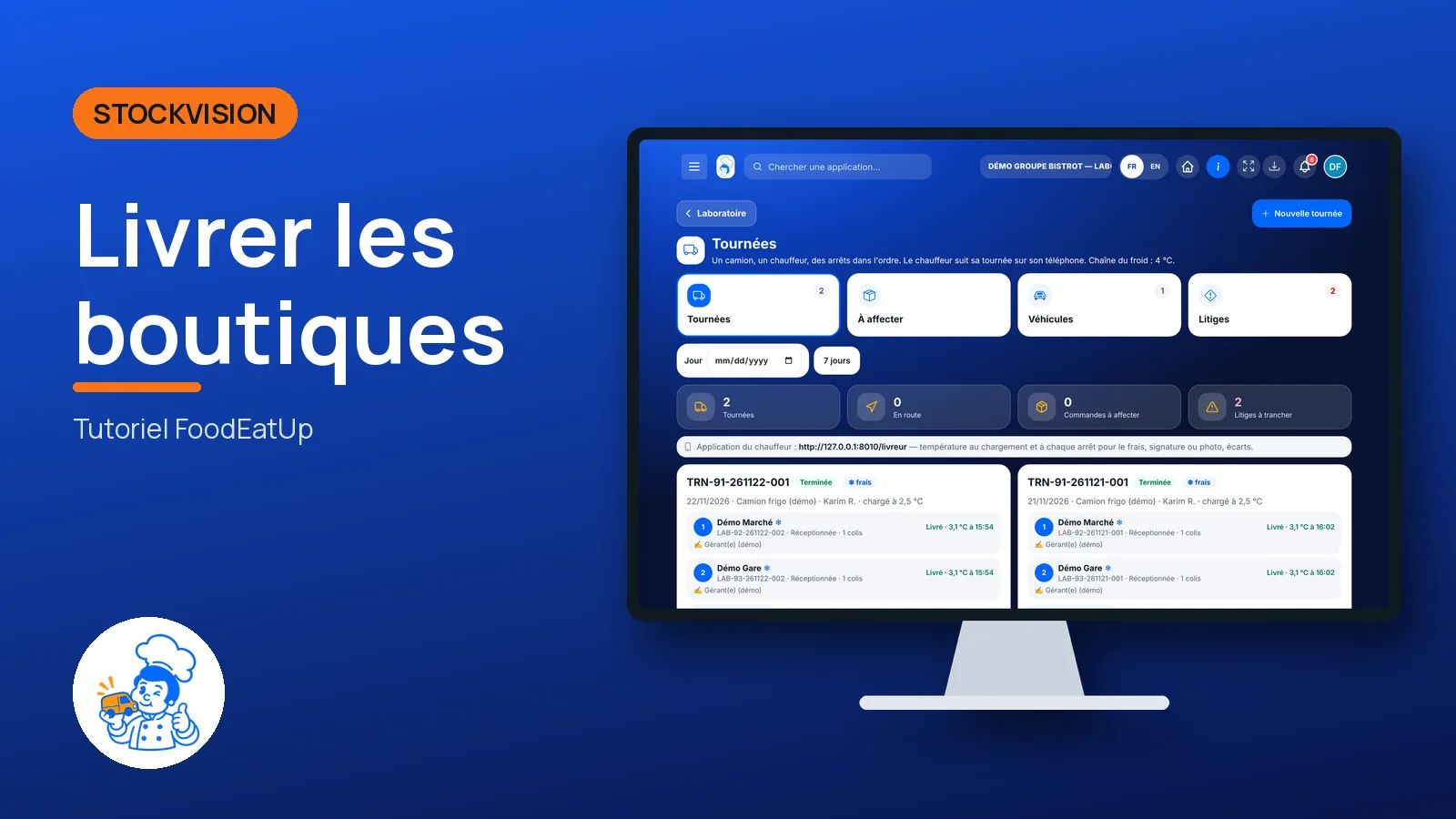
Share preview : Deliver the shops
WhatsAppLinkedInFacebookEmail

Send to an AI assistant

Claude, ChatGPT or Le Chat read this tutorial and explain it to you. Connected to FoodEatUp, they do it with you.

Read this FoodEatUp tutorial: https://foodeatup.com/en/academy/stockvision/tournees.md Explain it to me simply, step by step, then help me do it in my restaurant. If FoodEatUp is connected to you, do it with me and show me the preview before every change.

ClaudeLe ChatChatGPT

Open in my software

Type your establishment number: the link takes you straight to this screen. The number stays on this device.

Discover the FoodEatUp central kitchen (in French) →

You can read it in the software address: foodeatup.com/establishment/number/…