The month to declare
In FoodEatUp, for my establishment [number], prepare the e-reporting for month [YYYY-MM].
What you getIssued invoices not yet declared, with net, VAT and gross totals.
Tools used : get_ereporting_period
 Finance · E-Reporting
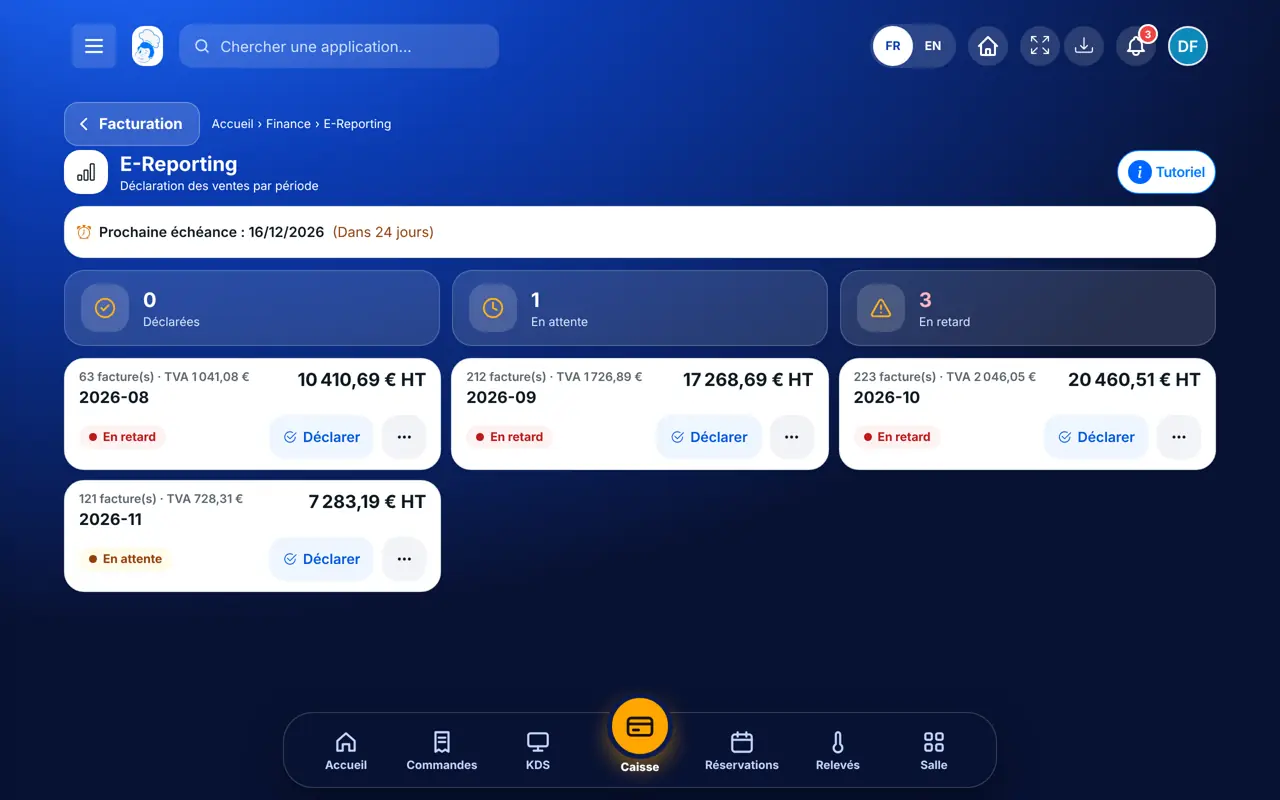
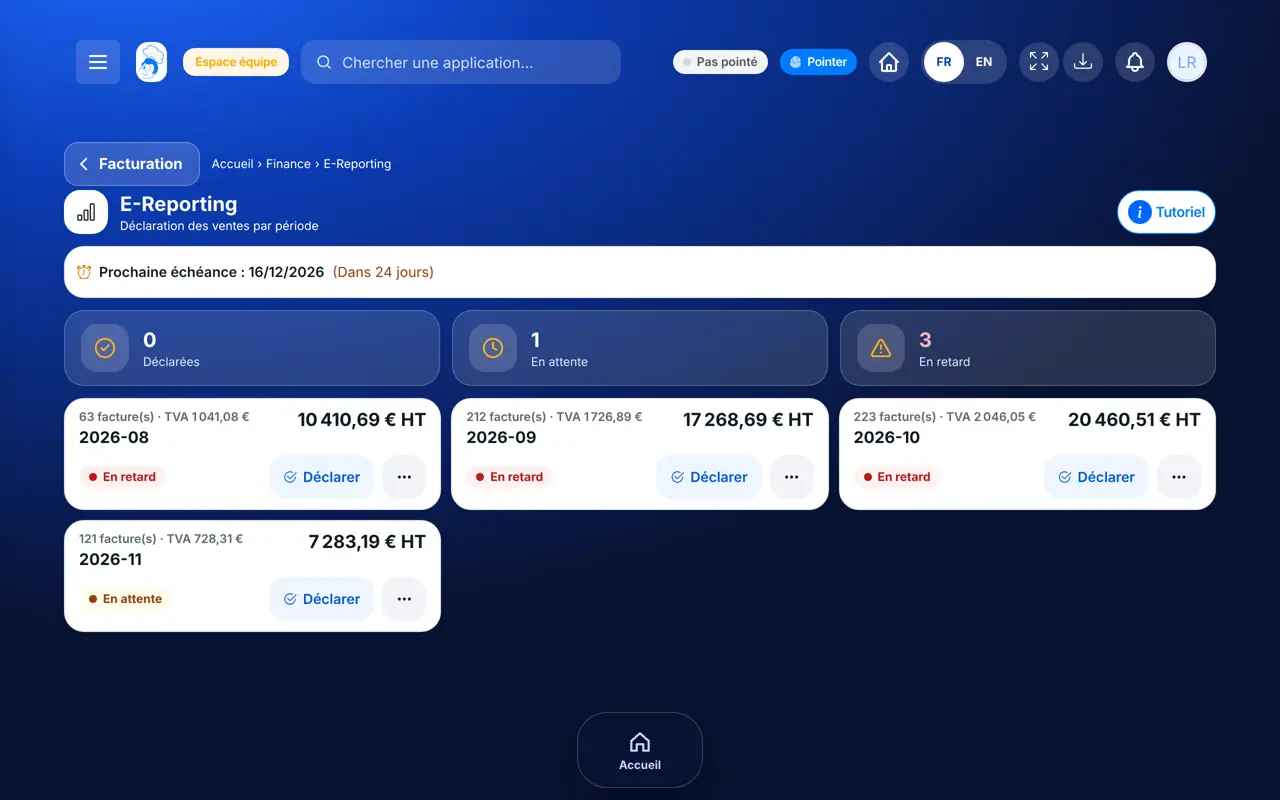
The E-Reporting screen groups your issued invoices by month, with their net and VAT totals. You download each month’s report and mark the period as declared.

 Directeur
 Patron / gérant
 Responsable multi-sites
The owner always has access. See what each role sees →
A computer to download the reports and pass them on.
The real software screens, as they appear on each device.
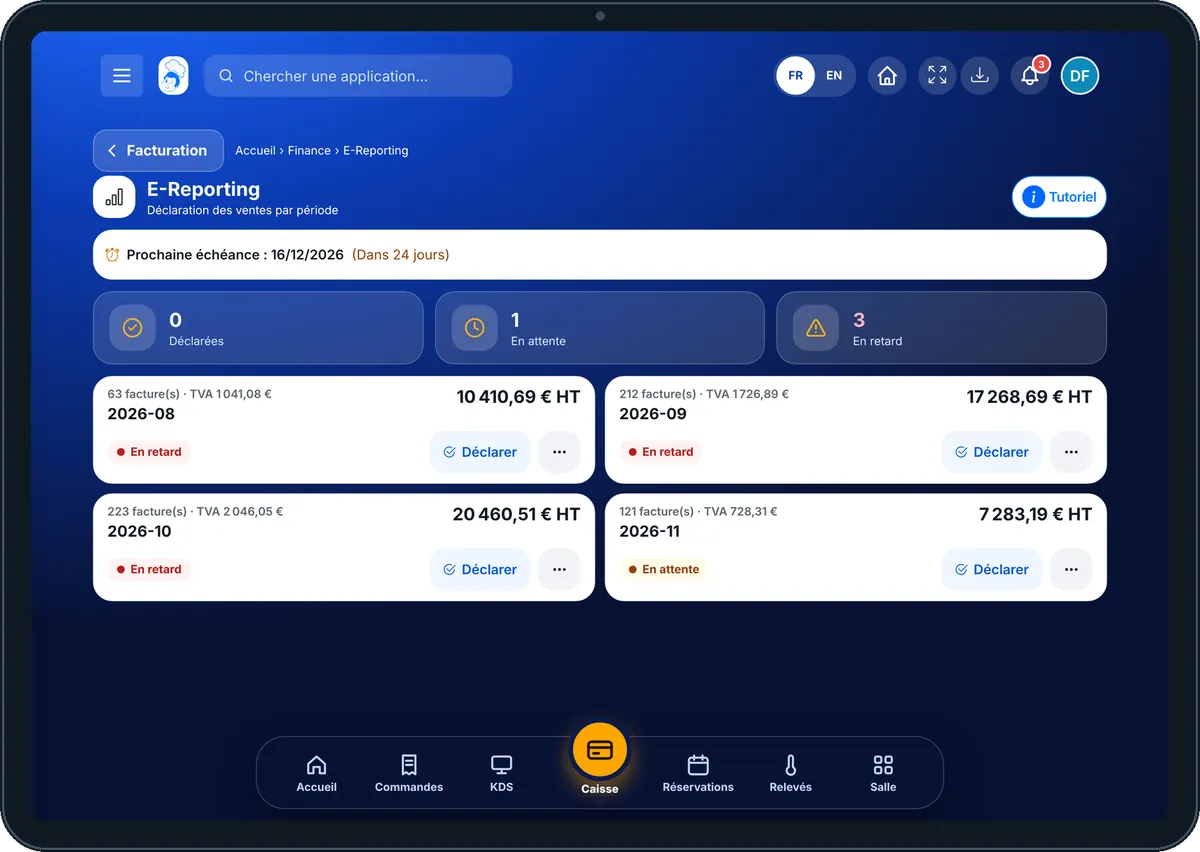
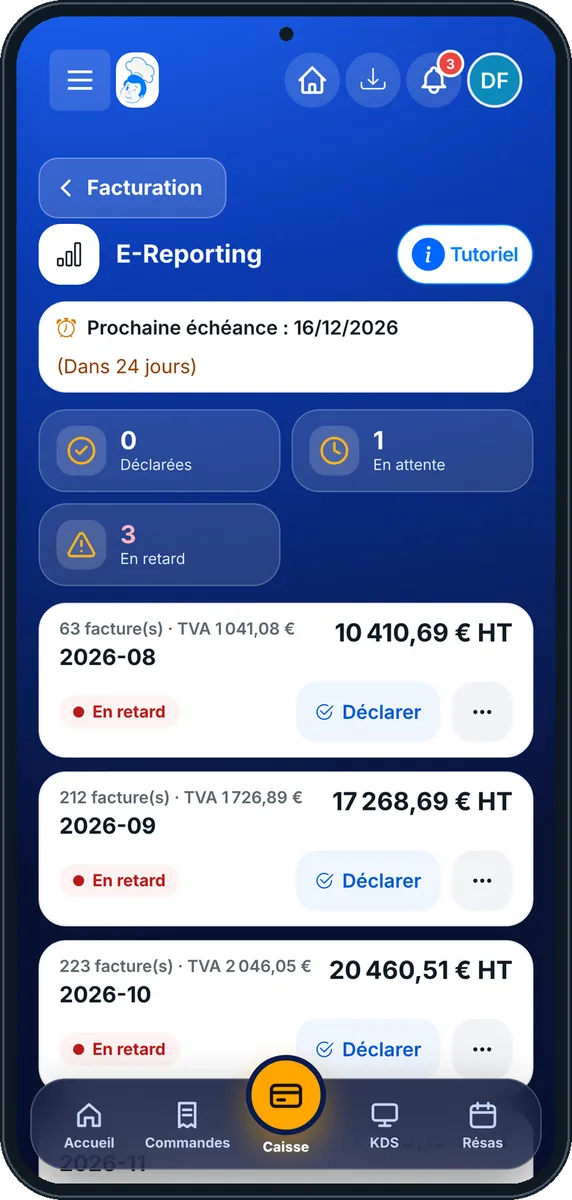
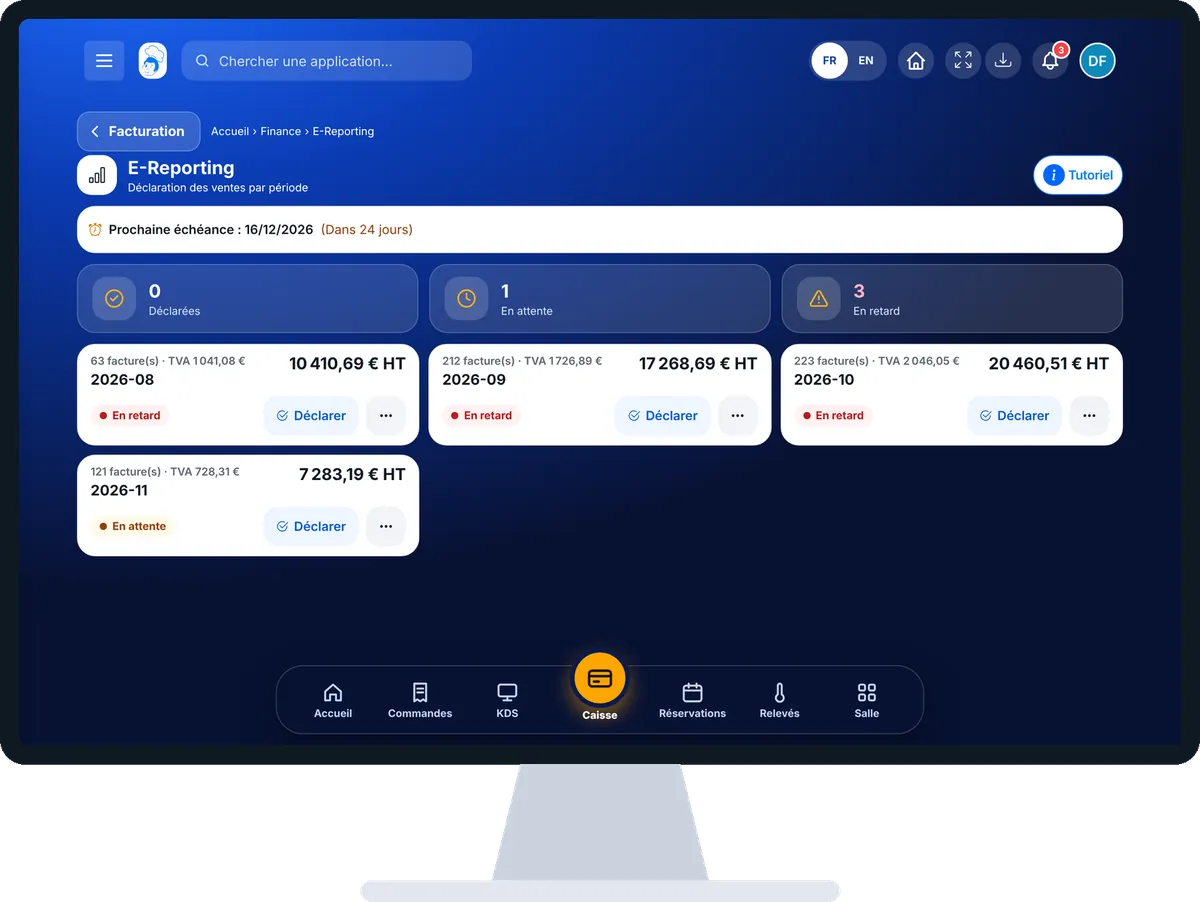
Prepare my invoices’ e-reporting : 4 steps, with the real software screens.
From the home screen, open Finance then “E-Reporting”. At the top: declared, pending, late.
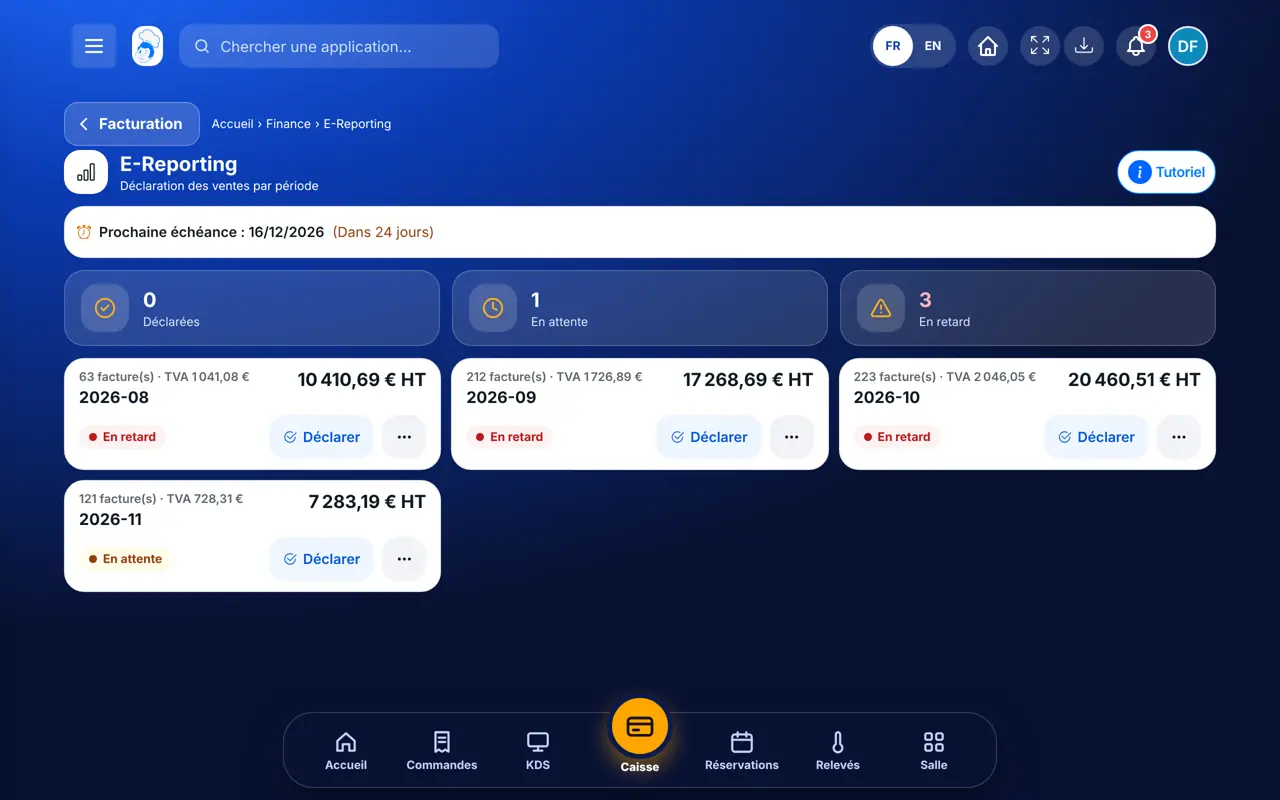
Each line is a month: number of invoices, net total and VAT. Open “Voir le détail”.
Tap “Télécharger le rapport”: the period’s file downloads.
Once sent, tap “Déclarer la période”: the month turns “Déclarées”.
Your billing months, each with its number of invoices, totals and status: declared, pending or late.
Downloads reports and marks periods declared.
With the right to view invoices, follows the periods. Declaring them needs the e-reporting right.
Claude, ChatGPT or Mistral’s Le Chat, connected to FoodEatUp. Copy the request and replace your establishment number.
In FoodEatUp, for my establishment [number], prepare the e-reporting for month [YYYY-MM].
What you getIssued invoices not yet declared, with net, VAT and gross totals.
Tools used : get_ereporting_period
In FoodEatUp, for my establishment [number], list the invoices I sent this month.
What you getSent invoices, with customer and amount.
Tools used : list_invoices
In FoodEatUp, for my establishment [number], give me the month’s financial summary: invoiced, collected and unpaid.
What you getTurnover invoiced, collected and unpaid for the month.
Tools used : finance_summary
Twelve months grouped.
Late months stand out.
One file per month.
Declared, pending, late.
Tap “Déclarer la période” only after actually sending it: FoodEatUp records the declaration, it does not send it itself.
In FoodEatUp, one action triggers others. Here are the screens that work with this one.
No. It prepares the report and marks the period declared; sending goes through your platform or your accountant.
The month’s issued invoices: pending, sent, accepted or paid. Drafts and cancelled ones are not.
When it is not declared after the 15th of the next month.
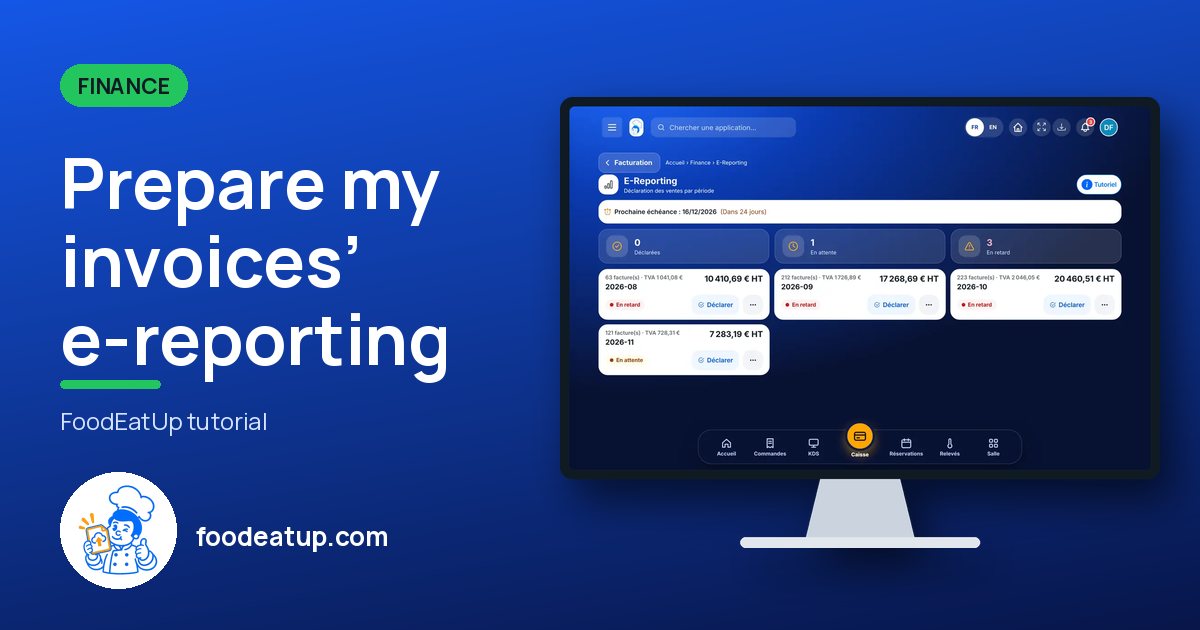
Send it to your team, your partner or your accountant. The image below appears in the message.
Claude, ChatGPT or Le Chat read this tutorial and explain it to you. Connected to FoodEatUp, they do it with you.
Read this FoodEatUp tutorial: https://foodeatup.com/en/academy/finance/factures-ereporting.md Explain it to me simply, step by step, then help me do it in my restaurant. If FoodEatUp is connected to you, do it with me and show me the preview before every change.
Type your establishment number: the link takes you straight to this screen. The number stays on this device.
Understand compliance (in French) →
Répond avec les fiches du site, sans IA
Le chef cherche dans les fiches…
 Claude
 Le Chat
 ChatGPT