
 Roles and access
Lab (network)

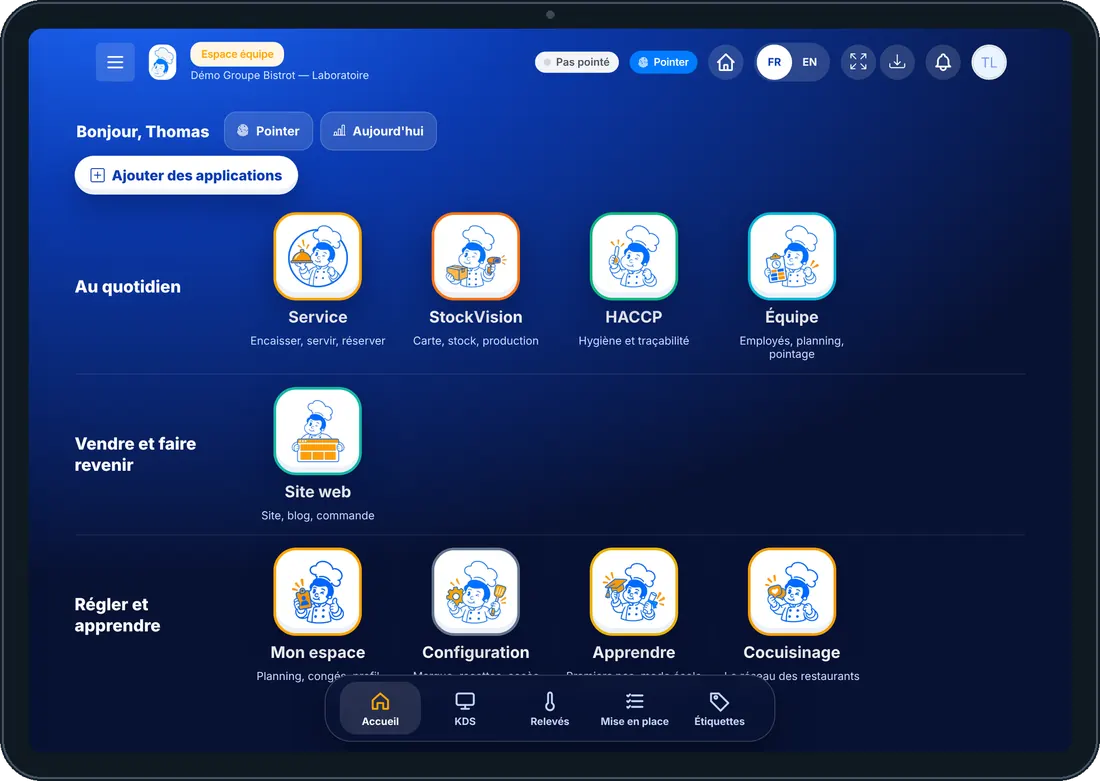
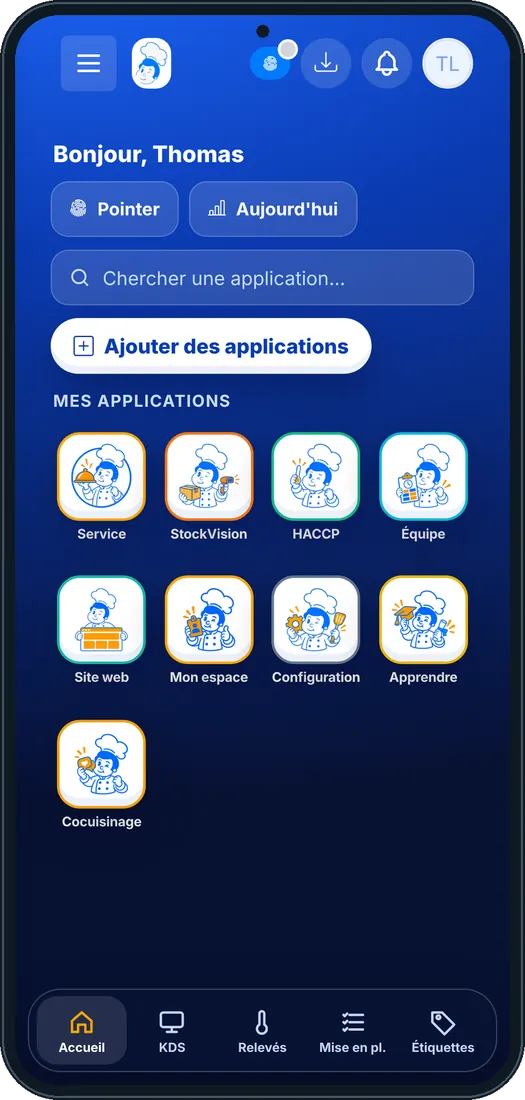
Its home screen in the software
What an employee with this role sees, on tablet and phone (demo restaurant).
Its typical day
- Receive
Shop orders, grouped by day.
- Produce
Production orders, batches, use-by dates and labels.
- Ship
Parcel picking and delivery rounds.
Its apps
Computed from the role’s rights. An app only appears if the restaurant’s plan includes it.
-
 Service
-
 StockVision
-
 HACCP
-
 Team
-
 Website
-
 Settings
-
 Learn
-
 Cocuisinage
-
 Applications mobiles
-
 Mon compte
What it does not see
The owner always keeps everything. To open a category to an employee, give them one more role.
- Finance
- Display
- Marketing
- Communication
- Voice agent
- Head office
The employee’s first steps
- 1Step 1
Sign in
On foodeatup.com, “Employee login” with their e-mail, or their personal code on the restaurant’s shared tablet.
- 2Step 2
Clock in
The “Clock in” button at the top of the screen: arrival, break, departure.
- 3Step 3
Open their apps
Home only shows the role’s apps; the bottom bar keeps the most used ones.
- 4Step 4
My space
Their schedule, leave, profile and personal code.
Give this role to an employee
- 1Step 1
Install the role template
Team › Roles › “Role templates”: pick this role, it is installed in your restaurant.
- 2Step 2
Assign it
Team › Employees: open the employee’s file and choose their role. An employee can hold several.
- 3Step 3
Adjust if needed
Edit the installed role’s rights: add or remove an app, it is yours.
The Chef’s tip
A recalled batch is traced all the way to the shops that received it.
All roles
-
 Manager140 apps
-
Venue director140 apps
-
Head chef67 apps
-
 Cook54 apps
-
 Dishwasher25 apps
-
 Waiter38 apps
-
 Bartender52 apps
-
 Host / Cashier39 apps
-
 HACCP manager42 apps
-
Accountant34 apps
-
Marketing46 apps
-
Marketing manager52 apps
-
Communication manager45 apps
-
Website manager46 apps
-
Sales manager52 apps
-
 Events manager47 apps
-
HR manager27 apps
-
 Head office (network)41 apps
-
Head-office manager70 apps
-
 Shop (network)144 apps
-
 Franchisee (network)143 apps

