What moved
In FoodEatUp, for my establishment [number], list this month’s stock movements for [product].
What you getThe product’s stock in and out, with reason and author.
Tools used : list_stock_movements
 StockVision · Stock movements
Every stock in and stock out, with its reason, date and the person who did it. You can also enter one by hand.
 Chef de cuisine
 Second de cuisine
 Patron / gérant
 Hôte / caisse / comptoir
The owner always has access. See what each role sees →
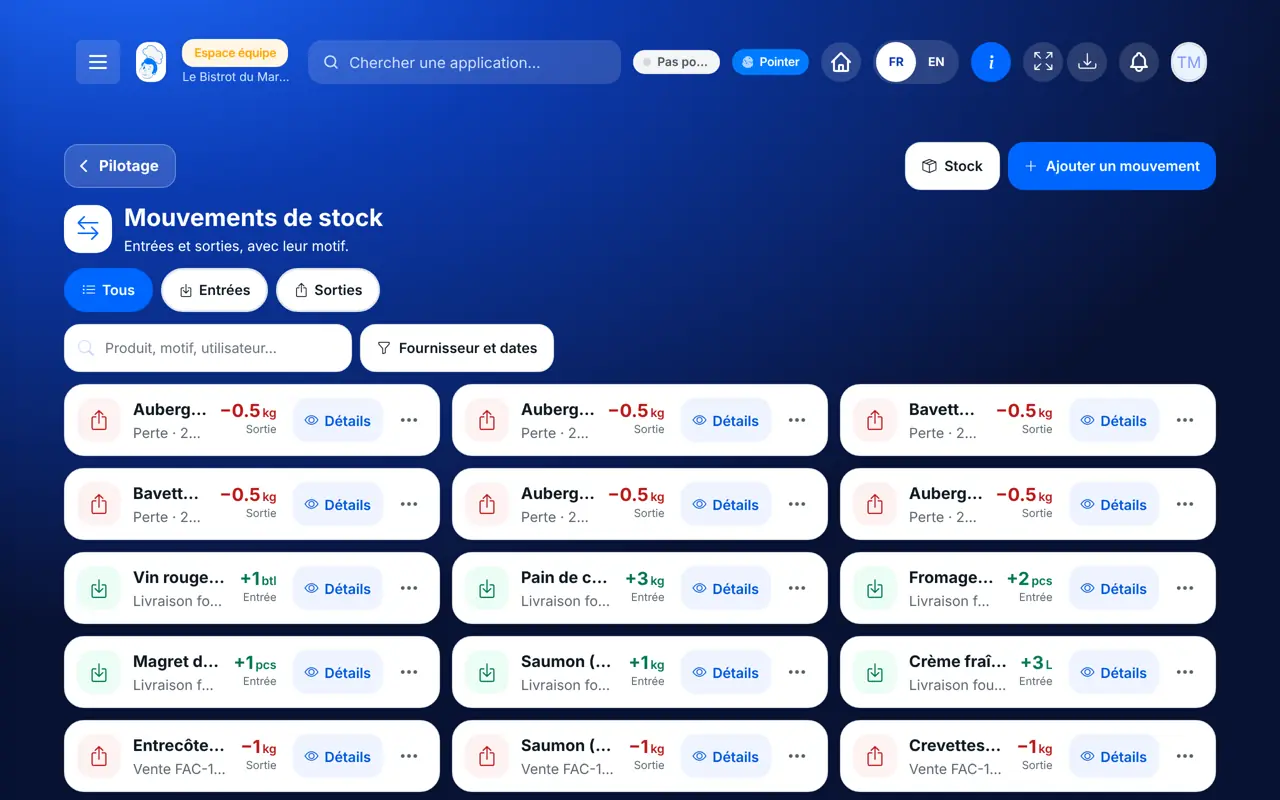
A tablet in the storeroom to note stock in or out. The history also reads on the computer.
The real software screens, as they appear on each device.
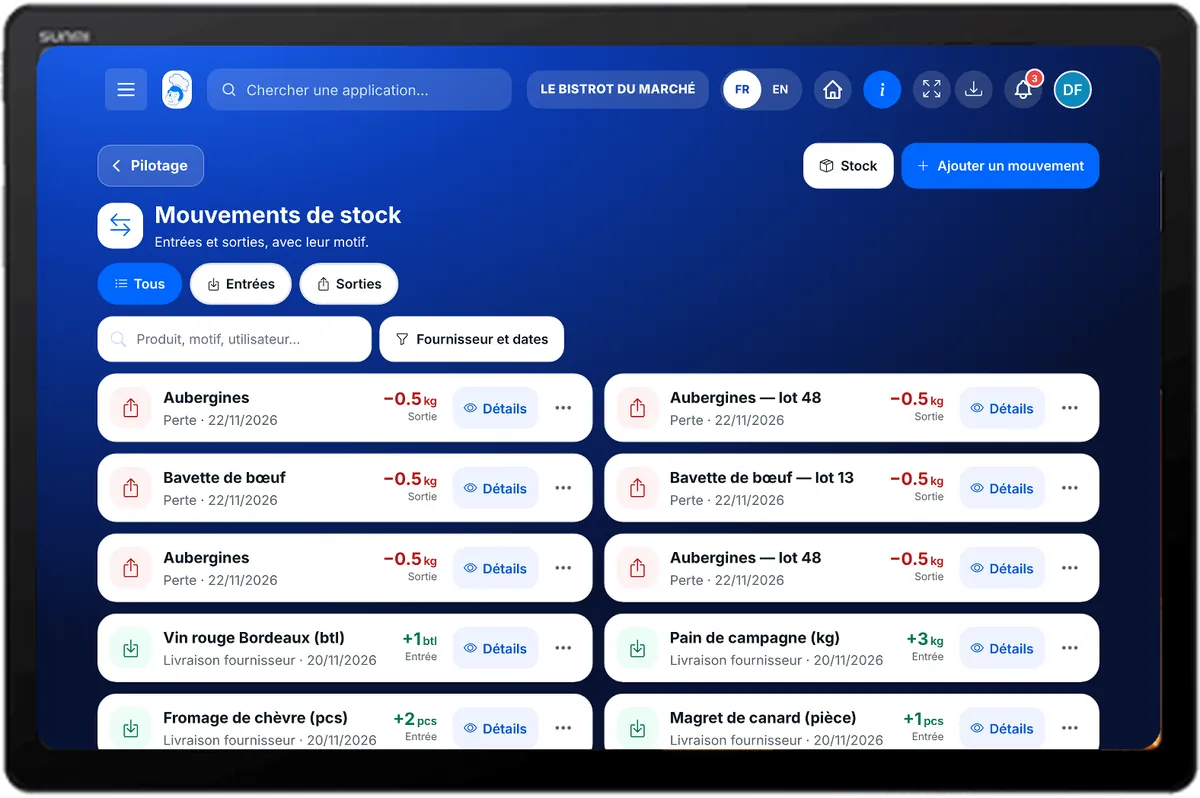
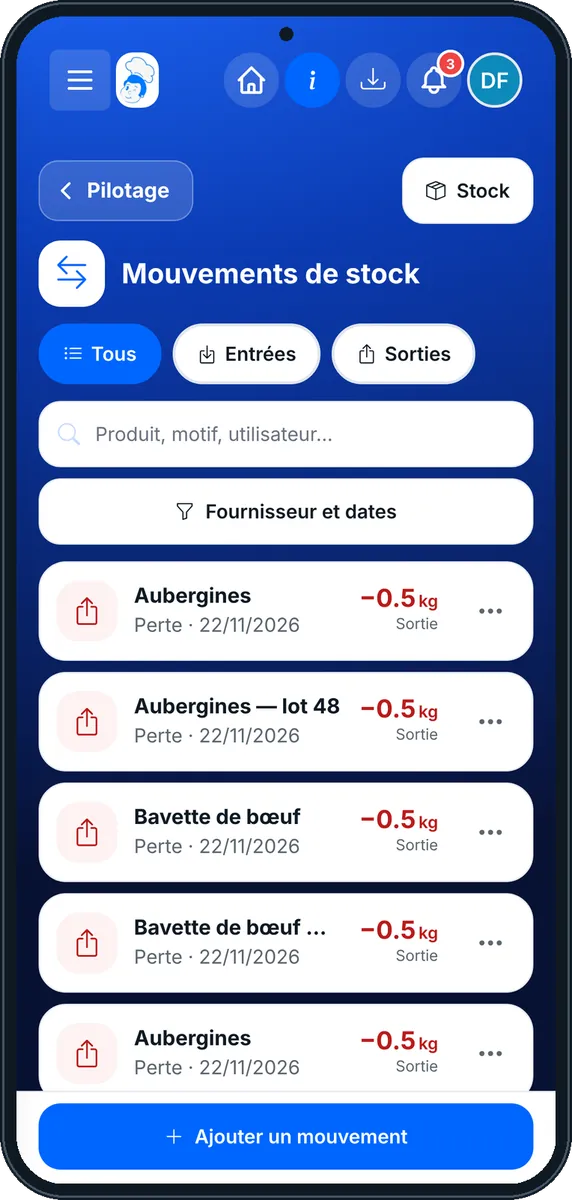
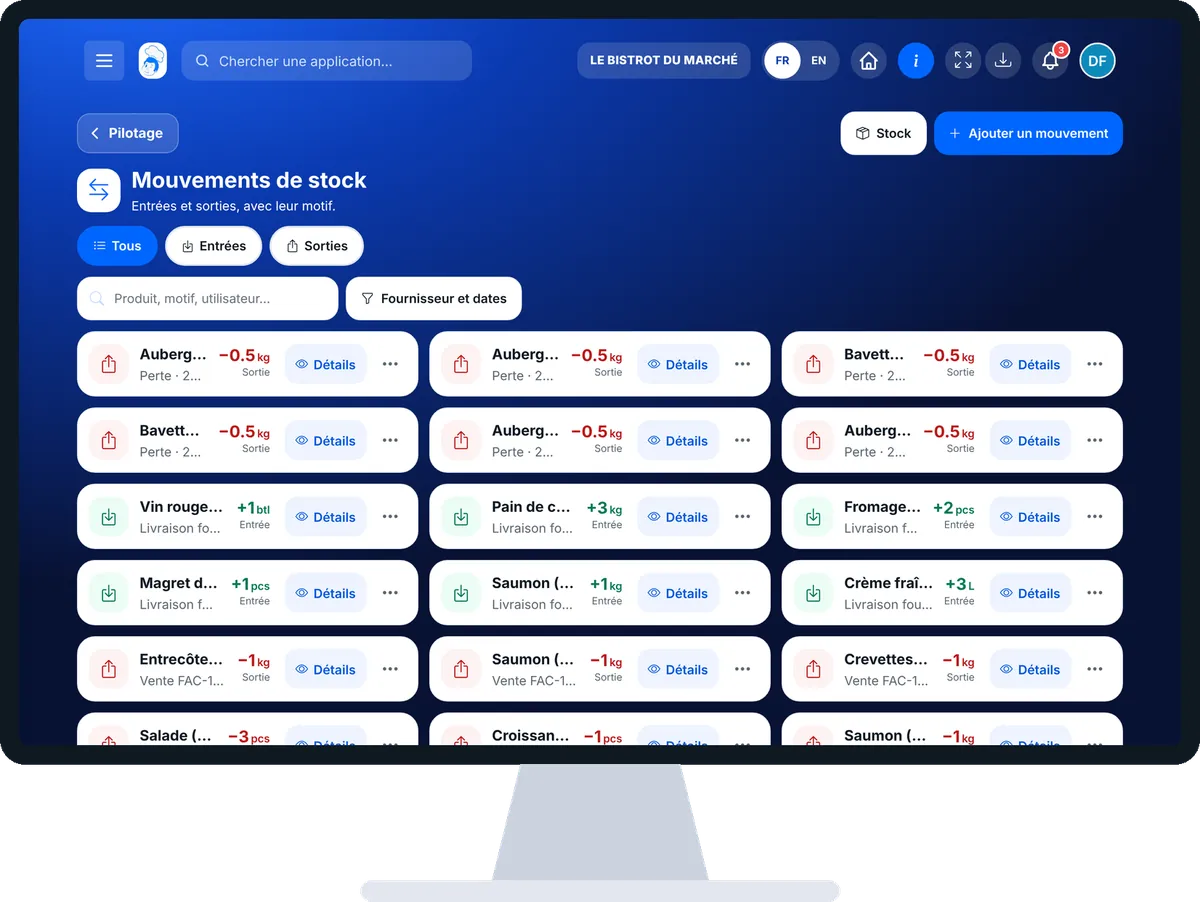
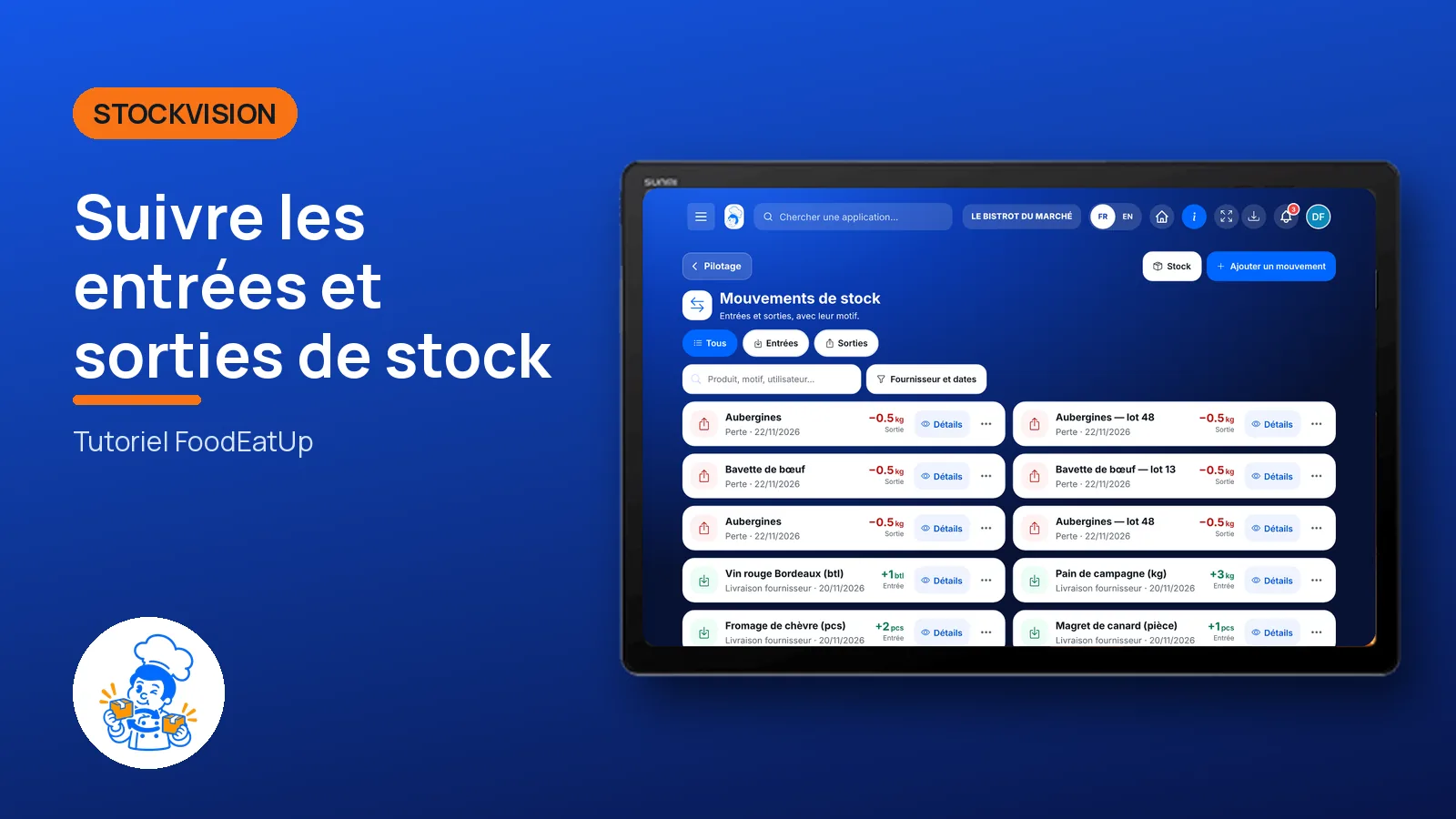
Follow stock in and stock out : 4 steps, with the real software screens.
From the stock list, tap “Mouvements”. Tabs sort stock in and stock out.
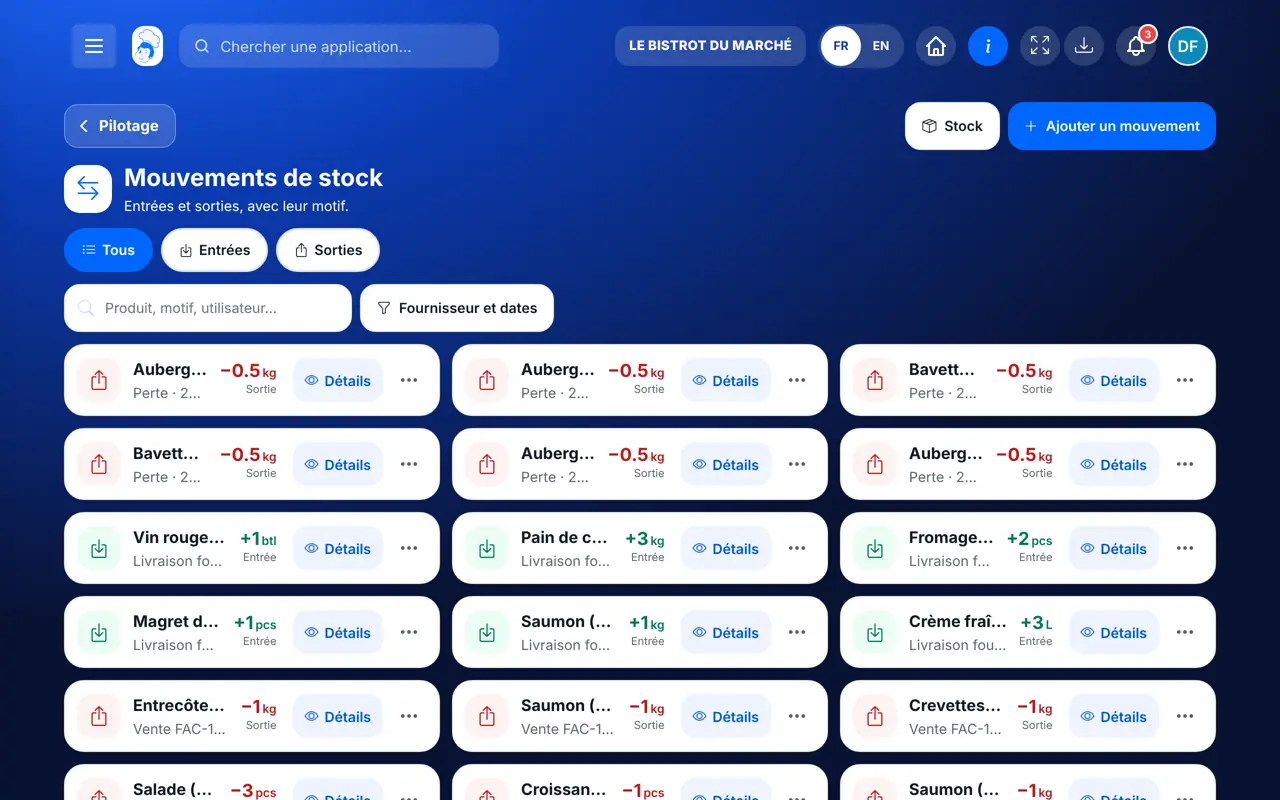
Search by product, reason or user. “Fournisseur et dates” filters over a period.
Tap “Ajouter un mouvement”: product, type (Entrée or Sortie), quantity, unit, reason and, for stock in, the supplier.
Tap a movement for its details. “Modifier” or “Supprimer” fixes a mistake.
Every stock in and out is kept, with its reason, date and author. Each product’s stock follows from it.
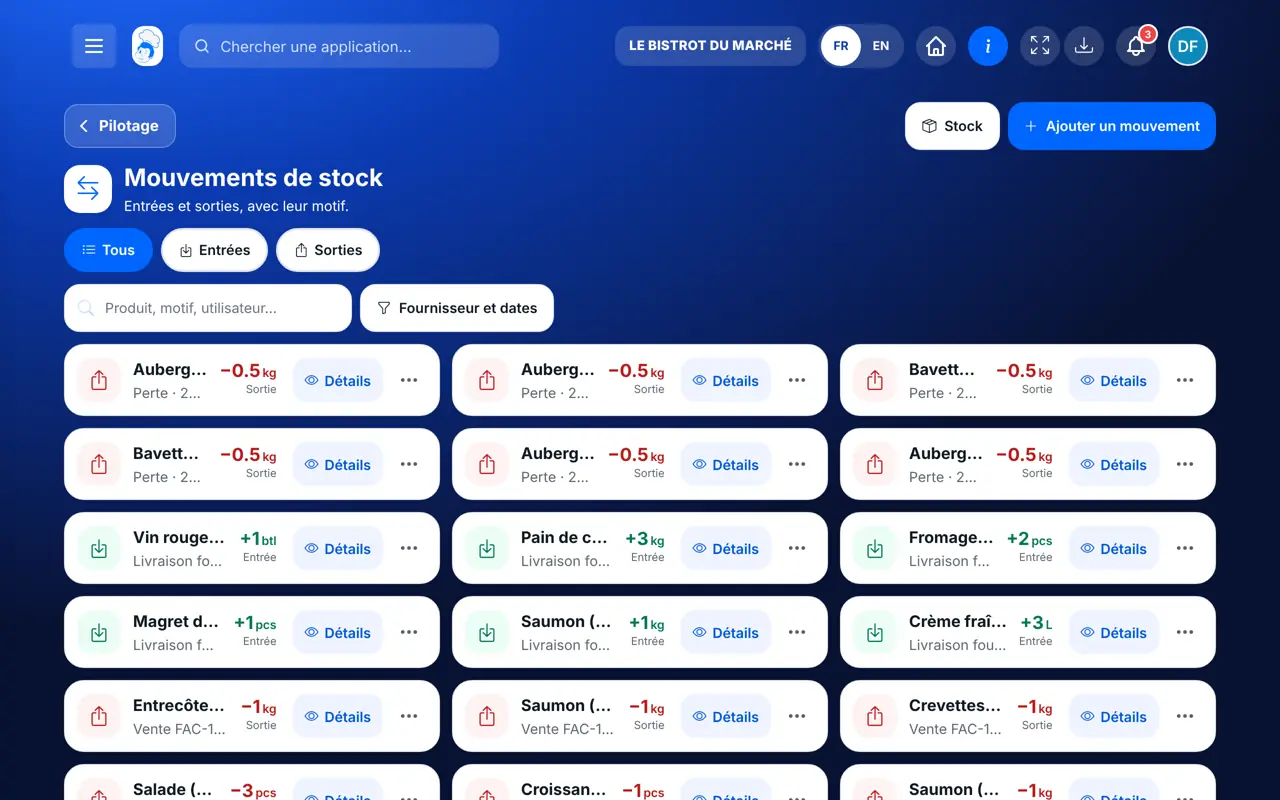
Reads the whole history, adds, edits and deletes movements.
With the right to view stock, reads the history. Adding a movement needs the right to create movements. Their movement carries their first name.
Claude, ChatGPT or Mistral’s Le Chat, connected to FoodEatUp. Copy the request and replace your establishment number.
In FoodEatUp, for my establishment [number], list this month’s stock movements for [product].
What you getThe product’s stock in and out, with reason and author.
Tools used : list_stock_movements
In FoodEatUp, for my establishment [number], remove [quantity] [unit] of [product] from stock, reason: [reason]. Show me before confirming.
What you getThe stock out recorded and the stock updated.
Tools used : list_stocks, adjust_stock
In FoodEatUp, for my establishment [number], sum up the state of my stock.
What you getShortages, low stock and stock value.
Tools used : get_stock_overview
Each movement is signed.
Grams and kilos understand each other.
Stock stops at zero.
Edit or delete a movement.
Always pick a reason: when a stock-count gap appears, the reason is what tells you where it came from.
In FoodEatUp, one action triggers others. Here are the screens that work with this one.
Its unit cannot be compared to the stock’s, for example grams on a product counted in pieces.
Everyone with access to the screen. An employee shows as first name and last-name initial.
Stock stops at zero and the software says what was missing: a stock count is due.
Send it to your team, your partner or your accountant. The image below appears in the message.
Claude, ChatGPT or Le Chat read this tutorial and explain it to you. Connected to FoodEatUp, they do it with you.
Read this FoodEatUp tutorial: https://foodeatup.com/en/academy/stockvision/stock-movements.md Explain it to me simply, step by step, then help me do it in my restaurant. If FoodEatUp is connected to you, do it with me and show me the preview before every change.
Type your establishment number: the link takes you straight to this screen. The number stays on this device.
Discover stock and food cost (in French) →
Répond avec les fiches du site, sans IA
Le chef cherche dans les fiches…
 Claude
 Le Chat
 ChatGPT