Aller au contenu
StockVision · Dashboard
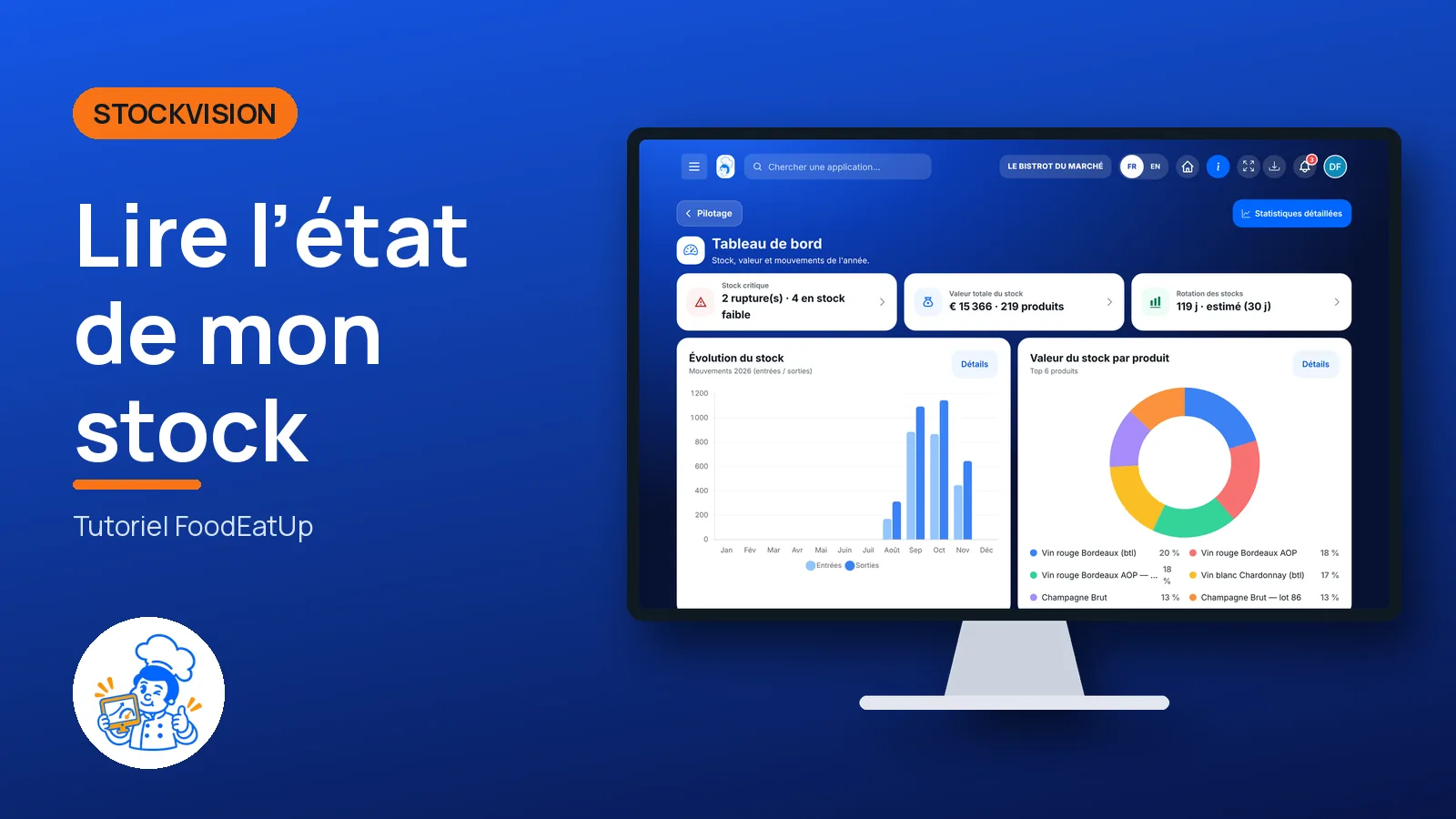
Read the state of my stock

One screen to see products out of stock or below their threshold, the value of the stock and the year’s stock in and stock out.

  • Computer
  • 5 steps
  • Level : Beginner
Read the state of my stock : The three dashboard cards

Who is it for?

  • Patron / gérant
  • Chef de cuisine
  • Directeur
  • Second de cuisine

Roles with access

  • Gérant·e
  • Chef de cuisine
  • Cuisinier·ère
  • Plongeur·se
  • Serveur·se
  • Barman·maid
  • Hôte·sse / Caissier·ère
  • Responsable HACCP
  • Marketing
  • Siège (réseau)
  • Laboratoire (réseau)
  • Boutique (réseau)
  • Franchisé·e (réseau)
  • Directeur·rice d'établissement
  • Responsable site web & intégration
  • Responsable commercial
  • Responsable événements
  • Responsable marketing
  • Responsable communication
  • Responsable RH
  • Responsable siège
  • Comptable

The owner always has access. See what each role sees →

Recommended hardware

Computer

A computer in the office to read the charts. The same screen opens on the kitchen tablet.

See the hardware →

What it is for

  • See at a glance how many products are out of stock and how many are below their threshold.
  • Know the value of what you have in store.
  • See, month by month, what came into stock and what went out.

Why set it up

  • A product at zero shows before the service, not during it.
  • The stock value converts units: a price per kilo on a stock kept in grams stays right.
  • A product without a price is counted “sans prix”, never at €0: the figure does not mislead you.

The same screen, on every device

The real software screens, as they appear on each device.

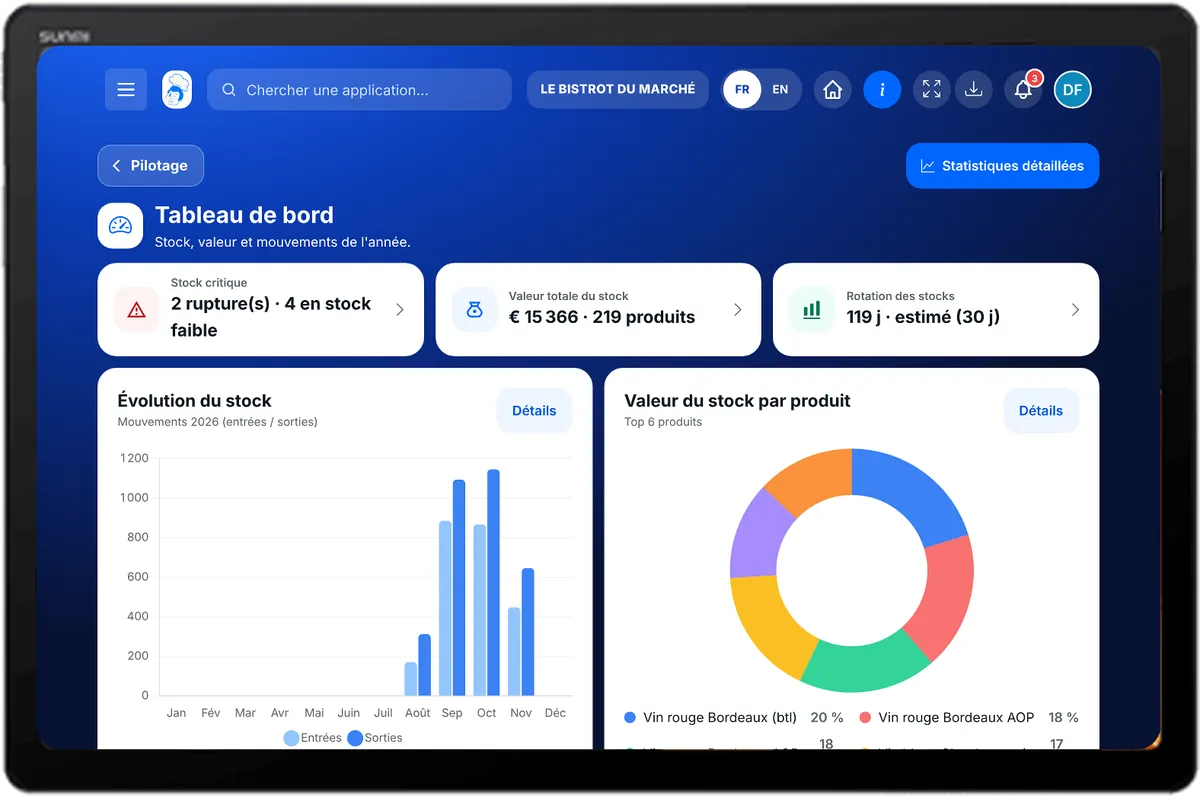
Dashboard — On the tablet
On the tablet
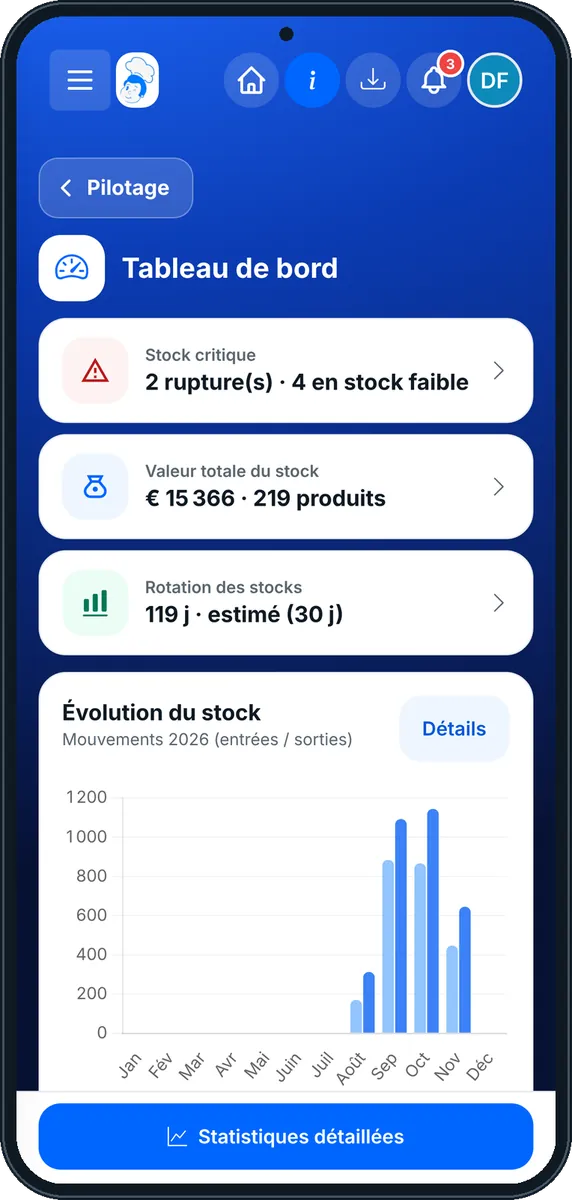
Dashboard — On the phone
On the phone
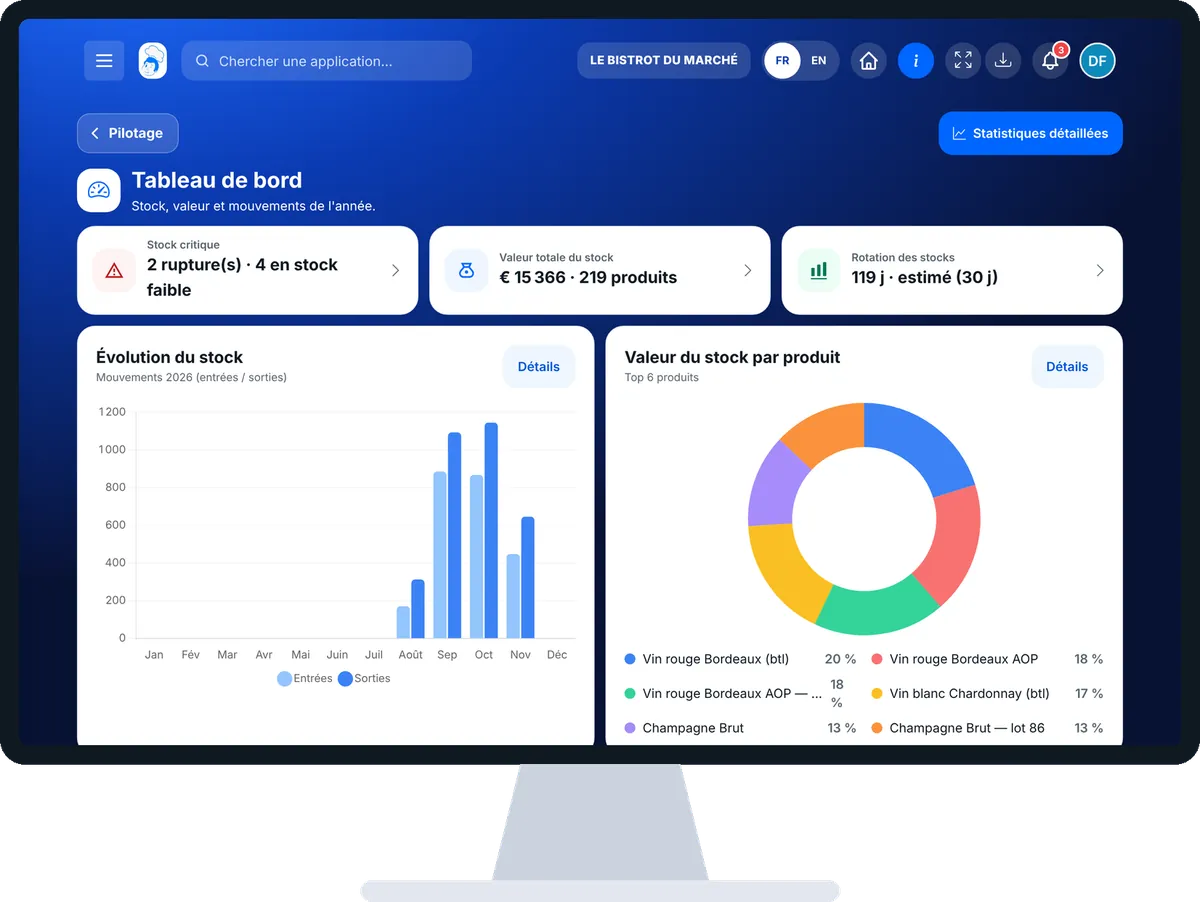
Dashboard — On the computer
On the computer

Step by step

Read the state of my stock : 5 steps, with the real software screens.

  1. 1Step 1

    Open the dashboard

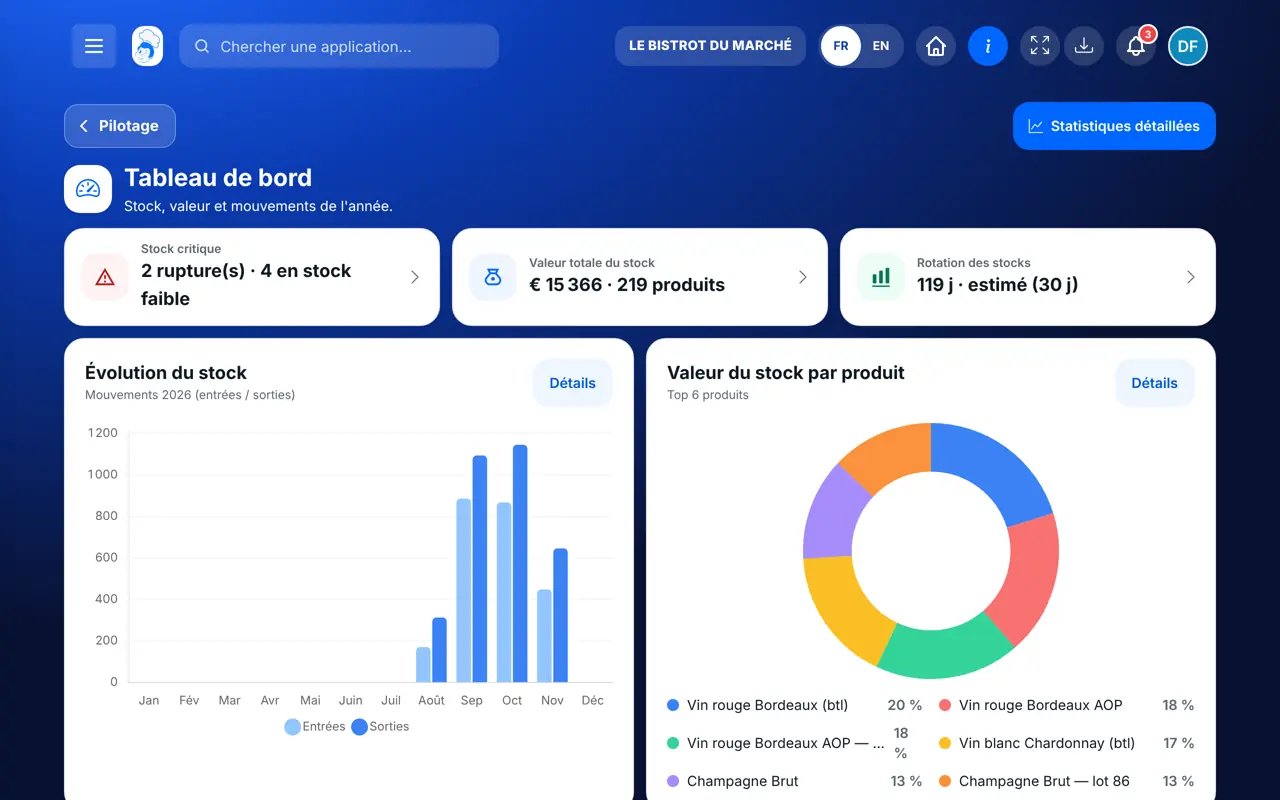
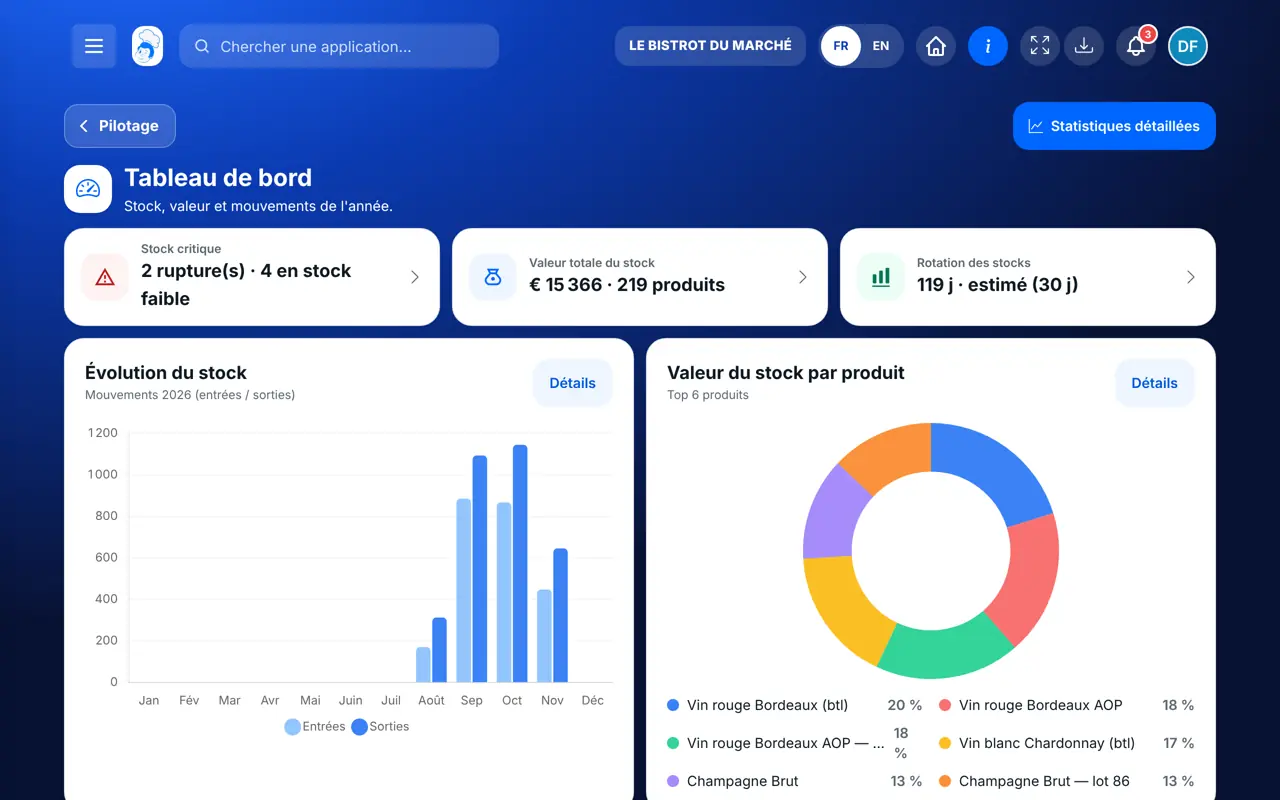
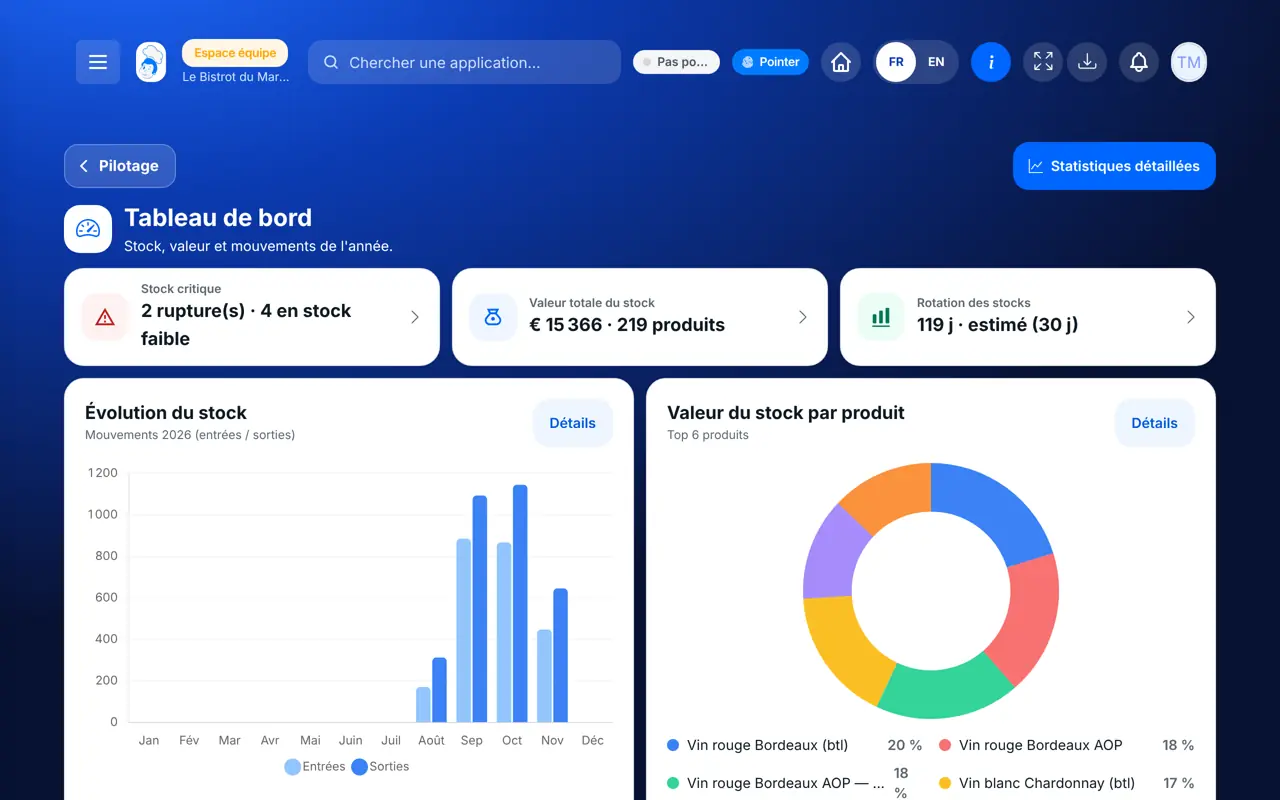
    From the home screen, open StockVision then “Tableau de bord”. Three cards at the top: “Stock critique”, “Valeur totale du stock”, “Rotation des stocks”.

    The three dashboard cards
  2. 2Step 2

    Read critical stock

    The “Stock critique” card gives the number of products out of stock and low on stock. Tap it: the stock list opens.

  3. 3Step 3

    Follow the trend

    The “Évolution du stock” chart shows the year’s stock in and stock out, month by month.

  4. 4Step 4

    See what weighs most

    The “Valeur du stock par produit” block ranks the products worth the most in store.

  5. 5Step 5

    Go further

    The “Statistiques détaillées” button opens the statistics; “Ouvrir le stock” leads to the product list.

The result

The state of the stock on one screen

Shortages, low stock, value and the year’s movements are together. Each card leads to the screen used to fix things.

The state of the stock on one screen : Read the state of my stock

Owner and employee: what changes

The owner

Reads every figure and opens the stock or the statistics from the cards.

Dashboard — The owner

The employee

Sees the same dashboard. What they can open next (stock, statistics) depends on their role’s rights.

Dashboard — The employee

Do it with your assistant

Claude, ChatGPT or Mistral’s Le Chat, connected to FoodEatUp. Copy the request and replace your establishment number.

Where does my stock stand?

In FoodEatUp, for my establishment [number], sum up the state of my stock: out of stock, products below threshold and total value.

What you getThe number of products out of stock, the list of products below threshold and the stock value.

Tools used : get_stock_overview, list_low_stocks

The morning check

In FoodEatUp, for my establishment [number], give me the essentials of the day: stock, sales and alerts.

What you getA summary of the day with the points to look at first.

Tools used : get_dashboard_overview

What moved this month

In FoodEatUp, for my establishment [number], list this month’s stock movements, in and out.

What you getThis month’s stock in and stock out, with their reason.

Tools used : list_stock_movements

What you gain

Shortages first

The figure is at the top of the screen, in red.

A fair value

Units are converted, products without a price are flagged.

The year in one chart

Stock in and out, month by month.

One click to act

Each card opens the screen used to fix things.

The Chef’s tip

Look at the dashboard before placing your orders: a product out of stock is handled with the shopping list, a product without a price on its record.

Frequently asked questions

Why is a product counted “sans prix”?

It has no purchase price. It is not added to the stock value at €0: it is flagged separately so you can complete it.

Can stock go negative?

No. Stock stops at zero. If a stock out exceeds what is left, the software says what was missing: a stock count is due.

Are the figures up to date?

Yes. They are read again each time you open the screen, from the recorded movements.

Text version for AI assistants →

Share this tutorial

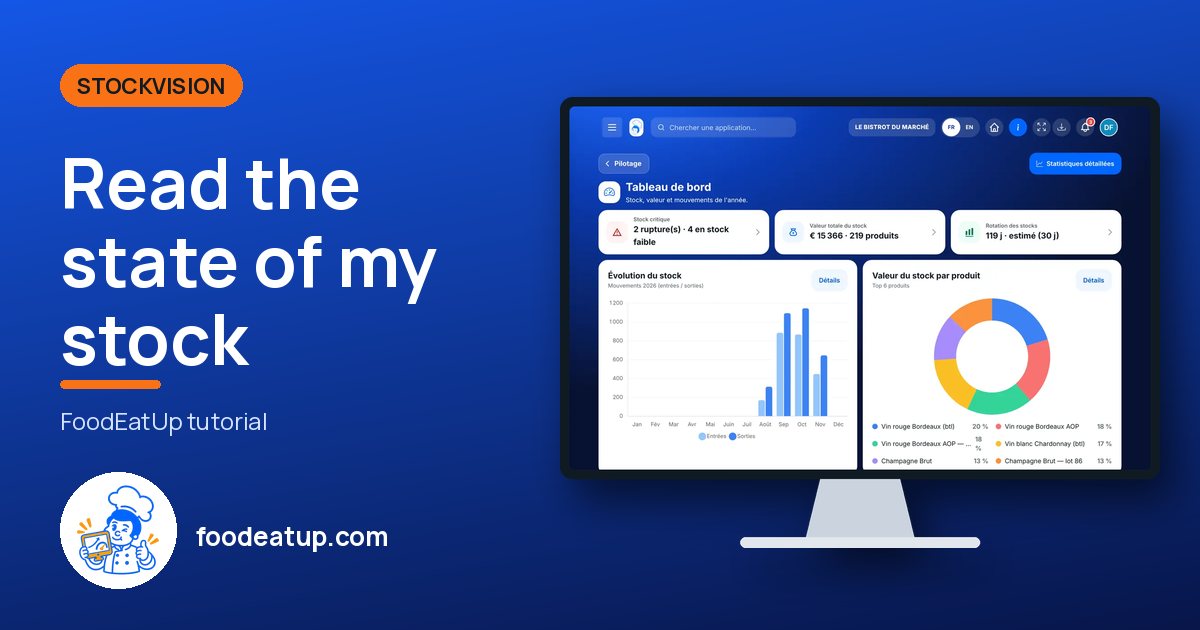
Send it to your team, your partner or your accountant. The image below appears in the message.

Share preview : Read the state of my stock
WhatsAppLinkedInFacebookEmail

Send to an AI assistant

Claude, ChatGPT or Le Chat read this tutorial and explain it to you. Connected to FoodEatUp, they do it with you.

Read this FoodEatUp tutorial: https://foodeatup.com/en/academy/stockvision/dashboard.md Explain it to me simply, step by step, then help me do it in my restaurant. If FoodEatUp is connected to you, do it with me and show me the preview before every change.

ClaudeLe ChatChatGPT

Open in my software

Type your establishment number: the link takes you straight to this screen. The number stays on this device.

Discover stock and food cost (in French) →

You can read it in the software address: foodeatup.com/establishment/number/…