Aller au contenu
StockVision · Order sheet

Prepare my orders for the week

The order sheet of each supplier: one row per product, one box per delivery day. FoodEatUp suggests a quantity, you adjust in packs, then everything goes to the shopping list.

  • Computer
  • 5 steps
  • Level : Intermediate
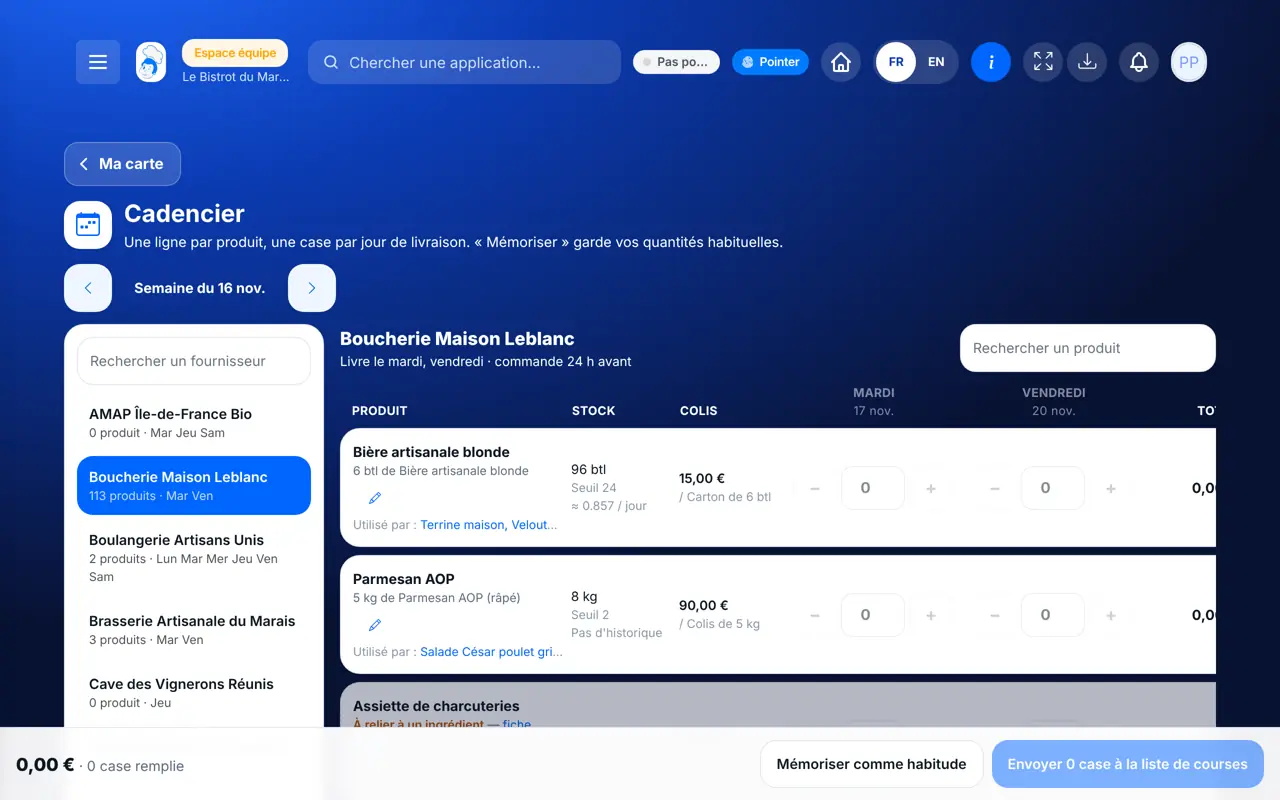
Prepare my orders for the week : A supplier’s order sheet

Who is it for?

  • Chef de cuisine
  • Patron / gérant
  • Second de cuisine
  • Directeur

Roles with access

  • Gérant·e
  • Chef de cuisine
  • Cuisinier·ère · view
  • Serveur·se · view
  • Barman·maid
  • Hôte·sse / Caissier·ère · view
  • Laboratoire (réseau) · view
  • Boutique (réseau)
  • Franchisé·e (réseau)
  • Directeur·rice d'établissement
  • Responsable site web & intégration · view
  • Responsable commercial · view
  • Responsable événements · view
  • Responsable marketing · view
  • Responsable communication · view
  • Responsable siège · view

The owner always has access. See what each role sees →

Recommended hardware

Computer

A computer or a tablet, once a week or the day before deliveries.

See the hardware →

What it is for

  • See, supplier by supplier, what to order for each delivery of the week.
  • Order whole packs, in the supplier’s pack size.
  • Keep your usual quantities from one week to the next.

Why set it up

  • The suggestion comes from your sales of the last 28 days, the stock and the deliveries already planned.
  • A box that is too late (order deadline passed) can no longer be filled: you see it before calling.
  • Nothing goes to the supplier: the order sheet fills the shopping list, which you review.

The same screen, on every device

The real software screens, as they appear on each device.

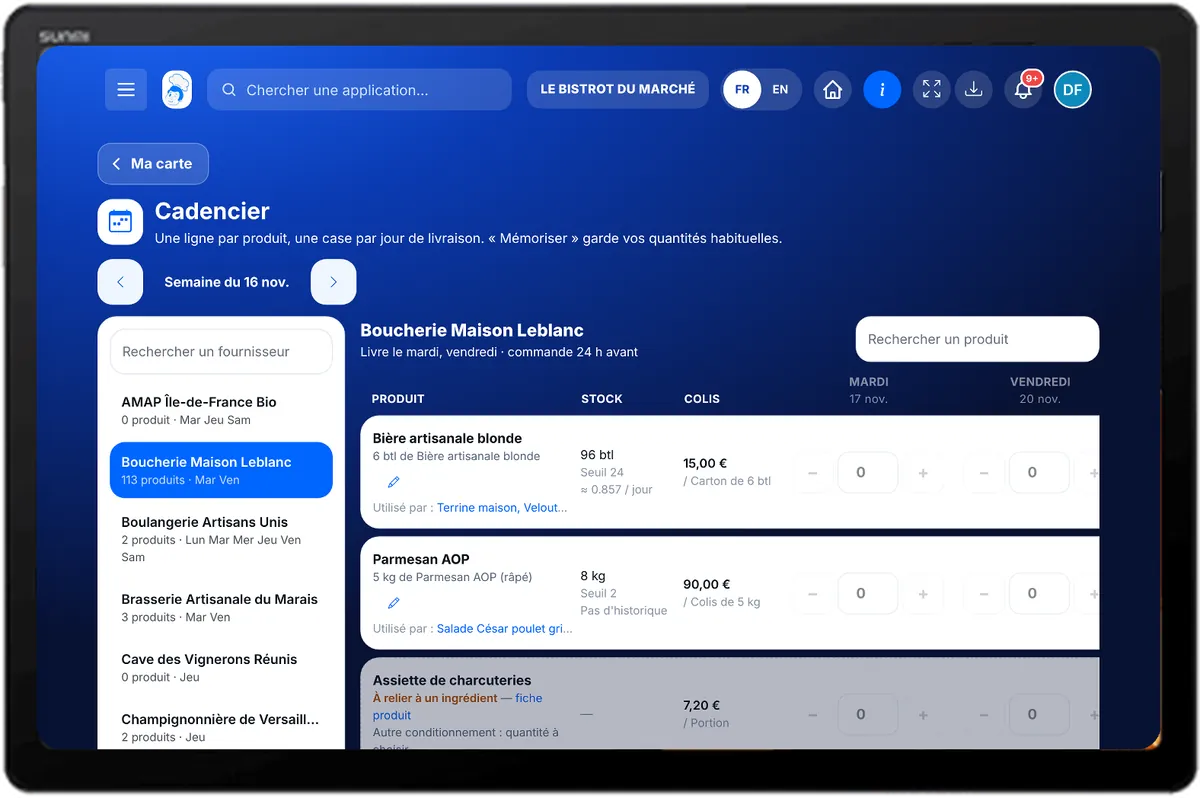
Order sheet — On the tablet
On the tablet
Order sheet — On the phone
On the phone
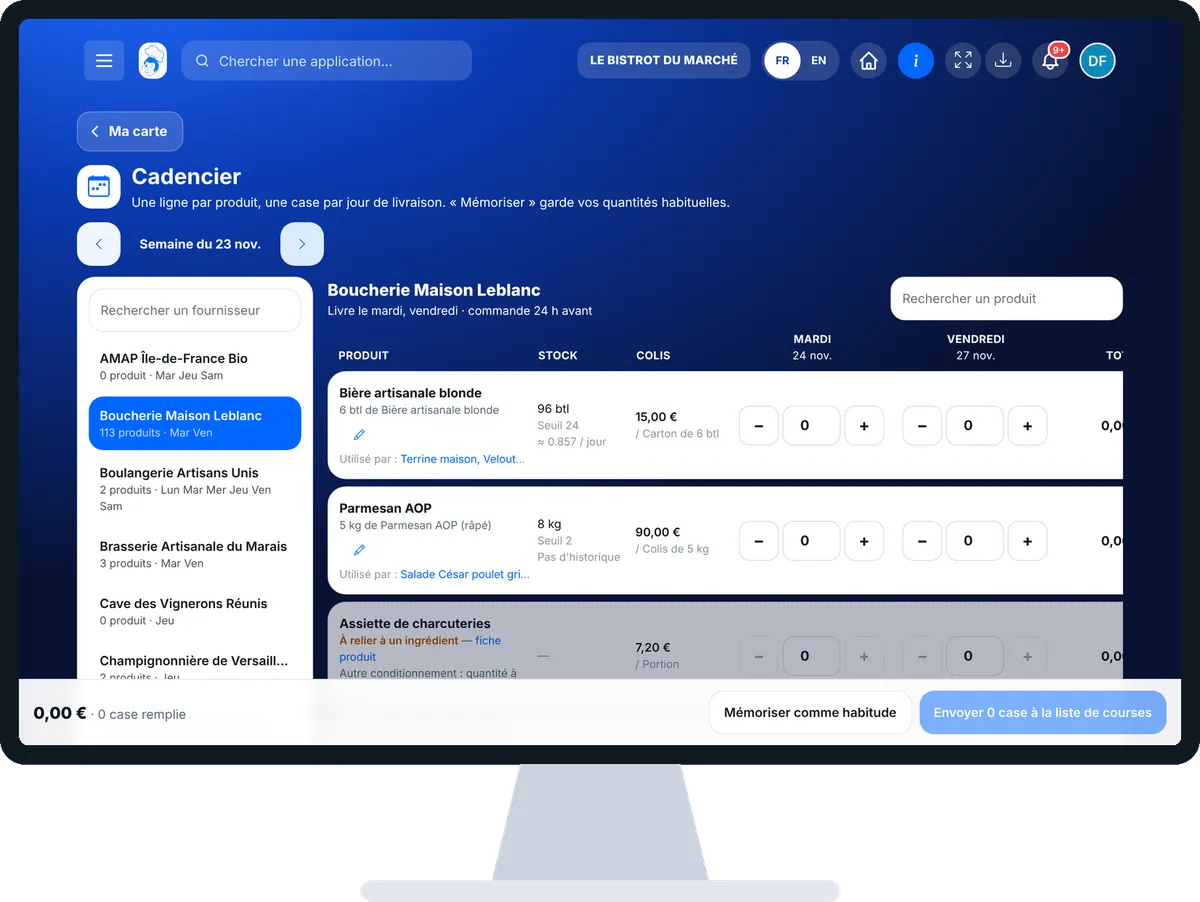
Order sheet — On the computer
On the computer

Step by step

Prepare my orders for the week : 5 steps, with the real software screens.

  1. 1Step 1

    Open the order sheet

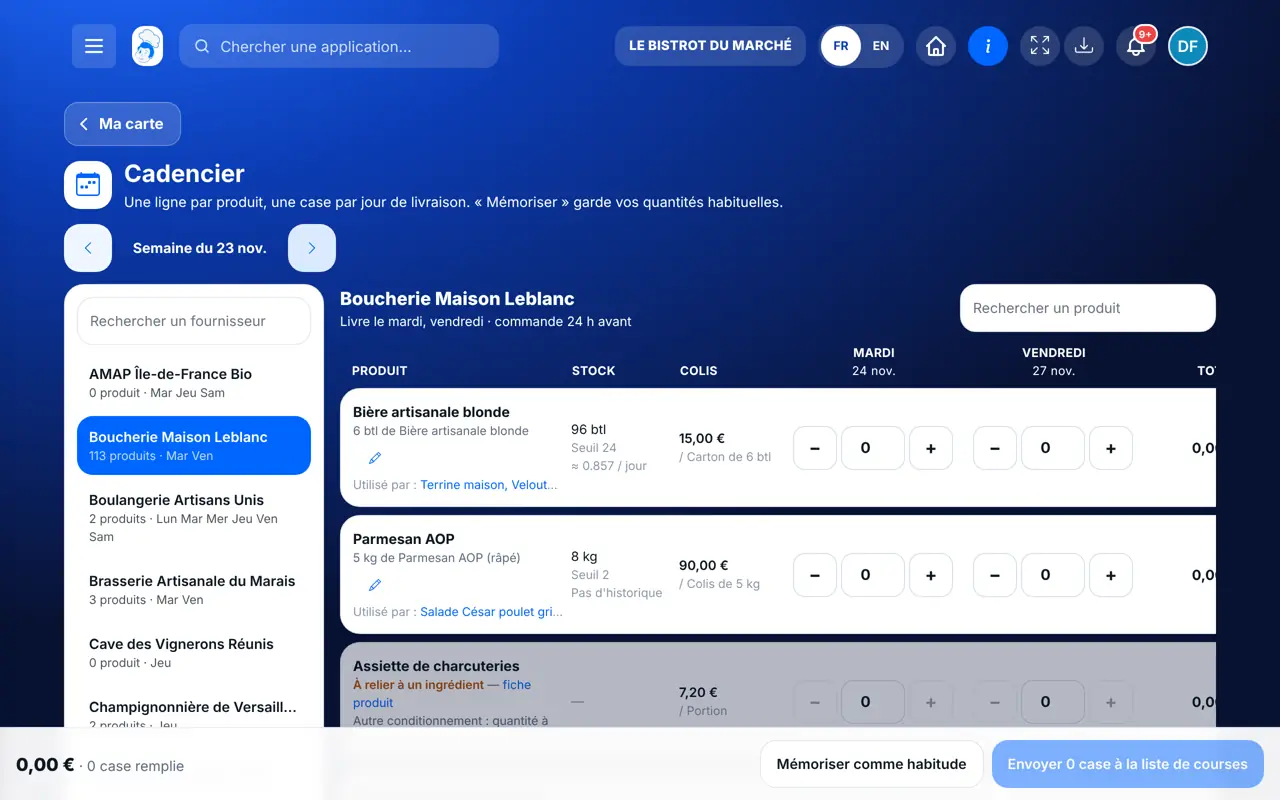
    From Ma carte, tap the “Cadencier” view. On the left, your suppliers with their delivery days and the products below threshold.

    A supplier’s order sheet
  2. 2Step 2

    Choose the supplier and the week

    Tap a supplier. The arrows at the top change the week. Each column is a delivery day.

  3. 3Step 3

    Adjust the packs

    Each box shows the suggested quantity. The − and + buttons change the number of packs. The row shows the stock, the threshold and the daily use.

  4. 4Step 4

    Remember your habits

    Tap “Mémoriser comme habitude”: these quantities come back in the following weeks.

  5. 5Step 5

    Send to the shopping list

    Tap “Envoyer … à la liste de courses”. The rows arrive in the list, where you place the order.

    The shopping list filled by the order sheet
The result

The week’s order, day by day

Each supplier has its sheet: products, delivery days, suggested packs. What you send arrives in the shopping list.

The week’s order, day by day : Prepare my orders for the week

Owner and employee: what changes

The owner

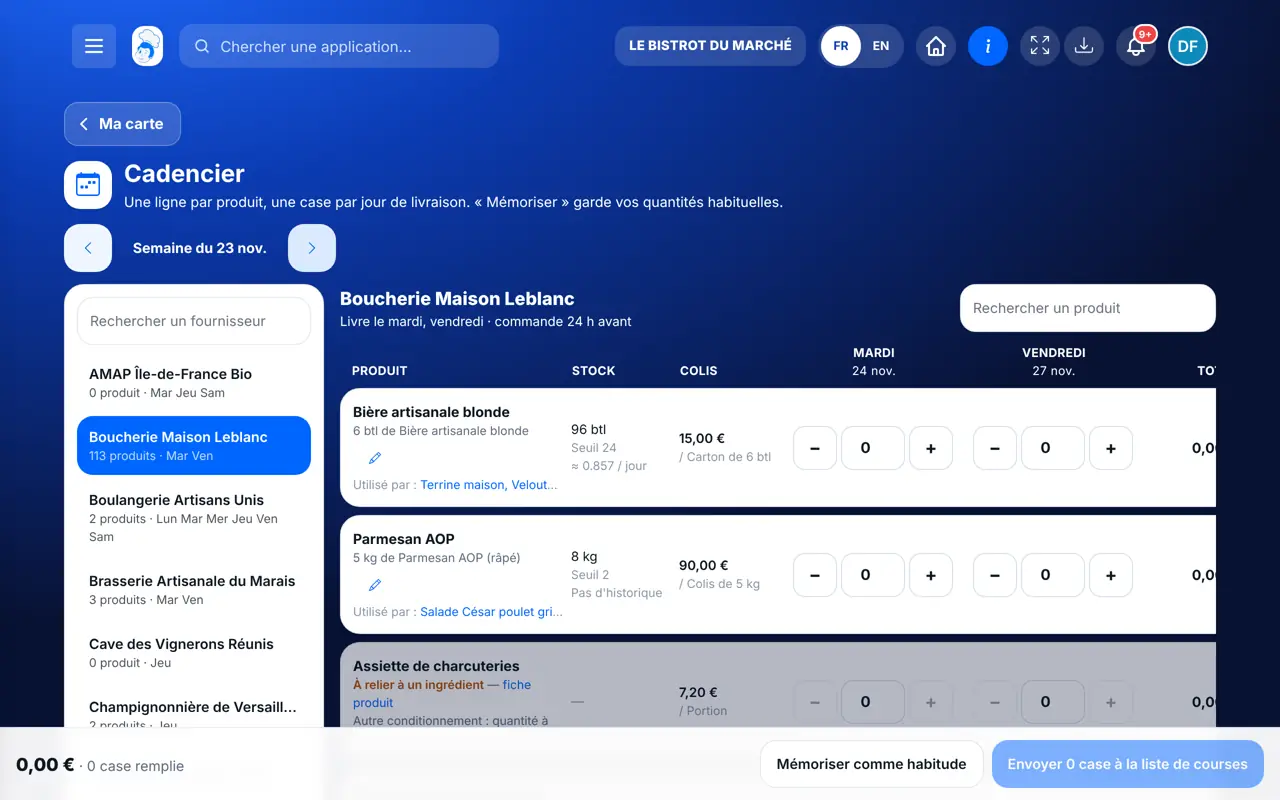
Adjusts, remembers and sends to the shopping list.

Order sheet — The owner

The employee

Sees the order sheet if their role opens the menu. Sending or remembering requires the right to create a shopping list.

Order sheet — The employee

Do it with your assistant

Claude, ChatGPT or Mistral’s Le Chat, connected to FoodEatUp. Copy the request and replace your establishment number.

My order for the week

In FoodEatUp, for my establishment [number], show me the order sheet of the supplier [supplier] for next week.

What you getThe products, the delivery days and the suggested quantities in packs.

Tools used : list_suppliers, get_cadencier

Fill the shopping list

In FoodEatUp, for my establishment [number], send the order sheet of [supplier] to the shopping list (show me the preview first).

What you getThe preview of the rows, then the rows added to the shopping list.

Tools used : get_cadencier, send_cadencier

What is missing

In FoodEatUp, for my establishment [number], list the products below threshold.

What you getThe products to reorder first.

Tools used : list_low_stocks

What you gain

The order already prepared

One suggestion per delivery day.

In whole packs

In the supplier’s pack size, minimum included.

Your habits kept

From one week to the next.

Nothing sent for you

The shopping list stays the review step.

The Chef’s tip

Fill in the delivery days and order deadline on the supplier’s record: the order sheet only offers boxes that can still be ordered.

Frequently asked questions

Why does a row say “À relier à un ingrédient”?

The product is linked to no ingredient: FoodEatUp does not know how much you use. Link it on its product record.

Where does the suggested quantity come from?

From your paid sales of the last 28 days, the composition of the dishes, the stock and the deliveries already planned.

Does the order sheet order from the supplier?

No. It fills the shopping list; the order is placed from the list.

Text version for AI assistants →

Share this tutorial

Send it to your team, your partner or your accountant. The image below appears in the message.

Share preview : Prepare my orders for the week
WhatsAppLinkedInFacebookEmail

Send to an AI assistant

Claude, ChatGPT or Le Chat read this tutorial and explain it to you. Connected to FoodEatUp, they do it with you.

Read this FoodEatUp tutorial: https://foodeatup.com/en/academy/stockvision/carte-cadencier.md Explain it to me simply, step by step, then help me do it in my restaurant. If FoodEatUp is connected to you, do it with me and show me the preview before every change.

ClaudeLe ChatChatGPT

Open in my software

Type your establishment number: the link takes you straight to this screen. The number stays on this device.

Discover stock and food cost (in French) →

You can read it in the software address: foodeatup.com/establishment/number/…