Aller au contenu
Applications mobiles · Mobile POS
Take orders and payments at the table

The FoodEatUp POS on the waiter’s phone: the order is taken at the table, sent to the kitchen in one gesture and paid without going back to the counter.

  • Phone
  • 5 steps
  • Level : Beginner
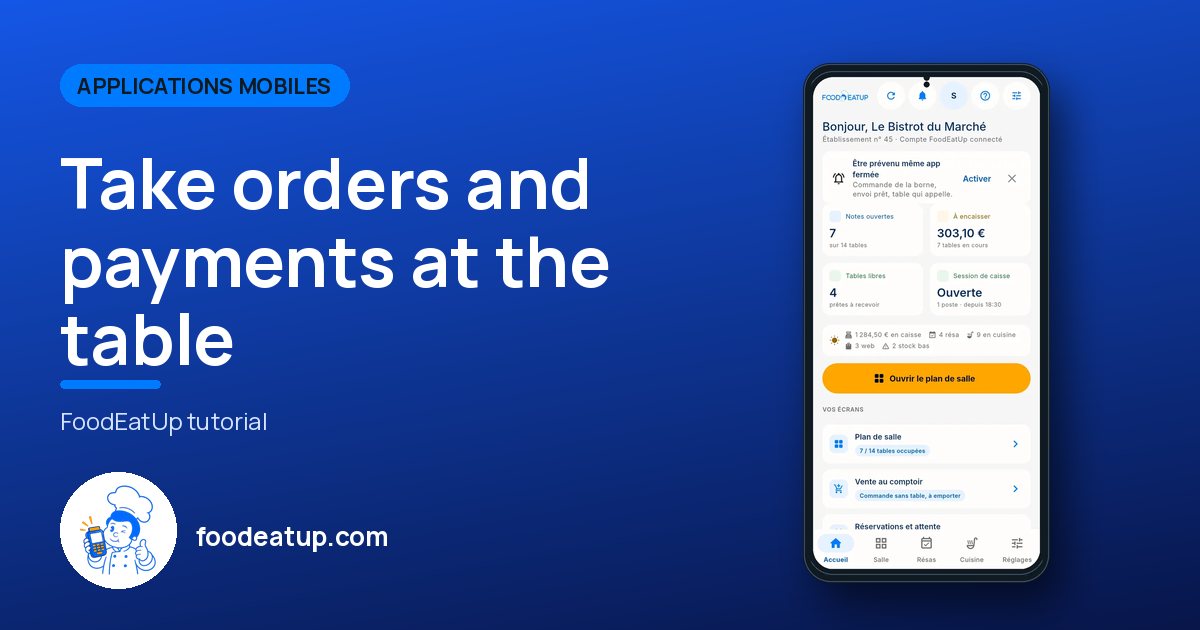
Take orders and payments at the table : The mobile POS home

Who is it for?

  • Serveur / chef de rang
  • Responsable de salle
  • Patron / gérant

Roles with access

  • Gérant·e
  • Serveur·se
  • Barman·maid
  • Hôte·sse / Caissier·ère
  • Boutique (réseau)
  • Franchisé·e (réseau)
  • Directeur·rice d'établissement
  • Responsable commercial · view

The owner always has access. See what each role sees →

Recommended hardware

Phone

The waiter’s Android phone, or a tablet at the counter. The app is on Google Play.

See the hardware →

What it is for

  • Take the order at the table, with photos, cooking choices, extras and set menus.
  • Take payment on the spot: card, cash, meal voucher, gift card, split bill.
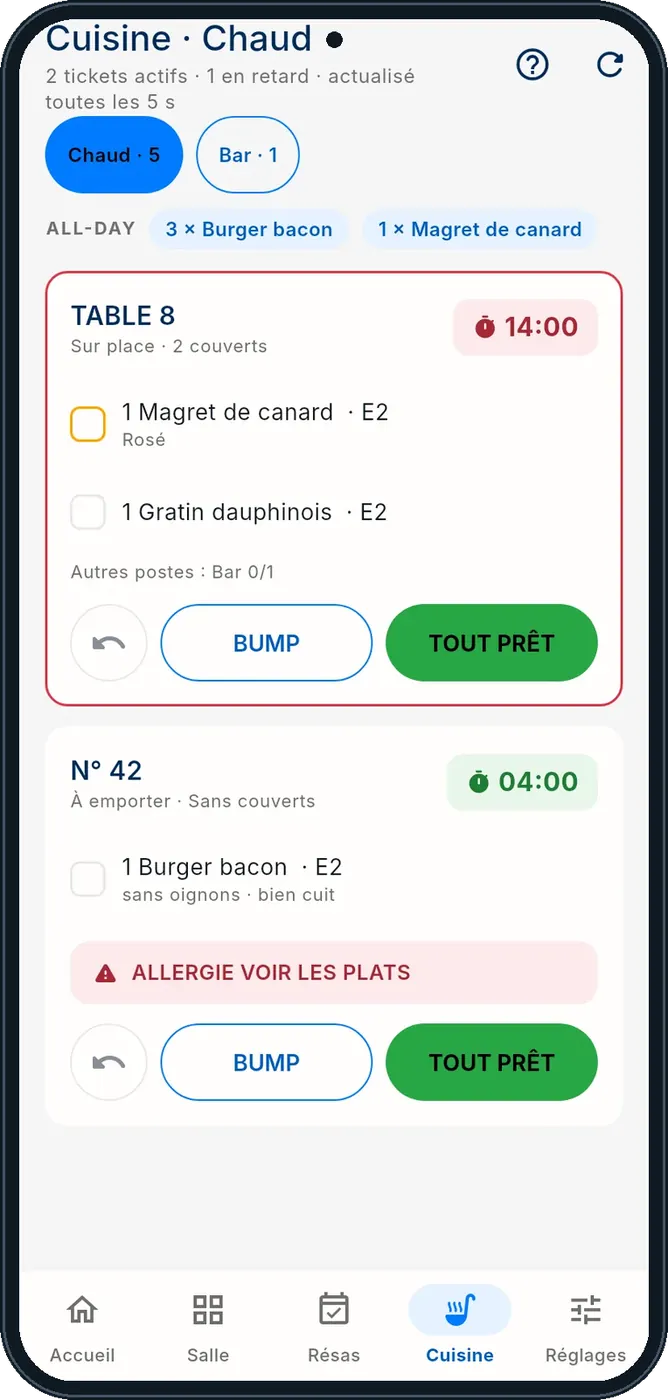
  • Follow the kitchen and incoming orders, even with the app closed.

Why set it up

  • Dishes, tables, customers and payments come from the FoodEatUp account: nothing is typed twice.
  • The receipt shows VAT per rate and the tax record, like the counter POS.
  • With no network, actions wait in a queue and leave as soon as the connection is back.

The same screen, on every device

The real software screens, as they appear on each device.

Mobile POS — On the phone
On the phone

Step by step

Take orders and payments at the table : 5 steps, with the real software screens.

  1. 1Step 1

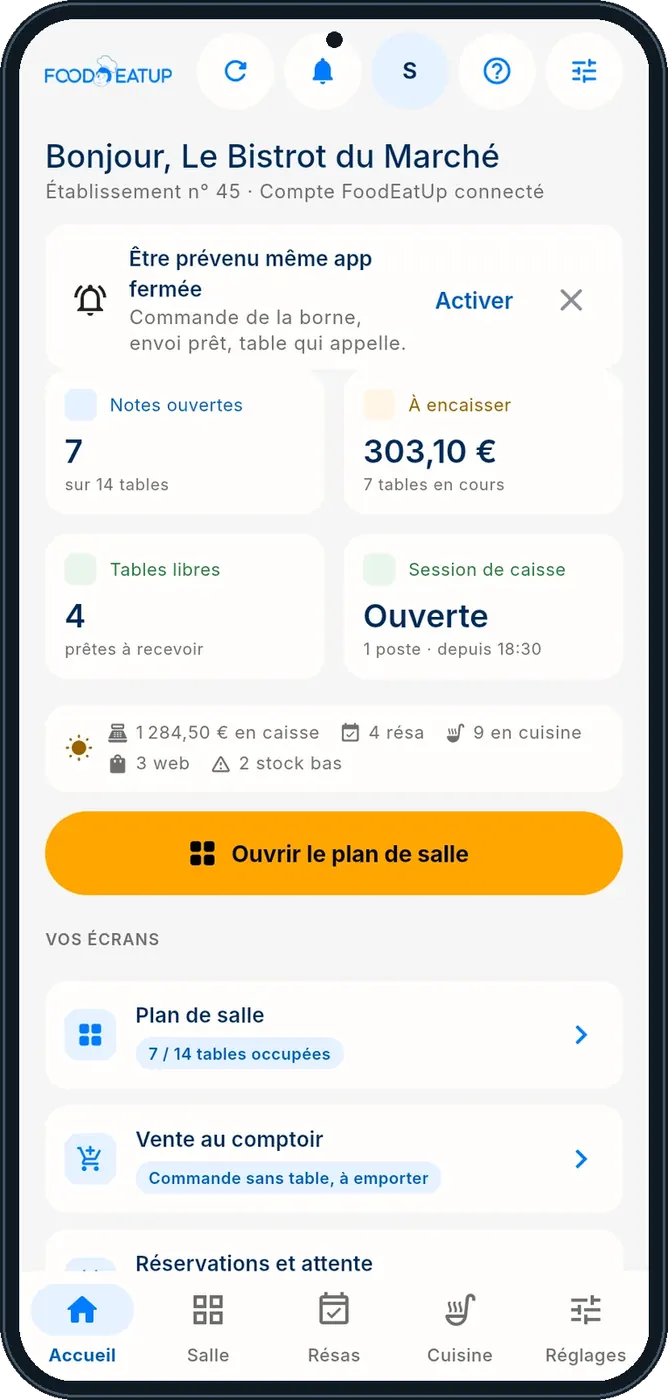
    Sign in

    Open the app, connect it to the restaurant’s FoodEatUp account, then enter your personal code.

    The mobile POS home
  2. 2Step 2

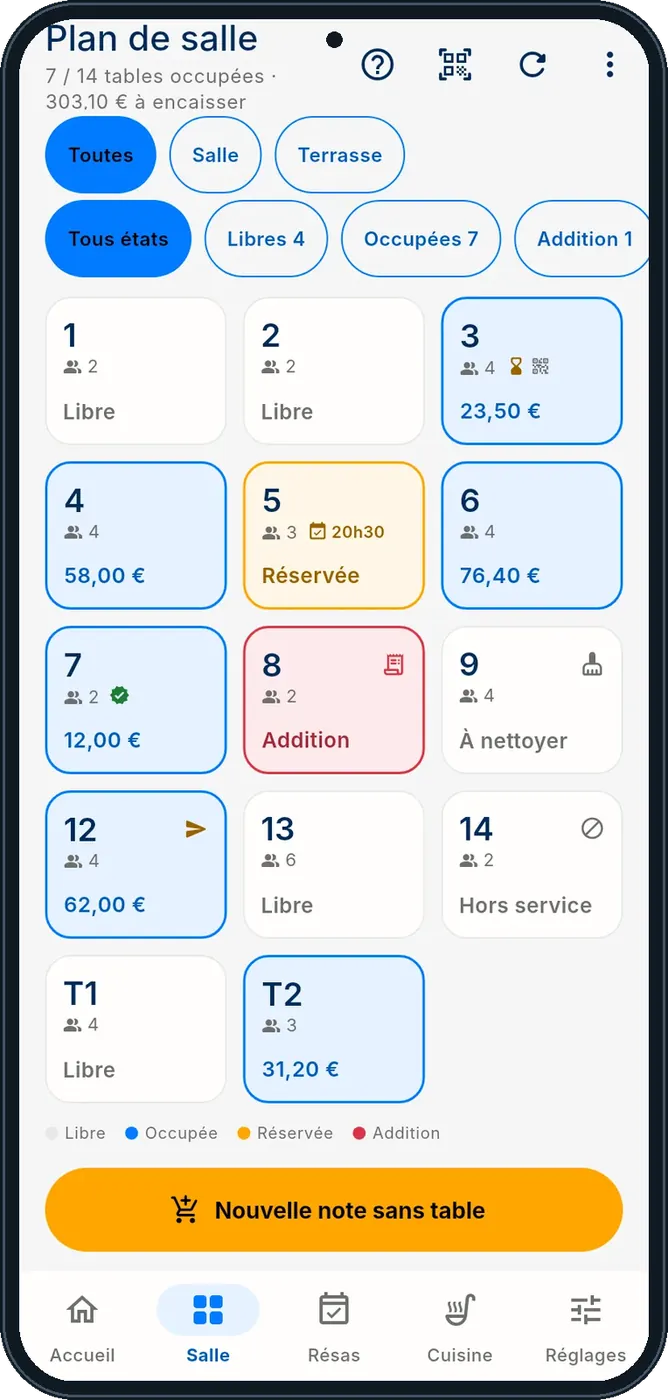
    Pick the table

    The floor plan shows free and busy tables. Tap the customer’s table.

    The floor plan on the phone
  3. 3Step 3

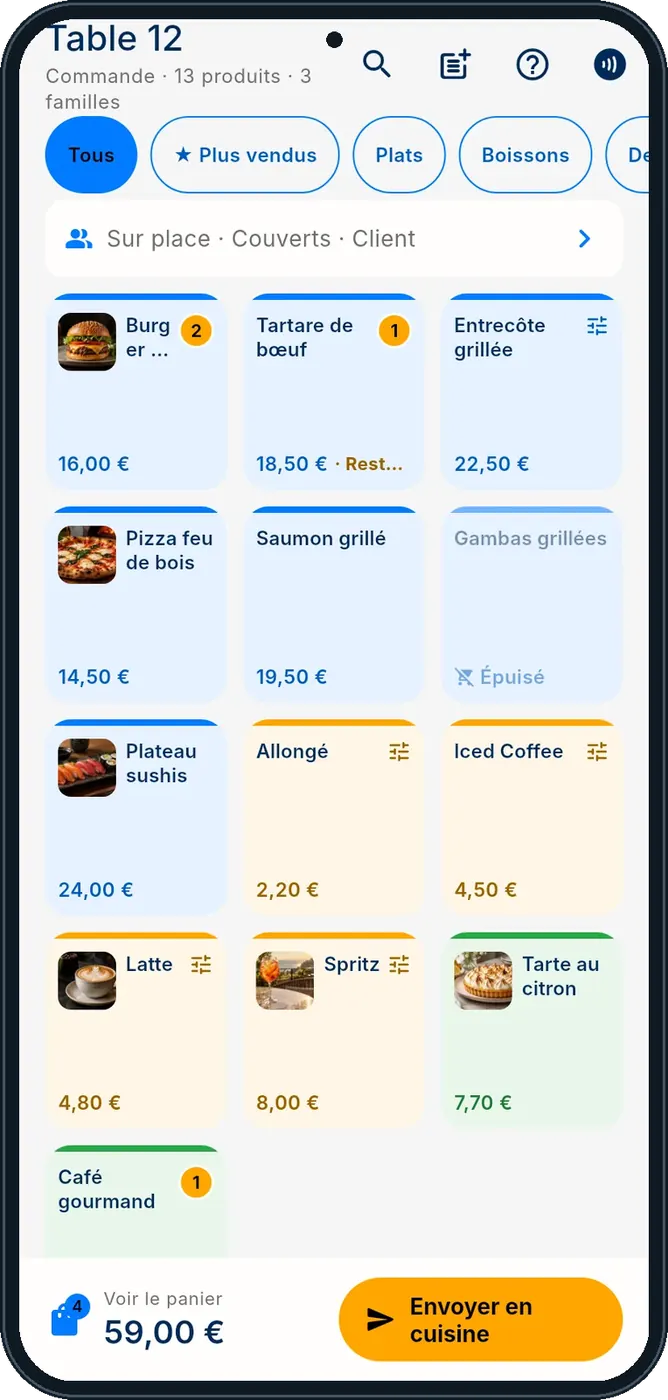
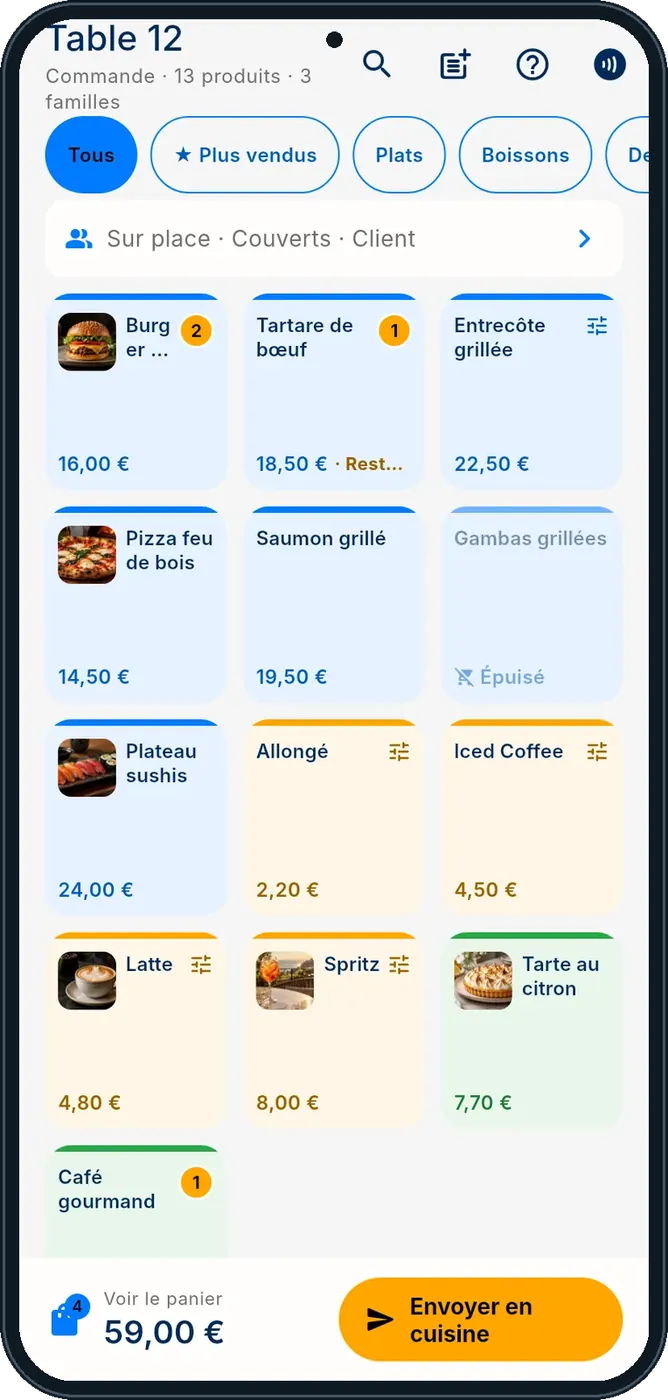
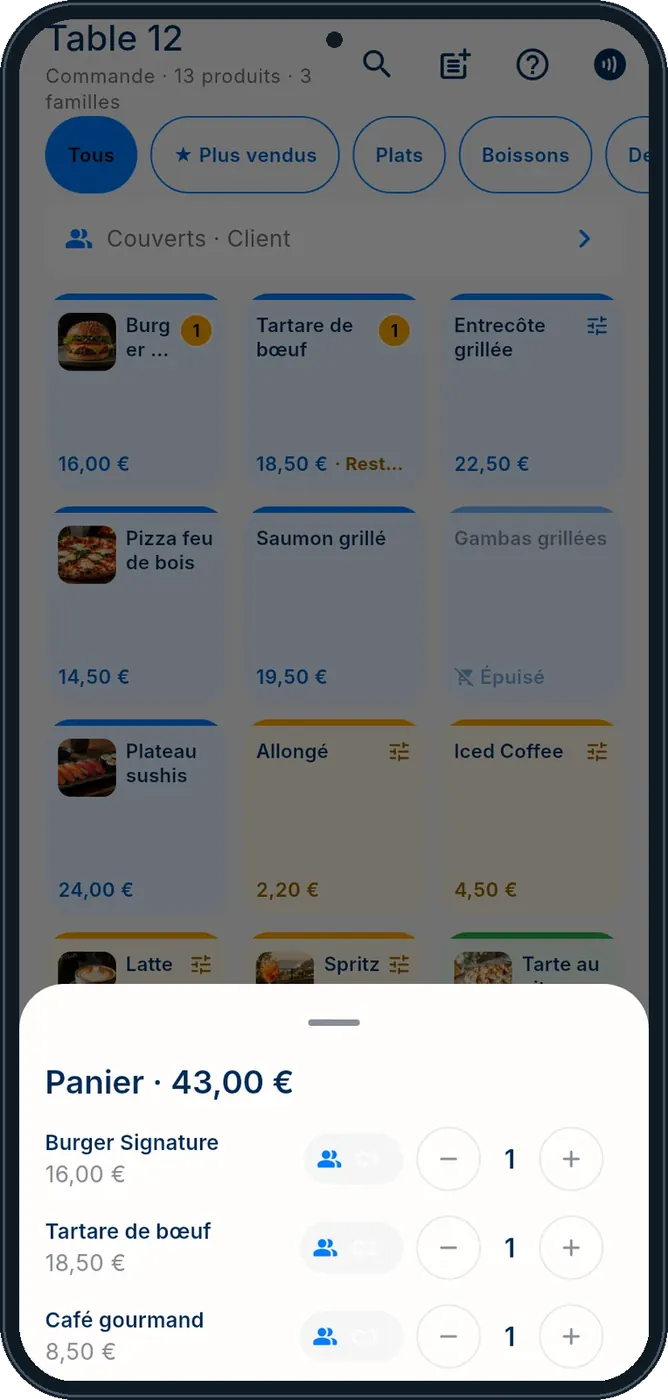
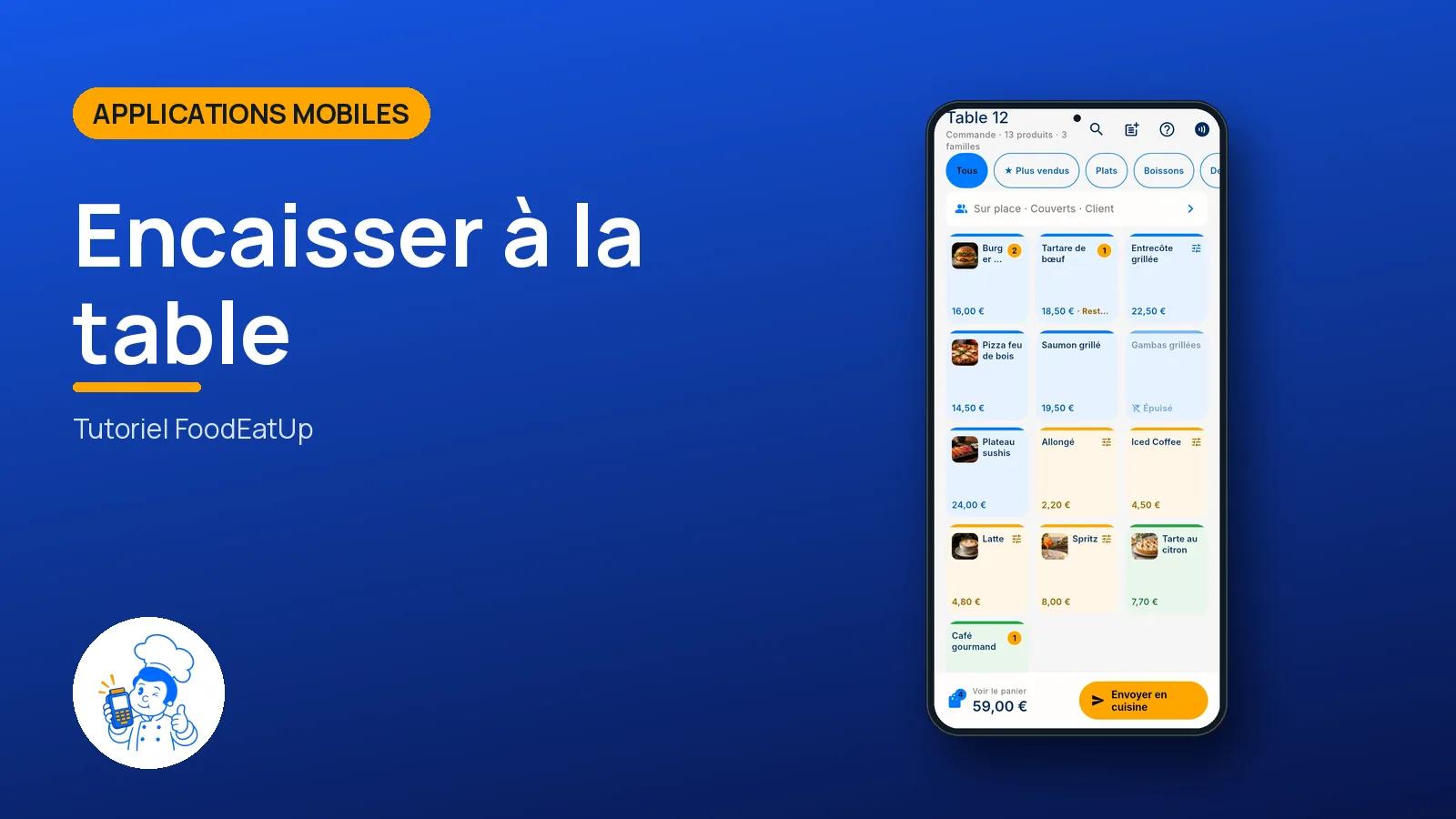
    Take the order

    Add dishes from the photo menu, with cooking choices and extras, then send to the kitchen.

    The order in progress
  4. 4Step 4

    Split by guest

    Each dish can be linked to a guest: the bill is then split without any sums.

    Dishes per guest
  5. 5Step 5

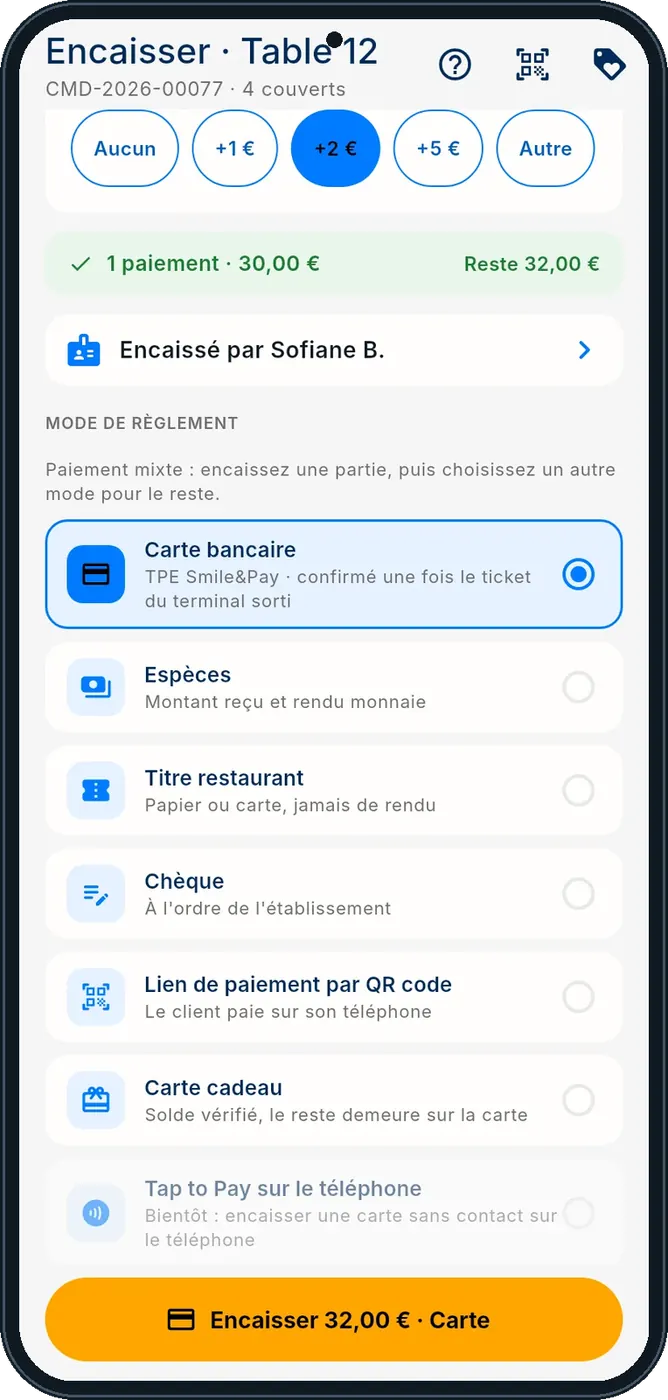
    Take payment

    Choose the payment method. The tip is kept apart from the bill.

    Payment

The app videos

One short video per gesture, filmed on the app (in French).

Installer l'application et se connecter · 28 s
Prendre son service et ouvrir la caisse · 26 s
Prendre une commande à table · 28 s
Encaisser à la table et remettre le ticket · 29 s
Suivre la cuisine et les commandes qui arrivent · 27 s
Former l'équipe, choisir son style, lire les chiffres · 27 s
Voir les réservations et installer un client · 17 s
Retrouver et réimprimer un ticket du jour · 18 s
Faire le point X et clôturer la caisse · 19 s
The result

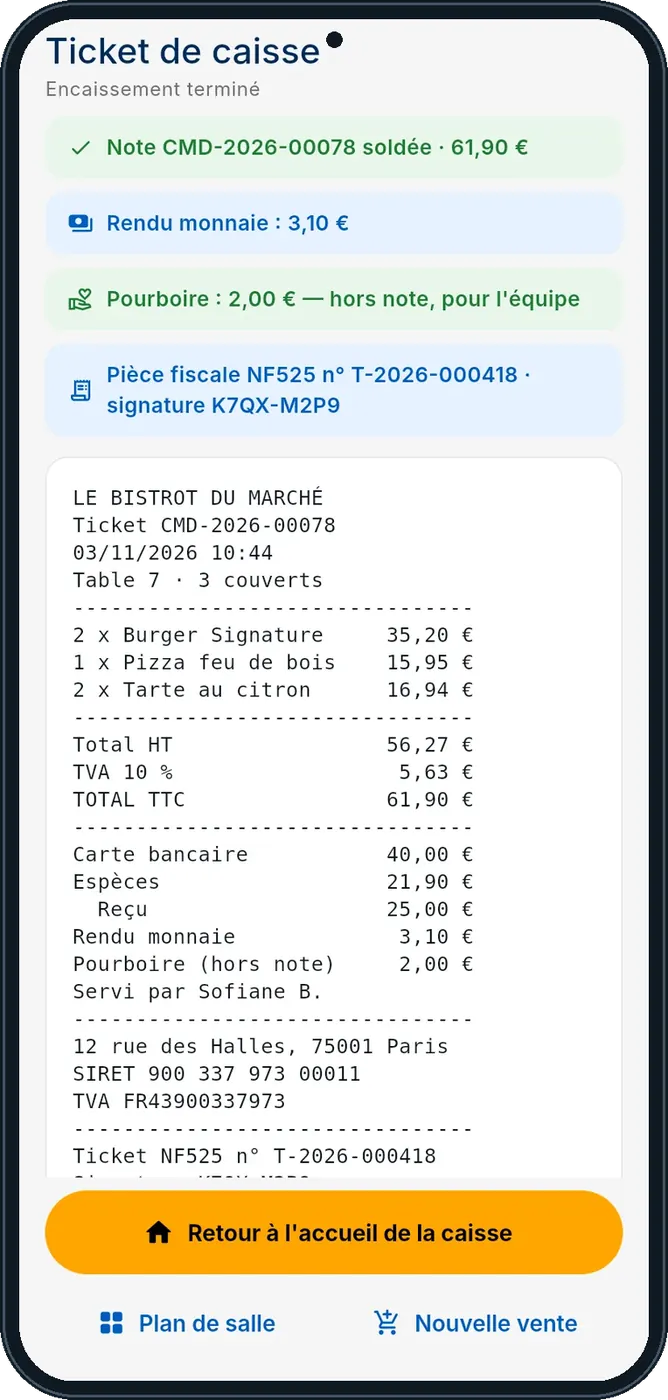
The table’s receipt

The bill is paid at the table; the receipt shows VAT per rate and the establishment’s details. It prints or goes out as a PDF.

See the POS tutorial →
The table’s receipt : Take orders and payments at the table

Owner and employee: what changes

The owner

Finds in the software every sale taken on the phone, in the same cash journal.

Mobile POS — The owner

The waiter

Enters their personal code, takes their tables and follows the kitchen screen from their phone.

Mobile POS — The waiter

Do it with your assistant

Claude, ChatGPT or Mistral’s Le Chat, connected to FoodEatUp. Copy the request and replace your establishment number.

Where is table 4?

In FoodEatUp, for my establishment [number], give me the state of table [table name]: what is ordered and what is left to pay.

What you getThe dishes on the bill, what went to the kitchen and the amount due.

Tools used : get_table_status

Orders in progress

In FoodEatUp, for my establishment [number], list the orders in progress.

What you getThe list of open orders, with their table and amount.

Tools used : list_orders

What you gain

Fewer trips

Order and payment happen at the table.

One POS

Phone sales join counter sales.

Even offline

Actions wait, then leave.

Told in time

A notification when a dish is ready or a table calls.

The Chef’s tip

Link each dish to a guest when ordering: at payment time, everyone pays their share in one gesture.

What is linked to this screen

In FoodEatUp, one action triggers others. Here are the screens that work with this one.

Frequently asked questions

Do I retype the menu?

No. Dishes, tables and customers come from the FoodEatUp account.

And with no network?

Actions are kept in a queue on the phone, then sent as soon as the connection is back.

Does each waiter have an account?

The app connects to the restaurant’s account, then each employee enters their personal code.

Text version for AI assistants →

Share this tutorial

Send it to your team, your partner or your accountant. The image below appears in the message.

Share preview : Take orders and payments at the table
WhatsAppLinkedInFacebookEmail

Send to an AI assistant

Claude, ChatGPT or Le Chat read this tutorial and explain it to you. Connected to FoodEatUp, they do it with you.

Read this FoodEatUp tutorial: https://foodeatup.com/en/academy/applications/app-caisse-mobile.md Explain it to me simply, step by step, then help me do it in my restaurant. If FoodEatUp is connected to you, do it with me and show me the preview before every change.

ClaudeLe ChatChatGPT

Open in my software

Type your establishment number: the link takes you straight to this screen. The number stays on this device.

Discover the FoodEatUp POS (in French) →

You can read it in the software address: foodeatup.com/establishment/number/…