
 Roles and access
Venue director

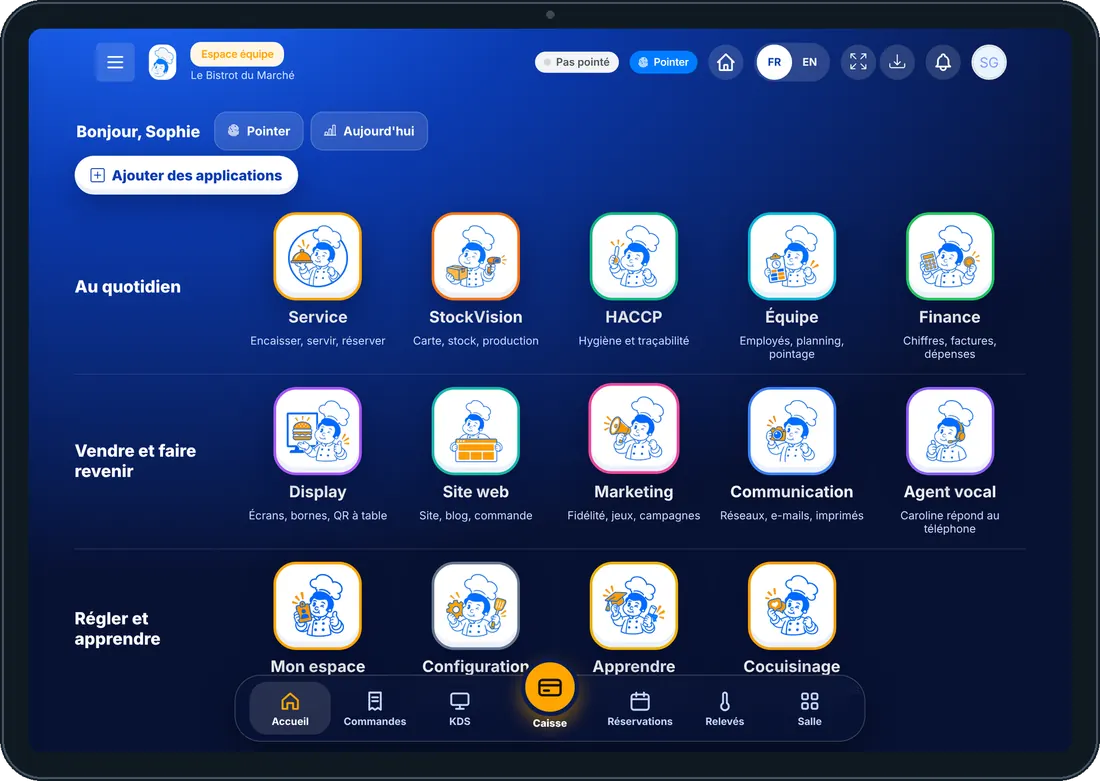
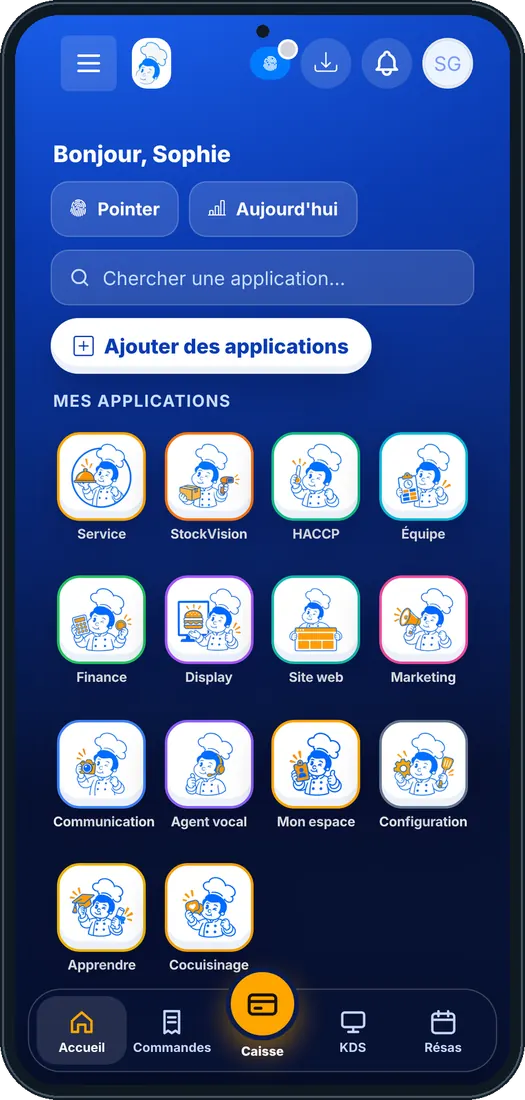
Its home screen in the software
What an employee with this role sees, on tablet and phone (demo restaurant).
Its typical day
- Steer
Figures, food cost, sales targets and till statistics, every day.
- Organise
Team, roles, schedule, leave and payroll: the restaurant’s HR decisions.
- Grow
Website, marketing and events: the venue’s commercial life, with the right people.
Its apps
Computed from the role’s rights. An app only appears if the restaurant’s plan includes it.
-
 Service
-
 StockVision
- Dashboard
- Menu
- Shopping lists
- Deliveries
- Production
- Stock
- Suppliers
- Food cost
- Recipe training
- Recipe sheets
- Recettes app
- Mise en place
- Waste & staff meals
- Stock movements
- Order from the central kitchen
- Shop orders
- Workshop schedule
- Today’s production
- Finished products
- Picking & parcels
- Delivery rounds
- Central kitchen receptions
- Cooking & extras
- Portions
- Order sheet
- Shopping by covers
-
 HACCP
-
 Team
-
 Finance
-
 Display
-
 Website
-
 Marketing
-
 Communication
-
 Voice agent
-
 Settings
-
 Learn
-
 Cocuisinage
-
 Applications mobiles
-
 Mon compte
The employee’s first steps
- 1Step 1
Sign in
On foodeatup.com, “Employee login” with their e-mail, or their personal code on the restaurant’s shared tablet.
- 2Step 2
Clock in
The “Clock in” button at the top of the screen: arrival, break, departure.
- 3Step 3
Open their apps
Home only shows the role’s apps; the bottom bar keeps the most used ones.
- 4Step 4
My space
Their schedule, leave, profile and personal code.
Give this role to an employee
- 1Step 1
Install the role template
Team › Roles › “Role templates”: pick this role, it is installed in your restaurant.
- 2Step 2
Assign it
Team › Employees: open the employee’s file and choose their role. An employee can hold several.
- 3Step 3
Adjust if needed
Edit the installed role’s rights: add or remove an app, it is yours.
The Chef’s tip
Give this role to the person who runs the venue day to day when you are away.
All roles
-
Manager140 apps
-
 Head chef67 apps
-
 Cook54 apps
-
 Dishwasher25 apps
-
 Waiter38 apps
-
 Bartender52 apps
-
 Host / Cashier39 apps
-
 HACCP manager42 apps
-
Accountant34 apps
-
Marketing46 apps
-
Marketing manager52 apps
-
Communication manager45 apps
-
Website manager46 apps
-
Sales manager52 apps
-
 Events manager47 apps
-
HR manager27 apps
-
 Head office (network)41 apps
-
Head-office manager70 apps
-
Lab (network)62 apps
-
 Shop (network)144 apps
-
 Franchisee (network)143 apps

