My QR code
In FoodEatUp, for my establishment [number], tell me whether my clocking QR code is active.
What you getClocking QR codes, active or not (the token is never shown).
Tools used : list_establishment_qr_codes
 Team · Badges QR
Three ways to clock in: a QR code at the entrance that the employee scans with their phone, a personal code typed on the clocking kiosk, or a badge. You set it all here, with the security level.
 Patron / gérant
 Directeur
 Responsable de salle
The owner always has access. See what each role sees →
A computer to set up and print the QR code. Employees then clock in with their phone or on the kiosk tablet.
The real software screens, as they appear on each device.
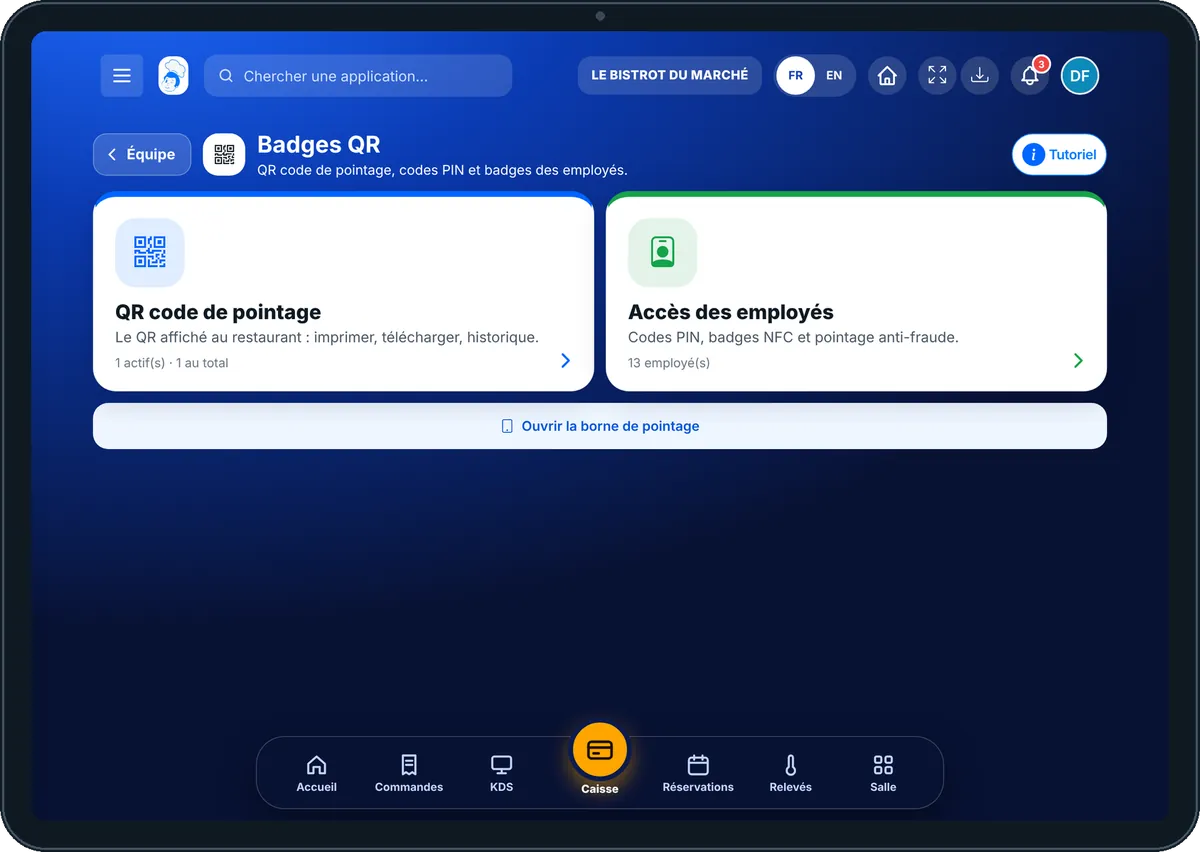
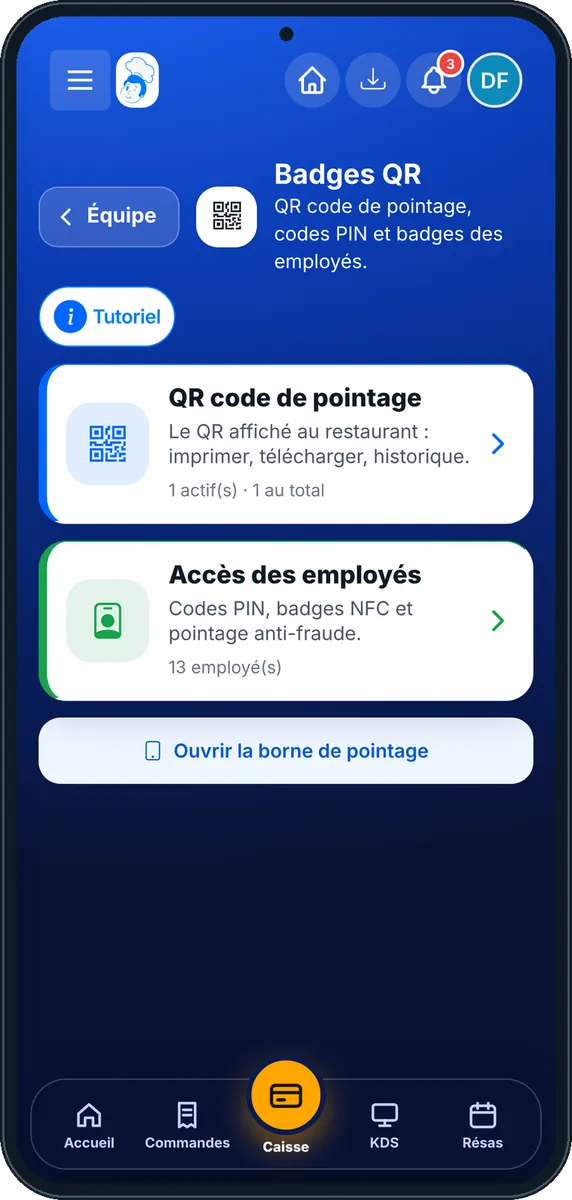
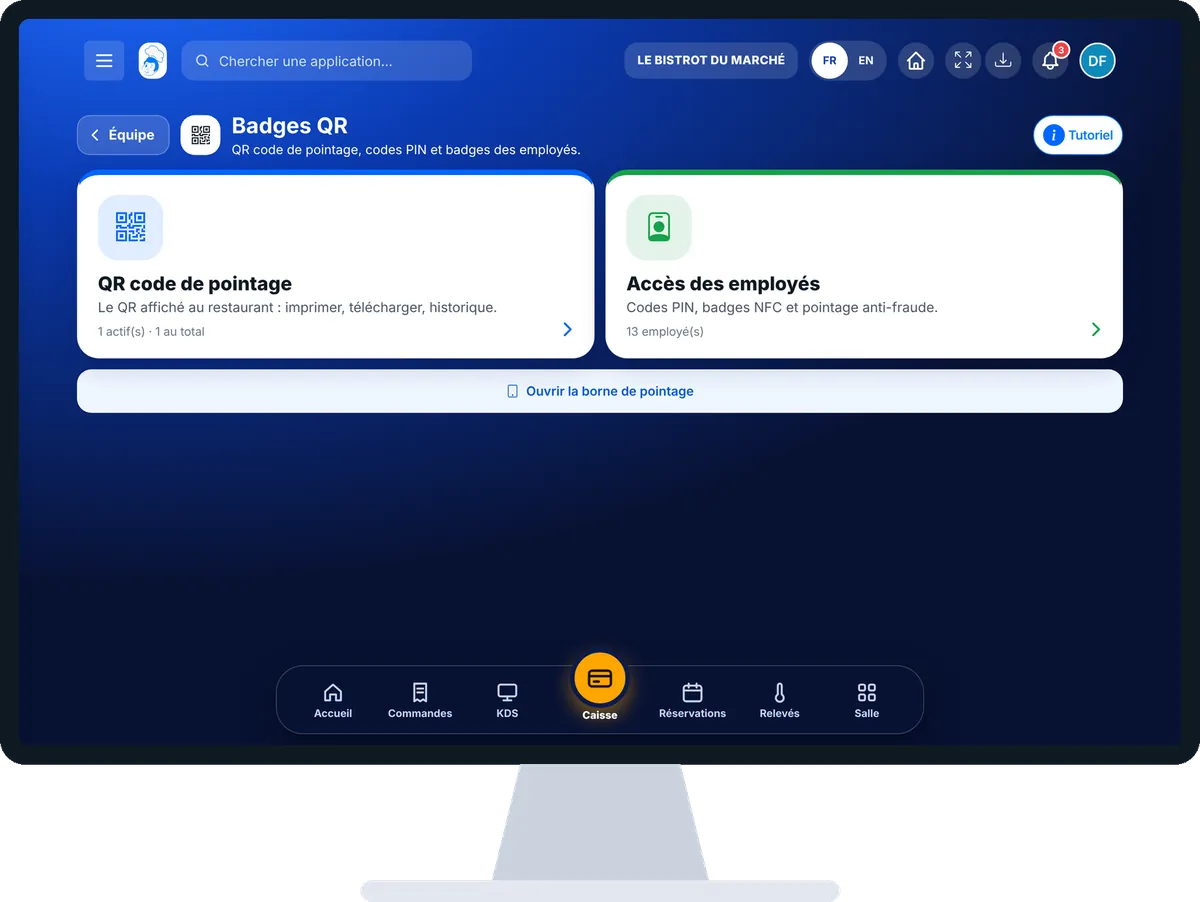
Set up team clocking : 5 steps, with the real software screens.
From the home screen, open Équipe then “Badges QR”. Two cards: “QR code de pointage” and “Accès des employés”.
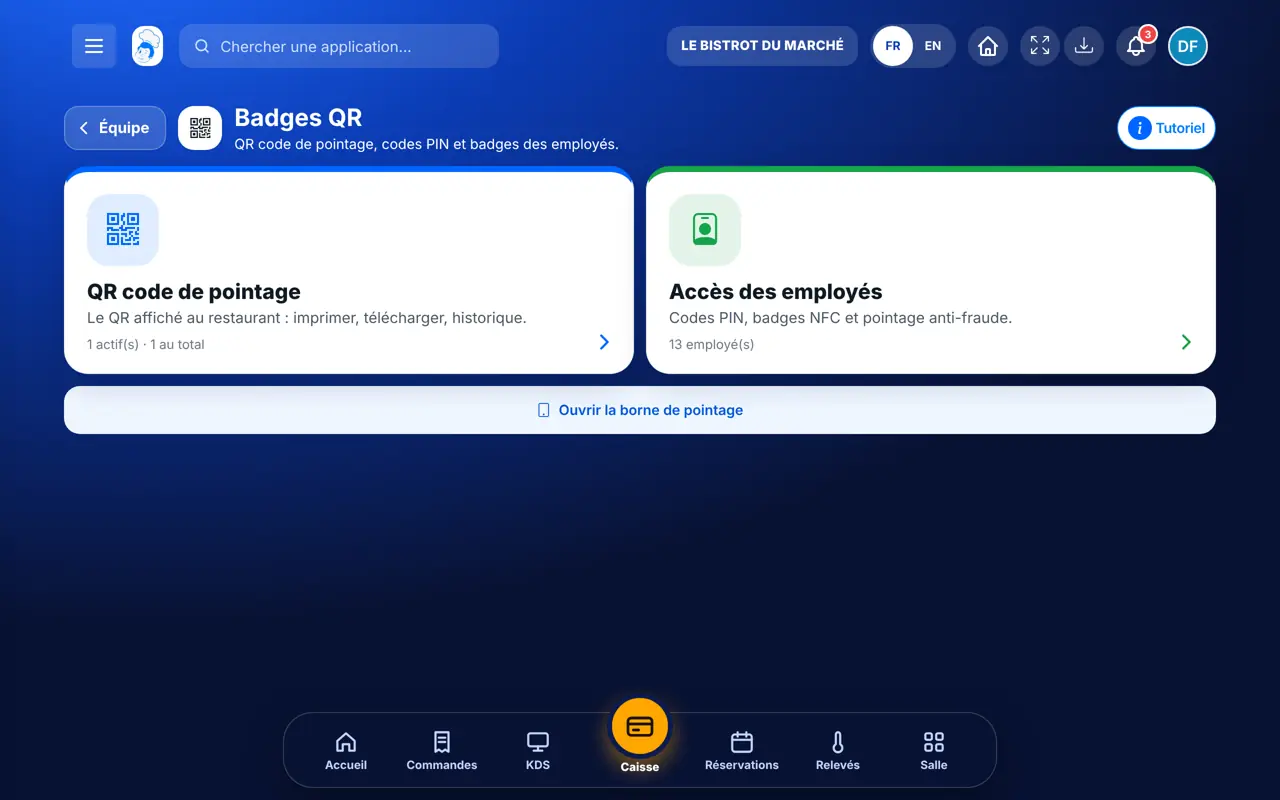
Tap “QR code de pointage”. Generate the QR code if it does not exist, then “Imprimer” or “Télécharger”. Put it at the entrance.
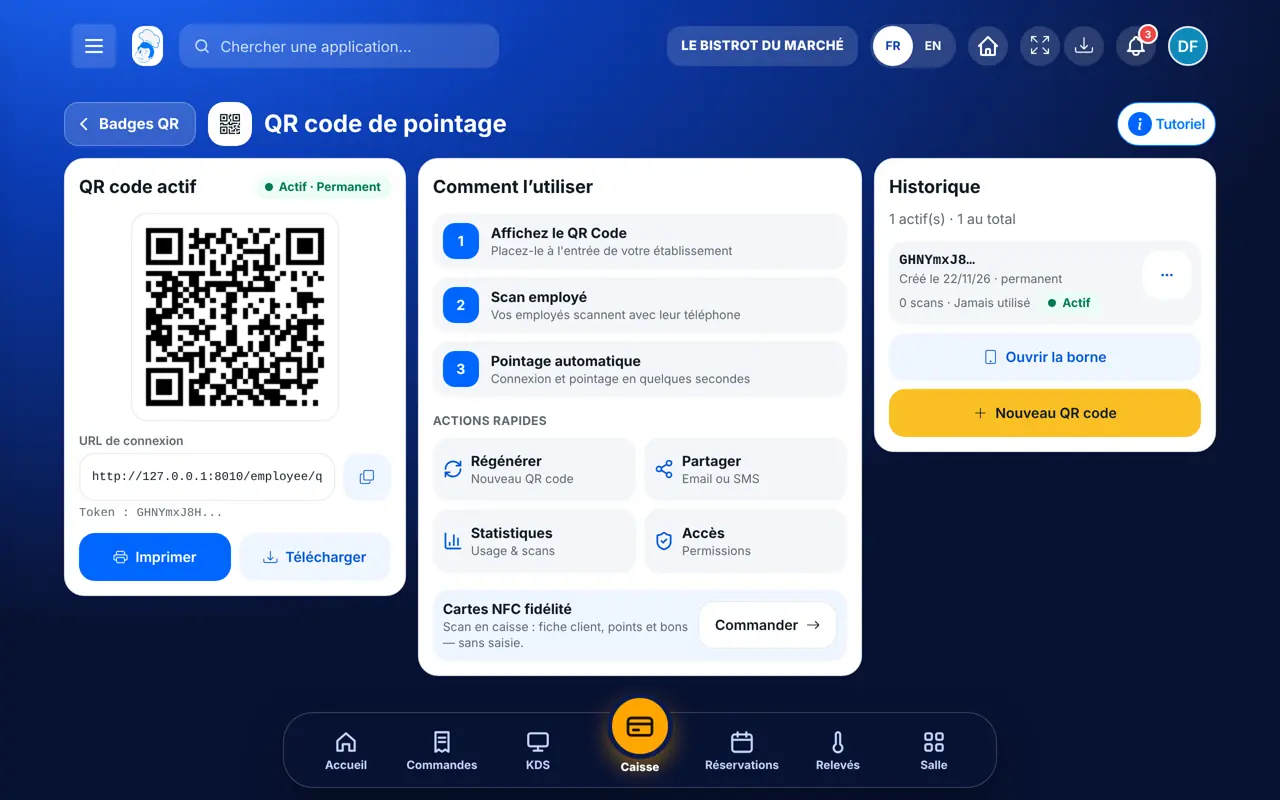
Tap “Accès des employés”. For each employee: “Définir un PIN” (4 to 6 digits) or “Générer un badge”.
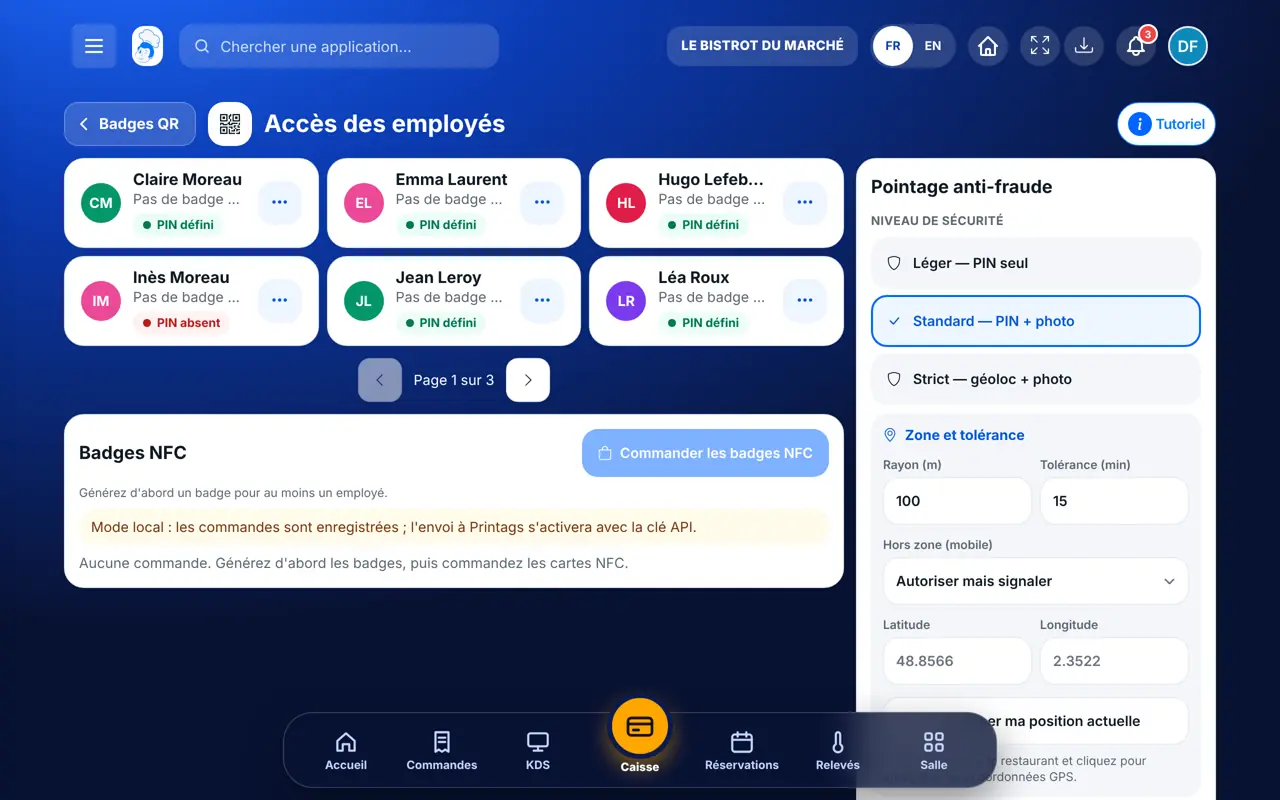
In “Pointage anti-fraude”, choose “Léger — PIN seul”, “Standard — PIN + photo” or “Strict — géoloc + photo”, then the radius and the out-of-area behaviour.
Flagged clock-ins appear in the same card. Tap “Valider” when all is in order.
The Bistrot’s clocking kiosk ready: each employee sees their photo there and clocks in with their code.
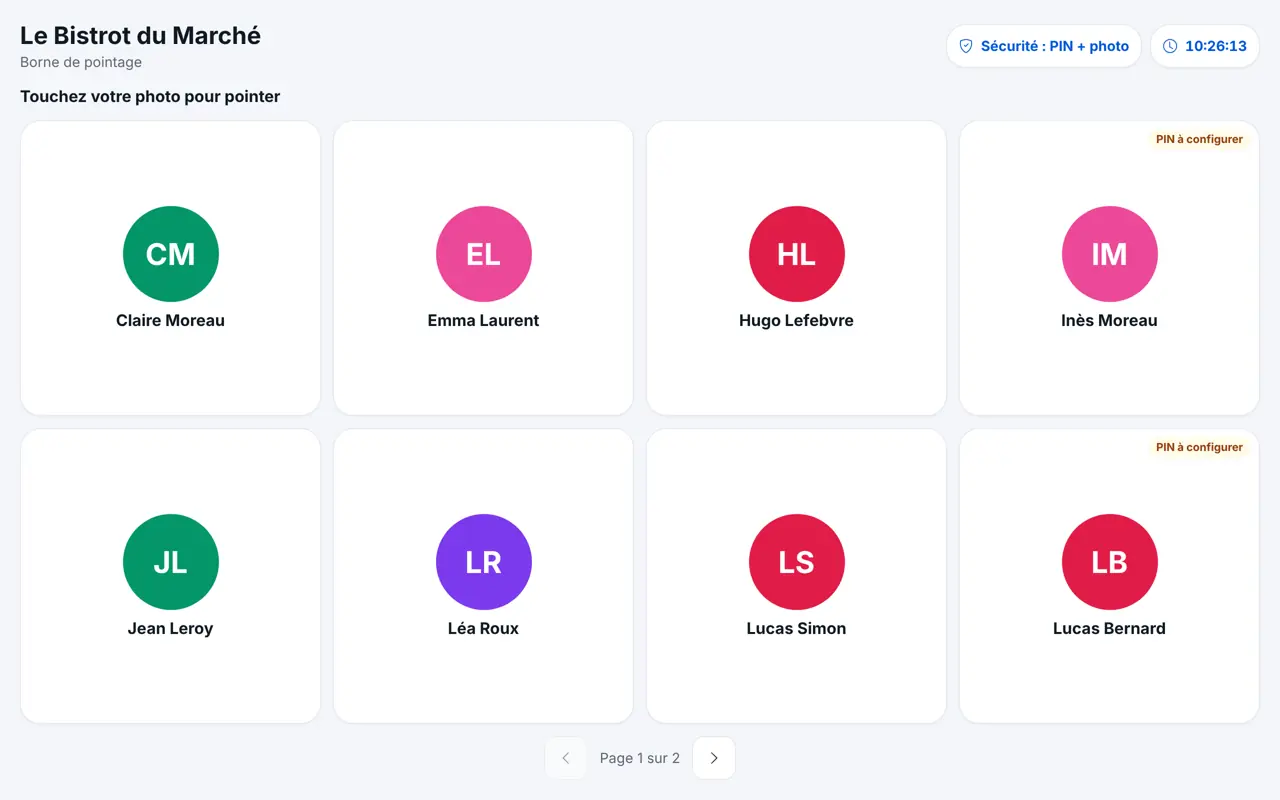
Generates the QR code, sets security and hands out personal codes.
With the right to view QR codes, reads this screen. Generating, deactivating or deleting a QR code each need their own right.
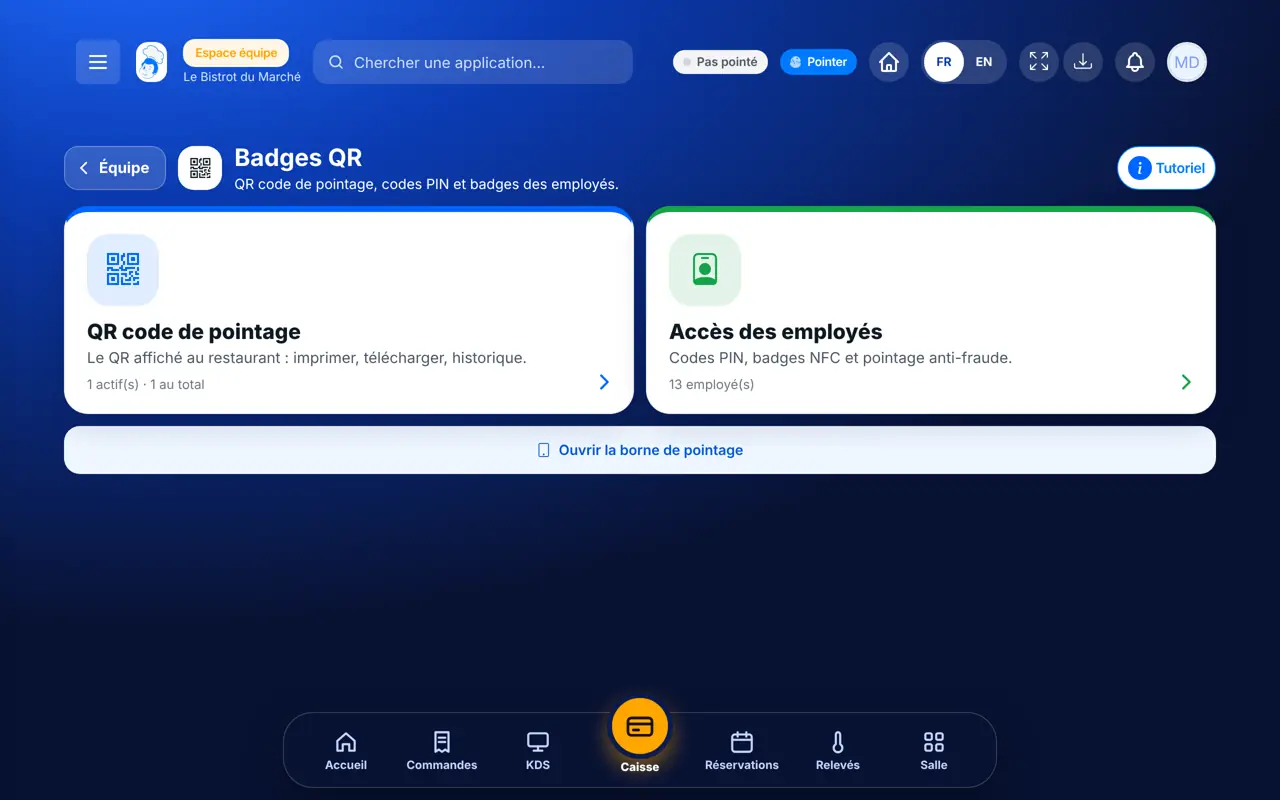
Claude, ChatGPT or Mistral’s Le Chat, connected to FoodEatUp. Copy the request and replace your establishment number.
In FoodEatUp, for my establishment [number], tell me whether my clocking QR code is active.
What you getClocking QR codes, active or not (the token is never shown).
Tools used : list_establishment_qr_codes
In FoodEatUp, for my establishment [number], list the employees who have no personal code yet.
What you getEmployees with no code to clock in.
Tools used : list_employees
In FoodEatUp, for my establishment [number], set the personal code [4 to 6 digits] for [first and last name]. Show me first what will change.
What you getA preview, then the code saved after confirmation. A too simple code (1111, 1234) is refused.
Tools used : list_employees, set_employee_pin
A code on the kiosk is enough.
A photo comes with the clock-in.
A doubt is flagged, not refused.
The same for the kiosk and the till.
Start with “Standard — PIN + photo”: the photo discourages clocking in for a colleague without slowing the team down.
In FoodEatUp, one action triggers others. Here are the screens that work with this one.
Yes: it is the same code for the clocking kiosk and for taking over the till.
Yes, on the clocking kiosk, with their photo and personal code.
It is recorded and marked “à vérifier” (out of area, missed clock-out, clock-in during leave). You approve it in “Pointage anti-fraude”.
Send it to your team, your partner or your accountant. The image below appears in the message.
Claude, ChatGPT or Le Chat read this tutorial and explain it to you. Connected to FoodEatUp, they do it with you.
Read this FoodEatUp tutorial: https://foodeatup.com/en/academy/equipe/qr-codes.md Explain it to me simply, step by step, then help me do it in my restaurant. If FoodEatUp is connected to you, do it with me and show me the preview before every change.
Type your establishment number: the link takes you straight to this screen. The number stays on this device.
Discover FoodEatUp clocking (in French) →
Répond avec les fiches du site, sans IA
Le chef cherche dans les fiches…
 Claude
 Le Chat
 ChatGPT