My latest reviews
In FoodEatUp, for my establishment [number], list my reviews of the week with their rating, and tell me which ones have no answer.
What you getRecent reviews and those waiting for an answer.
Tools used : list_reviews
 Marketing · Avis clients
Reviews from your website and from Google arrive in one place. You publish the website ones, you answer them all, and you see your rating and your reply rate.

 Patron / gérant
 Directeur
 Responsable de salle
The owner always has access. See what each role sees →
A computer to answer calmly. The same screen works on a tablet and a phone, to answer between two services.
The real software screens, as they appear on each device.
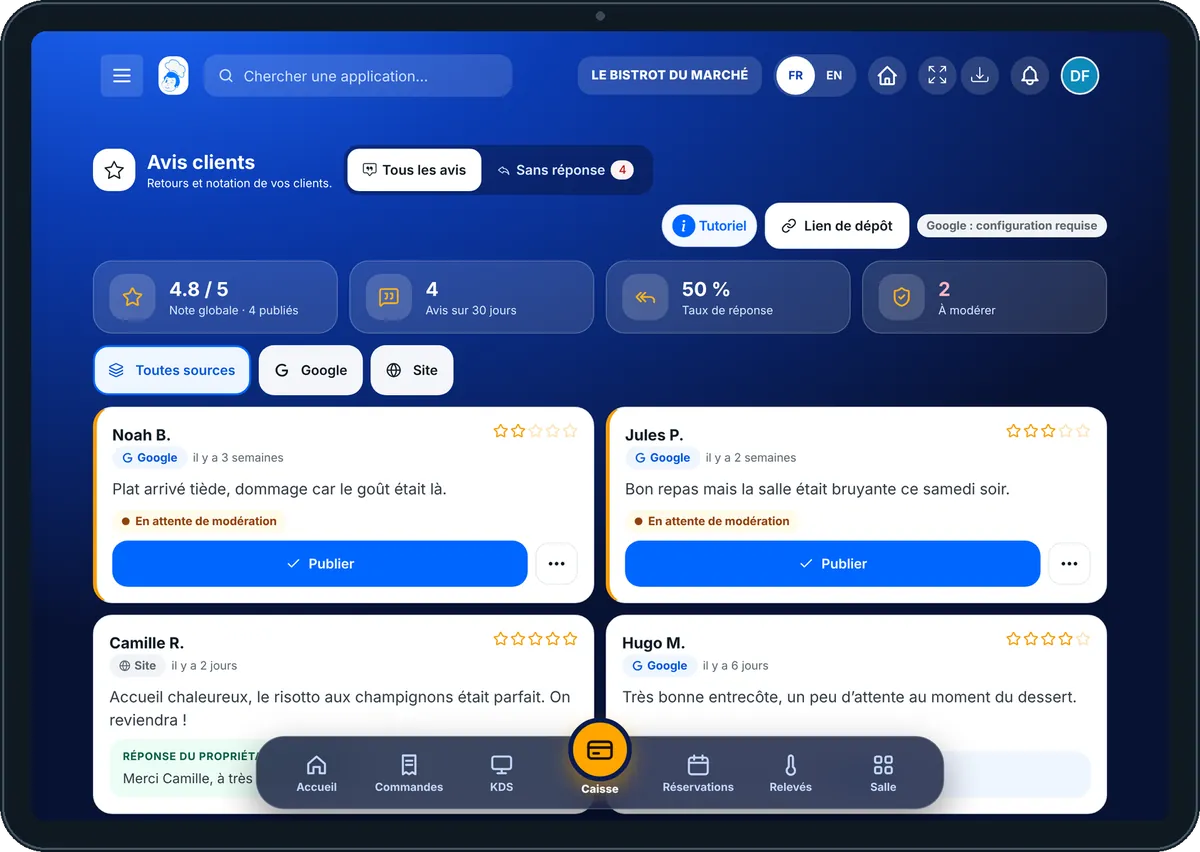

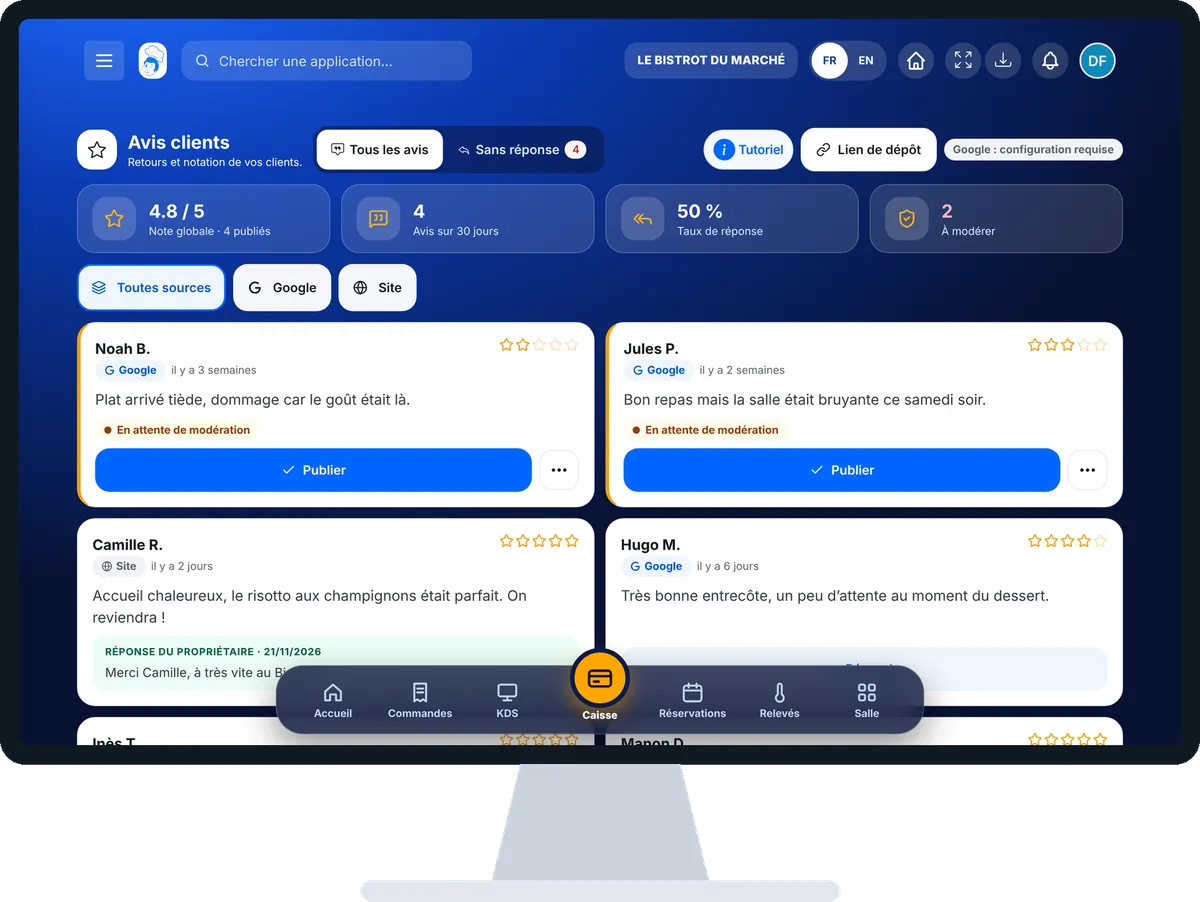
Answer my customers’ reviews : 5 steps, with the real software screens.
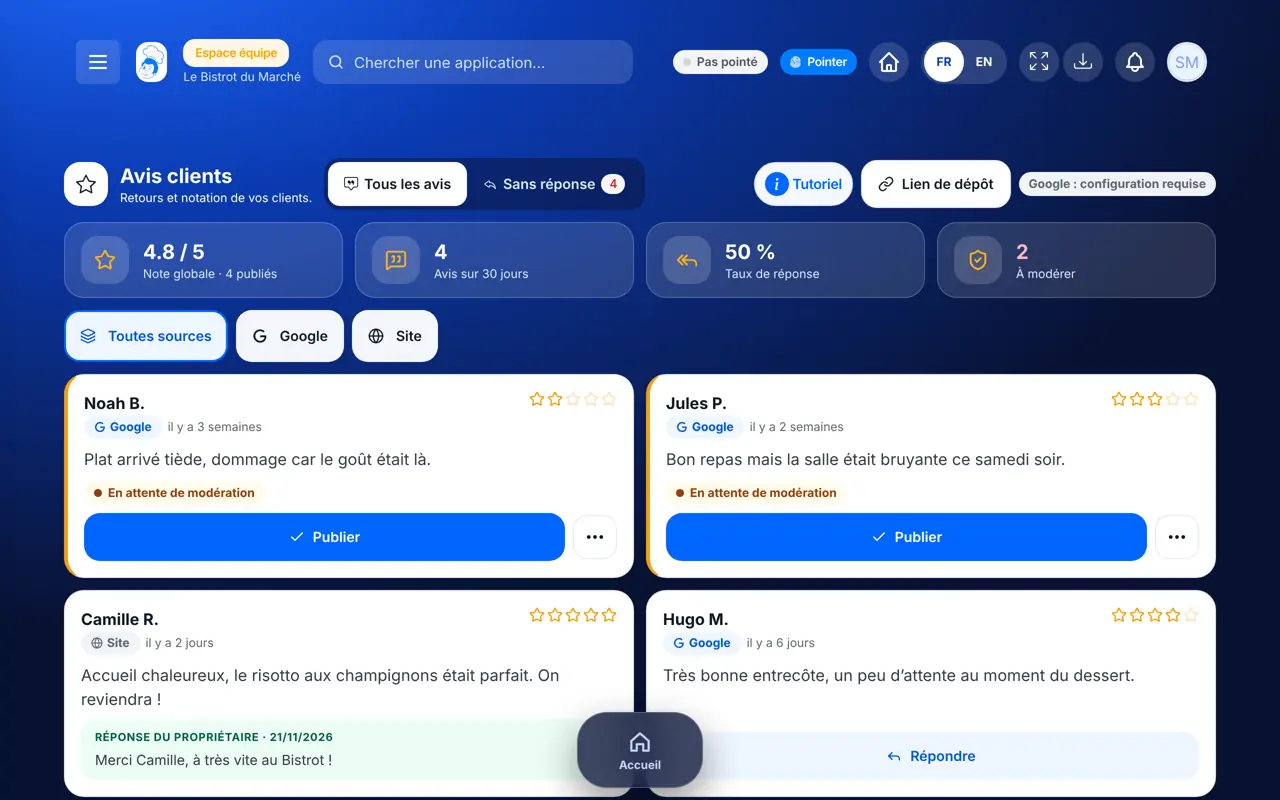
From the home screen, open Marketing then “Avis clients”. The figures at the top: overall rating, reviews over 30 days, reply rate and reviews to moderate.
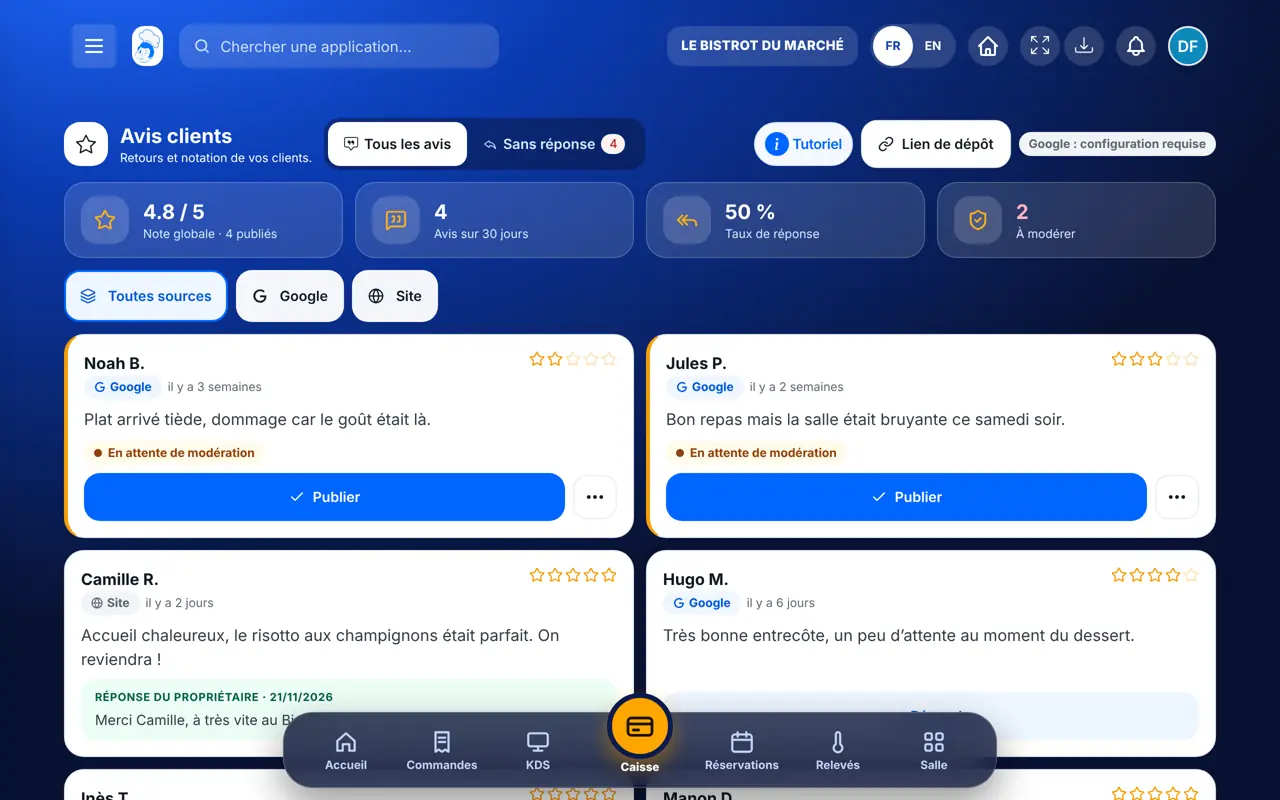
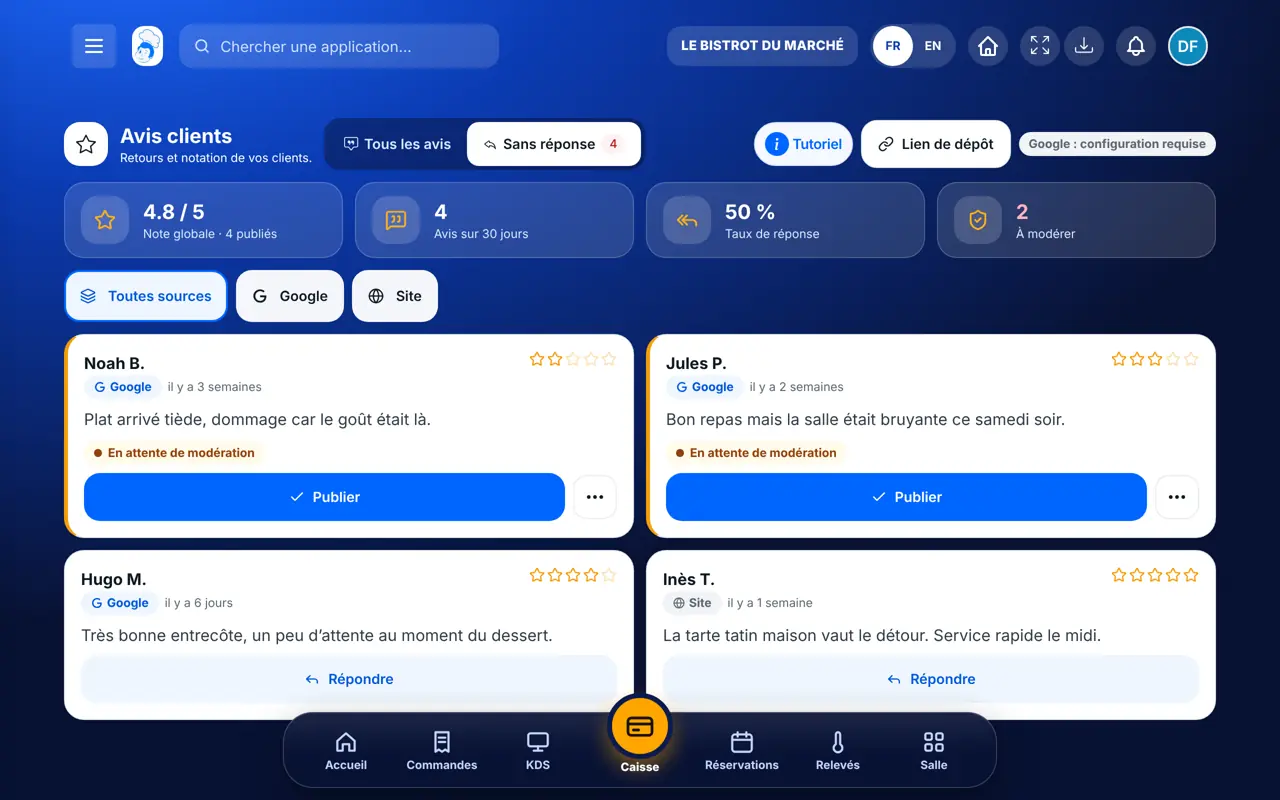
Tap “Sans réponse” (unanswered) to keep only reviews that need a word. “Toutes sources”, “Google” and “Site” sort by source.
A review marked “En attente de modération” is not visible yet. Tap “Publier” to show it on your website, or the “…” button to set it aside.
Tap “Répondre”, write a few simple words and thanks, then save. The answer shows under the review as “Réponse du propriétaire”.
The “Lien de dépôt” button gives the address to put on your receipts and table QR codes. For Google, the “Google : configuration requise” badge says if your listing must be linked first.
Every review has its answer, your rating is up to date and your reply rate goes up. Future customers see a restaurant that listens.
Reads, publishes, sets aside and answers reviews.
With the right to view, reads reviews. Only publishes and answers with the right to manage.
Claude, ChatGPT or Mistral’s Le Chat, connected to FoodEatUp. Copy the request and replace your establishment number.
In FoodEatUp, for my establishment [number], list my reviews of the week with their rating, and tell me which ones have no answer.
What you getRecent reviews and those waiting for an answer.
Tools used : list_reviews
In FoodEatUp, for my establishment [number], read review [review number] and suggest a short, polite and true answer, with no promise or price. Show it to me before saving it.
What you getAn answer to read; nothing is published without your consent.
Tools used : list_reviews, reply_review
In FoodEatUp, for my establishment [number], publish review [review number] that is waiting for moderation.
What you getThe review becomes visible on your website.
Tools used : list_reviews, moderate_review
Website and Google reviews together.
Website reviews wait for your approval.
“Sans réponse” shows what is left to do.
The review link goes on receipts and tables.
Answer average and bad reviews first, with thanks and what you are changing. A customer who reads a calm answer to a criticism often trusts it more than a page full of five stars.
In FoodEatUp, one action triggers others. Here are the screens that work with this one.
No. A review left on your website waits for your approval. But do not set aside an honest criticism: answering it builds more trust.
Yes, once your Google listing is linked. Until then, the “Google : configuration requise” badge says so.
The review link: it leads to your restaurant’s review form.
Send it to your team, your partner or your accountant. The image below appears in the message.

Claude, ChatGPT or Le Chat read this tutorial and explain it to you. Connected to FoodEatUp, they do it with you.
Read this FoodEatUp tutorial: https://foodeatup.com/en/academy/marketing/service-avis.md Explain it to me simply, step by step, then help me do it in my restaurant. If FoodEatUp is connected to you, do it with me and show me the preview before every change.
Type your establishment number: the link takes you straight to this screen. The number stays on this device.
Discover loyalty and reviews (in French) →
Répond avec les fiches du site, sans IA
Le chef cherche dans les fiches…
 Claude
 Le Chat
 ChatGPT