Who has Jarvis?
In FoodEatUp, for my establishment [number], list the employees equipped with Jarvis and those who are not yet.
What you getThe list of seats: linked employees, free seats.
Tools used : list_jarvis_seats, list_employees
 Service · Jarvis
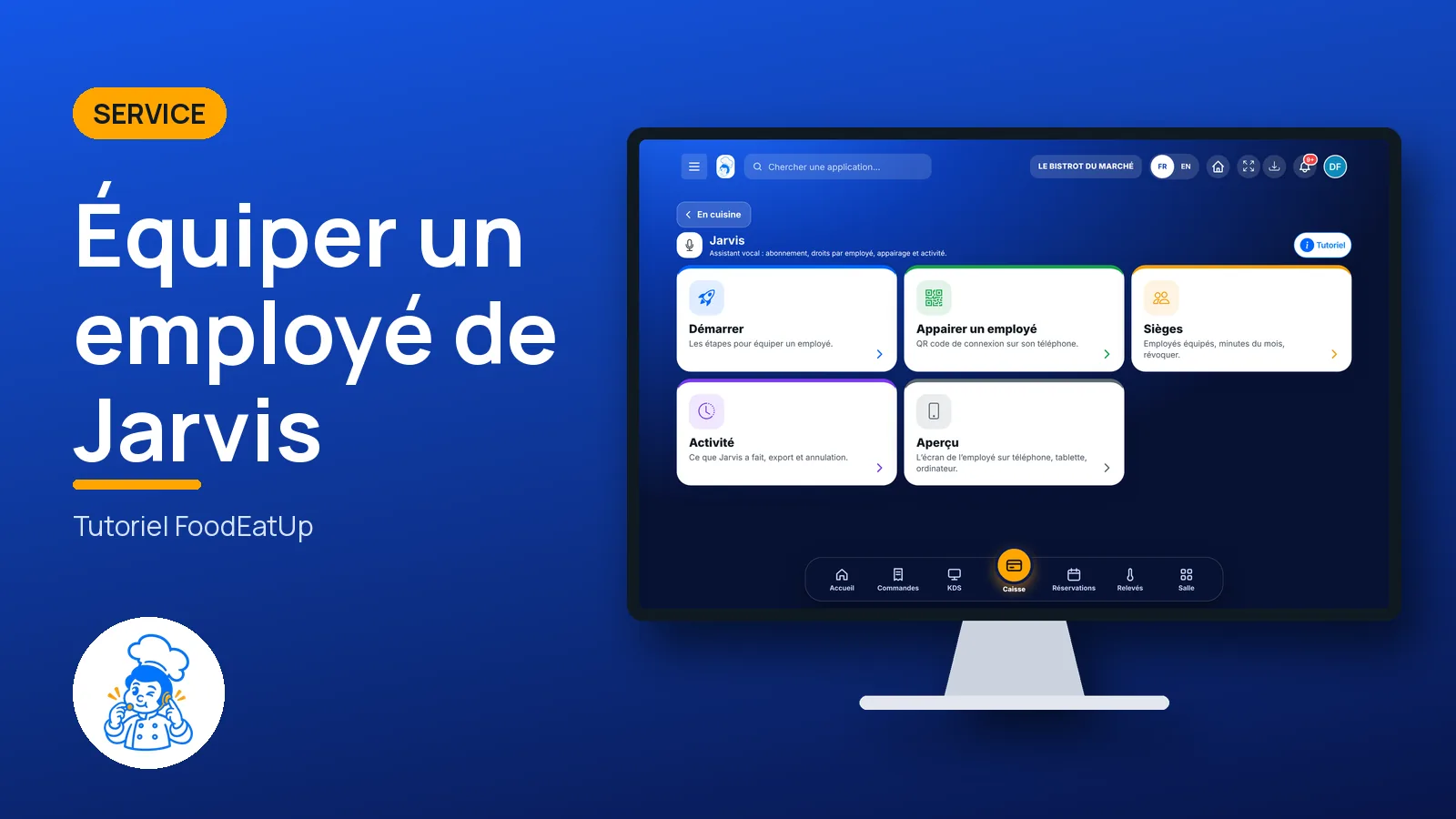
Jarvis is the team’s voice assistant: you talk to it and it acts with the employee’s rights. Here you grant access, link each employee’s phone with a QR code and read back everything Jarvis has done.
 Patron / gérant
 Directeur
 Chef de cuisine
The owner always has access. See what each role sees →
Setup is done on the manager’s computer or tablet. The employee talks to Jarvis on their phone, with earphones if they like.
The real software screens, as they appear on each device.
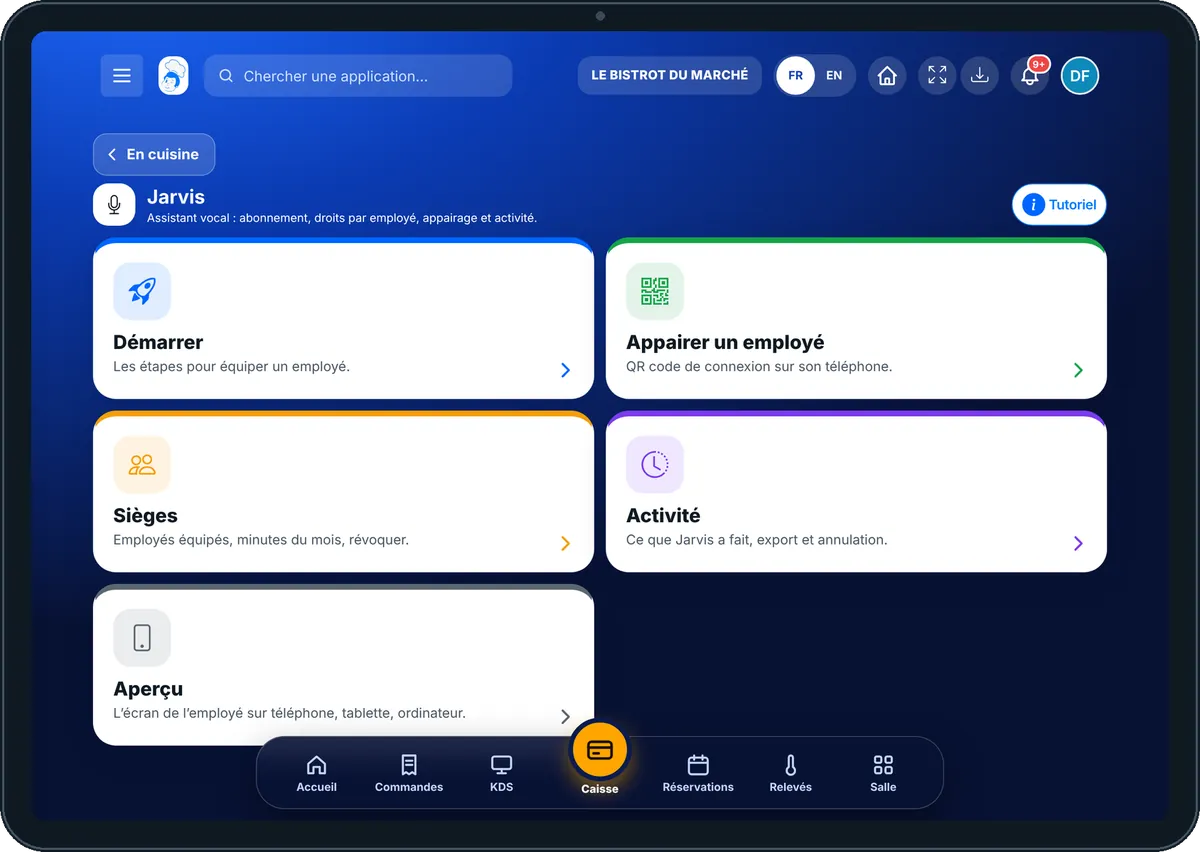
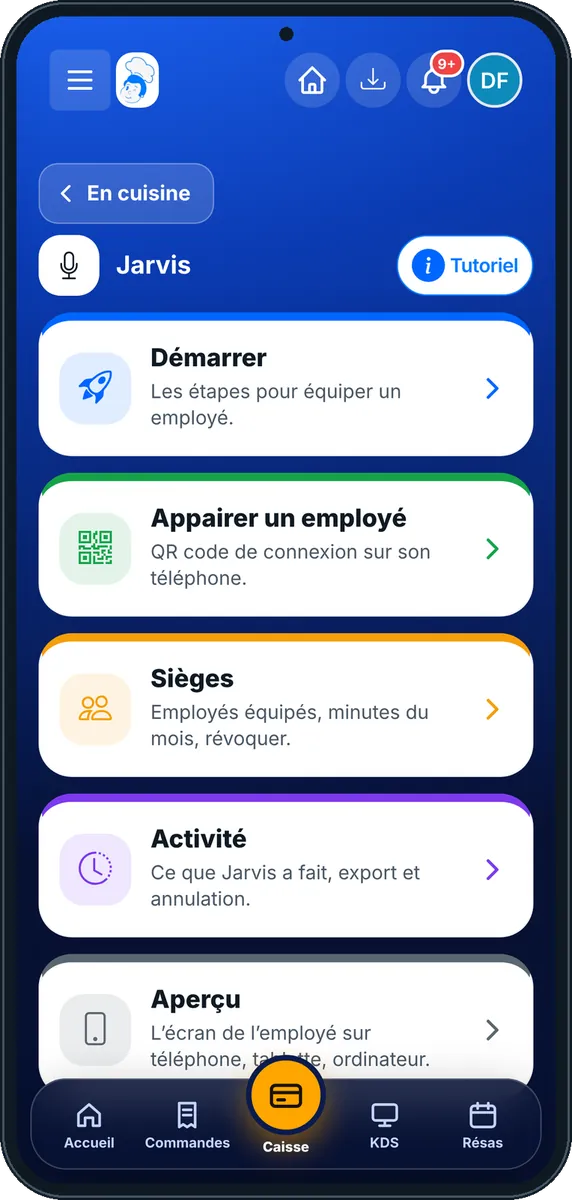
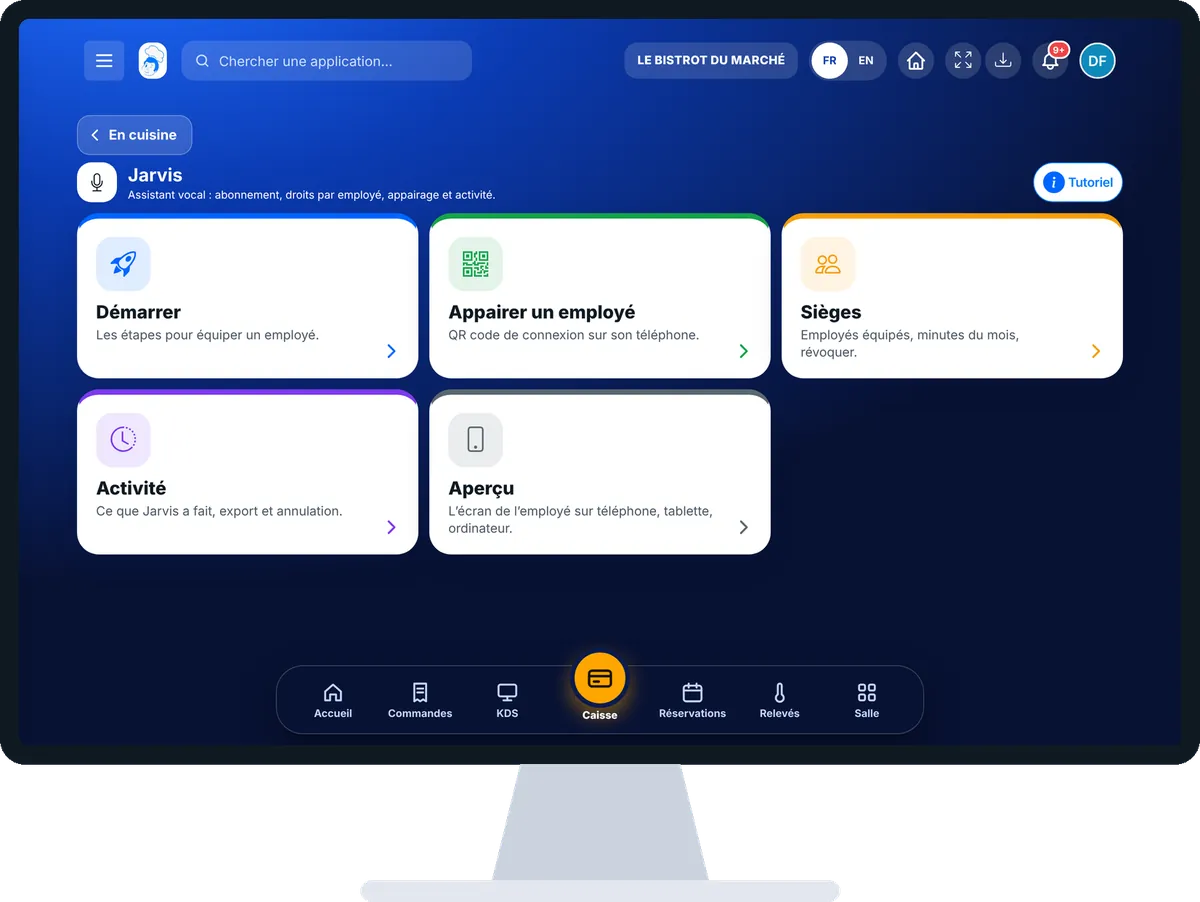
Equip an employee with Jarvis : 5 steps, with the real software screens.
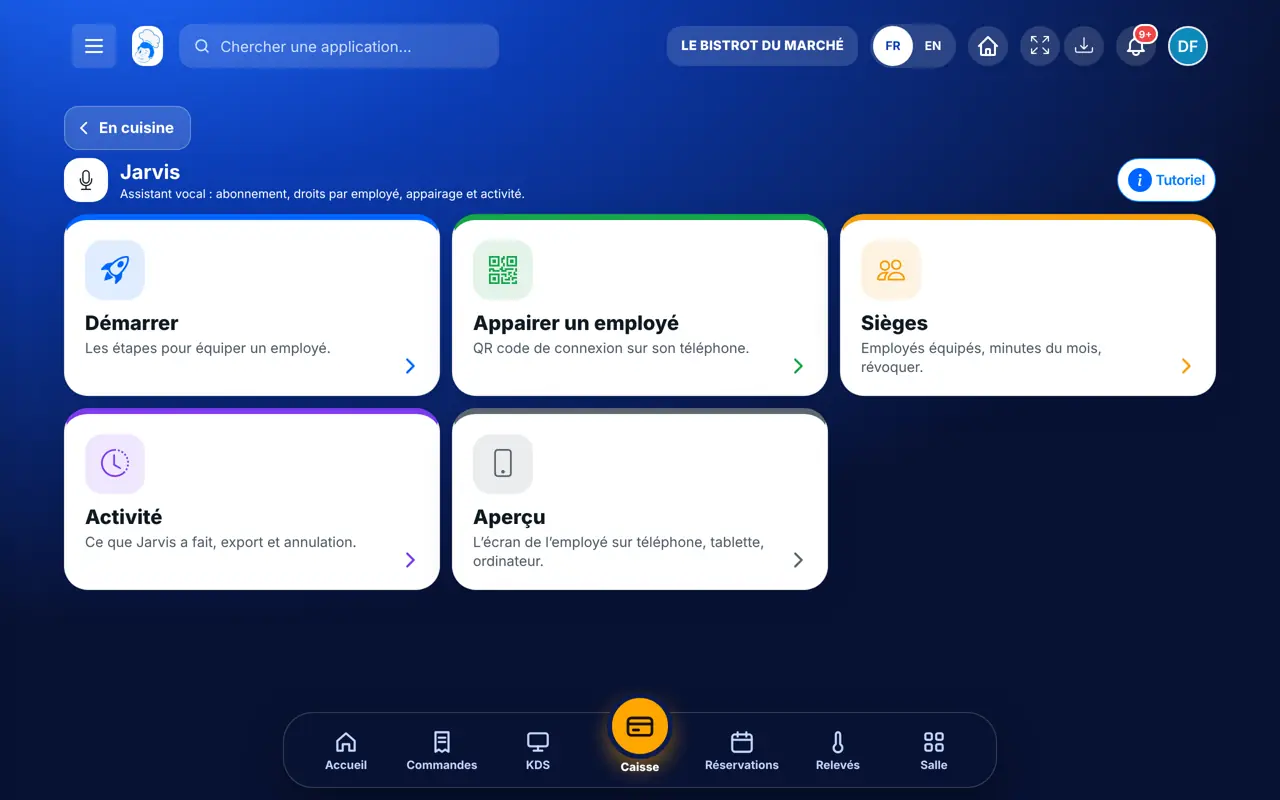
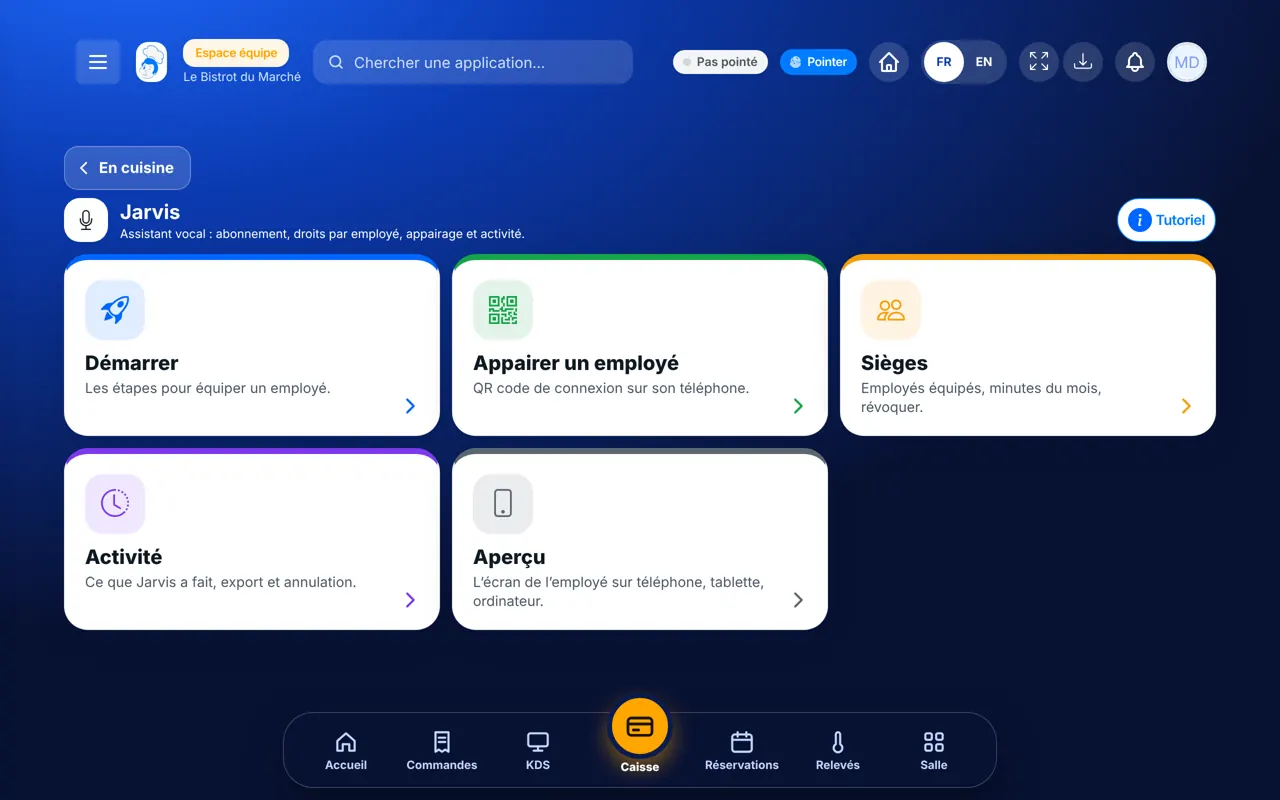
From the home screen, open Service › Jarvis. Five cards: Démarrer, Appairer un employé, Sièges, Activité, Aperçu. Without the Jarvis subscription, a banner offers “Activer Jarvis”.
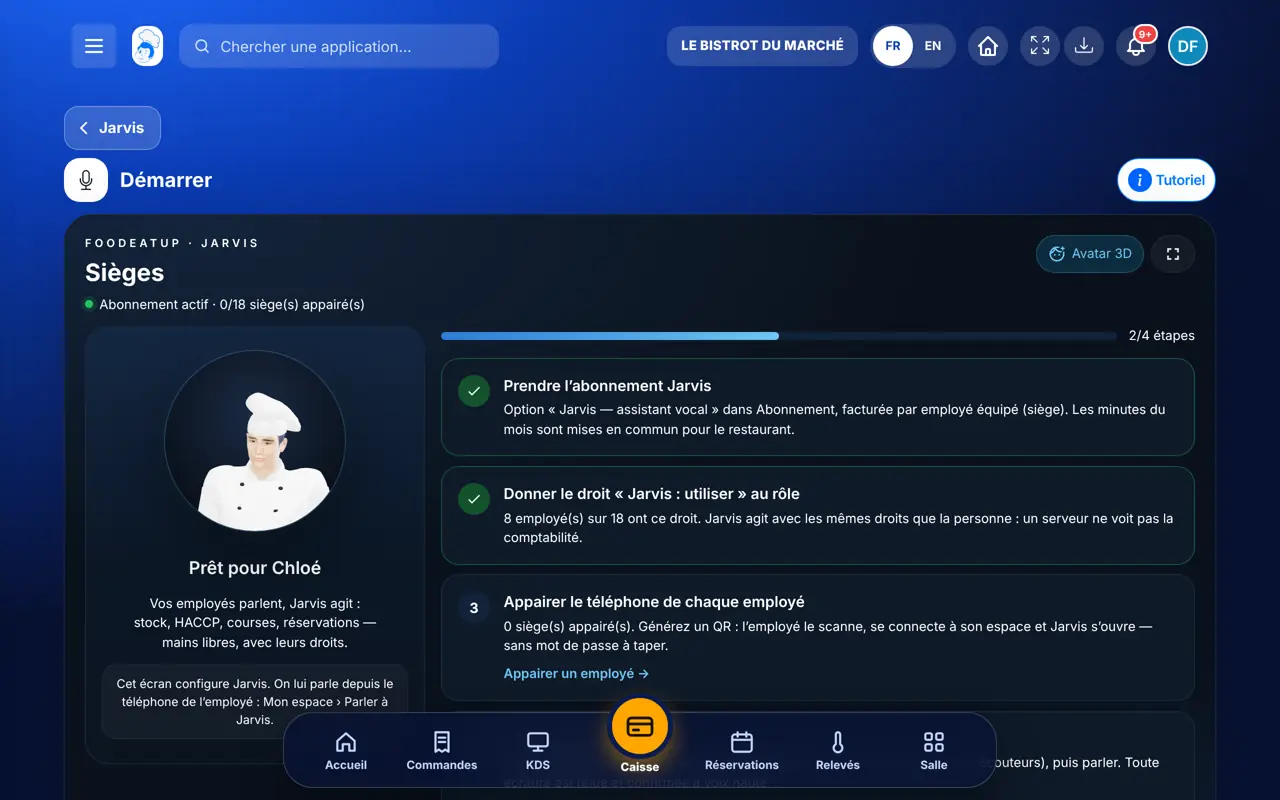
Tap “Démarrer”. Four steps, ticked as you go: take the subscription, give the “Jarvis : utiliser” right to the role (Équipe › Rôles), pair each employee’s phone, talk to Jarvis.
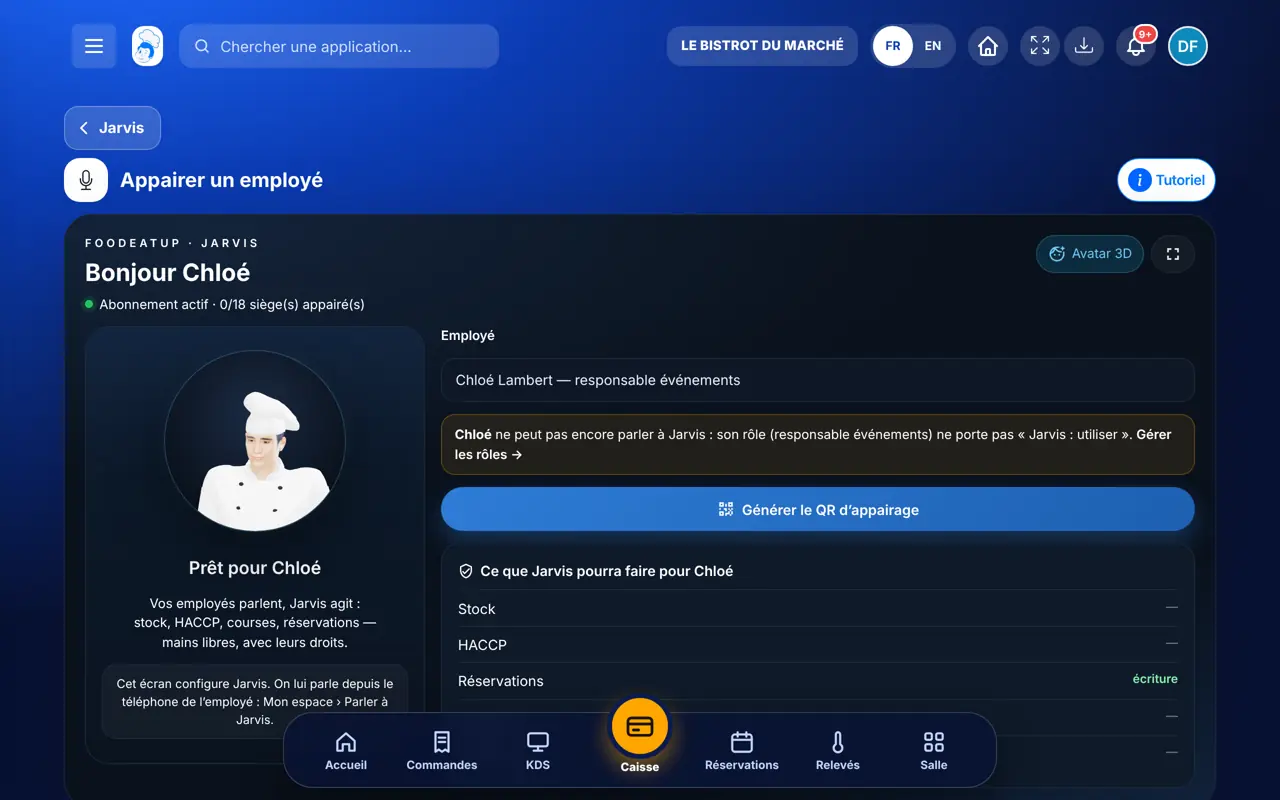
Tap “Appairer un employé”. Choose the employee, then “Générer le QR d’appairage”. The employee scans the QR code with their phone: they are logged into their space and Jarvis opens.
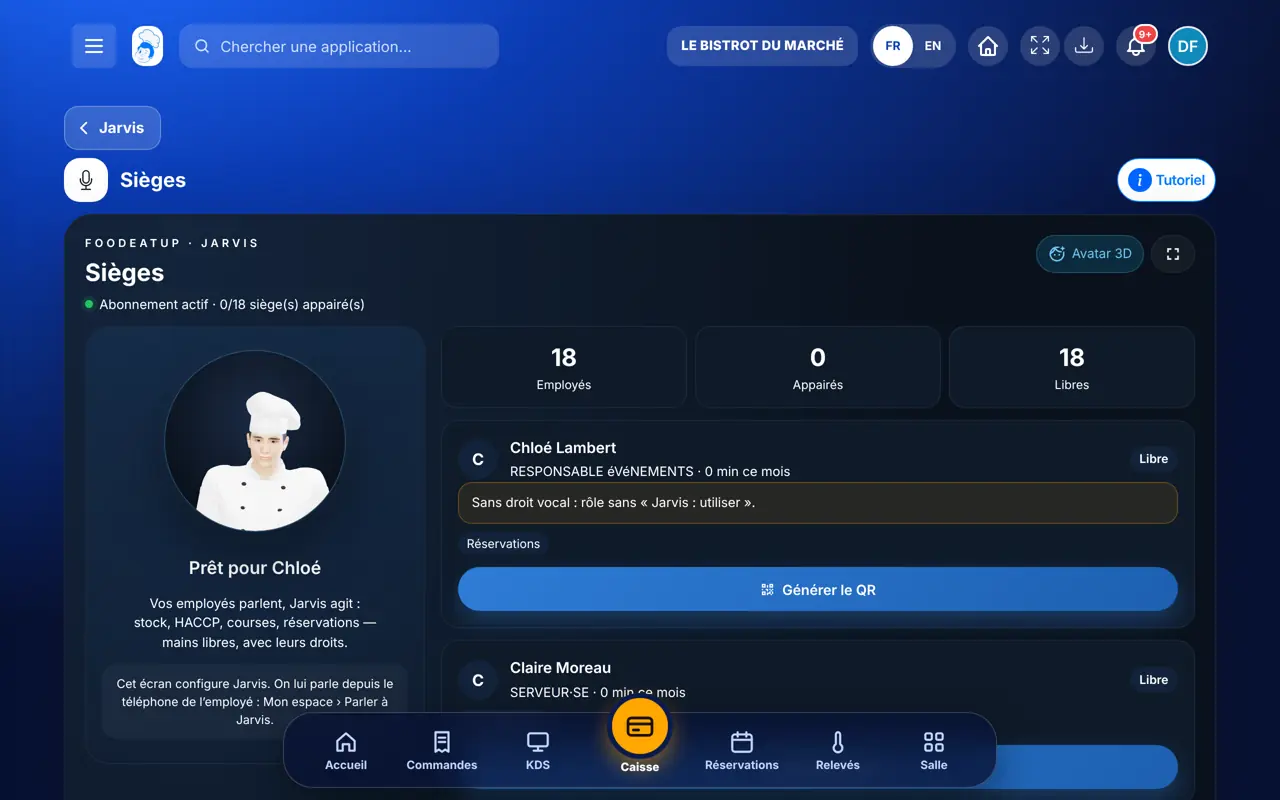
Tap “Sièges”: number of employees, linked devices and free seats, minutes used this month. “Révoquer” cuts off an employee who leaves: their phone loses Jarvis.
Tap “Activité”: the log of what Jarvis did, filtered by employee and type. A stock adjustment can be undone in one tap. The CSV button exports the log.
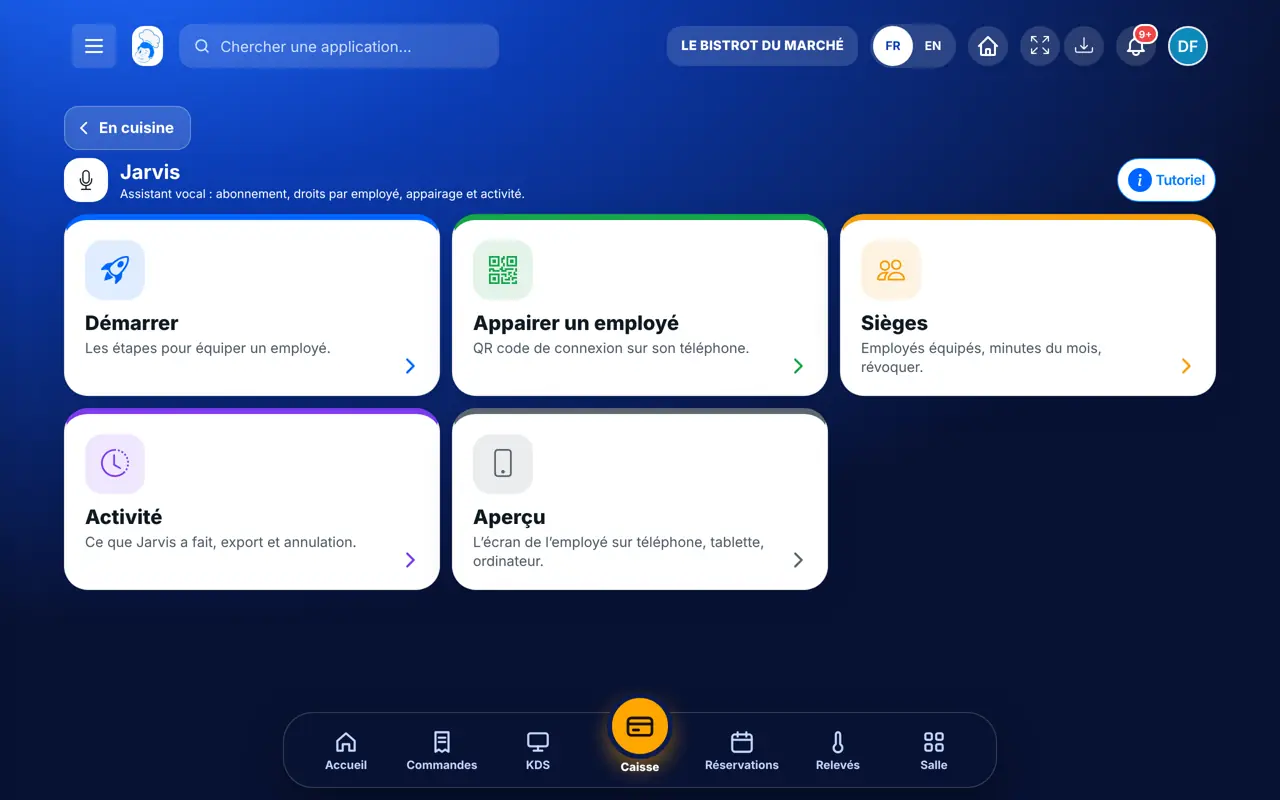
The employee’s phone is linked. Every request they make to Jarvis shows in the activity, with their name and the time.
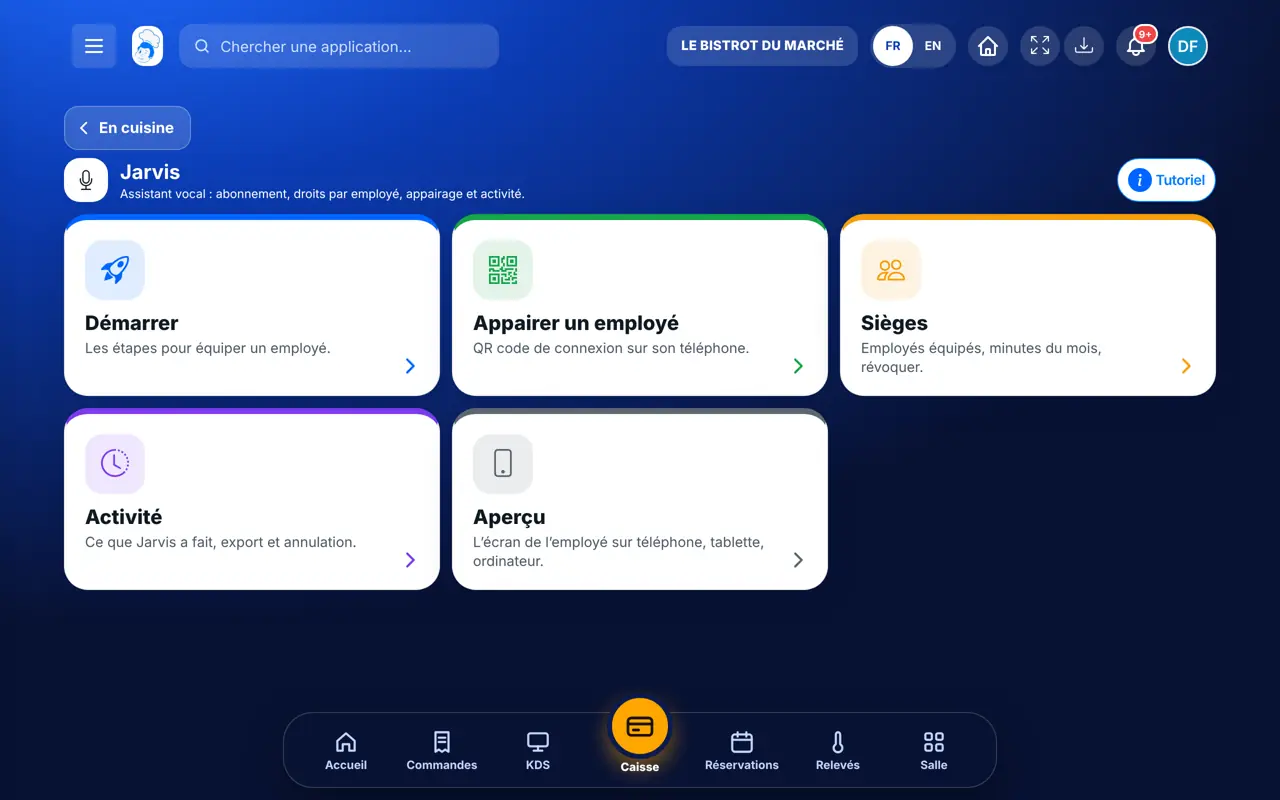
Takes the subscription, pairs phones, revokes access and reads the activity. This screen is not where you talk to Jarvis.
Talks to Jarvis from Mon espace › Jarvis, if their role has “Jarvis : utiliser”. Sees this management page only if their role allows it; generating a QR code or revoking requires the right to manage seats.
Claude, ChatGPT or Mistral’s Le Chat, connected to FoodEatUp. Copy the request and replace your establishment number.
In FoodEatUp, for my establishment [number], list the employees equipped with Jarvis and those who are not yet.
What you getThe list of seats: linked employees, free seats.
Tools used : list_jarvis_seats, list_employees
In FoodEatUp, for my establishment [number], tell me which roles are allowed to use Jarvis.
What you getThe list of roles and the “Jarvis : utiliser” right of each.
Tools used : list_roles
In FoodEatUp, for my establishment [number], list the employees on tonight’s service and tell me which ones do not have Jarvis yet.
What you getTonight’s employees and those to equip.
Tools used : list_plannings, list_jarvis_seats
The employee speaks, Jarvis logs: readings, stock, tables.
Jarvis acts with the employee’s role, nothing more.
The employee’s phone connects by scanning a code.
The log says who asked for what; a stock adjustment can be undone.
Equip one or two people in the kitchen first and watch the activity for a week. Once the habit is there, extend it to the floor.
In FoodEatUp, one action triggers others. Here are the screens that work with this one.
 TeamRôlesThe “Jarvis : utiliser” right is given to the employee’s role.→
 TeamEmployésAn employee must exist in the team before being equipped with Jarvis.→
 HACCPTemperaturesA temperature reading can be spoken to Jarvis instead of typed.→
 Voice agentCallsCaroline answers customers’ calls; Jarvis helps the team.→
Yes. Jarvis is an option, billed per equipped employee. Without it, the page offers to activate it.
Revoke their seat in “Sièges”: their phone loses access to Jarvis.
No. It acts with the rights of the employee’s role, and every action is logged in the activity.
Send it to your team, your partner or your accountant. The image below appears in the message.
Claude, ChatGPT or Le Chat read this tutorial and explain it to you. Connected to FoodEatUp, they do it with you.
Read this FoodEatUp tutorial: https://foodeatup.com/en/academy/service/service-jarvis.md Explain it to me simply, step by step, then help me do it in my restaurant. If FoodEatUp is connected to you, do it with me and show me the preview before every change.
Type your establishment number: the link takes you straight to this screen. The number stays on this device.
Discover Jarvis (in French) →
Répond avec les fiches du site, sans IA
Le chef cherche dans les fiches…
 Claude
 Le Chat
 ChatGPT