Requests received
In FoodEatUp, for my establishment [number], list online quote requests and tell me which are waiting for the customer’s answer.
What you getEach request, its amount and its status.
Tools used : list_online_quote_requests
 Website · Devis en ligne
For a group meal or an event, the customer builds their menu from your menu, sees the price straight away and receives the quote as a PDF. They accept it online and pay the deposit; the invoice goes out by itself.

 Patron / gérant
 Directeur
 Responsable de salle
The owner always has access. See what each role sees →
A computer to set up the module and follow requests.
The real software screens, as they appear on each device.


Receive quotes online : 5 steps, with the real software screens.
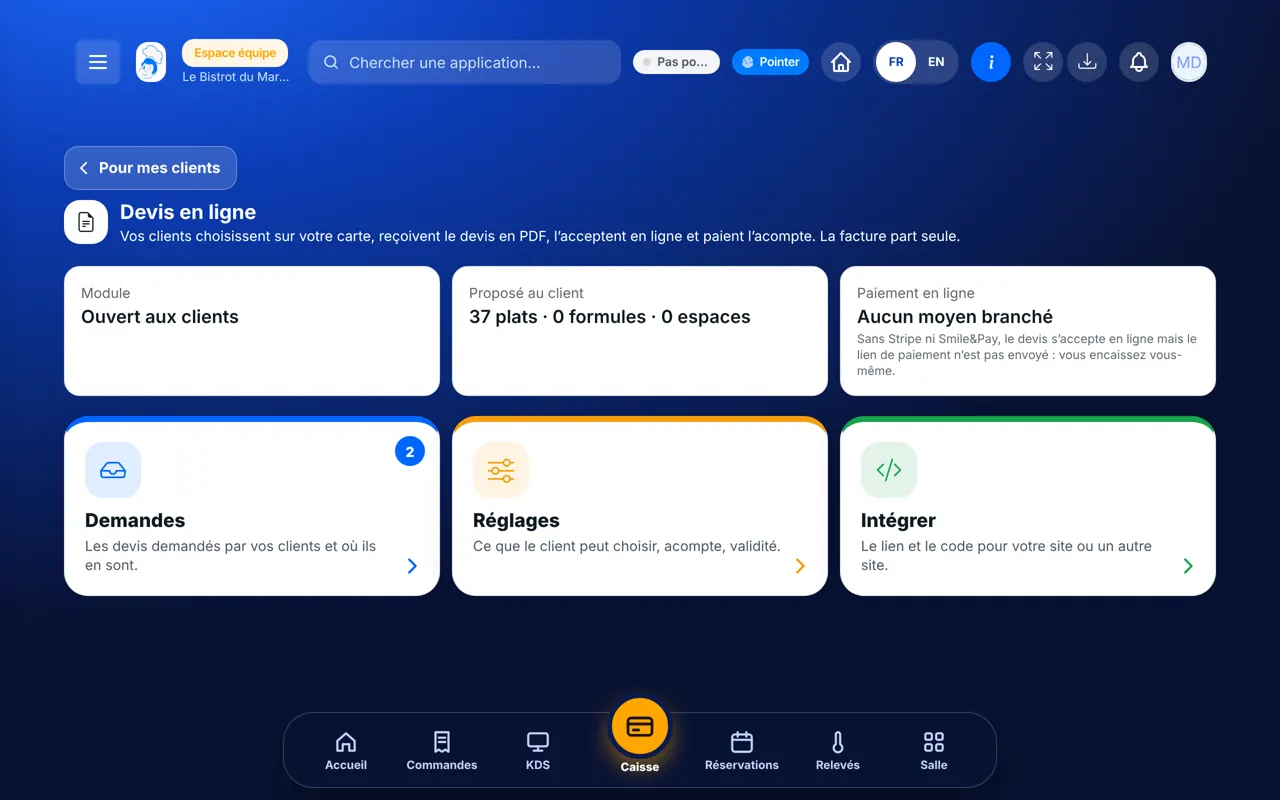
From the home screen, open Site web then “Devis en ligne”. Three cards: “Demandes”, “Réglages”, “Intégrer”.

Tap “Réglages”: dishes, set menus or spaces offered, minimum number of guests, notice, deposit, quote validity. Open the module to customers.
Tap “Intégrer”: a direct link (networks, e-mail, QR), a form to paste into a page, or a floating “Demander un devis” button.

Tap “Demandes”: each quote, its amount and where it stands (pending, accepted, paid).
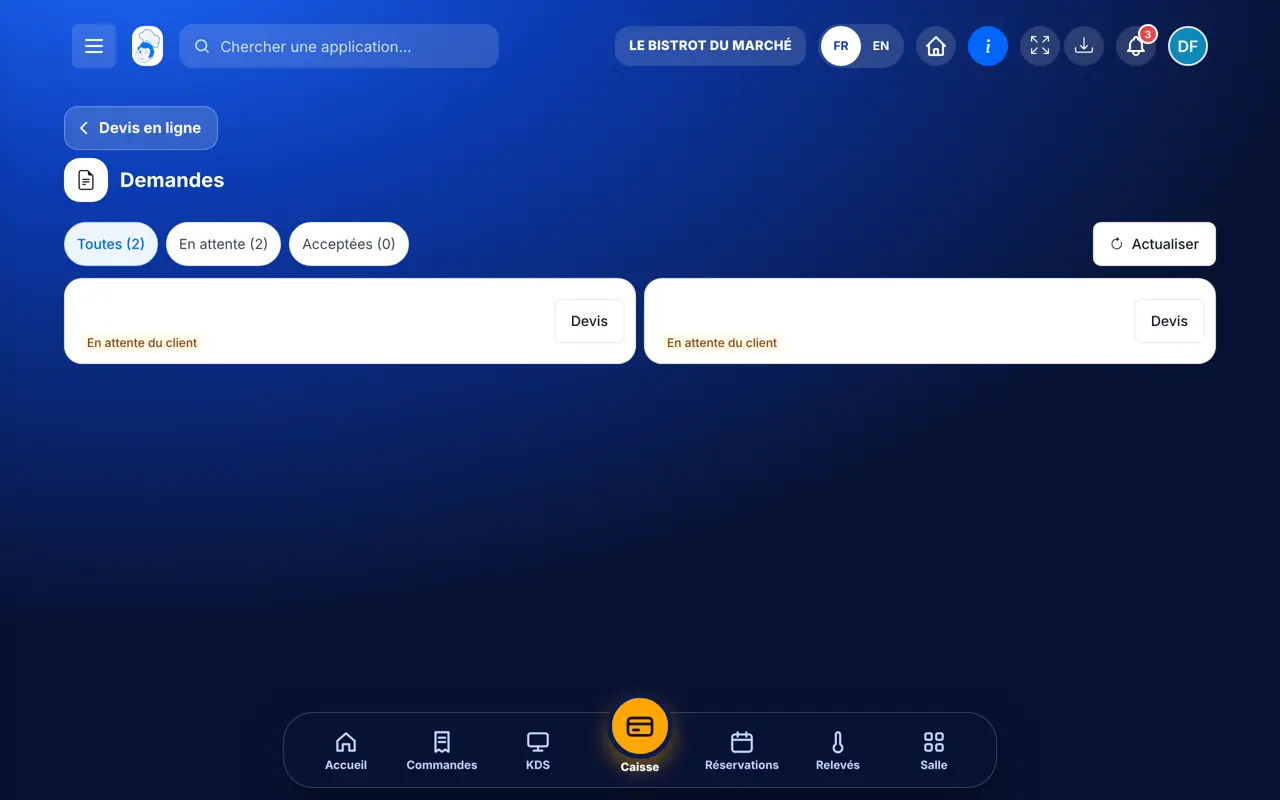
The customer accepts online and pays the deposit if a payment method is connected. The deposit invoice goes out by itself.
The form your customer sees: they choose dishes and the number of guests, and see the price before sending.

Sets up the module and follows quotes.
With the right to view quotes, follows requests. Changing settings needs the right to edit quotes.
Claude, ChatGPT or Mistral’s Le Chat, connected to FoodEatUp. Copy the request and replace your establishment number.
In FoodEatUp, for my establishment [number], list online quote requests and tell me which are waiting for the customer’s answer.
What you getEach request, its amount and its status.
Tools used : list_online_quote_requests
In FoodEatUp, for my establishment [number], estimate the price of a meal for [number] guests with [dishes].
What you getThe price calculated from your menu, with nothing created.
Tools used : estimate_online_quote
In FoodEatUp, for my establishment [number], show me the online quote settings (deposit, notice, minimum guests).
What you getThe module’s current settings.
Tools used : get_online_quote_settings
The customer builds the menu alone.
Calculated from your menu.
On your account, before the event.
It goes out on payment.
Put the direct link on your Instagram page and in your e-mails: most group requests come from there.
In FoodEatUp, one action triggers others. Here are the screens that work with this one.
Yes: the customer accepts online, but no payment link is sent. You collect the money yourself.
No. The browser only sends their choices; prices are recalculated from your menu.
It is a simple electronic acceptance (name, “agreed” box, date), not a qualified signature.
Send it to your team, your partner or your accountant. The image below appears in the message.
Claude, ChatGPT or Le Chat read this tutorial and explain it to you. Connected to FoodEatUp, they do it with you.
Read this FoodEatUp tutorial: https://foodeatup.com/en/academy/site/site-devis-en-ligne.md Explain it to me simply, step by step, then help me do it in my restaurant. If FoodEatUp is connected to you, do it with me and show me the preview before every change.
Type your establishment number: the link takes you straight to this screen. The number stays on this device.
Discover online quotes (in French) →
Répond avec les fiches du site, sans IA
Le chef cherche dans les fiches…
 Claude
 Le Chat
 ChatGPT