My ticket templates
In FoodEatUp, for my establishment [number], list my ticket templates and tell me which is the default.
What you getEach template and the default one.
Tools used : list_ticket_templates
 Website · Billets
For a night, a workshop or a concert, you sell tickets with a QR code. The ticket template carries your colours, notices and visual; each ticket reaches the customer as a PDF.

 Directeur
 Patron / gérant
 Barman
The owner always has access. See what each role sees →
A computer to design the template and see the ticket preview as a PDF.
The real software screens, as they appear on each device.


Create my event tickets : 5 steps, with the real software screens.
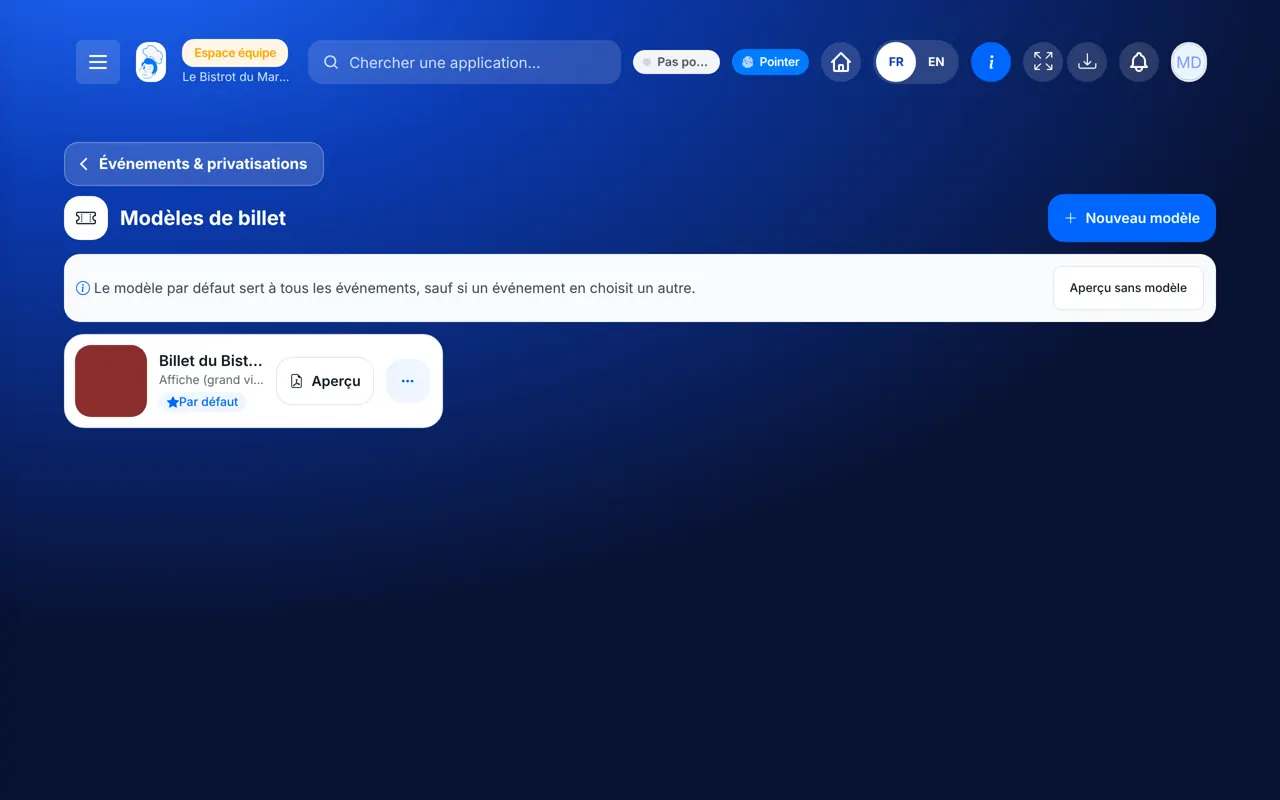
From the home screen, open Site web then “Billets”. Your templates are listed; the default template is used for all events.

Tap “Nouveau modèle”: layout (poster, banner, plain), colour, header image, title and subtitle.
Add your notices (named ticket, access…) and choose the printed fields (price, holder, order number).
Tap “Aperçu”: the ticket as a PDF, with example data. No real ticket is created.
In “Événements”, create the night, its tickets and prices, then put it on sale: each buyer gets their ticket.

The sales page for the “Soirée beaujolais” on your site: the customer chooses tickets and pays; they receive their PDF ticket with the QR code.

Designs templates, creates events and follows sales.
With the right to view events, checks sales. At the door, scans tickets from floor validation.
Claude, ChatGPT or Mistral’s Le Chat, connected to FoodEatUp. Copy the request and replace your establishment number.
In FoodEatUp, for my establishment [number], list my ticket templates and tell me which is the default.
What you getEach template and the default one.
Tools used : list_ticket_templates
In FoodEatUp, for my establishment [number], prepare the event “[name]” on [date] at [time], with [number] tickets at €[price]. Show me the preview before saving.
What you getA preview of the event, saved after confirmation.
Tools used : save_restaurant_event
In FoodEatUp, for my establishment [number], give me the ticket sales for event [name]: sold, remaining, collected.
What you getThe night’s fill rate and takings.
Tools used : get_event_sales
Layout, colour and visual.
Scanned once at the door.
Single use, not for resale: always printed.
With no real ticket created.
Prepare a single default template in your colours: all your events will use it, and you will only have to choose the prices.
In FoodEatUp, one action triggers others. Here are the screens that work with this one.
Yes, as a PDF by e-mail, as soon as payment is confirmed (or immediately for a free ticket).
No. The second scan is refused with the time of the first.
Yes, from the event’s sales, with a reason.
Send it to your team, your partner or your accountant. The image below appears in the message.
Claude, ChatGPT or Le Chat read this tutorial and explain it to you. Connected to FoodEatUp, they do it with you.
Read this FoodEatUp tutorial: https://foodeatup.com/en/academy/site/evenements-modeles.md Explain it to me simply, step by step, then help me do it in my restaurant. If FoodEatUp is connected to you, do it with me and show me the preview before every change.
Type your establishment number: the link takes you straight to this screen. The number stays on this device.
Discover events and ticketing (in French) →
Répond avec les fiches du site, sans IA
Le chef cherche dans les fiches…
 Claude
 Le Chat
 ChatGPT