All my QR codes
In FoodEatUp, for my establishment [number], list all my QR codes and tell me where each one leads.
What you getThe list of your QR codes and their destinations.
Tools used : list_establishment_qr_codes
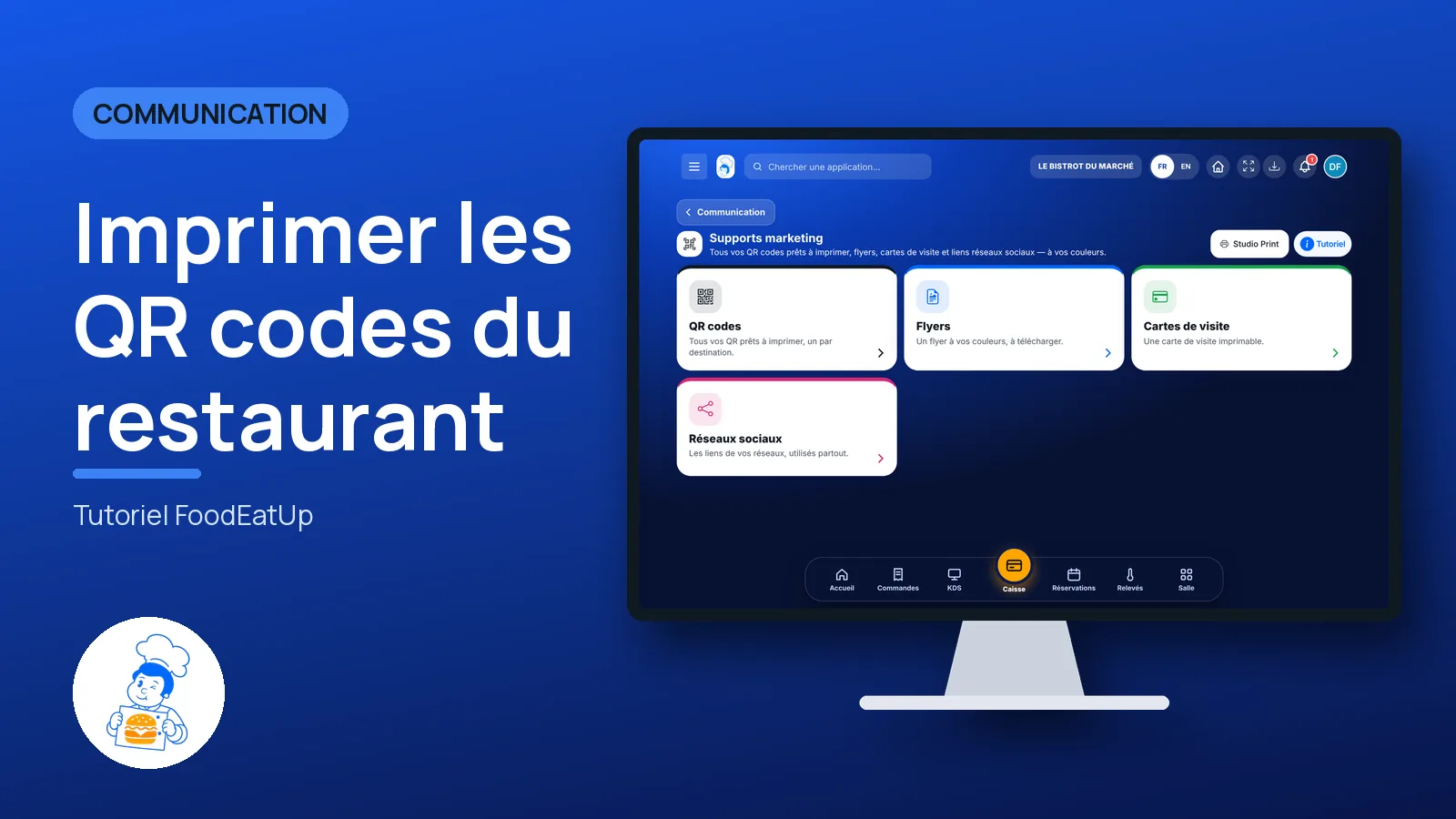
 Communication · Supports marketing
All your QR codes ready to print, one per destination: your website, the menu, bookings, games, loyalty. Also a flyer, a business card and your social media links.
 Patron / gérant
 Responsable de salle
 Directeur
 Hôte / caisse / comptoir
The owner always has access. See what each role sees →
A computer connected to a printer, to print a sheet of QR codes or download the files.
The real software screens, as they appear on each device.
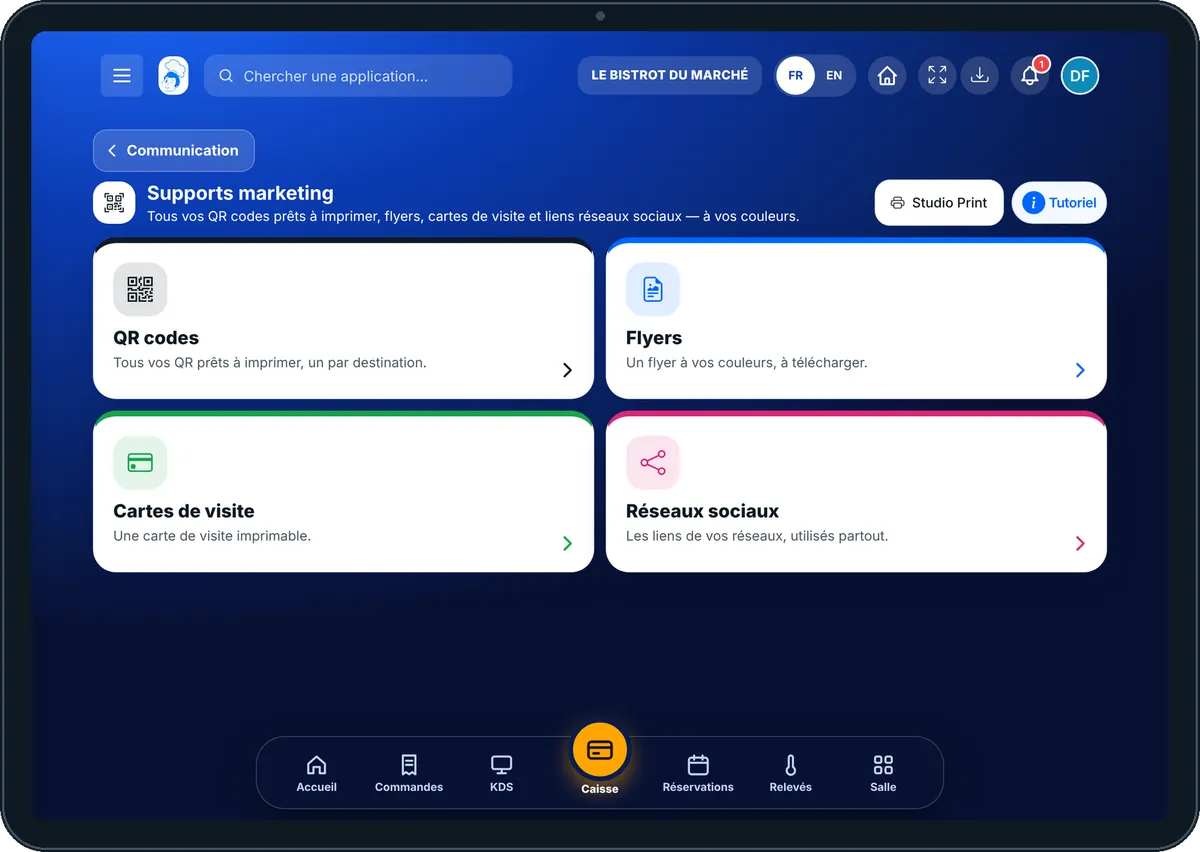
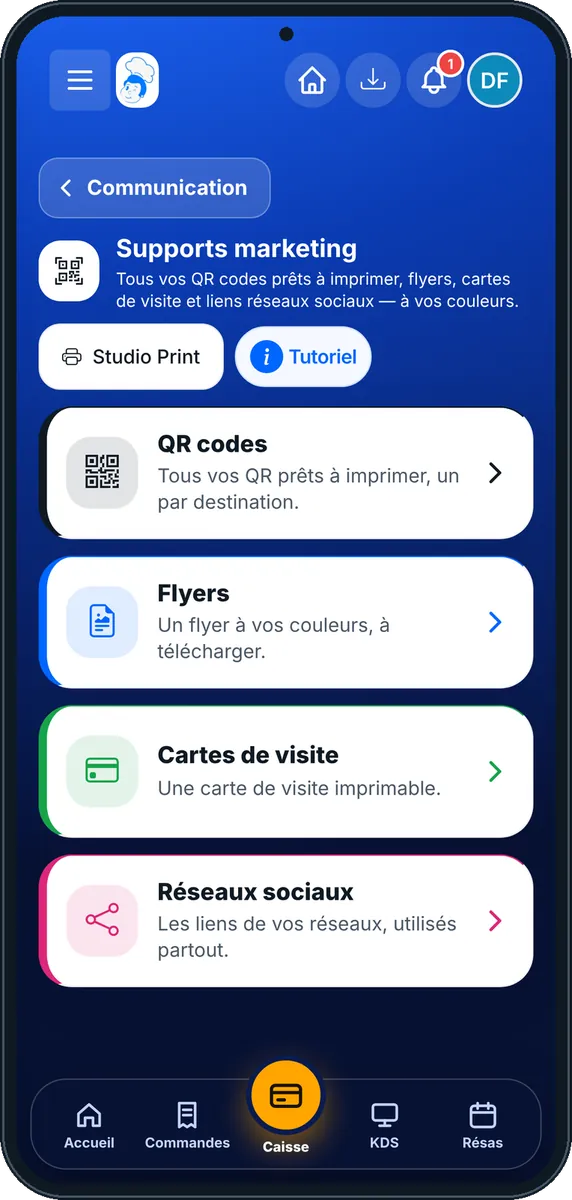
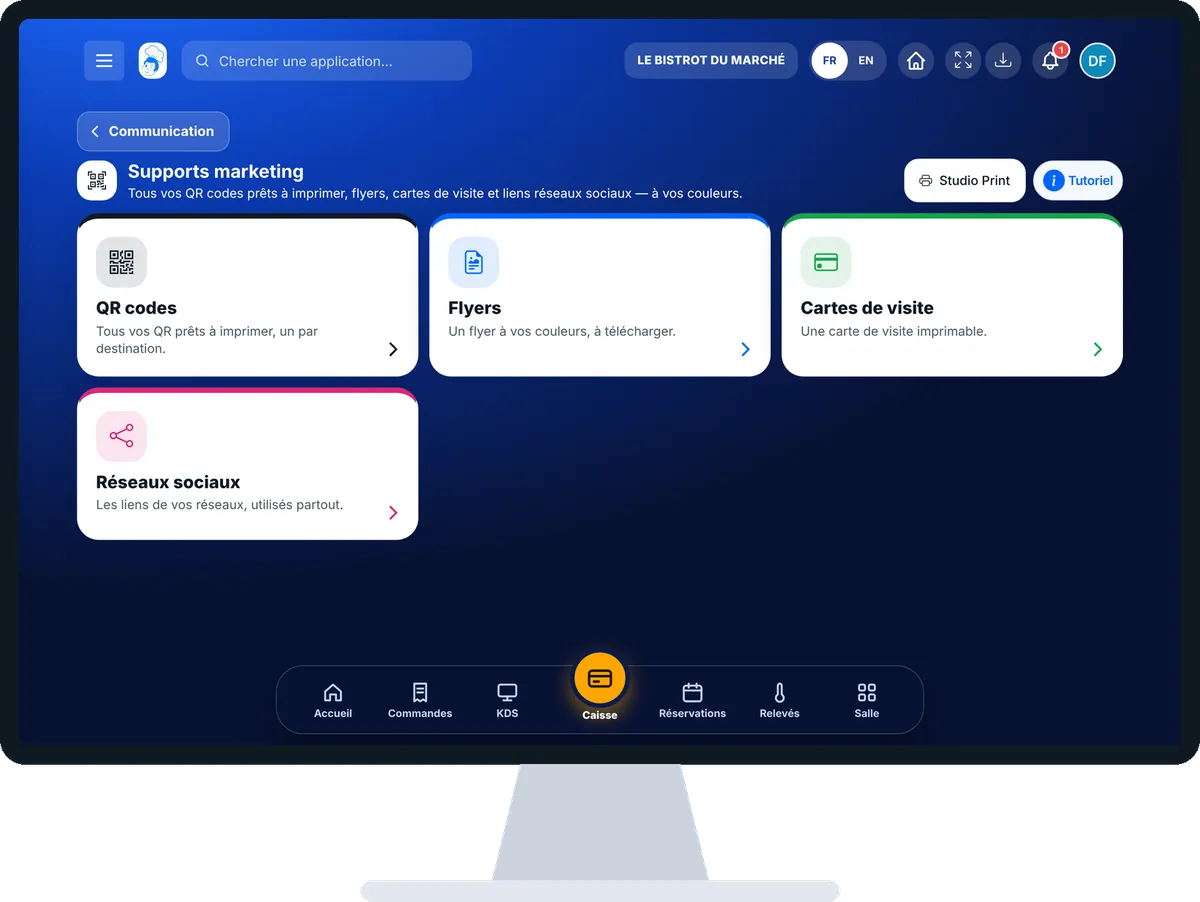
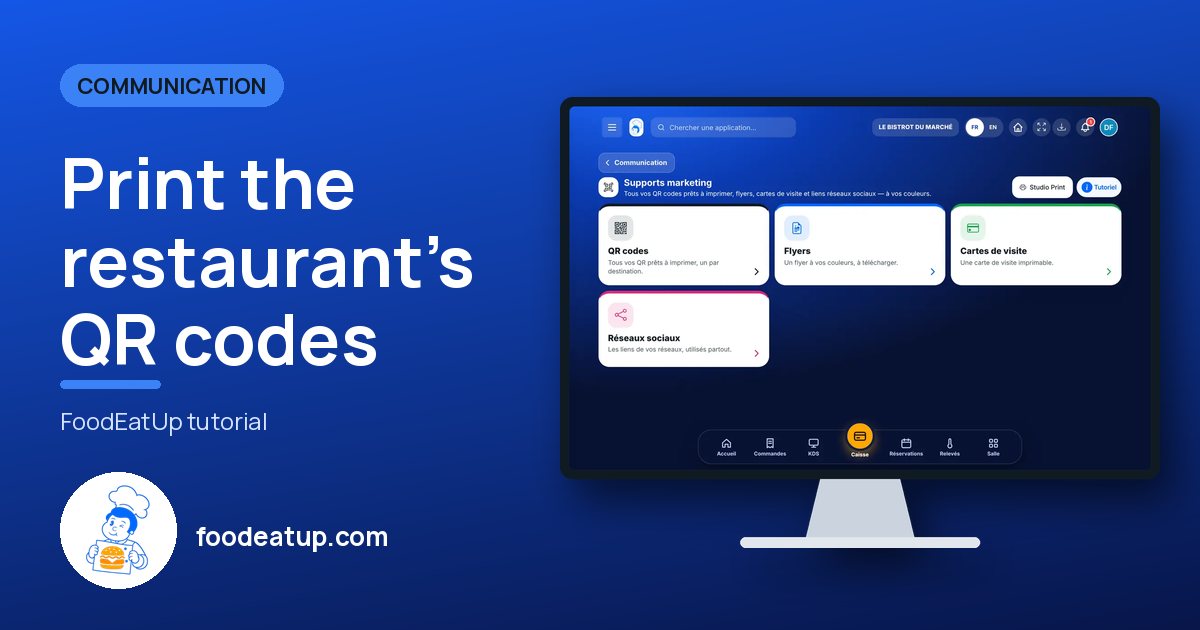
Print the restaurant’s QR codes : 5 steps, with the real software screens.
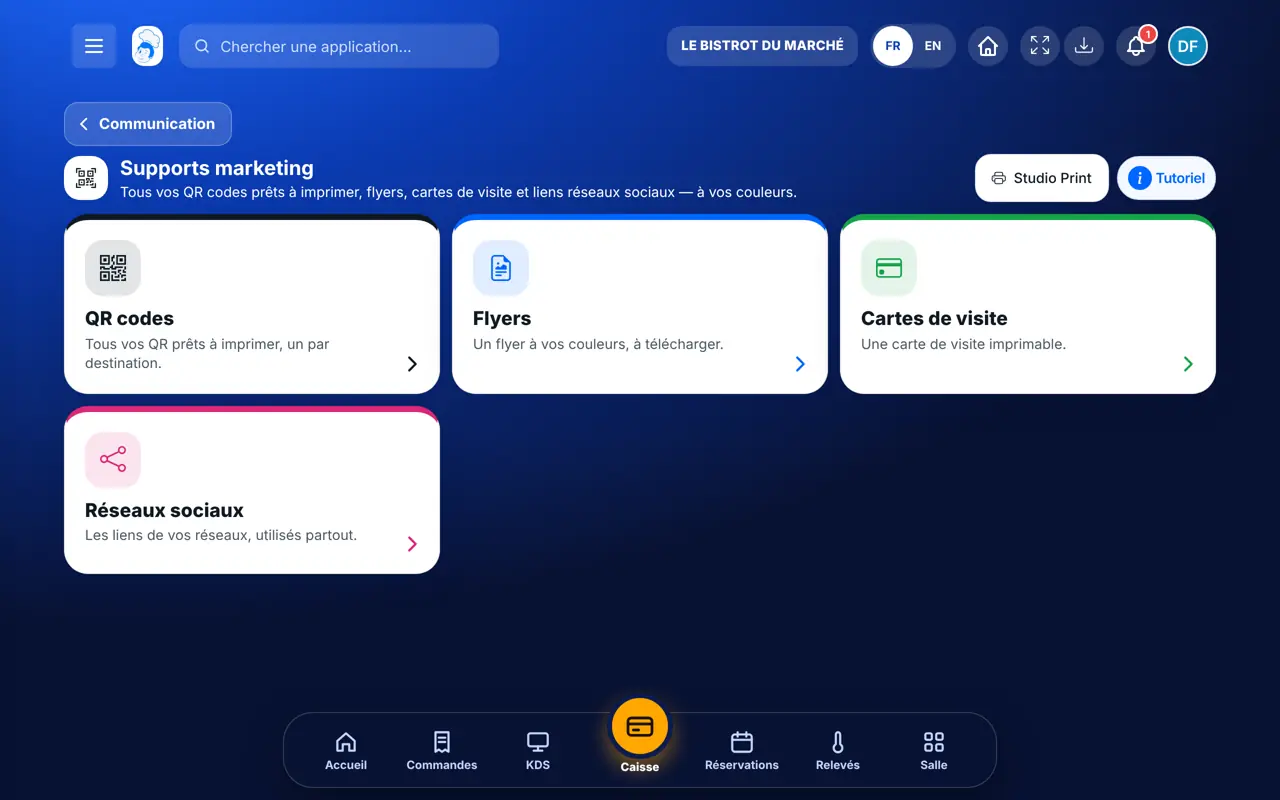
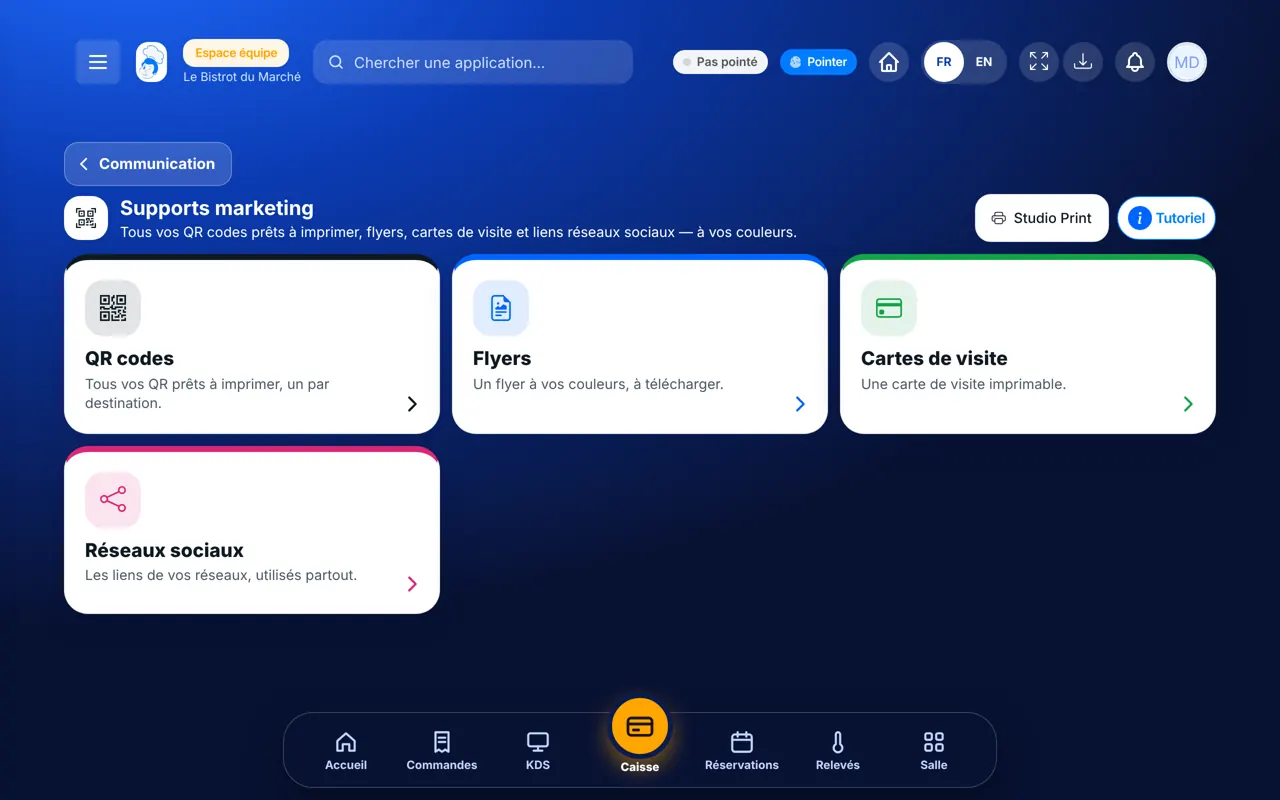
From the home screen, open Communication then “Supports marketing”. Four cards: “QR codes”, “Flyers”, “Cartes de visite” and “Réseaux sociaux”.
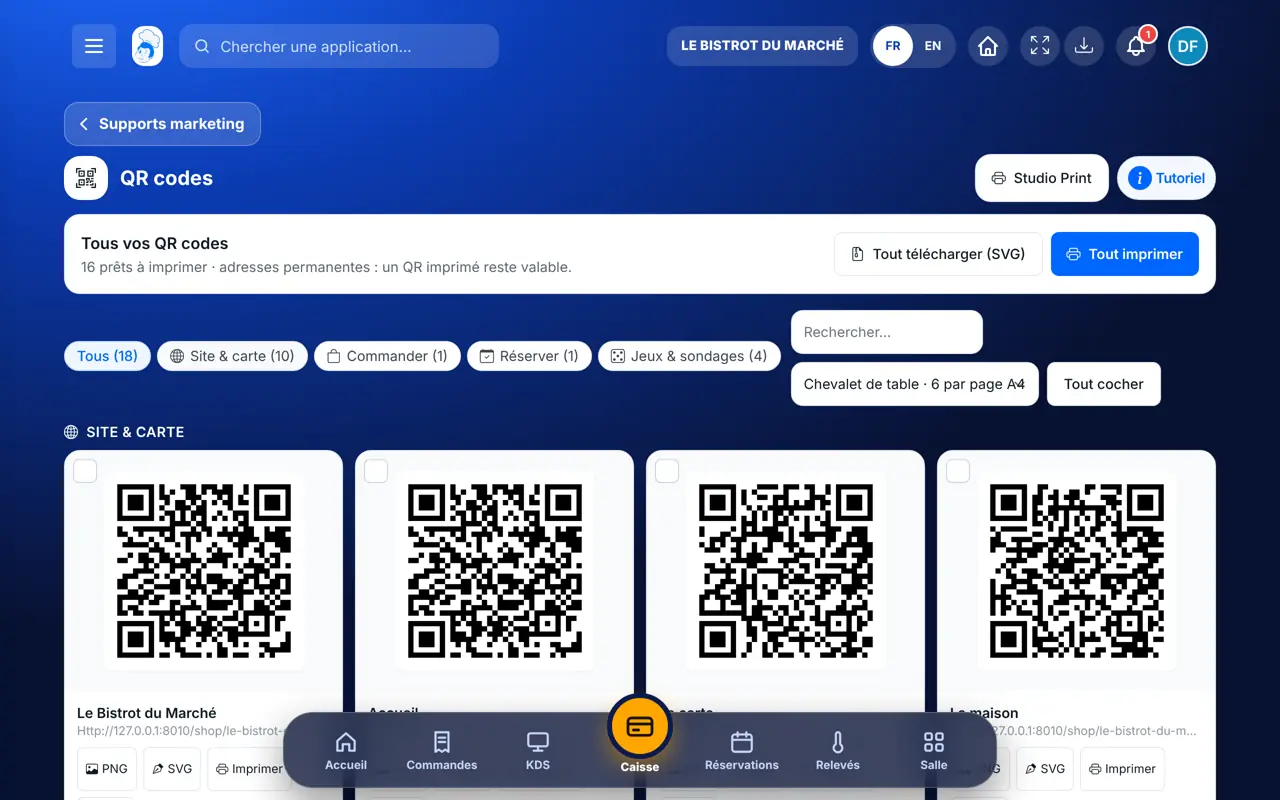
Tap “QR codes”. Each card shows a QR, its name and its address. The chips sort by use: “Site & carte”, “Commander”, “Réserver”, “Jeux & sondages”.
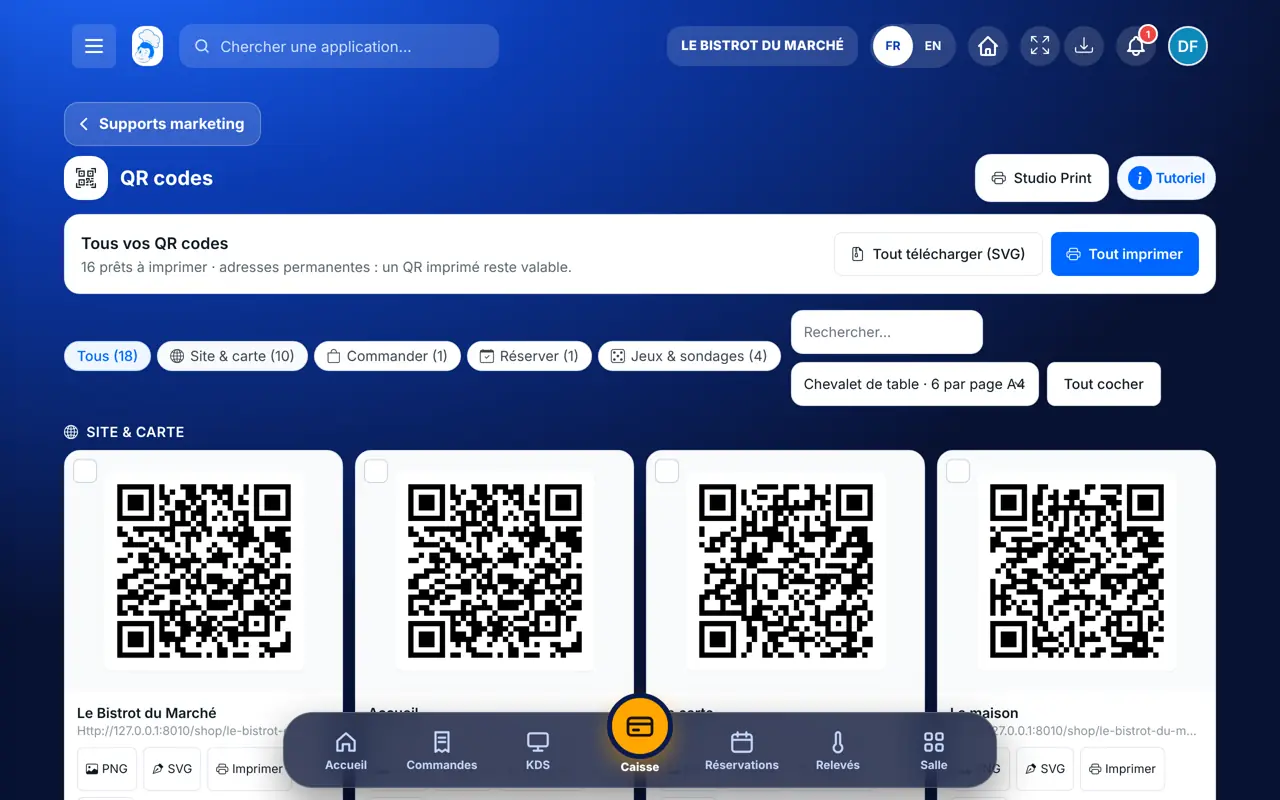
“Tout imprimer” prepares a sheet (choose “Chevalet de table · 6 par page A4” or another format). On each QR: “PNG”, “SVG”, “Imprimer” or “Lien”.
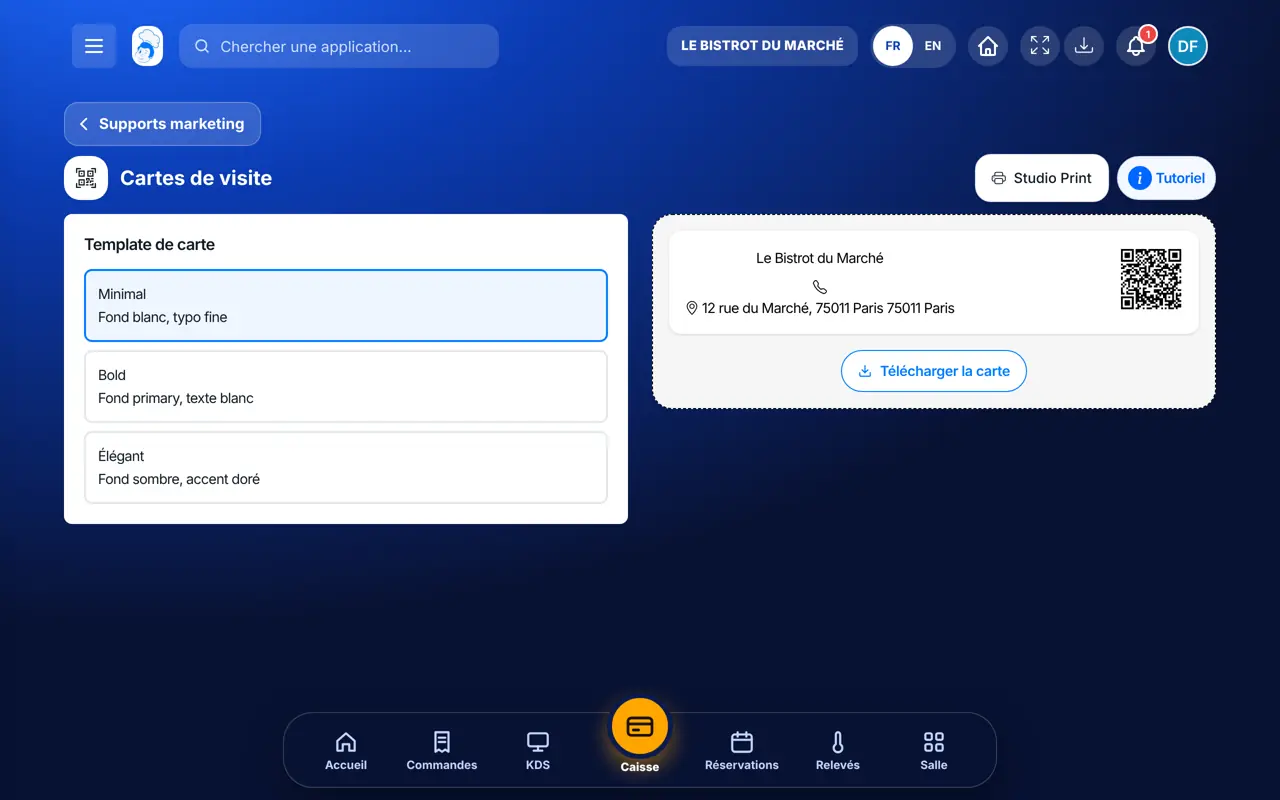
Tap “Flyers” or “Cartes de visite”: choose a template in your colours, check the preview, download.
Tap “Réseaux sociaux” and paste the addresses of your Instagram, Facebook, TikTok pages… They then show on your website, e-mails and business card.
A sheet of QR codes ready to cut out and put on tables, the window and the counter. Each QR leads to the right place, and will stay that way.
Prints QR codes, prepares flyers and business cards and enters the social networks.
With the right to view the menu, reprints a QR code or a sheet.
Claude, ChatGPT or Mistral’s Le Chat, connected to FoodEatUp. Copy the request and replace your establishment number.
In FoodEatUp, for my establishment [number], list all my QR codes and tell me where each one leads.
What you getThe list of your QR codes and their destinations.
Tools used : list_establishment_qr_codes
In FoodEatUp, for my establishment [number], give me the QR code for my booking page, to print.
What you getThe booking QR code.
Tools used : get_qr_destinations, get_qr_code
In FoodEatUp, for my establishment [number], tell me whether my online business card is published and what it shows.
What you getThe state of your business card and its blocks.
Tools used : get_business_card
One QR per destination, nothing to create.
A printed QR stays valid.
PNG or SVG in one tap.
Your social networks are used everywhere.
Print the “Chevalet de table” sheet with the menu QR on one side and the booking QR on the other: the customer orders today and books for next time.
In FoodEatUp, one action triggers others. Here are the screens that work with this one.
No: its address is permanent. If the page is no longer online, the screen says so on the QR card.
Here, plain QR codes and simple items. Studio Print composes posters, placemats and packaging with your dishes and prices.
PNG to print at home; SVG for a printer, who can enlarge it without losing quality.
Send it to your team, your partner or your accountant. The image below appears in the message.
Claude, ChatGPT or Le Chat read this tutorial and explain it to you. Connected to FoodEatUp, they do it with you.
Read this FoodEatUp tutorial: https://foodeatup.com/en/academy/communication/marketing.md Explain it to me simply, step by step, then help me do it in my restaurant. If FoodEatUp is connected to you, do it with me and show me the preview before every change.
Type your establishment number: the link takes you straight to this screen. The number stays on this device.
Discover FoodEatUp QR codes (in French) →
Répond avec les fiches du site, sans IA
Le chef cherche dans les fiches…
 Claude
 Le Chat
 ChatGPT